
A music library full of FLAC albums, tagged compilations, and long playlists gets messy fast, and Strawberry is one of the better Linux players for keeping that under control. You can install Strawberry on Fedora from Fedora’s repositories or from Flathub when you want a desktop player focused on local collections, smart playlists, tag editing, Last.fm and ListenBrainz scrobbling, and Subsonic-compatible streaming.
For most Fedora desktops, the DNF package is the right place to start because it stays inside normal system updates and uses Fedora’s package metadata. Choose the Flatpak build when you already manage desktop apps through Flathub or want Strawberry’s app profile and runtime managed separately from Fedora packages.
Install Strawberry on Fedora
Strawberry is available as the strawberry package in Fedora’s repositories, and Flathub publishes the org.strawberrymusicplayer.strawberry app. If the upstream download page has not published a direct RPM for your Fedora release, use DNF or Flatpak instead of installing a mismatched RPM from another release. The DNF and Flatpak methods here have clearer update and removal ownership on a normal Fedora desktop.
Choose a Strawberry install method
Start with DNF unless you specifically prefer Flathub packaging. Flathub flags Strawberry as potentially unsafe, and the app needs audio, network, device, and music-folder access, so treat Flatpak as a packaging and update choice rather than a strict security boundary.
| Method | Source or Channel | Update Behavior | Best For | Trade-offs |
|---|---|---|---|---|
| DNF | Fedora repositories | With normal Fedora package updates | Most Fedora Workstation users | Version follows Fedora’s package stream |
| Flatpak | Flathub | With Flatpak app and runtime updates | Users who already manage desktop apps through Flathub | Uses a separate app profile and Flatpak runtime |
Pick one method unless you deliberately want both builds. DNF and Flatpak installs can coexist, but they keep separate app profiles and update through different managers.
Update Fedora before installing Strawberry
Refresh package metadata and apply pending updates first so Strawberry resolves from current Fedora repositories:
sudo dnf upgrade --refreshThese commands use
sudofor tasks that need root privileges. If your account is not in the sudoers file yet, follow the guide on how to add a user to sudoers on Fedora.
Install Strawberry with DNF
Install the Fedora package with DNF. Fedora’s package exports a desktop launcher and file associations, so Strawberry appears in Activities after the transaction finishes. For broader package-manager examples, see the DNF5 install command guide for Fedora.
sudo dnf install strawberryVerify that Fedora installed Strawberry correctly. The version and Fedora suffix can differ after repository updates.
rpm -q strawberrystrawberry-1.2.19-1.fc44.x86_64
Install Strawberry with Flatpak
Use the Flatpak build when you want Strawberry from Flathub with a separate app runtime. Fedora Workstation normally includes Flatpak, but Flathub is still opt-in on a fresh system.
sudo flatpak remote-add --if-not-exists flathub https://dl.flathub.org/repo/flathub.flatpakrepoNo output usually means the Flathub remote is ready. These commands keep the Flatpak install at system scope so the install, update, and removal steps stay consistent.
sudo flatpak install flathub org.strawberrymusicplayer.strawberryAfter the install finishes, confirm that the Flatpak app ref is present:
flatpak info --show-ref org.strawberrymusicplayer.strawberryapp/org.strawberrymusicplayer.strawberry/x86_64/stable
Launch Strawberry on Fedora
After installation, you can open Strawberry from a terminal or directly from Fedora Activities.
Launch Strawberry from the terminal
Search for Terminal in Activities if you want a shell, then use the command that matches your install method:
strawberryFor the Flatpak build, run:
flatpak run org.strawberrymusicplayer.strawberryLaunch Strawberry from Fedora Activities
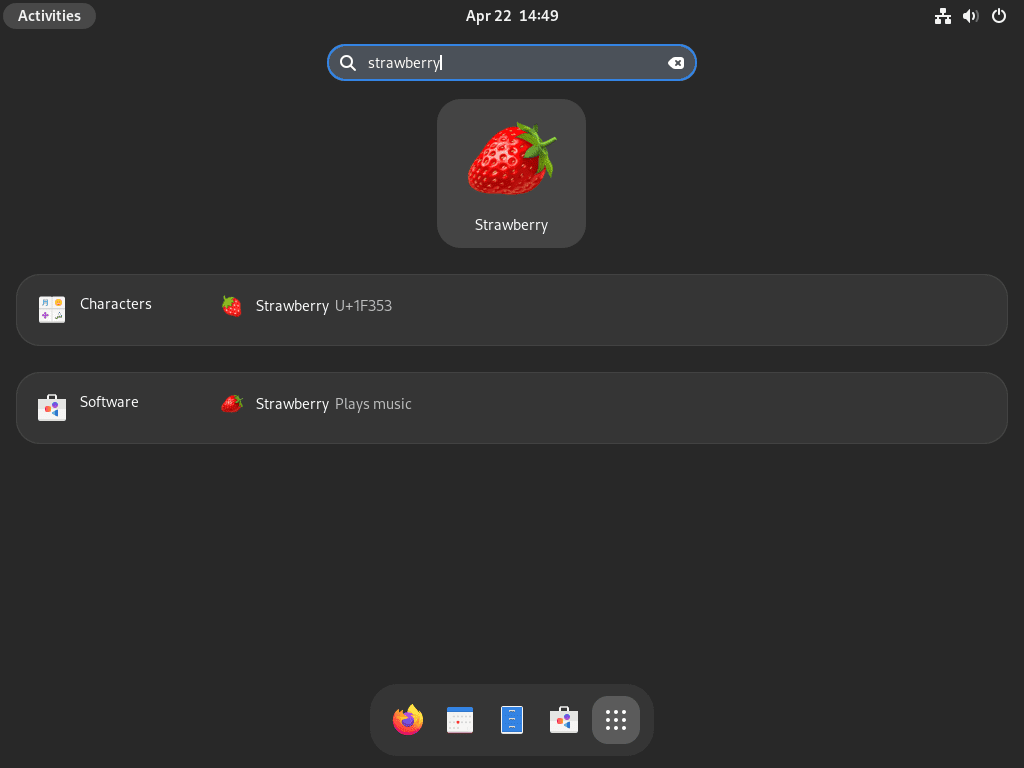
Open Activities, search for Strawberry, then launch it from the search results or the application grid.
- Open Activities.
- Type Strawberry in the search bar.
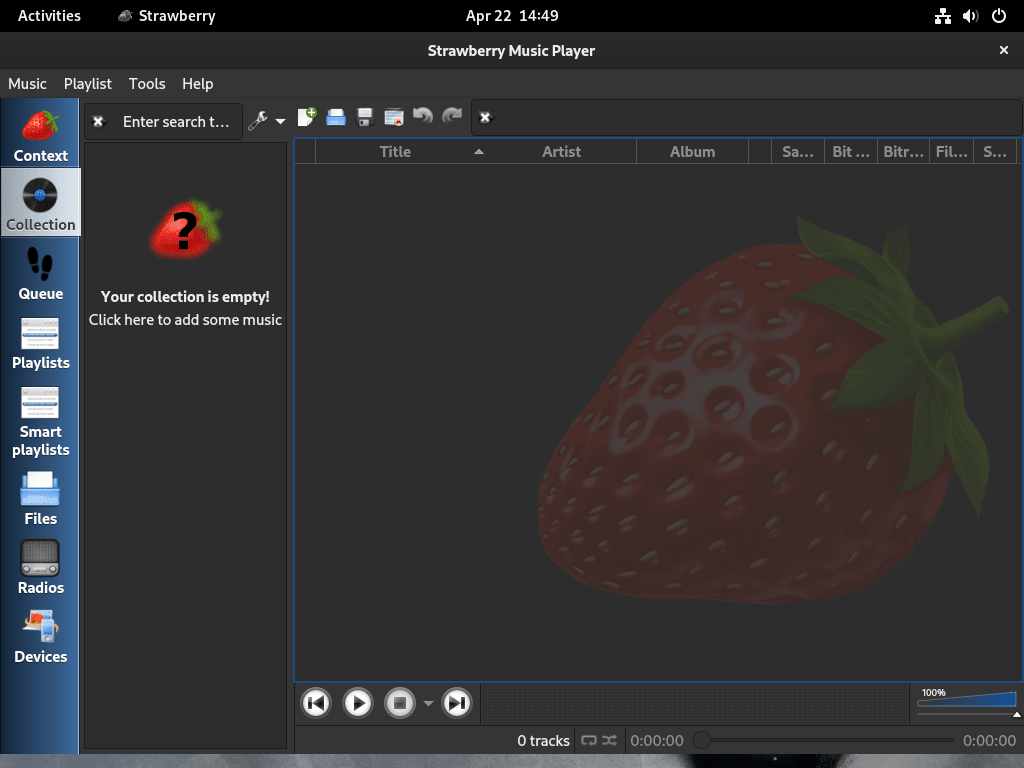
- Click the Strawberry icon to start the player.
Set Up Strawberry Music Libraries on Fedora
Start by adding the folder that contains your albums, usually ~/Music on a Fedora desktop. Strawberry is built for local collections, so its strongest features appear after it scans your music folders: tag editing, album art lookup, smart playlists, ratings, and queue management.
The Flatpak build already has access to the normal music folder and common removable-media paths such as /media, /mnt, and /run/media. If your library lives somewhere else, move or mount the music under one of those paths first so Strawberry can scan it without broad extra permissions.
Update Strawberry on Fedora
Update Strawberry with DNF
Check that the Fedora package is installed before running an app-specific update:
rpm -q strawberryUpdate only Strawberry with DNF:
sudo dnf upgrade strawberryIf you prefer to update everything on the system at the same time, run sudo dnf upgrade --refresh instead.
Update the Strawberry Flatpak build
For the system-scope Flatpak install, update Strawberry with Flatpak:
sudo flatpak update org.strawberrymusicplayer.strawberryRemove Strawberry from Fedora
Use the removal command that matches the way you installed Strawberry.
Remove the Strawberry DNF package
The Fedora package removes cleanly with DNF:
sudo dnf remove strawberryConfirm that the package is gone:
rpm -q strawberrypackage strawberry is not installed
Remove the Strawberry Flatpak build
Remove the system-scope Flatpak app without deleting your per-user Strawberry profile:
sudo flatpak uninstall org.strawberrymusicplayer.strawberryVerify that the Flatpak app is no longer installed at system scope:
flatpak list --system --app --columns=application | grep -Fx org.strawberrymusicplayer.strawberry || echo "Strawberry Flatpak is not installed"Strawberry Flatpak is not installed
Remove Strawberry user data on Fedora
Removing these directories permanently deletes Strawberry preferences, playlists, cache files, and local library metadata for the current user. Export or back up playlists and settings first, and keep these paths if you plan to reinstall the player later.
Check which Strawberry data paths exist before deleting anything:
for path in "$HOME/.config/strawberry" "$HOME/.cache/strawberry" "$HOME/.local/share/strawberry" "$HOME/.var/app/org.strawberrymusicplayer.strawberry"; do
  [ -e "$path" ] && printf '%s\n' "$path"
done
No output means Strawberry has no matching data paths for your account. To remove the DNF profile, cache, local library metadata, and Flatpak app profile for the current user, delete the checked paths:
rm -rf "$HOME/.config/strawberry" "$HOME/.cache/strawberry" "$HOME/.local/share/strawberry" "$HOME/.var/app/org.strawberrymusicplayer.strawberry"Run the same check again. No output means the local Strawberry data paths are gone for the current user:
for path in "$HOME/.config/strawberry" "$HOME/.cache/strawberry" "$HOME/.local/share/strawberry" "$HOME/.var/app/org.strawberrymusicplayer.strawberry"; do
  [ -e "$path" ] && printf '%s\n' "$path"
done
Troubleshoot Strawberry on Fedora
Most Strawberry problems on Fedora come from missing codecs or from the local audio session, not from the package install itself. Start with the symptom that matches what the player is doing.
Fix missing codecs in Strawberry on Fedora
If Strawberry opens but certain files fail to play, launch it from a terminal first so you can see the actual GStreamer error.
strawberryFor the Flatpak build, use:
flatpak run org.strawberrymusicplayer.strawberryA missing codec usually looks like this:
GStreamer error: Your GStreamer installation is missing a plug-in.
Could not determine type of stream
Install Fedora’s extra free GStreamer codec packages first:
sudo dnf install gstreamer1-plugins-bad-free gstreamer1-plugins-ugly-freeIf DNF reports those packages are already installed and the same file still fails, install RPM Fusion on Fedora for codecs Fedora does not ship by default, then retest the file in Strawberry.
For the Flatpak build, update Strawberry with sudo flatpak update org.strawberrymusicplayer.strawberry before adding host codec packages. Flatpak apps use their own runtime, so host-side GStreamer packages do not always change Flatpak playback behavior.
Fix no audio output in Strawberry on Fedora
Run the next checks inside the same desktop session that launched Strawberry. A separate remote shell can report inactive user audio services even when the local desktop is fine.
systemctl --user is-active pipewire pipewire-pulse wireplumberactive active active
If one of those services is not active in your desktop session, restart PipeWire, its PulseAudio compatibility service, and WirePlumber:
systemctl --user restart pipewire pipewire-pulse wireplumberThen verify that the user audio services came back cleanly:
systemctl --user is-active pipewire pipewire-pulse wireplumberactive active active
Conclusion
Strawberry is installed on Fedora through either the Fedora package or the Flatpak build, with update and removal paths separated by method. If playback still depends on formats Fedora leaves out, install RPM Fusion on Fedora for broader codec coverage, or compare other music players by learning how to install SMPlayer on Fedora and install Exaile on Fedora.


Formatting tips for your comment
You can use basic HTML to format your comment. Useful tags currently allowed in published comments:
<code>command</code>command<strong>bold</strong><em>italic</em><a href="https://example.com">link</a><blockquote>quote</blockquote>