
Older Windows programs often need more than a plain Wine prefix, especially when each app expects different libraries, Windows versions, or installer workarounds. You can install PlayOnLinux on Fedora to manage those prefixes from a graphical interface, choose packaged install scripts, and keep separate Windows application environments apart from each other.
Fedora offers two practical paths: the Fedora repository package for the classic PlayOnLinux 4 interface, or the Flathub package for Phoenicis PlayOnLinux. Use the DNF method first unless you specifically want the Flathub build, because Fedora’s package is maintained inside the normal Fedora repositories and the current Flathub listing is unverified, marked potentially unsafe, and tied to an end-of-life Flatpak runtime.
Install PlayOnLinux on Fedora
Choose one method. Installing both is possible, but Fedora’s application search can then show two different launchers: PlayOnLinux from DNF and Phoenicis PlayOnLinux from Flathub.
| Method | Source or Channel | Update Behavior | Best For | Trade-offs |
|---|---|---|---|---|
| DNF package | Fedora package | Updates through normal dnf upgrade transactions | Most Fedora Workstation users who want Fedora-managed packages | Installs Wine and related dependencies through Fedora packages |
| Flatpak | Flathub app | Updates through flatpak update | Users who prefer Flathub packaging or want Phoenicis PlayOnLinux | Flathub labels the app unverified and potentially unsafe; install output also warns that the Freedesktop 22.08 runtime is end-of-life |
These steps target Fedora Workstation or another mutable Fedora desktop with a graphical session. Fedora Atomic desktops use different host package workflows, so do not use the DNF path there unless you intentionally manage host package layering; use the Flatpak method only with the safety caveat above.
Prepare Fedora Before Installing PlayOnLinux
Refresh Fedora’s package metadata and apply pending updates before installing desktop software:
sudo dnf upgrade --refreshThese commands use
sudofor system-level package changes. If your account is not in the wheel group yet, configure it with the Fedora sudoers setup before continuing.
Install PlayOnLinux with DNF
The Fedora package is named playonlinux. DNF also resolves the Wine, Python, wxPython, cabextract, and terminal dependencies that the package needs.
sudo dnf install playonlinuxVerify the package and launcher command after installation:
rpm -q playonlinux
command -v playonlinux
Install Phoenicis PlayOnLinux with Flatpak
Fedora Workstation normally includes Flatpak. On a minimal mutable Fedora install where the command is missing, install the Flatpak package first:
sudo dnf install flatpakAdd Flathub as a system-wide Flatpak remote:
sudo flatpak remote-add --if-not-exists flathub https://dl.flathub.org/repo/flathub.flatpakrepoCheck the exact Flathub app record before installing. The app ID is org.phoenicis.playonlinux, not playonlinux:
flatpak remote-info flathub org.phoenicis.playonlinuxCurrent Flatpak install output warns that the Freedesktop 22.08 runtime used by this app is end-of-life. Keep the Flatpak method only if you accept that runtime state and the Flathub safety label.
Install the Flathub app after confirming the record:
sudo flatpak install flathub org.phoenicis.playonlinuxVerify the installed Flatpak metadata:
flatpak info org.phoenicis.playonlinuxLaunch PlayOnLinux on Fedora
Launch the Fedora package from a terminal with the package command:
playonlinuxLaunch the Flatpak build with its app ID:
flatpak run org.phoenicis.playonlinuxFrom the desktop, open Activities, search for PlayOnLinux, and select the launcher that matches your method. The classic Fedora package appears as PlayOnLinux, while the Flathub app appears as Phoenicis PlayOnLinux.
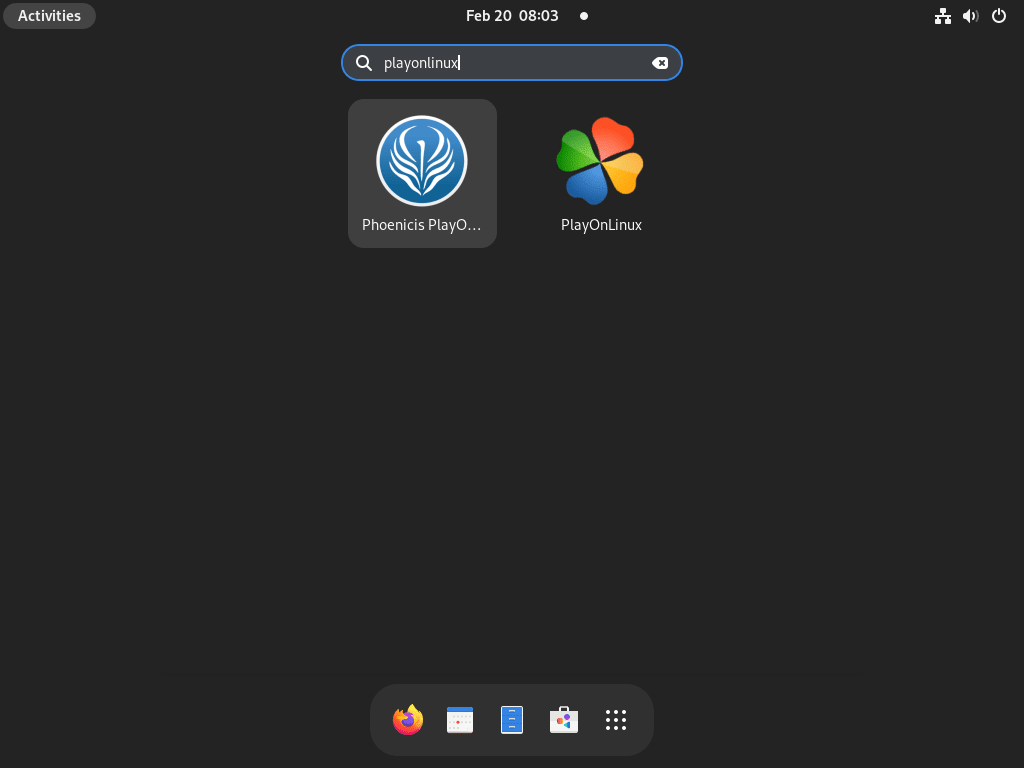
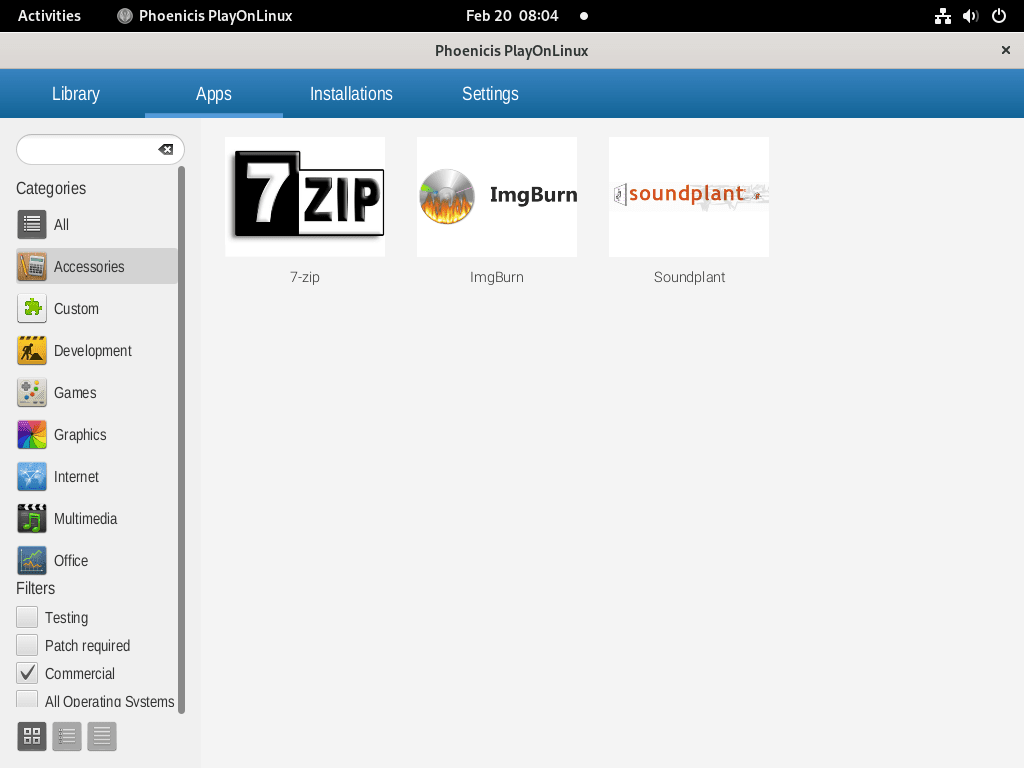
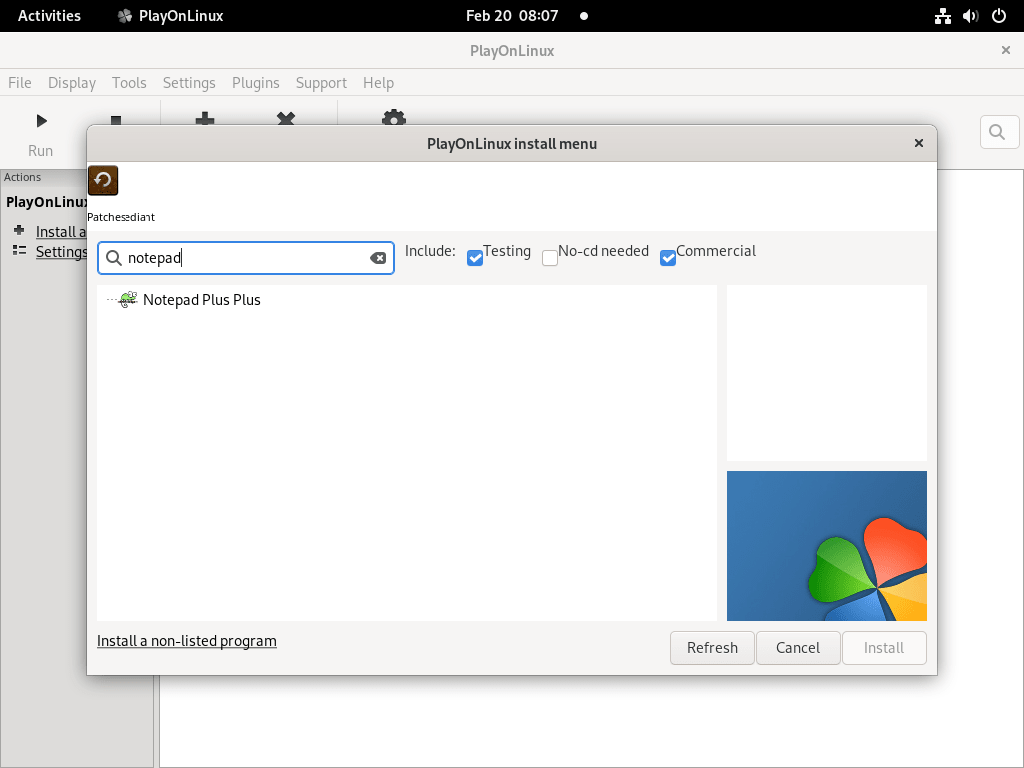
After launch, use the Install view to choose a packaged script or select the non-listed program option for a manual installer. PlayOnLinux can simplify Wine prefixes, but it does not guarantee that every Windows .exe installer or game will run correctly.
Update PlayOnLinux on Fedora
For the Fedora package, update PlayOnLinux through the same DNF transaction that updates the rest of the system:
sudo dnf upgrade --refreshFor the Flatpak method, update the PlayOnLinux app and any matching Flatpak runtime updates from Flathub:
sudo flatpak update org.phoenicis.playonlinuxRemove PlayOnLinux from Fedora
Remove the Fedora package with DNF:
sudo dnf remove playonlinuxConfirm that the RPM package is no longer installed:
rpm -q playonlinuxRemove the Flatpak app while keeping its saved data:
sudo flatpak uninstall org.phoenicis.playonlinuxRun the data-removal variant instead of the normal uninstall command only when you no longer need saved PlayOnLinux settings, prefixes, or downloaded application state for that Linux user account.
sudo flatpak uninstall --delete-data org.phoenicis.playonlinuxConfirm that the system-wide Flatpak app ID is absent after either removal path:
flatpak list --system --app --columns=application | grep -Fx org.phoenicis.playonlinux || echo "NOT_INSTALLED"Check whether Flatpak user data still exists after removal:
if [ -e "$HOME/.var/app/org.phoenicis.playonlinux" ]; then
  echo "Flatpak user data still exists"
else
  echo "Flatpak user data removed or was not present"
fi
Troubleshoot PlayOnLinux on Fedora
DNF Cannot Find the PlayOnLinux Package
Fedora uses DNF, not APT, so commands such as sudo apt install playonlinux are for Debian-family distributions. Check the Fedora package record with DNF:
dnf info playonlinuxIf DNF still cannot see the package, refresh metadata and retry the install. For broader package-manager examples, use the DNF5 install command reference for Fedora.
sudo dnf clean metadata
sudo dnf install playonlinux
Flathub Remote Is Missing or Disabled
If Flatpak reports that the Flathub remote does not exist, add the remote again:
sudo flatpak remote-add --if-not-exists flathub https://dl.flathub.org/repo/flathub.flatpakrepoIf Flathub exists but is disabled, re-enable it:
sudo flatpak remote-modify --enable flathubWindows Apps Still Fail After PlayOnLinux Opens
PlayOnLinux manages Wine prefixes and install scripts, but Windows application compatibility still depends on Wine, graphics drivers, missing libraries, and the individual installer. If you need a system Wine setup outside PlayOnLinux, use the Wine installation guide for Fedora and keep that Wine environment separate from any Flatpak-based Phoenicis setup.
Conclusion
PlayOnLinux is installed on Fedora with either the Fedora-managed package or the Phoenicis Flatpak, and the launch, update, and removal paths stay tied to the method you chose. Use the DNF package for the cleanest Fedora maintenance path, then move to PlayOnLinux’s install scripts or Wine-specific troubleshooting when a Windows application needs extra work.


Formatting tips for your comment
You can use basic HTML to format your comment. Useful tags currently allowed in published comments:
<code>command</code>command<strong>bold</strong><em>italic</em><a href="https://example.com">link</a><blockquote>quote</blockquote>