
Exaile fits Fedora users who want a GTK music library manager for local collections instead of a player focused only on one-off file playback. You can install Exaile on Fedora from Fedora’s DNF repositories or from Flathub, with DNF currently the cleaner default for most mutable Fedora systems.
Fedora’s package metadata currently lists Exaile 4.2.2-1.fc44 for Fedora 44 and 4.2.2-1.fc43 for Fedora 43. Flathub’s appstream data still reports Exaile 4.1.2, but the current Flathub manifest tracks the Exaile 4.2.2 source tag, uses the Freedesktop 24.08 runtime, and grants access to the standard music folder.
Install Exaile on Fedora
DNF is the better default on mutable Fedora Workstation and Spins because it uses Fedora’s package set, has clear Fedora package metadata, and updates with the rest of the system. Flatpak is still useful on Fedora Atomic desktops or when you prefer Flathub packaging across multiple Linux distributions.
| Method | Source | Version Checked | Update Behavior | Best Fit |
|---|---|---|---|---|
| DNF | Fedora repositories | Fedora 44: 4.2.2-1.fc44 | Updates through sudo dnf upgrade --refresh | Mutable Fedora installs that want native package-manager ownership |
| Flatpak | Flathub | Appstream: 4.1.2; manifest tag: 4.2.2 | Updates through sudo flatpak update org.exaile.Exaile | Fedora Atomic desktops or users who already standardize on Flathub apps |
Use only one method unless you deliberately want both installed for comparison. The terminal command exaile starts the Fedora package, while flatpak run org.exaile.Exaile starts the Flathub app.
The Flathub listing is currently unverified, so treat it as a Flathub packaging option rather than an upstream-verified release. The listed permissions still make sense for a music player: audio, network access, desktop display sockets, removable-device support through UDisks, and xdg-music filesystem access.
Refresh Fedora before installing Exaile
Refresh Fedora’s package metadata first so DNF resolves Exaile and its dependencies from the current enabled repositories.
sudo dnf upgrade --refreshThese commands use
sudofor tasks that need root privileges. If your account is not in the sudoers file yet, follow the guide to add a user to sudoers on Fedora.
If metadata downloads are consistently slow, tune mirrors separately with the guide to increase DNF speed on Fedora; Exaile does not need a special repository.
Install Exaile with DNF
Install the Fedora package when you want the native desktop entry, normal DNF ownership, and the version currently maintained in Fedora’s repositories.
sudo dnf install exaileVerify that Fedora registered the installed package:
rpm -q exaileA successful Fedora 44 install should report an exaile package with the current fc44 release suffix. If the command reports that the package is not installed, repeat the DNF install step and check for repository or transaction errors.
Prepare Flathub for Exaile on Fedora
Fedora Workstation and Atomic desktops normally include Flatpak integration, but Flathub is still an opt-in remote. On Server, minimal, or trimmed desktop installs where flatpak is missing, install the Flatpak package first:
sudo dnf install flatpakAdd Flathub at system scope so the later install, update, and uninstall commands all use the same Flatpak scope:
sudo flatpak remote-add --if-not-exists flathub https://dl.flathub.org/repo/flathub.flatpakrepoConfirm that the flathub remote appears with system in the options column:
flatpak remotes --columns=name,optionsIf flathub exists but is disabled, re-enable it before installing Exaile:
sudo flatpak remote-modify --enable flathubInstall Exaile with Flatpak
Install the Flathub app with sudo because the remote above was added at system scope. Leaving off -y lets Flatpak show the runtime and permission prompts before you confirm the install.
sudo flatpak install flathub org.exaile.ExaileVerify the installed app ID, source, version field, and runtime after the install finishes:
flatpak info org.exaile.Exaile | grep -E '^[[:space:]]*(ID|Ref|Version|Origin|Installation|Runtime):'The output should show org.exaile.Exaile, the flathub origin, a system installation, and the Freedesktop runtime used by the current Flathub build.
Launch Exaile on Fedora
Exaile is a desktop application. You can prepare the package from a terminal, but the player needs an active graphical session when you open the window.
Open Exaile from Activities
Search for Exaile in Activities, then open the launcher from the results list or your desktop app grid.
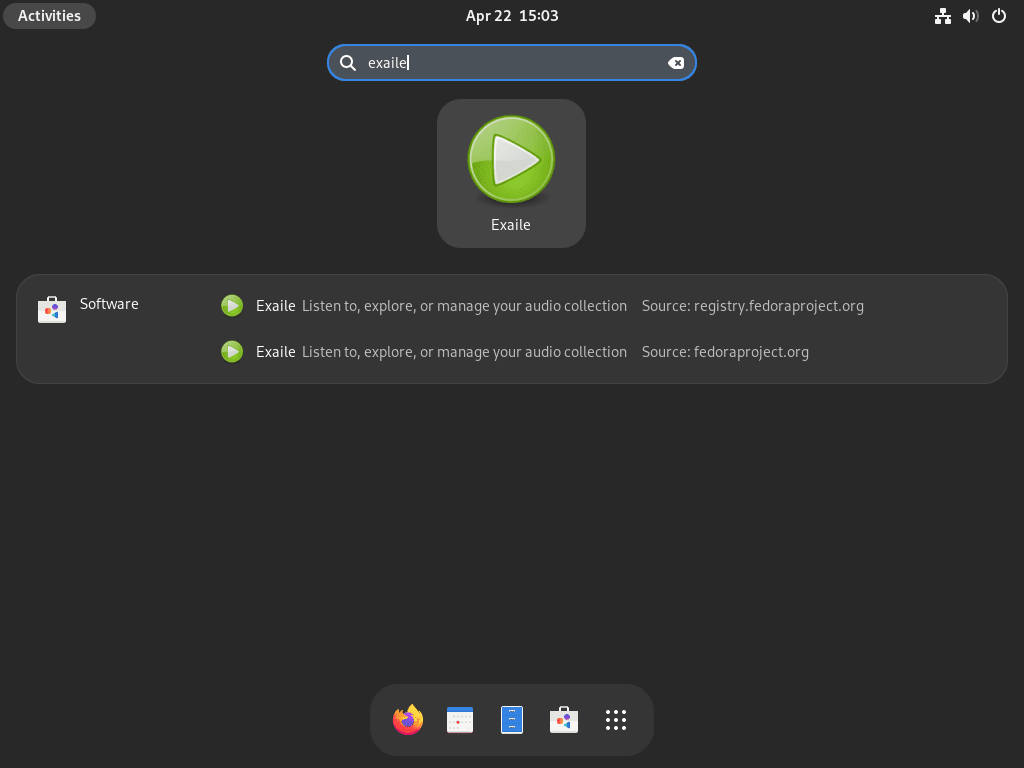
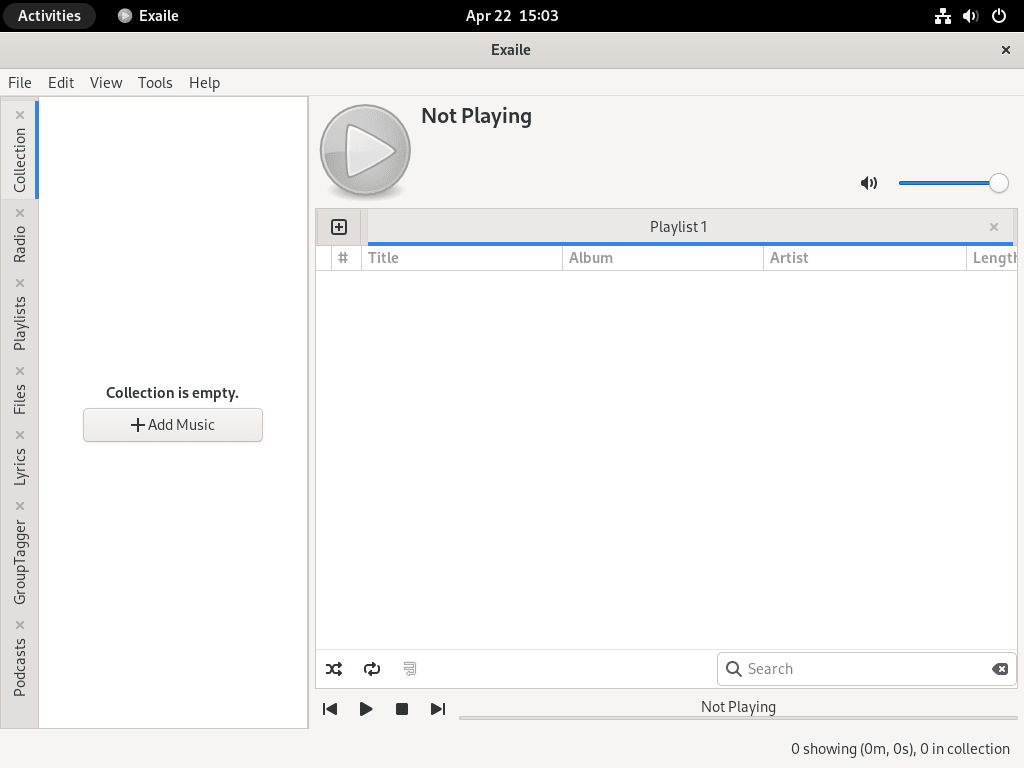
Launch Exaile from the terminal
Start the player from a shell with the command that matches your install method.
exaileflatpak run org.exaile.ExaileIf both builds are installed, exaile starts the Fedora package and flatpak run org.exaile.Exaile starts the Flathub app.
Give the Flatpak access to a custom music folder
The Flathub manifest already grants xdg-music, so the standard Music folder is available without an override. Add a user-scoped filesystem override only when your library lives somewhere else, such as a second drive or a custom folder under your home directory.
flatpak override --user --filesystem="$HOME/AudioArchive" org.exaile.ExailePermission overrides are stored per user even when the app itself is installed system-wide. Restart Exaile after adding the override so the next file picker or library scan sees the new path.
Update Exaile on Fedora
Update the DNF package
The Fedora package updates with the rest of your system, so there is no separate Exaile-specific repository workflow.
sudo dnf upgrade --refreshCheck the installed package again after the upgrade:
rpm -q exaileUpdate the Flatpak package
Keep the Flatpak update at the same system scope used during installation:
sudo flatpak update org.exaile.ExaileVerify the Flathub app metadata after the update completes:
flatpak info org.exaile.Exaile | grep -E '^[[:space:]]*(ID|Ref|Version|Origin|Installation|Runtime):'Remove Exaile from Fedora
Remove the DNF package
Remove the Fedora package with DNF. Review the transaction before confirming so you can see whether DNF also removes dependencies that were installed only for Exaile.
sudo dnf remove exaileConfirm that the RPM package is gone:
rpm -q exailepackage exaile is not installed
Check for native Exaile settings, cache files, and library data before deleting anything from your home directory:
for path in "$HOME/.config/exaile" "$HOME/.local/share/exaile" "$HOME/.cache/exaile"; do
  [ -e "$path" ] && printf '%s\n' "$path"
done
The next command permanently deletes Exaile’s native settings, cache files, and library database for your account. Keep or back up those directories first if you want to preserve playlists, library state, or plugin settings for a later reinstall.
rm -rf "$HOME/.config/exaile" "$HOME/.local/share/exaile" "$HOME/.cache/exaile"Remove the Flatpak package
If you added custom Flatpak filesystem overrides for Exaile and no longer need them, reset those user-specific overrides before uninstalling the app. This resets every user override for Exaile, not only one folder.
flatpak override --user --reset org.exaile.ExaileRemove the system-scoped Flathub app and delete its Flatpak app data when prompted:
sudo flatpak uninstall --delete-data org.exaile.ExaileAfter removing Exaile, Flatpak can also remove runtimes that are no longer used by any installed app. Keep this step interactive so you can review what Flatpak wants to remove.
sudo flatpak uninstall --unusedThe verification command uses grep -Fx to match the exact app ID in the system app list. For more filtering examples, the grep command guide covers the same pattern in more depth.
flatpak list --system --app --columns=application | grep -Fx org.exaile.Exaile || echo "NOT_INSTALLED"NOT_INSTALLED
Check whether the current user’s Flatpak data directory is gone:
if [ -e "$HOME/.var/app/org.exaile.Exaile" ]; then
  echo "Flatpak user data still exists"
else
  echo "Flatpak user data removed"
fi
Flatpak user data removed
Fix Common Exaile Problems on Fedora
Fix Flatpak “Deploy not allowed for user” errors
If the Flatpak install fails before Exaile is deployed, the usual cause on Fedora Workstation is a system-scoped Flathub remote paired with an unprivileged install command.
Warning: Flatpak system operation Deploy not allowed for user
error: Failed to install org.freedesktop.Platform: Flatpak system operation Deploy not allowed for user
Check the remote scope first:
flatpak remotes --columns=name,optionsWhen flathub appears as a system remote, rerun the install with sudo so the app is deployed at the same scope as the remote:
sudo flatpak install flathub org.exaile.ExaileConfirm the installed app metadata after the retry:
flatpak info org.exaile.Exaile | grep -E '^[[:space:]]*(ID|Ref|Version|Origin|Installation):'Fix disabled Flathub remote errors
If Flatpak reports that it cannot fetch the summary from a disabled flathub remote, the remote exists but is not enabled for installs or updates.
error: Unable to load summary from remote flathub: can't fetch summary from disabled remote 'flathub'
Re-enable the remote, then confirm Flatpak can read the Exaile app record from Flathub:
sudo flatpak remote-modify --enable flathub
flatpak remote-info flathub org.exaile.Exaile
Conclusion
Exaile is installed on Fedora with either the DNF package or the Flathub app, and the update/removal path now matches the source you chose. For broader codec coverage, install RPM Fusion on Fedora; for alternate desktop players, compare installing VLC Media Player on Fedora or installing Strawberry on Fedora.


Formatting tips for your comment
You can use basic HTML to format your comment. Useful tags currently allowed in published comments:
<code>command</code>command<strong>bold</strong><em>italic</em><a href="https://example.com">link</a><blockquote>quote</blockquote>