
VLC is useful on Fedora when one player needs to handle local files, subtitles, streams, and codec edge cases that the default media app may not cover. To install VLC Media Player on Fedora, use DNF for Fedora’s standard vlc RPM, or use Flathub when you prefer Flatpak app/runtime updates and a cross-distro app ID.
The DNF path is the cleaner default on mutable Fedora desktops. The Flatpak path installs org.videolan.VLC from Flathub, whose current listing is unverified and marked potentially unsafe because it grants broad media-player permissions. Codec troubleshooting is separate from the base install because RPM Fusion packages are only needed when a specific file or hardware path exposes Fedora’s patent-limited multimedia stack.
The DNF method assumes a mutable Fedora desktop such as Workstation or a Spin. On Fedora Atomic desktops, use Flatpak unless you intentionally layer host packages with rpm-ostree.
Install VLC on Fedora
Choose a VLC Installation Method on Fedora
Pick one install method for normal use. The DNF and Flatpak builds can coexist, but installing both can create duplicate launchers and separate settings.
| Method | Source or Channel | Update Behavior | Best For | Trade-offs |
|---|---|---|---|---|
| DNF | Fedora vlc package | Through normal DNF upgrades | Most Fedora Workstation and Spin users | Uses Fedora’s base multimedia stack until you add RPM Fusion Free for a codec-specific problem. |
| Flatpak | Flathub org.videolan.VLC | Through Flatpak app and runtime updates | Users who already prefer Flathub packaging | The listing is currently unverified and marked potentially unsafe because of broad permissions. |
Use DNF unless you specifically want Flathub’s update model. The DNF method keeps VLC in Fedora’s RPM database, while the Flatpak method keeps VLC separate from Fedora packages.
Update Fedora Before Installing VLC
Refresh package metadata and apply pending Fedora updates before installing the player:
sudo dnf upgrade --refreshCommands that change system packages or system-wide Flatpak state use
sudo. If your account cannot run sudo yet, add a user to sudoers on Fedora before continuing.
Install VLC with DNF on Fedora
Install the Fedora RPM package with DNF:
sudo dnf install vlcThis command requests only the vlc package. Fedora’s solver pulls the VLC package family, desktop integration, and supporting libraries from Fedora repositories according to the package metadata.
Verify the installed package and command path:
rpm -q vlc
command -v vlc
A successful check prints a Fedora vlc package line and the VLC command path, usually /usr/bin/vlc.
Install VLC with Flatpak on Fedora
Fedora Workstation includes Flatpak by default. If your Fedora install does not have the flatpak command, install the Flatpak utility first:
sudo dnf install flatpakAdd Flathub at system scope if it is not already configured:
sudo flatpak remote-add --if-not-exists flathub https://dl.flathub.org/repo/flathub.flatpakrepoConfirm that the Flathub remote is available:
flatpak remotes --show-disabled --columns=name,options | grep -E '^flathub[[:space:]]'The output should show flathub with the system option for the system-wide setup used here.
Install the VLC Flatpak from Flathub:
sudo flatpak install flathub org.videolan.VLCVerify the installed Flatpak app ID, source, and runtime:
flatpak info org.videolan.VLC | grep -E '^[[:space:]]*(ID|Ref|Version|Origin|Installation|Runtime):'The output should include ID: org.videolan.VLC, Origin: flathub, and Installation: system.
Launch VLC on Fedora
Launch VLC from the terminal when you want to test the installed command quickly.
For the DNF package, run:
vlcFor the Flatpak build, run:
flatpak run org.videolan.VLCLaunch VLC from GNOME Activities
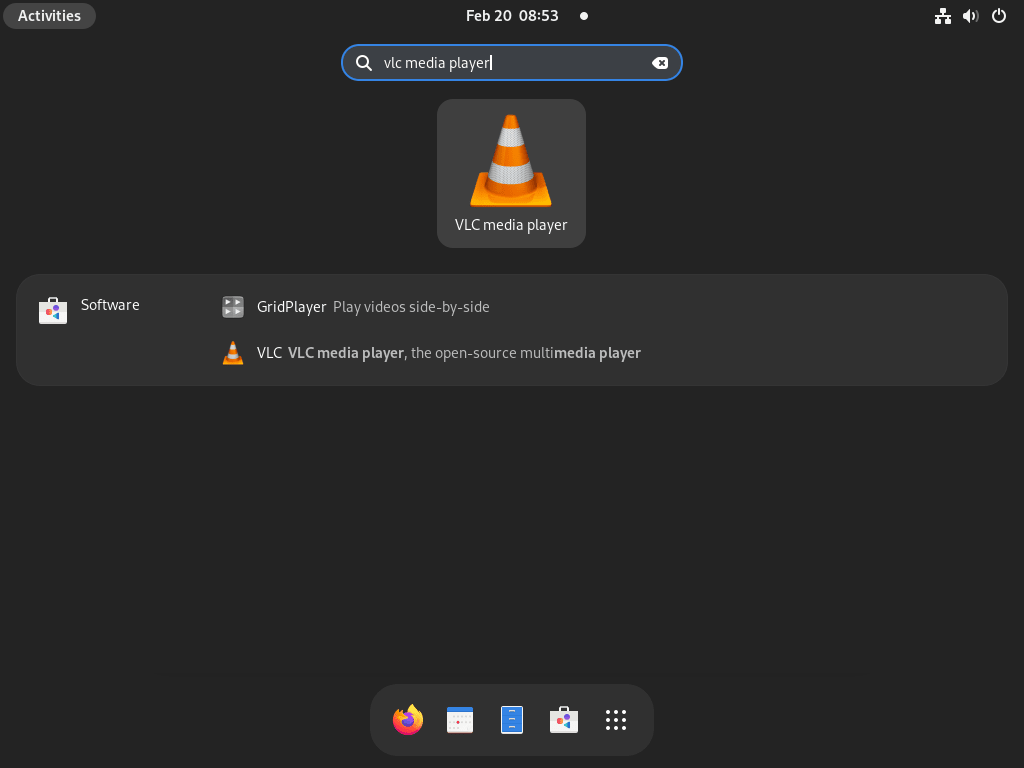
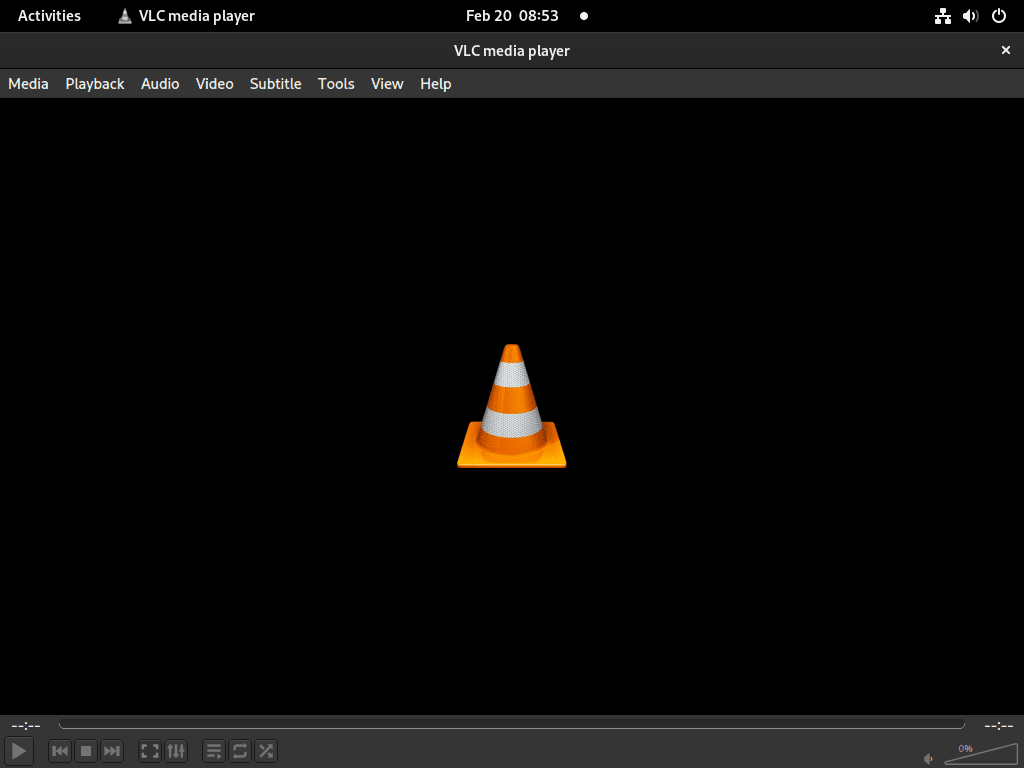
Open Activities, search for VLC, and launch the player from the search results or application grid.
Improve VLC Codec Support on Fedora
The Fedora vlc package installs the player itself. If a specific H.264 or HEVC file still fails to decode, add RPM Fusion Free and install the VLC-specific freeworld plugin before changing the wider FFmpeg stack.
Add RPM Fusion Free for VLC Codecs
RPM Fusion Free provides the extra VLC codec plugin package. This step does not enable RPM Fusion Nonfree:
FEDORA_VERSION=$(rpm -E %fedora)
sudo dnf install "https://mirrors.rpmfusion.org/free/fedora/rpmfusion-free-release-${FEDORA_VERSION}.noarch.rpm"
Confirm that the RPM Fusion Free repositories are enabled:
dnf repo list --enabled | grep -E '^rpmfusion-free(-updates)?[[:space:]]'Install VLC Freeworld Plugins on Fedora
Install the VLC freeworld plugin package from RPM Fusion Free:
sudo dnf install vlc-plugins-freeworldVerify that the plugin package is installed, then close and reopen VLC before testing the same media file again:
rpm -q vlc-plugins-freeworldIf files still fail after the VLC-specific plugin is installed, the issue may involve Fedora’s wider FFmpeg or VA-API stack. Use the dedicated guide to install FFmpeg on Fedora for the full RPM Fusion FFmpeg swap, or use RPM Fusion on Fedora for hardware decoder packages such as mesa-va-drivers-freeworld.
Update VLC on Fedora
Update the DNF package with normal Fedora package updates:
sudo dnf upgrade --refreshUpdate the Flatpak build through Flatpak:
sudo flatpak update org.videolan.VLCKeep the update command matched to the method you installed. DNF does not update the Flathub build, and Flatpak does not update the Fedora RPM package.
If you added vlc-plugins-freeworld, that package also updates through DNF while RPM Fusion Free remains enabled.
Troubleshoot VLC on Fedora
VLC Reports H.264 or HEVC Codec Errors
If VLC opens but a specific video fails with an H.264 or HEVC decoder message, check whether the RPM Fusion VLC plugin is installed:
rpm -q vlc-plugins-freeworldIf the package is missing, install it from the codec section and restart VLC. If the package is already installed and the same file still fails, move to the broader FFmpeg or hardware-decoder workflow instead of stacking unrelated codec packages.
VLC Has Video but No Audio
Check the audio server before changing VLC output modules:
pactl info | grep 'Server Name'Current Fedora Workstation sessions normally report PulseAudio on PipeWire. In VLC, open Tools > Preferences > Audio, change the output module only if the current choice is failing, save the preference, and test playback again.
DNF Cannot Find the VLC Package
If DNF reports that no match exists for vlc, check that the normal Fedora repositories are enabled and that DNF can see the package metadata:
dnf repo list --enabled fedora updates
dnf info vlc
If the repositories are enabled but stale metadata still blocks the package lookup, rebuild DNF’s metadata cache and check again:
sudo dnf clean metadata
sudo dnf makecache
dnf info vlc
If DNF reports RPM database errors instead of a missing package, repair the package manager first with the broken RPM database guide for Fedora.
Flatpak Cannot Find org.videolan.VLC
If Flatpak cannot find org.videolan.VLC, verify that Flathub exists in the same system scope used by the install command:
flatpak remotes --show-disabled --columns=name,optionsAdd Flathub again if the remote is missing, then confirm that Flatpak can read the VLC app record:
sudo flatpak remote-add --if-not-exists flathub https://dl.flathub.org/repo/flathub.flatpakrepo
flatpak remote-info flathub org.videolan.VLC
Flatpak VLC Cannot See a Media Folder
The current Flathub metadata gives VLC host filesystem access and GVfs access for mounted locations. If only the Flatpak build cannot see a folder or removable drive, check whether a local override narrowed those permissions:
flatpak info --show-permissions org.videolan.VLC | grep '^filesystems='The default Flathub permissions include host and xdg-run/gvfs. If your output is narrower because you changed VLC’s permissions earlier, reset only your account’s override after noting any custom access you still need:
flatpak override --user --reset org.videolan.VLCLaunch VLC again and try opening the same location. If the drive is still missing, confirm that Fedora Files can see the mounted drive before changing more Flatpak permissions.
VLC Does Not Appear in Activities
First verify the method you installed. For the DNF package, check the RPM package and desktop launcher file:
rpm -q vlc
rpm -ql vlc | grep '/applications/.*\.desktop$'
For the Flatpak build, check that the application ID is installed:
flatpak info org.videolan.VLCIf the package or Flatpak check succeeds but Activities still does not show VLC, close and reopen the overview. If the launcher cache still looks stale, sign out and back in, then search for VLC again.
Remove VLC from Fedora
Remove the DNF Package
Remove the Fedora RPM package with DNF:
sudo dnf remove vlcConfirm that the package is no longer installed:
rpm -q vlcpackage vlc is not installed
Package removal does not delete your account’s VLC preferences. Check the common user-data locations before removing anything manually:
find ~/.config ~/.local/share ~/.cache -maxdepth 1 -type d -name vlc 2>/dev/nullRemove Optional VLC Codec Plugins
If you installed vlc-plugins-freeworld only for VLC testing, remove it with DNF:
sudo dnf remove vlc-plugins-freeworldConfirm that the plugin package is no longer installed:
rpm -q vlc-plugins-freeworldpackage vlc-plugins-freeworld is not installed
Keep RPM Fusion Free enabled if FFmpeg, multimedia drivers, or other RPM Fusion packages still use it. If you enabled RPM Fusion Free only for VLC codec testing, remove the release package after the plugin is gone:
sudo dnf remove rpmfusion-free-releaseConfirm that the release package and RPM Fusion Free repositories are gone:
rpm -q rpmfusion-free-release
dnf repo list --enabled | grep -E '^rpmfusion-free' || echo 'RPM Fusion Free repositories are not enabled'
find /etc/yum.repos.d -maxdepth 1 -name 'rpmfusion-free*.repo' -print
package rpmfusion-free-release is not installed RPM Fusion Free repositories are not enabled
If the find command still prints a Free repo file, use the full cleanup path in RPM Fusion on Fedora instead of deleting RPM Fusion files blindly.
Remove the Flatpak Build
Remove the system-wide Flatpak build with:
sudo flatpak uninstall org.videolan.VLCCheck whether the Flatpak app is still present:
flatpak list --system --app --columns=application,origin | grep '^org.videolan.VLC' || echo 'org.videolan.VLC is not installed'org.videolan.VLC is not installed
Flatpak removal does not automatically delete the current user’s app data. Check
~/.var/app/org.videolan.VLCbefore deleting it, because it can contain preferences, recent file state, and application data.
Conclusion
VLC is ready on Fedora from either the Fedora RPM package or Flathub, with updates and removal tied to the method you chose. Keep one method installed for a clean launcher list. If a file exposes a codec gap, add the VLC freeworld plugin first, then move to broader RPM Fusion or FFmpeg work only when needed.


Formatting tips for your comment
You can use basic HTML to format your comment. Useful tags currently allowed in published comments:
<code>command</code>command<strong>bold</strong><em>italic</em><a href="https://example.com">link</a><blockquote>quote</blockquote>