
Ubuntu includes basic archive handling in Files, but PeaZip gives you a full desktop archive manager for browsing archives, creating 7Z or ZIP files, testing checksums, splitting files, and extracting formats such as RAR from one interface. PeaZip is not packaged in Ubuntu’s default repositories, so the practical Ubuntu choices are the XtraDeb PPA for APT-managed installs, Flathub for the current upstream Flatpak, or the official GitHub portable archive when you want a user-local install with a repeatable updater.
PeaZip is an open-source archive utility that supports more than 200 archive types through 7-Zip, p7zip, Brotli, Zstandard, ZPAQ, PEA, and related backends. The official PeaZip Linux download page also provides manual DEB packages, but this guide keeps the recommended methods attached to an update path so PeaZip can be maintained cleanly after installation.
Install PeaZip on Ubuntu
Choose the method based on how you want PeaZip updated and how much third-party packaging you are comfortable enabling. The XtraDeb PPA gives you a normal APT package and launcher, Flathub tracks the current upstream Flatpak release, and the portable helper keeps the official upstream archive under your home directory.
| Method | Package or App ID | Source | Updates | Best For |
|---|---|---|---|---|
| XtraDeb PPA | peazip | XtraDeb Apps PPA | APT-managed updates through the PPA | Ubuntu users who want a traditional DEB package and desktop launcher |
| Flatpak | io.github.peazip.PeaZip | Flathub | Updated with Flatpak apps and runtimes | Users who want PeaZip 11.1.0 from Flathub on x86_64 or aarch64 |
| GitHub portable | peazip_portable-*.tar.gz | PeaZip GitHub releases | Updated with the helper script below | Advanced x86_64 users who want a user-local official upstream install |
The PPA is the easiest fit when you prefer APT and want the application installed system-wide, but it is an unofficial community package source and its version depends on your Ubuntu release. Flathub is the best option when you want the current upstream version across supported Ubuntu releases. The portable helper is more hands-on, but it verifies GitHub release digests, creates its own launcher, and can be removed without changing system package sources.
Ubuntu 26.04, Ubuntu 24.04, and Ubuntu 22.04 do not provide a
peazippackage from the default Ubuntu repositories. Snap also does not currently provide an installable PeaZip package, so this guide does not present Snap as an install method.
Update Ubuntu Before Installing PeaZip
Refresh package metadata and install pending upgrades before adding a desktop archive manager or a new packaging source:
sudo apt update
sudo apt upgrade
Commands that install packages, add PPAs, or configure system Flatpak remotes use
sudo. If your account cannot run sudo yet, follow the guide to add a user to sudoers on Ubuntu before continuing.
Install PeaZip from the XtraDeb PPA
Use the XtraDeb PPA when you want PeaZip installed as a normal DEB package and updated through APT. The PPA is community-maintained and not an official Ubuntu or PeaZip repository, so enable it only if you accept that trust boundary. The Launchpad signing key fingerprint for the PPA is 5301FA4FD93244FBC6F6149982BB6851C64F6880.
Install the repository helper if your Ubuntu system does not already include it:
sudo apt install software-properties-commonAdd the XtraDeb Apps PPA, refresh APT metadata, and install PeaZip:
sudo add-apt-repository ppa:xtradeb/apps
sudo apt update
sudo apt install peazip
Confirm that APT sees PeaZip from the PPA:
apt-cache policy peazipThe XtraDeb PPA candidates differ by Ubuntu release:
Ubuntu 26.04: 11.1.0-1xtradeb1.2604.1
Ubuntu 24.04: 10.9.0-1xtradeb1.2404.1
Ubuntu 22.04: 9.7.1-1xtradeb2.2204.1
Check the installed command path after the package install completes:
command -v peazip/usr/bin/peazip
Install PeaZip from Flathub
Use Flathub when you want the current upstream PeaZip release without enabling a third-party APT source. Flathub provides PeaZip 11.1.0 for x86_64 and aarch64. Its permissions include host filesystem access, so treat Flatpak here as a packaging and update method rather than a tight sandbox boundary.
Install Flatpak if it is not already present:
sudo apt install flatpakAdd the Flathub remote once, then install the PeaZip app ID:
sudo flatpak remote-add --if-not-exists flathub https://dl.flathub.org/repo/flathub.flatpakrepo
sudo flatpak install flathub io.github.peazip.PeaZip
Verify the installed Flatpak app and runtime:
flatpak info io.github.peazip.PeaZipID: io.github.peazip.PeaZip Version: 11.1.0 Origin: flathub Runtime: org.kde.Platform/x86_64/6.10
If you are setting up Flatpak on a minimal Ubuntu install for the first time, the full Flatpak setup guide for Ubuntu covers remote management and common verification commands.
Install PeaZip with the GitHub Portable Helper
Use the portable helper on x86_64 Ubuntu systems when you want the official upstream GitHub archive under your home directory and a repeatable update command. The helper queries the latest GitHub release, lets you select Qt6, GTK3 alpha, or GTK2, verifies the GitHub SHA256 digest, creates peazip-portable and pea-portable wrappers, and writes a user desktop launcher. Use Flatpak instead on aarch64 because the current official Qt6 portable archive is x86_64-only.
| Toolkit | Best Desktop Fit | Ubuntu Notes |
|---|---|---|
| Qt6 | Default choice for most users | Works on Ubuntu 26.04, 24.04, and 22.04 with release-specific Qt6 runtime package names. |
| GTK3 alpha | GNOME, Cinnamon, MATE, or Xfce users testing a GTK-like look | Marked alpha upstream. The helper checks runtime libraries before switching the current install. |
| GTK2 | Legacy GTK fallback | Requires the GTK2 runtime package if it is not already installed. |
Install the helper prerequisites and the validated Qt6 runtime packages for your Ubuntu release:
. /etc/os-release
case "$VERSION_CODENAME" in
  jammy)
    sudo apt install curl python3 tar coreutils sed findutils desktop-file-utils hicolor-icon-theme libqt6core6 libqt6gui6 libqt6widgets6 libqt6printsupport6 qt6-qpa-plugins
    ;;
  noble)
    sudo apt install curl python3 tar coreutils sed findutils desktop-file-utils hicolor-icon-theme libqt6core6t64 libqt6gui6t64 libqt6widgets6t64 libqt6printsupport6t64 qt6-qpa-plugins
    ;;
  resolute)
    sudo apt install curl python3 tar coreutils sed findutils desktop-file-utils hicolor-icon-theme libqt6core6t64 libqt6gui6 libqt6widgets6 libqt6printsupport6 qt6-qpa-plugins
    ;;
  *)
    printf 'This helper includes Qt6 package names for Ubuntu 22.04, 24.04, and 26.04.\n' >&2
    exit 1
    ;;
esac
Create the updater script in your user PATH:
mkdir -p ~/.local/bin
tee ~/.local/bin/update-peazip-portable >/dev/null <<'PEAZIP_SCRIPT'
#!/usr/bin/env bash
set -euo pipefail

repo="peazip/PeaZip"
api_url="https://api.github.com/repos/${repo}/releases/latest"
install_root="${PEAZIP_PORTABLE_ROOT:-$HOME/.local/share/peazip-portable}"
versions_dir="$install_root/versions"
current_link="$install_root/current"
state_file="$install_root/toolkit"
bin_dir="$HOME/.local/bin"
launcher="$bin_dir/peazip-portable"
pea_launcher="$bin_dir/pea-portable"
updater="$bin_dir/update-peazip-portable"
applications_dir="$HOME/.local/share/applications"
desktop_file="$applications_dir/io.github.peazip.PeaZip-portable.desktop"
icon_cache_dir="$HOME/.local/share/icons/hicolor"
icon_dir="$icon_cache_dir/256x256/apps"
icon_file="$icon_dir/peazip.png"
tmp_dir=""

usage() {
  printf "Usage: %s [update|remove]\n" "$(basename "$0")"
  printf "  update  Download the latest portable PeaZip release and refresh launchers.\n"
  printf "  remove  Remove the portable install and desktop integration files.\n"
}

need_tools() {
  local missing=()
  local tool
  for tool in curl python3 tar sha256sum sed find install readlink ldd; do
    if ! command -v "$tool" >/dev/null 2>&1; then
      missing+=("$tool")
    fi
  done
  if ((${#missing[@]})); then
    printf "Missing required tools: %s\n" "${missing[*]}" >&2
    printf "Install prerequisites with: sudo apt install curl python3 tar coreutils sed findutils desktop-file-utils hicolor-icon-theme\n" >&2
    exit 1
  fi
}

ubuntu_codename() {
  if [[ -r /etc/os-release ]]; then
    . /etc/os-release
    printf "%s" "${VERSION_CODENAME:-}"
  fi
}

ubuntu_qt6_runtime_packages() {
  case "$(ubuntu_codename)" in
    jammy) printf "libqt6core6 libqt6gui6 libqt6widgets6 libqt6printsupport6 qt6-qpa-plugins" ;;
    noble) printf "libqt6core6t64 libqt6gui6t64 libqt6widgets6t64 libqt6printsupport6t64 qt6-qpa-plugins" ;;
    resolute) printf "libqt6core6t64 libqt6gui6 libqt6widgets6 libqt6printsupport6 qt6-qpa-plugins" ;;
    *) printf "the validated Qt6 runtime packages for your Ubuntu release" ;;
  esac
}

gtk_runtime_package() {
  case "$(ubuntu_codename):$1" in
    jammy:gtk2) printf "libgtk2.0-0" ;;
    *:gtk2) printf "libgtk2.0-0t64" ;;
    jammy:gtk3) printf "libgtk-3-0" ;;
    *:gtk3) printf "libgtk-3-0t64" ;;
  esac
}

desktop_name() {
  printf "%s" "${XDG_CURRENT_DESKTOP:-}${DESKTOP_SESSION:+:$DESKTOP_SESSION}" | tr "[:upper:]" "[:lower:]"
}

suggestion_text() {
  local desktop
  desktop="$(desktop_name)"
  case "$desktop" in
    *kde*|*plasma*|*lxqt*)
      printf "Detected a Qt-style desktop. Qt6 should fit KDE Plasma or LXQt best."
      ;;
    *gnome*|*ubuntu*|*cinnamon*|*mate*|*xfce*)
      printf "Detected a GTK-style desktop. GTK3-alpha may match some themes, but Qt6 is the conservative default."
      ;;
    "")
      printf "No desktop session detected. Qt6 is the conservative default."
      ;;
    *)
      printf "Detected desktop: %s. Qt6 is the conservative default." "$desktop"
      ;;
  esac
}

choose_toolkit() {
  local current default answer normalized
  current=""
  if [[ -f "$state_file" ]]; then
    current="$(sed -n "1p" "$state_file")"
  fi
  default="${current:-qt6}"
  {
    printf "\nPeaZip portable toolkit selection\n"
    printf "Suggestion: %s\n\n" "$(suggestion_text)"
    printf "1) qt6  - recommended default; validated on Ubuntu 22.04, 24.04, and 26.04.\n"
    printf "2) gtk3 - GTK3 alpha build; useful if you want to test a GTK-like look.\n"
    printf "3) gtk2 - legacy GTK fallback for older or lightweight GTK desktops.\n"
    printf "\n"
    printf "Choose toolkit [%s]: " "$default"
  } >&2
  read -r answer
  normalized="${answer,,}"
  case "$normalized" in
    "") printf "%s\n" "$default" ;;
    1|q|qt|qt6) printf "qt6\n" ;;
    2|g3|gtk3|gtk3-alpha) printf "gtk3\n" ;;
    3|g2|gt2|gtk2) printf "gtk2\n" ;;
    *) printf "Invalid toolkit choice: %s\n" "$answer" >&2; exit 1 ;;
  esac
}

release_asset_info() {
  local release_json toolkit
  release_json="$1"
  toolkit="$2"
  RELEASE_JSON="$release_json" TOOLKIT="$toolkit" python3 - <<'PY'
import json
import os
import sys

patterns = {
    "qt6": ".LINUX.Qt6.x86_64.tar.gz",
    "gtk2": ".LINUX.GTK2.x86_64.tar.gz",
    "gtk3": ".LINUX.GTK3-alpha.x86_64.tar.gz",
}
release = json.loads(os.environ["RELEASE_JSON"])
toolkit = os.environ["TOOLKIT"]
pattern = patterns[toolkit]
for asset in release.get("assets", []):
    name = asset.get("name", "")
    if name.startswith("peazip_portable-") and name.endswith(pattern):
        digest = asset.get("digest") or ""
        if digest.startswith("sha256:"):
            digest = digest.split(":", 1)[1]
        if not digest:
            sys.exit("Selected GitHub asset has no SHA256 digest")
        print(name)
        print(asset["browser_download_url"])
        print(digest)
        sys.exit(0)
sys.exit(f"No portable {toolkit} x86_64 asset found in the latest release")
PY
}

runtime_hint() {
  case "$1" in
    qt6)
      printf "Install the Qt6 runtime first with: sudo apt install %s\n" "$(ubuntu_qt6_runtime_packages)"
      ;;
    gtk2)
      printf "Install the GTK2 runtime first with: sudo apt install %s\n" "$(gtk_runtime_package gtk2)"
      ;;
    gtk3)
      printf "Install the GTK3 runtime first with: sudo apt install %s\n" "$(gtk_runtime_package gtk3)"
      ;;
  esac
}

check_runtime_libs() {
  local app_dir toolkit missing
  app_dir="$1"
  toolkit="$2"
  missing="$(LD_LIBRARY_PATH="$app_dir:${LD_LIBRARY_PATH:-}" ldd "$app_dir/peazip" 2>/dev/null | sed -n 's/^[[:space:]]*\([^[:space:]]\+\)[[:space:]]*=> not found.*/\1/p' || true)"
  if [[ -n "$missing" ]]; then
    printf "The selected %s build is missing runtime libraries:\n%s\n" "$toolkit" "$missing" >&2
    runtime_hint "$toolkit" >&2
    printf "The current PeaZip portable selection was not changed.\n" >&2
    return 1
  fi
}

refresh_desktop_caches() {
  local ensure_icon_theme="${1:-yes}"
  if [[ "$ensure_icon_theme" == "yes" && ! -f "$icon_cache_dir/index.theme" && -f /usr/share/icons/hicolor/index.theme ]]; then
    mkdir -p "$icon_cache_dir"
    install -m 0644 /usr/share/icons/hicolor/index.theme "$icon_cache_dir/index.theme"
  fi
  if command -v update-desktop-database >/dev/null 2>&1; then
    update-desktop-database "$applications_dir" >/dev/null 2>&1 || true
  fi
  if command -v gtk-update-icon-cache >/dev/null 2>&1; then
    gtk-update-icon-cache -q "$icon_cache_dir" >/dev/null 2>&1 || true
  fi
}

write_launchers() {
  local app_dir mime_line icon_source
  app_dir="$1"
  mkdir -p "$bin_dir" "$applications_dir" "$icon_dir"

  cat > "$launcher" <<EOF
#!/usr/bin/env bash
set -euo pipefail
app_dir="\$(readlink -f "$current_link")"
if [[ ! -x "\$app_dir/peazip" ]]; then
  printf "PeaZip portable is not installed under %s\\n" "$current_link" >&2
  exit 1
fi
export LD_LIBRARY_PATH="\$app_dir:\${LD_LIBRARY_PATH:-}"
exec "\$app_dir/peazip" "\$@"
EOF
  chmod +x "$launcher"

  cat > "$pea_launcher" <<EOF
#!/usr/bin/env bash
set -euo pipefail
app_dir="\$(readlink -f "$current_link")"
if [[ ! -x "\$app_dir/pea" ]]; then
  printf "Pea portable is not installed under %s\\n" "$current_link" >&2
  exit 1
fi
export LD_LIBRARY_PATH="\$app_dir:\${LD_LIBRARY_PATH:-}"
exec "\$app_dir/pea" "\$@"
EOF
  chmod +x "$pea_launcher"

  icon_source="$app_dir/res/share/batch/freedesktop_integration/peazip.png"
  if [[ ! -f "$icon_source" ]]; then
    icon_source="$app_dir/res/share/icons/peazip.png"
  fi
  if [[ -f "$icon_source" ]]; then
    install -m 0644 "$icon_source" "$icon_file"
  fi

  mime_line="$(grep '^MimeType=' "$app_dir/res/share/batch/freedesktop_integration/peazip.desktop" 2>/dev/null || true)"
  if [[ -z "$mime_line" ]]; then
    mime_line="MimeType=application/zip;application/x-7z-compressed;application/x-rar;application/x-tar;application/gzip;"
  fi

  cat > "$desktop_file" <<EOF
[Desktop Entry]
Name=PeaZip Portable
Comment=PeaZip archive manager
Exec=$launcher %F
TryExec=$launcher
Icon=peazip
StartupWMClass=peazip
StartupNotify=true
Type=Application
Terminal=false
Categories=Utility;Archiving;Compression;
Keywords=zip;rar;tar;compress;extract;unpack;
$mime_line
Actions=add;extract;extracthere;extractheresmart;

[Desktop Action add]
Name=PeaZip Portable, add to archive
Exec=$launcher -add2archive %F
Icon=peazip

[Desktop Action extract]
Name=PeaZip Portable, extract archive(s)
Exec=$launcher -ext2main %F
Icon=peazip

[Desktop Action extracthere]
Name=PeaZip Portable, extract here
Exec=$launcher -ext2here %F
Icon=peazip

[Desktop Action extractheresmart]
Name=PeaZip Portable, extract here (smart new folder)
Exec=$launcher -ext2folder %F
Icon=peazip
EOF

  if command -v desktop-file-validate >/dev/null 2>&1; then
    desktop-file-validate "$desktop_file"
  fi
  refresh_desktop_caches
}

install_or_update() {
  need_tools
  if [[ "$(uname -m)" != "x86_64" ]]; then
    printf "This portable method expects x86_64 GitHub assets. Use Flatpak on this architecture.\n" >&2
    exit 1
  fi

  local toolkit release_json version asset_info asset_name asset_url asset_sha archive extract_dir extracted_dir version_dir current_target
  toolkit="$(choose_toolkit)"
  printf "Fetching latest PeaZip release metadata from GitHub...\n"
  release_json="$(curl -fsSL "$api_url")"
  version="$(RELEASE_JSON="$release_json" python3 -c 'import json, os; print(json.loads(os.environ["RELEASE_JSON"])["tag_name"])')"
  asset_info="$(release_asset_info "$release_json" "$toolkit")"
  asset_name="$(printf "%s\n" "$asset_info" | sed -n "1p")"
  asset_url="$(printf "%s\n" "$asset_info" | sed -n "2p")"
  asset_sha="$(printf "%s\n" "$asset_info" | sed -n "3p")"
  version_dir="$versions_dir/${version}-${toolkit}"

  current_target="$(readlink -f "$current_link" 2>/dev/null || true)"
  if [[ "$current_target" == "$version_dir" && -x "$version_dir/peazip" ]]; then
    write_launchers "$version_dir"
    printf "PeaZip %s portable (%s) is already current.\n" "$version" "$toolkit"
    printf "Launch it from Activities or run: peazip-portable\n"
    return 0
  fi

  tmp_dir="$(mktemp -d)"
  trap 'rm -rf "${tmp_dir:-}"' EXIT
  archive="$tmp_dir/$asset_name"
  extract_dir="$tmp_dir/extract"
  mkdir -p "$extract_dir" "$versions_dir"

  printf "Downloading %s...\n" "$asset_name"
  curl -fL --retry 3 -o "$archive" "$asset_url"
  printf "%s  %s\n" "$asset_sha" "$archive" | sha256sum -c -

  tar -xzf "$archive" -C "$extract_dir"
  extracted_dir="$(find "$extract_dir" -mindepth 1 -maxdepth 1 -type d -name 'peazip_portable-*' -print -quit)"
  if [[ -z "$extracted_dir" || ! -x "$extracted_dir/peazip" ]]; then
    printf "The archive did not contain an executable PeaZip directory.\n" >&2
    exit 1
  fi

  check_runtime_libs "$extracted_dir" "$toolkit"

  if [[ -e "$current_link" && ! -L "$current_link" ]]; then
    printf "Refusing to replace non-symlink path: %s\n" "$current_link" >&2
    exit 1
  fi

  rm -rf "${version_dir}.new"
  mv "$extracted_dir" "${version_dir}.new"
  rm -rf "$version_dir"
  mv "${version_dir}.new" "$version_dir"
  ln -sfn "$version_dir" "$current_link"
  printf "%s\n" "$toolkit" > "$state_file"

  write_launchers "$version_dir"
  find "$versions_dir" -mindepth 1 -maxdepth 1 -type d ! -name "${version}-${toolkit}" -exec rm -rf -- {} +

  printf "PeaZip %s portable (%s) is installed.\n" "$version" "$toolkit"
  printf "Launch it from Activities or run: peazip-portable\n"
}

remove_portable() {
  local answer
  read -r -p "Remove PeaZip portable from $install_root? [y/N]: " answer
  case "${answer,,}" in
    y|yes) ;;
    *) printf "Removal cancelled.\n"; exit 0 ;;
  esac
  rm -rf "$install_root" "$launcher" "$pea_launcher" "$updater" "$desktop_file" "$icon_file"
  if ! find "$icon_cache_dir" -type f ! -name index.theme ! -name icon-theme.cache -print -quit 2>/dev/null | grep -q .; then
    rm -f "$icon_cache_dir/index.theme" "$icon_cache_dir/icon-theme.cache"
  fi
  refresh_desktop_caches no
  printf "PeaZip portable was removed.\n"
}

case "${1:-update}" in
  update|install) install_or_update ;;
  remove|uninstall) remove_portable ;;
  -h|--help|help) usage ;;
  *) usage >&2; exit 1 ;;
esac
PEAZIP_SCRIPT
chmod +x ~/.local/bin/update-peazip-portable
Open a new terminal if your shell cached an older PATH, then run the friendly updater command. Press Enter at the toolkit prompt to use Qt6:
update-peazip-portablePeaZip 11.1.0 portable (qt6) is installed. Launch it from Activities or run: peazip-portable
The portable helper creates ~/.local/share/peazip-portable/current, the commands update-peazip-portable, peazip-portable, and pea-portable, plus the desktop file ~/.local/share/applications/io.github.peazip.PeaZip-portable.desktop. It also installs a user hicolor icon named peazip, prepares the user icon cache when needed, and sets StartupWMClass=peazip so the launcher matches PeaZip’s running window class.
Verify the portable launcher definition and start it from the desktop launcher database if you want a quick desktop-entry check:
desktop-file-validate ~/.local/share/applications/io.github.peazip.PeaZip-portable.desktop
grep -E '^(Name|Exec|Icon|StartupWMClass|StartupNotify)=' ~/.local/share/applications/io.github.peazip.PeaZip-portable.desktop
gtk-launch io.github.peazip.PeaZip-portable
Name=PeaZip Portable Exec=/home/your-user/.local/bin/peazip-portable %F Icon=peazip StartupWMClass=peazip StartupNotify=true
Launch PeaZip on Ubuntu
Launch PeaZip from Ubuntu’s Activities search after installation. Depending on the method you installed, the launcher may appear as PeaZip or PeaZip Portable. After the desktop database refreshes, Activities should show the portable launcher with the PeaZip icon.
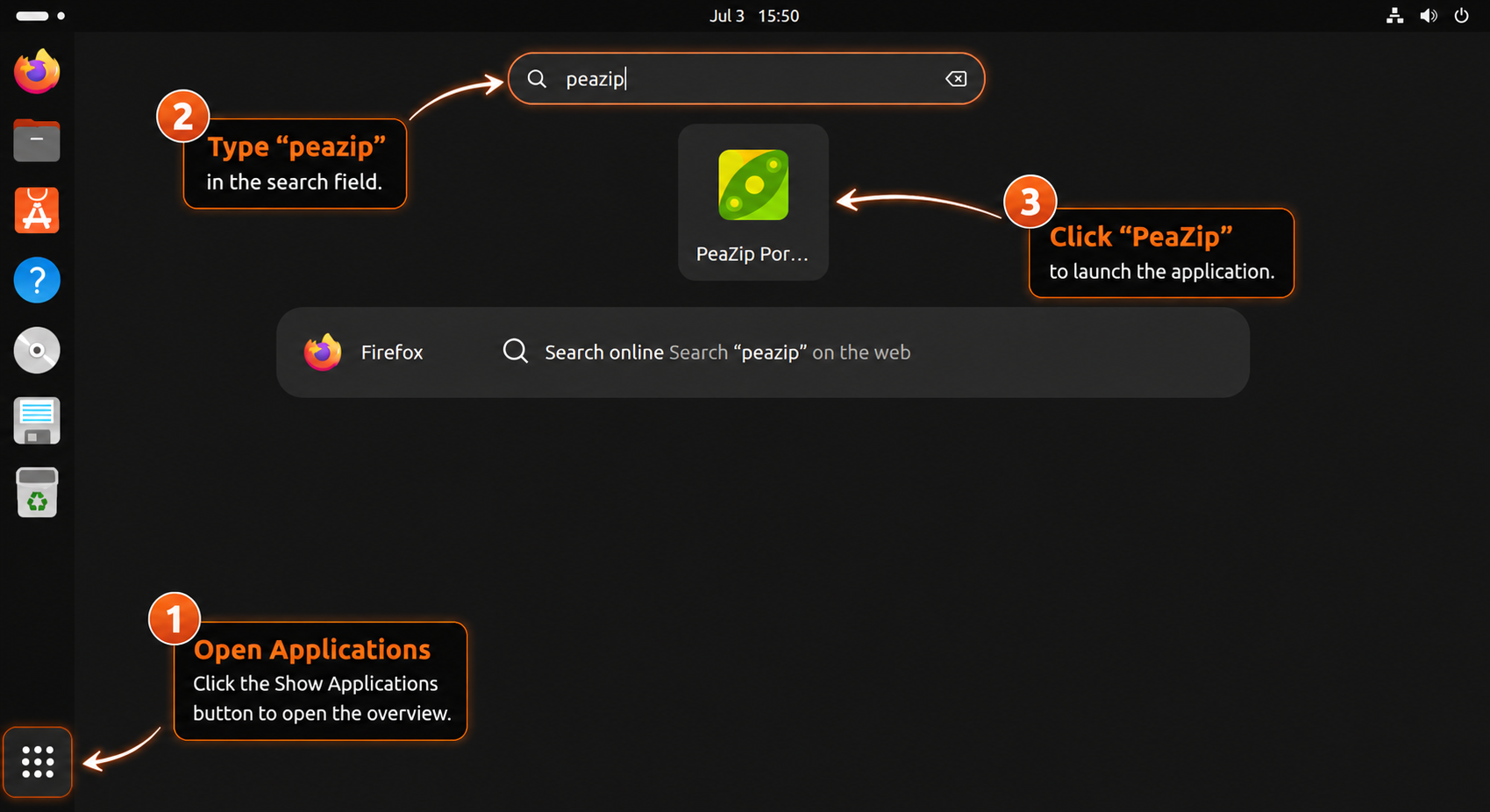
Launch PeaZip from the Terminal
For the XtraDeb PPA package, run:
peazipFor the Flathub install, run:
flatpak run io.github.peazip.PeaZipFor the portable helper install, run:
peazip-portablePeaZip is a graphical desktop app. Terminal launch commands require an active desktop session, not a headless SSH-only shell.
Get Started with PeaZip on Ubuntu
PeaZip opens to a file-manager-style workspace where you can browse folders, select files, and choose archive actions from the toolbar. The main window should be ready for archive creation, extraction, and checksum tasks after the first launch.
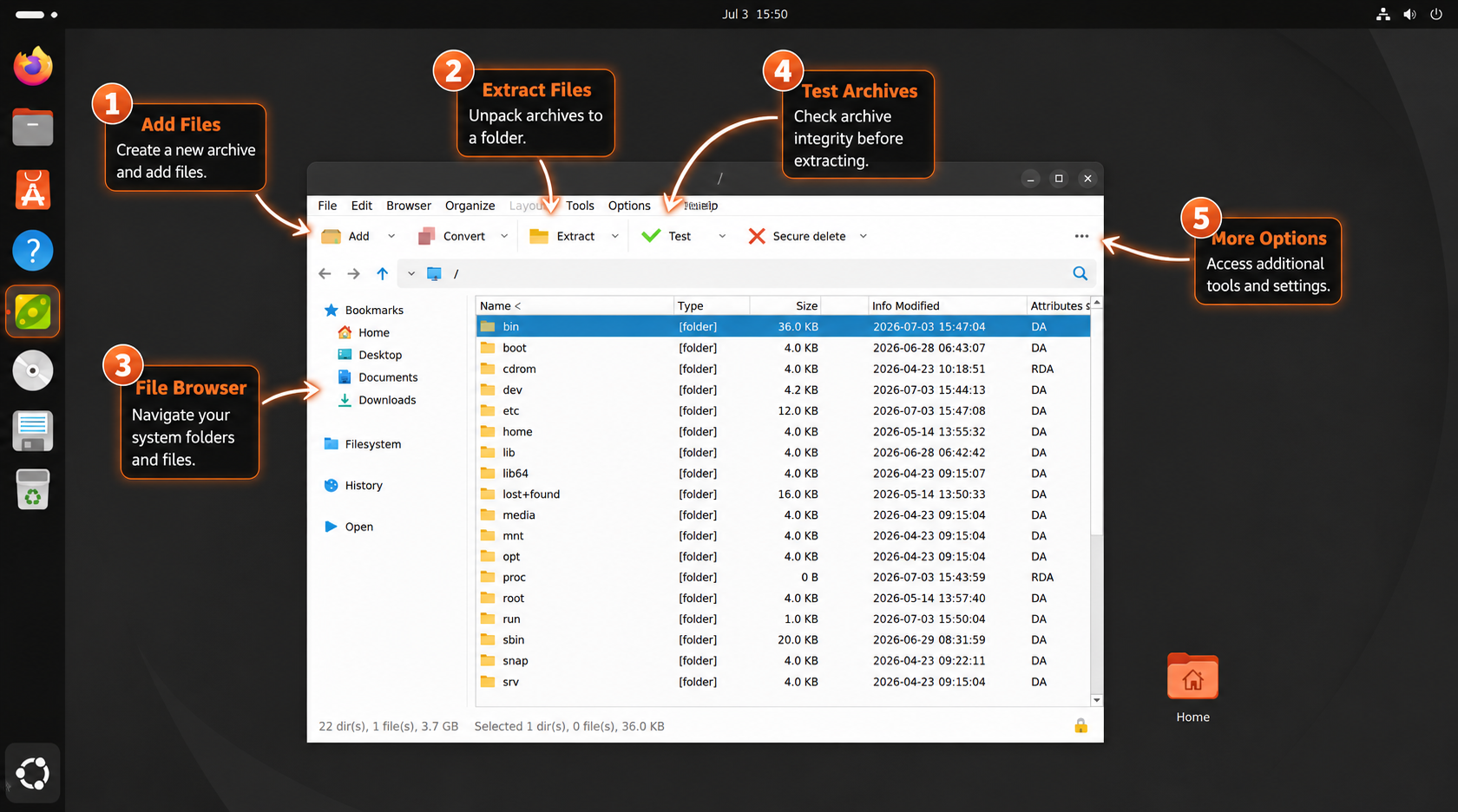
Choose Archive Formats
Use 7Z when you want high compression, ZIP when you need easy sharing with Windows or macOS users, and TAR.XZ or TAR.GZ when you are packaging Linux files while preserving typical Unix metadata. If you need terminal-side 7-Zip workflows as well, the guide to install 7-Zip on Ubuntu pairs well with PeaZip’s graphical interface.
Extract RAR and Other Archives
PeaZip can extract RAR archives, but it does not make proprietary RAR creation a default Linux workflow. For command-line extraction coverage, use the guide to install Unrar on Ubuntu. For TAR and Gzip workflows, the guide to open GZ and TGZ files in Linux covers the terminal commands behind common Linux archive formats.
Create and Test an Archive
To create an archive, select files or folders, choose Add, select an archive format, and set a destination. Use PeaZip’s test or checksum options before deleting source files or transferring archives to another system. If you prefer terminal examples for ZIP extraction and directory handling, the Unzip directory command guide provides command-line alternatives.
Update PeaZip on Ubuntu
Update PeaZip with the same source that installed it. For the XtraDeb PPA package, refresh APT metadata and upgrade PeaZip:
sudo apt update
sudo apt install --only-upgrade peazip
For the Flathub install, update the PeaZip app and any required runtime changes:
sudo flatpak update io.github.peazip.PeaZipFor the portable helper install, rerun the helper. It checks the latest GitHub release, verifies the selected asset digest, refreshes launchers, and leaves the current install unchanged if the selected toolkit is already current:
update-peazip-portablePeaZip 11.1.0 portable (qt6) is already current. Launch it from Activities or run: peazip-portable
If you manually install PeaZip from an upstream DEB file instead of using one of the maintained methods above, you must return to the official Linux download page or GitHub releases page for each refresh. Do not mix a manual DEB install with the XtraDeb PPA package unless you are intentionally replacing one method with the other.
Troubleshoot PeaZip on Ubuntu
Use the checks below to identify which packaging layer owns the problem before reinstalling PeaZip or changing sources.
APT Cannot Find the PeaZip Package
If sudo apt install peazip reports that the package has no installation candidate, confirm whether the XtraDeb source is enabled and refreshed:
apt-cache policy peazip
grep -R "xtradeb" /etc/apt/sources.list.d/
If the source is missing, add the PPA again and rerun sudo apt update. If the source exists but the package still has no candidate, confirm that the PPA publishes packages for your Ubuntu release before forcing a source intended for another release.
Flatpak Cannot Find the PeaZip App ID
If Flatpak cannot find io.github.peazip.PeaZip, verify that the Flathub remote exists:
flatpak remotesAdd Flathub again if the remote is missing:
sudo flatpak remote-add --if-not-exists flathub https://dl.flathub.org/repo/flathub.flatpakrepoPortable Command Is Not Found
If a newly created terminal still cannot find the portable helper, check whether the command exists in your user PATH:
command -v update-peazip-portable
bash -lc 'command -v update-peazip-portable'
If the second command works but the first one does not, open a new login session or review the shell startup files that set your PATH. The normal install, update, and launch commands should remain the friendly names update-peazip-portable and peazip-portable.
Portable Build Reports Missing Libraries
The helper checks PeaZip with ldd before switching the current portable install. If it reports missing Qt6 libraries, rerun the release-specific runtime package command from the portable install section, then run the updater again:
update-peazip-portableIf you choose GTK2 or GTK3 from the helper prompt, install the runtime package named in the helper’s error message, then rerun the updater. The helper leaves the previous current install in place when a selected toolkit is missing required libraries.
PeaZip Hits a Permission Error
Ubuntu 26.04, 24.04, and 22.04 should not need AppArmor overrides for the XtraDeb package, Flathub app, or portable helper. Do not disable AppArmor to troubleshoot PeaZip. First confirm the archive path, file ownership, and package source you installed. If the error looks like an AppArmor denial, check the system logs and adjust only the specific profile involved.
Remove PeaZip from Ubuntu
Remove PeaZip with the same method you used to install it. For the XtraDeb PPA package, remove the package first:
sudo apt remove peazipIf you no longer use the XtraDeb PPA for any software, remove the PPA and refresh APT metadata:
sudo add-apt-repository --remove ppa:xtradeb/apps
sudo apt update
Review automatic cleanup before accepting removals:
sudo apt autoremoveFor more PPA cleanup patterns, use the guide to remove a PPA from Ubuntu.
For the Flathub install, remove the app ID:
sudo flatpak uninstall io.github.peazip.PeaZipRemove PeaZip’s Flatpak user data only if you do not need its settings after reinstalling:
rm -rf ~/.var/app/io.github.peazip.PeaZip/Then clean unused Flatpak runtimes if Flatpak offers removals you no longer need:
sudo flatpak uninstall --unusedFor the portable helper install, use the helper’s removal mode. It removes the portable tree, wrappers, updater script, desktop entry, and local icon after confirmation:
update-peazip-portable removePeaZip portable was removed.
PeaZip is ready on Ubuntu for desktop archive creation, extraction, checksum checks, encrypted archives, RAR extraction, and multi-format file management. Use the XtraDeb PPA when you want a traditional APT-managed desktop package, Flathub when you want the current upstream release across Ubuntu versions, or the GitHub portable helper when you prefer a user-local official release with digest verification and a repeatable update command.


Formatting tips for your comment
You can use basic HTML to format your comment. Useful tags currently allowed in published comments:
<code>command</code>command<strong>bold</strong><em>italic</em><a href="https://example.com">link</a><blockquote>quote</blockquote>