Caddy handles HTTPS automatically by obtaining and renewing SSL/TLS certificates from Let’s Encrypt without manual configuration. Furthermore, whether you need to serve static websites, run PHP applications, or set up a reverse proxy for backend services, Caddy provides a straightforward configuration syntax that reduces setup time compared to Nginx or Apache. By the end of this guide, you will have a working Caddy web server with systemd integration, firewall rules configured, and optional PHP support ready for hosting web applications.
Choose Your Caddy Installation Method
Fedora offers two ways to install Caddy: the default repository provides a stable, distro-tested package, whereas the official COPR repository maintained by the Caddy project delivers the latest upstream releases.
| Method | Channel | Version | Updates | Best For |
|---|---|---|---|---|
| DNF (Fedora Repository) | Fedora Repos | Stable | Automatic via dnf upgrade | Most users who prefer distro-tested packages |
| COPR (@caddy/caddy) | Caddy COPR | Latest upstream | Automatic via dnf upgrade | Users who need the newest features immediately |
For most users, the DNF method is recommended because it provides automatic security updates through standard system maintenance and requires no additional repository configuration. However, only use the COPR method if you specifically need features unavailable in the Fedora repository version.
Install Caddy from Fedora Repository
The Fedora repository includes a stable, tested version of Caddy that receives security updates through standard system maintenance. Specifically, this method requires a single command with no additional configuration.
To begin, install Caddy using DNF:
sudo dnf install caddy
DNF handles dependency resolution automatically and prompts you to confirm the installation. Subsequently, once complete, verify that Caddy is accessible by checking its version:
caddy version
Accordingly, the output confirms the installed version:
v2.10.2
With Caddy installed, proceed to the service verification section to enable and start the web server. Alternatively, if you need a newer version than what Fedora provides, continue to the COPR installation method below.
Install Caddy from COPR Repository (Latest Version)
The Caddy project maintains an official COPR repository that provides the latest upstream releases, often ahead of what Fedora packages. Consequently, use this method if you need features from recent Caddy versions or want to track upstream releases closely.
Note that COPR repositories are community-maintained and not part of the main Fedora distribution. However, the Caddy COPR is maintained by the Caddy project itself, making it a trusted source for upstream packages.
First, enable the Caddy COPR repository:
sudo dnf copr enable @caddy/caddy
When prompted, confirm by typing y to enable the repository. Following this, install Caddy:
sudo dnf install caddy
Alternatively, if you already installed Caddy from the Fedora repository and want to upgrade to the COPR version, run:
sudo dnf upgrade caddy
After the installation completes, verify the installed version:
caddy version
As a result, the output displays the version number:
v2.10.2
Moreover, future updates come through standard dnf upgrade commands, which pull from the COPR repository automatically.
Enable and Verify Caddy Service
Since Caddy installs as a systemd service, you can manage it with standard systemctl commands. Therefore, enable the service and start it immediately with a single command:
sudo systemctl enable caddy --now
The --now flag enables the service for automatic startup on boot and starts it immediately. Next, verify that Caddy is running:
systemctl status caddy
Specifically, look for active (running) in the output:
● caddy.service - Caddy
Loaded: loaded (/usr/lib/systemd/system/caddy.service; enabled; preset: disabled)
Active: active (running) since [timestamp]
Main PID: 1234 (caddy)
Tasks: 7 (limit: 4096)
Memory: 20.0M
CGroup: /system.slice/caddy.service
└─1234 /usr/bin/caddy run --environ --config /etc/caddy/Caddyfile
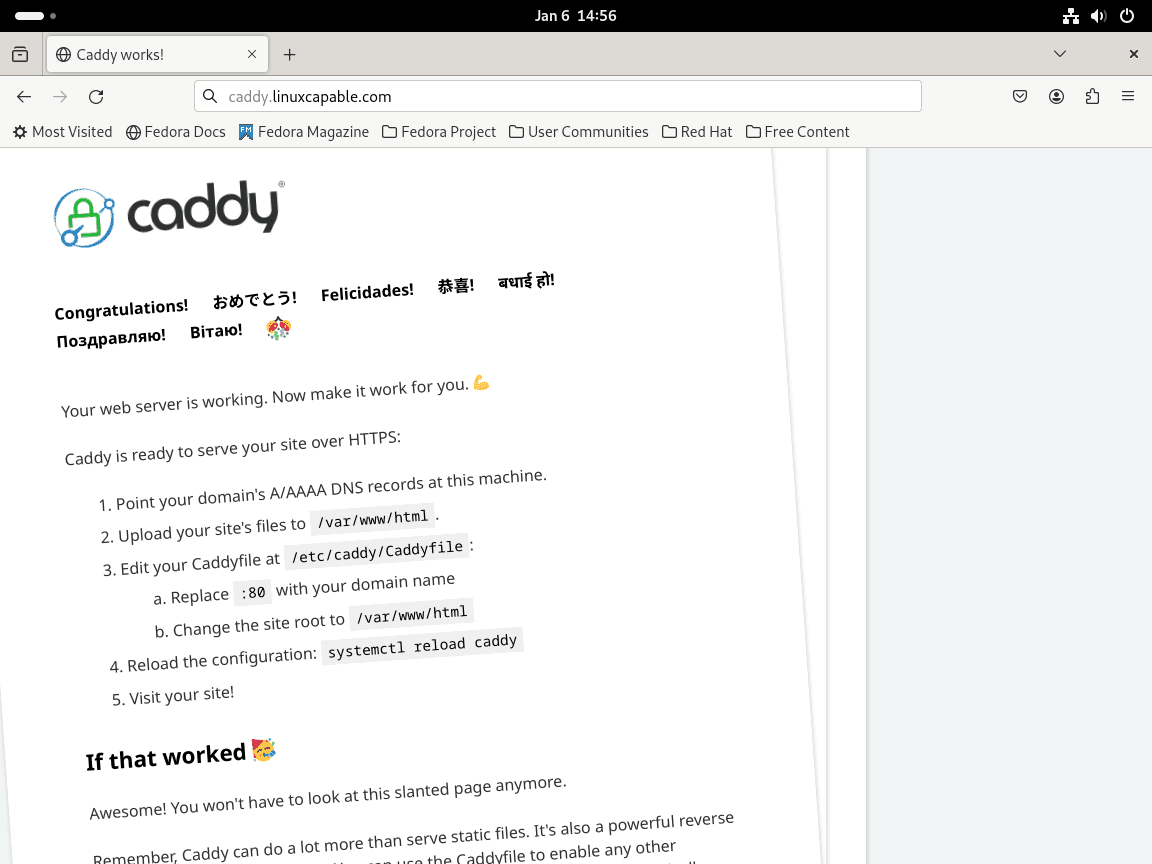
By default, Caddy serves a welcome page on HTTP port 80. To verify, open a browser and navigate to http://your-server-ip or http://localhost to confirm Caddy is responding. If you see a welcome message, the installation is complete.
However, if you cannot access the web page, verify that the firewall allows HTTP traffic. The firewall configuration section below covers the required rules.
Manage Caddy Service
Generally, use these systemctl commands to control the Caddy service:
| Action | Command |
|---|---|
| Start service | sudo systemctl start caddy |
| Stop service | sudo systemctl stop caddy |
| Restart service | sudo systemctl restart caddy |
| Reload configuration | sudo systemctl reload caddy |
| Check status | systemctl status caddy |
| Enable on boot | sudo systemctl enable caddy |
| Disable on boot | sudo systemctl disable caddy |
Furthermore, use reload instead of restart when possible to apply configuration changes without dropping active connections.
Configure Firewalld for Caddy
Fedora uses firewalld as the default firewall manager. Therefore, to serve web traffic, you must open the HTTP and HTTPS ports. For more detailed firewall management, see our Firewalld installation guide for Fedora.
Basic Firewalld Configuration for Caddy
Allowing HTTP and HTTPS Traffic
By default, web servers use HTTP (port 80) and HTTPS (port 443). Consequently, to allow traffic on these ports:
sudo firewall-cmd --permanent --add-service=http
sudo firewall-cmd --permanent --add-service=https
sudo firewall-cmd --reload
As a result, these commands add HTTP and HTTPS services to the firewall rules and reload Firewalld to apply the changes.
Verifying Allowed Services
Next, confirm that HTTP and HTTPS services are now allowed:
sudo firewall-cmd --list-all
Specifically, look for http and https in the services line:
public (active) target: default services: cockpit dhcpv6-client http https ssh ...
Advanced Firewalld Configuration for Custom Ports
Allowing Custom Ports
However, if Caddy is configured to use non-standard ports, you need to allow them through Firewalld. For example, to allow port 8080:
sudo firewall-cmd --permanent --add-port=8080/tcp
sudo firewall-cmd --reload
Simply replace 8080 with your custom port number. The /tcp suffix specifies the TCP protocol.
Removing a Port or Service
Conversely, to remove a port or service from the allowed list, use:
sudo firewall-cmd --permanent --remove-service=http
sudo firewall-cmd --permanent --remove-port=8080/tcp
sudo firewall-cmd --reload
Configuring Firewalld for Specific Zones
Adding Services to a Zone
Firewalld uses zones to apply different rules based on the network’s trust level. Specifically, to add HTTP/HTTPS services to a specific zone, such as the public zone:
sudo firewall-cmd --permanent --zone=public --add-service=http
sudo firewall-cmd --permanent --zone=public --add-service=https
sudo firewall-cmd --reload
Listing Active Zones
Similarly, to list all active zones and their settings:
sudo firewall-cmd --list-all-zones
Essentially, this command helps you understand the current firewall configuration across different zones.
Changing the Default Zone
For example, to change the default zone for an interface, such as eth0:
sudo firewall-cmd --permanent --zone=public --change-interface=eth0
sudo firewall-cmd --reload
Consequently, this assigns the eth0 interface to the public zone.
Configure IP-Based Access Rules
Additionally, Firewalld supports rich rules that restrict access based on IP addresses or ranges.
Allowing Traffic from a Specific IP Address
To allow traffic from a specific IP address, for instance, 192.168.1.100, on port 80 (HTTP):
sudo firewall-cmd --permanent --add-rich-rule='rule family="ipv4" source address="192.168.1.100" port port=80 protocol=tcp accept'
sudo firewall-cmd --reload
Accordingly, this command creates a rich rule that specifically allows access on port 80 for the given IP address.
Allowing Traffic from a Subnet
For instance, for allowing an entire subnet, such as 192.168.1.0/24, you can use a similar approach:
sudo firewall-cmd --permanent --add-rich-rule='rule family="ipv4" source address="192.168.1.0/24" port port=80 protocol=tcp accept'
sudo firewall-cmd --reload
Similarly, this rule permits access to the server from any IP address within the specified subnet on port 80.
Blocking Traffic from a Specific IP Address
In contrast, to block traffic from a particular IP address:
sudo firewall-cmd --permanent --add-rich-rule='rule family="ipv4" source address="192.168.1.100" reject'
sudo firewall-cmd --reload
Effectively, this rule will prevent all incoming connections from the specified IP address.
Limiting Access to Specific Services
However, if you want to restrict access to the Caddy server based on IP addresses for specific services like HTTPS:
sudo firewall-cmd --permanent --add-rich-rule='rule family="ipv4" source address="192.168.1.100" service name="https" accept'
sudo firewall-cmd --reload
Therefore, this command allows access to HTTPS service only for the specified IP address.
Configuring Firewalld with IPv6 Addresses
Additionally, Firewalld can also be configured for IPv6 addresses. For instance, to allow HTTP traffic from an IPv6 address:
sudo firewall-cmd --permanent --add-rich-rule='rule family="ipv6" source address="2001:db8::1" port port=80 protocol=tcp accept'
sudo firewall-cmd --reload
Consequently, this command configures Firewalld to accept HTTP traffic from the specified IPv6 address.
Enable PHP Support in Caddy on Fedora
Installing PHP
First, to run PHP applications, install PHP and PHP-FPM:
sudo dnf install php php-fpm
Technically, PHP-FPM (FastCGI Process Manager) handles PHP requests and connects to Caddy through a socket or TCP port.
Creating a Caddy Virtual Host Configuration File for PHP Testing
Once PHP is installed, proceed to set up a virtual host in Caddy for PHP file handling. To start, create a new configuration file using a text editor such as nano:
sudo nano /etc/caddy/Caddyfile
Then, in the file, input or modify the configuration as shown below:
http://your_domain_or_IP {
root * /var/www/html
php_fastcgi localhost:9000
file_server
}
This configuration instructs Caddy to handle PHP requests with PHP-FPM, typically on port 9000, and to serve static files from the specified root directory. Importantly, ensure to replace your_domain_or_IP with your actual domain or IP address. This setup is essential for testing and validating PHP support in your Caddy server environment.
Configure PHP-FPM for Caddy
By default, PHP-FPM on Fedora runs as the apache user. However, to use PHP-FPM with Caddy, you need to adjust the configuration. Open the pool configuration file:
sudo nano /etc/php-fpm.d/www.conf
Subsequently, find and change the user and group lines from apache to caddy:
user = caddy group = caddy
Next, find the listen.acl_users line. Typically, the default value is apache,nginx. Add caddy to allow the Caddy process to connect to the PHP-FPM socket:
listen.acl_users = apache,nginx,caddy
Save the file and exit nano (Ctrl+O, Enter, Ctrl+X). Then, enable and start PHP-FPM:
sudo systemctl enable php-fpm --now
Verifying Caddy PHP Support
Specifically, to confirm PHP’s integration with Caddy, create a test PHP file:
echo "<?php phpinfo(); ?>" | sudo tee /var/www/html/info.php
This command generates an info.php file in the document root containing the PHP information script. Subsequently, restart the Caddy service to implement the new settings:
sudo systemctl restart caddy
To test, navigate to http://your_domain_or_IP/info.php in your browser. A successful configuration displays the PHP information page showing your PHP version, loaded modules, and server configuration. Look for “Server API: FPM/FastCGI” to confirm PHP-FPM is handling requests through Caddy.
Security reminder: Delete the
info.phpfile after testing withsudo rm /var/www/html/info.php. Leaving it exposed reveals sensitive server configuration details.
Create a Static Website with Caddy on Fedora
Creating Directory Structure
Begin by setting up the directory structure for your static website. This will host your HTML files. To start, execute the following commands to establish the required directories:
Important: change example.com to your domain name.
sudo mkdir -p /var/www/html/my-static-site/
sudo mkdir -p /var/log/caddy
Following this, assign ownership of these directories to Caddy:
sudo chown -R caddy:caddy /var/www/html/my-static-site/
sudo chown caddy:caddy /var/log/caddy
Essentially, these commands create a directory at /var/www/html/my-static-site/, a standard location for web files in Linux. The -p flag ensures the creation of the entire path if it doesn’t already exist.
Creating HTML Files
Now, create the HTML files for your static website. Begin with an index file:
echo "<html><body><h1>Welcome to My Static Site</h1></body></html>" | sudo tee /var/www/html/my-static-site/index.html
This command creates a basic HTML file named index.html in your site’s directory, consequently serving as the default file for Caddy when accessing your website’s root.
Creating a Caddy Virtual Host Configuration File
Therefore, to serve your static site, configure a virtual host in Caddy. Open the Caddy configuration file:
sudo nano /etc/caddy/Caddyfile
Then, insert the following configuration:
example.com {
root * /var/www/html/my-static-site
file_server
encode gzip
log {
output file /var/log/caddy/example.access.log
}
@static {
file
path *.ico *.css *.js *.gif *.jpg *.jpeg *.png *.svg *.woff *.pdf *.webp
}
header @static Cache-Control max-age=5184000
tls name@example.com
}
Notably, this configuration includes several directives:
encode gzipcompresses files using Gzip, enhancing load times.- The
logdirective specifies logging details, outputting access logs to/var/log/caddy/example.access.log. - The
@staticnamed matcher andheaderdirective set cache control for static assets, like images and CSS files. tlshandles SSL certificate generation and installation, with an option to specify an email for Let’s Encrypt notifications.
Afterward, after editing, save and close the file CTRL+O and CTRL+X.
Validating and Formatting the Configuration
Before restarting Caddy, validate your configuration:
caddy validate --adapter caddyfile --config /etc/caddy/Caddyfile
The --adapter caddyfile option is necessary as the default validation checks JSON configurations. However, if a formatting warning appears, resolve it with:
caddy fmt --overwrite /etc/caddy/Caddyfile
As a result, this command reformats and overwrites the Caddyfile.
Restarting Caddy
Finally, apply your changes by restarting Caddy:
sudo systemctl restart caddy
Remember to restart the server whenever you alter the configuration.
Once complete, access your site via a browser to see your static website live, confirming the successful configuration of Caddy.
Configuring Multiple Sites in Caddy on Fedora
Setting Up Individual Site Blocks
For hosting multiple sites with Caddy, you can configure each site in its dedicated block within a single Caddyfile. To illustrate, structure each site’s configuration in separate blocks as follows:
example1.com {
root * /var/www/example1.com/html
file_server
}
example2.com {
root * /var/www/example2.com/html
file_server
}
Indeed, this approach works well for a small number of sites. However, managing a single Caddyfile can become challenging as the number of hosted sites increases.
Organizing Configurations into Separate Files
Consider dividing the configurations into separate files to streamline the management of multiple sites. First, start by creating a new directory to store these files:
sudo mkdir /etc/caddy/caddyconf
Subsequently, incorporate these configuration files into your main /etc/caddy/Caddyfile. At the beginning of the Caddyfile, add:
import caddyconf/*.conf
This directive instructs Caddy to import all .conf files from the caddyconf directory, effectively enabling you to manage each site’s configuration in an individual file.
Creating Individual Configuration Files
The final step involves creating a unique configuration file for each site. In the /etc/caddy/caddyconf directory, create a .conf file for each website you intend to host. Specifically, each file should contain the specific configuration for its respective site.
Configure Caddy as a Reverse Proxy on Fedora
Configuring Caddy as a reverse proxy allows it to direct requests to other servers, acting as an intermediary. Moreover, this setup is beneficial for load balancing, enhancing security, and managing traffic efficiently. Follow these steps to set up Caddy as a reverse proxy on Fedora:
Setting Up Reverse Proxy Configuration
First, open the Caddy configuration file to define the reverse proxy settings. Use the command:
sudo nano /etc/caddy/Caddyfile
In the configuration file, specify the reverse proxy settings as follows:
http://your_domain_or_IP {
reverse_proxy /path/* http://backend_server_IP:port
}
Accordingly, replace your_domain_or_IP with your domain or IP address, /path/* with the desired path to be proxied, and http://backend_server_IP:port with the address and port of the backend server you’re proxying requests to. This configuration directs requests coming to your_domain_or_IP/path to the specified backend server.
Applying the Configuration
After setting up the reverse proxy configuration, save the changes and exit the editor. To apply the new configuration, restart the Caddy service:
sudo systemctl restart caddy
Effectively, this command ensures that Caddy reloads with the updated settings, enabling the reverse proxy functionality.
Testing the Reverse Proxy Setup
To confirm that the reverse proxy is functioning correctly, access http://your_domain_or_IP/path in a web browser. Ultimately, if configured properly, this should route the request to the backend server, displaying its response.
Best Practices for Reverse Proxy Configuration
- Security: Implement SSL/TLS encryption to secure data transmission through the proxy.
- Load Balancing: If you have multiple backend servers, configure Caddy to distribute traffic evenly among them.
- Logging: Enable logging in Caddy to monitor the proxy’s performance and troubleshoot any issues.
- Maintenance: Regularly update both Caddy and your backend servers to maintain security and performance.
Caddy Global Options on Fedora
Setting Global Options in the Caddyfile
Generally, Global options in the Caddyfile apply universally across all sites hosted on the server. As a result, placing these options at the top of the Caddyfile streamlines configuration by eliminating the need to repeat them in each server block.
For comprehensive details on all available options, refer to the Caddy documentation.
Commonly Used Global Options
Here are some frequently utilized global options for your Caddyfile:
{
# ACME certificate registration email
email name@example.com
# Server options
servers {
protocols h1 h2 h3
max_header_size 5mb
}
}
Global Options Explained
email: The email address used for ACME (Let’s Encrypt) certificate registration. Caddy sends certificate expiration notices to this address.protocols h1 h2 h3: Enables HTTP/1.1, HTTP/2, and HTTP/3 protocols. HTTP/3 uses QUIC over UDP and provides improved performance for high-latency connections.max_header_size: Sets the maximum allowed size for HTTP request headers. Increase this if your application uses large cookies or authentication tokens.
These options apply to all sites defined in the Caddyfile. For the full list of global options, see the Caddy global options documentation.
Configure Caddy Security on Fedora
Enabling HTTP Authentication
Creating Authentication Credentials
To secure specific directories with HTTP authentication, start by generating authentication credentials. First, Caddy requires the use of hashed passwords. Generate a hashed password with:
caddy hash-password
Upon prompt, enter and confirm your password. Accordingly, the output will be a hashed password, for instance:
$2a$14$VRFTFJhgETzVdZWDwMhi3NkD0VQZkDJZ3ZlmEJEwjECE1z3aEOtWZ
Configuring Caddyfile
Next, incorporate these credentials into your Caddyfile:
basicauth /hidden/* {
Joshua $2a$14$VRFTFJhgETzVdZWDwMhi3NkD0VQZkDJZ3ZlmEJEwjECE1z3aEOtWZ
}
As a result, this configuration secures the /hidden directory with the specified credentials.
Hardening Site Security and Enabling HSTS
Creating a Security Configuration File
For enhanced security measures, create a dedicated configuration file:
sudo nano /etc/caddy/caddy_security.conf
Then, add the following security directives:
header {
Strict-Transport-Security "max-age=31536000; includeSubDomains; preload"
X-Xss-Protection "1; mode=block"
X-Content-Type-Options "nosniff"
X-Frame-Options "DENY"
Permissions-Policy "interest-cohort=()"
Content-Security-Policy "upgrade-insecure-requests"
Referrer-Policy "strict-origin-when-cross-origin"
Cache-Control "public, max-age=15, must-revalidate"
Feature-Policy "accelerometer 'none'; ambient-light-sensor 'none'; autoplay 'self'; camera 'none'; encrypted-media 'none'; fullscreen 'self'; geolocation 'none'; gyroscope 'none'; magnetometer 'none'; microphone 'none'; midi 'none'; payment 'none'; picture-in-picture *; speaker 'none'; sync-xhr 'none'; usb 'none'; vr 'none'"
}
Specifically, this code enhances site security by:
- Enabling HSTS for the site and its subdomains.
- Activating XSS filtering.
- Blocking MIME type sniffing.
- Prohibiting the site from being displayed in iframes.
- Excluding the site from FLoC tracking trials.
- Setting strict rules for handling insecure URLs.
- Implementing a secure referrer policy.
- Controlling browser features through the Feature Policy.
Importing Security Configuration in Site Blocks
Finally, to apply these settings, import the security file into the desired site blocks in your Caddyfile:
example.com {
...
import /etc/caddy/caddy_security.conf
}
Restarting Caddy Server
To conclude, restart the Caddy server to apply these security enhancements:
sudo systemctl restart caddy
Importantly, this restart is necessary for Caddy to recognize and implement the new security configurations.
Troubleshoot SELinux Issues with Caddy
On Fedora, SELinux (Security-Enhanced Linux) enforces mandatory access controls that may block Caddy from serving files or making network connections. However, if your site loads incorrectly despite valid configuration, SELinux policies are a likely cause.
Identifying SELinux Issues
SELinux operates in the background, enforcing security policies that might restrict Caddy’s operations. Specifically, common indicators of SELinux problems include:
- Inaccessible web pages despite correct server configuration.
- Log files indicating ‘Permission Denied’ errors.
- Unexpected behavior not resolved by traditional troubleshooting.
Diagnosing SELinux Status
First, to determine SELinux’s operational status, use the command:
sestatus
Accordingly, this will display whether SELinux is enabled and its current mode – Enforcing, Permissive, or Disabled.
Adjusting SELinux Policies for Caddy
If SELinux is blocking Caddy, adjust policies rather than disabling SELinux entirely. Instead, use the audit2allow utility to analyze log files and identify necessary policy changes. For example:
First, check recent audit logs:
sudo grep caddy /var/log/audit/audit.log
Then, generate a custom policy module:
sudo grep caddy /var/log/audit/audit.log | audit2allow -M caddy
Finally, apply the new policy:
sudo semodule -i caddy.pp
Setting Correct File Contexts
SELinux requires files and directories to have the correct security context. Therefore, to update the context for Caddy’s web directory:
sudo restorecon -Rv /var/www/example.com/html
Consequently, this command recursively applies the appropriate SELinux context to files in the specified directory.
Enabling HTTP Traffic in SELinux
Occasionally, SELinux may block HTTP traffic. To enable it:
sudo setsebool -P httpd_can_network_connect 1
Essentially, this command allows web services like Caddy to establish network connections.
Ultimately, resolving SELinux-related issues is a balance between maintaining security and ensuring functionality. Adjust SELinux policies and contexts as needed, but avoid disabling SELinux entirely, as it plays a vital role in system security if you are in a highly sensitive, risky environment.
Remove Caddy from Fedora
To uninstall Caddy, first stop and disable the service:
sudo systemctl stop caddy
sudo systemctl disable caddy
Next, remove the Caddy package and any orphaned dependencies:
sudo dnf remove caddy
sudo dnf autoremove
Additionally, if you enabled the COPR repository, disable it:
sudo dnf copr disable @caddy/caddy
Warning: The following commands permanently delete configuration files and logs. Back up
/etc/caddy/first if you want to preserve your Caddyfile settings.
Finally, remove configuration, log files, and any test files created during the guide:
sudo rm -rf /etc/caddy
sudo rm -rf /var/log/caddy
sudo rm -f /var/www/html/info.php
To verify that Caddy is no longer installed:
caddy version
Accordingly, the expected output:
bash: caddy: command not found
Conclusion
With Caddy installed and running on your Fedora system, you now have a web server that handles automatic HTTPS, serves static files, processes PHP applications, and works as a reverse proxy. The configuration adjustments covered in this guide provide a foundation for hosting production websites with firewall integration, security headers, and SELinux compatibility. For additional configuration options and directives, consult the official Caddy documentation.