
Cursor on Fedora has two useful Linux entry points: the graphical desktop editor from Anysphere’s RPM repository and the terminal-based Cursor Agent CLI from Cursor’s official per-user installer. To install Cursor on Fedora for desktop work, use DNF so package updates, repository metadata, and removal stay visible to the package manager; add the CLI separately when you want agent or cursor-agent in shell sessions.
Cursor still publishes direct RPM and AppImage downloads on the official Cursor download page. For routine Fedora Workstation installs, the repository-backed cursor package is easier to update and remove than a temporary local RPM. For terminal use, the Cursor Agent installer creates the agent and cursor-agent commands under your home directory; the desktop RPM does not install standalone CLI commands in /usr/bin.
Install Cursor on Fedora
Choose Cursor Desktop or Cursor Agent CLI
Use the desktop package when you want Cursor as a graphical code editor. Use Cursor Agent when you want a terminal agent for shell sessions, scripted prompts, or remote workflows. The two installs do not replace each other.
| Cursor surface | Installs | Update owner | Best fit |
|---|---|---|---|
| Cursor desktop app | DNF package named cursor with /usr/bin/cursor | DNF-managed updates from downloads.cursor.com/yumrepo | Graphical IDE sessions, project folders, extensions, and desktop launcher integration |
| Cursor Agent CLI | Per-user agent and cursor-agent symlinks under ~/.local/bin | agent update | Terminal-first agent sessions, read-only questions, scripted prompts, and remote shell workflows |
The desktop RPM contains internal agent-related extension resources for the IDE, but it does not expose
agentorcursor-agentas standalone shell commands. Install Cursor Agent CLI separately when your workflow needs the terminal agent.
Refresh Fedora Packages
Refresh Fedora packages before adding the Cursor repository so DNF starts from current system and metadata state:
sudo dnf upgrade --refreshThese commands use
sudofor system package changes. If your account cannot run administrative commands, follow the guide to add a user to sudoers on Fedora before continuing.
Add the Cursor DNF Repository
Create a DNF repository file for Cursor’s official RPM repository. The same source is used by Cursor’s RPM packages for package-managed updates:
printf '%s\n' \
  '[cursor]' \
  'name=Cursor' \
  'baseurl=https://downloads.cursor.com/yumrepo' \
  'enabled=1' \
  'gpgcheck=1' \
  'gpgkey=https://downloads.cursor.com/keys/anysphere.asc' \
  'repo_gpgcheck=1' | sudo tee /etc/yum.repos.d/cursor.repo > /dev/null
The repository uses repo_gpgcheck=1 for signed repository metadata and gpgcheck=1 for RPM package verification.
Import Cursor Repository Metadata with DNF
Build the Cursor repository cache once. DNF reads repomd.xml, imports Anysphere’s metadata-signing key from the configured gpgkey= URL, and stores the repository metadata in the system cache:
sudo dnf -y makecache --repo cursorRelevant first-run output includes the Anysphere key fingerprint:
Importing OpenPGP key 0x62E492D6:
 UserID     : "Anysphere Inc <security@anysphere.co>"
 Fingerprint: 380FF4BCDC34A4BD92A3565342A1772E62E492D6
 From       : https://downloads.cursor.com/keys/anysphere.asc
The key was successfully imported.
Metadata cache created.
Confirm DNF sees the Cursor repository and the current package for your Fedora architecture:
dnf repo list --enabled | grep -E '^cursor[[:space:]]'
sudo dnf repoquery --available --latest-limit=1 --arch="$(rpm -E '%{_arch}')" --queryformat '%{name} %{evr} %{arch} %{repoid}\n' cursor
Example output from Fedora 44 x86_64 shows the package coming from the Cursor repository:
cursor                Cursor
cursor 3.5.33-1779434195.el8 x86_64 cursor
Install Cursor with DNF
Install the Cursor desktop package from the enabled repository:
sudo dnf install cursorDNF may show the same Anysphere key again during installation. That prompt belongs to RPM package verification, while the earlier makecache step handled repository metadata verification.
Verify Cursor Installation
Check the installed package, command path, and Cursor version:
rpm -q cursor --qf '%{NAME} %{VERSION}-%{RELEASE} %{ARCH}\n'
command -v cursor
cursor --version
Example output from a validated Fedora 44 x86_64 install:
cursor 3.5.33-1779434195.el8 x86_64
/usr/bin/cursor
3.5.33
aac81804b986d739acab348ed96b8bea6e83cc50
x64
Confirm the RPM installed the command wrapper, desktop launcher, and main application binary:
rpm -ql cursor | grep -E '^/usr/(bin/cursor|share/applications/cursor\.desktop|share/cursor/cursor)$'/usr/bin/cursor /usr/share/applications/cursor.desktop /usr/share/cursor/cursor
Install Cursor Agent CLI
The Cursor Agent CLI is separate from the desktop RPM package. Cursor’s official installer downloads the current agent bundle, installs it under ~/.local/share/cursor-agent/versions/, and creates agent plus cursor-agent symlinks under ~/.local/bin.
Install curl if you skipped the desktop repository prerequisites or are using a minimal Fedora install:
sudo dnf install curlThe curl command downloads the installer over HTTPS. For broader download examples, see the curl command guide.
Run the official Cursor Agent installer as your normal user, not with sudo:
curl -fsS https://cursor.com/install | bashA successful run installs a versioned agent bundle under ~/.local/share/cursor-agent/versions/, then creates the agent and cursor-agent symlinks in ~/.local/bin. The installer also prints shell-specific PATH commands when the current session cannot already find that directory.
Add Cursor Agent CLI to Your PATH
The installer creates symlinks in ~/.local/bin. Refresh the current terminal first when agent is not found immediately after installation:
export PATH="$HOME/.local/bin:$PATH"For Bash, add the same PATH entry to ~/.bashrc so future terminals can find the agent command:
touch "$HOME/.bashrc"
grep -qxF 'export PATH="$HOME/.local/bin:$PATH"' "$HOME/.bashrc" || printf '%s\n' 'export PATH="$HOME/.local/bin:$PATH"' >> "$HOME/.bashrc"
export PATH="$HOME/.local/bin:$PATH"
Verify Cursor Agent CLI
Confirm both command names resolve from your shell:
command -v agent
command -v cursor-agent
Both paths should point into $HOME/.local/bin. Check the installed agent version next:
agent --version2026.05.24-dda726e
A new unauthenticated install reports its login state with:
agent statusNot logged in
Launch Cursor on Fedora
The desktop package and Cursor Agent CLI launch through different commands. Use cursor for the graphical IDE, and use agent for terminal-based agent sessions.
Launch Cursor Desktop from Terminal
Start the graphical Cursor desktop app from a Fedora session with:
cursorOpen a project directory directly by passing its path to the launcher:
cursor ~/projects/example-appRun Cursor as your normal desktop user. If a project needs privileged commands, open Cursor normally and run only those specific terminal commands with sudo.
Launch Cursor Desktop from Activities
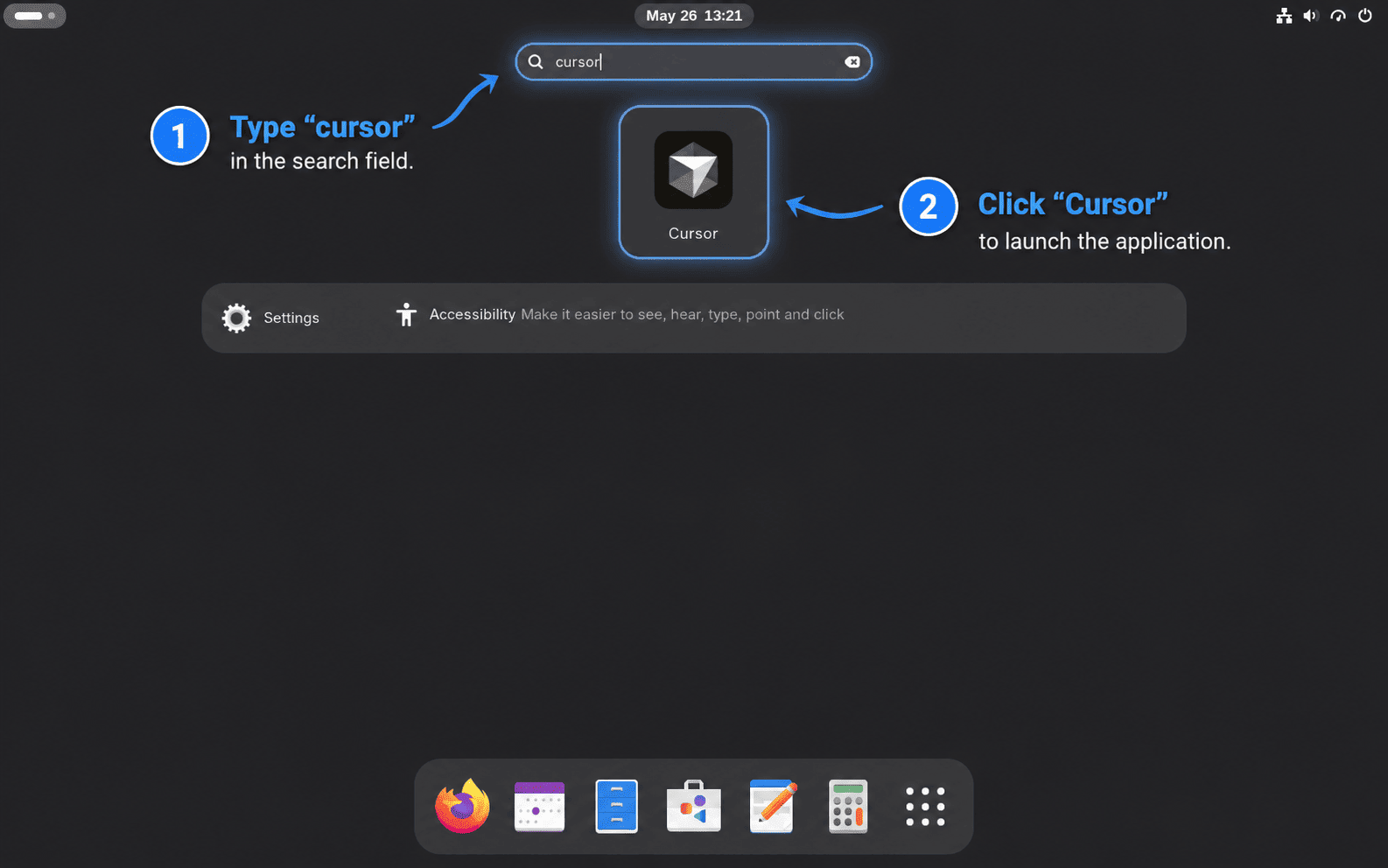
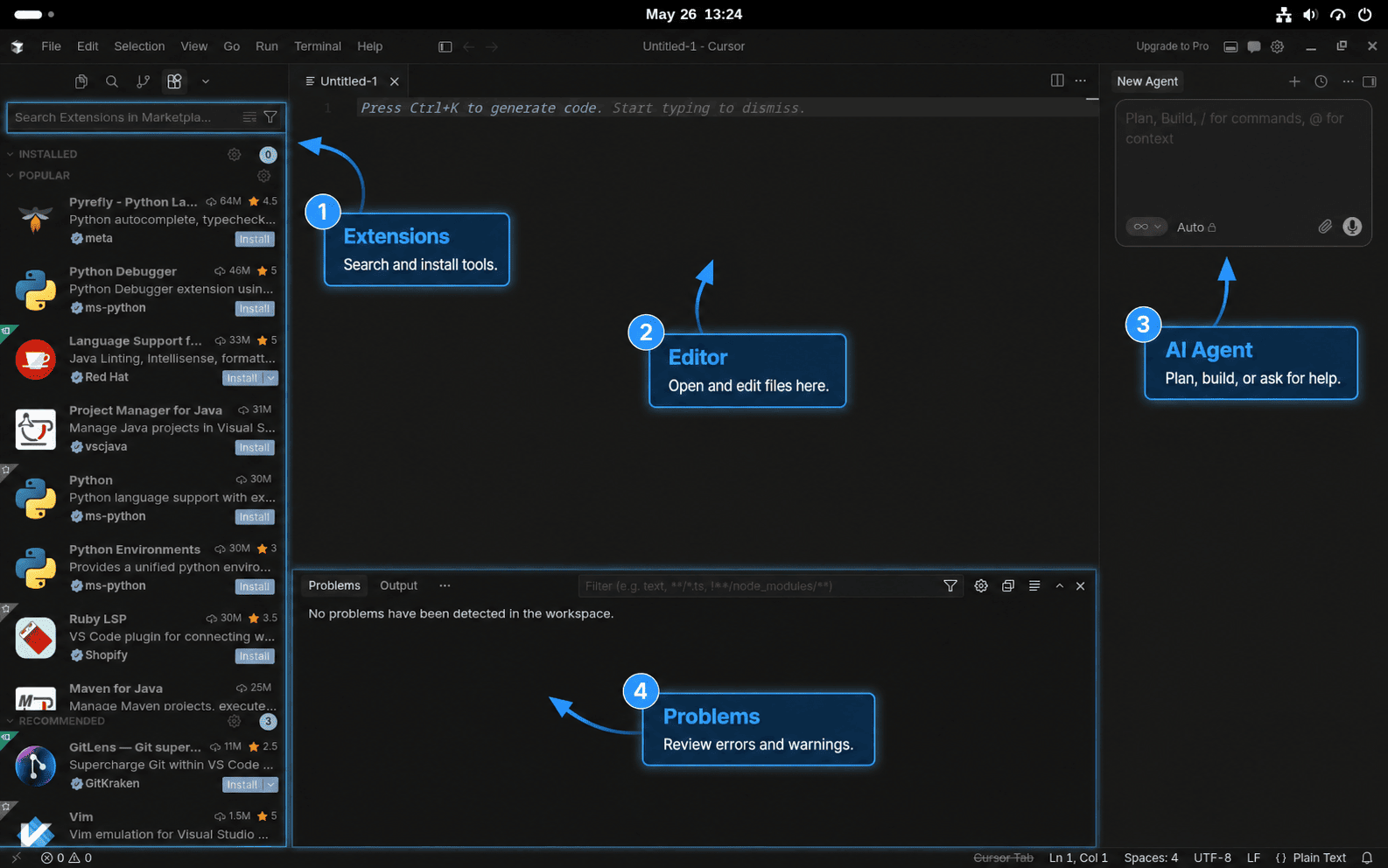
Fedora Workstation registers Cursor as a normal desktop application. Open Activities, search for Cursor, and select the launcher.
Start Cursor Agent CLI from Terminal
The terminal agent uses the agent command created by the Cursor Agent installer. Display the help text before starting an interactive session:
agent --helpStart an interactive agent session in the current directory with:
agentCursor Agent supports modes such as ask and plan for read-only work. After authentication, a read-only question can run from a project directory with:
agent --print --mode ask "Summarize this project layout"Use agent login to authenticate, agent logout to clear stored authentication, and the Cursor documentation for account and agent behavior that depends on your plan or workspace policy.
Set Up Project Tools for Cursor Workflows
Cursor desktop and Cursor Agent can open folders immediately, but real projects still need local tools. Install Git on Fedora before cloning repositories, and install Node.js on Fedora for JavaScript or TypeScript projects.
For broader project tooling, Fedora still ships DNF groups. Use the DNF5 group subcommand, not old one-word groupinstall examples. The general development group installs common workflow tools such as patch utilities, Subversion, Doxygen, SystemTap, and related dependencies:
sudo dnf group install development-toolsFor C or C++ projects that need a compiler, debugger, headers, and build utilities, use Fedora’s C development group instead:
sudo dnf group install c-developmentThe DNF5 group commands guide for Fedora covers group IDs, hidden groups, transaction previews, updates, and removals when you need more control than a single project-tooling install.
Update Cursor on Fedora
Update Cursor Desktop with DNF
DNF owns Cursor desktop updates as long as /etc/yum.repos.d/cursor.repo remains enabled. Refresh package metadata, then upgrade the package:
sudo dnf upgrade --refresh cursorIf Cursor announces a newer desktop release before DNF sees it, check the repository candidate first:
sudo dnf repoquery --available --latest-limit=1 --arch="$(rpm -E '%{_arch}')" --queryformat '%{name} %{evr} %{arch} %{repoid}\n' cursorWait until the repository shows the newer build before troubleshooting DNF. The Cursor changelog and RPM repository can update at slightly different times.
Update Cursor Agent CLI
The per-user agent install is not updated by DNF. Use the agent updater from the same user account that installed it:
agent updateCurrent no-op output looks like:
Checking for updates...
Already up to date
Remove Cursor from Fedora
Remove the Cursor Package
Preview the removal transaction before removing the desktop app:
sudo dnf remove --assumeno cursorA normal Cursor desktop removal removes the cursor package only. After reviewing the transaction, remove it with:
sudo dnf remove cursorRemove the Cursor Repository
Remove the Cursor repository file if you do not plan to reinstall the package from DNF:
sudo rm -f /etc/yum.repos.d/cursor.repo
sudo dnf clean metadata
dnf repo list --enabled | grep -E '^cursor[[:space:]]' || echo 'Cursor repository is not enabled'
Cursor repository is not enabled
Remove Cursor Agent CLI
If you authenticated the agent, sign out before deleting the local command files:
if command -v agent >/dev/null 2>&1; then
  agent logout
fi
Remove Cursor-owned agent symlinks and the versioned install directory from your user account:
for link in "$HOME/.local/bin/agent" "$HOME/.local/bin/cursor-agent"; do
  if [ -L "$link" ]; then
    target="$(readlink "$link")"
    case "$target" in
      "$HOME"/.local/share/cursor-agent/versions/*/cursor-agent)
        rm -f "$link"
        ;;
      *)
        printf 'Keeping non-Cursor symlink: %s -> %s\n' "$link" "$target" >&2
        ;;
    esac
  elif [ -e "$link" ]; then
    printf 'Keeping non-Cursor file: %s\n' "$link" >&2
  fi
done

rm -rf "$HOME/.local/share/cursor-agent"
hash -r
command -v agent || echo "agent command removed"
agent command removed
Remove Cursor User Data
Package removal leaves per-user settings, caches, remote-server state, and optional terminal-agent files in your home directory. Print common Cursor paths before deleting anything:
for path in \
  "$HOME/.config/Cursor" \
  "$HOME/.cache/Cursor" \
  "$HOME/.cursor" \
  "$HOME/.cursor-server" \
  "$HOME/.local/share/cursor-agent"
do
  if [ -e "$path" ]; then
    printf '%s\n' "$path"
  fi
done
The next command permanently deletes Cursor settings, caches, and remote-server data for your user account. Back up anything you want to keep before running it.
rm -rf "$HOME/.config/Cursor" "$HOME/.cache/Cursor" "$HOME/.cursor" "$HOME/.cursor-server" "$HOME/.local/share/cursor-agent"Troubleshoot Cursor Installation on Fedora
DNF Cannot Find the cursor Package
If sudo dnf install cursor fails with No match for argument: cursor, the Cursor repository is missing, disabled, or not refreshed. Recreate /etc/yum.repos.d/cursor.repo, then rebuild the repository cache:
sudo dnf -y makecache --repo cursor
dnf repo list --enabled | grep -E '^cursor[[:space:]]'
A working repository file points to https://downloads.cursor.com/yumrepo and keeps repo_gpgcheck=1. The DNF5 install examples for Fedora explain package-manager behavior when you need broader DNF context.
Cursor Repository Key Prompt Repeats
If DNF repeatedly prompts for Anysphere’s key or reports a repository metadata signature error, refresh the Cursor repository cache as root so DNF can store the metadata key in its system cache:
sudo dnf --refresh -y makecache --repo cursor
sudo dnf repoquery --available --latest-limit=1 --arch="$(rpm -E '%{_arch}')" --queryformat '%{name} %{evr} %{arch} %{repoid}\n' cursor
The expected fingerprint is 380FF4BCDC34A4BD92A3565342A1772E62E492D6. Do not disable repo_gpgcheck to bypass the prompt.
Cursor Agent Command Is Not Found
If agent or cursor-agent is not found after the installer succeeds, check whether ~/.local/bin is active in the current shell:
printf '%s\n' "$PATH" | tr ':' '\n' | grep -Fx "$HOME/.local/bin"No output means the directory is missing from the current PATH. Export it for the current terminal, then add the Bash startup line from the PATH section so new terminals can find the agent.
Cursor Agent Reports Not Logged In
agent status returns Not logged in until the CLI has valid Cursor authentication. Use the login command from the same user account that installed the agent:
agent login
agent status
If the host cannot open a browser, run NO_OPEN_BROWSER=1 agent login and follow the terminal instructions. Avoid putting API keys directly in shell history; use a short-lived environment variable only for the command that needs it.
Cursor Does Not Launch from a Root Shell
The cursor wrapper is meant for a normal graphical user session. Open Cursor as your desktop user, then run privileged project commands from the integrated terminal only when the project actually needs them.
Conclusion
Cursor is ready on Fedora when the desktop package resolves through Anysphere’s DNF repository and the optional agent resolves from ~/.local/bin. Keep the desktop app on DNF-managed updates, update the terminal agent with agent update, and remove each surface with the package manager or per-user cleanup path that owns it.


Formatting tips for your comment
You can use basic HTML to format your comment. Useful tags currently allowed in published comments:
<code>command</code>command<strong>bold</strong><em>italic</em><a href="https://example.com">link</a><blockquote>quote</blockquote>