
Installing Apache NetBeans on Ubuntu starts with a source decision because supported LTS releases do not ship a usable netbeans APT package. Current NetBeans releases need a modern JDK to run the IDE itself, so this workflow installs OpenJDK 21 and then uses either the Apache binary ZIP or the verified NetBeans Snap package.
Ubuntu 26.04 LTS, 24.04 LTS, and 22.04 LTS are covered. Use the upstream ZIP helper when you want the Apache release binary installed under /opt/netbeans with a normal desktop launcher, or use Snap when you prefer automatic Snap refreshes and do not mind a convenience package that is not an Apache Software Foundation release artifact.
Install Apache NetBeans on Ubuntu
Refresh APT metadata before installing the Java runtime and helper tools NetBeans needs:
sudo apt updateThese commands use
sudofor system-wide installs. If your account cannot run administrative commands yet, add your Ubuntu user to sudoers before continuing.
Choose a NetBeans Install Method
Choose between the Apache binary ZIP and the Snap package. Ubuntu’s package archive does not currently provide a netbeans APT package for supported LTS releases, so sudo apt install netbeans is not a useful path.
| Method | Source | Update behavior | Best fit |
|---|---|---|---|
| Apache binary ZIP | Apache NetBeans downloads and GitHub release tags | Rerun the helper script to install the newest stable Apache binary ZIP | Users who want the upstream Apache release payload, PGP and SHA-512 verification, and a normal /opt/netbeans install |
| Snap | Apache NetBeans on Snapcraft | Automatic Snap refreshes, or manual snap refresh | Users who already use Snap and want the simplest store-style install |
Apache’s download page also links Codelerity .deb and .rpm packages built with NBPackage and a bundled Temurin JDK. Treat those as a separate convenience-package path; the ZIP method keeps the install tied to the Apache release artifact, while Snap keeps updates store-managed.
As of May 26, 2026, Apache’s download page lists NetBeans 30 as the current release and documents JDK 26, 25, or 21 as supported runtime JDK choices for that release. The ZIP helper does not hardcode that version; it resolves the newest stable Apache NetBeans tag each time it runs. OpenJDK 21 is the most consistent Ubuntu package choice across 26.04, 24.04, and 22.04, so these commands use it for both methods.
GitHub release entries are useful for detecting the newest stable NetBeans tag, but the Linux binary ZIP is published through Apache download mirrors. The helper in the ZIP method resolves the version from GitHub, then downloads the ZIP, PGP signature, SHA-512 checksum, and release keys from Apache’s mirrors.
Install OpenJDK 21 for NetBeans
Install OpenJDK 21 and the small command-line tools used by the upstream ZIP helper:
sudo apt install openjdk-21-jdk curl jq unzip gnupg desktop-file-utilsIf APT cannot locate openjdk-21-jdk on a minimal Ubuntu system, enable the Ubuntu Universe repository, refresh APT, then repeat the install command.
Confirm the runtime and compiler are available:
java -version
javac -version
Expected output should show OpenJDK 21 for both commands. The exact update number can differ between Ubuntu releases and security updates. On Ubuntu 26.04, package output can resemble this:
openjdk version "21.0.11-ea" 2026-04-21
javac 21.0.11-ea
For more Java package details, use the dedicated guide to install OpenJDK 21 on Ubuntu. Most NetBeans users do not need to set JAVA_HOME just to open the IDE, but build tools sometimes need it for project-specific workflows.
Install Apache NetBeans from the Upstream ZIP
This helper installs the latest stable Apache NetBeans binary ZIP under /opt/netbeans, creates a netbeans command in /usr/local/bin, installs upstream SVG and PNG icons into Ubuntu’s hicolor icon theme, and adds desktop launchers with the NetBeans window class. It downloads the ZIP only after resolving the latest non-prerelease tag from GitHub, verifies Apache’s PGP signature and SHA-512 checksum, stages the new payload, and keeps the previous /opt/netbeans directory recoverable until the replacement is promoted.
sudo tee /usr/local/sbin/install-apache-netbeans >/dev/null <<'EOF'
#!/usr/bin/env bash
set -euo pipefail

if [ "$(id -u)" -ne 0 ]; then
    echo "Run this helper with sudo." >&2
    exit 1
fi

for command_name in curl gpg jq unzip sha512sum java; do
    if ! command -v "$command_name" >/dev/null 2>&1; then
        echo "Missing required command: $command_name" >&2
        exit 1
    fi
done

app_dir="/opt/netbeans"
new_app_dir=""
old_app_dir=""
bin_link="/usr/local/bin/netbeans"
desktop_file="/usr/share/applications/apache-netbeans.desktop"
legacy_desktop_file="/usr/share/applications/netbeans.desktop"
icon_name="apache-netbeans"
icon_base_dir="/usr/share/icons/hicolor"
icon_file="${icon_base_dir}/scalable/apps/${icon_name}.svg"

if [ -e "$bin_link" ] && [ ! -L "$bin_link" ]; then
    echo "$bin_link already exists and is not a symlink. Move it before installing NetBeans." >&2
    exit 1
fi

tmp_dir=$(mktemp -d)
cleanup() {
    rm -rf "$tmp_dir"
    if [ -n "$new_app_dir" ]; then
        rm -rf "$new_app_dir"
    fi
    if [ -n "$old_app_dir" ]; then
        rm -rf "$old_app_dir"
    fi
}
trap cleanup EXIT

latest_tag=$(curl -fsSL https://api.github.com/repos/apache/netbeans/releases/latest | jq -r 'select(.draft == false and .prerelease == false) | .tag_name')
case "$latest_tag" in
'' | *[!0-9.]*)
    echo "Unexpected Apache NetBeans release tag: $latest_tag" >&2
    exit 1
    ;;
esac

archive="netbeans-${latest_tag}-bin.zip"
download_url="https://dlcdn.apache.org/netbeans/netbeans/${latest_tag}/${archive}"
checksum_url="https://downloads.apache.org/netbeans/netbeans/${latest_tag}/${archive}.sha512"
signature_url="https://downloads.apache.org/netbeans/netbeans/${latest_tag}/${archive}.asc"
keys_url="https://downloads.apache.org/netbeans/KEYS"

cd "$tmp_dir"
curl -fL --retry 3 -o "$archive" "$download_url"
curl -fsSL -o "$archive.sha512" "$checksum_url"
curl -fsSL -o "$archive.asc" "$signature_url"
curl -fsSL -o KEYS "$keys_url"
gpg_home="$tmp_dir/gnupg"
install -d -m 700 "$gpg_home"
GNUPGHOME="$gpg_home" gpg --batch --import KEYS >/dev/null 2>&1
if GNUPGHOME="$gpg_home" gpg --batch --verify "$archive.asc" "$archive" >"$tmp_dir/gpg-verify.log" 2>&1; then
    echo "PGP signature verified for ${archive}"
else
    cat "$tmp_dir/gpg-verify.log" >&2
    exit 1
fi
sha512sum -c "$archive.sha512"
unzip -q "$archive"

if [ ! -x "$tmp_dir/netbeans/bin/netbeans" ]; then
    echo "The extracted NetBeans launcher was not found." >&2
    exit 1
fi

if [ ! -f "$tmp_dir/netbeans/nb/apache-netbeans.svg" ]; then
    echo "The Apache NetBeans SVG icon was not found." >&2
    exit 1
fi

for icon_size in 48 256 512; do
    if [ ! -f "$tmp_dir/netbeans/nb/apache-netbeans${icon_size}.png" ]; then
        echo "The Apache NetBeans ${icon_size}x${icon_size} PNG icon was not found." >&2
        exit 1
    fi
done

startup_wm_class=$(
    { unzip -p "$tmp_dir/netbeans/nb/core/locale/core_nb.jar" org/netbeans/core/startup/Bundle_nb.properties 2>/dev/null || true; } |
        awk -F= '$1 == "AWT_AppClassName" {print $2; exit}' |
        tr -d '\r'
)
if [ -z "$startup_wm_class" ]; then
    startup_wm_class="Apache NetBeans IDE ${latest_tag}"
fi

install -d -m 755 /opt
new_app_dir=$(mktemp -d "${app_dir}.new.XXXXXX")
cp -a "$tmp_dir/netbeans/." "$new_app_dir/"

if [ ! -x "$new_app_dir/bin/netbeans" ] || [ ! -f "$new_app_dir/nb/apache-netbeans.svg" ]; then
    echo "The staged NetBeans install is incomplete." >&2
    exit 1
fi

for icon_size in 48 256 512; do
    if [ ! -f "$new_app_dir/nb/apache-netbeans${icon_size}.png" ]; then
        echo "The staged Apache NetBeans ${icon_size}x${icon_size} PNG icon was not found." >&2
        exit 1
    fi
done

if [ -e "$app_dir" ] || [ -L "$app_dir" ]; then
    old_app_dir=$(mktemp -d "${app_dir}.old.XXXXXX")
    rmdir "$old_app_dir"
    mv "$app_dir" "$old_app_dir"
fi

if mv "$new_app_dir" "$app_dir"; then
    new_app_dir=""
else
    echo "Failed to move the staged NetBeans install into place." >&2
    backup_to_restore=$old_app_dir
    old_app_dir=""
    if [ -n "$backup_to_restore" ] && [ -e "$backup_to_restore" ]; then
        mv "$backup_to_restore" "$app_dir"
    fi
    exit 1
fi

if [ -n "$old_app_dir" ]; then
    rm -rf "$old_app_dir"
    old_app_dir=""
fi

ln -sfn "$app_dir/bin/netbeans" "$bin_link"
install -D -m 644 "$app_dir/nb/apache-netbeans.svg" "$icon_file"
for icon_size in 48 256 512; do
    install -D -m 644 "$app_dir/nb/apache-netbeans${icon_size}.png" "${icon_base_dir}/${icon_size}x${icon_size}/apps/${icon_name}.png"
done

write_desktop_entry() {
    local desktop_path=$1
    local visibility=${2:-visible}

    cat >"$desktop_path" <<DESKTOP
[Desktop Entry]
Type=Application
Name=Apache NetBeans
Comment=Develop Java, PHP, HTML5, and other projects
Exec=$bin_link
Icon=$icon_name
Terminal=false
Categories=Development;IDE;Java;
StartupNotify=true
StartupWMClass=$startup_wm_class
DESKTOP

    if [ "$visibility" = "hidden" ]; then
        echo "NoDisplay=true" >>"$desktop_path"
    fi
}

write_desktop_entry "$desktop_file"
write_desktop_entry "$legacy_desktop_file" hidden

if command -v desktop-file-validate >/dev/null 2>&1; then
    desktop-file-validate "$desktop_file" "$legacy_desktop_file"
fi

if command -v gtk-update-icon-cache >/dev/null 2>&1; then
    gtk-update-icon-cache -q /usr/share/icons/hicolor || true
fi

if command -v update-desktop-database >/dev/null 2>&1; then
    update-desktop-database /usr/share/applications
fi

echo "Apache NetBeans ${latest_tag} installed at ${app_dir}"
echo "Desktop launcher uses icon ${icon_name}, hicolor SVG/PNG icons, and window class ${startup_wm_class}"
echo "Compatibility launcher installed at ${legacy_desktop_file}"
EOF

sudo chmod 755 /usr/local/sbin/install-apache-netbeans
Run the helper:
sudo install-apache-netbeansSuccessful output includes a signature verification, checksum match, and the installed NetBeans version. The version number comes from the resolved Apache release tag:
PGP signature verified for netbeans-VERSION-bin.zip
./netbeans-VERSION-bin.zip: OK
Apache NetBeans VERSION installed at /opt/netbeans
Desktop launcher uses icon apache-netbeans, hicolor SVG/PNG icons, and window class Apache NetBeans IDE VERSION
Compatibility launcher installed at /usr/share/applications/netbeans.desktop
Verify the launcher path, desktop icon name, and window class. The desktop-file-validate command is silent when the desktop entry is valid:
readlink -f /usr/local/bin/netbeans
grep -HE '^(Icon|StartupWMClass|NoDisplay)=' /usr/share/applications/apache-netbeans.desktop /usr/share/applications/netbeans.desktop
for icon_path in /usr/share/icons/hicolor/scalable/apps/apache-netbeans.svg /usr/share/icons/hicolor/48x48/apps/apache-netbeans.png /usr/share/icons/hicolor/256x256/apps/apache-netbeans.png /usr/share/icons/hicolor/512x512/apps/apache-netbeans.png; do
    test -f "$icon_path" && echo "Installed icon: $icon_path"
done
desktop-file-validate /usr/share/applications/apache-netbeans.desktop /usr/share/applications/netbeans.desktop
Expected output should follow this pattern. Replace VERSION with the resolved Apache NetBeans release. The window class includes the current NetBeans major version, so it changes automatically when a future release becomes current.
/opt/netbeans/bin/netbeans
/usr/share/applications/apache-netbeans.desktop:Icon=apache-netbeans
/usr/share/applications/apache-netbeans.desktop:StartupWMClass=Apache NetBeans IDE VERSION
/usr/share/applications/netbeans.desktop:Icon=apache-netbeans
/usr/share/applications/netbeans.desktop:StartupWMClass=Apache NetBeans IDE VERSION
/usr/share/applications/netbeans.desktop:NoDisplay=true
Installed icon: /usr/share/icons/hicolor/scalable/apps/apache-netbeans.svg
Installed icon: /usr/share/icons/hicolor/48x48/apps/apache-netbeans.png
Installed icon: /usr/share/icons/hicolor/256x256/apps/apache-netbeans.png
Installed icon: /usr/share/icons/hicolor/512x512/apps/apache-netbeans.png
Install Apache NetBeans with Snap
Ubuntu Desktop normally includes Snap support. On minimal systems where the snap command is missing, install snapd first, then sign out and back in so your shell and desktop session can see Snap launchers.
sudo apt install snapd
snap version
The NetBeans Snap uses classic confinement, which is required for IDE-style filesystem and toolchain access. Install it with the exact package name netbeans:
sudo snap install netbeans --classicVerify the installed Snap:
snap list netbeans
snap info netbeans
Relevant output should show the Apache NetBeans publisher, latest/stable tracking, and classic in the notes column. The version and revision fields change as the Snap updates:
Name      Version  Rev  Tracking       Publisher          Notes
netbeans  VERSION  REV  latest/stable  apache-netbeans**  classic
The Snapcraft listing identifies this package as a convenience binary and says it requires Java 21 or later. Keep the OpenJDK 21 package installed even when you choose the Snap method.
Launch Apache NetBeans on Ubuntu
NetBeans is a graphical IDE, so it needs a desktop session to open normally. The terminal launch command depends on the install method.
Apache binary ZIP install:
netbeansSnap install:
snap run netbeansFrom Ubuntu Desktop, open Activities, select Show Applications, then search for Apache NetBeans or NetBeans. The first launch may take longer while the IDE initializes modules and creates its user profile. Use the desktop launcher as a quick post-install check because it confirms the menu entry, icon, and window metadata were registered for the graphical session.
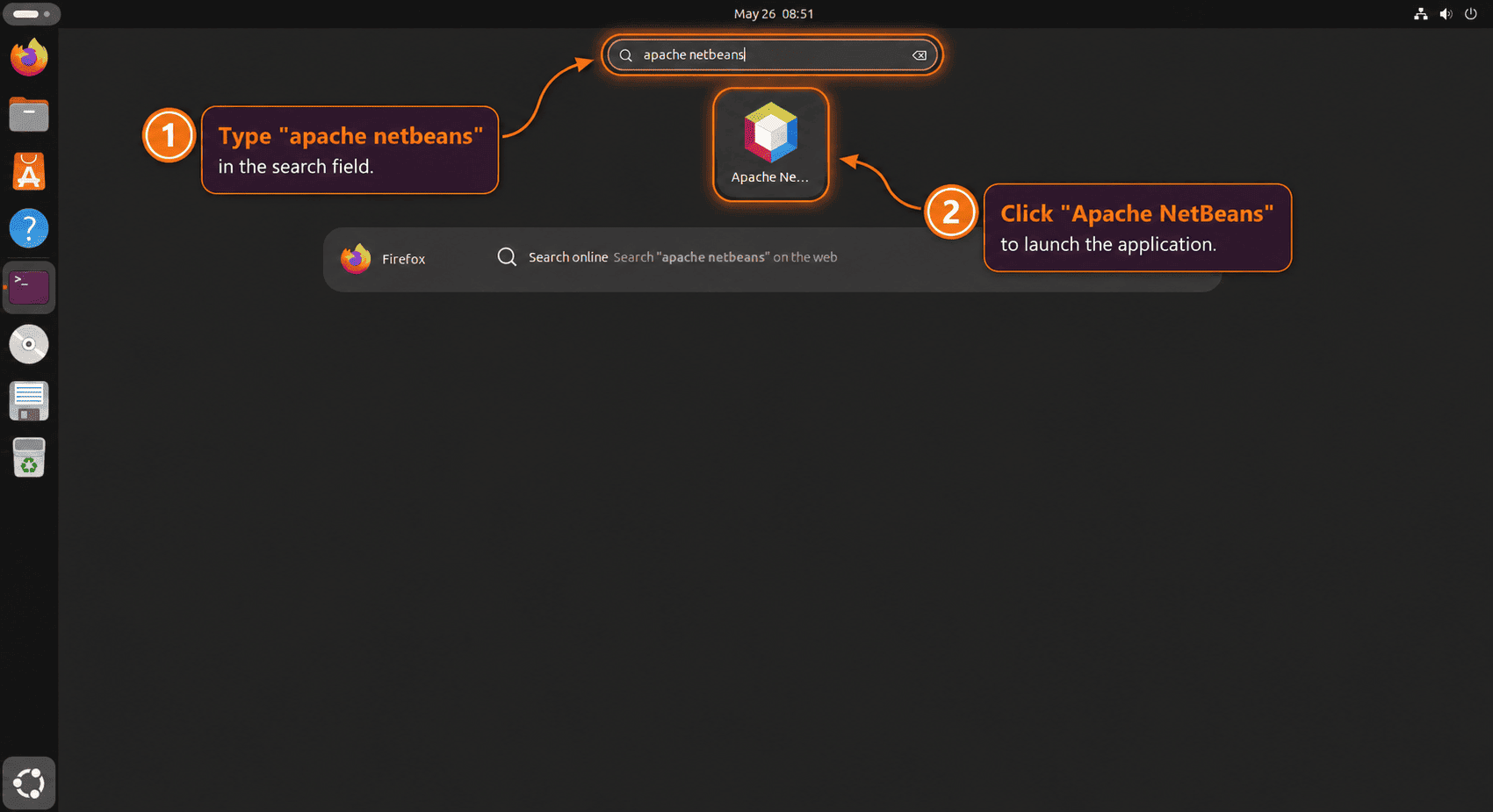
The launcher result should appear as Apache NetBeans with the NetBeans cube icon. For the Apache ZIP method, the desktop launcher uses the installed apache-netbeans icon name, hicolor SVG and PNG icon files, and the NetBeans window class from the release bundle. The helper also installs a hidden netbeans.desktop compatibility entry so older GNOME favorites do not keep pointing at stale launcher metadata after an update.
Start Using Apache NetBeans
NetBeans opens to a start page where you can create a project, open an existing source tree, or connect project tooling such as Maven, Gradle, Git, PHP, Node.js, or C/C++ build tools. The JDK installed earlier is enough to start a Java project, but language runtimes and compilers still come from Ubuntu or the upstream tools your project uses.
Create a Java Project
Use File, New Project, Java with Maven, then Java Application to create a quick Java project. When NetBeans asks to activate a project template family, continue through the wizard so the IDE enables the module needed for that project type.
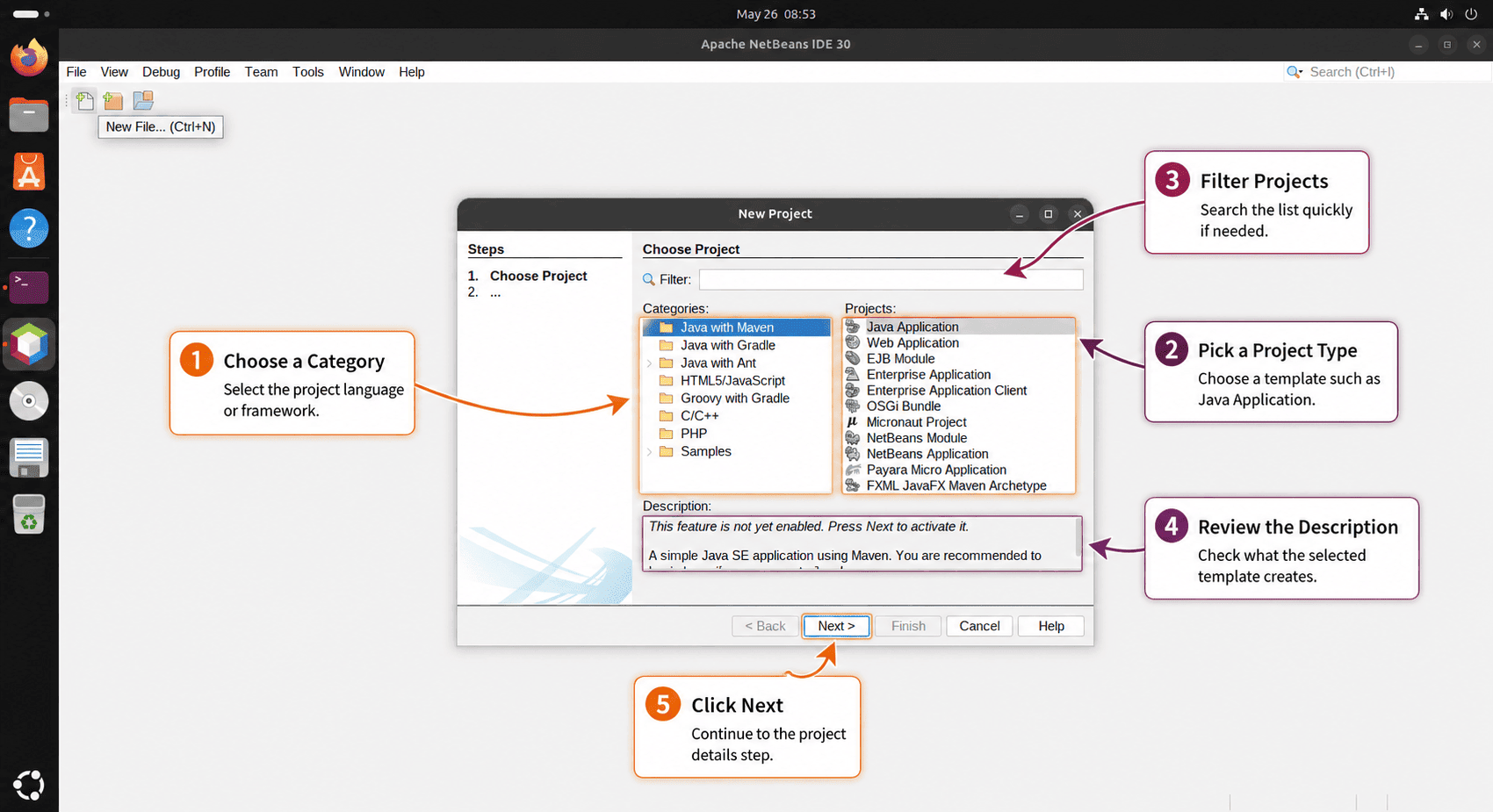
The Java with Maven category creates a normal Maven-backed Java SE project. Choose Java with Gradle only when your project already uses Gradle, and use Samples only when you want demonstration projects instead of a clean application skeleton.
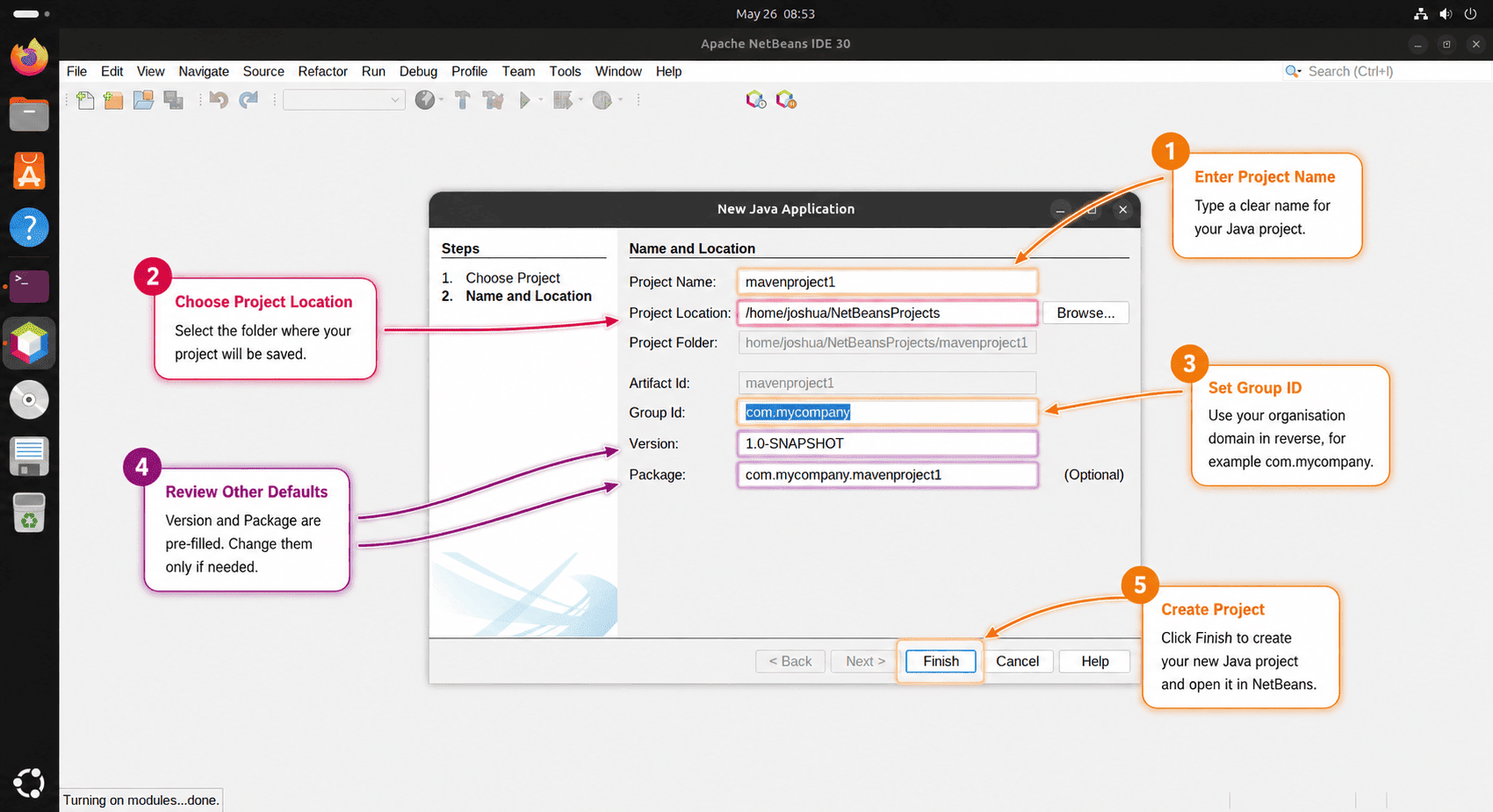
The project location controls where NetBeans writes the new files, so choose a folder you already back up or sync if the project matters. For real code, replace the sample Group ID with a reverse-domain value for your organization or personal namespace before clicking Finish; NetBeans uses it to build the default Java package name.
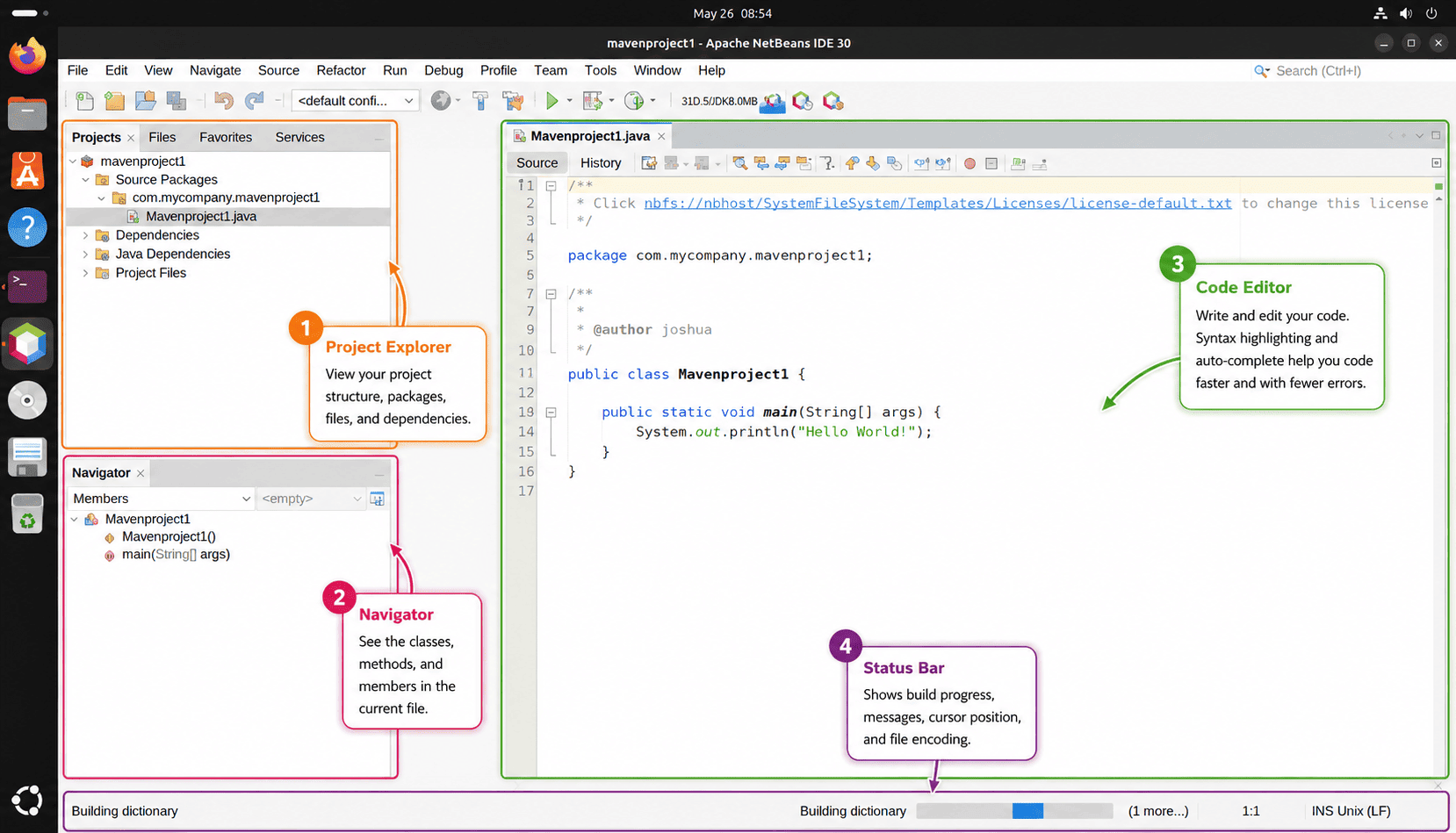
After Finish, NetBeans opens the generated class and starts background indexing or build tasks. Wait for the status bar to settle before treating early warnings as project problems; the Projects pane shows the source package, dependencies, and project files that the IDE created.
If your project uses a separate Maven or Git workflow outside the IDE, see the guides to install Apache Maven on Ubuntu and install or upgrade Git on Ubuntu. NetBeans can detect many project tools, but the host packages still control command-line builds and repository access.
Install NetBeans Plugins
NetBeans includes a built-in plugin manager. Open Tools, then Plugins from the main menu.
Use the Available Plugins tab to search the configured update centers, or use the Downloaded tab when you have an .nbm file from the Apache NetBeans Plugin Portal. Check the plugin’s verified NetBeans version before installing it, especially after a major IDE upgrade.
After installing a plugin, restart NetBeans when prompted. IDE plugins are separate from Ubuntu packages, so update them through Tools, Plugins, then Updates rather than APT or Snap.
Update Apache NetBeans on Ubuntu
Use the update path that matches your install method.
Update the Apache ZIP Install
Rerun the helper to resolve the newest stable GitHub release tag, download the matching Apache ZIP, verify the PGP signature and SHA-512 checksum, and promote a staged replacement only after the new archive extracts cleanly. You should not edit the helper for a normal future NetBeans release unless Apache changes its release URL layout or artifact naming.
sudo install-apache-netbeansClose NetBeans before updating this method so the old files are not in use while the helper replaces the installation directory.
Update the NetBeans Snap
Snap refreshes installed packages automatically. Run a manual refresh when you want to check immediately:
sudo snap refresh netbeansRemove Apache NetBeans from Ubuntu
Remove NetBeans with the same method you used to install it. Application removal does not automatically delete every user profile, project, plugin cache, or settings directory.
Remove the Apache ZIP Install
sudo rm -rf /opt/netbeans
sudo rm -f /usr/local/bin/netbeans
sudo rm -f /usr/local/sbin/install-apache-netbeans
sudo rm -f /usr/share/applications/apache-netbeans.desktop
sudo rm -f /usr/share/applications/netbeans.desktop
sudo rm -f /usr/share/icons/hicolor/scalable/apps/apache-netbeans.svg
sudo rm -f /usr/share/icons/hicolor/48x48/apps/apache-netbeans.png
sudo rm -f /usr/share/icons/hicolor/256x256/apps/apache-netbeans.png
sudo rm -f /usr/share/icons/hicolor/512x512/apps/apache-netbeans.png
if command -v gtk-update-icon-cache >/dev/null 2>&1; then
    sudo gtk-update-icon-cache -q /usr/share/icons/hicolor || true
fi
sudo update-desktop-database /usr/share/applications
Verify the system-wide files are gone:
remaining=0
for path in /opt/netbeans /usr/local/bin/netbeans /usr/local/sbin/install-apache-netbeans /usr/share/applications/apache-netbeans.desktop /usr/share/applications/netbeans.desktop /usr/share/icons/hicolor/scalable/apps/apache-netbeans.svg /usr/share/icons/hicolor/48x48/apps/apache-netbeans.png /usr/share/icons/hicolor/256x256/apps/apache-netbeans.png /usr/share/icons/hicolor/512x512/apps/apache-netbeans.png; do
    if [ -e "$path" ] || [ -L "$path" ]; then
        echo "Still exists: $path"
        remaining=1
    fi
done
[ "$remaining" -eq 0 ] && echo "Apache NetBeans system files removed"
Remove the NetBeans Snap
sudo snap remove --purge netbeansVerify the Snap is no longer installed:
snap list netbeans 2>/dev/null || echo "netbeans snap not installed"Review NetBeans User Data
These paths can contain IDE settings, installed plugins, caches, and project metadata. Back up anything important before deleting user data manually.
List common NetBeans user-data locations before removing anything:
find "$HOME" -maxdepth 4 \( -path "$HOME/.netbeans" -o -path "$HOME/.cache/netbeans" -o -path "$HOME/.config/netbeans" -o -path "$HOME/snap/netbeans" \) -printIf the command lists only NetBeans paths you no longer need, remove them manually. Keep this cleanup separate from package removal so you do not delete project data by mistake.
Troubleshoot Apache NetBeans on Ubuntu
APT Cannot Locate NetBeans
Ubuntu 26.04, 24.04, and 22.04 do not currently publish a netbeans package in the Ubuntu package archive. Use the Apache binary ZIP helper or the Snap package instead of searching for an APT package that is not present.
NetBeans Does Not Start Because Java Is Missing
If NetBeans exits immediately or the terminal says Java is missing, confirm the active runtime:
command -v java
java -version
Install OpenJDK 21 again if the command is missing or shows an unsupported Java branch:
sudo apt install openjdk-21-jdkIf your shell or build tool needs a fixed JAVA_HOME, use the guide to set the Java environment path on Ubuntu after choosing the JDK branch your projects require.
NetBeans Command Not Found
For the Apache ZIP method, check that the symlink still points to the installed launcher:
readlink -f /usr/local/bin/netbeans
test -x /opt/netbeans/bin/netbeans && echo "NetBeans launcher is executable"
For the Snap method, use the Snap launcher form when a fresh shell does not yet include /snap/bin in PATH:
snap run netbeansNetBeans Shows a Blurry or Generic GNOME Icon
This symptom usually comes from stale launcher metadata after a manual ZIP install or update. Older launchers can point at the small /opt/netbeans/nb/netbeans.png file, use StartupWMClass=netbeans, or remain pinned in GNOME under the old netbeans.desktop ID.
Check the desktop entries and icons created by the ZIP helper:
grep -HE '^(Icon|StartupWMClass|NoDisplay)=' /usr/share/applications/apache-netbeans.desktop /usr/share/applications/netbeans.desktop
for icon_path in /usr/share/icons/hicolor/scalable/apps/apache-netbeans.svg /usr/share/icons/hicolor/48x48/apps/apache-netbeans.png /usr/share/icons/hicolor/256x256/apps/apache-netbeans.png /usr/share/icons/hicolor/512x512/apps/apache-netbeans.png; do
    test -f "$icon_path" && echo "Installed icon: $icon_path"
done
A current ZIP install should show the named icon, the NetBeans IDE window class for the resolved version, the hidden compatibility launcher, and hicolor SVG/PNG icons:
/usr/share/applications/apache-netbeans.desktop:Icon=apache-netbeans
/usr/share/applications/apache-netbeans.desktop:StartupWMClass=Apache NetBeans IDE VERSION
/usr/share/applications/netbeans.desktop:Icon=apache-netbeans
/usr/share/applications/netbeans.desktop:StartupWMClass=Apache NetBeans IDE VERSION
/usr/share/applications/netbeans.desktop:NoDisplay=true
Installed icon: /usr/share/icons/hicolor/scalable/apps/apache-netbeans.svg
Installed icon: /usr/share/icons/hicolor/48x48/apps/apache-netbeans.png
Installed icon: /usr/share/icons/hicolor/256x256/apps/apache-netbeans.png
Installed icon: /usr/share/icons/hicolor/512x512/apps/apache-netbeans.png
If the output still shows Icon=/opt/netbeans/nb/netbeans.png, StartupWMClass=netbeans, or a missing icon file, rerun the ZIP helper to rebuild the launchers and refresh the desktop caches:
sudo install-apache-netbeans
sudo update-desktop-database /usr/share/applications
if command -v gtk-update-icon-cache >/dev/null 2>&1; then
    sudo gtk-update-icon-cache -q /usr/share/icons/hicolor || true
fi
If the system files are correct but the sidebar still shows the old artwork, check for a user-local desktop entry that overrides the system launcher:
if [ -d "$HOME/.local/share/applications" ]; then
    find "$HOME/.local/share/applications" -maxdepth 1 -iname '*netbeans*.desktop' -print -exec grep -HE '^(Exec|Icon|StartupWMClass|NoDisplay)=' {} \;
fi
If that command lists an old local launcher with the 32×32 PNG icon or the wrong window class, move it aside so GNOME uses the rebuilt system launcher:
mkdir -p "$HOME/.local/share/applications/disabled"
for desktop_file in "$HOME/.local/share/applications/netbeans.desktop" "$HOME/.local/share/applications/apache-netbeans.desktop"; do
    if [ -f "$desktop_file" ] && grep -Eq 'Icon=.*/netbeans\.png|StartupWMClass=netbeans' "$desktop_file"; then
        mv "$desktop_file" "$HOME/.local/share/applications/disabled/"
    fi
done
Close NetBeans before retesting from Activities. If GNOME keeps the old launcher artwork after the file checks pass, unpin the old sidebar favorite, sign out and back in, then pin the current Apache NetBeans entry again.
ZIP Helper Cannot Resolve Release URLs
The ZIP helper needs DNS and HTTPS access to GitHub and Apache mirrors. If it stops with curl: (6) Could not resolve host, check name resolution for the required endpoints:
getent hosts api.github.com dlcdn.apache.org downloads.apache.orgEmpty output means Ubuntu cannot resolve one or more required hostnames. Fix DNS, proxy, firewall, or temporary network access, then rerun sudo install-apache-netbeans. Do not edit the helper to pin an old version unless the current Apache mirror is genuinely unavailable.
Snap Install Reports Classic Confinement
The NetBeans Snap requires classic confinement. Re-run the install with the documented flag if Snap stops with a confinement warning:
sudo snap install netbeans --classicAfter installation, verify the package and channel:
snap list netbeans
snap info netbeans
Snap Cannot Contact the Store
If sudo snap install netbeans --classic or snap info netbeans reports that the Snap Store is unreachable, check store connectivity before changing package names or switching methods:
snap debug connectivityA healthy connection returns a pass result:
Connectivity status:
 * PASS
If the output names api.snapcraft.io or another Snap Store endpoint as unreachable, fix DNS, proxy, firewall, or temporary network access first. Then rerun snap info netbeans and repeat the install command.
Check AppArmor Before Changing Security Settings
NetBeans is a Java/Swing desktop IDE, not a Chromium or Electron application, so Ubuntu’s unprivileged user-namespace restriction should not require a custom AppArmor profile for the Apache ZIP method. The Snap method loads Snap-managed AppArmor profiles automatically. Do not disable AppArmor globally for NetBeans startup problems.
If NetBeans fails to launch and you suspect a security denial, inspect the kernel log for NetBeans or Java entries:
sudo journalctl -k --since "10 minutes ago" -g 'apparmor|DENIED|netbeans|java' --no-pagerNo matching denial usually means the issue is elsewhere, such as a missing JDK, a broken desktop session, or a project-specific plugin problem. For broader policy background, see the guide to enable or disable AppArmor on Ubuntu, but keep any troubleshooting scoped to the affected application.
Conclusion
Apache NetBeans is ready on Ubuntu once OpenJDK 21 is installed and the package source matches your update preference. Use the Apache ZIP helper for an upstream binary install with PGP and checksum verification, or use the NetBeans Snap for automatic Snap refreshes. After first launch, add only the project runtimes and plugins your work needs, then update NetBeans and its plugins through their matching channels.


Formatting tips for your comment
You can use basic HTML to format your comment. Useful tags currently allowed in published comments:
<code>command</code>command<strong>bold</strong><em>italic</em><a href="https://example.com">link</a><blockquote>quote</blockquote>