
For most Ubuntu desktop installs, Sublime Text is easiest to maintain when the package source also owns the desktop launcher and subl command. To install Sublime Text on Ubuntu, use the official Sublime HQ APT repository by default because it installs the current stable build, adds the command-line launcher, and keeps future updates inside APT.
The same repository flow works on Ubuntu 26.04, 24.04, and 22.04. The community Snap package remains a secondary option, while the old Flathub package should be avoided because it is no longer maintained. If you are comparing editors, Visual Studio Code fits heavier IDE-style workflows, Neovim works well for terminal-first editing, and Kate is a strong KDE-native alternative.
Install Sublime Text on Ubuntu
Several installation paths are visible for Sublime Text, but they are not equivalent. Use the official APT repository when you want the vendor-supported package and predictable desktop integration. Use Snap only when you prefer Snap packaging and accept a community-maintained package.
| Method | Source | Update Behavior | Use When |
|---|---|---|---|
| Official APT repository | Sublime HQ Linux repository | Sublime HQ packages update through APT | Recommended for most Ubuntu desktop and workstation installs |
| Snap package | Snapcraft, maintained by Snapcrafters | Snapd refreshes a community-maintained classic snap | Users who prefer Snap packaging and accept the unofficial maintainer |
| Flatpak package | Flathub listing | No maintained current package for new installs | Avoid for new Ubuntu installs |
Sublime HQ also publishes direct Linux package downloads, including .deb files for x86-64 and ARM64 systems. Use those only when you need a one-off or offline package; the repository method below is better for normal Ubuntu installs because APT can verify the source and deliver future updates automatically.
Sublime Text can be evaluated for free, but Sublime HQ requires a license for continued use. The APT, Snap, and direct package choices change how the editor is installed and updated, not the upstream licensing terms.
Update Ubuntu Packages First
Refresh Ubuntu’s package index before adding the Sublime Text repository. This keeps dependency metadata current before APT checks the new source.
sudo apt updateThe commands below use
sudo. If your account cannot run administrative commands, configure sudo access first with the Ubuntu sudoers guide.
Install APT Prerequisites
Install the small set of packages needed to download the Sublime HQ signing key and verify HTTPS connections.
sudo apt install curl ca-certificates -yThe curl command downloads the key, while ca-certificates lets APT and curl validate HTTPS endpoints.
Add the Sublime Text Signing Key
Download the Sublime HQ public key as your normal user, then install it into APT’s keyring directory in the format used by the current upstream repository instructions.
rm -f sublimehq-pub.asc
curl -fsSLo sublimehq-pub.asc https://download.sublimetext.com/sublimehq-pub.gpg \
  && sudo install -m 0755 -d /etc/apt/keyrings \
  && sudo install -m 0644 sublimehq-pub.asc /etc/apt/keyrings/sublimehq-pub.asc
result=$?
rm -f sublimehq-pub.asc
[ "$result" -eq 0 ]
The key is stored as sublimehq-pub.asc because Sublime HQ publishes it as an ASCII-armored key. No gpg --dearmor conversion is needed for this repository configuration.
Create the Sublime Text APT Source
Add the stable Sublime Text repository with a DEB822 source file. The upstream repository uses the same apt/stable/ suite across current Ubuntu releases, so this command does not need your Ubuntu codename.
printf '%s\n' \
'Types: deb' \
'URIs: https://download.sublimetext.com/' \
'Suites: apt/stable/' \
'Signed-By: /etc/apt/keyrings/sublimehq-pub.asc' \
| sudo tee /etc/apt/sources.list.d/sublime-text.sources > /dev/null
The repository publishes Sublime Text packages for x86-64 and arm64 systems. It also contains Sublime Merge, but the commands here install the editor package only.
Install the Sublime Text APT Package
Refresh APT again so Ubuntu reads the new source, then install the sublime-text package.
sudo apt update
sudo apt install sublime-text
Confirm that the package installed successfully. The version number can change as Sublime HQ publishes new builds, but the status line should match.
dpkg -s sublime-text | grep -E '^(Status|Architecture|Version):'Status: install ok installed Architecture: amd64 Version: 4200
On arm64 systems, the architecture line should show arm64 instead of amd64.
The APT package also installs the subl command-line launcher into /usr/bin/. Confirm the launcher is on PATH before relying on terminal shortcuts.
command -v subl/usr/bin/subl
Install Sublime Text with Snap
The Snap package is a community-maintained option from Snapcrafters. It tracks the current stable Sublime Text build, but it is not the vendor repository and it requires classic confinement so the editor can open normal project files.
sudo snap install sublime-text --classicCheck the installed Snap package record:
snap list sublime-textName Version Rev Tracking Publisher Notes sublime-text 4200 219 latest/stable snapcrafters* classic
Snap creates a subl alias through /snap/bin on normal Ubuntu sessions. If that path has not refreshed in your current terminal, use the Snap app command directly.
snap run sublime-text.sublAvoid the Deprecated Flatpak Package
Flathub still lists com.sublimetext.three, but its current metadata marks the application as no longer maintained. Because that package targets an old Sublime Text 3 build and an old Flatpak runtime, use the official APT repository or the Snap package for new Ubuntu installs.
Launch Sublime Text on Ubuntu
Open Sublime Text from the Terminal
Use subl to open the editor from a terminal after an APT install or after Snap has added its launcher path.
sublOpen a specific file by passing its path:
subl /path/to/file.txtUse the current directory as a project root:
subl .Open Sublime Text from the Application Menu
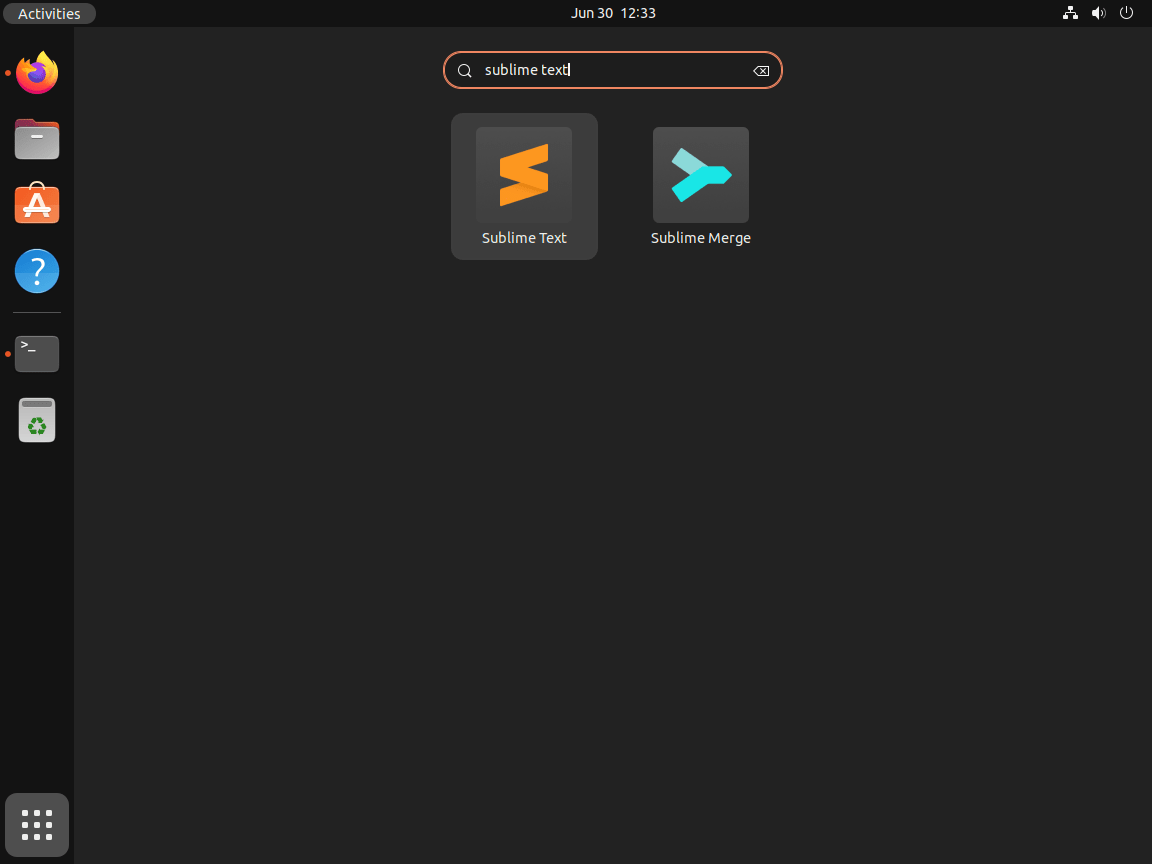
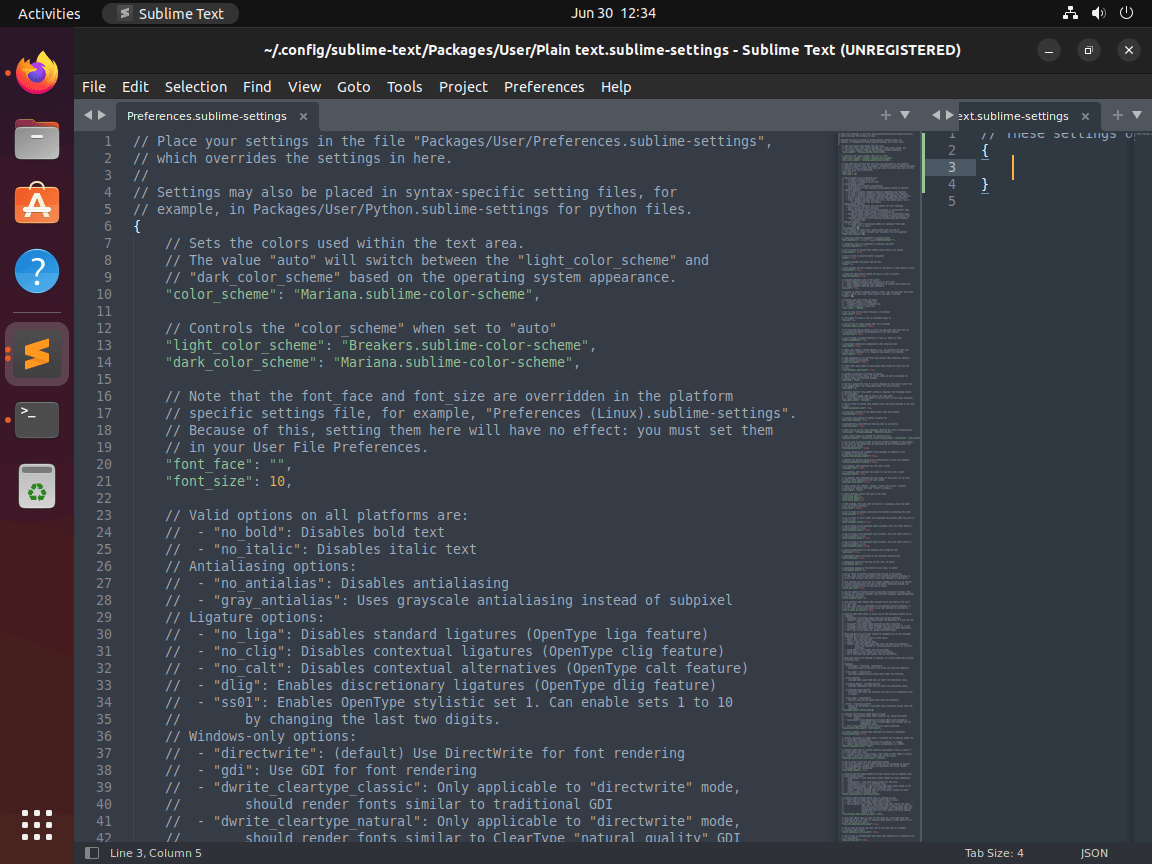
Desktop users can also open Sublime Text from the Ubuntu application launcher. Search for Sublime Text, then select the application icon.
Install Editor Packages After Launch
After the editor opens, install editor extensions from inside Sublime Text rather than through APT or Snap. Package Control is managed from the Command Palette or the Tools menu, so it is not a separate Ubuntu package.
Update Sublime Text on Ubuntu
Update the Official APT Package
APT repository installs update through Ubuntu’s package manager. To update only Sublime Text, refresh package metadata and run a single-package upgrade.
sudo apt update
sudo apt install --only-upgrade sublime-text
Update the Snap Package
Snap packages normally refresh automatically. Request an immediate refresh when you do not want to wait for the next refresh window.
sudo snap refresh sublime-textTroubleshoot Sublime Text on Ubuntu
Fix Unable to Locate Package sublime-text
The sublime-text package does not come from Ubuntu’s default repositories. If APT reports that it cannot locate the package, confirm that the Sublime Text source exists and that APT has read it.
apt-cache policy sublime-textA working setup should show a candidate version from https://download.sublimetext.com/. If no candidate appears, repeat the signing-key and source-file steps above, then refresh APT again.
sudo apt updateAvoid Duplicate Sublime Text APT Sources
Older versions of this article used Extrepo to enable the same Sublime HQ repository. Do not keep both an Extrepo Sublime source and the manual sublime-text.sources file enabled at the same time, because duplicate sources can create confusing APT warnings.
grep -RIn 'download.sublimetext.com' /etc/apt/sources.list /etc/apt/sources.list.d 2>/dev/nullIf you switched to the manual source above and still see an older Extrepo file pointing to the same Sublime HQ repository, remove that duplicate Extrepo source file and refresh APT.
sudo rm -f /etc/apt/sources.list.d/extrepo_sublime_stable.sources
sudo apt update
Remove Sublime Text from Ubuntu
Remove the Official APT Install
Remove the editor package before deleting its repository source.
sudo apt remove sublime-textIf you also want to remove the Sublime HQ repository from APT, delete the source file, remove the signing key only when no remaining source references it, and refresh package metadata.
sudo rm -f /etc/apt/sources.list.d/sublime-text.sources

if ! grep -Rqs '/etc/apt/keyrings/sublimehq-pub.asc' /etc/apt/sources.list /etc/apt/sources.list.d; then
    sudo rm -f /etc/apt/keyrings/sublimehq-pub.asc
fi

sudo apt update
Before running broad cleanup commands such as apt autoremove, review what Ubuntu plans to remove. The Ubuntu package removal guide explains how to inspect removal candidates safely.
Confirm APT no longer reports an installed Sublime Text package.
dpkg -s sublime-text 2>/dev/null | grep '^Status: install ok installed' || echo "sublime-text not installed"sublime-text not installed
Remove the Snap Install
If you installed the Snap package, remove it with --purge so Snap does not create a recovery snapshot. Back up ~/snap/sublime-text/ first if you need settings or session data from the Snap install.
sudo snap remove --purge sublime-textVerify that Snap no longer lists the package.
snap list sublime-text 2>/dev/null || echo "sublime-text snap not installed"sublime-text snap not installed
Remove Sublime Text User Data
The next commands permanently delete Sublime Text settings, installed packages, session data, caches, and license information from your user account. Back up these directories first if you want to keep your configuration.
List matching user-data directories first so you can confirm what will be deleted.
find "$HOME/.config" "$HOME/.cache" "$HOME/snap" -maxdepth 1 \( -name 'sublime-text' -o -name 'sublime-text-3' \) -print 2>/dev/nullNo output means the matching directories are not present for the current account. Remove current Sublime Text 4 and Snap user data only after that list contains nothing you want to keep.
rm -rf "$HOME/.config/sublime-text" "$HOME/.cache/sublime-text" "$HOME/snap/sublime-text"If you previously used Sublime Text 3, remove the legacy configuration directory only after confirming you no longer need it.
rm -rf "$HOME/.config/sublime-text-3"Conclusion
Sublime Text is installed on Ubuntu from a source that matches your update model: the official Sublime HQ APT repository for most systems, or the community Snap package when Snap packaging is the better fit. Use the subl launcher for terminal-driven file and project work, then keep updates and removal tied to the method you selected.


Formatting tips for your comment
You can use basic HTML to format your comment. Useful tags currently allowed in published comments:
<code>command</code>command<strong>bold</strong><em>italic</em><a href="https://example.com">link</a><blockquote>quote</blockquote>