
Kate is useful on Ubuntu when a small text editor is not enough, but a full IDE feels heavier than the task requires. It gives you syntax highlighting, split views, project tools, an embedded terminal, and LSP-assisted code editing in a desktop editor maintained by KDE. To install Kate on Ubuntu, use APT for the repository package, or choose Flatpak or Snap when you want the current KDE stable build through a separate application channel.
This guide covers Ubuntu 26.04, 24.04, and 22.04. The APT package comes from Ubuntu’s universe component, while the Flatpak and Snap methods use Flathub and Snapcraft application channels. You will also find launch commands, update and removal steps, and notes on when source builds belong in a KDE development workflow instead of a normal desktop install.
Install Kate Text Editor on Ubuntu
Choose one method before installing. APT is the simplest option for most Ubuntu systems because it stays tied to the distro package manager. Flatpak and Snap are useful when you specifically want the newer KDE application release available outside Ubuntu’s repository cadence.
| Method | Source | Current Release Pattern | Best Fit |
|---|---|---|---|
| APT | Ubuntu universe | 25.12.x on 26.04, 23.08.x on 24.04, 21.12.x on 22.04 | Stable Ubuntu-integrated package management |
| Flatpak | Flathub | Current KDE stable branch | Sandboxed app install with newer upstream releases |
| Snap | Snapcraft | Current KDE stable branch with classic confinement | Snap users who want KDE’s store package |
Install Kate with APT
Start with an updated package index so APT checks the current Ubuntu repository metadata before installing Kate:
sudo apt updateThese commands use
sudofor package-manager tasks that need administrator privileges. If your account is not configured for sudo yet, follow the Ubuntu sudoers guide first, then return to the install command.
Install the Kate package from Ubuntu’s repository:
sudo apt install kateVerify the installed package with dpkg-query:
dpkg-query -W katekate 4:25.12.3-0ubuntu1
The exact APT version depends on your Ubuntu release. Expect the 25.12.x series on Ubuntu 26.04, the 23.08.x series on Ubuntu 24.04, and the 21.12.x series on Ubuntu 22.04.
Install Kate with Flatpak
Flatpak installs Kate as org.kde.kate from Flathub. Use this method when you want the Flathub build and already manage desktop applications through Flatpak.
Flatpak is not part of a default Ubuntu desktop install. If you have not enabled it yet, follow the Flatpak setup guide for Ubuntu first so the
flathubremote is available.
Install Kate from the system-wide Flathub remote:
sudo flatpak install flathub org.kde.kate -yAfter installation, confirm the Flatpak app reference:
flatpak info --show-ref org.kde.kateapp/org.kde.kate/x86_64/stable
Install Kate with Snap
The Snapcraft package is published by KDE and uses classic confinement. Include the --classic flag because the package requires broader desktop integration than a strictly confined snap provides.
sudo snap install kate --classicVerify the installed snap and confirm that the Notes column shows classic confinement:
snap list kateName Version Rev Tracking Publisher Notes kate 26.04.0 218 latest/stable kde** classic
The Snap revision can change as KDE publishes updates. The important checks are the kate package name, the latest/stable tracking channel, and the classic confinement note.
Launch Kate Text Editor
Kate is a graphical desktop application, so launch it from an active Ubuntu desktop session. Terminal launch commands are still useful when you want to open Kate from a shell inside that desktop session.
Launch Kate from the Terminal
For the APT package, run:
kateFor the Flatpak package, run:
flatpak run org.kde.kateFor the Snap package, run:
snap run kateLaunch Kate from the Applications Menu
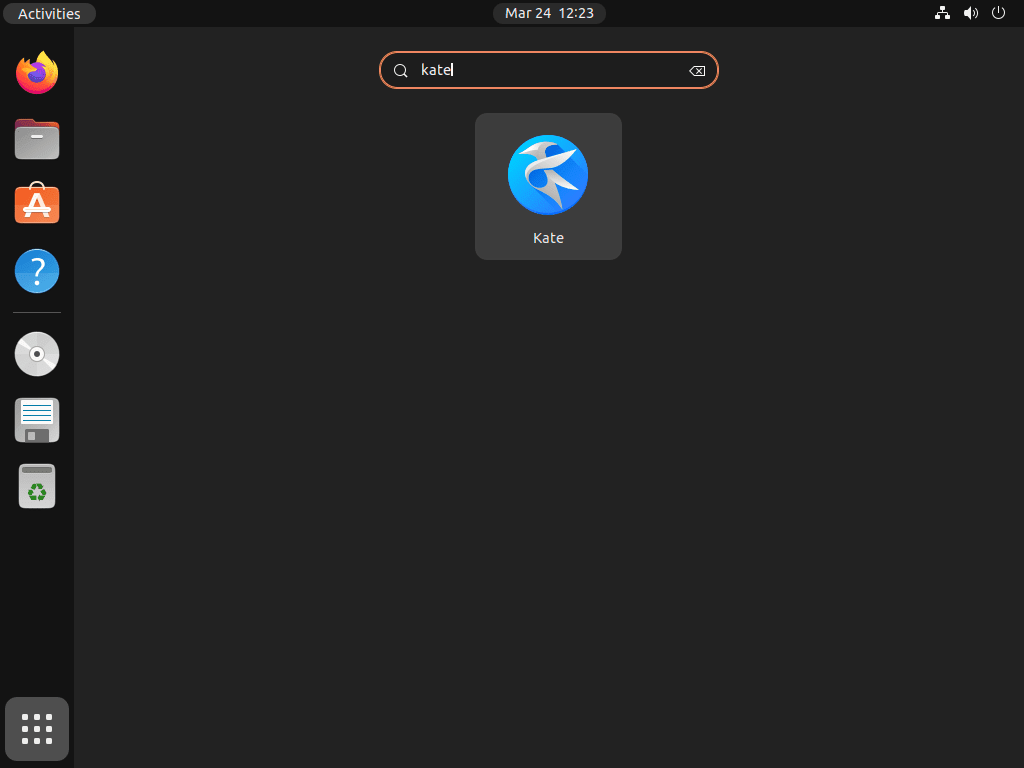
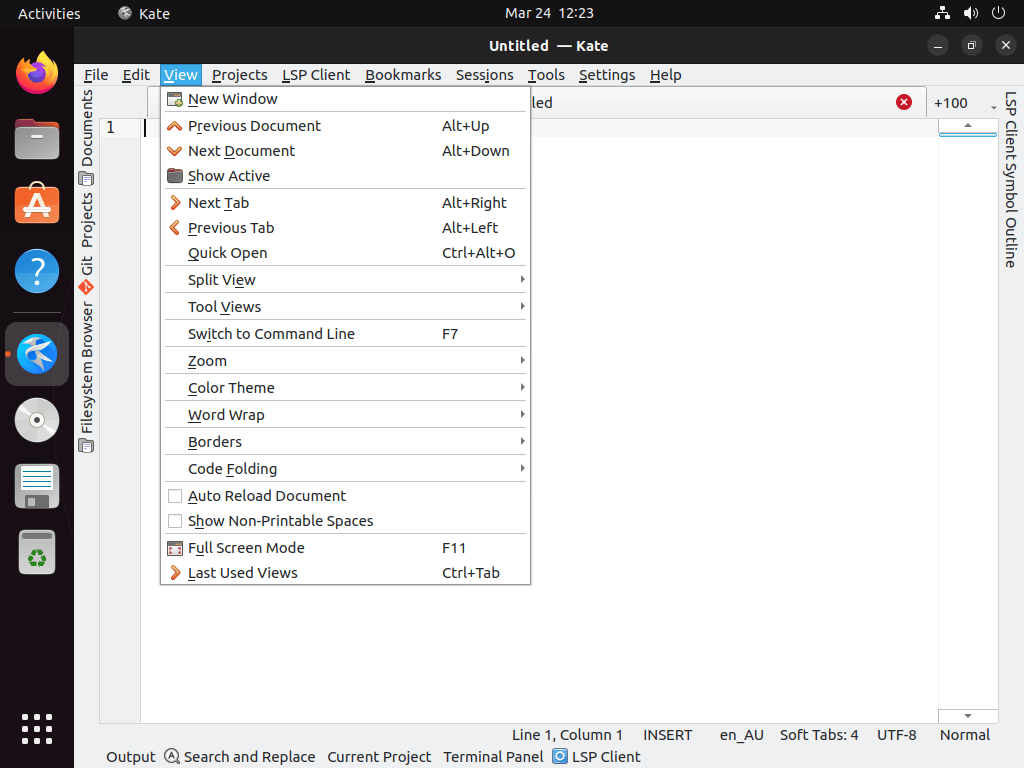
Open the Activities overview, search for Kate, and select the Kate icon. The exact menu location depends on your desktop environment, but Ubuntu’s default GNOME search finds the launcher once the package is installed.
Update Kate on Ubuntu
Use the update command that matches your installation method. Mixing methods can leave multiple Kate launchers on the same system, so update only the channel you installed.
Update the APT Package
sudo apt update
sudo apt install --only-upgrade kate
Update the Flatpak Package
sudo flatpak update org.kde.kate -yUpdate the Snap Package
Snapd refreshes installed snaps automatically, but you can request an immediate refresh with:
sudo snap refresh kateRemove Kate from Ubuntu
Remove Kate with the package manager that installed it. If you installed more than one method while testing, repeat the relevant removal commands for each channel.
Remove the APT Package
sudo apt remove kateIf APT reports unused dependencies afterward, preview the cleanup first:
sudo apt autoremove --dry-runRun the real autoremove only after checking that the preview does not include packages you still need:
sudo apt autoremoveRemove the Flatpak Package
sudo flatpak remove org.kde.kate -yRemove the Snap Package
sudo snap remove --purge kateRemove Optional Kate User Data
Package removal does not necessarily remove your Kate preferences, session data, or per-user application data. Review these paths first, then remove them only if you no longer need your Kate settings or saved sessions.
Warning: The next commands permanently delete Kate settings and saved application data from your user account. Back up any sessions, snippets, or editor preferences you want to keep before running them.
rm -rf ~/.config/kate ~/.local/share/kate ~/.cache/kate
rm -rf ~/.var/app/org.kde.kate
rm -rf ~/snap/kate
Kate Source Builds and Official Downloads
The official Kate project website is the right place to review features and release notes, while the Kate downloads page lists upstream platform options. For normal Ubuntu desktops, APT, Flatpak, and Snap are better choices than manual source or archive downloads because updates and removal stay tied to a package manager.
Source builds are mainly for KDE contributors or users who need a development build. The official Kate build guide uses a separate KDE development environment so it does not overwrite the system Kate install. Follow that upstream workflow instead of mixing partial source-build commands with the package-managed methods above.
Troubleshoot Kate on Ubuntu
APT Cannot Locate the Kate Package
If APT cannot find Kate, the universe component may be disabled on your system. Enable the Ubuntu universe repository, refresh package metadata, then retry the install:
sudo add-apt-repository universe
sudo apt update
sudo apt install kate
Kate Does Not Open from the Terminal
Kate needs a running graphical session. If you launch it from a remote SSH shell or another non-graphical environment, the app may fail before the main window appears. From a normal desktop terminal, check the method-specific launch command first, then reset only your Kate configuration if the app opens and immediately crashes.
mv ~/.config/kate ~/.config/kate.backup
kate
If Kate works after the reset, copy back only the settings you still need from ~/.config/kate.backup.
Flatpak Reports That Flathub Is Missing
Check which Flatpak remotes are configured:
flatpak remotesIf flathub is not listed, return to the Ubuntu Flatpak setup guide and add the remote before reinstalling Kate.
Snap Install Requires Classic Confinement
If Snap refuses the install or the app cannot access expected desktop paths, confirm you installed Kate with --classic:
snap list kateIf the Notes column does not show classic, reinstall the snap with the classic flag:
sudo snap remove kate
sudo snap install kate --classic
Conclusion
Kate fits Ubuntu systems that need syntax highlighting, split views, project tools, and an editor that still feels lighter than a full IDE. Use APT for the repository package, or use Flatpak or Snap when you want KDE’s current stable build through an app-store channel. For broader editor options, compare Visual Studio Code on Ubuntu; for a fuller KDE desktop, see the KDE Plasma on Ubuntu guide.


Formatting tips for your comment
You can use basic HTML to format your comment. Useful tags currently allowed in published comments:
<code>command</code>command<strong>bold</strong><em>italic</em><a href="https://example.com">link</a><blockquote>quote</blockquote>