

Exaile is a music player and library manager built with Python and GTK+. If you need to organize a large music collection, create smart playlists based on genres or ratings, edit track metadata, or listen to internet radio stations, Exaile provides these features in a lightweight, customizable interface. By the end of this guide, you will have Exaile installed and running on Ubuntu, ready to import your music library and start playing.
Choose Your Exaile Installation Method
Ubuntu offers two ways to install Exaile: the default APT repositories and the official Exaile PPA. However, each method has different trade-offs for version currency and update frequency.
| Method | Channel | Version | Ubuntu Support | Best For |
|---|---|---|---|---|
| APT (Default) | Ubuntu Repos | 4.1.3 – 4.1.4 | 24.04 and 26.04 only | Users who prefer distribution-tested packages |
| PPA (Recommended) | Launchpad PPA | 4.2.0 | 22.04, 24.04, and 26.04 | Users who want the newest features and fixes |
For most users, the PPA method is recommended because it provides the latest Exaile release with new features and bug fixes. In contrast, the default repository version works well for users who prioritize stability over having the newest version.
This guide covers Ubuntu 22.04 LTS, 24.04 LTS, and 26.04 LTS. Note that Exaile is only available in the default Ubuntu repositories starting with 24.04. Ubuntu 22.04 users must use the PPA method.
Install Exaile via Official PPA (Recommended)
The Exaile Developers PPA provides the latest stable release directly from the project maintainers. As a result, this method ensures you receive updates as soon as they are published.
Update System Packages
Before adding any new software sources, first refresh your package index to ensure you are working with current repository data:
sudo apt update && sudo apt upgradeThis command updates the package list and upgrades any outdated packages. As a result, you reduce the chance of dependency conflicts during installation.
Add the Exaile PPA
Next, add the official Exaile PPA to your system. The add-apt-repository command imports the repository signing key and creates the source entry automatically:
sudo add-apt-repository ppa:exaile-devel/ppa -yOn Ubuntu 22.04 and newer, this command also runs apt update automatically. Therefore, you can proceed directly to installation.
Install Exaile
With the PPA configured, you can now install Exaile using APT:
sudo apt install exaileAPT automatically resolves and installs all required dependencies, including Python libraries and GStreamer plugins for audio playback.
Verify the Installation
Finally, confirm that Exaile installed correctly by checking the version number:
exaile --versionExpected output:
Exaile 4.2.0
The version number confirms that Exaile is installed and accessible from your terminal. The PPA typically provides newer versions than the default repositories.
Install Exaile via Default APT Repository
Ubuntu 24.04 and 26.04 only. Exaile is not available in the default Ubuntu 22.04 repositories. If you are running Ubuntu 22.04, use the PPA method above instead.
Alternatively, Ubuntu 24.04 and 26.04 users can install Exaile directly from the Universe repository without adding external PPAs. This version receives standard Ubuntu security updates and is tested for compatibility with each release.
Update and Install
First, update your package cache, then install Exaile:
sudo apt update && sudo apt install exaileVerify the Installation
Then, check the installed version:
exaile --versionGenerally, the default repository version is one minor release behind the PPA. For example, Ubuntu 26.04 provides version 4.1.4, Ubuntu 24.04 provides version 4.1.3, while the PPA offers version 4.2.0 across all supported releases.
Launch Exaile
After installation, you can launch Exaile using either the terminal or the graphical applications menu.
Launch from Terminal
To start Exaile from the command line, run:
exaileThe Exaile window opens and the application is ready to use. Additionally, running from the terminal displays any debug messages if you encounter issues.
Launch from Applications Menu
Alternatively, for desktop users, the graphical launcher is more convenient:
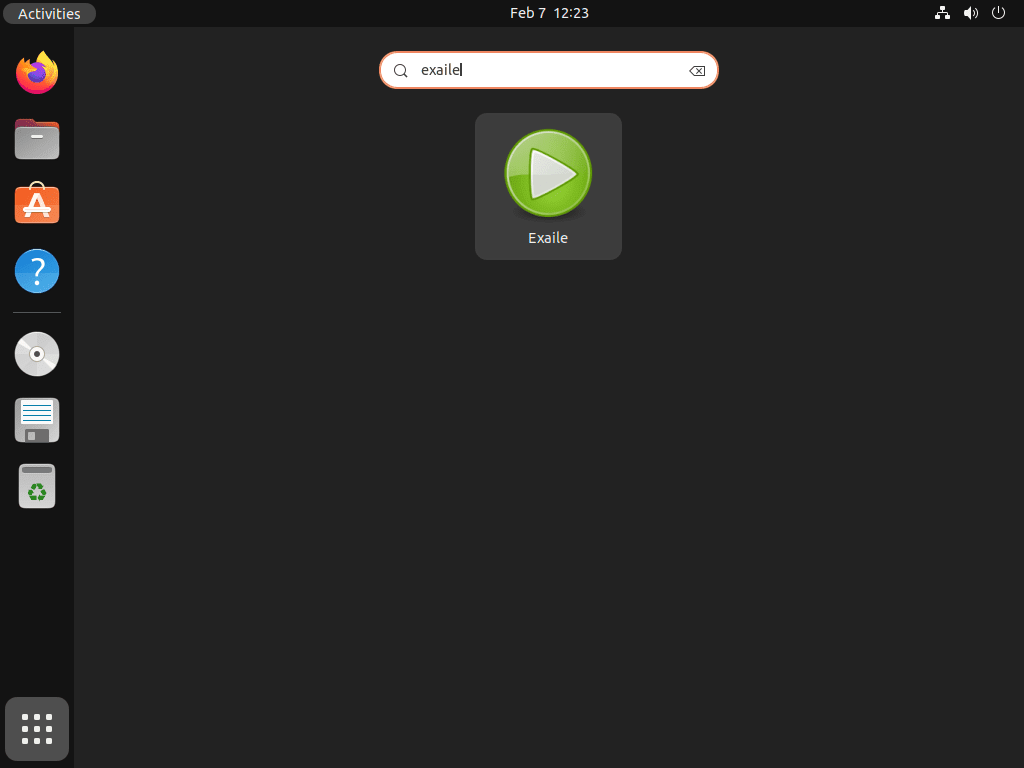
- First, click Activities in the top-left corner of your screen.
- Then, type “Exaile” in the search bar.
- Finally, click the Exaile icon to launch the application.
Configure Exaile for First Use
Once Exaile launches, a few configuration steps help you get the most from the application.
Install Additional Audio Codecs
Ubuntu’s default installation may lack codecs for certain audio formats like MP3 or AAC. If you encounter playback issues with specific file types, install the Ubuntu Restricted Extras package:
sudo apt install ubuntu-restricted-extrasThis package includes codecs for MP3, AAC, and other common audio formats. Afterward, restart Exaile to apply the changes.
Import Your Music Library
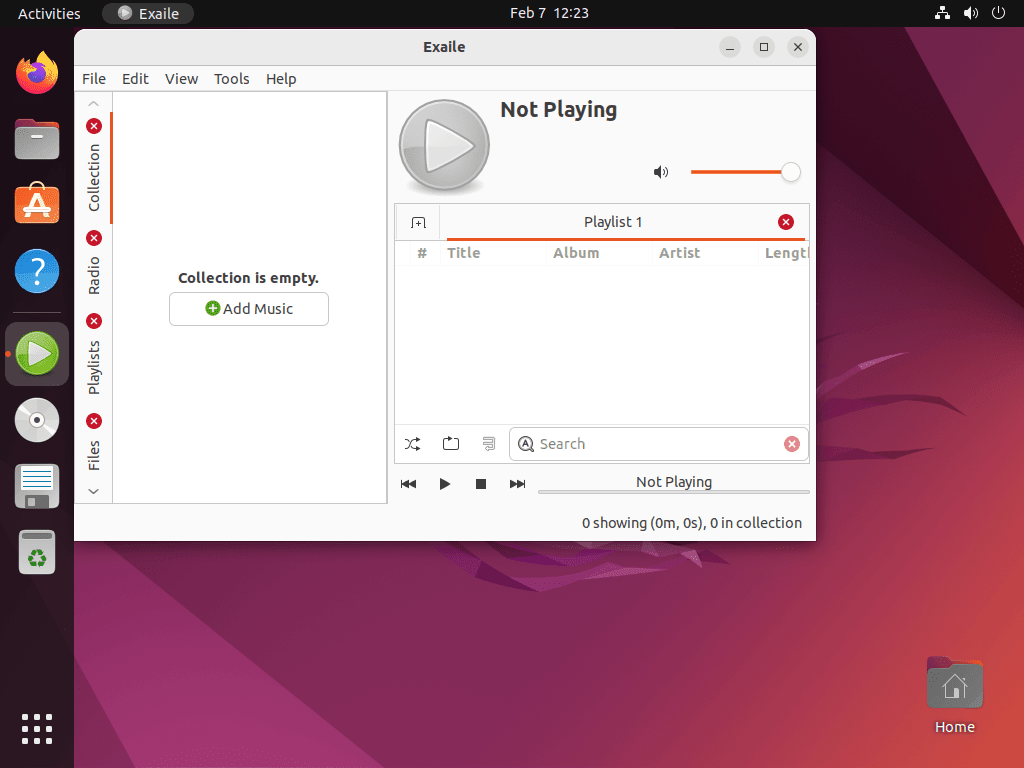
To add music to Exaile’s library, navigate to File → Import Files or File → Import Folders. Select the directory containing your audio files, and Exaile scans and indexes the tracks. For large collections, this process may take several minutes.
Customize the Interface
Exaile offers several customization options:
- Change themes: Navigate to Edit → Preferences → Appearance to select a different visual theme.
- Rearrange panels: Drag and drop interface panels to customize the layout according to your workflow.
- Enable plugins: Go to Edit → Preferences → Plugins to activate additional features like lyrics display, cover art management, or Last.fm scrobbling.
Listen to Internet Radio
Exaile also includes built-in internet radio support. To access this feature, click the Radio tab in the left panel. From there, you can browse preset stations or add custom streams by right-clicking the Radio section and selecting Add Stream.
Manage Exaile
Update Exaile
Exaile updates arrive through the standard APT upgrade process. Run the following command periodically to check for and install updates:
sudo apt update && sudo apt upgradeIf you installed Exaile from the PPA, this command also checks the PPA for newer versions.
Remove Exaile
To uninstall Exaile and remove any orphaned dependencies, run:
sudo apt remove exaile && sudo apt autoremoveAdditionally, if you added the PPA, also remove the repository to prevent future update checks:
sudo add-apt-repository --remove ppa:exaile-devel/ppa -yExaile stores user data in
~/.local/share/exaile/and configuration in~/.config/exaile/. These directories remain after uninstallation in case you reinstall later. Therefore, remove them manually if you want a complete cleanup.
Verify Removal
Next, confirm that Exaile was removed successfully by checking if the command is still available:
exaile --versionExpected output:
Command 'exaile' not found
This output confirms the application has been completely removed from your system.
Troubleshooting
No Sound or Playback Issues
If Exaile launches but does not play audio, the most common cause is missing GStreamer plugins. To fix this, install the full set of GStreamer plugins:
sudo apt install gstreamer1.0-plugins-good gstreamer1.0-plugins-bad gstreamer1.0-plugins-uglyAfterward, restart Exaile to apply the new plugins.
PPA Not Found Error
If add-apt-repository fails with a “repository not found” error, first ensure you have software-properties-common installed:
sudo apt install software-properties-commonThen, retry adding the PPA.
Exaile Crashes on Launch
If Exaile crashes immediately after launching, a corrupted configuration file may be the cause. To resolve this, back up and remove the configuration directory to reset Exaile to default settings:
mv ~/.config/exaile ~/.config/exaile.backup
exaile
If Exaile launches successfully after resetting, you can selectively restore settings from the backup directory.
Further Reading and Resources
- Exaile Official Website: project homepage with news and downloads
- Exaile GitHub Repository: source code and issue tracker
- Exaile Documentation: user guide and plugin development resources
- Install Audacity on Ubuntu: audio editor for recording and editing tracks
Conclusion
Exaile provides a capable music management solution for Ubuntu users who want playlist organization, metadata editing, and internet radio in a single application. With both the stable APT repository and the more current PPA available, you can choose the version that best fits your needs. The included plugin system allows further customization as your requirements evolve.

Formatting tips for your comment
You can use basic HTML to format your comment. Useful tags currently allowed:
<code>command</code>command<strong>bold</strong><em>italic</em><blockquote>quote</blockquote>