

Firefox Developer Edition on Ubuntu is a dedicated development browser built on the Beta channel codebase, with the CSS Grid inspector, WebSocket inspector, and dark browser chrome enabled by default. Standard Firefox includes these tools but requires manual configuration; Developer Edition ships them pre-configured for debugging, testing experimental web APIs, and verifying layout changes before they reach the stable channel.
Mozilla publishes firefox-devedition as a dedicated APT package on its official repository at packages.mozilla.org. Installing Firefox Developer Edition on Ubuntu through this repository gives you a separate binary with its own profile directory, so it runs alongside your existing Firefox or Firefox Beta installation without conflicts.
The Mozilla APT repository uses a universal package format compatible with all current Ubuntu releases. Instructions in this guide work identically on Ubuntu 26.04 LTS, 24.04 LTS, and 22.04 LTS.
Install Firefox Developer Edition on Ubuntu
Update Ubuntu System Packages
Synchronize your local package index and upgrade any outdated packages before adding external repositories, which reduces the chance of dependency conflicts during installation:
sudo apt update && sudo apt upgradeIf your account lacks sudo privileges, see our guide on adding a user to sudoers on Ubuntu before proceeding.
Install the tools needed to fetch and verify Mozilla’s signing key. These packages are present on most Ubuntu installations but may be missing from minimal or container environments:
sudo apt install curl ca-certificates gpg -yImport Mozilla GPG Key
APT uses GPG signatures to verify packages come from their claimed source and have not been tampered with. Create the standard keyrings directory, then use curl to download Mozilla’s public signing key:
sudo install -d -m 0755 /etc/apt/keyringssudo curl -fsSLo /etc/apt/keyrings/packages.mozilla.org.asc https://packages.mozilla.org/apt/repo-signing-key.gpgVerify the key fingerprint matches Mozilla’s published value. The awk command strips whitespace from GPG’s verbose output to print just the fingerprint hash:
gpg -n -q --import --import-options import-show /etc/apt/keyrings/packages.mozilla.org.asc | awk '/pub/{getline; gsub(/^ +| +$/,""); print}'Expected output:
35BAA0B33E9EB396F59CA838C0BA5CE6DC6315A3
If the fingerprint does not match, delete the downloaded file with sudo rm /etc/apt/keyrings/packages.mozilla.org.asc and re-download before continuing. A mismatched fingerprint can indicate a corrupted download or a man-in-the-middle attack.
Add Mozilla APT Repository
Create the repository configuration file in DEB822 format. The Signed-By field restricts this key to packages from this repository only, which is more secure than adding it to the global trusted keyring:
cat <<EOF | sudo tee /etc/apt/sources.list.d/mozilla.sources
Types: deb
URIs: https://packages.mozilla.org/apt
Suites: mozilla
Components: main
Signed-By: /etc/apt/keyrings/packages.mozilla.org.asc
EOF
Refresh the package index to pull metadata from the new repository:
sudo apt updateThe output should include a line confirming APT contacted the Mozilla repository:
Get:X https://packages.mozilla.org/apt mozilla InRelease
Configure APT Priority for Firefox
Ubuntu’s repositories include a firefox stub package that reinstalls the Snap version, and without explicit priority rules APT may prefer Ubuntu’s package over Mozilla’s during upgrades. The following pin ensures Mozilla’s repository always takes priority for Firefox packages:
cat <<EOF | sudo tee /etc/apt/preferences.d/mozilla
Package: firefox*
Pin: release o=namespaces/moz-fx-productdelivery-pr-38b5/repositories/mozilla
Pin-Priority: 1000
EOF
A pin priority of 1000 exceeds APT’s default of 500, ensuring Mozilla’s packages win during dependency resolution. The release o= value matches the Mozilla repository’s Origin field from its InRelease metadata. This rule applies to all firefox* packages, so it covers firefox-devedition along with any other Mozilla channel you install from the same repository.
Install Firefox Developer Edition via APT
Close any open Firefox windows to prevent lock conflicts, then install Firefox Developer Edition:
sudo apt install firefox-devedition -yConfirm the installation by checking the version:
firefox-devedition --versionExpected output:
Mozilla Firefox 148.0b15
The version reflects the current Beta cycle at installation time. Firefox Developer Edition tracks the Beta channel, so the version increments alongside Beta builds every few days as Mozilla finalizes the next stable release.
Launch Firefox Developer Edition on Ubuntu
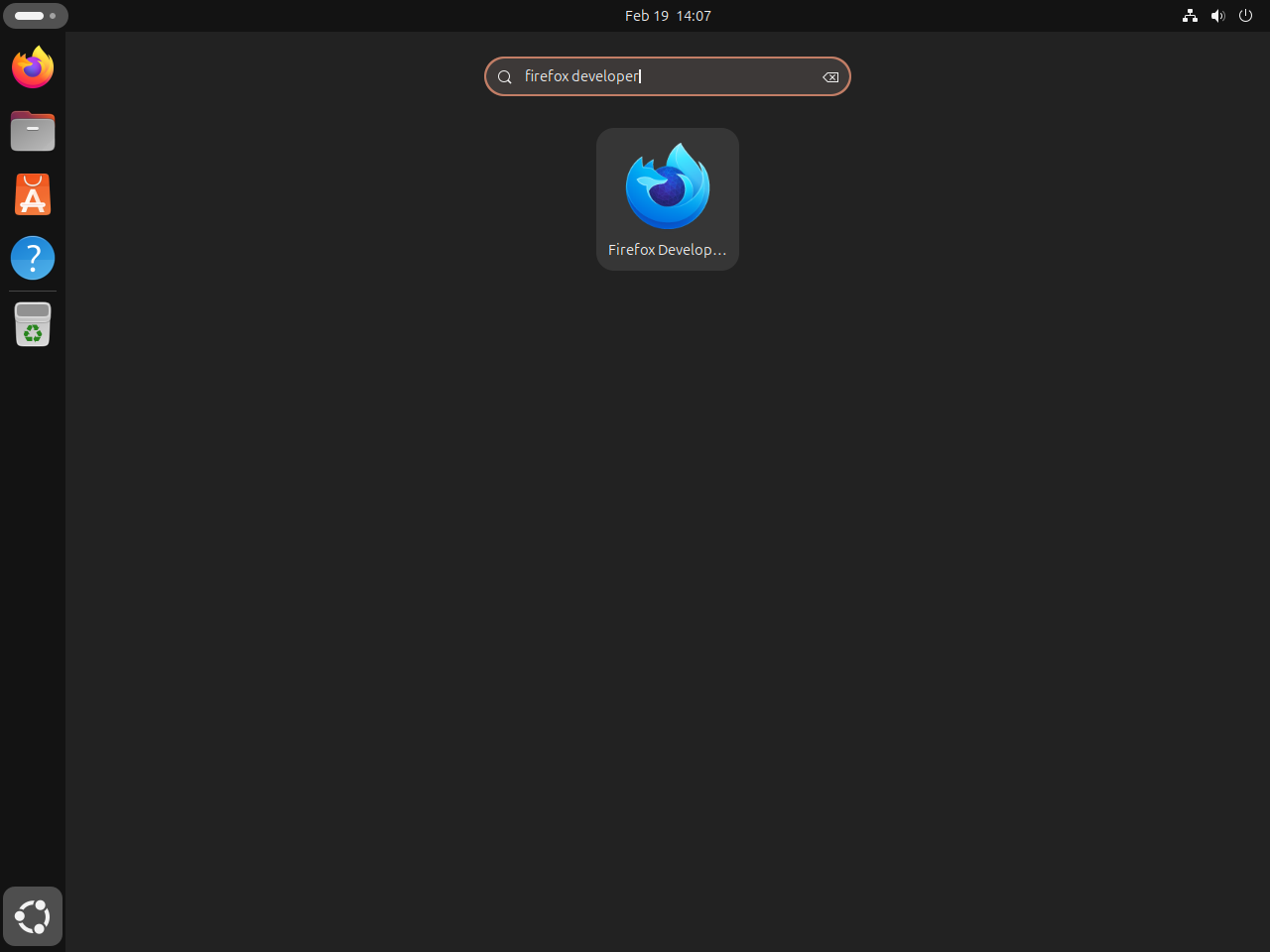
Search for “Firefox Developer Edition” in the applications menu. The installation creates a desktop entry automatically, so the browser appears alongside your other applications:
Alternatively, launch it from the terminal:
firefox-deveditionAppend & to run Firefox Developer Edition in the background and return control to your terminal session:
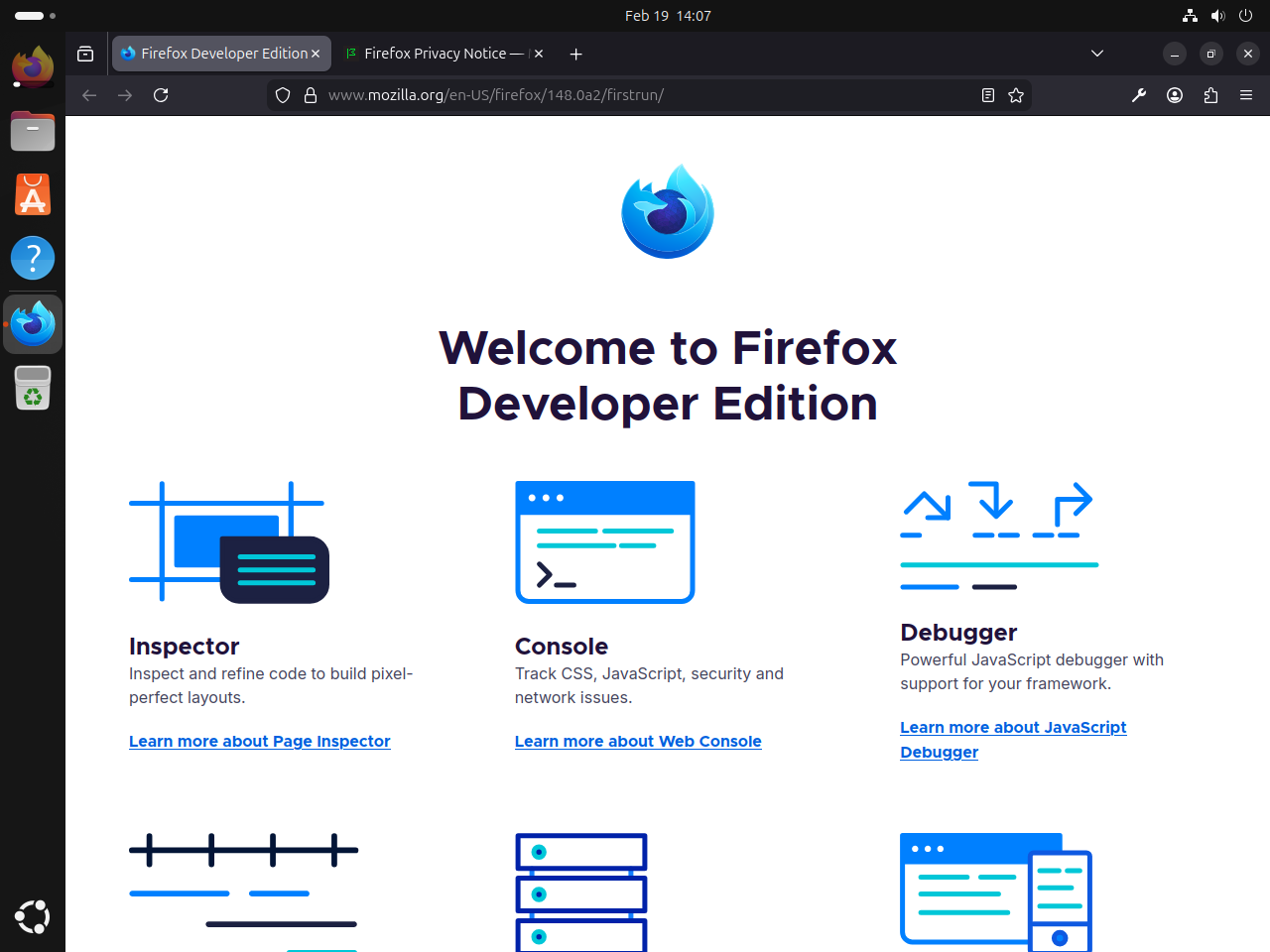
firefox-devedition &Firefox Developer Edition opens with its characteristic dark browser chrome and the developer tools panel accessible directly from the toolbar. The dark interface distinguishes it visually from stable Firefox and Beta:
Compare Firefox Channels on Ubuntu
Mozilla’s APT repository publishes four Firefox channels as distinct packages. Each channel targets a different audience and update cadence:
| Channel | APT Package | Update Frequency | Stability | Best For |
|---|---|---|---|---|
| Stable | firefox | Every 4 weeks | Production-ready | Daily browsing; most users |
| Beta | firefox-beta | ~2x per week | Generally stable | Testing upcoming features before stable release |
| Developer Edition | firefox-devedition | ~2x per week | Generally stable | Front-end development, debugging, and testing web APIs |
| Nightly | firefox-nightly | Multiple times daily | Highly experimental | Developer and contributor testing of cutting-edge code |
Firefox Developer Edition and Firefox Beta share the same codebase and release cycle. The difference is configuration: Developer Edition ships with developer-focused defaults including the CSS Grid inspector, WebSocket inspector, a dark browser chrome, and DevTools features that are off or hidden in Beta. Both channels update on the same schedule, with Developer Edition tracking the Beta branch.
Each Firefox channel installs as a separate binary with its own profile directory. You can run all four channels simultaneously without them interfering with each other’s settings, extensions, or bookmarks.
Manage Firefox Developer Edition on Ubuntu
Update Firefox Developer Edition on Ubuntu
Firefox Developer Edition updates automatically through the Mozilla APT repository. A standard system upgrade fetches the latest available build:
sudo apt update && sudo apt upgradeTo update only Firefox Developer Edition without upgrading other packages, use the --only-upgrade flag:
sudo apt install --only-upgrade firefox-deveditionRemove Firefox Developer Edition from Ubuntu
Removing Firefox Developer Edition leaves your profile data intact. Bookmarks, history, and saved passwords remain in ~/.mozilla/ and reappear if you reinstall later:
sudo apt remove firefox-devedition
sudo apt autoremove
Confirm the package is uninstalled:
apt-cache policy firefox-deveditionfirefox-devedition:
Installed: (none)
Candidate: 148.0b15~build1
Version table:
148.0b15~build1 1000
500 https://packages.mozilla.org/apt mozilla/main amd64 Packages
Installed: (none) confirms the package is removed. The repository entry remains visible because the Mozilla APT source is still configured; the next section removes it entirely.
Remove Mozilla APT Repository from Ubuntu
Keep the Mozilla repository if you have other Firefox packages installed from it, such as
firefox(stable),firefox-esr,firefox-beta, orfirefox-nightly. Removing the repository does not uninstall those packages, but APT will no longer receive updates for them.
Remove the APT priority pin, repository configuration, and signing key:
sudo rm /etc/apt/preferences.d/mozilla
sudo rm /etc/apt/sources.list.d/mozilla.sources
sudo rm /etc/apt/keyrings/packages.mozilla.org.asc
Refresh the package index so APT no longer queries the removed repository:
sudo apt updateConfirm the package is no longer available in any configured repository:
apt-cache policy firefox-deveditionN: Unable to locate package firefox-devedition
Troubleshoot Firefox Developer Edition on Ubuntu
Package Not Found After Repository Setup
If the install step fails with this error:
E: Package 'firefox-devedition' has no installation candidate
APT cannot find the package because either the repository file was not created or the package index was not refreshed after adding it. Check whether the repository file exists and contains valid content:
cat /etc/apt/sources.list.d/mozilla.sourcesTypes: deb URIs: https://packages.mozilla.org/apt Suites: mozilla Components: main Signed-By: /etc/apt/keyrings/packages.mozilla.org.asc
If the file is missing or empty, re-run the repository setup commands above. If the file exists and looks correct, run sudo apt update and confirm the output includes a line for https://packages.mozilla.org/apt mozilla InRelease before attempting the install again.
Frequently Asked Questions
Yes. Mozilla ships security patches through the same APT repository used for installation. Running sudo apt update && sudo apt upgrade fetches the latest build, which includes security fixes alongside feature updates. Firefox Developer Edition follows the Beta channel release cycle, with new builds typically arriving multiple times per week.
Firefox Developer Edition and Firefox Beta run the same underlying codebase and follow the same release cycle. The difference is configuration: Developer Edition enables developer tools and experimental features by default, uses a dark browser chrome to make it visually distinct, and is aimed at front-end developers who want a dedicated testing browser. Beta is intended for general users who want to preview upcoming stable features with minimal extra overhead.
No. The firefox-devedition package installs as a completely separate binary with its own profile directory. Your existing Firefox, Firefox Beta, or Firefox Nightly installations remain fully intact. All four channels can run simultaneously with independent settings, bookmarks, extensions, and saved passwords.
Conclusion
Firefox Developer Edition is running on Ubuntu through Mozilla’s official APT repository and updates to the latest Beta build each time you run sudo apt upgrade. The firefox-devedition binary keeps its own profile separate from any other Firefox channel on the system, so bookmarks, extensions, and settings stay isolated. To install other channels from the same Mozilla repository, see our guides on Firefox Beta and Nightly on Ubuntu or Firefox ESR on Ubuntu. To replace the default Firefox Snap with Mozilla’s APT packages, see removing Firefox Snap from Ubuntu.

Formatting tips for your comment
You can use basic HTML to format your comment. Useful tags currently allowed in published comments:
<code>command</code>command<strong>bold</strong><em>italic</em><blockquote>quote</blockquote>