
Brave blocks ads and trackers before you add extensions, which makes it a practical Chromium-based browser when you want stronger privacy without giving up Chrome Web Store compatibility. To install Brave on Fedora, use Brave’s official RPM repository rather than a plain sudo dnf install brave command, because Brave Browser is not packaged in Fedora’s default repositories.
Current Fedora releases use DNF5, and Brave’s Fedora repo file works with the Fedora 41+ config-manager addrepo --from-repofile syntax. Brave also offers a one-command installer, but the explicit repository workflow is easier to audit because you can inspect the repo file, package source, signing keys, and cleanup path. Flatpak and Snap packages exist, but this Fedora workflow stays with the native RPM repository because Brave recommends official package repositories when your system can use them.
Install Brave Browser on Fedora
Step 1: Update Fedora System Packages
Refresh package metadata and apply pending updates before adding the Brave repository:
sudo dnf upgrade --refreshSome commands require
sudo. If your account does not have administrator access yet, follow the guide on how to add a user to sudoers on Fedora before continuing.
Step 2: Confirm DNF Config Manager Support
Fedora Workstation often includes the DNF5 config-manager plugin, but minimal installs may not. Check that the subcommand is available:
dnf config-manager --helpIf the command is missing, install the DNF5 provider for the config-manager command first:
sudo dnf install 'dnf5-command(config-manager)'Step 3: Add the Brave Stable Repository
Add Brave’s stable RPM repository with the official Fedora 41+ repo-file command:
sudo dnf config-manager addrepo --from-repofile=https://brave-browser-rpm-release.s3.brave.com/brave-browser.repoVerify that DNF saved a repo file with package signature checking enabled:
grep -E '^\[|^(name|enabled|gpgcheck|gpgkey|baseurl)=' /etc/yum.repos.d/brave-browser.repoRelevant output includes:
[brave-browser]
name=Brave Browser
enabled=1
gpgcheck=1
gpgkey=https://brave-browser-rpm-release.s3.brave.com/brave-core.asc
baseurl=https://brave-browser-rpm-release.s3.brave.com/$basearch
Step 4: Install Brave Browser
Install the stable browser package from the Brave repository:
sudo dnf install brave-browserOn the first install, DNF may ask you to import Brave Linux Release signing keys from the repo file’s gpgkey URL. Confirm the prompt only when it names Brave’s repository and matches the current keys published on Brave’s signing keys page.
Verify the installed package and repository source:
rpm -q brave-browser --qf '%{NAME} %{ARCH}\n'
dnf info --installed brave-browser | grep -E '^(Name|From repository)'
Expected output:
brave-browser x86_64
Name            : brave-browser
From repository : brave-browser
Install Brave Beta or Nightly on Fedora (Optional)
Skip the preview channels unless you specifically need them. Add only the channel you plan to use, then install its matching package.
Brave Beta:
sudo dnf config-manager addrepo --from-repofile=https://brave-browser-rpm-beta.s3.brave.com/brave-browser-beta.repo
sudo dnf install brave-browser-beta
Brave Nightly:
sudo dnf config-manager addrepo --from-repofile=https://brave-browser-rpm-nightly.s3.brave.com/brave-browser-nightly.repo
sudo dnf install brave-browser-nightly
Stable, beta, and nightly builds use separate packages, launchers, profile directories, and repository files. They can coexist, but install preview channels after the stable setup unless you intentionally want beta or nightly packages available during the same transaction.
These DNF commands target standard mutable Fedora editions, such as Workstation and Spins. Fedora Atomic desktops such as Silverblue or Kinoite should use the Fedora Atomic instructions on Brave’s Linux page or a Flatpak workflow instead of host
dnf.
Compare Brave Browser Builds for Fedora
All three builds come from Brave’s official RPM repositories and update through dnf upgrade. Choose the stable build for normal browsing unless you have a clear reason to test preview code.
| Build | Package | Channel Role | Updates | Best For |
|---|---|---|---|---|
| Stable | brave-browser | Current public release | Automatic via dnf upgrade | Daily browsing and production systems |
| Beta | brave-browser-beta | Next release preview | Automatic via dnf upgrade | Testing upcoming browser changes before stable |
| Nightly | brave-browser-nightly | Development snapshots | Automatic via dnf upgrade | Developers and testers comfortable with breakage |
For most users, the stable build is the right choice. It receives security fixes without pulling your main browser into a preview channel. Use beta or nightly as a secondary browser when you need early feature testing.
Launch Brave Browser on Fedora
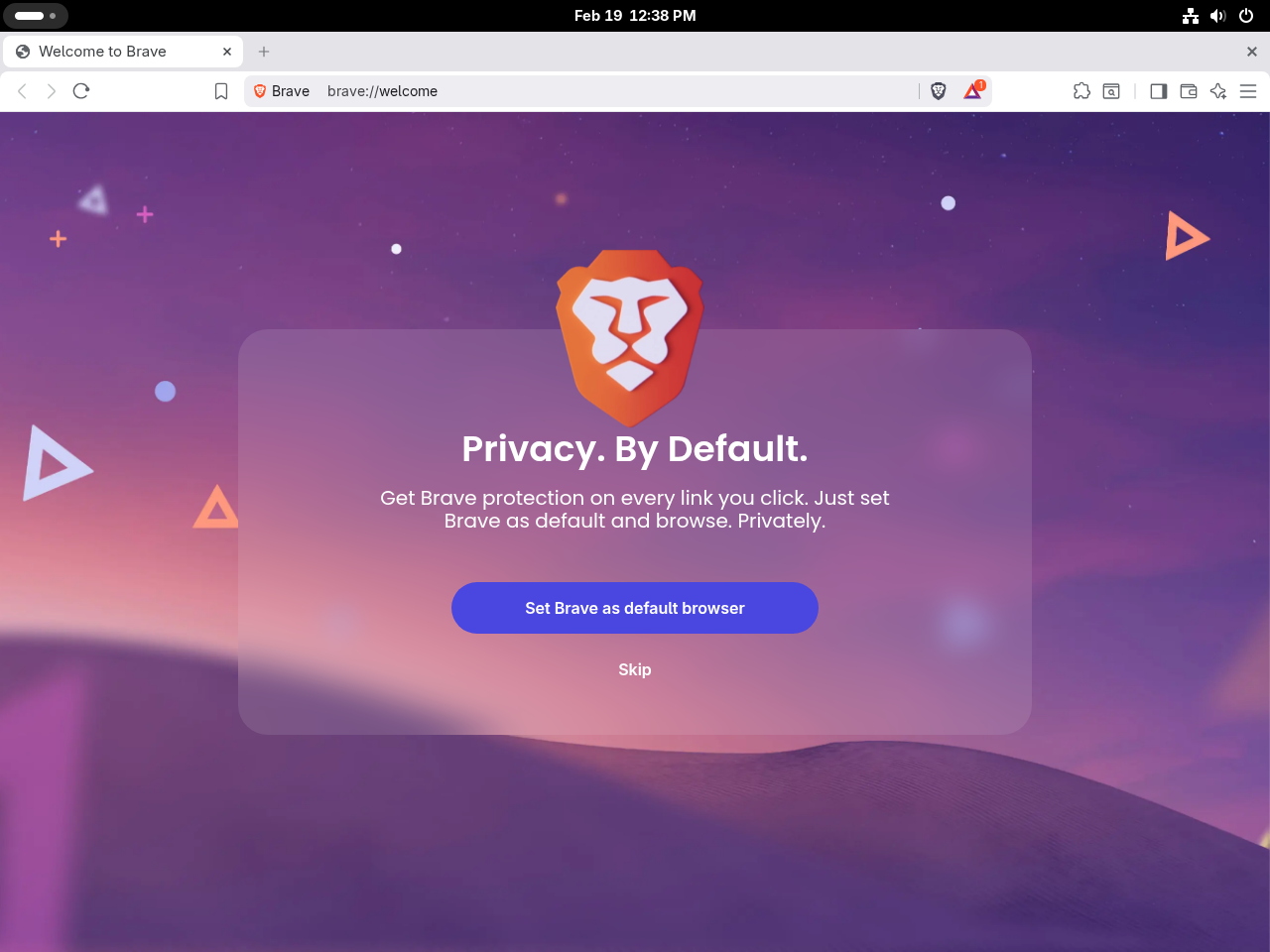
Launch Brave from Terminal
Start the stable build directly from a terminal:
brave-browserFor beta or nightly, use the matching binary name:
brave-browser-betabrave-browser-nightlyBrave runs normally in Fedora’s default Wayland session, so GNOME users do not need to switch to an X11 session for basic browsing.
Launch Brave from the Applications Menu
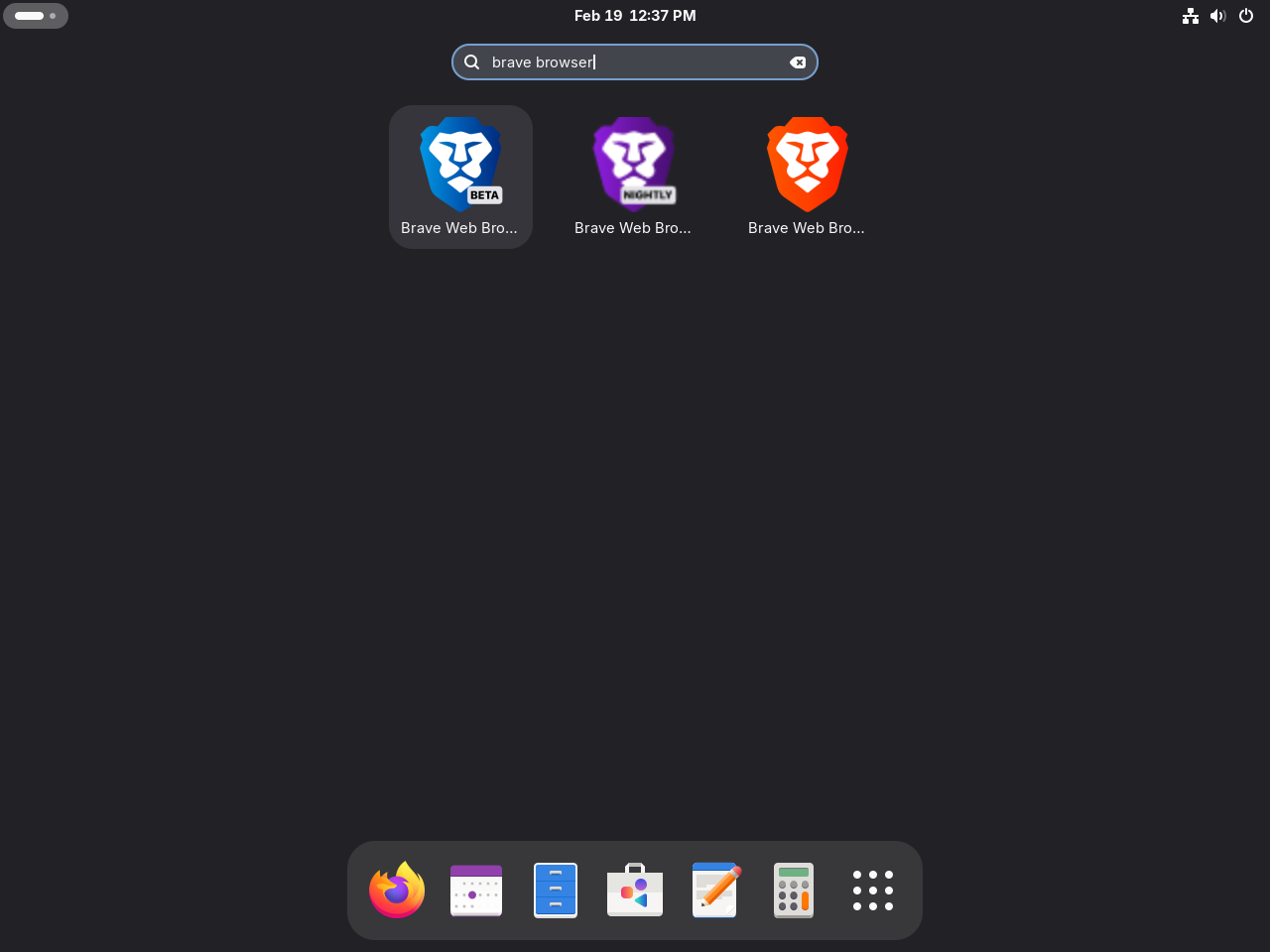
Open Activities, search for Brave, then click the launcher for the build you installed.
Getting Started with Brave Browser on Fedora
Configure Brave Shields
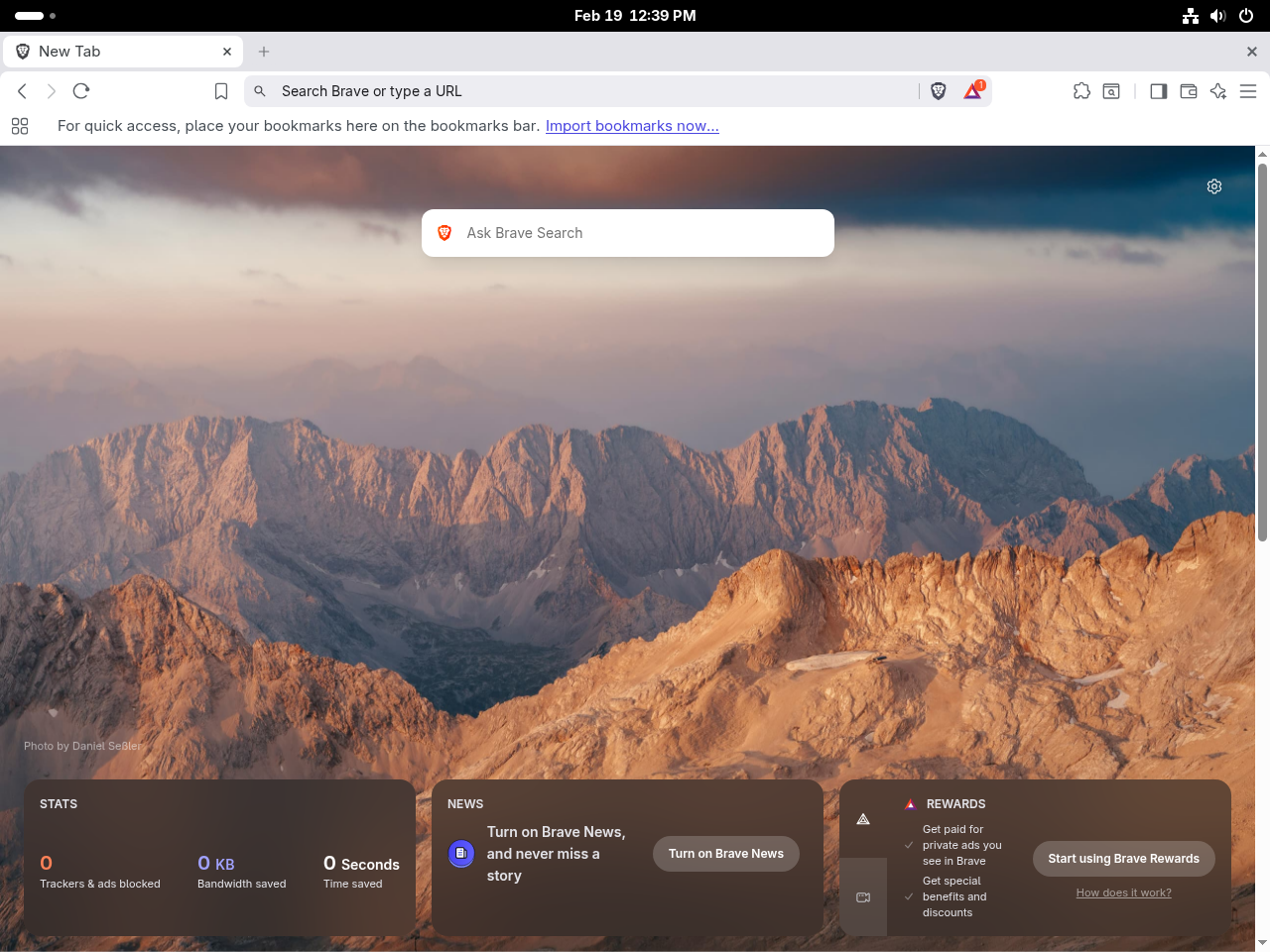
Brave Shields block ads and trackers by default. Click the shield icon to the right of the address bar to adjust blocking levels per site, which helps when a site breaks because a tracker or script was blocked. Shield settings are saved per domain.
Set Up Brave Rewards
Brave Rewards is optional. Open brave://rewards if you want to enable Brave Ads, adjust ad frequency, or connect a supported account for creator tips and rewards features.
Customize Appearance, Extensions, and Search
Brave supports Chrome Web Store extensions and themes. These internal pages are useful after the first launch:
- Themes and appearance:
brave://settings/appearance - Installed extensions:
brave://extensions - Default search engine:
brave://settings/search - Password manager:
brave://settings/passwords
Brave Browser Keyboard Shortcuts
Brave shares the common Chromium keyboard shortcuts used by Chrome and Chromium:
| Shortcut | Action |
|---|---|
| Ctrl+T | Open a new tab |
| Ctrl+W | Close the current tab |
| Ctrl+Shift+T | Reopen the last closed tab |
| Ctrl+L | Focus the address bar |
| Ctrl+Shift+N | Open a new private window |
| Ctrl+H | Open browsing history |
| Shift+Esc | Open Brave Task Manager |
Update Brave Browser on Fedora
Brave updates through DNF after the repository is configured. Run the normal Fedora upgrade command to refresh Brave and the rest of your system packages:
sudo dnf upgrade --refreshIf you prefer scheduled package updates, set up DNF Automatic on Fedora and let it handle routine update checks.
Remove Brave Browser from Fedora
Uninstall Brave Browser Packages
Remove only the builds you installed. The stable package uses this command:
sudo dnf remove brave-browserIf you installed preview channels, remove only the matching package:
sudo dnf remove brave-browser-betasudo dnf remove brave-browser-nightlyConfirm the package is gone:
rpm -q brave-browser brave-browser-beta brave-browser-nightlyRelevant output after removing all three builds includes:
package brave-browser is not installed
package brave-browser-beta is not installed
package brave-browser-nightly is not installed
Remove Brave Repositories
Remove the Brave repo files after uninstalling the builds you no longer want. Keep any repo file for a channel you still use.
sudo rm -f /etc/yum.repos.d/brave-browser.repo \
  /etc/yum.repos.d/brave-browser-beta.repo \
  /etc/yum.repos.d/brave-browser-nightly.repo
Verify that no Brave repository files remain:
find /etc/yum.repos.d -maxdepth 1 -name 'brave-browser*.repo' -printThe command prints nothing when all Brave repo files are removed.
Remove Brave RPM Signing Keys (Optional)
Leave Brave signing keys installed if any Brave channel remains configured. For a full cleanup after removing every Brave package and repo file, delete only the Brave fingerprints imported from the official repo files:
for fingerprint in \
  DBF1A116C220B8C7164F98230686B78420038257 \
  47D32A74E9A9E013A4B4926C68D513D36A73CD96 \
  B2A3DCA350E67256740DF904DE4EC67BE4B0DCA0 \
  56F49901AB19BAF099A95A76C3DE1DD4F661CDCB \
  8C1F16AB24DF8F75C1CF56595929A141E0E87F1F \
  B721E073B7EF8E56ACC6B23ECBC67D2399225CCF
do
  sudo rpmkeys --delete "$fingerprint" 2>/dev/null || true
done
Check for remaining Brave key entries:
rpm -q gpg-pubkey --qf '%{VERSION} %{SUMMARY}\n' | grep -i 'Brave Linux' || echo "No Brave RPM signing keys are installed"Expected output after full trust cleanup:
No Brave RPM signing keys are installed
Troubleshoot Brave Browser on Fedora
DNF Cannot Find the Brave Package
If you try to install Brave before adding the repository, DNF reports that no matching package exists:
Failed to resolve the transaction:
No match for argument: brave-browser
Fedora does not ship Brave in its default repositories. Add the Brave repo file from the install section, then install the actual package name:
sudo dnf config-manager addrepo --from-repofile=https://brave-browser-rpm-release.s3.brave.com/brave-browser.repo
sudo dnf install brave-browser
DNF Config Manager Is Missing
Minimal Fedora systems may not include the DNF5 config-manager plugin. Install the provider DNF suggests, then rerun the repository command:
sudo dnf install 'dnf5-command(config-manager)'
dnf config-manager --help
Relevant output starts with:
Usage:
  dnf5 [GLOBAL OPTIONS] config-manager <COMMAND> ...
Brave Launcher Does Not Appear in Activities
If Brave starts from the terminal but does not appear in Activities, check whether the package installed its desktop launchers:
rpm -ql brave-browser | grep -E '/usr/share/applications/(brave-browser|com.brave.Browser)\.desktop$'Expected output:
/usr/share/applications/brave-browser.desktop
/usr/share/applications/com.brave.Browser.desktop
If those files are missing, reinstall the package. If the files exist, log out and back in, then search Activities again.
sudo dnf reinstall brave-browserConclusion
Brave Browser is running on Fedora from Brave’s RPM repository, so browser updates now arrive with the rest of your DNF-managed packages. The stable build is the best fit for daily browsing, while beta and nightly work well as separate test browsers. For other Chromium-based options, compare Google Chrome on Fedora, Chromium on Fedora, or Microsoft Edge on Fedora.


Formatting tips for your comment
You can use basic HTML to format your comment. Useful tags currently allowed in published comments:
<code>command</code>command<strong>bold</strong><em>italic</em><a href="https://example.com">link</a><blockquote>quote</blockquote>