GIMP remains a strong fit for screenshots, photo retouching, web graphics, and layered image work on Debian, but the best install method now depends on your release. You can install GIMP on Debian from the distro repositories for package-managed stability, use Flathub for the current upstream branch, or use the official AppImage on Debian 13 and newer systems.
Debian 13 ships GIMP 3 through APT, while Debian 12 and Debian 11 stay on the 2.10 series. Flathub and the current AppImage provide GIMP 3.2.4, but the upstream AppImage download page lists Debian 13 or a newer distribution as its supported Linux baseline.
Install GIMP on Debian
Start by choosing the source that matches your Debian release and update preference.
Choose a GIMP Installation Method for Debian
| Method | Supported Debian Releases | Source or Channel | Version Track | Update Behavior | Best For |
|---|---|---|---|---|---|
| Debian APT | Debian 13, 12, and 11 | Official Debian repositories | Debian 13: 3.0.x Debian 12 and 11: 2.10.x | APT-managed updates with normal Debian packages | Stable system-managed installs and the safest default for most desktops |
| Flatpak and Flathub | Debian 13, 12, and 11 after Flatpak setup | Verified Flathub app org.gimp.GIMP | Current upstream stable branch, 3.2.4 | Flatpak app and runtime updates from Flathub | Readers on Debian 12 or 11 who want the current GIMP 3 branch |
| AppImage | Debian 13 or newer distributions | Official gimp.org AppImage download | Current upstream AppImage, 3.2.4 | Replace the AppImage file or run the update helper | Portable installs that do not add APT packages or Flatpak remotes |
Use only one method as your normal GIMP launcher unless you deliberately want multiple builds installed. APT uses the gimp command, Flatpak uses flatpak run org.gimp.GIMP, and the AppImage runs from the file you download. Upstream does not publish a separate GIMP .deb package on its Linux download page, so Debian users should use APT for a package-managed install.
Update Debian Before Installing GIMP
Refresh package metadata and apply pending upgrades before installing desktop applications. This avoids dependency conflicts from stale package lists.
sudo apt update
sudo apt upgrade
If your account is not configured for
sudo, follow Add a User to Sudoers on Debian before running package-management commands.
Install GIMP from Debian Repositories
APT is the lowest-maintenance method because Debian owns the package, dependency set, and security updates. It is the right default when you do not need the newest upstream feature branch.
Check the GIMP Candidate in APT
Check the candidate first if the package version matters for your workflow.
apt-cache policy gimpOn current Debian package sources, Debian 13 reports a 3.0.x candidate, while Debian 12 and Debian 11 report 2.10.x candidates. A non-empty Candidate line means APT can see the package from your enabled Debian repositories.
Install and Verify GIMP from APT
Install the Debian package and confirm the command starts far enough to print its version.
sudo apt install gimp
gimp --version
GNU Image Manipulation Program version 3.0.4
That example is from the Debian 13 APT branch. Debian 12 currently prints a 2.10.34 version line, and Debian 11 currently prints a 2.10.22 version line.
Install GIMP on Debian with Flatpak and Flathub
Flatpak gives Debian users the current upstream GIMP branch without replacing Debian’s APT package. The GIMP listing on Flathub is verified for gimp.org and tracks GIMP 3.2.4, but Flathub also labels the app potentially unsafe because image editors need broad desktop and file access. Treat this method as a packaging and update choice, not as a stronger sandbox guarantee.
If Flatpak is not installed yet, follow Install Flatpak on Debian first, then return to the GIMP install command.
Add Flathub as a System Remote
Flatpak needs a remote before it can install apps. Adding Flathub as a system-level remote makes the app available to all users. The --if-not-exists flag keeps the command safe to rerun.
sudo flatpak remote-add --if-not-exists flathub https://dl.flathub.org/repo/flathub.flatpakrepo
flatpak remotes --columns=name,options
flathub system
Install and Verify GIMP from Flathub
Install the Flathub app. The -y flag auto-confirms the app and runtime downloads, which is useful because Flatpak may need to pull a matching GNOME runtime.
sudo flatpak install -y flathub org.gimp.GIMP
flatpak info org.gimp.GIMP | grep -E '^[[:space:]]*(ID|Ref|Version|Origin|Installation):'
ID: org.gimp.GIMP Ref: app/org.gimp.GIMP/x86_64/stable Version: 3.2.4 Origin: flathub Installation: system
The Installation: system line confirms this is the system-wide Flatpak install created by the commands above.
Install GIMP AppImage on Debian 13 or Newer
The official GIMP AppImage is a single portable file from gimp.org downloads that does not add packages, repositories, or Flatpak remotes. Use this method on Debian 13 or a newer distribution; Debian 12 and Debian 11 users should choose APT or Flatpak instead.
Install curl for AppImage Downloads
The AppImage commands download release metadata, checksums, and the AppImage file with curl. Install the package first if your Debian system does not already include it.
sudo apt install curlDownload and Verify the GIMP AppImage
The function detects the current GIMP 3.2 Linux AppImage, maps common CPU architecture names to upstream asset names, downloads the file into ~/Applications/ with curl command options that fail on HTTP errors, and verifies the published SHA256 checksum before making it executable.
install_gimp_appimage() {
  INSTALL_DIR="$HOME/Applications"
  BASE_URL="https://download.gimp.org/gimp/v3.2/linux"

  case "$(uname -m)" in
  x86_64 | amd64) APPIMAGE_ARCH="x86_64" ;;
  aarch64 | arm64) APPIMAGE_ARCH="aarch64" ;;
  *)
    printf 'Unsupported architecture: %s\n' "$(uname -m)" >&2
    return 1
    ;;
  esac

  INDEX_HTML="$(curl -fsSL "${BASE_URL}/")" || return 1
  LATEST="$(printf '%s\n' "$INDEX_HTML" | awk 'match($0, /LATEST-IS-[^"<]*/) { print substr($0, RSTART + 10, RLENGTH - 10); exit }')"
  [ -n "$LATEST" ] || {
    printf 'Could not detect the latest GIMP AppImage version.\n' >&2
    return 1
  }

  FILENAME="GIMP-${LATEST}-${APPIMAGE_ARCH}.AppImage"
  TARGET="${INSTALL_DIR}/${FILENAME}"
  TMP_TARGET="${TARGET}.part"
  EXPECTED_SHA="$(curl -fsSL "${BASE_URL}/SHA256SUMS" | awk -v file="$FILENAME" '$2 == file {print $1; exit}')"
  [ -n "$EXPECTED_SHA" ] || {
    printf 'Could not find checksum for %s.\n' "$FILENAME" >&2
    return 1
  }

  mkdir -p "$INSTALL_DIR"
  rm -f "$TMP_TARGET"
  curl -fL --progress-bar -o "$TMP_TARGET" "${BASE_URL}/${FILENAME}" || {
    rm -f "$TMP_TARGET"
    return 1
  }
  if ! printf '%s  %s\n' "$EXPECTED_SHA" "$TMP_TARGET" | sha256sum -c -; then
    rm -f "$TMP_TARGET"
    return 1
  fi
  mv "$TMP_TARGET" "$TARGET"
  chmod +x "$TARGET"
  printf 'Installed %s\n' "$TARGET"
}

install_gimp_appimage
The .part suffix prevents an interrupted download from being mistaken for a usable AppImage. The checksum check must print OK before the file is moved into place.
Run the GIMP AppImage Version Check
Run the downloaded AppImage in extract-and-run mode for a headless-safe version check. This avoids depending on the desktop session while still proving the AppImage payload starts.
APPIMAGE_PATH="$(find "$HOME/Applications" -maxdepth 1 -type f -name 'GIMP-*-*.AppImage' | sort -V | tail -1)"

if [ -n "$APPIMAGE_PATH" ]; then
  "$APPIMAGE_PATH" --appimage-extract-and-run --version
else
  printf 'No GIMP AppImage found in %s\n' "$HOME/Applications" >&2
fi
GNU Image Manipulation Program version 3.2.4
The find command selects the newest matching AppImage in ~/Applications/, which avoids hardcoding the architecture label in later checks.
Create a Desktop Entry for the GIMP AppImage
A desktop entry lets the AppImage appear in the application menu alongside APT and Flatpak apps.
APPIMAGE_PATH="$(find "$HOME/Applications" -maxdepth 1 -type f -name 'GIMP-*-*.AppImage' | sort -V | tail -1)"

if [ -n "$APPIMAGE_PATH" ]; then
  mkdir -p "$HOME/.local/share/applications"
  cat > "$HOME/.local/share/applications/gimp-appimage.desktop" <<DESKTOP
[Desktop Entry]
Type=Application
Name=GIMP (AppImage)
Comment=GNU Image Manipulation Program
Exec=${APPIMAGE_PATH}
Icon=gimp
Terminal=false
Categories=Graphics;2DGraphics;RasterGraphics;
MimeType=image/bmp;image/gif;image/jpeg;image/png;image/tiff;image/svg+xml;
DESKTOP
else
  printf 'No GIMP AppImage found in %s\n' "$HOME/Applications" >&2
fi
After creating or updating a desktop entry, you may need to log out and back in once before the application menu refreshes.
Launch GIMP on Debian
Launch GIMP from Terminal
Use the launch command that matches your install method.
For the Debian APT package:
gimpFor the Flathub app:
flatpak run org.gimp.GIMPFor the AppImage:
APPIMAGE_PATH="$(find "$HOME/Applications" -maxdepth 1 -type f -name 'GIMP-*-*.AppImage' | sort -V | tail -1)"

if [ -n "$APPIMAGE_PATH" ]; then
  "$APPIMAGE_PATH"
else
  printf 'No GIMP AppImage found in %s\n' "$HOME/Applications" >&2
fi
The bare gimp command belongs to the APT package. Flatpak and AppImage launches use separate command paths, so they can coexist without replacing Debian’s package.
Launch GIMP from Debian Desktop Menu
APT and Flatpak register desktop launchers automatically. The AppImage appears in the menu after you create the desktop entry.
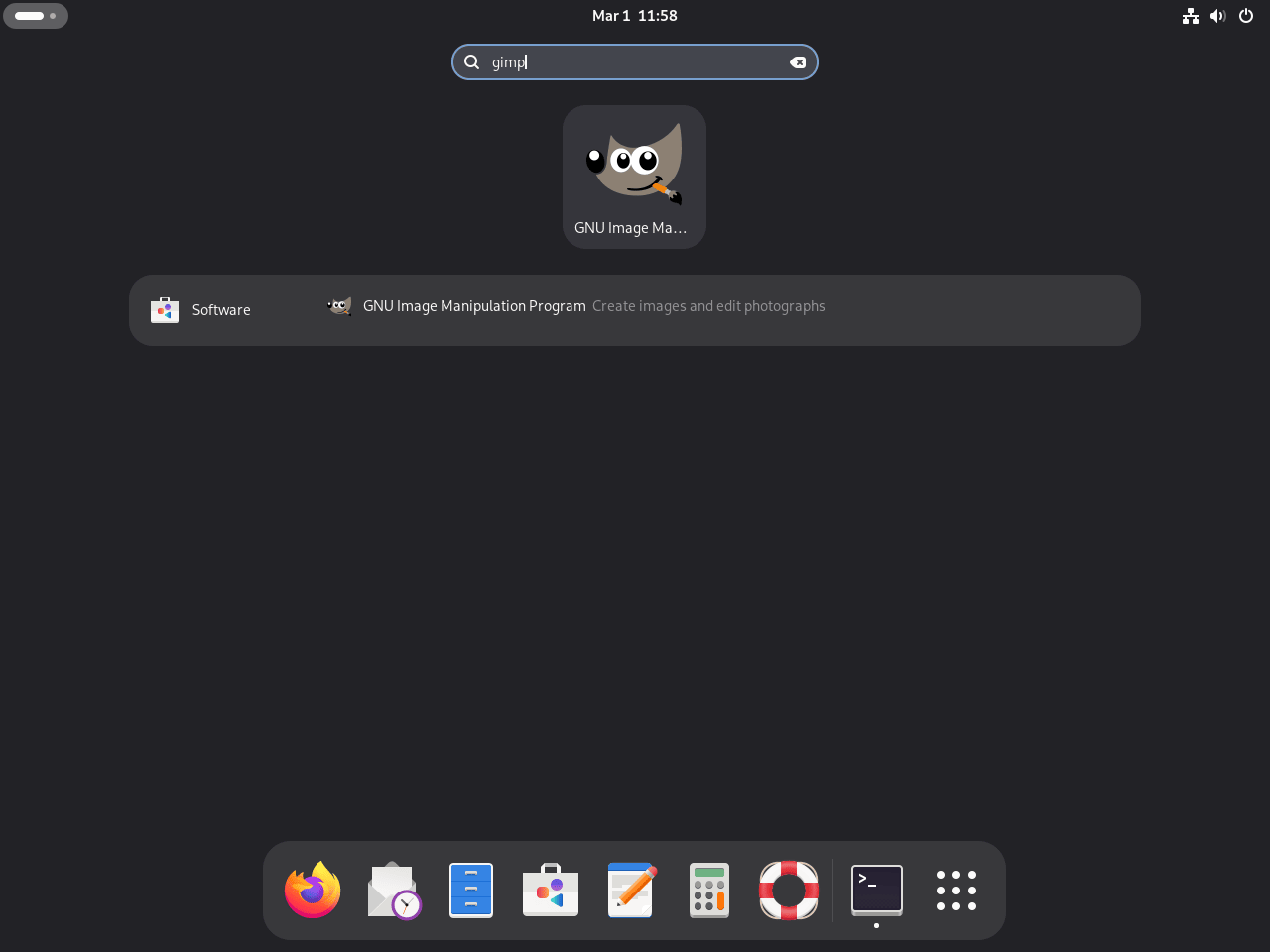
- Open Activities.
- Search for GIMP or GNU Image Manipulation Program.
- Launch the application from the result list.
First-Run Workflow Tips for GIMP on Debian
Once GIMP is open, set up the workspace before editing real files.
- Use layers for reversible edits instead of changing the base image directly.
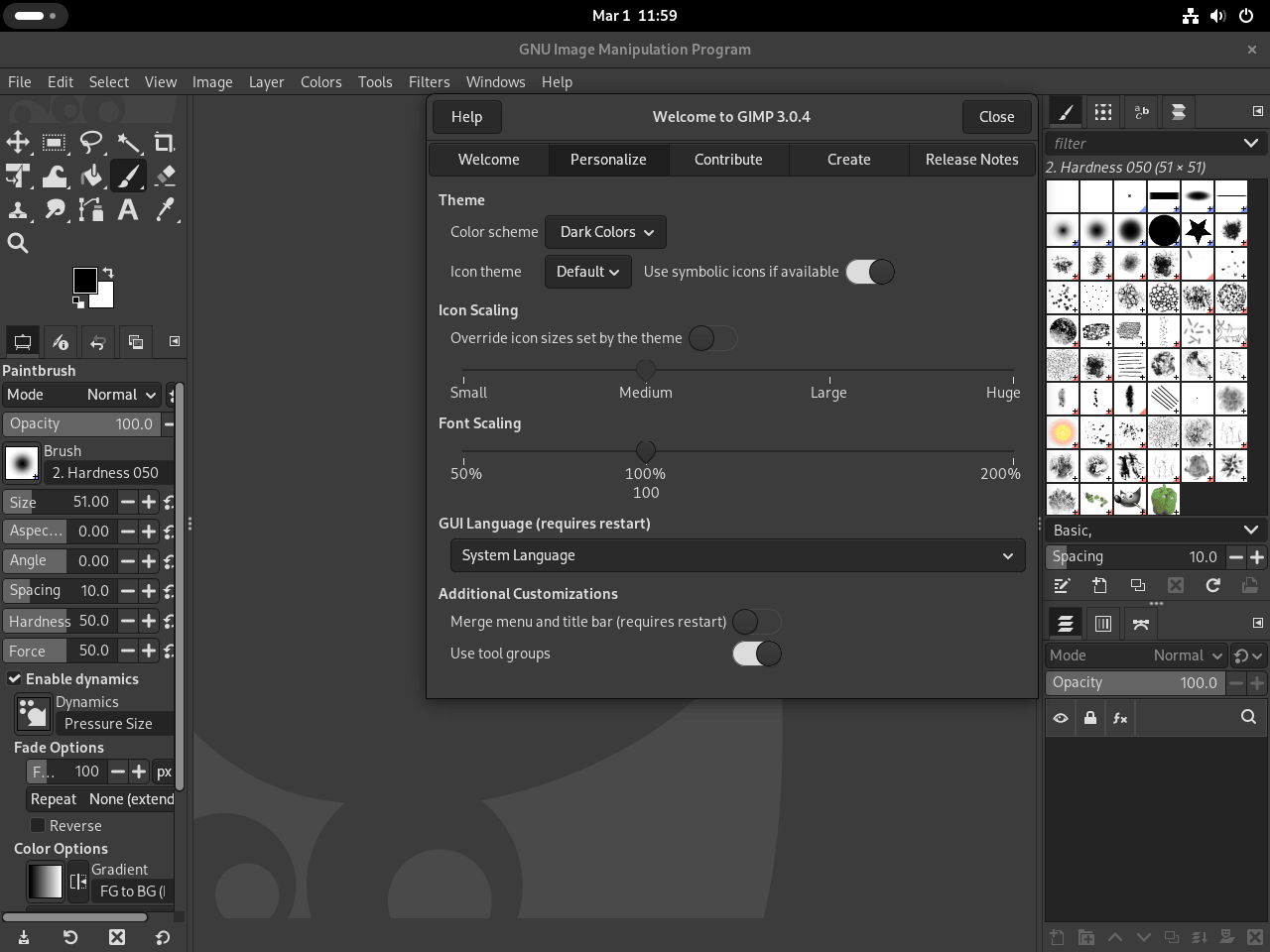
- Open
Edit > Preferences > Interfaceto set your preferred theme and icon style, and if you want deeper desktop tweaks, follow Install GNOME Tweaks on Debian. - Learn the core editing shortcuts early, especially
Ctrl+Z,Ctrl+Shift+Z, andCtrl+S.
Troubleshoot GIMP on Debian
GIMP Command Not Found After Installation
bash: gimp: command not found
This usually means the APT package is not installed, or you installed GIMP through Flatpak or AppImage instead. Check the method you used.
dpkg-query -W -f='${db:Status-Abbrev} ${binary:Package}\n' gimp 2>/dev/null
flatpak info org.gimp.GIMP
find "$HOME/Applications" -maxdepth 1 -type f -name 'GIMP-*-*.AppImage' -print 2>/dev/null
If one check shows an installed copy, use that method’s launch command. If all checks return nothing useful, reinstall GIMP with APT, Flatpak, or the Debian 13 AppImage method.
Flatpak Install Fails with Operation Not Allowed
error: Failed to install org.gnome.Platform: Flatpak system operation Deploy not allowed for user
This happens when a system-scope Flatpak install is attempted without elevated privileges. Re-run the install with sudo, then verify the result.
sudo flatpak install -y flathub org.gimp.GIMP
flatpak info org.gimp.GIMP | grep -E '^[[:space:]]*(ID|Ref|Version|Origin|Installation):'
ID: org.gimp.GIMP Ref: app/org.gimp.GIMP/x86_64/stable Version: 3.2.4 Origin: flathub Installation: system
AppImage Reports That FUSE Is Required
AppImages require FUSE to run.
You might still be able to extract the contents of this AppImage
if you run it with the --appimage-extract option.
The GIMP AppImage supports extract-and-run mode, which bypasses FUSE by unpacking the AppImage into a temporary directory for that launch. Use this fallback first when you need to open GIMP immediately.
APPIMAGE_PATH="$(find "$HOME/Applications" -maxdepth 1 -type f -name 'GIMP-*-*.AppImage' | sort -V | tail -1)"

if [ -n "$APPIMAGE_PATH" ]; then
  "$APPIMAGE_PATH" --appimage-extract-and-run
else
  printf 'No GIMP AppImage found in %s\n' "$HOME/Applications" >&2
fi
AppImage FUSE troubleshooting explains why direct AppImage launches can need FUSE. On Debian 13, install the FUSE 2 compatibility library as libfuse2t64, then try the AppImage again.
sudo apt install libfuse2t64AppImage Verification Command Does Not Work
Some older AppImage examples mention appimageverify or --appimage-verify. The current GIMP 3.2.4 AppImage runtime does not implement --appimage-verify, so use the published SHA256SUMS file instead.
APPIMAGE_PATH="$(find "$HOME/Applications" -maxdepth 1 -type f -name 'GIMP-*-*.AppImage' | sort -V | tail -1)"

if [ -n "$APPIMAGE_PATH" ]; then
  "$APPIMAGE_PATH" --appimage-verify
else
  printf 'No GIMP AppImage found in %s\n' "$HOME/Applications" >&2
fi
--appimage-verify is not yet implemented in version https://github.com/AppImage/type2-runtime/commit/3d17002
Recheck the downloaded file against the upstream checksum list from the same directory:
cd "$HOME/Applications"
APPIMAGE_FILE="$(find . -maxdepth 1 -type f -name 'GIMP-*-*.AppImage' -printf '%f\n' | sort -V | tail -1)"

if [ -n "$APPIMAGE_FILE" ]; then
  curl -fsSL https://download.gimp.org/gimp/v3.2/linux/SHA256SUMS -o SHA256SUMS
  grep -F "  ${APPIMAGE_FILE}" SHA256SUMS | sha256sum -c -
  rm -f SHA256SUMS
else
  printf 'No GIMP AppImage found in %s\n' "$PWD" >&2
fi
GIMP Installs but Desktop Icon Does Not Appear
Desktop environments cache their application menus, so a new launcher may not appear immediately even when the install succeeded.
For Flatpak, confirm the app is installed and runnable:
flatpak list --app --columns=application | grep -Fx org.gimp.GIMP
flatpak run org.gimp.GIMP
For the AppImage, verify the desktop entry points to the AppImage path:
grep '^Exec=' "$HOME/.local/share/applications/gimp-appimage.desktop"If the terminal launch works but the menu icon still does not appear, log out and back in once so the desktop session reloads its application cache.
Update GIMP on Debian
Update APT-Installed GIMP
APT-managed GIMP updates come from the enabled Debian package sources. The --only-upgrade flag upgrades GIMP only when it is already installed.
sudo apt update
sudo apt install --only-upgrade gimp
gimp --version
GNU Image Manipulation Program version 3.0.4
Debian 12 and Debian 11 stay on their 2.10.x package branches unless you switch to Flatpak.
Update Flatpak-Installed GIMP
Flatpak updates the app and its runtimes from Flathub independently of APT.
sudo flatpak update org.gimp.GIMP
flatpak info org.gimp.GIMP | grep -E '^[[:space:]]*(ID|Ref|Version|Origin|Installation):'
ID: org.gimp.GIMP Ref: app/org.gimp.GIMP/x86_64/stable Version: 3.2.4 Origin: flathub Installation: system
Update the GIMP AppImage with a Helper Script
AppImage updates mean downloading the newest upstream file and replacing the old one. The helper checks the current 3.2 AppImage directory, verifies the SHA256 checksum for an existing or newly downloaded file, updates the desktop entry, and removes older GIMP AppImage files from ~/Applications/.
mkdir -p "$HOME/.local/bin"
cat > "$HOME/.local/bin/update-gimp-appimage" <<'SCRIPT'
#!/usr/bin/env bash
set -Eeuo pipefail

INSTALL_DIR="$HOME/Applications"
DESKTOP_FILE="$HOME/.local/share/applications/gimp-appimage.desktop"
BASE_URL="https://download.gimp.org/gimp/v3.2/linux"

log() { echo "[update-gimp-appimage] $*"; }
fail() {
  echo "[update-gimp-appimage] Error: $*" >&2
  exit 1
}

for cmd in awk cat chmod curl dirname find mkdir mv rm sha256sum uname; do
  command -v "$cmd" >/dev/null 2>&1 || fail "Missing required command: $cmd"
done

case "$(uname -m)" in
x86_64 | amd64) APPIMAGE_ARCH="x86_64" ;;
aarch64 | arm64) APPIMAGE_ARCH="aarch64" ;;
*) fail "Unsupported architecture: $(uname -m) (supported: x86_64, aarch64)" ;;
esac

log "1/6 Detecting latest GIMP AppImage version..."
INDEX_HTML="$(curl -fsSL "${BASE_URL}/")"
if [[ "$INDEX_HTML" =~ LATEST-IS-([^\"<]+) ]]; then
  LATEST="${BASH_REMATCH[1]}"
else
  fail "Could not detect latest version from ${BASE_URL}/"
fi

FILENAME="GIMP-${LATEST}-${APPIMAGE_ARCH}.AppImage"
TARGET="${INSTALL_DIR}/${FILENAME}"
TMP_TARGET="${TARGET}.part"
log "  Version: ${LATEST} (${APPIMAGE_ARCH})"

mkdir -p "$INSTALL_DIR"

log "2/6 Fetching checksum..."
EXPECTED_SHA="$(curl -fsSL "${BASE_URL}/SHA256SUMS" | awk -v file="$FILENAME" '$2 == file {print $1; exit}')"
[ -n "$EXPECTED_SHA" ] || fail "Could not find checksum for ${FILENAME}"

download_appimage() {
  rm -f "$TMP_TARGET"
  log "3/6 Downloading ${FILENAME}..."
  curl -fL --progress-bar -o "$TMP_TARGET" "${BASE_URL}/${FILENAME}"
  log "  Verifying downloaded file..."
  printf '%s  %s\n' "$EXPECTED_SHA" "$TMP_TARGET" | sha256sum -c -
  mv "$TMP_TARGET" "$TARGET"
  chmod +x "$TARGET"
}

if [ -f "$TARGET" ]; then
  log "3/6 Verifying existing file..."
  if printf '%s  %s\n' "$EXPECTED_SHA" "$TARGET" | sha256sum -c -; then
    log "  Already current: ${TARGET}"
  else
    log "  Existing file failed checksum; downloading a clean copy."
    rm -f "$TARGET"
    download_appimage
  fi
else
  download_appimage
fi

log "4/6 Removing older GIMP AppImages..."
find "$INSTALL_DIR" -maxdepth 1 -type f -name 'GIMP-*-*.AppImage' ! -name "$FILENAME" -delete

log "5/6 Updating desktop entry..."
mkdir -p "$(dirname "$DESKTOP_FILE")"
cat >"$DESKTOP_FILE" <<DESKTOP
[Desktop Entry]
Type=Application
Name=GIMP (AppImage)
Comment=GNU Image Manipulation Program
Exec=${TARGET}
Icon=gimp
Terminal=false
Categories=Graphics;2DGraphics;RasterGraphics;
MimeType=image/bmp;image/gif;image/jpeg;image/png;image/tiff;image/svg+xml;
DESKTOP

log "6/6 Checking runtime version..."
VERSION_OUTPUT="$("$TARGET" --appimage-extract-and-run --version 2>/dev/null || true)"
VERSION_LINE="${VERSION_OUTPUT%%$'\n'*}"
if [ -n "$VERSION_LINE" ]; then
  log "Ready: ${VERSION_LINE}"
else
  log "Ready: ${TARGET}"
fi
SCRIPT
chmod +x "$HOME/.local/bin/update-gimp-appimage"

case ":$PATH:" in
  *":$HOME/.local/bin:"*) ;;
  *) export PATH="$HOME/.local/bin:$PATH" ;;
esac

command -v update-gimp-appimage
The final command -v line should print a path like this. The temporary export makes the helper available in the current terminal, and new Debian login shells normally include ~/.local/bin after that directory exists.
/home/user/.local/bin/update-gimp-appimage
Run the helper whenever you want to check for a new AppImage release:
update-gimp-appimageOn an already-current install, the helper refreshes the desktop entry and prints output like this:
[update-gimp-appimage] 1/6 Detecting latest GIMP AppImage version...
[update-gimp-appimage]   Version: 3.2.4 (x86_64)
[update-gimp-appimage] 2/6 Fetching checksum...
[update-gimp-appimage] 3/6 Verifying existing file...
/home/user/Applications/GIMP-3.2.4-x86_64.AppImage: OK
[update-gimp-appimage]   Already current: /home/user/Applications/GIMP-3.2.4-x86_64.AppImage
[update-gimp-appimage] 4/6 Removing older GIMP AppImages...
[update-gimp-appimage] 5/6 Updating desktop entry...
[update-gimp-appimage] 6/6 Checking runtime version...
[update-gimp-appimage] Ready: GNU Image Manipulation Program version 3.2.4
Remove GIMP from Debian
Use the removal path that matches your install method. Package removal does not delete your normal GIMP profile unless you remove that data separately.
Remove APT-Installed GIMP
Remove the Debian packages first, then check that no installed gimp package remains. Keep apt autoremove as a separate reviewable step because reused systems can have older autoremovable packages unrelated to GIMP.
sudo apt remove gimp gimp-data
dpkg-query -W -f='${db:Status-Abbrev} ${binary:Package}\n' gimp gimp-data 2>/dev/null | grep '^ii' || echo "NOT_INSTALLED"
NOT_INSTALLED
If APT lists unused dependencies after removal, review them before accepting cleanup:
sudo apt autoremoveRemove Flatpak-Installed GIMP
Uninstall the Flathub app, then use a scoped list check to prove the system Flatpak app is gone.
sudo flatpak uninstall org.gimp.GIMP
flatpak list --system --app --columns=application | grep -Fx org.gimp.GIMP || echo "NOT_INSTALLED"
NOT_INSTALLED
Unused Flatpak runtimes can be cleaned up separately. Review the prompt before confirming, especially on systems with other Flatpak apps installed.
sudo flatpak uninstall --unusedRemove the GIMP AppImage
Remove the downloaded AppImage, desktop entry, and optional update helper. This does not remove your normal GIMP settings under your home directory.
rm -f "$HOME"/Applications/GIMP-*.AppImage
rm -f "$HOME/.local/share/applications/gimp-appimage.desktop"
rm -f "$HOME/.local/bin/update-gimp-appimage"
rm -f "$HOME/scripts/update-gimp-appimage.sh"
find "$HOME/Applications" -maxdepth 1 -type f -name 'GIMP-*.AppImage' -print 2>/dev/null
No output from the final find command means no matching GIMP AppImage remains in ~/Applications/.
Optional: Remove GIMP User Settings
APT and AppImage builds use the normal GIMP profile under ~/.config/GIMP. The Flatpak build stores per-user data under ~/.var/app/org.gimp.GIMP. Check both paths before deleting anything.
find "$HOME/.config" -maxdepth 1 -type d -name 'GIMP' -print 2>/dev/null
find "$HOME/.var/app" -maxdepth 1 -type d -name 'org.gimp.GIMP' -print 2>/dev/null
The cleanup command permanently deletes GIMP settings, plug-in state, recent-file history, and Flatpak sandbox data for the current account. Back up anything you want to keep before running it.
rm -rf "$HOME/.config/GIMP"
rm -rf "$HOME/.var/app/org.gimp.GIMP"
Conclusion
GIMP is ready on Debian through the package source that fits your release: APT for distro-managed stability, Flathub for the current upstream branch, or the official AppImage on Debian 13 and newer. For a broader graphics setup, continue with Install Darktable on Debian for RAW editing or Install ImageMagick on Debian for batch image processing.


Formatting tips for your comment
You can use basic HTML to format your comment. Useful tags currently allowed in published comments:
<code>command</code>command<strong>bold</strong><em>italic</em><a href="https://example.com">link</a><blockquote>quote</blockquote>