
Darktable already ships in Debian’s default APT sources, which makes it one of the easier RAW editors to install without third-party repositories. Photographers can install Darktable on Debian from the default package sources for non-destructive photo editing, library management, and RAW development, then move to Flatpak or an upstream source build when newer releases matter.
Debian 13 (trixie), Debian 12 (bookworm), and Debian 11 (bullseye) all provide Darktable through their default package sources, but the version changes by release: 5.0.x on Trixie, 4.2.x on Bookworm, and 3.4.x on Bullseye. Flathub currently serves Darktable 5.4.1 on all three releases if you want newer camera support and features without moving to a newer Debian base.
Debian 13 and Debian 12 can also compile the current upstream stable branch, now 5.4.x, when you want a native build from upstream source instead of Flatpak. Bullseye is different: its default GCC and CMake versions are too old for this source-build path, so Debian 11 users should stay with APT or Flatpak.
Install Darktable on Debian
These three install paths cover most Debian systems. Debian’s package is the safer default, Flatpak is the easiest way to stay newer across all three releases, and the source build is an advanced Debian 13 and Debian 12 option when you want the current upstream stable release without using Flatpak.
| Method | Channel | Debian 13 | Debian 12 | Debian 11 | Updates | Best For |
|---|---|---|---|---|---|---|
| APT | Default Debian package sources | 5.0.x | 4.2.x | 3.4.x | apt | Stable desktop integration and Debian-managed dependencies |
| Flatpak | Flathub | 5.4.x | 5.4.x | 5.4.x | flatpak update | Newer upstream builds across all supported Debian releases |
| Source build | Upstream stable releases | 5.4.x | 5.4.x | Default toolchain too old | update-darktable-source | Native upstream build on Debian 13 and Debian 12 |
Pick one main Darktable install path. Opening the same photo library with a newer build can upgrade the Darktable database, and older builds may no longer read that upgraded library cleanly.
The APT row refers to the default Debian package sources, not optional backports. Debian 13 backports currently offers a newer Darktable package, but enabling backports is a separate package-source decision and is not required for the default APT install here.
The source build method targets Debian 13 and Debian 12 only. Skip it on Debian 11 unless you are prepared to replace Bullseye’s default compiler and CMake stack first.
Install Darktable from Debian’s APT Package
Start with Debian’s package when you want the cleanest desktop integration and the least maintenance.
sudo apt updateThese commands use
sudofor tasks that need root privileges. If your account does not have sudo access yet, follow the guide on how to add a user to sudoers on Debian before continuing.
Install Darktable from the default Debian package sources:
sudo apt install darktable -yVerify the installed package revision:
dpkg-query -W darktabledarktable 5.0.1-2
Bookworm currently reports 4.2.1-4, and Bullseye reports 3.4.1-5.
Install Darktable with Flatpak on Debian
Use Flatpak when Debian’s package is too old for your camera or you want newer Darktable features without changing your base system.
Flathub currently labels the Darktable app as unverified and potentially unsafe. Treat this method as a newer packaging and update path, not as a stronger trust or isolation guarantee.
If flatpak is missing on your system, install Flatpak on Debian first, then add Flathub at system scope:
sudo flatpak remote-add --if-not-exists flathub https://dl.flathub.org/repo/flathub.flatpakrepoConfirm that Flathub is available before installing the app:
flatpak remotesflathub system
Install Darktable from Flathub:
sudo flatpak install flathub org.darktable.Darktable -yVerify the app metadata:
flatpak info org.darktable.DarktableRelevant output includes:
ID: org.darktable.Darktable
Ref: app/org.darktable.Darktable/x86_64/stable
Arch: x86_64
Branch: stable
Version: 5.4.1
Installation: system
Flathub currently serves version 5.4.1 on Debian 13, 12, and 11.
Compile the Latest Stable Darktable Release on Debian 13 and Debian 12
Use this method when you want the current upstream stable release in a native install instead of the Debian package or Flatpak build. It targets Debian 13 and Debian 12 only, and it installs under /opt/darktable so it does not overwrite Debian’s packaged files.
Start by installing the build tools that fetch the source tree and compile the project:
sudo apt install build-essential cmake git -ybuild-essential brings in GCC and make, cmake drives Darktable’s build files, and git pulls the stable release tag plus the required submodules.
Darktable’s Debian build dependencies come from the source package metadata, so source entries need to be enabled before apt build-dep can use them:
if [ -f /etc/apt/sources.list.d/debian.sources ]; then
   sudo cp -a /etc/apt/sources.list.d/debian.sources /etc/apt/sources.list.d/debian.sources.darktable-bak
   tmp_sources="$(mktemp)"
   sudo awk '
      /^Types:/ && $0 !~ /(^|[[:space:]])deb-src([[:space:]]|$)/ {
         print $0 " deb-src"
         next
      }
      { print }
   ' /etc/apt/sources.list.d/debian.sources | sudo tee "$tmp_sources" >/dev/null
   sudo install -m 0644 "$tmp_sources" /etc/apt/sources.list.d/debian.sources
   rm -f "$tmp_sources"
else
   sudo cp -a /etc/apt/sources.list /etc/apt/sources.list.darktable-bak
   sudo sed -Ei 's/^# ?deb-src /deb-src /' /etc/apt/sources.list
fi

if ! grep -R -q -E '^[[:space:]]*(Types:.*deb-src|deb-src[[:space:]])' /etc/apt/sources.list /etc/apt/sources.list.d 2>/dev/null; then
   awk '/^[[:space:]]*deb[[:space:]]/ {
      line = $0
      sub(/^[[:space:]]*deb[[:space:]]/, "deb-src ", line)
      print line
   }' /etc/apt/sources.list /etc/apt/sources.list.d/*.list 2>/dev/null | sudo tee /etc/apt/sources.list.d/darktable-deb-src.list >/dev/null
fi

sudo apt update
On newer Debian installs using a DEB822 debian.sources file, the first branch backs up the file and adds deb-src to any Types: line that does not already include it. On older /etc/apt/sources.list layouts, the second branch backs up the legacy file and uncomments existing deb-src lines. If no source entries exist afterward, the final guard creates a small dedicated darktable-deb-src.list file from the active binary package entries.
Install the same Debian build dependencies the packaged Darktable build uses. This can add many development packages, so review the transaction before confirming it:
sudo apt build-dep darktableResolve the current upstream stable tag before you clone anything:
DARKTABLE_TAG="$(git ls-remote --tags --refs https://github.com/darktable-org/darktable 'refs/tags/release-*' | sed 's#.*refs/tags/release-##' | awk -F. '$2 % 2 == 0 { print "release-" $0 }' | sort -V | tail -n1)"
printf '%s\n' "$DARKTABLE_TAG"
release-5.4.1
git ls-remote checks release tags without downloading the whole repository first. The awk filter keeps the even-minor stable series, which prevents development tags such as release-5.5.0 from being selected as the stable build target.
Clone the stable tag into a reusable source tree and skip the large integration-test checkout, which is not required for a normal application build:
rm -rf "$HOME/darktable-source"
git clone --branch "$DARKTABLE_TAG" --depth 1 https://github.com/darktable-org/darktable.git "$HOME/darktable-source"
cd "$HOME/darktable-source" || exit
git submodule init
git config submodule.src/tests/integration.update none
git submodule update --depth 1 --recursive
The source tree stays under your home directory so the update helper later can reuse it. The submodule.src/tests/integration.update none line skips the heavy integration-test checkout and keeps the workflow focused on building the application itself.
Build and install Darktable with the upstream helper:
./build.sh --prefix /opt/darktable --build-type Release --install --sudoThe --prefix /opt/darktable flag keeps the source-built files in their own directory, --build-type Release enables the optimized release build, and --sudo lets the helper elevate only for the final install step.
If you want the source build to appear in the applications menu, create a desktop-entry symlink under /usr/local/share/applications:
desktop_link="/usr/local/share/applications/org.darktable.darktable.desktop"
desktop_target="/opt/darktable/share/applications/org.darktable.darktable.desktop"

if [ -e "$desktop_link" ] && [ ! -L "$desktop_link" ]; then
   printf 'Refusing to replace non-symlink: %s\n' "$desktop_link" >&2
else
   sudo install -d -m 0755 /usr/local/share/applications
   sudo ln -sfn "$desktop_target" "$desktop_link"
fi
The guard refuses to replace a real desktop file if one already exists at that path. When the path is empty or already a symlink, install -d -m 0755 creates the applications directory and ln -sfn refreshes the launcher symlink cleanly if you rebuild later.
Verify that the source-built binary reports the current upstream stable version:
{ /opt/darktable/bin/darktable --version 2>/dev/null || true; } | grep -Eo '[0-9]+\.[0-9]+\.[0-9]+' | sed -n '1p'5.x.x
Your output should show the current upstream stable version number for the tag you built.
Launch Darktable on Debian
Installation finishes in the terminal, but Darktable still needs an active graphical session to open. Use the matching command for your install method if you want to start it from a terminal instead of the applications menu.
Launch Darktable from the Terminal on Debian
The Debian package installs the standard launcher name:
darktableIf you installed the Flatpak build, use the Flatpak app ID instead:
flatpak run org.darktable.DarktableIf you compiled the source build, launch the upstream binary directly from its install prefix:
/opt/darktable/bin/darktableThese commands start the graphical editor; they do not provide a headless photo-editing workflow.
Launch Darktable from the Applications Menu on Debian
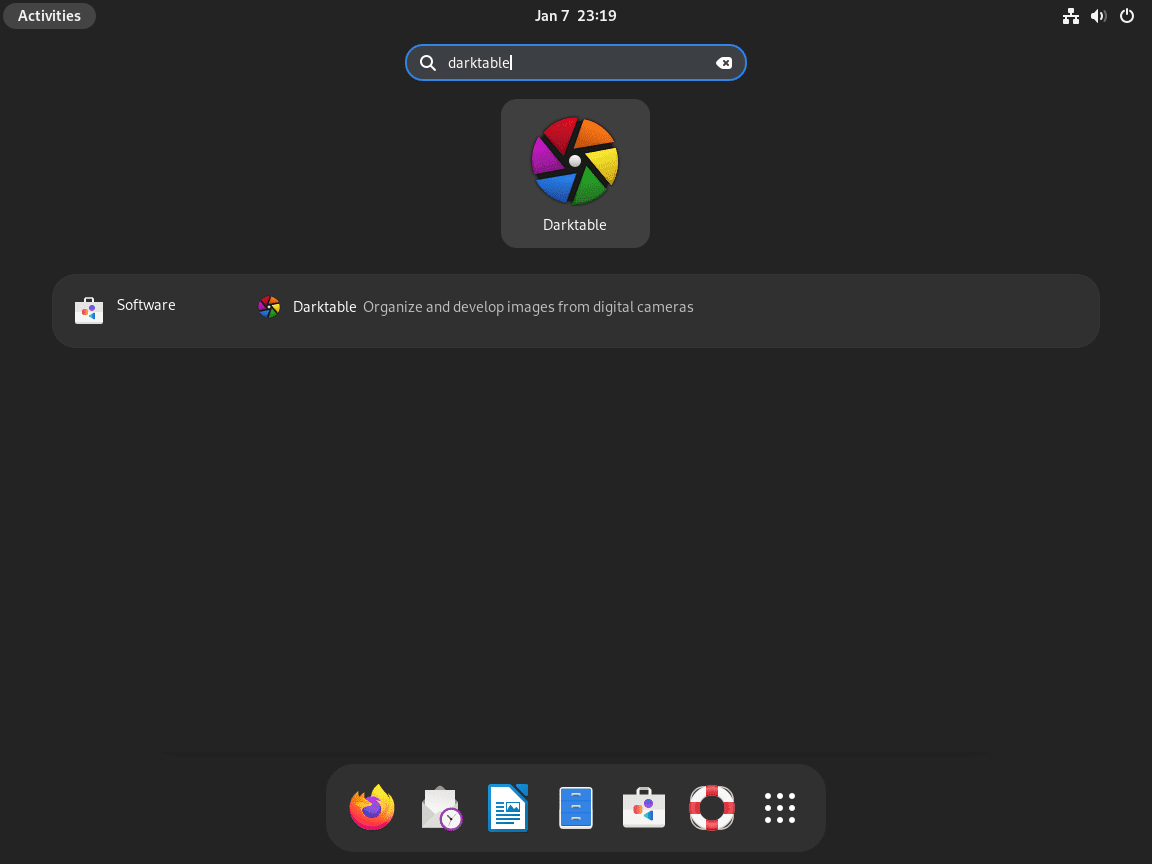
Search for Darktable in the applications menu. On GNOME it appears under Graphics after the Debian package or Flatpak install finishes, and the source build appears there too if you created the desktop-entry symlink in the source-build section.
The first launch opens Darktable in lighttable mode, where you can import folders, review thumbnails, and move into the darkroom editor.
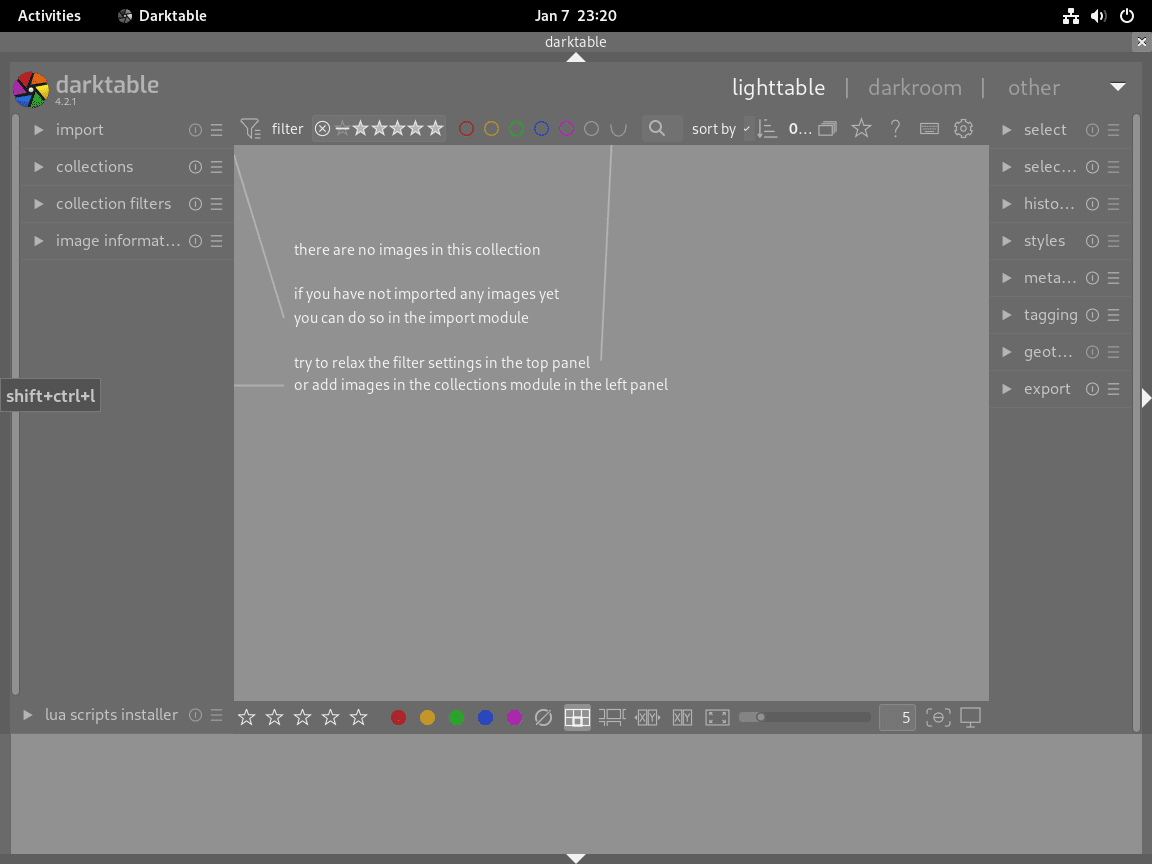
After the first launch, Darktable stores its working data under your home directory. The removal section shows how to locate those paths safely if you later want to delete them.
Update or Remove Darktable on Debian
Use the commands that match the method you installed. APT, Flatpak, and source builds each keep their own update and removal flow.
Update the Darktable Debian Package
Refresh package metadata and upgrade only Darktable when you do not want a full system upgrade yet.
sudo apt update && sudo apt install --only-upgrade darktableUpdate the Darktable Flatpak Build
Update only Darktable when you do not need to refresh every other Flatpak app at the same time.
sudo flatpak update org.darktable.Darktable -ySource builds do not update through APT or Flatpak, so it is worth keeping a small helper in /usr/local/bin. This one reuses your existing checkout under $HOME/darktable-source, checks the latest stable release tag, and stops early when the installed build is already current.
Avoid automating this with cron. Compilation can fail due to missing dependencies, failed builds, or network issues, and you want that output in front of you before the installed build changes.
Create the Darktable Source Update Helper on Debian
Install the helper in /usr/local/bin so you can rerun it from any directory with update-darktable-source.
sudo install -m 0755 /dev/stdin /usr/local/bin/update-darktable-source <<'EOF'
#!/usr/bin/env bash
set -euo pipefail

# Rebuild the current upstream stable release from the existing source tree.
SOURCE_DIR="$HOME/darktable-source"
INSTALL_BIN="/opt/darktable/bin/darktable"
REPO_URL="https://github.com/darktable-org/darktable.git"

if [ "$(id -u)" -eq 0 ]; then
   echo "Run this helper as a regular user. It will call sudo only for the install step."
   exit 1
fi

for cmd in git cmake make; do
   if ! command -v "$cmd" >/dev/null 2>&1; then
      echo "Missing required command: $cmd"
      exit 1
   fi
done

if [ ! -d "$SOURCE_DIR/.git" ]; then
   echo "Expected source tree not found at $SOURCE_DIR"
   exit 1
fi

if ! LATEST_TAG="$(git ls-remote --tags --refs "$REPO_URL" 'refs/tags/release-*' | sed 's#.*refs/tags/release-##' | awk -F. '$2 % 2 == 0 { print "release-" $0 }' | sort -V | tail -n1)"; then
   echo "Could not query Darktable release tags."
   exit 1
fi

LATEST_VERSION="${LATEST_TAG#release-}"
version_output="$([ -x "$INSTALL_BIN" ] && "$INSTALL_BIN" --version 2>/dev/null || true)"
CURRENT_VERSION="$(printf '%s\n' "$version_output" | grep -Eo '[0-9]+\.[0-9]+\.[0-9]+' | sed -n '1p' || true)"
CURRENT_VERSION="${CURRENT_VERSION:-none}"

if [ -z "$LATEST_TAG" ]; then
   echo "Could not determine the latest Darktable stable tag."
   exit 1
fi

echo "Current version: $CURRENT_VERSION"
echo "Latest version:  $LATEST_VERSION"

if [ "$CURRENT_VERSION" = "$LATEST_VERSION" ]; then
   echo "Darktable is already at the current stable release: $CURRENT_VERSION"
   exit 0
fi

if [ -n "$(git -C "$SOURCE_DIR" status --porcelain)" ]; then
   echo "Uncommitted changes found in $SOURCE_DIR"
   exit 1
fi

echo "Updating source tree in $SOURCE_DIR"
git -C "$SOURCE_DIR" fetch --tags
git -C "$SOURCE_DIR" checkout "$LATEST_TAG"
git -C "$SOURCE_DIR" submodule init
git -C "$SOURCE_DIR" config submodule.src/tests/integration.update none
git -C "$SOURCE_DIR" submodule update --depth 1 --recursive

echo "Removing the previous build directory"
rm -rf "$SOURCE_DIR/build"

echo "Rebuilding Darktable $LATEST_VERSION"
cd "$SOURCE_DIR"
./build.sh --prefix /opt/darktable --build-type Release --install --sudo

desktop_link="/usr/local/share/applications/org.darktable.darktable.desktop"
desktop_target="/opt/darktable/share/applications/org.darktable.darktable.desktop"

if [ -e "$desktop_link" ] && [ ! -L "$desktop_link" ]; then
   echo "Refusing to replace non-symlink: $desktop_link"
   exit 1
fi

sudo install -d -m 0755 /usr/local/share/applications
sudo ln -sfn "$desktop_target" "$desktop_link"

version_output="$("$INSTALL_BIN" --version 2>/dev/null || true)"
updated_version="$(printf '%s\n' "$version_output" | grep -Eo '[0-9]+\.[0-9]+\.[0-9]+' | sed -n '1p' || true)"

if [ -z "$updated_version" ]; then
   echo "Update finished, but the installed Darktable version could not be read."
   exit 1
fi

echo "Update complete"
printf '%s\n' "$updated_version"
EOF
command -v update-darktable-source/usr/local/bin/update-darktable-source
Run the Darktable Source Update Helper on Debian
Run the helper as your regular user from any directory. It calls sudo only for the final install step.
update-darktable-sourceCurrent version: 5.x.x Latest version: 5.x.x Darktable is already at the current stable release: 5.x.x
When upstream publishes a newer stable tag, the helper checks out that release, refreshes the required submodules, rebuilds the app, and ends with the new version line.
Remove the Darktable Debian Package
Remove the Debian package and review the dependency list before confirming the cleanup.
sudo apt remove darktableConfirm that APT no longer shows an installed package:
apt-cache policy darktabledarktable:
Installed: (none)
Candidate: 5.x.x
Version table:
5.x.x 500
500 http://deb.debian.org/debian [your-release]/main amd64 Packages
The package version and Debian release name vary by system, but Installed: (none) is the line that matters after removal. Bookworm and Bullseye show their own package revisions in the same layout. Run sudo apt autoremove separately only after reviewing the packages APT proposes to remove.
Remove the Darktable Flatpak Build
Remove the Flatpak package and its sandbox data in one step.
sudo flatpak remove --delete-data org.darktable.Darktable -yIf you are not familiar with searching text with the grep command in Linux, this post-removal check looks for Darktable’s exact app ID and prints NOT_INSTALLED when it is gone:
flatpak list --app --columns=application | grep -Fx org.darktable.Darktable || echo "NOT_INSTALLED"NOT_INSTALLED
Remove the Darktable Source Build on Debian
Remove the source-built install prefix, the optional desktop launcher, the update helper, and the local checkout if you do not plan to rebuild it.
desktop_link="/usr/local/share/applications/org.darktable.darktable.desktop"

sudo rm -rf /opt/darktable
sudo rm -f /usr/local/bin/update-darktable-source

if [ -L "$desktop_link" ]; then
   sudo rm -f "$desktop_link"
fi

rm -rf "$HOME/darktable-source"
Confirm that the source-built binary is gone:
test -x /opt/darktable/bin/darktable && echo "STILL_INSTALLED" || echo "NOT_INSTALLED"NOT_INSTALLED
If you enabled deb-src only for this source build and have not changed APT sources since, restore the backup created earlier and refresh package metadata:
if [ -f /etc/apt/sources.list.d/debian.sources.darktable-bak ]; then
   sudo cp -a /etc/apt/sources.list.d/debian.sources.darktable-bak /etc/apt/sources.list.d/debian.sources
   sudo rm -f /etc/apt/sources.list.d/debian.sources.darktable-bak
elif [ -f /etc/apt/sources.list.darktable-bak ]; then
   sudo cp -a /etc/apt/sources.list.darktable-bak /etc/apt/sources.list
   sudo rm -f /etc/apt/sources.list.darktable-bak
fi

sudo rm -f /etc/apt/sources.list.d/darktable-deb-src.list
sudo apt update
Locate Remaining Darktable Data
Delete these paths only if you no longer need your library database, presets, cached thumbnails, or Flatpak sandbox data.
Check whether Darktable left any per-user data on your account:
find "$HOME" -maxdepth 3 \( -path "$HOME/.config/darktable" -o -path "$HOME/.cache/darktable" -o -path "$HOME/.local/share/darktable" -o -path "$HOME/.var/app/org.darktable.Darktable" \) -printIf the command prints nothing, there is nothing else to remove for that account. If it prints one or more paths, remove only the entries you actually want gone. For example, if all four common locations exist, use:
rm -rf "$HOME/.config/darktable" "$HOME/.cache/darktable" "$HOME/.local/share/darktable" "$HOME/.var/app/org.darktable.Darktable"Troubleshoot Darktable on Debian
Most Darktable problems on Debian come down to version age, camera support, or the difference between a working install and a missing graphical session. Start with the check that matches your install method, then move to camera-specific fixes if the app opens but your RAW files do not.
Check the Installed Darktable Build on Debian
When Darktable does not open from the menu, confirm that the package, Flatpak app, or source-built binary is still present before chasing desktop issues.
For the Debian package:
dpkg-query -W darktabledarktable 5.0.1-2
For the Flatpak build:
flatpak info org.darktable.DarktableID: org.darktable.Darktable Installation: system
For the source build:
{ /opt/darktable/bin/darktable --version 2>/dev/null || true; } | grep -Eo '[0-9]+\.[0-9]+\.[0-9]+' | sed -n '1p'5.x.x
If the install check succeeds but you are connected to a terminal-only session, switch to a graphical login before launching Darktable. These checks confirm installation, not headless GUI support.
Fix Missing deb-src Errors for Source Builds
If sudo apt build-dep darktable prints E: You must put some 'deb-src' URIs in your sources.list, Debian source package entries are still disabled. Check the active source files before repeating the build-dependency command:
grep -R -E '^[[:space:]]*(Types:.*deb-src|deb-src[[:space:]])' /etc/apt/sources.list /etc/apt/sources.list.d 2>/dev/null || trueOne valid DEB822 result looks like this:
/etc/apt/sources.list.d/debian.sources:Types: deb deb-src
If the command prints nothing, rerun the source-entry block from the source-build section, run sudo apt update, and then rerun sudo apt build-dep darktable. Keep the backup file until you decide whether to leave source package entries enabled or restore the original source file during source-build removal.
Check Camera Support for New RAW Formats in Darktable
New camera bodies and newer RAW compression modes often land in upstream Darktable before they reach every Debian release. Compare your camera model and file type against Darktable’s official camera support list if imports fail or CR3, NEF, RAF, or other RAW files refuse to open.
If the camera is supported there but Debian’s package is too old for your body, switch to the Flatpak build or the Debian 13 and Debian 12 source build for a newer release.
Fix Darktable Tethering Permissions on Debian
Darktable uses device permissions for tethering. First check whether your account already belongs to the plugdev group:
groups "$USER"your-user cdrom audio video plugdev
If plugdev is missing, add your account and then sign out and back in before testing again. The -a flag appends the group instead of replacing your existing supplementary groups:
sudo usermod -aG plugdev "$USER"After you sign in again, rerun groups "$USER" and look for plugdev in the output.
Conclusion
Darktable is installed on Debian through the distro package, the newer Flathub build, or a native upstream source build on Debian 13 and Debian 12. Keep APT for the easiest maintenance, use Flatpak for current cross-release packaging, and reserve the source build for systems where you specifically want an upstream-built prefix.


Formatting tips for your comment
You can use basic HTML to format your comment. Useful tags currently allowed in published comments:
<code>command</code>command<strong>bold</strong><em>italic</em><a href="https://example.com">link</a><blockquote>quote</blockquote>