
An agentic IDE is a lot more useful when it can work across your editor, terminal, and browser instead of living in a chat sidebar. Google Antigravity pairs a VS Code-based editor with a manager view for long-running agents, and you can install Google Antigravity on Ubuntu from Google’s official APT repository so updates and removal stay inside the package workflow you already use.
Google also publishes a Linux download page, but the Linux build there is a .tar.gz archive rather than a native .deb package. On Ubuntu 26.04, 24.04, and 22.04 LTS, the repository path is the cleaner fit because APT can install, verify, upgrade, and purge the package cleanly.
Install Google Antigravity on Ubuntu
The commands in this guide work the same on Ubuntu 26.04, 24.04, and 22.04 LTS.
Update Ubuntu packages before installing Google Antigravity
Start with a normal package refresh so the repository setup does not compete with stale system metadata.
sudo apt update && sudo apt upgrade -yThis guide uses
sudofor system changes. If your account does not have sudo yet, follow the guide to add a new user to sudoers on Ubuntu or run the commands as root.
The -y flag accepts the upgrade prompt automatically, which keeps the command copy-ready for terminal use.
Install Google Antigravity prerequisites
Install the small dependency set needed to fetch Google’s signing key and store it in APT’s keyring format.
sudo apt install -y curl gpgUbuntu already includes HTTPS support in APT, so curl and gpg are the only extra packages this repository setup needs. The curl command guide is useful if you want more detail on download flags and response headers.
Add the Google Antigravity signing key
Download Google’s signing key and store it in a dedicated system keyring for this repository.
curl -fsSL https://us-central1-apt.pkg.dev/doc/repo-signing-key.gpg | sudo gpg --dearmor -o /usr/share/keyrings/google-antigravity.gpgThe key is converted with gpg --dearmor because APT expects a binary keyring file, not an ASCII-armored public key block.
Add the Google Antigravity repository
Create the DEB822 source file that points APT at Google’s package feed.
printf '%s\n' \
'Types: deb' \
'URIs: https://us-central1-apt.pkg.dev/projects/antigravity-auto-updater-dev/' \
'Suites: antigravity-debian' \
'Components: main' \
'Signed-By: /usr/share/keyrings/google-antigravity.gpg' | sudo tee /etc/apt/sources.list.d/google-antigravity.sources > /dev/null
This uses sudo tee because plain shell redirection with > does not inherit sudo privileges. Google publishes a fixed antigravity-debian suite here, so the source file works cleanly on Ubuntu 26.04, 24.04, and 22.04 without any codename edits.
Install the Google Antigravity package
Refresh APT so it can read the new repository metadata before you install the package.
sudo apt updateYou should see APT fetch the Google Antigravity repository metadata.
Get:1 https://us-central1-apt.pkg.dev/projects/antigravity-auto-updater-dev antigravity-debian InRelease [1,296 B]
Get:2 https://us-central1-apt.pkg.dev/projects/antigravity-auto-updater-dev antigravity-debian/main amd64 Packages [30.6 kB]
Fetched 31.9 kB in 2s (14.1 kB/s)
Reading package lists...
Check that APT can see the package before installing it.
apt-cache policy antigravityExpected output:
antigravity:
   Installed: (none)
   Candidate: 1.20.5-1772853402
   Version table:
       1.20.5-1772853402 500
            500 https://us-central1-apt.pkg.dev/projects/antigravity-auto-updater-dev antigravity-debian/main amd64 Packages
Install the package once the repository lookup looks correct.
sudo apt install -y antigravityThe package name and terminal launcher are both antigravity, and the install also drops a desktop file into Ubuntu’s applications menu.
Verify the Google Antigravity package
Use package-manager queries for verification. The antigravity --version command reports the bundled editor build, not the APT package release shown by Ubuntu.
dpkg-query -W antigravityExpected output:
antigravity 1.20.5-1772853402
Confirm that both the terminal launcher and desktop entry were installed.
dpkg -L antigravity | grep -E '/usr/bin/antigravity$|/usr/share/applications/antigravity.desktop$'Expected output:
/usr/bin/antigravity
/usr/share/applications/antigravity.desktop
Launch Google Antigravity on Ubuntu
Launch Google Antigravity from the terminal
Google Antigravity is a desktop application, so terminal launch still expects a graphical Ubuntu session.
antigravityYou can also open a project folder directly.
antigravity /path/to/projectThe CLI supports familiar editor flags such as --new-window, --reuse-window, and --help if you want to inspect the available launch options first.
Launch Google Antigravity from the Ubuntu applications menu
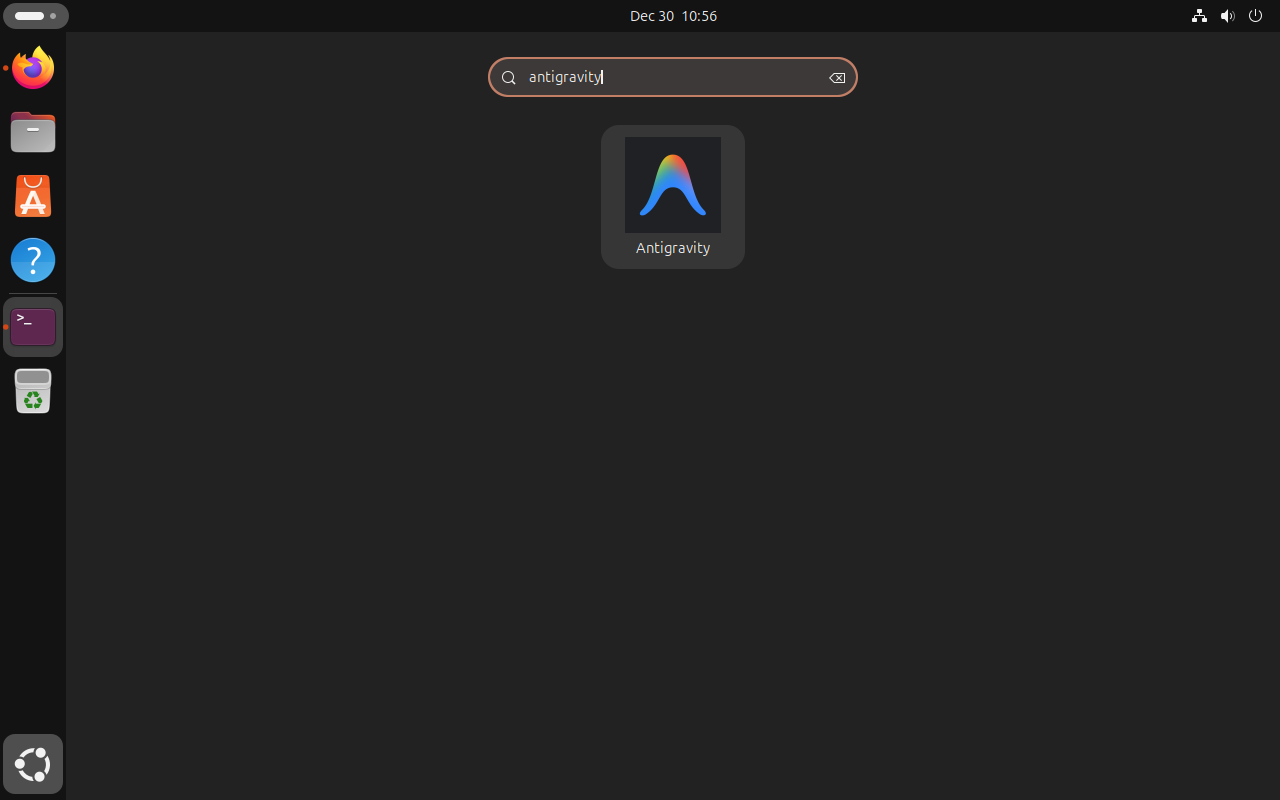
The package registers the desktop launcher as Antigravity, so that is the name to search for in Activities.
- Open Activities from the top-left corner of the desktop.
- Select Show Applications from the dock.
- Type Antigravity in the search bar.
- Click the Antigravity icon to open the application.
Understand the Google Antigravity interface on Ubuntu
The first window opens on a welcome screen where you can open a folder, create a project, or move into the agent workflow. Google’s get-started documentation goes deeper, but the two main surfaces are easy to recognize once the app is open.

Use the Google Antigravity Editor View
The Editor View is the familiar side of the application. It gives you an IDE layout with tab completion, inline commands, and a conversational side panel, so you can stay hands-on when you want to drive the work from the editor itself.
Use the Google Antigravity Manager Surface
The Manager Surface is where Antigravity starts to feel different from a standard editor. It lets you dispatch agents that can work across the editor, terminal, and browser, then review the resulting screenshots, plans, and summaries without digging through raw logs.
Model choices and UI details will continue to change as Google updates the platform, but the editor-plus-manager split is the core layout to learn first.
Update Google Antigravity on Ubuntu
A repository install can always be updated with APT. Google’s changelog and releases page are useful if you want to compare the package on your system with the latest published build.
Upgrade the Google Antigravity package
Refresh the repository metadata and ask APT to upgrade only this package.
sudo apt update && sudo apt install --only-upgrade antigravity -yIf you are already current, APT reports that directly.
antigravity is already the newest version (1.20.5-1772853402).
Summary:
   Upgrading: 0, Installing: 0, Removing: 0, Not Upgrading: 111
Verify the Google Antigravity package version
Check the installed package version after the upgrade command finishes.
dpkg-query -W antigravityExpected output:
antigravity 1.20.5-1772853402
Remove Google Antigravity on Ubuntu
Purge the Google Antigravity package
Use a purge if you want the package and its system-level configuration removed cleanly. User data in your home directory is handled separately in the last step.
sudo apt purge -y antigravityFollow that with an autoremove pass for any no-longer-needed dependencies.
sudo apt autoremove -yVerify that the package itself is gone.
dpkg-query -W antigravity 2>/dev/null || echo "Package is not installed"Expected output:
Package is not installed
Remove the Google Antigravity repository
Delete the repository definition so APT stops checking Google’s package feed.
sudo rm -f /etc/apt/sources.list.d/google-antigravity.sourcesRemove the matching keyring file as well.
sudo rm -f /usr/share/keyrings/google-antigravity.gpgRefresh APT after the repository cleanup.
sudo apt updateIf the repository is gone, apt-cache policy antigravity returns nothing, so this wrapper prints a clear success message instead of leaving you with a blank terminal line.
if apt-cache policy antigravity | grep -q .; then
   apt-cache policy antigravity
else
   echo "APT no longer sees the antigravity package."
fi
Expected output:
APT no longer sees the antigravity package.
Remove Google Antigravity user data
This permanently deletes your Google Antigravity settings, extensions, and workspace state. If you want a backup first, copy the directory with
cp -r ~/.antigravity ~/antigravity-backup.
On Ubuntu 26.04, 24.04, and 22.04, this install path stores its user data under ~/.antigravity with an extensions subdirectory inside it, so that is the path to remove for a clean reset.
rm -rf ~/.antigravityConfirm that the user-data directory is gone.
ls -d ~/.antigravity 2>/dev/null || echo "~/.antigravity removed"Expected output:
~/.antigravity removed
Google Antigravity on Ubuntu FAQ
No. Google’s Linux download page offers a .tar.gz archive, not a native .deb package. If you want Google Antigravity to install, upgrade, and purge cleanly on Ubuntu 26.04, 24.04, and 22.04, the official APT repository is the better fit.
Ubuntu shows that error when the Google Antigravity repository is missing, the signing key was not added, or sudo apt update was skipped after creating the source file. The quickest check is apt-cache policy antigravity. If the repository is configured correctly, you should see the antigravity-debian source and a candidate package version.
For the repository install, run sudo apt update followed by sudo apt install --only-upgrade antigravity. That workflow is the same on Ubuntu 26.04, 24.04, and 22.04.
Google’s download page lists glibc >= 2.28 and glibcxx >= 3.4.25 as the Linux baseline. Ubuntu 26.04, 24.04, and 22.04 all exceed that requirement.
Google Antigravity on Ubuntu Conclusion
Google Antigravity is installed on Ubuntu 26.04, 24.04, and 22.04 and ready for editor work or longer agent-driven tasks. If you want a baseline editor to compare against, install Visual Studio Code on Ubuntu, and if this machine still needs source control, install Git on Ubuntu.

Formatting tips for your comment
You can use basic HTML to format your comment. Useful tags currently allowed:
<code>command</code>command<strong>bold</strong><em>italic</em><blockquote>quote</blockquote>