
Install a LAMP stack on Debian when you want Apache to serve PHP applications backed by MariaDB without adding third-party repositories. Debian 13 (Trixie), Debian 12 (Bookworm), and Debian 11 (Bullseye) all provide the needed Apache, MariaDB, PHP, and PHP-FPM packages through the default APT repositories, so the setup stays aligned with normal Debian security updates.
This setup uses PHP-FPM as the recommended Apache handler because it keeps PHP workers separate from Apache processes and works cleanly with modern Apache defaults. Debian also packages mod_php for simple Apache-only systems, but choose one PHP handler for a site and do not enable both handlers for the same virtual host.
Install LAMP Stack on Debian
The LAMP stack is four pieces working together: Debian provides the Linux base, Apache handles HTTP and HTTPS requests, MariaDB stores application data, and PHP runs the dynamic application code. The packages below install those roles from Debian’s own repositories.
| Component | Debian package or service | Role in the stack |
|---|---|---|
| Apache | apache2, apache2.service | Serves web content from paths such as /var/www/html. |
| MariaDB | mariadb-server, mariadb.service | Provides the MySQL-compatible database server for applications. |
| PHP-FPM | php-fpm, php-cli, phpX.Y-fpm.service | Runs PHP in a separate FastCGI process pool for Apache. |
| Optional mod_php | libapache2-mod-php | Runs PHP inside Apache for simpler single-server setups. |
| PHP database support | php-mysql | Loads the PHP extensions needed for MariaDB and MySQL connections. |
Update Debian Package Metadata
Refresh APT before installing the stack so Debian uses current package metadata from every enabled source.
sudo apt updateThese commands use sudo for package installation and service management. If your account is not already allowed to use sudo, configure administrator access first with the Debian sudoers guide.
Install Apache on Debian
Install the Apache package first because the PHP integration and local browser test depend on the web server being present.
sudo apt install apache2Debian normally starts and enables Apache during installation. Check the service state before continuing.
systemctl is-active apache2active
If the service is not active, start it and enable boot startup with one command.
sudo systemctl enable apache2 --nowUse apache2ctl for version checks on Debian because the Apache binary lives in a system administration path that may not be on a normal user’s shell path.
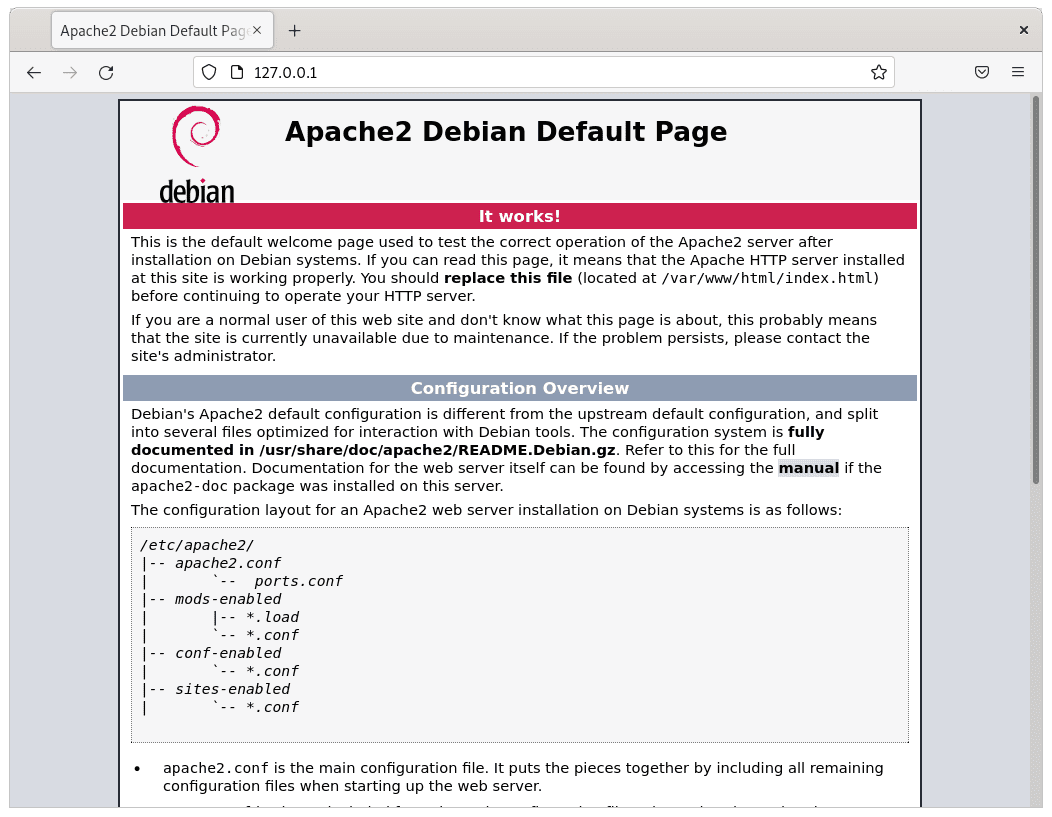
sudo apache2ctl -vOpen http://127.0.0.1/ or http://localhost/ from the Debian system to confirm Apache serves the default page from /var/www/html/index.html.
For a deeper Apache-only setup with virtual hosts, logs, and HTTPS handling, use the dedicated Apache on Debian guide.
Install MariaDB on Debian
Install the MariaDB server and client tools. Debian uses MariaDB as the default MySQL-compatible server for this workflow.
sudo apt install mariadb-server mariadb-clientConfirm the database service is running.
systemctl is-active mariadbactive
Check that local administrative access through Debian’s MariaDB socket works.
sudo mariadb -e "SELECT VERSION();"The command should print the MariaDB branch installed for your Debian release. If you need a dedicated database article with client-only installs, listener checks, and data-safe removal, see install MariaDB on Debian.
Secure MariaDB Defaults
Run the MariaDB hardening script before putting applications on the server. The script can remove anonymous users, disable remote root login, remove the test database, and reload privilege tables.
sudo mariadb-secure-installationUse mariadb-secure-installation on current Debian systems. Debian 11 and Debian 12 may also provide the older mysql_secure_installation alias, but Debian 13 does not require that alias for this workflow.
For most web servers, accept the choices that remove anonymous access, disallow remote root login, remove the test database, and reload privileges. Keep password handling interactive so database passwords do not land in shell history.
Run a MariaDB Smoke Test
Create and remove a temporary database to prove MariaDB accepts local administrative queries without leaving test data behind.
sudo mariadb -e "CREATE DATABASE lc_lamp_test; SHOW DATABASES LIKE 'lc_lamp_test'; DROP DATABASE lc_lamp_test;"Database (lc_lamp_test) lc_lamp_test
Check Default PHP and MariaDB Versions
Debian tracks PHP and MariaDB through the release you are running. The commands stay the same, but the service names and PHP branch differ by Debian version.
| Debian release | Default PHP branch | PHP-FPM service | Default MariaDB branch |
|---|---|---|---|
| Debian 13 (Trixie) | PHP 8.4 | php8.4-fpm | MariaDB 11.8.x |
| Debian 12 (Bookworm) | PHP 8.2 | php8.2-fpm | MariaDB 10.11.x |
| Debian 11 (Bullseye) | PHP 7.4 | php7.4-fpm | MariaDB 10.5.x |
If your application requires a newer fixed PHP branch than Debian provides, use the full PHP on Debian guide or the version-specific PHP guides instead of mixing repository instructions into this LAMP setup.
Install PHP-FPM for Apache
Install PHP-FPM, the PHP command-line package, and the MariaDB/MySQL extension for PHP. This is the recommended handler for new LAMP servers.
sudo apt install php-fpm php-cli php-mysqlResolve the PHP branch from the installed CLI package, then enable the matching Apache PHP-FPM configuration.
php_branch=$(php -r 'echo PHP_MAJOR_VERSION.".".PHP_MINOR_VERSION;')
sudo a2enmod proxy_fcgi setenvif
sudo a2enconf "php${php_branch}-fpm"
sudo systemctl enable "php${php_branch}-fpm" --now
sudo systemctl restart apache2
Confirm that the versioned PHP-FPM service is active.
php_branch=$(php -r 'echo PHP_MAJOR_VERSION.".".PHP_MINOR_VERSION;')
systemctl is-active "php${php_branch}-fpm"
active
Optional: Use Apache mod_php Instead
Use mod_php only when you want PHP embedded directly in Apache and do not need a separate PHP-FPM service. This path uses Apache’s prefork MPM, so skip it when you already chose PHP-FPM for the same site.
sudo apt install php-cli libapache2-mod-php php-mysql
php_branch=$(php -r 'echo PHP_MAJOR_VERSION.".".PHP_MINOR_VERSION;')
sudo a2disconf "php${php_branch}-fpm" 2>/dev/null || true
sudo a2dismod mpm_event
sudo a2enmod mpm_prefork "php${php_branch}"
sudo systemctl restart apache2
Confirm Apache loaded the PHP module, then use the PHP processing test in the next section.
sudo apache2ctl -M | grep -E 'php[0-9]*_module'Do not keep both the Apache PHP-FPM configuration and
mod_phpenabled for the same site. Pick one handler, restart Apache, and verify PHP processing before installing an application.
Switch Between PHP-FPM and mod_php
If you later change handlers, disable the current Apache integration before enabling the other one. To switch from mod_php back to PHP-FPM, enable the event MPM and the versioned FPM configuration.
php_branch=$(php -r 'echo PHP_MAJOR_VERSION.".".PHP_MINOR_VERSION;')
sudo a2dismod "php${php_branch}" mpm_prefork
sudo a2enmod mpm_event proxy_fcgi setenvif
sudo a2enconf "php${php_branch}-fpm"
sudo systemctl enable "php${php_branch}-fpm" --now
sudo systemctl restart apache2
To switch from PHP-FPM to mod_php, disable the FPM Apache configuration, stop the FPM service, and enable the prefork MPM with the PHP module.
php_branch=$(php -r 'echo PHP_MAJOR_VERSION.".".PHP_MINOR_VERSION;')
sudo a2disconf "php${php_branch}-fpm"
sudo systemctl disable "php${php_branch}-fpm" --now
sudo a2dismod mpm_event
sudo a2enmod mpm_prefork "php${php_branch}"
sudo systemctl restart apache2
Install Common PHP Extensions
After choosing a PHP handler, install the extensions most PHP applications expect. The following packages cover HTTP requests, image handling, XML parsing, ZIP archives, multibyte strings, and internationalization.
sudo apt install php-curl php-gd php-intl php-mbstring php-xml php-zipCheck that the main extension modules are loaded in the PHP CLI environment.
php -m | grep -E '^(curl|gd|intl|mbstring|mysqli|pdo_mysql|zip)$'If you use PHP-FPM, restart PHP-FPM and Apache after installing extensions.
php_branch=$(php -r 'echo PHP_MAJOR_VERSION.".".PHP_MINOR_VERSION;')
sudo systemctl restart "php${php_branch}-fpm"
sudo systemctl restart apache2
If you use mod_php, restart Apache because PHP runs inside the Apache process.
sudo systemctl restart apache2Verify PHP Processing Through Apache
Create a small PHP file that prints a harmless success string. This confirms Apache is passing PHP files to the handler you enabled without exposing full phpinfo() output.
printf '%s\n' '<?php echo "LAMP_OK";' | sudo tee /var/www/html/lamp-test.php > /dev/nullOpen http://127.0.0.1/lamp-test.php from the server itself, or replace 127.0.0.1 with the server’s address when testing from another machine. You can also test from the terminal.
curl -fsS http://127.0.0.1/lamp-test.phpLAMP_OK
Remove the test file immediately after the check so a public server does not keep unnecessary diagnostic files in the web root.
sudo rm -f /var/www/html/lamp-test.phpConfigure UFW Firewall for Web Traffic
Debian does not require UFW for Apache to run locally, but a server exposed to a network needs firewall rules that match how clients reach it. Install UFW if you use it as your local firewall manager.
sudo apt install ufwList the available application profiles before adding rules. Debian 13 commonly shows Apache-specific profiles, while Debian 12 and Debian 11 may show generic WWW profiles instead.
sudo ufw app listIf your output includes Apache Full, allow that profile for HTTP and HTTPS.
sudo ufw allow 'Apache Full'If your output only includes generic web profiles, allow WWW Full instead.
sudo ufw allow 'WWW Full'Allow SSH before enabling UFW on a remote server, or you can lock yourself out of the session you are using to administer the machine. Replace
22/tcpif your server listens on a custom SSH port.
sudo ufw allow 22/tcp
sudo ufw enable
sudo ufw status
Use the dedicated UFW on Debian guide if you need source-restricted rules, default policy changes, or a safer remote-firewall rollout.
Add HTTPS After DNS Points to Apache
Use Let’s Encrypt after a real domain resolves to the server and Apache can answer HTTP requests for that name. Do not run Certbot against localhost or a bare IP address; certificate validation needs a real hostname that Let’s Encrypt can reach.
The standard Debian package for Apache certificate automation is python3-certbot-apache. For the full domain, redirect, renewal, and rollback workflow, follow secure Apache with Let’s Encrypt on Debian.
Manage LAMP Services on Debian
Apache, MariaDB, and PHP-FPM are systemd services. Use service checks before and after configuration changes so you know which layer failed.
php_branch=$(php -r 'echo PHP_MAJOR_VERSION.".".PHP_MINOR_VERSION;')
systemctl status apache2 --no-pager
systemctl status mariadb --no-pager
systemctl status "php${php_branch}-fpm" --no-pager
Restart only the service affected by the change. Apache virtual host changes need an Apache reload or restart; PHP extension changes need a PHP-FPM restart when you use PHP-FPM.
php_branch=$(php -r 'echo PHP_MAJOR_VERSION.".".PHP_MINOR_VERSION;')
sudo systemctl reload apache2
sudo systemctl restart "php${php_branch}-fpm"
sudo systemctl restart mariadb
Routine package updates come through APT because every package in this setup comes from Debian’s repositories.
sudo apt update
sudo apt upgrade
Troubleshoot LAMP Stack Issues
Start troubleshooting by isolating the layer that fails: Apache request handling, PHP processing, database access, firewall exposure, or file permissions.
Apache Fails to Start
Check Apache’s configuration parser first, then inspect recent service logs if the parser reports a failure or Apache still will not start.
sudo apachectl configtest
sudo journalctl -u apache2 --no-pager -n 50
A common harmless warning says Apache could not determine the server’s fully qualified domain name. You can silence that warning by setting a local ServerName.
printf '%s\n' 'ServerName localhost' | sudo tee /etc/apache2/conf-available/servername.conf > /dev/null
sudo a2enconf servername
sudo apachectl configtest
sudo systemctl reload apache2
If Apache reports that port 80 or 443 is already in use, identify the listener before changing services.
sudo ss -tlnp | grep -E ':(80|443)[[:space:]]'PHP Files Download Instead of Running
Downloaded PHP source usually means Apache is serving the file as static content instead of passing it to PHP. For PHP-FPM, re-enable the proxy modules and the versioned FPM configuration.
php_branch=$(php -r 'echo PHP_MAJOR_VERSION.".".PHP_MINOR_VERSION;')
sudo a2enmod proxy_fcgi setenvif
sudo a2enconf "php${php_branch}-fpm"
sudo systemctl restart "php${php_branch}-fpm"
sudo systemctl restart apache2
For mod_php, confirm the Apache PHP module is enabled and Apache uses the prefork MPM.
php_branch=$(php -r 'echo PHP_MAJOR_VERSION.".".PHP_MINOR_VERSION;')
sudo a2dismod mpm_event
sudo a2enmod mpm_prefork "php${php_branch}"
sudo systemctl restart apache2
MariaDB Connection Refused
First confirm the database service and local socket login work. A working root socket login does not prove an application user is configured correctly, but it separates a server outage from an application credential problem.
systemctl is-active mariadb
sudo mariadb -e "SELECT VERSION();"
If MariaDB works locally but PHP applications still fail to connect, verify the PHP database extension is installed and restart the active PHP handler.
php_branch=$(php -r 'echo PHP_MAJOR_VERSION.".".PHP_MINOR_VERSION;')
sudo apt install php-mysql
sudo systemctl restart "php${php_branch}-fpm"
sudo systemctl restart apache2
Permission Denied in the Web Root
Apache runs as the www-data user on Debian. If you are testing a simple local web root, make the files readable by Apache and keep directories executable.
sudo chown -R www-data:www-data /var/www/html
sudo chmod -R u=rwX,go=rX /var/www/html
Do not use broad recursive ownership changes on an existing application without checking its deployment model, uploads directory, and backup state. The chmod command guide explains mode notation if you need to adapt permissions for a more complex site.
Remove LAMP Stack Components
Remove packages separately from application data. Package removal stops the services and removes binaries, while web files, database files, and custom configuration may remain until you delete them deliberately.
Remove PHP Packages
Remove the PHP-FPM packages and common extensions installed for this stack. Remove php-cli only if you installed it for this LAMP stack and no other local PHP workflow needs it.
sudo apt remove php-fpm php-cli php-mysql php-curl php-gd php-intl php-mbstring php-xml php-zipIf you used the mod_php path, remove the Apache PHP module package as well.
sudo apt remove libapache2-mod-phpRemove MariaDB Packages
Remove the MariaDB packages without deleting databases first. This keeps database files available if you need to reinstall MariaDB or recover data.
sudo apt remove mariadb-server mariadb-clientRemove Apache Packages
Remove Apache after any hosted applications have been migrated, backed up, or intentionally retired.
sudo apt remove apache2 apache2-utilsReview and remove automatically unused dependencies only after checking the package list APT proposes.
sudo apt autoremoveThe next cleanup command permanently deletes database files, Apache configuration, and the default web root. Back up databases, virtual hosts, certificates, and site files before running it.
sudo rm -rf /var/lib/mysql /etc/mysql /etc/apache2 /var/www/htmlVerify that the main services are no longer active.
systemctl is-active apache2 mariadb php8.4-fpm php8.2-fpm php7.4-fpm || trueRemoved units should report inactive, unknown, or fail because the unit no longer exists, depending on how much configuration remains.
Next Steps After Installing LAMP
A working LAMP server is a base platform, not a finished application deployment. Choose the next step based on the site you plan to host.
- Install a CMS with WordPress with Apache on Debian.
- Use LEMP on Debian instead if you prefer Nginx over Apache.
- Install MySQL 8.0 on Debian only when an application specifically requires Oracle MySQL rather than MariaDB.
- Add a web application firewall with ModSecurity with Apache on Debian.
- Block repeated login and web probes with Fail2ban on Debian.
Conclusion
Your Debian LAMP stack now has Apache serving HTTP requests, MariaDB accepting local database queries, and PHP connected through the handler you selected. Before exposing a real application, add HTTPS for a real domain, confirm firewall rules from another machine, create application-specific database users, and keep the test files out of the web root.


Formatting tips for your comment
You can use basic HTML to format your comment. Useful tags currently allowed in published comments:
<code>command</code>command<strong>bold</strong><em>italic</em><a href="https://example.com">link</a><blockquote>quote</blockquote>