
Linux Mint already ships OpenShot for quick cuts, title work, and multi-track timeline edits, but the package source changes the version and dependency set you get. You can install OpenShot on Linux Mint from the default repositories, the OpenShot stable PPA, or Flathub, depending on whether you want the lowest maintenance path, newer APT-managed packages, or Flatpak delivery.
OpenShot also publishes an official AppImage on its download page, but APT and Flatpak are easier to update and remove on Mint. Mint 22.x carries OpenShot 3.1.x in the default repositories, Mint 21.x stays on 2.5.x, the stable PPA moves both releases to the current 3.5.x branch, and Flathub currently packages OpenShot 3.3.0.
Install OpenShot on Linux Mint
The repository package is the easiest place to start. The stable PPA is the simplest APT-managed route to newer OpenShot builds on both supported Mint releases, and standard Linux Mint desktop installs already include Flatpak with a system-scope Flathub remote.
| Method | Channel | Package Branch | Updates | Best For |
|---|---|---|---|---|
| Linux Mint repository | Ubuntu Universe | Mint 22.x: 3.1.x, Mint 21.x: 2.5.x | APT updates from the base repositories | Lowest maintenance, especially on Mint 22.x |
| OpenShot stable PPA | Launchpad PPA | OpenShot 3.5.x with matching PPA libraries | APT updates from the PPA | Mint users who want newer OpenShot packages without switching to AppImage |
| Flatpak | Flathub | Flathub stable build, currently 3.3.0 | Flatpak app and runtime updates | Users who prefer Flathub packaging and separate runtimes |
The repository package is the best fit when you want the least upkeep. Mint 21.x users have the strongest reason to move to the stable PPA because the default package is much older. Flatpak is useful for Flathub packaging, but the current app permissions include host file access, so do not treat it as the strictest isolation option.
Update Linux Mint Before Installing OpenShot
Refresh APT first so Linux Mint sees the current repository or PPA metadata before you install anything.
sudo apt updateThese commands use
sudofor package management tasks. If your account does not have sudo access yet, follow the guide to create and add users to sudoers on Linux Mint or switch to a root shell first.
Install OpenShot from Linux Mint Repositories
The default package is the lowest-maintenance option, and Linux Mint installs it as openshot-qt while the menu entry appears as OpenShot Video Editor. On Mint 21.x, APT can include Blender and Inkscape as recommended packages for title-related workflows, so review the proposed package list before confirming the transaction.
sudo apt install openshot-qtAfter the install finishes, confirm the package source and version.
apt-cache policy openshot-qtRelevant output on Mint 22.x includes:
openshot-qt:
  Installed: 3.1.1+dfsg1-1
  Candidate: 3.1.1+dfsg1-1
  Version table:
 *** 3.1.1+dfsg1-1 500
        500 http://archive.ubuntu.com/ubuntu noble/universe amd64 Packages
        100 /var/lib/dpkg/status
Mint 21.x shows 2.5.1+dfsg1-2ubuntu0.1 from jammy-updates/universe. If you want the newer 3.5.x branch on either supported Mint release, move to the stable PPA.
Install OpenShot from the OpenShot Stable PPA
The OpenShot developers’ stable PPA is the easiest APT-managed way to move Mint 22.x and 21.x to the current 3.5.x branch. It matters most on Mint 21.x, where the default package is much older.
Standard Linux Mint desktop installs provide add-apt-repository through mintsources. On stripped-down systems, install that Mint package only if the helper is missing.
command -v add-apt-repository >/dev/null 2>&1 || sudo apt install mintsourcessudo add-apt-repository ppa:openshot.developers/ppa -yUpdate APT after adding the PPA so Linux Mint pulls the new package index. Mint 22.x shows lines like these, and Mint 21.x uses the same path with jammy instead of noble:
sudo apt updateGet:10 https://ppa.launchpadcontent.net/openshot.developers/ppa/ubuntu noble InRelease [18.1 kB] Get:11 https://ppa.launchpadcontent.net/openshot.developers/ppa/ubuntu noble/main amd64 Packages [3,400 B] Get:12 https://ppa.launchpadcontent.net/openshot.developers/ppa/ubuntu noble/main i386 Packages [1,696 B]
Install both PPA packages once the new source appears. The openshot-qt package provides the launcher and interface, while python3-openshot provides the matching OpenShot Python library. Installing only openshot-qt can leave python3-openshot on the older distro package.
sudo apt install openshot-qt python3-openshotCheck both package candidates again to confirm APT is preferring the PPA for the interface and the OpenShot library.
apt-cache policy openshot-qt python3-openshotRelevant output on Mint 22.x includes:
openshot-qt:
  Installed: 3.5.1+dfsg2+1791+202604080516~ubuntu24.04.1
  Candidate: 3.5.1+dfsg2+1791+202604080516~ubuntu24.04.1
  Version table:
 *** 3.5.1+dfsg2+1791+202604080516~ubuntu24.04.1 500
        500 https://ppa.launchpadcontent.net/openshot.developers/ppa/ubuntu noble/main amd64 Packages
        100 /var/lib/dpkg/status
python3-openshot:
  Installed: 0.7.0+dfsg2+1243+202604080421+daily~ubuntu24.04.1
  Candidate: 0.7.0+dfsg2+1243+202604080421+daily~ubuntu24.04.1
  Version table:
 *** 0.7.0+dfsg2+1243+202604080421+daily~ubuntu24.04.1 500
        500 https://ppa.launchpadcontent.net/openshot.developers/ppa/ubuntu noble/main amd64 Packages
        100 /var/lib/dpkg/status
Mint 21.x resolves the same OpenShot branch with ~ubuntu22.04.1 suffixes. OpenShot also publishes a daily PPA for testers, but that moving target is not a good default for a Linux Mint desktop install.
Install OpenShot via Flatpak on Linux Mint
Linux Mint desktop installs already include Flatpak with Flathub configured as a system remote. Use this path when you want Flathub packaging and Flatpak runtime updates, but do not expect it to beat the stable PPA for version freshness or strict file isolation.
Confirm the current Flatpak remote scope first.
flatpak remotes --columns=name,optionsflathub system
If that command does not show flathub, restore the remote on customized Mint systems with:
sudo flatpak remote-add --if-not-exists flathub https://dl.flathub.org/repo/flathub.flatpakrepoThe --if-not-exists flag skips the add step when the remote is already present. Install OpenShot from the same system-scope remote once Flathub is available.
sudo flatpak install flathub org.openshot.OpenShotThe Flatpak app ID is org.openshot.OpenShot. Verify the installed build with:
flatpak info org.openshot.OpenShotRelevant output includes:
          ID: org.openshot.OpenShot
         Ref: app/org.openshot.OpenShot/x86_64/stable
        Arch: x86_64
      Branch: stable
     Version: 3.3.0
      Origin: flathub
At the moment the Flathub build is 3.3.0, so Flatpak is a Flathub packaging and runtime choice rather than the newest OpenShot release. The current Flatpak permissions already include host file access, so most Linux Mint users do not need extra filesystem overrides just to open local project folders.
Launch OpenShot on Linux Mint
OpenShot can be installed from any terminal session, but it still needs an active graphical desktop session to open. Repository and PPA installs use the same launcher and terminal command, while Flatpak keeps its own app ID.
Launch OpenShot from the Linux Mint Menu
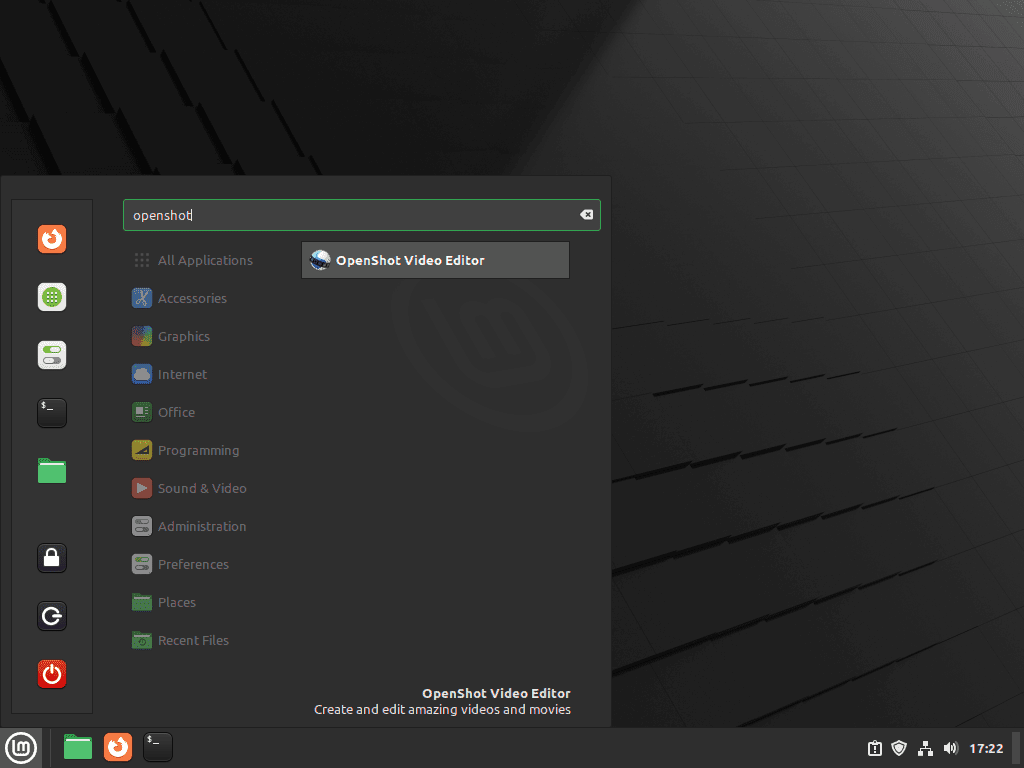
Open the Linux Mint menu, search for OpenShot Video Editor, and start it from the Sound & Video category. Xfce and MATE place the launcher in the same general application group.
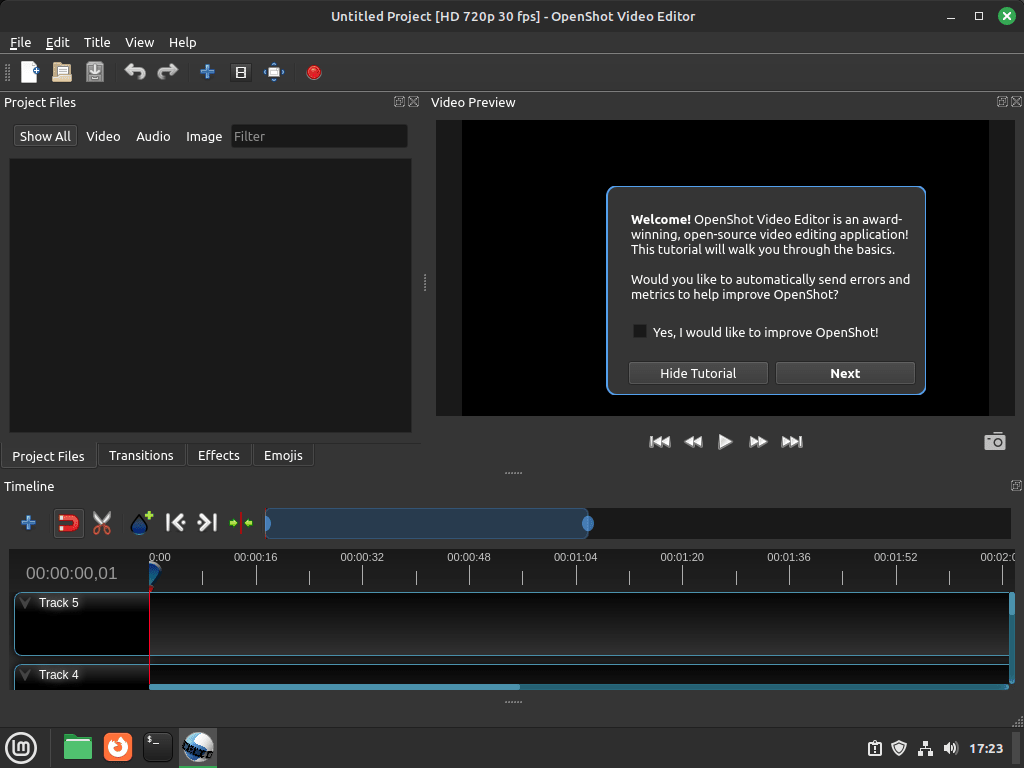
The first launch may show OpenShot’s welcome prompt over the editor workspace, including an optional error and metrics checkbox. Choose the privacy setting you prefer, then continue to the editor.
Launch OpenShot from Terminal on Linux Mint
Use the terminal launcher when you want to start the editor directly or watch startup messages.
APT or stable PPA install:
openshot-qtFlatpak install:
flatpak run org.openshot.OpenShotUpdate or Remove OpenShot on Linux Mint
Keep updates and cleanup tied to the same package format you used for installation. That avoids stale PPA configuration and makes Flatpak removal more predictable later.
Update OpenShot on Linux Mint
APT and stable PPA installs update through the normal package manager. Refresh package metadata and upgrade only the OpenShot packages.
sudo apt update && sudo apt install --only-upgrade openshot-qt python3-openshotUpdate the Flatpak build through the same system-scope remote you used for installation.
sudo flatpak update org.openshot.OpenShotIf you want broader Flatpak maintenance tips, see the guide to upgrade Flatpak on Linux Mint.
Remove the APT Version of OpenShot on Linux Mint
Remove the OpenShot interface package and its OpenShot Python library first.
sudo apt remove openshot-qt python3-openshotIf you used the stable PPA and no longer want it configured, remove the source after the package is gone.
sudo add-apt-repository --remove ppa:openshot.developers/ppa -yRefresh APT and confirm that the candidate falls back to the default Mint repositories.
sudo apt update && apt-cache policy openshot-qtRelevant output on Mint 22.x includes:
openshot-qt:
  Installed: (none)
  Candidate: 3.1.1+dfsg1-1
  Version table:
     3.1.1+dfsg1-1 500
        500 http://archive.ubuntu.com/ubuntu noble/universe amd64 Packages
Mint 21.x falls back to 2.5.1+dfsg1-2ubuntu0.1 from jammy-updates/universe after the same cleanup. Review unused dependencies separately, especially if Mint 21.x installed Blender, Inkscape, or OpenShot libraries only for this editor. APT shows the removable package list before confirmation, so decline if it includes packages you still need.
sudo apt autoremoveIf you also want to remove local settings, check which OpenShot data paths actually exist before deleting anything.
find "$HOME" -maxdepth 3 \( -path "$HOME/.openshot_qt" -o -path "$HOME/.local/share/openshot" \) -printThe escaped parentheses keep the two candidate paths in one OR test, so find prints only the OpenShot locations you want to review.
The cleanup command targets only those candidate OpenShot paths. Remove a path from the command first if you want to keep that profile or data directory.
Deleting these directories removes OpenShot preferences, recent-project state, and local profile data for your account. Back up anything you need before running the removal command.
rm -rf -- "$HOME/.openshot_qt" "$HOME/.local/share/openshot"Remove the Flatpak Version of OpenShot on Linux Mint
Remove the Flatpak app and its sandbox data with the same system scope you used during installation.
sudo flatpak uninstall --delete-data org.openshot.OpenShotVerify that the app ID is gone when the uninstall finishes.
flatpak list --system --app --columns=application | grep -Fx org.openshot.OpenShot || echo NOT_INSTALLEDThe grep -Fx check matches the exact app ID only, so the fallback NOT_INSTALLED line prints when the Flatpak is gone.
NOT_INSTALLED
If you launched the Flatpak build before removing it, check whether ~/.var/app/org.openshot.OpenShot still exists before you delete anything else from your account.
find "$HOME" -maxdepth 3 -path "$HOME/.var/app/org.openshot.OpenShot" -printIf the path still exists and you want to remove the remaining Flatpak profile data, back up any projects or settings you need, then delete the directory.
Deleting the Flatpak profile removes OpenShot settings and sandboxed application data for your account. Back up any project state or preferences you want to keep.
rm -rf -- "$HOME/.var/app/org.openshot.OpenShot"Troubleshoot OpenShot on Linux Mint
Most launch problems come from stale local settings or graphics stack issues, not from the package manager itself. Check the small items below before you remove and reinstall the editor.
Reset OpenShot Settings on Linux Mint
If OpenShot hangs or keeps reopening with broken preferences, check whether the local settings directory exists first.
find "$HOME" -maxdepth 2 -path "$HOME/.openshot_qt" -printWhen that command prints the OpenShot settings path, rename the directory and let OpenShot build a fresh profile on the next launch.
mv "$HOME/.openshot_qt" "$HOME/.openshot_qt.backup.$(date +%Y%m%d-%H%M%S)"Fix OpenShot PPA Package Mismatch on Linux Mint
If the PPA build still behaves like the older repository version, check both package candidates. A partial PPA install can upgrade openshot-qt while leaving python3-openshot on the Ubuntu base package.
apt-cache policy openshot-qt python3-openshotBoth packages should show the OpenShot PPA as the installed source when you use the PPA method. If only openshot-qt points to the PPA, reinstall the matched package pair after a successful APT metadata refresh.
sudo apt update && sudo apt install openshot-qt python3-openshotIf sudo apt update cannot connect to ppa.launchpadcontent.net, fix the network or retry after Launchpad is reachable before reinstalling. APT cannot choose the PPA packages until the PPA index downloads successfully.
Check Graphics Drivers Before Reinstalling OpenShot on Linux Mint
Preview glitches and startup crashes after a driver change are often graphics issues rather than broken OpenShot packages. On GeForce hardware, start with the guide to install NVIDIA drivers on Linux Mint. AMD and Intel systems usually benefit more from the guide to upgrade Mesa drivers on Linux Mint.
Conclusion
OpenShot is ready on Linux Mint with a package source that matches your update preference: the repository package for low maintenance, the stable PPA for newer APT-managed builds, or Flathub for Flatpak packaging. If preview playback still feels rough on a GeForce system, install NVIDIA drivers on Linux Mint next. AMD and Intel users should upgrade Mesa drivers on Linux Mint instead.


Formatting tips for your comment
You can use basic HTML to format your comment. Useful tags currently allowed in published comments:
<code>command</code>command<strong>bold</strong><em>italic</em><a href="https://example.com">link</a><blockquote>quote</blockquote>