

Yandex Browser provides a feature-rich browsing experience built on the Chromium engine, with integrated tools like ad blocking, a Turbo mode that compresses pages for faster loading on limited bandwidth, and automatic translation for foreign-language websites. If you frequently access Yandex services such as Mail, Disk, or Maps, want a browser that handles slow connections gracefully through page compression, or browse international sites and need real-time translation, Yandex Browser delivers these capabilities out of the box.
This guide covers installing Yandex Browser on Debian using the official Yandex APT repository. By the end, you will have the browser configured with automatic updates enabled, ready to sync your bookmarks and compress data on bandwidth-limited connections.
Yandex Browser is available only for 64-bit (amd64) systems. The official repository uses a universal package format that works identically across Debian 13 (Trixie), 12 (Bookworm), and 11 (Bullseye), so all commands in this guide apply regardless of which supported release you run.
Update Debian Before Installation
First, open a terminal and update your system packages to ensure compatibility with the new repository:
sudo apt update && sudo apt upgradeImport the Yandex GPG Key
Next, download and store the Yandex signing key in the system keyring directory. APT uses this key to verify that incoming packages originate from Yandex and remain unmodified during download:
curl -fsSL https://repo.yandex.ru/yandex-browser/YANDEX-BROWSER-KEY.GPG | sudo gpg --dearmor -o /usr/share/keyrings/yandex-browser.gpgThen, confirm the key was imported successfully:
file /usr/share/keyrings/yandex-browser.gpg/usr/share/keyrings/yandex-browser.gpg: OpenPGP Public Key Version 4, Created [date], RSA (Encrypt or Sign, 4096 bits); User ID; Signature; OpenPGP Certificate
The creation date will differ based on when Yandex last rotated the signing key. The important detail is that the file type shows “OpenPGP Public Key,” confirming successful import.
Add the Yandex Browser Repository
Now, configure the Yandex stable repository using the modern DEB822 .sources format. This format offers cleaner syntax and scoped key signing compared to legacy .list files:
cat <<EOF | sudo tee /etc/apt/sources.list.d/yandex-browser-stable.sources
Types: deb
URIs: https://repo.yandex.ru/yandex-browser/deb
Suites: stable
Components: main
Architectures: amd64
Signed-By: /usr/share/keyrings/yandex-browser.gpg
EOF
Yandex maintains a beta channel, but the Linux beta version may lag behind stable releases and appears to receive less frequent updates. For the most current builds, the stable channel typically remains the better choice.
Update the Package Index
After adding the repository, refresh APT so it recognizes the new package source:
sudo apt updateIn the output, look for lines referencing repo.yandex.ru to confirm APT found the repository:
Get:X https://repo.yandex.ru/yandex-browser/deb stable/main amd64 Packages [X.X kB]
Install Yandex Browser
With the repository configured, install the stable version of Yandex Browser:
sudo apt install yandex-browser-stableAfterward, verify the installation completed successfully by checking the version:
yandex-browser --versionYandex 25.10.1.1173
Your version number will differ based on the current release at installation time.
Remove Duplicate Repository Files
During installation, the Yandex package automatically creates its own legacy .list file in /etc/apt/sources.list.d/. This duplicates the repository you configured and causes APT to display warnings:
W: Target Packages (main/binary-amd64/Packages) is configured multiple times in /etc/apt/sources.list.d/yandex-browser.list and /etc/apt/sources.list.d/yandex-browser-stable.sources
To resolve this, remove the auto-generated legacy file:
sudo rm -f /etc/apt/sources.list.d/yandex-browser*.listNext, refresh APT to confirm the warning is resolved:
sudo apt updateIf no duplicate source warnings appear, APT now uses only your DEB822 configuration.
If the
.listfile reappears after a future package update, simply delete it again. The Yandex package creates this file only during installation or major upgrades, not during routine updates.
Launch Yandex Browser
Launch from Terminal
To start Yandex Browser directly from the command line, run:
yandex-browserTo run it in the background and free your terminal for other tasks, append & to the command: yandex-browser &
Launch from Applications Menu
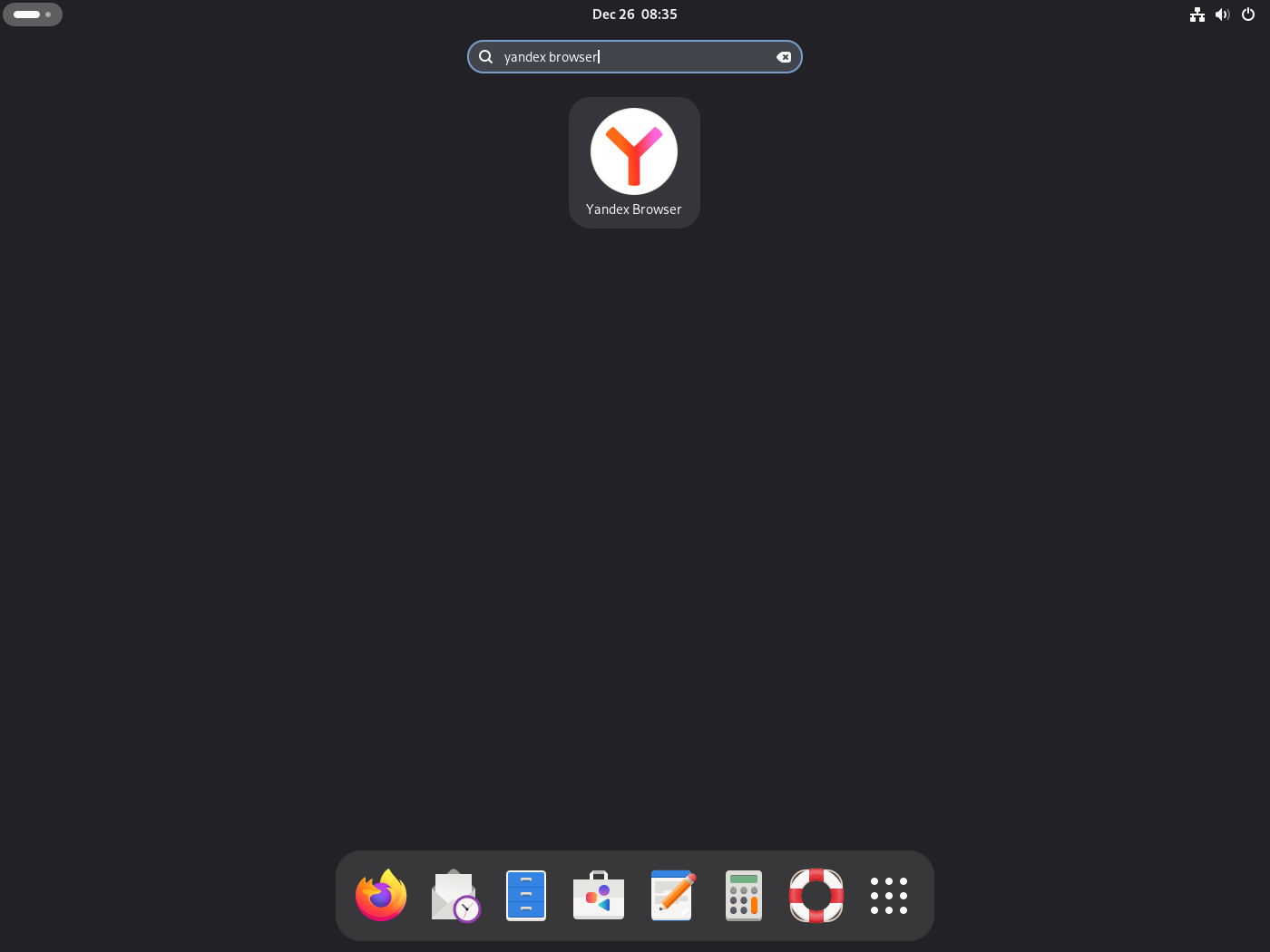
Alternatively, for a graphical approach, click Activities (top-left corner) or press the Super key, then type Yandex in the search bar. Click the Yandex Browser icon to launch.
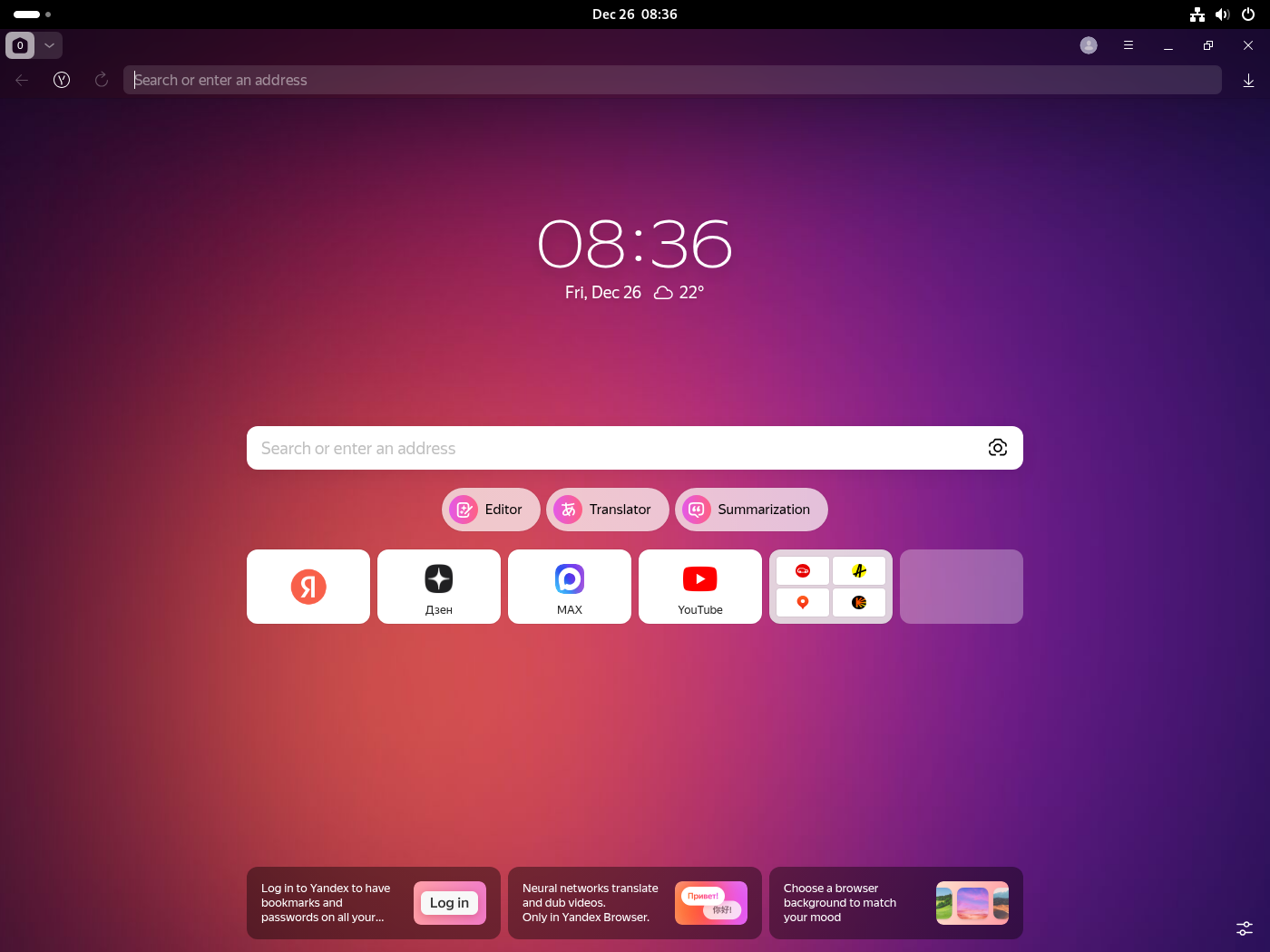
On first launch, Yandex Browser displays its distinctive gradient homepage with quick access to Yandex services, a search bar, and customization options. The browser imports no settings automatically, so you start with a clean profile.
Manage Yandex Browser
Update Yandex Browser
Since you installed from the official repository, Yandex Browser receives updates through the standard APT process:
sudo apt update && sudo apt upgradeAlternatively, update only Yandex Browser without affecting other packages:
sudo apt update
sudo apt install --only-upgrade yandex-browser-stable
Remove Yandex Browser
If you no longer need the browser, you can uninstall it and remove orphaned dependencies:
sudo apt remove yandex-browser-stable
sudo apt autoremove
The autoremove command clears libraries and dependencies installed alongside the browser that no other software requires.
Remove Repository and GPG Key
To completely remove the Yandex configuration from your system, delete the repository file, any auto-generated legacy file, and the signing key:
sudo rm -f /etc/apt/sources.list.d/yandex-browser-stable.sources
sudo rm -f /etc/apt/sources.list.d/yandex-browser.list
sudo rm -f /usr/share/keyrings/yandex-browser.gpg
Afterward, refresh APT and verify successful repository removal:
sudo apt update
apt-cache policy yandex-browser-stable
If the repository was removed successfully, the output shows no candidate version or produces no output at all:
yandex-browser-stable:
  Installed: (none)
  Candidate: (none)
  Version table:
Remove User Data (Optional)
Warning: The following commands permanently delete your Yandex Browser profile data, including bookmarks, saved passwords, browsing history, and extensions. Export any data you wish to keep before proceeding.
rm -rf ~/.config/yandex-browser/
rm -rf ~/.cache/yandex-browser/
rm -rf ~/.local/share/yandex-browser/
Additionally, remove any lingering desktop launcher files:
rm -f ~/.local/share/applications/yandex-browser*.desktopTroubleshoot Yandex Browser
GPG Key Import Fails
Occasionally, the GPG key download fails due to network connectivity issues:
curl: (7) Failed to connect to repo.yandex.ru port 443
Check your network connection and confirm your firewall permits outbound HTTPS traffic. If the issue persists, try downloading the key through wget as an alternative:
wget -qO- https://repo.yandex.ru/yandex-browser/YANDEX-BROWSER-KEY.GPG | sudo gpg --dearmor -o /usr/share/keyrings/yandex-browser.gpgThen verify successful key import using the same file command from the earlier GPG import section. If the output shows “OpenPGP Public Key,” the import succeeded.
Duplicate Source Warnings After Update
If APT displays duplicate source warnings after installation or package updates, the Yandex installer has recreated its legacy .list file. To resolve this issue, follow the steps in the “Remove Duplicate Repository Files” section above.
Package Not Found Error
When apt install yandex-browser-stable returns “Unable to locate package,” first check the repository configuration:
apt-cache policy yandex-browser-stableIf no candidate version appears, verify the repository file exists with correct content:
cat /etc/apt/sources.list.d/yandex-browser-stable.sourcesNext, confirm the GPG key is in place. Run file /usr/share/keyrings/yandex-browser.gpg and verify it shows “OpenPGP Public Key” as described in the earlier GPG import section.
If the key verification passes, refresh the package cache and watch for errors:
sudo apt updateWhen the update completes without GPG errors and shows APT fetching from the Yandex repository, the configuration is working correctly:
Get:X https://repo.yandex.ru/yandex-browser/deb stable/main amd64 Packages [X.X kB]
Conclusion
Yandex Browser is now installed on your Debian system with automatic security updates enabled through the official repository. The Turbo mode provides noticeable improvements when browsing on slower connections, and the built-in translation handles foreign-language sites seamlessly. Consider signing into your Yandex account to sync bookmarks across devices, or explore the privacy settings through the browser menu to customize your experience.
If you are evaluating other browser options on Debian, you might also explore Firefox for its privacy focus and extension library, Brave for built-in ad blocking, or Google Chrome for its sync ecosystem and developer tools.

Formatting tips for your comment
You can use basic HTML to format your comment. Useful tags currently allowed:
<code>command</code>command<strong>bold</strong><em>italic</em><blockquote>quote</blockquote>