
Yandex Browser makes the most sense on Debian when you want Chromium site compatibility, Yandex account sync, built-in translation, and Yandex service shortcuts without switching to a Google-centered browser. You can install Yandex Browser on Debian from Yandex’s official APT repository, which keeps the stable browser package tied into normal Debian package updates.
Older references to Yandex Browser Turbo mode are stale. Yandex says Turbo mode is turned off and removed from settings. The official Linux download also offers a .deb package, but using the repository keeps stable-channel updates in APT and avoids repeated manual downloads.
Yandex’s Linux requirements list 64-bit Debian 10 or later. This repository method targets 64-bit amd64 Debian and currently resolves through the same stable repository on Debian 13 (trixie), Debian 12 (bookworm), and Debian 11 (bullseye).
Install Yandex Browser on Debian
Update Debian and Install Prerequisites
Start by refreshing APT before adding the browser repository:
sudo apt updateThese commands use
sudofor package and repository changes. If your user is not configured for sudo yet, run the commands as root or follow the guide on how to add a user to sudoers on Debian.
Install the small tools used for HTTPS downloads, certificate validation, keyring conversion, and keyring inspection:
sudo apt install curl ca-certificates gpg file -yInstall the Yandex Signing Key
Download the Yandex signing key, convert it to a binary keyring, and install it as a dedicated APT keyring. The --yes flag lets gpg overwrite an older local conversion cleanly if you rerun the step later:
curl -fsSLo yandex-browser.gpg https://repo.yandex.ru/yandex-browser/YANDEX-BROWSER-KEY.GPG &&
gpg --dearmor --yes -o yandex-browser-keyring.gpg yandex-browser.gpg &&
sudo install -m 0644 yandex-browser-keyring.gpg /usr/share/keyrings/yandex-browser.gpg &&
rm -f yandex-browser.gpg yandex-browser-keyring.gpg
Confirm that APT now has the keyring file in the path used by the repository source:
file /usr/share/keyrings/yandex-browser.gpgRelevant output should identify a binary OpenPGP keyring:
/usr/share/keyrings/yandex-browser.gpg: OpenPGP Public Key Version 4, Created Tue May 16 16:15:58 2023, RSA (Encrypt or Sign, 4096 bits); User ID; Signature; OpenPGP Certificate
Debian 11 may describe the same key as
PGP/GPG key public ring (v4). Either wording is acceptable as long as the file command reports a binary OpenPGP or PGP/GPG keyring instead of the raw public key block downloaded from Yandex.
Add the Yandex Browser Repository
Create a DEB822 source file for the Yandex stable repository. The printf and sudo tee combination writes the root-owned source file without relying on a fragile heredoc paste:
printf '%s\n' \
'Types: deb' \
'URIs: https://repo.yandex.ru/yandex-browser/deb' \
'Suites: stable' \
'Components: main' \
'Architectures: amd64' \
'Signed-By: /usr/share/keyrings/yandex-browser.gpg' \
| sudo tee /etc/apt/sources.list.d/yandex-browser-stable.sources > /dev/null
Review the source file before refreshing APT:
cat /etc/apt/sources.list.d/yandex-browser-stable.sourcesTypes: deb URIs: https://repo.yandex.ru/yandex-browser/deb Suites: stable Components: main Architectures: amd64 Signed-By: /usr/share/keyrings/yandex-browser.gpg
For naming clarity, the stable channel is identified by Suites: stable, while the installable package is yandex-browser-stable. There is no separate stable ID to configure in APT.
Refresh APT and Verify the Package
Refresh package metadata so Debian reads the new repository:
sudo apt updateRelevant lines should show APT fetching the Yandex stable metadata:
Get:X https://repo.yandex.ru/yandex-browser/deb stable InRelease [4,336 B]
Get:X https://repo.yandex.ru/yandex-browser/deb stable/main amd64 Packages [1,277 B]
Check the package candidate before installing. This confirms that yandex-browser-stable is coming from the Yandex repository, not from a stale local file or a different source:
apt-cache policy yandex-browser-stableyandex-browser-stable:
Installed: (none)
Candidate: 26.x.x.x-1
Version table:
26.x.x.x-1 500
500 https://repo.yandex.ru/yandex-browser/deb stable/main amd64 Packages
Install the Stable Browser Package
Install Yandex Browser on Debian with sudo apt install yandex-browser-stable. The older sudo apt-get install yandex-browser-stable form targets the same package, but apt is clearer for this interactive guide:
sudo apt install yandex-browser-stable -yAfter installation, verify the browser version:
yandex-browser --versionYandex 26.x.x.x stable
On Debian 11, this check may also print FFmpeg diagnostic lines before or after the version line. Use the Yandex ... stable line as the install confirmation, because those diagnostics can appear on stderr while the command still exits successfully.
The package also registers the stable binary as the default yandex-browser command:
command -v yandex-browser
command -v yandex-browser-stable
/usr/bin/yandex-browser /usr/bin/yandex-browser-stable
Remove the Package-Created Legacy Source File
On a normal fresh install, the Yandex package starts its repository helper in the background. That helper writes a legacy source file at /etc/apt/sources.list.d/yandex-browser.list, while the DEB822 source file already manages the same repository with a scoped Signed-By keyring. Remove the legacy file before the next APT update.
On Debian 12 and Debian 11, leaving both files in place can stop APT with this error:
E: Conflicting values set for option Signed-By regarding source https://repo.yandex.ru/yandex-browser/deb/ stable: /usr/share/keyrings/yandex-browser.gpg !=
Debian 13 may report duplicate-target warnings instead, but the cleanup is the same. The short wait lets the package helper finish if it is still running:
for _ in 1 2 3 4 5; do
    [ -e /etc/apt/sources.list.d/yandex-browser.list ] && break
    sleep 1
done
sudo rm -f /etc/apt/sources.list.d/yandex-browser.list
Refresh APT again. A clean result should show the Yandex repository without duplicate-source warnings or Signed-By conflicts:
sudo apt updateHit:X https://repo.yandex.ru/yandex-browser/deb stable InRelease
Routine updates keep using
yandex-browser-stable.sources. If the legacy.listfile returns after a reinstall, package upgrade, or major package script run, delete it again and rerunsudo apt update.
Launch Yandex Browser
Launch from Terminal
Run the launcher from a graphical desktop session:
yandex-browserTo start it in the background and free your terminal, append & to the command: yandex-browser &
Launch from the Applications Menu
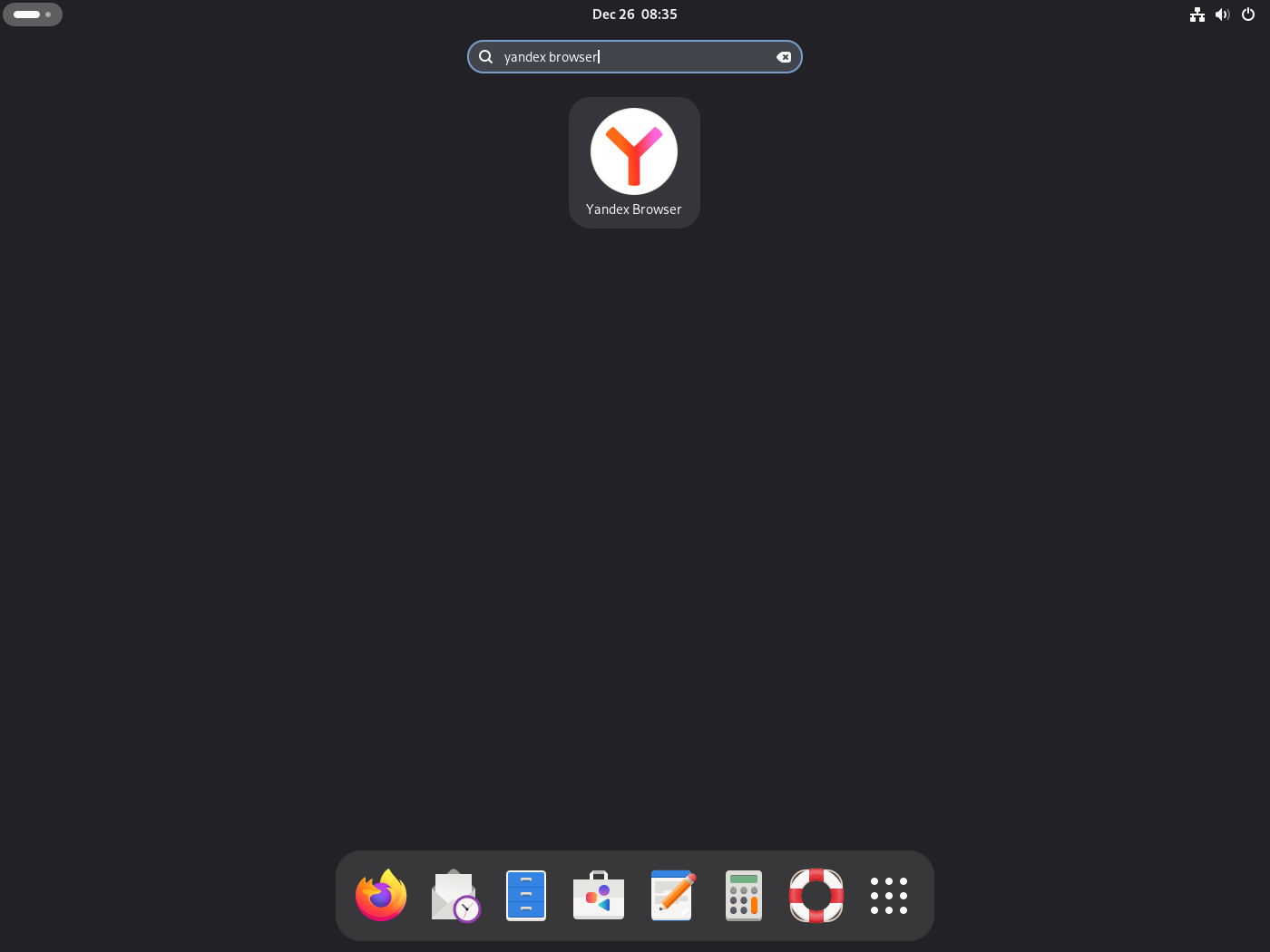
On GNOME, open Activities or press the Super key, type Yandex, and select the Yandex Browser icon.
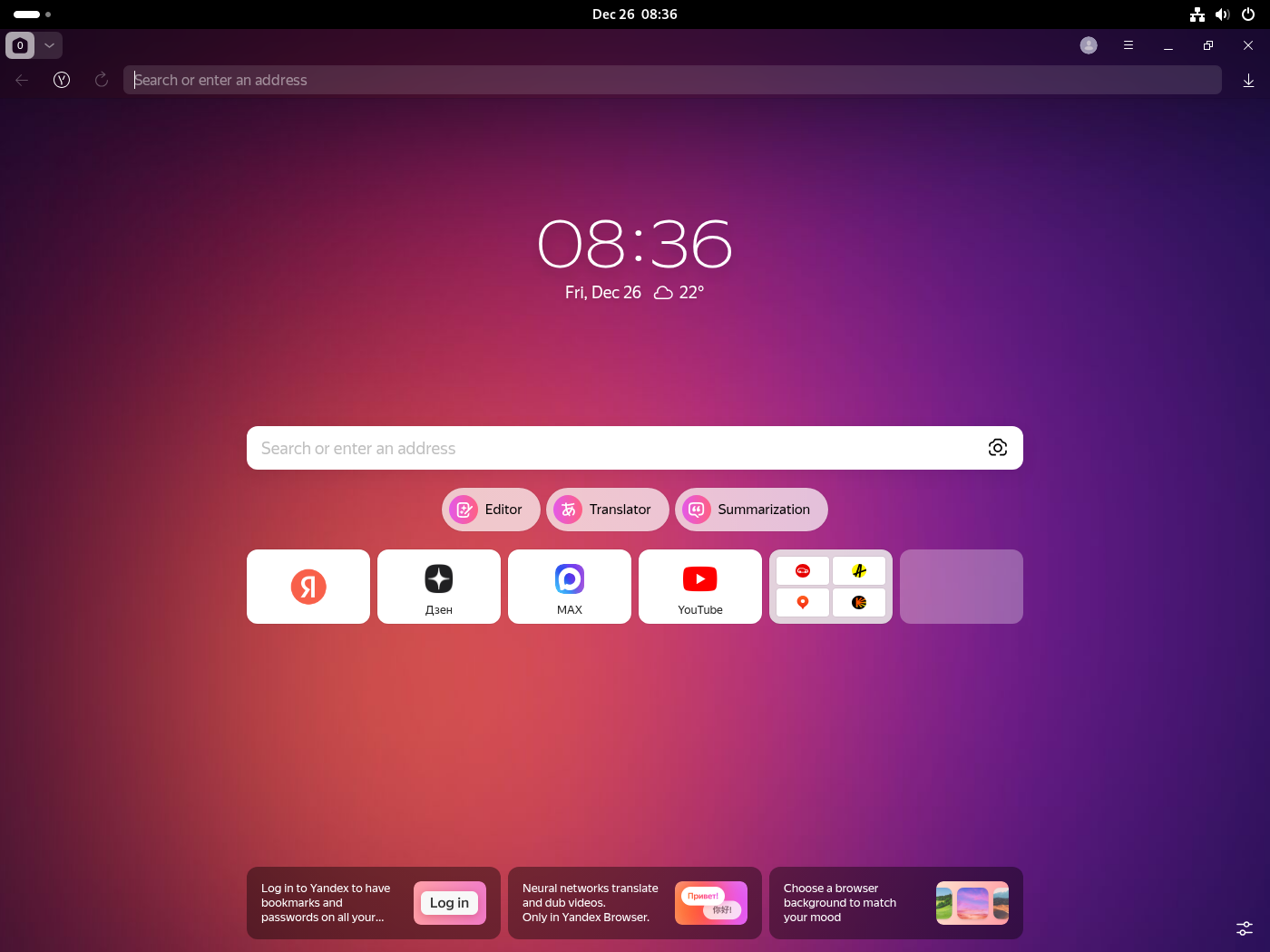
On first launch, Yandex Browser opens its start page with a search field, quick-access tiles, and Yandex service integration. Sign in with a Yandex account only if you want browser sync across devices.
Manage Yandex Browser
Update Yandex Browser
Because the browser is installed from an APT repository, normal package upgrades include Yandex Browser. Review the upgrade transaction before confirming, especially on reused desktop systems:
sudo apt update
sudo apt upgrade
To update only Yandex Browser, refresh metadata first, then upgrade the package by name:
sudo apt update
sudo apt install --only-upgrade yandex-browser-stable -y
Remove Yandex Browser
Remove the browser package with apt purge. This removes the installed package and package-managed configuration without touching your personal browser profile:
sudo apt purge yandex-browser-stable -yAPT may then report dependencies that are no longer required. Review that list before removing anything, especially on a reused desktop:
sudo apt autoremove --dry-runIf the dry run lists only packages you no longer need, rerun the command without --dry-run.
Yandex Browser can leave a small application residue under /opt/yandex/browser after purge. Remove the browser directory, then remove the parent directory only if it is empty:
sudo rm -rf /opt/yandex/browser
sudo rmdir /opt/yandex 2>/dev/null || true
Remove Repository and GPG Key
Delete the DEB822 source file, the package-created legacy source file and trusted key, and the scoped Yandex keyring:
sudo rm -f /etc/apt/sources.list.d/yandex-browser-stable.sources
sudo rm -f /etc/apt/sources.list.d/yandex-browser.list
sudo rm -f /usr/share/keyrings/yandex-browser.gpg
sudo rm -f /etc/apt/trusted.gpg.d/yandex-browser.gpg
Refresh APT and confirm that the package no longer has a repository candidate:
sudo apt update
apt-cache policy yandex-browser-stable
yandex-browser-stable: Installed: (none) Candidate: (none) Version table:
Remove User Data
These commands permanently delete your Yandex Browser profile data, including bookmarks, saved passwords, browsing history, extensions, and local cache. Export anything you want to keep first.
rm -rf ~/.config/yandex-browser/
rm -rf ~/.cache/yandex-browser/
rm -rf ~/.local/share/yandex-browser/
rm -f ~/.local/share/applications/yandex-browser*.desktop
Troubleshoot Yandex Browser
Signing Key Download Fails
A failed key download usually points to missing prerequisites, a network problem, a proxy, or a TLS certificate issue:
curl: (7) Failed to connect to repo.yandex.ru port 443
Reinstall the required download and inspection tools, then check whether the key URL responds over HTTPS:
sudo apt install curl ca-certificates gpg file -y
curl -fsSLI https://repo.yandex.ru/yandex-browser/YANDEX-BROWSER-KEY.GPG
If the header check succeeds, rerun the signing-key commands. The Linux curl command guide explains the download and header flags if you need to adapt the check. If the URL still fails, check your proxy, firewall, DNS, and system clock before changing the repository commands.
Signed-By Conflict or Duplicate Source Warnings
If sudo apt update fails with a Signed-By conflict or reports duplicated Yandex targets, first list the Yandex source entries so you can confirm which files point at the same repository:
grep -RIn "repo.yandex.ru/yandex-browser/deb" /etc/apt/sources.list /etc/apt/sources.list.d 2>/dev/nullA conflicting setup usually shows both yandex-browser-stable.sources and the package-created legacy yandex-browser.list file:
/etc/apt/sources.list.d/yandex-browser-stable.sources:2:URIs: https://repo.yandex.ru/yandex-browser/deb
/etc/apt/sources.list.d/yandex-browser.list:3:deb [arch=amd64] https://repo.yandex.ru/yandex-browser/deb stable main
Remove only the legacy yandex-browser.list file, then refresh APT again:
sudo rm -f /etc/apt/sources.list.d/yandex-browser.list
sudo apt update
The DEB822 file named yandex-browser-stable.sources should remain in place because it contains the scoped Signed-By path used by the repository setup.
Package Not Found Error
When sudo apt install yandex-browser-stable returns “Unable to locate package,” refresh package metadata first so APT reads the latest source file state:
sudo apt update
apt-cache policy yandex-browser-stable
If no candidate appears, verify the repository file and keyring path:
cat /etc/apt/sources.list.d/yandex-browser-stable.sources
file /usr/share/keyrings/yandex-browser.gpg
The source file should point to https://repo.yandex.ru/yandex-browser/deb with Suites: stable, Architectures: amd64, and Signed-By: /usr/share/keyrings/yandex-browser.gpg. If any line differs, recreate the DEB822 source file and rerun sudo apt update.
Conclusion
Yandex Browser is installed from the official stable repository, with yandex-browser available from the terminal and APT handling future updates. If you are comparing Debian browser options, install Firefox on Debian, install Brave Browser on Debian, and install Google Chrome on Debian cover the main alternatives.


Formatting tips for your comment
You can use basic HTML to format your comment. Useful tags currently allowed in published comments:
<code>command</code>command<strong>bold</strong><em>italic</em><a href="https://example.com">link</a><blockquote>quote</blockquote>