
Installing Tor Browser on Debian starts with the source you want to trust for fetching and maintaining the browser bundle: Debian’s torbrowser-launcher package in contrib, Flathub’s launcher build, or the Tor Project’s signed Linux archive. Tor Browser routes web traffic through the Tor network, making it harder for websites, advertisers, and local network observers to connect browsing activity to your normal IP address.
Do not confuse Tor Browser with the separate tor package. Tor Browser is the desktop application used for private browsing, while tor installs the background daemon and command-line tools used for relays, proxies, onion services, and other system-level workflows.
Install Tor Browser on Debian
Choose the method that matches how you manage desktop applications on your Debian system.
| Method | Source | Install Form | Updates | Best For |
|---|---|---|---|---|
| APT (torbrowser-launcher) | Debian contrib | Debian launcher package | Launcher and dependencies through APT; browser bundle self-updates | Most Debian desktop users who want package-manager integration |
| Flatpak | Flathub | Flatpak launcher | Launcher and runtime through Flatpak; browser bundle self-updates | Flatpak users who prefer Flathub desktop app management |
| Archive Download | Tor Project | User-local .tar.xz bundle with helper | Local helper repeats the verified archive update flow | Users who want the direct upstream archive and signature-checked terminal updates |
For most Debian desktop users, the APT method is recommended when contrib is enabled. The package integrates with APT while still downloading and verifying the official Tor Browser bundle from the Tor Project on first launch.
The Tor Project does not publish a separate Debian .deb package for the full browser bundle. Debian’s package-manager workflow installs torbrowser-launcher, while the direct upstream workflow uses the Linux .tar.xz archive from the Tor Project download page.
Method 1: Install Tor Browser via APT
The torbrowser-launcher package is the simplest Debian-packaged entry point. It installs the launcher and required Python, Qt/GTK, GnuPG, and network libraries; the Tor Browser bundle downloads into your user profile the first time you run it.
Check Debian contrib Access
torbrowser-launcher is in Debian contrib, not main. Check whether APT can see it:
apt-cache policy torbrowser-launcherExpected output on Debian 13 after contrib is enabled:
torbrowser-launcher:
  Installed: (none)
  Candidate: 0.3.7-3
  Version table:
     0.3.7-3 500
        500 http://deb.debian.org/debian trixie/contrib amd64 Packages
If Candidate shows (none), enable Debian contrib first, then rerun sudo apt update. The Debian repository setup is covered in the guide to enable contrib and non-free repositories on Debian.
The package version varies by Debian release: Debian 13 currently ships 0.3.7-3, Debian 12 ships 0.3.6-2, and Debian 11 ships 0.3.3-6.
Update Debian Package Metadata
Refresh APT metadata after confirming the repository component is available:
sudo apt updateCommands that change packages use
sudo. If your account cannot run administrative commands yet, use the root account or follow the guide on adding a user to sudoers on Debian.
Install torbrowser-launcher on Debian
Install the Tor Browser launcher package:
sudo apt install torbrowser-launcherAPT installs the launcher and its dependency set. With default APT Recommends enabled, it also installs recommended packages such as tor, tor-geoipdb, and torsocks. Installing tor alone still gives you the daemon and CLI tools, not the Tor Browser desktop application.
Verify the APT Launcher Installation
Confirm the Debian package is installed:
dpkg-query -W -f='${db:Status-Abbrev} ${binary:Package} ${Version}\n' torbrowser-launcherExpected output on Debian 13:
ii torbrowser-launcher 0.3.7-3
The ii status confirms the package is installed. A different version is normal on Debian 12 or Debian 11.
Method 2: Install Tor Browser via Flatpak
The Flathub package installs the same torbrowser-launcher tool inside a Flatpak application. Current Flathub metadata identifies the app as org.torproject.torbrowser-launcher, uses the KDE runtime, and does not expose broad home-directory access by default.
Flatpak is not installed on a minimal Debian system by default. If the
flatpakcommand is missing, install it first with the Flatpak setup guide for Debian, then return to this method.
Enable Flathub on Debian
Ensure the Flathub remote is configured:
sudo flatpak remote-add --if-not-exists flathub https://dl.flathub.org/repo/flathub.flatpakrepoInstall the Tor Browser Launcher from Flathub
Install the Flathub application ID:
sudo flatpak install flathub org.torproject.torbrowser-launcherThe first Flatpak application on a system may take longer because Flatpak also downloads the required runtime.
Verify the Flatpak Installation
Check the installed Flatpak metadata:
flatpak info org.torproject.torbrowser-launcher | grep -E '^[[:space:]]*(ID|Ref|Arch|Branch|Version|Origin|Runtime):'Relevant output includes:
          ID: org.torproject.torbrowser-launcher
         Ref: app/org.torproject.torbrowser-launcher/x86_64/stable
        Arch: x86_64
      Branch: stable
     Version: 0.3.9
      Origin: flathub
     Runtime: org.kde.Platform/x86_64/6.10
The version and runtime can change as Flathub publishes updates, but the application ID and origin should match.
Method 3: Install Tor Browser via Archive Download
The archive method installs the direct upstream Tor Browser bundle from the Tor Project. Keep the extracted folder inside your home directory so Tor Browser can write its own updates without needing root privileges.
Install Archive Download Tools
The archive workflow uses the curl command to download the current release, GnuPG to verify the signature, XZ tools to extract the archive, and desktop file tools to refresh the application launcher database:
sudo apt update
sudo apt install curl ca-certificates gpg xz-utils desktop-file-utils
Create the Tor Browser Archive Update Helper
Create a user-local helper named update-tor-browser. The setup block refuses to overwrite an existing file with that name unless it already carries this helper marker. The helper resolves the latest Linux x86_64 archive, downloads the matching .asc signature, imports the Tor Browser Developers key into a temporary GnuPG home, checks the documented fingerprint, verifies the archive, stages the replacement folder, preserves the existing Tor Browser data directory, registers the desktop entry, and creates a tor-browser command wrapper.
mkdir -p "$HOME/.local/bin"
helper="$HOME/.local/bin/update-tor-browser"

if [ -e "$helper" ] && ! grep -Fq 'LinuxCapable Tor Browser archive helper' "$helper" 2>/dev/null; then
  printf 'Refusing to overwrite existing file: %s\n' "$helper" >&2
  printf 'Move that file or choose a different helper name before continuing.\n' >&2
  false
else
  cat > "$helper" <<'EOF'
#!/usr/bin/env bash
# LinuxCapable Tor Browser archive helper
set -euo pipefail

dist_url='https://dist.torproject.org/torbrowser'
key_url='https://openpgpkey.torproject.org/.well-known/openpgpkey/torproject.org/hu/kounek7zrdx745qydx6p59t9mqjpuhdf'
key_fingerprint='EF6E286DDA85EA2A4BA7DE684E2C6E8793298290'
install_parent="$HOME/.local/share"
install_dir="$install_parent/tor-browser"
release_file="$install_dir/.linuxcapable-tor-browser-release"
desktop_dir="$install_parent/applications"
bin_dir="$HOME/.local/bin"
work_dir=''
backup_dir=''

die() {
  printf 'Error: %s\n' "$*" >&2
  exit 1
}

need_cmd() {
  command -v "$1" >/dev/null 2>&1 || die "Missing required command: $1"
}

cleanup() {
  status=$?
  if [ "$status" -ne 0 ]; then
    restore_backup || true
  fi
  if [ -n "$work_dir" ] && [ -d "$work_dir" ]; then
    rm -rf "$work_dir"
  fi
  exit "$status"
}

restore_backup() {
  if [ -n "$backup_dir" ]; then
    if [ -e "$backup_dir" ] && [ ! -e "$install_dir" ]; then
      mv "$backup_dir" "$install_dir"
      printf 'Restored previous Tor Browser folder after failure.\n' >&2
    fi
  fi
}

latest_version() {
  page=$(curl -fsSL "$dist_url/")
  versions=$(printf '%s\n' "$page" | sed -n 's/.*href="\([0-9][0-9.]*\)\/".*/\1/p')
  [ -n "$versions" ] || die 'Could not find Tor Browser release directories.'
  printf '%s\n' "$versions" | sort -V | tail -n 1
}

installed_version() {
  if [ -r "$release_file" ]; then
    sed -n '1p' "$release_file"
  fi
}

ensure_not_running() {
  if command -v pgrep >/dev/null 2>&1; then
    if pgrep -u "$(id -u)" -f "$install_dir/Browser/firefox|$install_dir/start-tor-browser.desktop" >/dev/null 2>&1; then
      die 'Close Tor Browser before updating the archive install.'
    fi
  fi
}

register_desktop() {
  [ -x "$install_dir/start-tor-browser.desktop" ] || die "Missing launcher: $install_dir/start-tor-browser.desktop"
  install -d "$desktop_dir"
  (
    cd "$install_dir"
    ./start-tor-browser.desktop --register-app
  )
  if command -v update-desktop-database >/dev/null 2>&1; then
    update-desktop-database "$desktop_dir" >/dev/null 2>&1 || true
  fi
}

write_launcher_wrapper() {
  install -d "$bin_dir"
  launcher="$bin_dir/tor-browser"
  if [ -e "$launcher" ] && ! grep -Fq 'LinuxCapable Tor Browser archive wrapper' "$launcher" 2>/dev/null; then
    die "Refusing to overwrite existing non-helper file: $launcher"
  fi
  cat >"$launcher" <<WRAPPER
#!/usr/bin/env bash
# LinuxCapable Tor Browser archive wrapper
exec "$install_dir/start-tor-browser.desktop" "\$@"
WRAPPER
  chmod 0755 "$launcher"
}

if [ "$(id -u)" -eq 0 ]; then
  die 'Run this helper as your normal desktop user, not root.'
fi

for cmd in awk chmod cp curl date gpg grep id install mkdir mktemp mv rm sed sort tail tar uname xz; do
  need_cmd "$cmd"
done

case "$(uname -m)" in
x86_64 | amd64)
  archive_arch='x86_64'
  ;;
*)
  die 'The automatic archive helper supports the Tor Browser Linux x86_64 build.'
  ;;
esac

install -d "$install_parent"
install -d "$desktop_dir"
install -d "$bin_dir"

target_version=$(latest_version)
current_version=$(installed_version || true)
printf 'Latest Tor Browser version: %s\n' "$target_version"

if [ -n "$current_version" ] && [ "$current_version" = "$target_version" ]; then
  register_desktop
  write_launcher_wrapper
  printf 'Tor Browser %s is already current.\n' "$target_version"
  exit 0
fi

ensure_not_running

work_dir=$(mktemp -d "${TMPDIR:-/tmp}/tor-browser-update.XXXXXX")
trap cleanup EXIT
export GNUPGHOME="$work_dir/gnupg"
install -m 0700 -d "$GNUPGHOME"

archive="tor-browser-linux-${archive_arch}-${target_version}.tar.xz"
signature="${archive}.asc"
base_url="${dist_url}/${target_version}"

curl -fsSL --retry 3 -o "$work_dir/$archive" "$base_url/$archive"
curl -fsSL --retry 3 -o "$work_dir/$signature" "$base_url/$signature"
printf 'Downloaded %s and signature.\n' "$archive"

curl -fsSL "$key_url" | gpg --batch --import >/dev/null
fingerprint=$(gpg --batch --with-colons --fingerprint "$key_fingerprint" | awk -F: '$1 == "fpr" {print $10; exit}')
[ "$fingerprint" = "$key_fingerprint" ] || die 'Tor Browser signing key fingerprint mismatch.'
gpg --batch --verify "$work_dir/$signature" "$work_dir/$archive"
printf 'Signature verified with Tor Browser Developers key.\n'

tar -xJf "$work_dir/$archive" -C "$work_dir"
stage_dir="$work_dir/tor-browser"
[ -x "$stage_dir/start-tor-browser.desktop" ] || die 'Extracted archive is missing start-tor-browser.desktop.'
app_name=$(awk -F= '$1 == "RemotingName" {print $2; exit}' "$stage_dir/Browser/application.ini")
[ "$app_name" = 'Tor Browser' ] || die 'Extracted archive did not identify as Tor Browser.'
printf '%s\n' "$target_version" >"$stage_dir/.linuxcapable-tor-browser-release"

if [ -d "$install_dir/Browser/TorBrowser/Data" ]; then
  rm -rf "$stage_dir/Browser/TorBrowser/Data"
  mkdir -p "$stage_dir/Browser/TorBrowser"
  cp -a "$install_dir/Browser/TorBrowser/Data" "$stage_dir/Browser/TorBrowser/Data"
  printf 'Preserved existing Tor Browser profile and Tor data.\n'
fi

if [ -e "$install_dir" ]; then
  backup_dir="${install_dir}.backup-$(date +%Y%m%d%H%M%S)"
  mv "$install_dir" "$backup_dir"
fi

mv "$stage_dir" "$install_dir"
register_desktop
write_launcher_wrapper

if [ -n "$backup_dir" ] && [ -e "$backup_dir" ]; then
  rm -rf "$backup_dir"
fi

printf 'Installed Tor Browser %s in %s\n' "$target_version" "$install_dir"
EOF

  chmod 0755 "$helper"
  export PATH="$HOME/.local/bin:$PATH"
  hash -r
  command -v update-tor-browser >/dev/null && printf 'update-tor-browser helper ready\n'
fi
Expected setup output:
update-tor-browser helper ready
If the setup block prints a refusal, move the existing file out of the way before rerunning it. If it does not print the ready line, open a new terminal or add $HOME/.local/bin to your shell PATH before running the helper by name.
Close Tor Browser before running the archive helper. Updating browser files while Tor Browser is open can leave a partial replacement or force the helper to restore the previous folder.
Install or Update Tor Browser with the Helper
Run the helper to download, verify, extract, and register the current Tor Browser archive:
update-tor-browserOn a fresh archive install, the helper creates $HOME/.local/share/tor-browser, registers the desktop launcher, and creates the tor-browser command in $HOME/.local/bin. On later runs, it exits without replacing files when the installed archive already matches the latest Tor Project release.
A later no-op run after a current install should end with:
Latest Tor Browser version: 15.0.14
Launching './Browser/start-tor-browser --detach --register-app'...
Tor Browser has been registered as a desktop app for this user in ~/.local/share/applications/
Tor Browser 15.0.14 is already current.
Verify the Archive Helper Installation
Confirm the helper, wrapper command, and archive launcher are present:
command -v update-tor-browser >/dev/null && printf 'update-tor-browser helper found\n'
command -v tor-browser >/dev/null && printf 'tor-browser command found\n'
test -x "$HOME/.local/share/tor-browser/start-tor-browser.desktop" && printf 'Archive Tor Browser install ready\n'
Expected output:
update-tor-browser helper found
tor-browser command found
Archive Tor Browser install ready
The helper uses the Tor Project’s published Tor Browser Developers fingerprint EF6E286DDA85EA2A4BA7DE684E2C6E8793298290, matching the Tor Browser signature verification instructions.
Launch Tor Browser on Debian
Launch Tor Browser from your desktop environment’s application menu, or run the terminal command that matches your installation method.
Launch the APT Tor Browser Launcher
torbrowser-launcherLaunch the Flatpak Tor Browser Launcher
flatpak run org.torproject.torbrowser-launcherLaunch the Archive Tor Browser Install
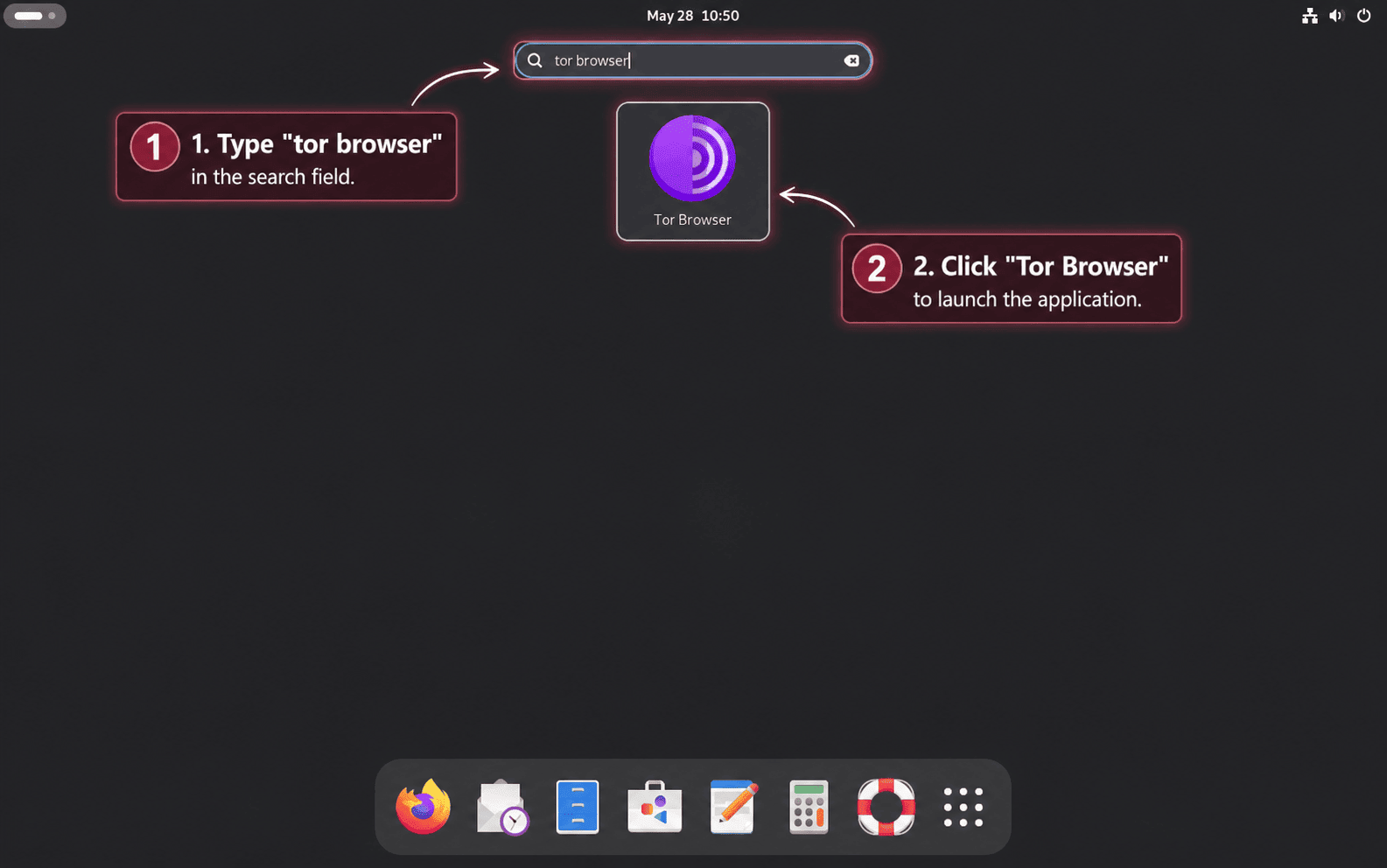
tor-browserLaunch Tor Browser from the Applications Menu
All three methods can provide a desktop launcher. Open your application menu and search for Tor Browser.
Set Up the First Tor Browser Connection on Debian
When you launch Tor Browser for the first time through the APT or Flatpak launcher, the launcher downloads the actual browser bundle before opening the connection screen. Archive installs already include the browser bundle, so they start directly from the extracted files.
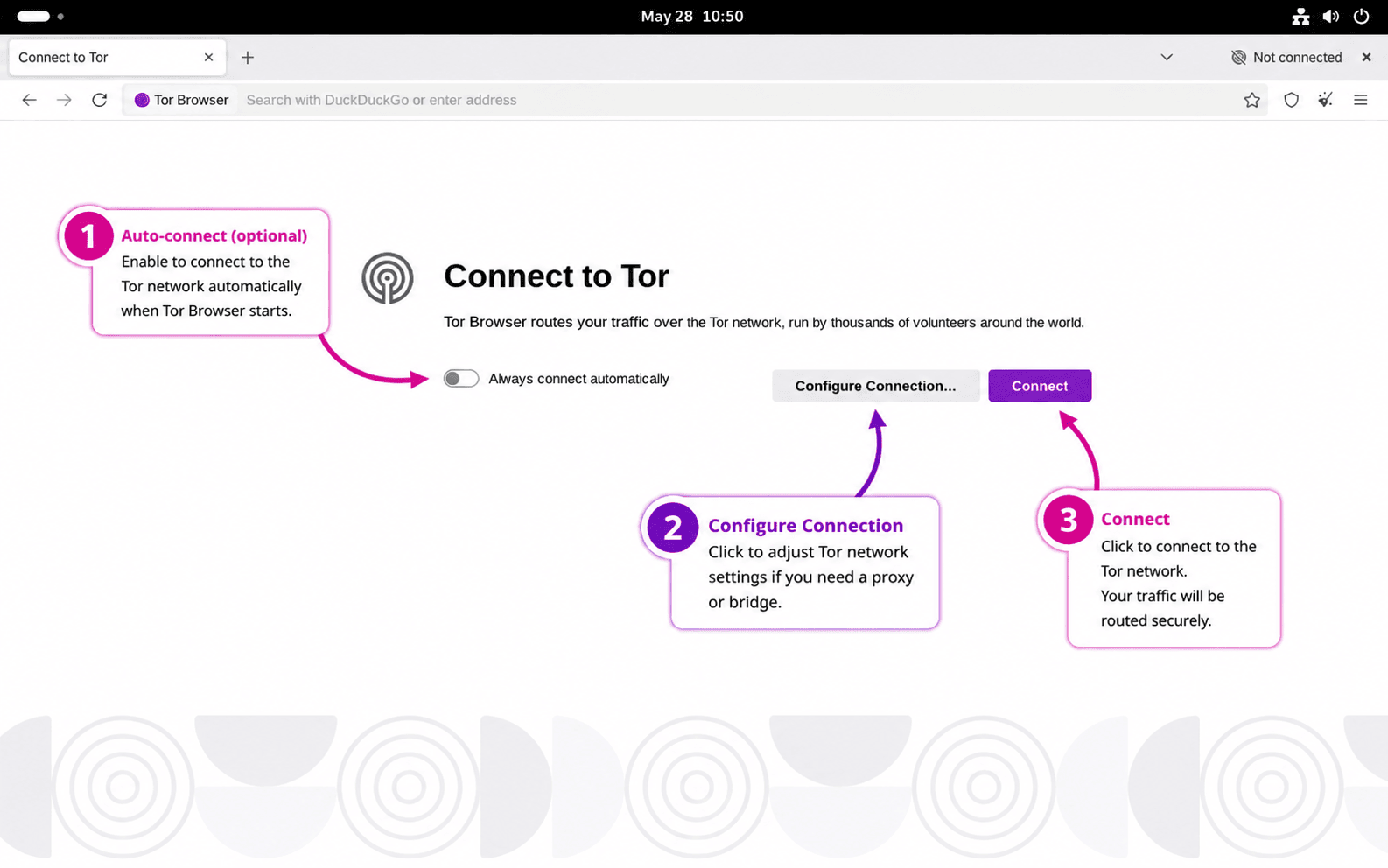
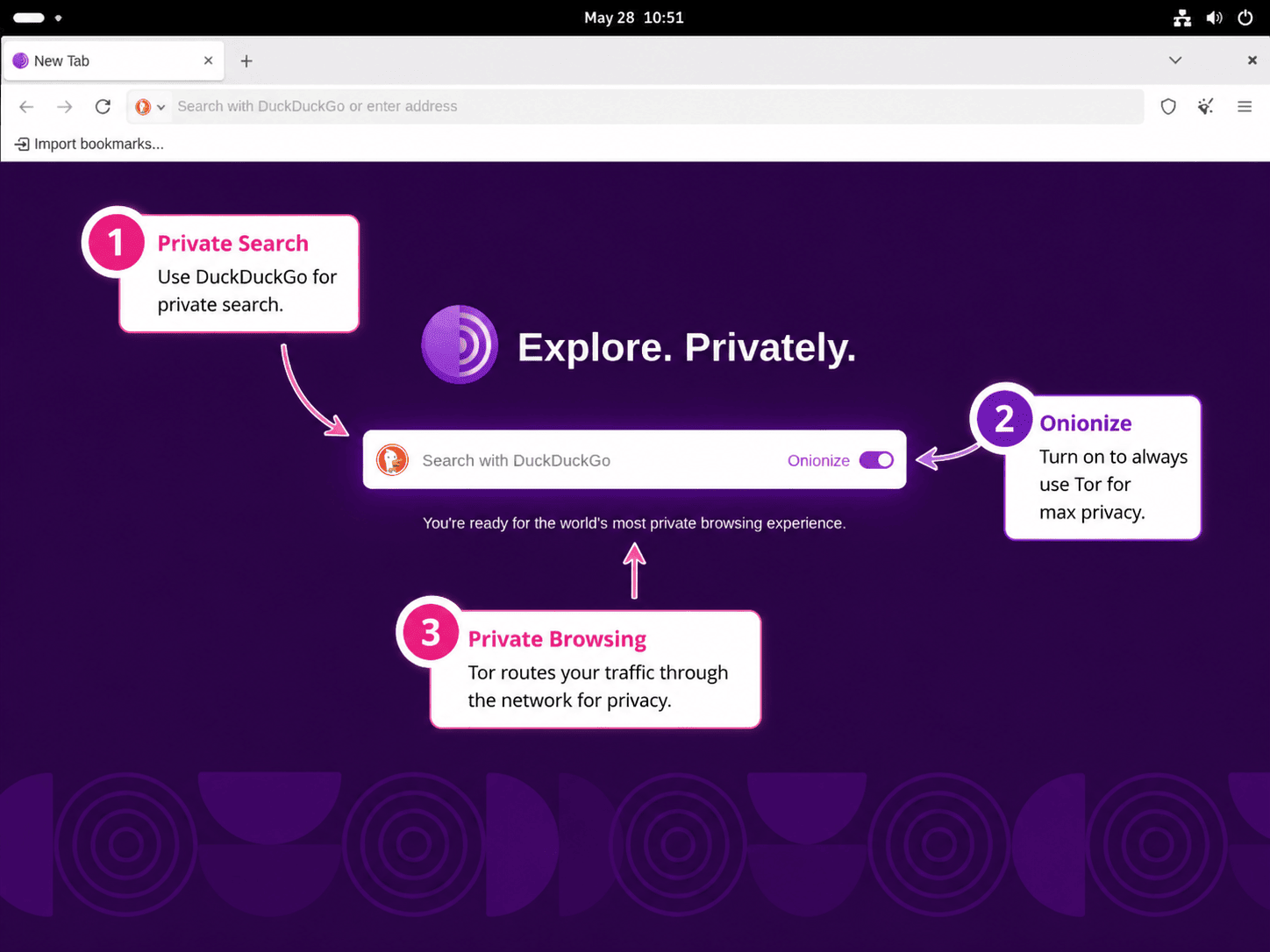
On the connection screen, select Connect for a normal direct connection to the Tor network. Select Configure Connection if Tor is blocked on your network, your location requires bridges, or you must use a proxy.
Bridges are unlisted Tor relays that can help when direct Tor connections are blocked. Tor Browser provides built-in bridge options from the connection settings window, so you do not need to edit Debian network files for a typical bridge setup.
Update Tor Browser on Debian
Tor Browser includes a prompted browser updater, and the Tor Project documents both in-browser update prompts and manual update recovery through a fresh browser download. APT and Flatpak still update the launcher package and supporting runtime through their own package managers.
For the APT method, refresh package metadata and upgrade the Debian launcher package when a package update is available:
sudo apt update
sudo apt install --only-upgrade torbrowser-launcher
For the Flatpak method, update the launcher and runtime from Flathub:
sudo flatpak update org.torproject.torbrowser-launcherFor the archive method, close Tor Browser, then run the helper again. It checks the current Tor Project release, verifies the detached signature, preserves the existing Browser/TorBrowser/Data directory, and replaces the archive folder only after the staged copy passes its checks:
update-tor-browserTor Browser still checks for updates from inside the archive install and prompts when a new release is available. When you choose the restart/update action in the browser, Tor Browser downloads and applies the update, then restarts. The helper gives you a repeatable terminal recovery path that downloads a fresh browser copy, verifies the signature, and preserves the manual install’s profile and Tor data.
Troubleshoot Tor Browser on Debian
APT Cannot Find torbrowser-launcher
If APT cannot find the launcher, the contrib repository component is usually missing:
E: Package 'torbrowser-launcher' has no installation candidate
Run the policy check again:
apt-cache policy torbrowser-launcherIf Candidate still shows (none), enable Debian contrib, refresh APT metadata, and retry the install.
Tor Browser Launcher Fails to Download the Browser Bundle
If the APT or Flatpak launcher installs correctly but cannot download the Tor Browser bundle, first confirm whether the Tor Project download page or distribution directory is reachable from the same network. Try a different network if those sites are blocked. Use the archive method only when the launcher download helper is failing but direct downloads from the Tor Project site still work, then verify the archive signature before extracting it.
Tor Browser Cannot Connect or Times Out
Check your system clock before changing browser settings. Tor connections depend on accurate time, and a clock that is several minutes off can prevent circuits from building:
timedatectlRelevant output should show synchronized time:
System clock synchronized: yes
NTP service: active
If time synchronization is disabled, enable it:
sudo timedatectl set-ntp trueRun timedatectl again after enabling NTP. If the clock is correct but Tor still cannot connect, open Configure Connection in Tor Browser and try a bridge.
Flatpak Tor Browser Cannot Access a Folder
Check the Flatpak permissions first:
flatpak info --show-permissions org.torproject.torbrowser-launcherIf the Flatpak app needs access to a specific folder, add a user-scoped override for that folder:
flatpak override --user --filesystem="$HOME/Downloads" org.torproject.torbrowser-launcherReset user overrides if the permission change is no longer needed:
flatpak override --user --reset org.torproject.torbrowser-launcherRemove Tor Browser from Debian
Remove the installation method you used, then decide whether to keep or delete browser profile data.
Remove the APT Tor Browser Launcher
Purge the Debian launcher package. This removes the package-owned launcher files and AppArmor profiles under /etc/apparmor.d/, but it does not delete the browser bundle downloaded into your user account:
sudo apt purge torbrowser-launcherPreview unused dependencies before removing them. Continue only if the list does not include packages you intentionally use, such as tor, tor-geoipdb, or torsocks for non-browser tasks:
sudo apt autoremove --dry-runIf the preview is safe, remove unused dependencies:
sudo apt autoremoveIf you also want to remove browser files downloaded by the launcher, list the user directories first:
for path in "$HOME/.local/share/torbrowser" "$HOME/.cache/torbrowser" "$HOME/.config/torbrowser"; do
  if [ -e "$path" ]; then
    printf '%s\n' "$path"
  fi
done
The next command permanently deletes the Tor Browser profile, cache, downloaded browser bundle, bookmarks, sessions, and local preferences for the current user. Back up anything you still need before running it.
rm -rf "$HOME/.local/share/torbrowser" "$HOME/.cache/torbrowser" "$HOME/.config/torbrowser"Confirm the Debian package is gone:
dpkg-query -W -f='${db:Status-Abbrev} ${binary:Package}\n' torbrowser-launcher 2>/dev/null | grep -E '^(ii|rc)' || echo "torbrowser-launcher package not installed"Expected output after removal:
torbrowser-launcher package not installed
Remove the Flatpak Tor Browser Launcher
Remove the Flathub app:
sudo flatpak uninstall org.torproject.torbrowser-launcherList the per-user Flatpak data directory before deleting browser data:
if [ -e "$HOME/.var/app/org.torproject.torbrowser-launcher" ]; then
  printf '%s\n' "$HOME/.var/app/org.torproject.torbrowser-launcher"
fi
The next command permanently deletes the Tor Browser Launcher Flatpak data for the current user, including downloaded browser files and local profile state. Back up bookmarks or preferences first if you plan to keep them.
rm -rf "$HOME/.var/app/org.torproject.torbrowser-launcher"Remove unused Flatpak runtimes only after confirming no other Flatpak app needs them:
sudo flatpak uninstall --unusedConfirm the Flatpak app is gone:
flatpak list --system --app --columns=application | grep -Fx org.torproject.torbrowser-launcher || echo "Tor Browser Flatpak not installed"Remove the Archive Tor Browser Install
List the archive installation directory, desktop entry, update helper, and command wrapper before deleting them:
for path in "$HOME/.local/share/tor-browser" "$HOME/.local/share/applications/start-tor-browser.desktop" "$HOME/.local/bin/update-tor-browser" "$HOME/.local/bin/tor-browser"; do
  if [ -e "$path" ]; then
    printf '%s\n' "$path"
  fi
done
The archive removal commands permanently delete the manual Tor Browser folder and desktop shortcut, then remove the update helper and command wrapper only when they carry the markers added by this setup block. Review the paths before pressing Enter, especially the
rm -rfcommand, because bookmarks and profile data inside that manual installation will be removed.
helper="$HOME/.local/bin/update-tor-browser"
wrapper="$HOME/.local/bin/tor-browser"

rm -rf "$HOME/.local/share/tor-browser"
rm -f "$HOME/.local/share/applications/start-tor-browser.desktop"
if [ -e "$helper" ] && grep -Fq 'LinuxCapable Tor Browser archive helper' "$helper" 2>/dev/null; then
  rm -f "$helper"
fi
if [ -e "$wrapper" ] && grep -Fq 'LinuxCapable Tor Browser archive wrapper' "$wrapper" 2>/dev/null; then
  rm -f "$wrapper"
fi
Conclusion
Tor Browser is installed on Debian through the Debian launcher, Flathub, or the verified Tor Project archive, with update ownership clear for each method. Keep archive installs in a user-writable folder so the browser updater and update-tor-browser helper can work, and compare normal non-Tor browser options with Firefox on Debian or Chromium on Debian when you need a standard browsing profile.


Formatting tips for your comment
You can use basic HTML to format your comment. Useful tags currently allowed in published comments:
<code>command</code>command<strong>bold</strong><em>italic</em><a href="https://example.com">link</a><blockquote>quote</blockquote>