

Brave strips out ads and trackers before you start piling on extensions, which makes it a sensible fit when you want a Chromium-based browser with a quieter privacy stance. You can install Brave Browser on Linux Mint with Brave’s official APT repository or the Flathub Flatpak, and the native APT route keeps stable, beta, and nightly available as separate packages.
These steps work on Linux Mint 22.x and 21.x. Linux Mint does not ship Brave in the default repositories, so the native option comes from Brave’s own APT repository, while Flatpak stays useful when you want the sandboxed stable build instead. Brave also publishes direct DEB assets on GitHub, but the repository is easier to live with long term because APT can keep the browser updated for you.
Install Brave Browser on Linux Mint
Linux Mint gives you two practical Brave paths: Brave’s official APT repository for native packages and Flathub for the sandboxed stable build. The APT repository is the better default because Brave recommends its native packages over Flatpak when your system can use them.
| Method | Channel | Packages Available | Updates | Best For |
|---|---|---|---|---|
| Official APT repository | Brave Linux | brave-browser | Automatic via APT | Most Linux Mint systems, native integration, and the recommended daily-driver build |
| Official APT repository | Brave Beta for Linux | brave-browser-beta | Automatic via APT | Previewing the next stable branch without replacing the stable browser |
| Official APT repository | Brave Nightly for Linux | brave-browser-nightly | Automatic via APT | Early testing when you want the fastest-moving public Linux build |
| Flatpak | Flathub | com.brave.Browser (stable) | Automatic via Flatpak | Sandboxed stable installs on systems that already use Flatpak |
- Choose the stable APT package when you want Brave’s recommended Linux path and the least friction with desktop integration.
- Choose Brave Beta when you want upcoming features earlier but still want a package that stays separate from the stable browser.
- Choose Brave Nightly only for testing, because it changes faster and breaks more often than the other channels.
- Choose Flatpak when you want the sandboxed stable build and already manage desktop apps through Flathub.
Install Brave Browser from the Official APT Repository
The APT route matches Brave’s own Linux instructions and keeps updates inside Mint’s normal package workflow. Stable, beta, and nightly use separate keyring files, separate .sources files, and separate package names, so you can install a preview build beside the stable browser instead of replacing it.
Install Brave Browser Stable on Linux Mint
Use the stable channel for routine browsing and normal desktop integration. Start by refreshing APT metadata and making sure curl and ca-certificates are available for the HTTPS downloads.
sudo apt update
sudo apt install curl ca-certificates -y
These commands use
sudofor repository and package changes. If your account does not have sudo access yet, follow the guide on create and add users to sudoers on Linux Mint or run the steps as root.
Download Brave’s signing key into /usr/share/keyrings/, then place the published DEB822 source file in /etc/apt/sources.list.d/:
sudo curl -fsSLo /usr/share/keyrings/brave-browser-archive-keyring.gpg https://brave-browser-apt-release.s3.brave.com/brave-browser-archive-keyring.gpg
sudo curl -fsSLo /etc/apt/sources.list.d/brave-browser-release.sources https://brave-browser-apt-release.s3.brave.com/brave-browser.sources
The -f flag makes curl stop on HTTP errors, -sS keeps normal output quiet while still printing failures, -L follows redirects, and -o writes each file directly to the target path. If you want to reuse that pattern elsewhere, see how to use the curl command in Linux.
Refresh APT so Linux Mint reads the new Brave source, then confirm that the stable package is visible before you install it:
sudo apt update | grep -e brave-browser-apt-release
apt-cache policy brave-browser | sed -n '1,8p'
Hit:1 https://brave-browser-apt-release.s3.brave.com stable InRelease
brave-browser:
Installed: (none)
Candidate: 1.88.134
Version table:
1.88.134 500
500 https://brave-browser-apt-release.s3.brave.com stable/main amd64 Packages
Install the stable browser package with:
sudo apt install brave-browser -yCheck the installed stable build from the terminal:
brave-browser --versionBrave Browser 146.1.88.134
Install Brave Browser Beta on Linux Mint
Brave Beta tracks the next stable branch and keeps its own repository files so it can sit beside the stable browser. Use it when you want newer features without jumping all the way to Nightly.
sudo curl -fsSLo /usr/share/keyrings/brave-browser-beta-archive-keyring.gpg https://brave-browser-apt-beta.s3.brave.com/brave-browser-beta-archive-keyring.gpg
sudo curl -fsSLo /etc/apt/sources.list.d/brave-browser-beta.sources https://brave-browser-apt-beta.s3.brave.com/brave-browser.sources
Refresh APT so Linux Mint reads the new Beta source, then confirm that the package is visible:
sudo apt update | grep -e brave-browser-apt-beta
apt-cache policy brave-browser-beta | sed -n '1,8p'
Hit:3 https://brave-browser-apt-beta.s3.brave.com stable InRelease
brave-browser-beta:
Installed: (none)
Candidate: 1.89.118
Version table:
1.89.118 500
500 https://brave-browser-apt-beta.s3.brave.com stable/main amd64 Packages
Install the Beta package once APT shows the candidate from Brave’s beta repository:
sudo apt install brave-browser-beta -yCheck the installed Beta build with:
brave-browser-beta --versionBrave Browser Beta 146.1.89.118 beta
Install Brave Browser Nightly on Linux Mint
Brave Nightly is the fastest-moving public Linux build and the least stable of the three APT channels. Keep it for testing or for checking a fix before it reaches Beta or stable.
sudo curl -fsSLo /usr/share/keyrings/brave-browser-nightly-archive-keyring.gpg https://brave-browser-apt-nightly.s3.brave.com/brave-browser-nightly-archive-keyring.gpg
sudo curl -fsSLo /etc/apt/sources.list.d/brave-browser-nightly.sources https://brave-browser-apt-nightly.s3.brave.com/brave-browser.sources
Refresh APT so Linux Mint reads the new Nightly source, then confirm that the package is visible:
sudo apt update | grep -e brave-browser-apt-nightly
apt-cache policy brave-browser-nightly | sed -n '1,8p'
Hit:2 https://brave-browser-apt-nightly.s3.brave.com stable InRelease
brave-browser-nightly:
Installed: (none)
Candidate: 1.90.49
Version table:
1.90.49 500
500 https://brave-browser-apt-nightly.s3.brave.com stable/main amd64 Packages
Install the Nightly package once APT shows the candidate from Brave’s nightly repository:
sudo apt install brave-browser-nightly -yCheck the installed Nightly build with:
brave-browser-nightly --versionBrave Browser Nightly 146.1.90.49 nightly
Install Brave Browser from Flatpak on Linux Mint
Linux Mint already ships Flatpak with Flathub enabled, so the Flatpak path is short. This method gives you only the stable channel, and Brave still recommends its native packages over Flatpak when your Mint system can use them.
Confirm that the Flathub remote is present before you install the app:
flatpak remotesflathub system
Install the Brave Flatpak, then inspect the package metadata and branch:
sudo flatpak install flathub com.brave.Browser -y
flatpak info com.brave.Browser | sed -n '1,12p'
Ref: app/com.brave.Browser/x86_64/stable ID: com.brave.Browser Arch: x86_64 Branch: stable Version: 1.88.134 Origin: flathub Installation: system
Launch Brave Browser on Linux Mint
Once the package is installed, Brave appears in the Mint application menu automatically. You can install it from a terminal session, but the browser still needs a graphical session before it can open a window.
Launch Brave Browser from the Applications Menu
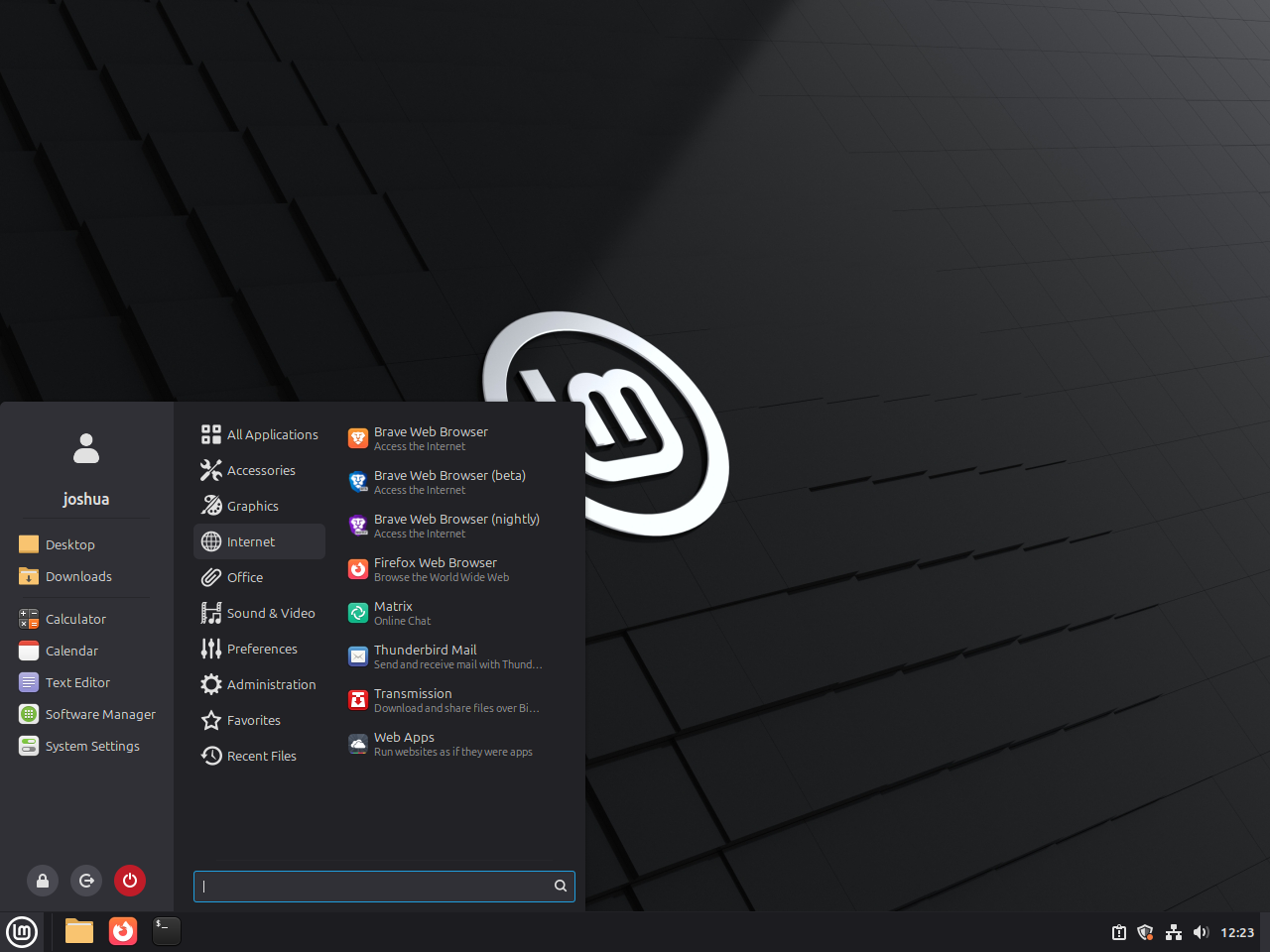
Open the Mint menu, search for Brave, and start the browser from the launcher created by the package you installed.
Menu > Internet > Brave Browser
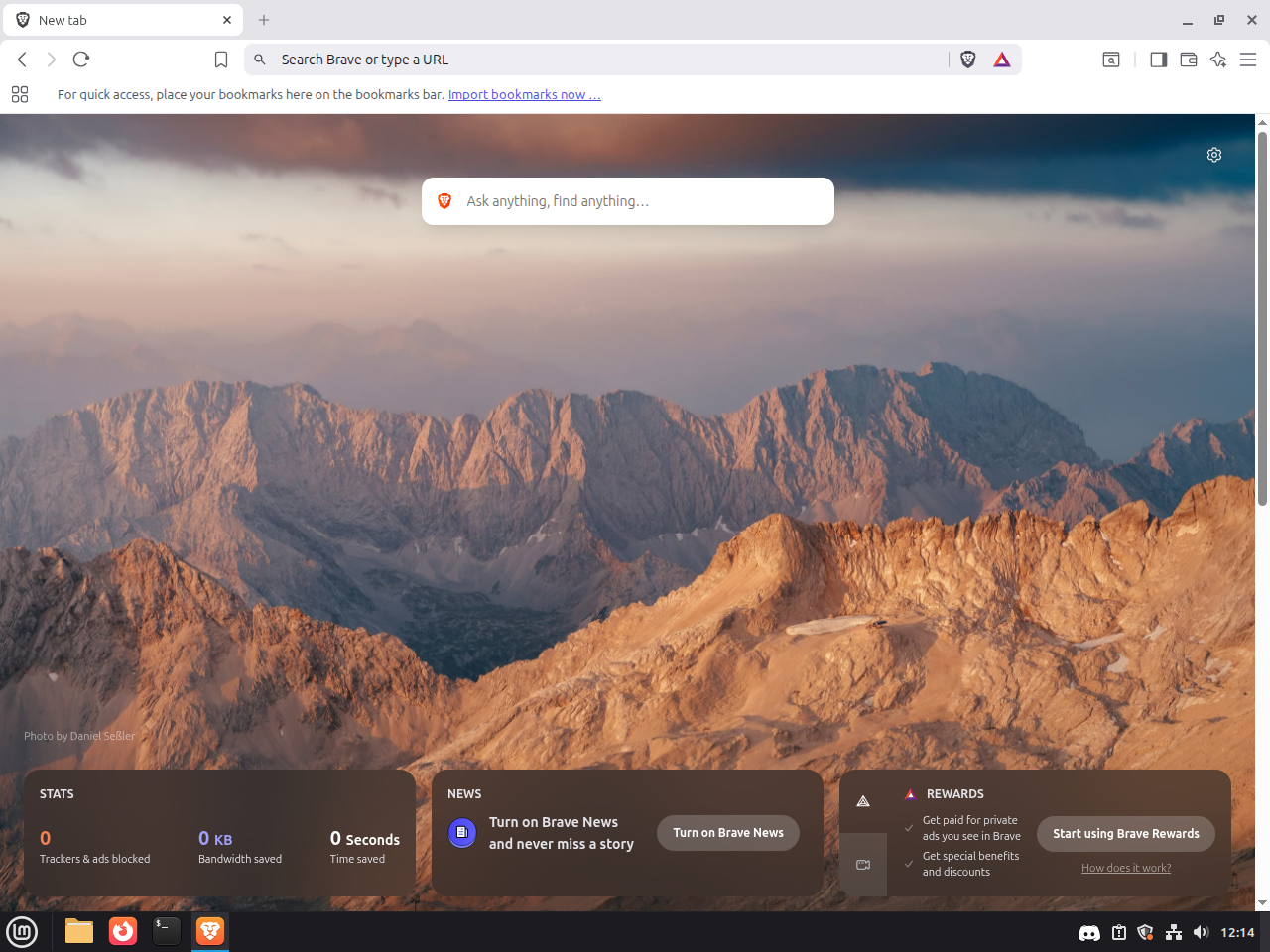
The first launch usually asks whether you want to import bookmarks, browsing history, and saved passwords from another browser. You can skip that step and come back later through Brave’s settings if you would rather finish the install first.
Launch Brave Browser from the Terminal
Use the launcher command that matches the package you installed:
brave-browser
brave-browser-beta
brave-browser-nightly
flatpak run com.brave.Browser
Troubleshoot Brave Browser on Linux Mint
Most Brave problems on Linux Mint come down to repository files, package visibility, or trying to open a graphical browser from the wrong kind of session.
Fix Brave Browser Repository Errors on Linux Mint
APT signature failures or missing-source errors usually mean the Brave key file or the DEB822 source file is missing, renamed, or pointing at the wrong key path.
grep -E '^(URIs|Suites|Components|Signed-By):' /etc/apt/sources.list.d/brave-browser-release.sourcesURIs: https://brave-browser-apt-release.s3.brave.com Suites: stable Components: main Signed-By: /usr/share/keyrings/brave-browser-archive-keyring.gpg
If the file is missing or the Signed-By line points somewhere else, download the matching channel key and .sources file again, then rerun sudo apt update. Beta uses brave-browser-beta.sources and Nightly uses brave-browser-nightly.sources.
Fix Brave Browser Package Detection on Linux Mint
When APT says it cannot locate brave-browser, the Brave repository usually did not load during the last metadata refresh.
apt-cache policy brave-browser | sed -n '1,8p'brave-browser:
Installed: (none)
Candidate: 1.88.134
Version table:
1.88.134 500
500 https://brave-browser-apt-release.s3.brave.com stable/main amd64 Packages
If the candidate is (none), redownload the key and .sources file for the channel you want, make sure the source file still points at Brave’s repository URL, and run sudo apt update again before retrying the install.
Fix Brave Browser Beta and Nightly Icons on Linux Mint
Brave Beta and Nightly can install correctly but still show a generic or wrong icon in Cinnamon because the preview channels do not always ship the app-ID icon names Mint expects. This fix adds the missing alias names for the preview channels without changing the stable browser.
Start with the Beta aliases. The loop looks for the existing Beta icons, then creates the missing com.brave.Browser.beta names only when they do not exist already.
sudo bash -c '
find /usr/share/icons /usr/share/pixmaps -type f -iname "brave-browser-beta*" 2>/dev/null | while read -r src; do
   dest=$(printf "%s\n" "$src" | sed "s#brave-browser-beta#com.brave.Browser.beta#")
   [ -e "$dest" ] || ln -s "$src" "$dest"
done
'
Repeat the same alias pass for Nightly so Cinnamon can match the preview launcher to the icon names that package uses.
sudo bash -c '
find /usr/share/icons /usr/share/pixmaps -type f -iname "brave-browser-nightly*" 2>/dev/null | while read -r src; do
   dest=$(printf "%s\n" "$src" | sed "s#brave-browser-nightly#com.brave.Browser.nightly#")
   [ -e "$dest" ] || ln -s "$src" "$dest"
done
'
Refresh the icon cache and desktop launcher database after both alias blocks finish:
sudo gtk-update-icon-cache -f /usr/share/icons/hicolor
sudo update-desktop-database /usr/share/applications
The command is safe to rerun because it only creates alias files that do not already exist. If Mint still shows the old icons afterward, sign out and back in or restart the Cinnamon panel so the desktop refreshes its cached launcher data.
Fix Brave Browser Launch Problems on Linux Mint
On current Linux Mint releases, Mint 22 leaves kernel.apparmor_restrict_unprivileged_userns at 0, Mint 21 does not expose that knob, and the Brave package does not install a separate AppArmor profile. That means display and GPU issues are the first things to check before you chase Ubuntu-specific sandbox workarounds.
echo "$XDG_SESSION_TYPE"
brave-browser --disable-gpu
If you launched the command from SSH, reconnect to a local desktop session and try again there. When --disable-gpu opens the browser successfully, the next step is updating your graphics stack or keeping that flag in a temporary launcher override while you isolate the driver problem.
Update or Remove Brave Browser on Linux Mint
APT and Flatpak both keep Brave manageable after the initial install, so updates and removals are straightforward once you stay on the package format you originally chose.
Update Brave Browser on Linux Mint APT Installs
Run the package name that matches the channel you actually installed. The stable package uses brave-browser, while the preview channels use their own package names.
sudo apt update
sudo apt install --only-upgrade brave-browser -y
If you installed Brave Beta or Brave Nightly instead, replace brave-browser with brave-browser-beta or brave-browser-nightly.
Update Brave Browser on Linux Mint Flatpak Installs
Flatpak updates the sandboxed build independently from APT. If you want broader Flatpak maintenance tips, read how to update Flatpak on Linux Mint.
sudo flatpak update com.brave.Browser -yRemove Brave Browser APT Installs on Linux Mint
Remove only the channel you actually installed, then delete its matching repository file and keyring so APT stops tracking it. Stable, Beta, and Nightly each use different filenames.
Remove Brave Browser Stable on Linux Mint
Use this block when you installed the stable APT package:
sudo apt remove --autoremove -y brave-browser
sudo rm -f /etc/apt/sources.list.d/brave-browser-release.sources /usr/share/keyrings/brave-browser-archive-keyring.gpg
sudo apt update
Remove Brave Browser Beta on Linux Mint
Use this block when you installed the Beta package:
sudo apt remove --autoremove -y brave-browser-beta
sudo rm -f /etc/apt/sources.list.d/brave-browser-beta.sources /usr/share/keyrings/brave-browser-beta-archive-keyring.gpg
sudo apt update
Remove Brave Browser Nightly on Linux Mint
Use this block when you installed the Nightly package:
sudo apt remove --autoremove -y brave-browser-nightly
sudo rm -f /etc/apt/sources.list.d/brave-browser-nightly.sources /usr/share/keyrings/brave-browser-nightly-archive-keyring.gpg
sudo apt update
Verify Brave Browser APT Removal on Linux Mint
After you remove the package and its repository files, APT should stop offering the Brave package as a live candidate. A previous version can still appear with priority -1 under /var/lib/dpkg/status, which only means the package was installed earlier on this machine.
apt-cache policy brave-browser | sed -n '1,8p'
apt-cache policy brave-browser-beta | sed -n '1,8p'
apt-cache policy brave-browser-nightly | sed -n '1,8p'
brave-browser:
Installed: (none)
Candidate: (none)
Version table:
1.88.134 -1
100 /var/lib/dpkg/status
brave-browser-beta:
Installed: (none)
Candidate: (none)
Version table:
1.89.118 -1
100 /var/lib/dpkg/status
brave-browser-nightly:
Installed: (none)
Candidate: (none)
Version table:
1.90.49 -1
100 /var/lib/dpkg/status
Check for Remaining Brave Profile Directories on Linux Mint
Brave profile directories depend on how and whether the browser has been launched on your account, so verify your home directory before you delete anything. That is safer than hardcoding guessed paths into the cleanup step.
find "$HOME/.config" "$HOME/.cache" "$HOME/.local/share" "$HOME/.var/app" -maxdepth 2 -iname '*brave*' 2>/dev/nullRemove Brave Browser Flatpak Installs on Linux Mint
The Flatpak removal path is separate from APT, so remove the sandboxed app and confirm it has dropped out of the installed app list.
sudo flatpak remove com.brave.Browser -y
flatpak list --app | grep -F com.brave.Browser || echo "not installed"
not installed
Brave Browser on Linux Mint FAQ
No. Flathub only packages the stable Brave build as com.brave.Browser. If you want Brave Beta or Brave Nightly on Linux Mint, use Brave’s official APT repositories instead.
Yes. Brave publishes separate packages and separate repository files for stable, beta, and nightly, so you can keep a preview build installed alongside the stable browser instead of replacing it.
Use the Brave APT repository when you want the native package and access to stable, beta, or nightly. Use the Flatpak when you prefer a sandboxed stable build and are comfortable managing the app through Flatpak instead of APT.
Yes. Brave publishes DEB release assets on GitHub, but the official repository is the easier long-term option because APT can update the browser automatically after the initial setup.
Conclusion
Brave Browser is installed on Linux Mint with the package source and release channel that fit how you browse. If you want the open-source base browser without Brave-specific services, you can also install Chromium Browser on Linux Mint, and Flatpak users will save time later by knowing how to update Flatpak on Linux Mint.

Formatting tips for your comment
You can use basic HTML to format your comment. Useful tags currently allowed:
<code>command</code>command<strong>bold</strong><em>italic</em><blockquote>quote</blockquote>