

Brave Browser is a Chromium-based browser with ad blocking and tracker protection built in — no extensions needed. It is not in Fedora’s default repositories, but Brave provides an official RPM repository that integrates directly with DNF. Once set up, the browser updates automatically through dnf upgrade alongside everything else on your system. Three builds are available: stable for daily use, beta for upcoming features, and nightly for developers.
Install Brave Browser on Fedora
Step 1: Update Fedora System Packages
Refresh your package metadata and apply any pending updates before adding the Brave repository:
sudo dnf upgrade --refreshSome commands below require
sudo. If your account does not have sudo privileges yet, follow the guide on how to add a user to sudoers on Fedora before continuing.
Step 2: Import the Brave Browser GPG Key
Import the GPG key for the Brave stable repository. This key lets DNF verify the authenticity of downloaded packages:
sudo rpm --import https://brave-browser-rpm-release.s3.brave.com/brave-core.ascIf you plan to install the beta or nightly build, also import the shared GPG key used by both channels:
sudo rpm --import https://brave-browser-rpm-beta.s3.brave.com/brave-core-nightly.ascStep 3: Add the Brave Browser Repository
The
config-managersubcommand is provided by thednf5-pluginspackage, which is installed by default on Fedora Workstation. If the command is not found on your system, runsudo dnf install dnf5-pluginsfirst.
Stable Repository
Add the Brave stable repository using the DNF5 config-manager addrepo command:
sudo dnf config-manager addrepo \
  --id=brave-browser \
  --set=baseurl=https://brave-browser-rpm-release.s3.brave.com/x86_64/ \
  --set=gpgcheck=1
Beta and Nightly Repositories (Optional)
Skip this step if you only need the stable build. To use the beta or nightly channel, add the corresponding repository. Each is independent and can coexist alongside the stable repository.
Brave Beta:
sudo dnf config-manager addrepo \
  --id=brave-browser-beta \
  --set=baseurl=https://brave-browser-rpm-beta.s3.brave.com/x86_64/ \
  --set=gpgcheck=1
Brave Nightly:
sudo dnf config-manager addrepo \
  --id=brave-browser-nightly \
  --set=baseurl=https://brave-browser-rpm-nightly.s3.brave.com/x86_64/ \
  --set=gpgcheck=1
Step 4: Install Brave Browser
Install the stable release from the Brave repository:
sudo dnf install brave-browserVerify the installation by querying the installed package:
rpm -q brave-browserbrave-browser-1.87.188-1.x86_64
Install Brave Beta or Nightly (Optional)
After adding the optional repositories in Step 3, install the beta or nightly build separately:
sudo dnf install brave-browser-betasudo dnf install brave-browser-nightlyStable, beta, and nightly builds each install as a separate package with their own binary, profile directory, and repository file. All three can coexist on the same system and update independently through
dnf upgrade.
Compare Brave Browser Builds for Fedora
All three builds come from Brave’s official RPM repositories and integrate with dnf upgrade for automatic updates. The distinction lies in release cadence and stability.
| Build | Package | Version | Updates | Best For |
|---|---|---|---|---|
| Stable | brave-browser | Latest stable | Automatic via dnf upgrade | Daily drivers and production machines |
| Beta | brave-browser-beta | Latest beta | Automatic via dnf upgrade | Testing upcoming features before the stable release |
| Nightly | brave-browser-nightly | Nightly build | Automatic via dnf upgrade | Developers and advanced users comfortable with instability |
For most users, the stable build is the right choice — it receives security patches promptly and has completed Brave’s full QA cycle. Reserve the beta or nightly channel for secondary devices or when you specifically need to preview an upcoming feature.
Launch Brave Browser on Fedora
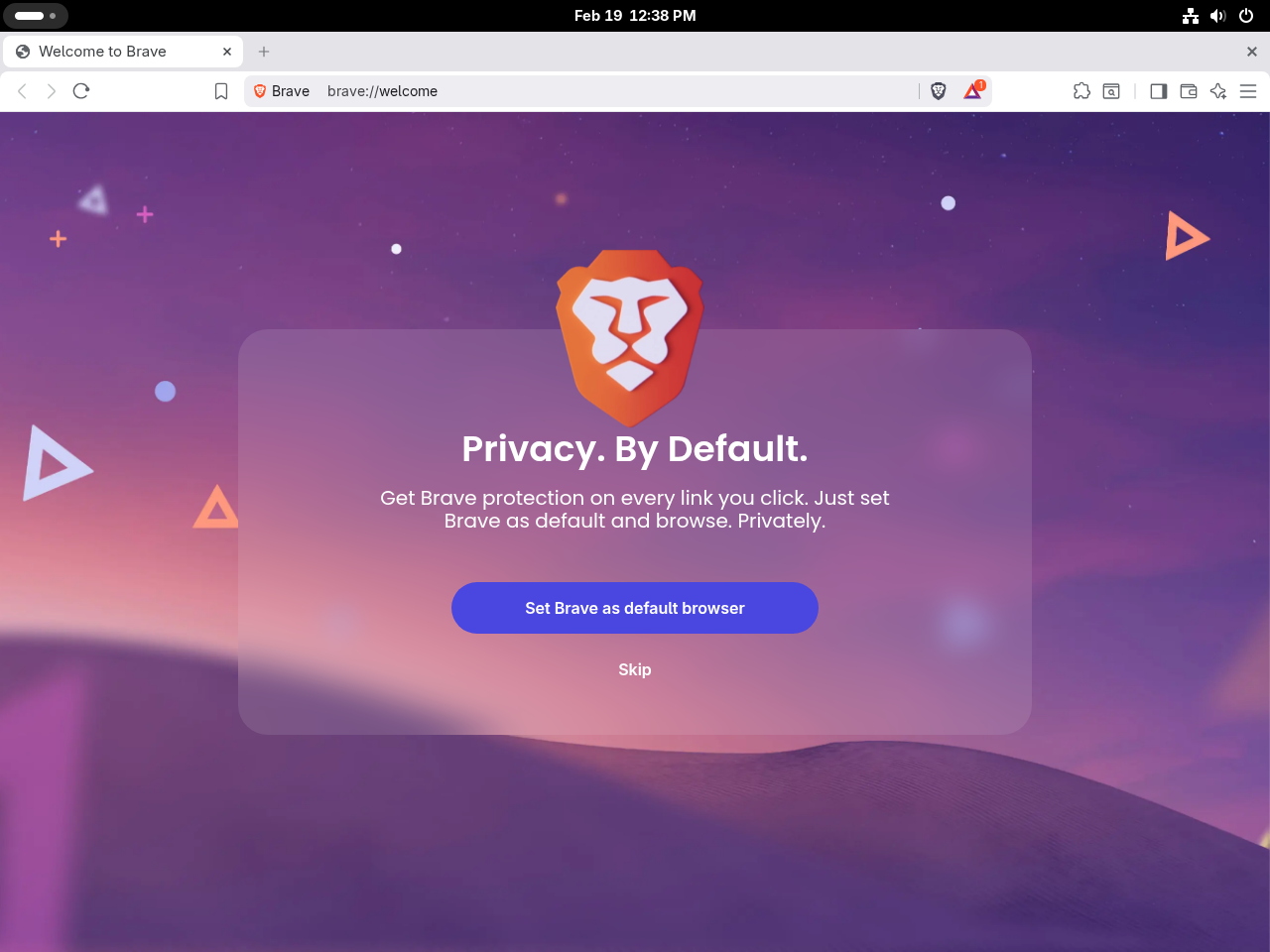
Launch Brave from Terminal
Start the stable build directly from a terminal:
brave-browserFor beta or nightly, use the corresponding binary name:
brave-browser-betabrave-browser-nightlyLaunch Brave from the Applications Menu
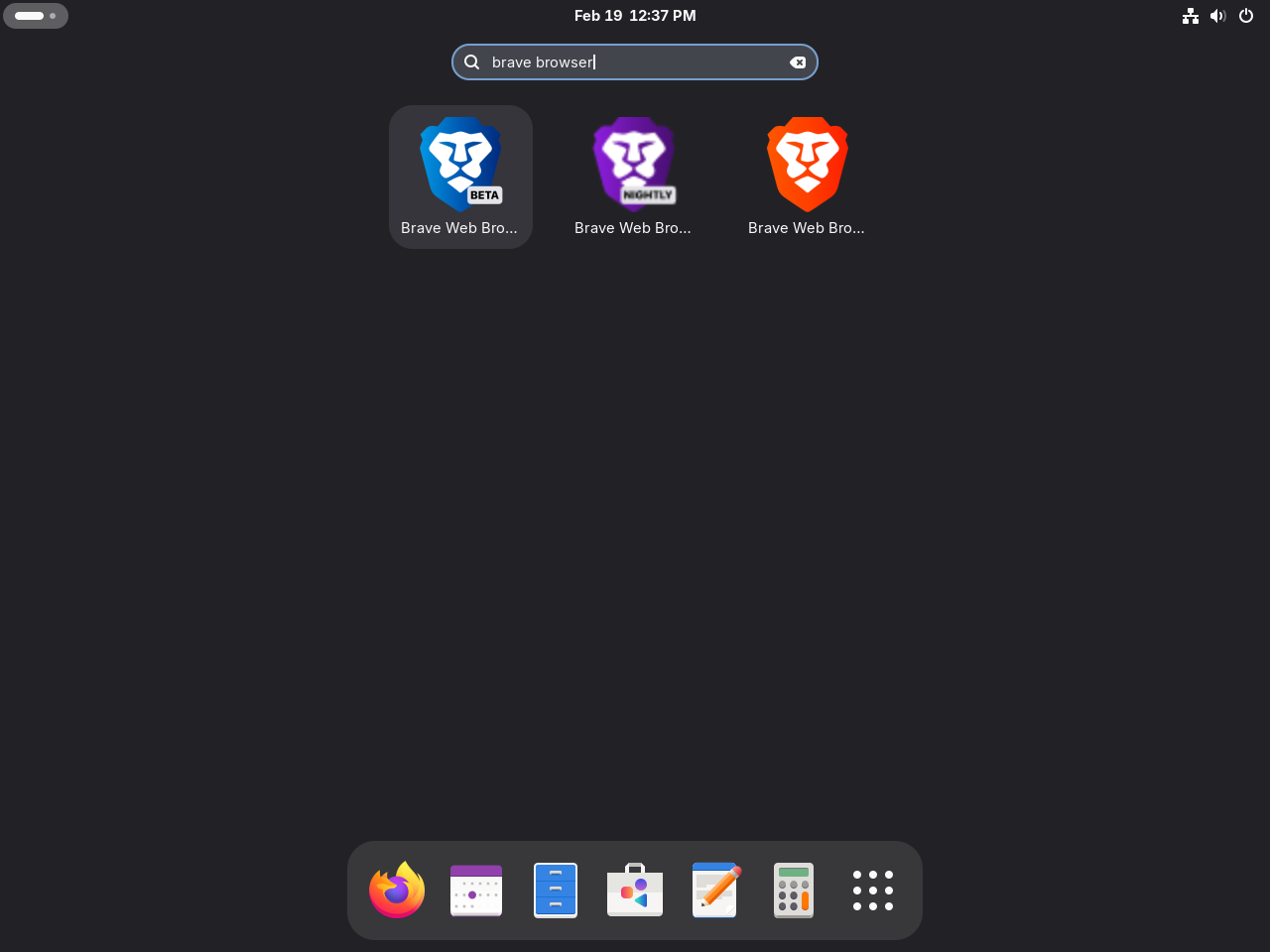
To open Brave from the Applications menu, open Activities and search for Brave, then click the icon to launch.
Getting Started with Brave Browser on Fedora
Configure Brave Shields
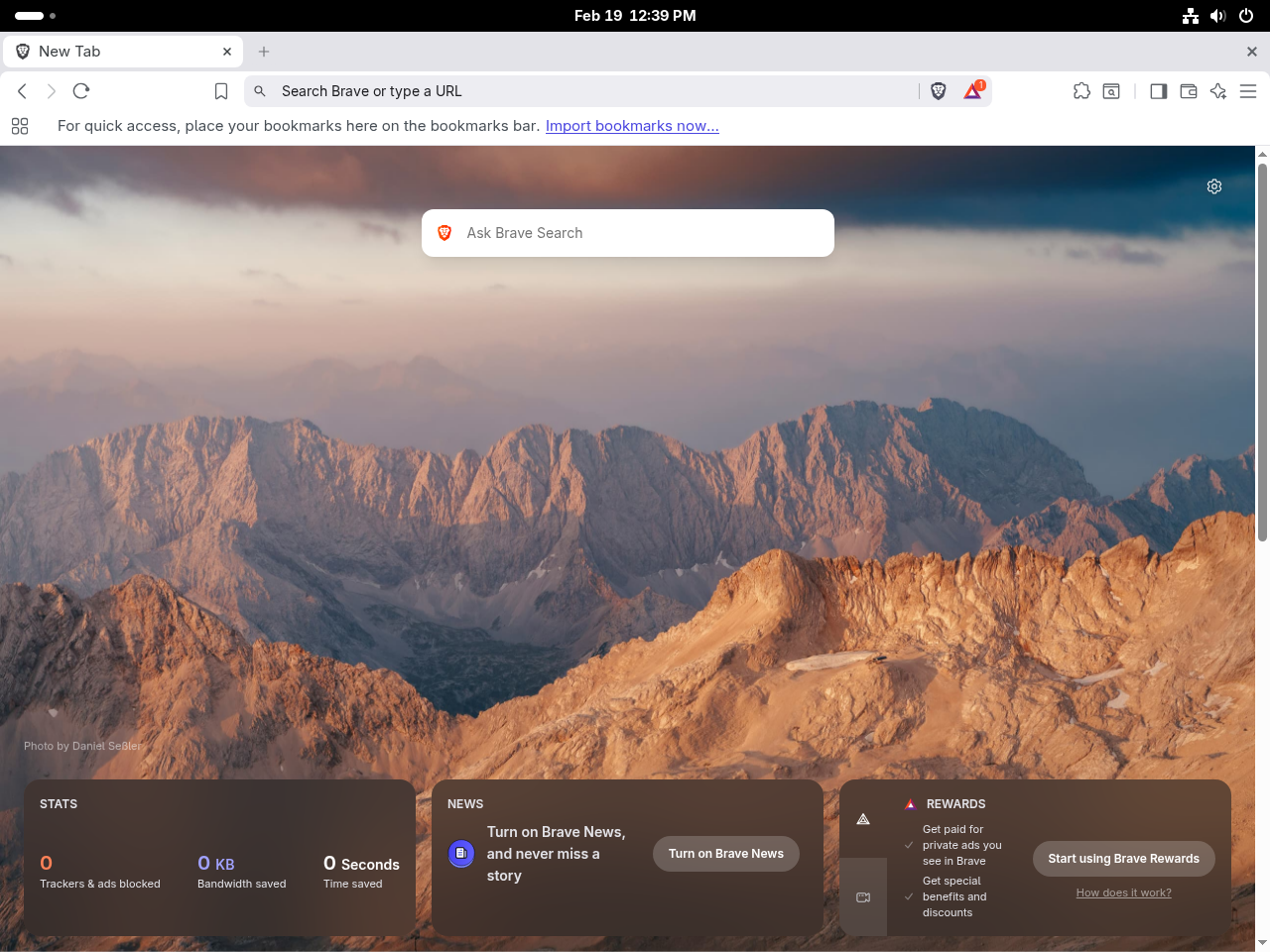
Brave Shields block ads and trackers on every site by default. Click the shield icon to the right of the address bar to adjust blocking levels per site — useful for sites that break when tracking is blocked. Shield settings are remembered per domain and persist between sessions.
Set Up Brave Rewards
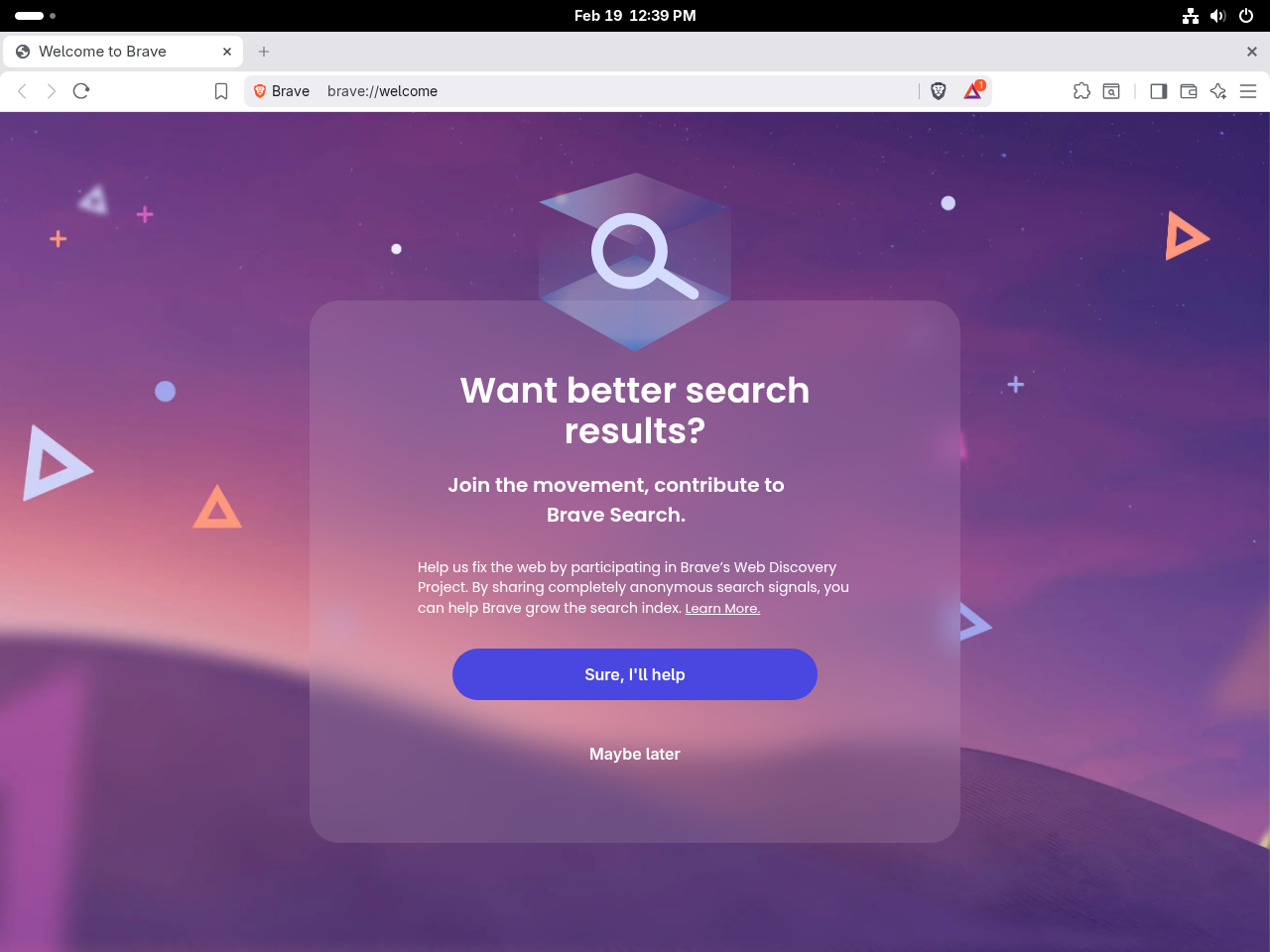
Brave Rewards lets you earn Basic Attention Tokens (BAT) by opting into privacy-respecting ads. Navigate to brave://rewards to enable the feature, set ad frequency, and optionally connect a crypto wallet to tip content creators or withdraw earnings.
Customize Appearance, Extensions, and Search
Brave supports Chrome Web Store themes and extensions. Use these built-in pages to configure the browser to your workflow:
- Themes and appearance —
brave://settings/appearance - Installed extensions —
brave://extensions - Default search engine —
brave://settings/search - Password manager —
brave://settings/passwords
Brave Browser Keyboard Shortcuts
Brave shares its keyboard shortcuts with Chrome. These are the most common ones:
| Shortcut | Action |
|---|---|
| Ctrl+T | Open a new tab |
| Ctrl+W | Close the current tab |
| Ctrl+Shift+T | Reopen the last closed tab |
| Ctrl+L | Focus the address bar |
| Ctrl+Shift+N | Open a new private window |
| Ctrl+H | Open browsing history |
| Shift+Esc | Open Brave Task Manager |
Remove Brave Browser from Fedora
Uninstall Brave Browser
Remove the installed build with the corresponding command. Run only the commands matching the builds you have installed:
sudo dnf remove brave-browsersudo dnf remove brave-browser-betasudo dnf remove brave-browser-nightlyRemove Brave Repositories
After uninstalling, remove the corresponding repository files to stop DNF from polling those sources. Delete only the files for the builds you installed:
sudo rm /etc/yum.repos.d/brave-browser.reposudo rm /etc/yum.repos.d/brave-browser-beta.reposudo rm /etc/yum.repos.d/brave-browser-nightly.repoIf you removed only the beta or nightly repository while keeping the stable file, the stable build continues to receive updates through dnf upgrade.
Frequently Asked Questions
No. Brave Browser is not included in Fedora’s default repositories. Installing Brave requires adding Brave’s official third-party RPM repository and importing its GPG key — which this guide covers. Once the repository is configured, Brave updates automatically with dnf upgrade.
Yes. Brave runs natively on Fedora’s Wayland session. On Fedora 43, GNOME is Wayland-only, and Brave works without any additional configuration.
Yes. Brave is built on Chromium and is fully compatible with the Chrome Web Store. Most Chrome extensions install and run without modification on Brave. Navigate to brave://extensions in the address bar to manage installed extensions.
Brave updates automatically alongside other packages when you run sudo dnf upgrade. To schedule unattended automatic updates for your entire Fedora system, see the guide on setting up DNF automatic on Fedora.
Conclusion
Brave Browser is now running on Fedora from the official RPM repository, with updates coming automatically through dnf upgrade. Use the stable build for daily browsing — beta and nightly are there for feature previews and development use, not as replacements. For other browser options on Fedora, Install Firefox Developer Edition on Fedora and Install Google Chrome on Fedora are the two most common alternatives.

Formatting tips for your comment
You can use basic HTML to format your comment. Useful tags currently allowed in published comments:
<code>command</code>command<strong>bold</strong><em>italic</em><blockquote>quote</blockquote>