

Discord still fills the same role for gaming groups, study servers, and developer communities that need voice chat, screen sharing, and persistent text channels in one place. If you want to install Discord on Linux Mint, the practical choices are the official .deb download or the Flathub Flatpak, depending on whether you want direct desktop integration or a sandboxed package.
These steps work on Linux Mint 22.x and 21.x. Linux Mint does not package Discord in its default repositories, so the practical Mint workflow starts with Discord’s official download or the preconfigured Flathub remote. Snap is disabled by default on Linux Mint, so if you specifically want that package format later, install and enable Snap on Linux Mint first.
Install Discord on Linux Mint
The official .deb package and Flatpak both keep Discord current, but they handle updates and desktop access differently.
| Method | Channel | Updates | Integration | Best For |
|---|---|---|---|---|
Official .deb | Discord Download Page | Manual re-download when Discord ships a new package | Direct Linux Mint package install | Users who want the official Linux build and fuller desktop integration |
| Flatpak | Flathub | flatpak update | Sandboxed application | Users who prefer isolation and Mint’s preconfigured Flatpak workflow |
The official .deb package is the better fit for most Linux Mint desktops because it uses Discord’s own Linux download and avoids Flatpak-specific feature limits. Flatpak is still the simpler alternative when you want sandboxing and a package format Linux Mint already has ready.
Discord’s current Linux package options are 64-bit only. The official
.debpackage installs onamd64, and the Flathub build is published forx86_64. If your Linux Mint system runs on ARM hardware or a 32-bit install, use Discord in a browser such as install Google Chrome on Linux Mint or install Chromium Browser on Linux Mint.
Update Linux Mint Before Installing Discord
Open a terminal from the applications menu or by using the shortcut configured on your system, then refresh your package lists before installing Discord.
sudo apt update && sudo apt upgradeThese commands use
sudofor tasks that need root privileges. If your account does not have sudo access yet, follow the guide to add a user to sudoers on Linux Mint before continuing.
Install Discord from the Official .deb Download on Linux Mint
The official Linux package installs Discord directly into Linux Mint without an extra runtime layer. Most Mint desktops already include wget; if your system reports wget: command not found, install it first with sudo apt install wget -y.
Download the current package and save it locally as discord.deb. The same -O pattern is useful whenever you download files with wget and want a predictable filename.
wget "https://discord.com/api/download?platform=linux&format=deb" -O discord.debInstall the downloaded package with APT so Linux Mint resolves the required libraries automatically.
sudo apt install ./discord.deb -yDiscord does not add an APT repository in this workflow. When a newer package is released, you download the new .deb file and reinstall it over the existing one.
Verify the installation from the package database:
dpkg -l discord | grep -E '^ii'ii discord 0.0.130 amd64 Chat for Communities and Friends
The version number will change as Discord updates the package, but the installed state should still begin with ii.
Install Discord from Flathub on Linux Mint
Linux Mint already includes Flatpak with Flathub enabled, so this method skips the usual remote setup and goes straight to the application install.
Confirm that the Flathub remote is already present:
flatpak remotes | grep '^flathub'flathub system
Install Discord system-wide from Flathub:
sudo flatpak install flathub com.discordapp.Discord -yThe com.discordapp.Discord value is Discord’s Flatpak app ID. The -y flag accepts the install prompt automatically.
Verify the Flatpak package and capture the current version from Flathub:
flatpak info com.discordapp.DiscordRelevant output includes:
Discord - Talk, play, hang out

          ID: com.discordapp.Discord
        Arch: x86_64
      Branch: stable
     Version: 0.0.129
      Origin: flathub
Installation: system
Flathub notes that the sandboxed build does not provide Game Activity, unrestricted file access, or Rich Presence out of the box. If those integrations matter more than sandboxing, use the official
.debpackage instead.
Launch Discord on Linux Mint
Discord installs from the terminal, but it still needs an active Linux Mint desktop session to open its window.
Launch Discord from the Terminal on Linux Mint
The launch command depends on the package format you installed.
For the official .deb package:
discordFor the Flatpak package:
flatpak run com.discordapp.DiscordLaunch Discord from the Applications Menu on Linux Mint
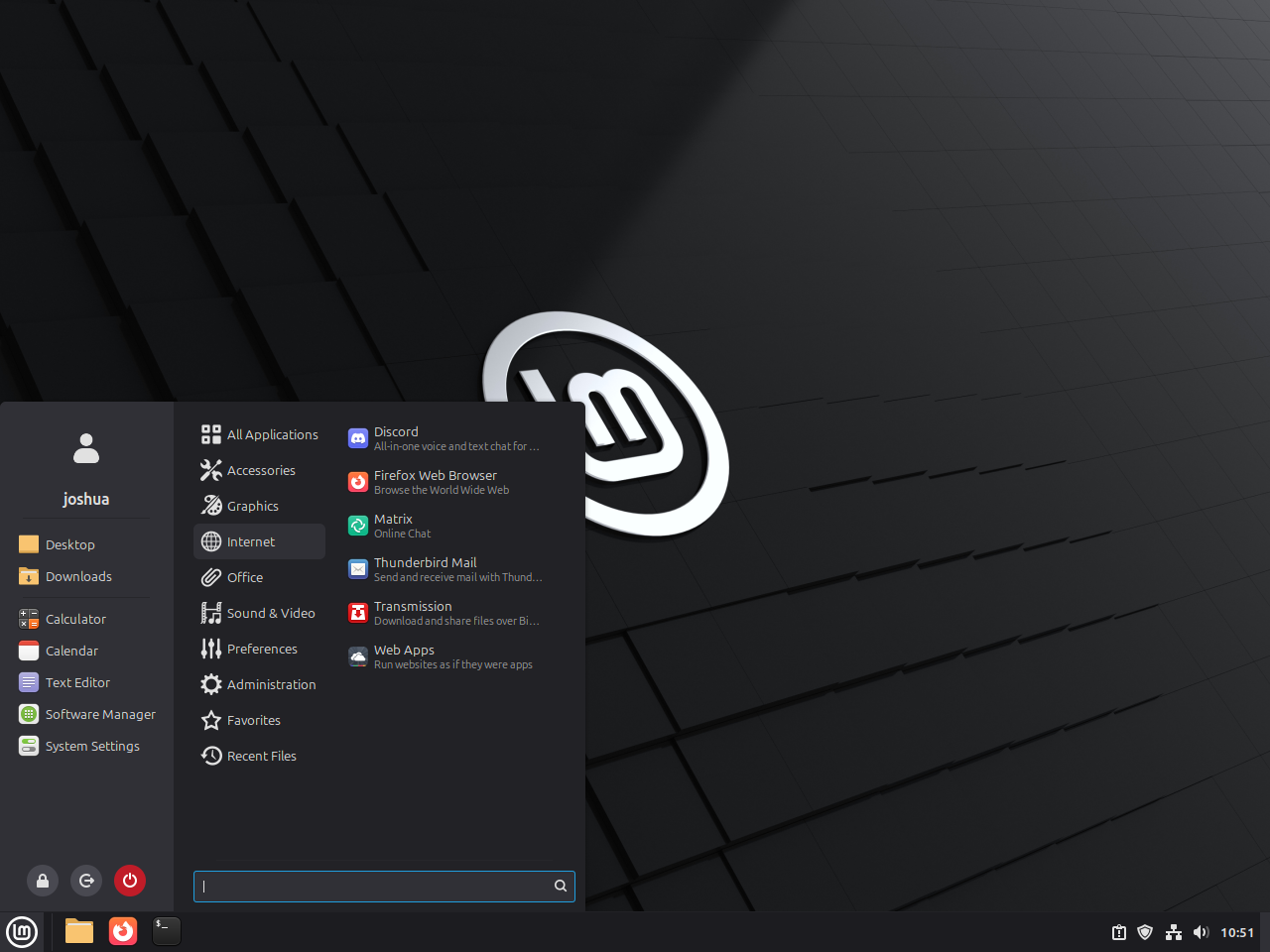
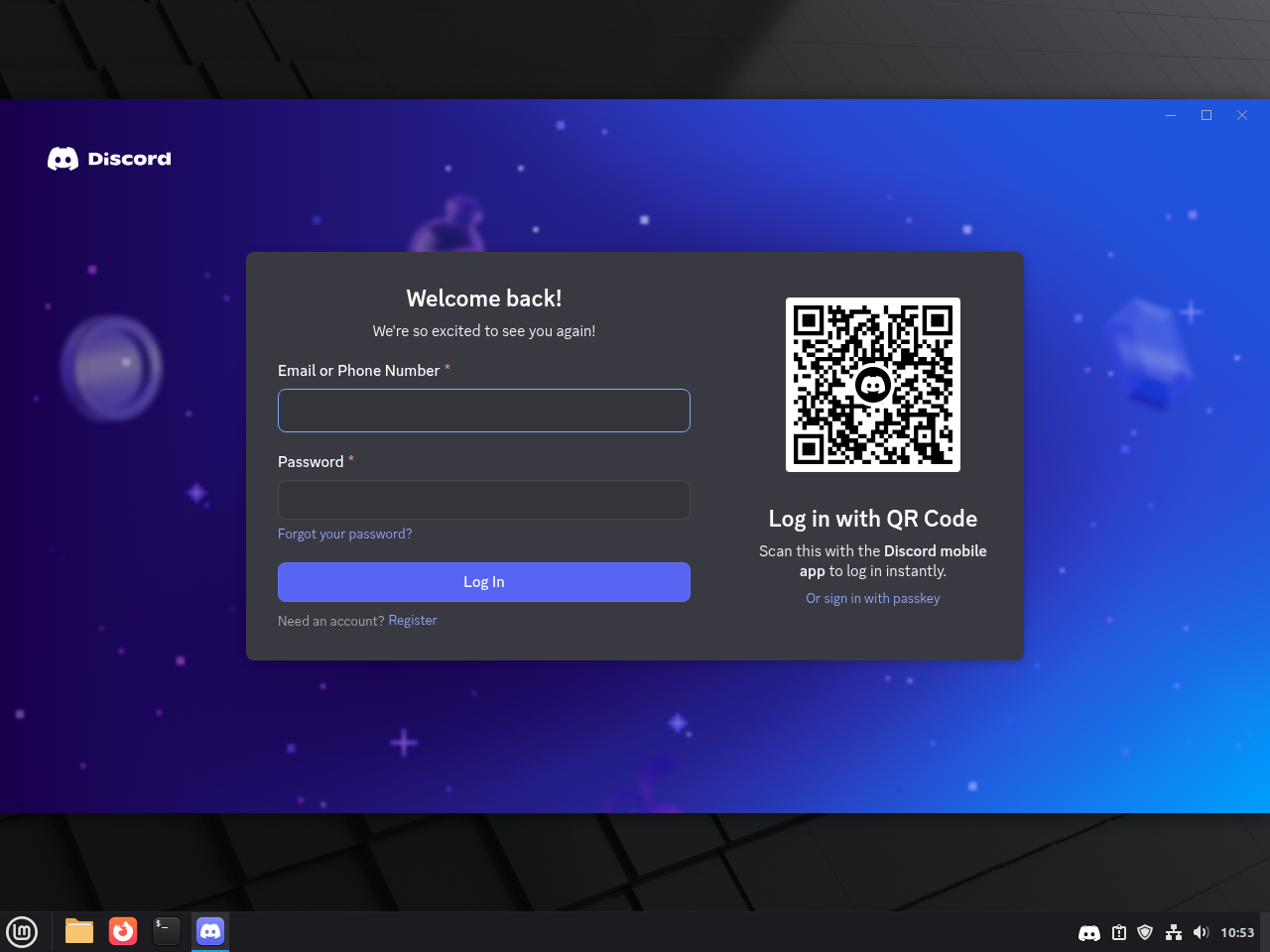
Open the applications menu, search for Discord, and start it like any other Linux Mint desktop app. Both installation methods create a launcher automatically.
Update or Remove Discord on Linux Mint
The update and removal commands depend on whether you installed the official package or the Flatpak build.
Update the Discord .deb Package on Linux Mint
Download the newest package and reinstall it over the current one when Discord releases an updated Linux build.
wget "https://discord.com/api/download?platform=linux&format=deb" -O discord.deb
sudo apt install ./discord.deb -y
Update the Discord Flatpak on Linux Mint
Flatpak updates Discord separately from APT. The broader workflow to update Flatpak apps on Linux Mint is useful if you keep several desktop apps on Flathub.
sudo flatpak update com.discordapp.Discord -yRemove the Discord .deb Package from Linux Mint
Remove the package first, then review whether Linux Mint has any leftover dependencies you no longer need.
sudo apt remove discord -y
sudo apt autoremove
Confirm the launcher is gone:
command -v discord || echo "Discord not installed"Discord not installed
Remove the Discord Flatpak from Linux Mint
Use Flatpak’s data-removal flag if you want the package and its sandboxed app data removed together.
sudo flatpak remove --delete-data com.discordapp.Discord -y
sudo flatpak uninstall --unused
Verify that the Flatpak app ID no longer appears in the installed app list:
flatpak list --app | grep -F com.discordapp.Discord || echo "Discord Flatpak not installed"Discord Flatpak not installed
Remove Leftover Discord User Data on Linux Mint
Check for per-user Discord directories before deleting anything. If Discord was never launched after installation, this command may return no output.
find "$HOME" -maxdepth 3 \( -path "$HOME/.config/discord" -o -path "$HOME/.cache/discord" -o -path "$HOME/.var/app/com.discordapp.Discord" \) -printThe next command deletes only the Discord paths that the
findcommand actually locates. Keep those directories if you want Discord to remember your local settings the next time you install it.
find "$HOME" -maxdepth 3 \( -path "$HOME/.config/discord" -o -path "$HOME/.cache/discord" -o -path "$HOME/.var/app/com.discordapp.Discord" \) -exec rm -rf {} +Troubleshoot Discord on Linux Mint
These checks cover the two Discord issues most likely to matter on Linux Mint: Flatpak sandbox limits and trying to start a desktop app from a shell with no graphical session.
Check Discord Flatpak Permissions on Linux Mint
If the Flathub build cannot see files or misses integration features you expect, inspect the current sandbox permissions first.
flatpak info --show-permissions com.discordapp.DiscordRelevant output includes:
[Context]
shared=network;ipc;
sockets=x11;wayland;pulseaudio;pcsc;
devices=all;
filesystems=xdg-download;xdg-pictures;xdg-videos;
If you still need broader file access, Game Activity, or Rich Presence after checking these permissions, the official .deb package is the better Linux Mint fit.
Open Discord Only from a Graphical Linux Mint Session
Discord can be installed from an SSH shell, but it will not open correctly without a running desktop session. If you see display-related errors, sign in to Cinnamon, MATE, or Xfce locally and launch Discord from the applications menu or a terminal inside that desktop session.
Discord on Linux Mint FAQ
No native Discord package is available for ARM or 32-bit Linux Mint systems. The official download is amd64 only, and the Flathub build is currently x86_64 only, so the browser version is the practical fallback on unsupported hardware.
Use the official .deb package if you want Discord’s own Linux build, direct desktop integration, and fewer sandbox restrictions. Use Flatpak if you prefer Linux Mint’s built-in Flathub workflow and want the app isolated from the rest of the system.
Yes, but Linux Mint disables Snap by default with the nosnap policy, so Snap needs extra setup before you can use it. If you want the Snap package, enable Snap on Linux Mint first and then install Discord with sudo snap install discord.
No. The official download installs a local .deb package only. When Discord releases a newer build, download the new package and reinstall it, or switch to Flatpak if you want package-manager-style updates.
Conclusion
Discord is installed on Linux Mint with either the official .deb package or the Flathub build, so you can move straight into voice chat, screen sharing, and server management from the desktop. If you chose Flatpak, keep update Flatpak apps on Linux Mint nearby for routine maintenance. If you later want Snap for other apps, install and enable Snap on Linux Mint first.

Formatting tips for your comment
You can use basic HTML to format your comment. Useful tags currently allowed:
<code>command</code>command<strong>bold</strong><em>italic</em><blockquote>quote</blockquote>