

Krita is a free, open-source digital painting application designed for illustrators, concept artists, comic creators, and texture artists. Whether you need to sketch character concepts, create detailed illustrations, design game textures, or produce frame-by-frame animations, Krita provides professional-grade tools without subscription fees. By completing this guide, you will have Krita installed on your Linux Mint system with verified functionality and knowledge of how to manage updates and removal.
Choose Your Krita Installation Method
Linux Mint offers three primary ways to install Krita, each with distinct advantages. The default APT repository provides stability and integration with system updates, Flatpak delivers the latest features in a sandboxed environment, and AppImage offers a portable, self-contained package directly from the Krita Foundation.
| Method | Channel | Version | Updates | Best For |
|---|---|---|---|---|
| APT Package Manager | Ubuntu Repos | Distribution default | Automatic via system updates | Most users who prefer distro-tested packages |
| Flatpak | Flathub | Latest stable | Automatic via Flatpak updates | Users who want newer features with sandboxing |
| AppImage | Krita.org | Latest stable | Manual download required | Portable installation without system changes |
For most users, the APT method is recommended because it integrates seamlessly with Linux Mint’s update manager and requires no additional configuration. Choose Flatpak if you need the latest Krita release with automatic updates, or AppImage if you prefer a portable installation that does not modify your system.
Install Krita via APT Package Manager
The APT method installs Krita from Ubuntu’s repositories, which Linux Mint uses as its package base. This approach provides a stable, tested version that receives security updates through your normal system update process.
Update Package Index
First, refresh your package index to ensure you receive the latest available version. This step also downloads current security patches for existing packages.
sudo apt update && sudo apt upgradeInstall Krita and Language Packs
Next, install Krita along with its localization package, which provides translations for the interface in multiple languages:
sudo apt install krita krita-l10nHere, the krita package contains the main application, while krita-l10n includes language translations. If you only need English, you can omit the localization package, since it adds minimal disk space.
Verify APT Installation
Once installation completes, confirm Krita is accessible by checking its version:
krita_versionExpected output on Linux Mint 21.x:
5.0.2
Expected output on Linux Mint 22.x:
5.2.2
Linux Mint 22.x (based on Ubuntu 24.04) provides Krita 5.2.x with newer brush engines and performance improvements. Linux Mint 21.x (based on Ubuntu 22.04) includes Krita 5.0.x, which remains fully functional for most workflows. If you need specific features from newer releases, consider the Flatpak method instead.
Install Krita via Flatpak
Flatpak provides the latest stable Krita release directly from the developers, independent of your Linux Mint version. This method runs Krita in a sandboxed environment, which can improve security but may require additional permissions for file access.
Verify Flathub Repository
Linux Mint includes Flatpak with Flathub enabled by default. First, verify the repository is configured:
flatpak remotesYou should see flathub in the output. However, if Flathub is missing, add it with:
sudo flatpak remote-add --if-not-exists flathub https://flathub.org/repo/flathub.flatpakrepoInstall Krita from Flathub
Once Flathub is configured, install Krita system-wide so all users on the machine can access it:
sudo flatpak install flathub org.kde.krita -yHere, the -y flag automatically confirms the installation, which then downloads Krita and its required KDE runtime dependencies. This process may take several minutes depending on your connection speed.
Verify Flatpak Installation
Finally, confirm the Flatpak installation succeeded by listing installed applications:
flatpak list --app | grep -i kritaExpected output:
Krita org.kde.krita 5.2.14 stable system
Note that the version number reflects the current Flathub release at the time of installation.
Install Krita via AppImage
The Krita Foundation provides an official AppImage that bundles the application with all its dependencies. This format runs without installation and does not modify your system, making it ideal for testing new versions or maintaining multiple Krita versions simultaneously.
Download the AppImage
First, create a directory for AppImage files and download the latest Krita release:
mkdir -p ~/Applications
cd ~/Applications
wget https://download.kde.org/stable/krita/5.2.14/krita-5.2.14-x86_64.AppImage
Check the official Krita download page for the latest version number and update the URL accordingly. The version in this guide (5.2.14) was current at the time of writing.
Make the AppImage Executable
Next, AppImage files require execute permissions before they can run:
chmod +x krita-5.2.14-x86_64.AppImageInstall FUSE Dependency
Additionally, AppImages require FUSE (Filesystem in Userspace) to run. Linux Mint includes FUSE by default, but if you encounter errors about missing libfuse, install the compatibility library. Note that the package name differs by version:
On Linux Mint 21.x:
sudo apt install libfuse2On Linux Mint 22.x:
sudo apt install libfuse2t64Run Krita
Once configured, launch Krita directly from the AppImage:
~/Applications/krita-5.2.14-x86_64.AppImageOptional: Create Desktop Integration
To add Krita to your applications menu for easier access, create a desktop entry file:
cat <<EOF > ~/.local/share/applications/krita-appimage.desktop
[Desktop Entry]
Name=Krita (AppImage)
Exec=$HOME/Applications/krita-5.2.14-x86_64.AppImage
Icon=krita
Type=Application
Categories=Graphics;2DGraphics;RasterGraphics;
Comment=Digital Painting Application
EOF
After creating the desktop entry, Krita appears in your applications menu under the Graphics category. You may need to log out and back in for the menu entry to appear.
Verify AppImage Installation
Finally, confirm the AppImage works by checking the version:
~/Applications/krita-5.2.14-x86_64.AppImage --versionExpected output:
krita 5.2.14
Launch Krita
After installation, you can launch Krita from the terminal or through the graphical applications menu.
Launch from Terminal
If you installed Krita via APT, simply run:
kritaAlternatively, Flatpak installations require the full application ID:
flatpak run org.kde.kritaWith AppImage installations, execute the AppImage file directly:
~/Applications/krita-5.2.14-x86_64.AppImageRunning Krita from the terminal is particularly useful for debugging, since error messages appear directly in your terminal window.
Launch from Applications Menu
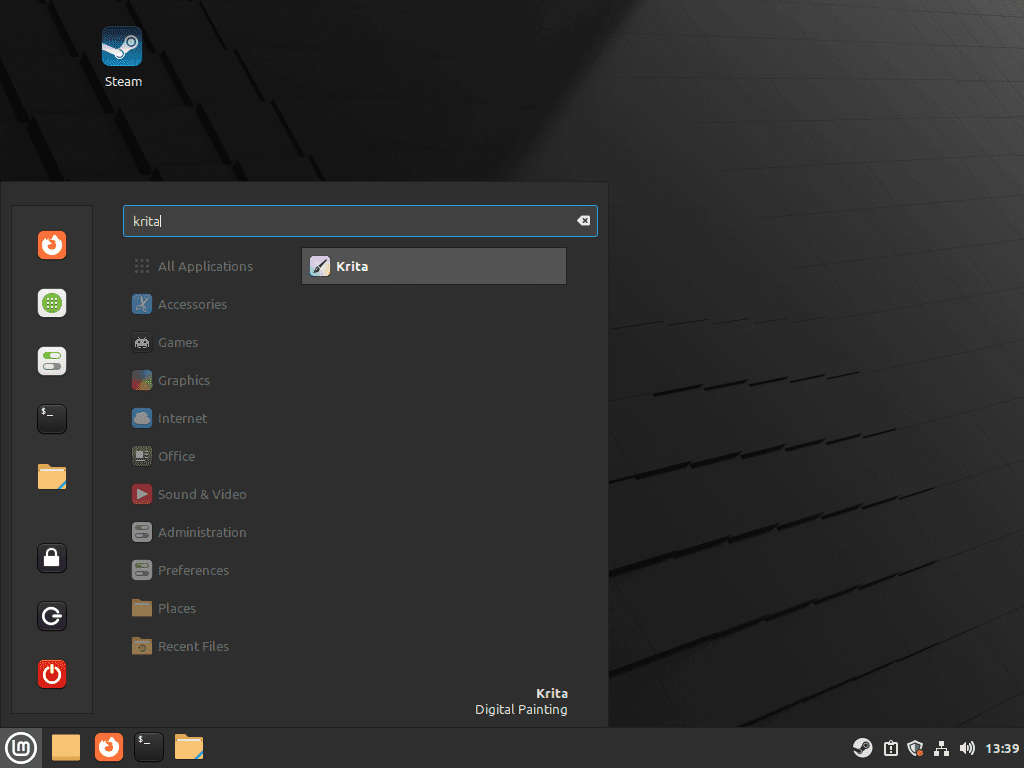
Open the applications menu and navigate to Graphics, then select Krita. Alternatively, search for “Krita” in the menu search bar. Both APT and Flatpak installations create desktop entries automatically. AppImage installations appear in the menu only if you completed the optional desktop entry step.
Getting Started with Krita
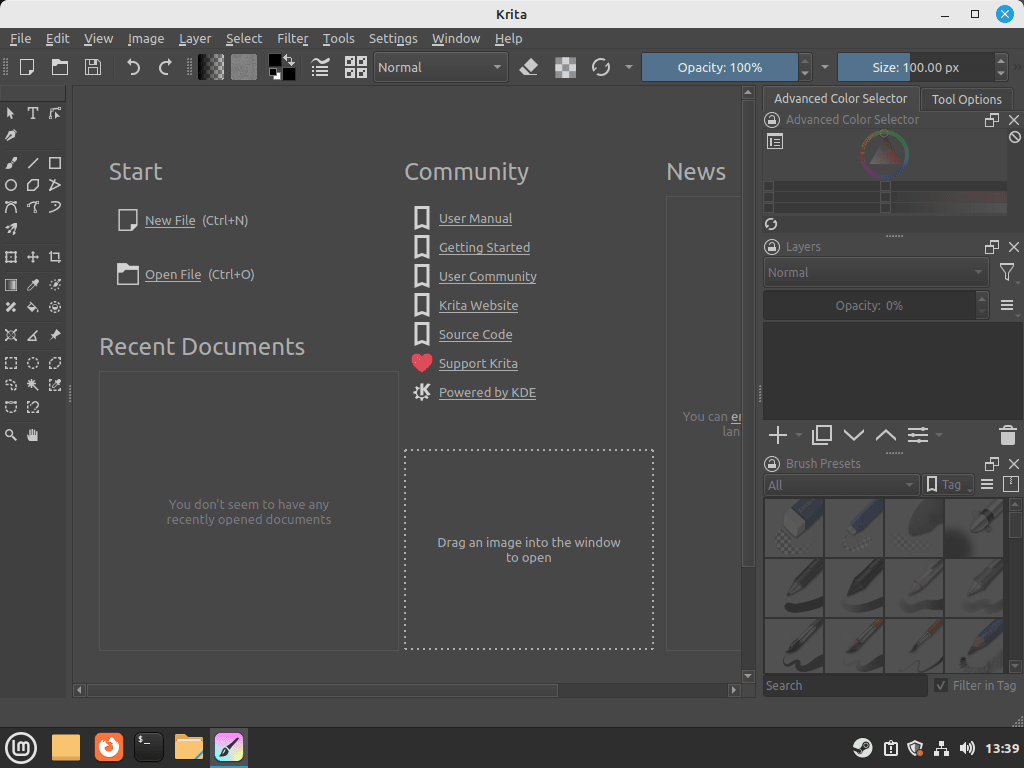
Once Krita launches, you can begin creating immediately. The following tips help you work efficiently from the start.
Essential Keyboard Shortcuts
Krita uses keyboard shortcuts extensively to speed up your workflow. Notably, these shortcuts work across all installation methods:
Bactivates the Brush Tool for paintingEswitches to the Eraser ToolCtrl+Zundoes your last actionCtrl+Shift+Zredoes an undone actionSpacebar(hold) enables canvas panningCtrl+Tactivates the Transform ToolTabtoggles canvas-only mode, hiding all panels
Additionally, you can customize these shortcuts through Settings > Configure Krita > Keyboard Shortcuts.
Workspace Customization
Krita’s interface adapts to different workflows. Use the Window menu to access preset workspaces optimized for painting, animation, or minimal distraction. You can also create custom workspaces by arranging dockers (panels) to your preference, then saving the layout through Window > Workspace > New Workspace.
Similarly, to change the interface color theme, navigate to Settings > Themes and select from available options including dark, light, and high-contrast themes.
File Format Recommendations
For best results, save your working files in Krita’s native .kra format, which preserves all layer data, masks, and project settings. When sharing or printing, export to standard formats like PNG, JPEG, or PSD. Notably, Krita maintains excellent PSD compatibility for collaboration with Adobe Photoshop users.
Update Krita
Keeping Krita updated ensures you receive bug fixes, security patches, and new features.
Update APT Installation
APT-installed Krita updates automatically through Linux Mint’s Update Manager. However, to manually check for updates:
sudo apt update && sudo apt install --only-upgrade kritaThis command refreshes your package index and upgrades only Krita if a newer version is available.
Update Flatpak Installation
Flatpak applications update independently from system packages. Update all Flatpak applications including Krita with:
sudo flatpak updateAlternatively, to update only Krita:
sudo flatpak update org.kde.kritaFor detailed guidance on managing Flatpak updates on Linux Mint, see our Flatpak upgrade guide.
Update AppImage Installation
Unlike APT and Flatpak, AppImages do not update automatically. Instead, download the new version from the Krita download page and replace the old file:
cd ~/Applications
rm krita-*-x86_64.AppImage
wget https://download.kde.org/stable/krita/VERSION/krita-VERSION-x86_64.AppImage
chmod +x krita-*-x86_64.AppImage
Remember to replace VERSION with the new version number. Additionally, if you created a desktop entry, update the Exec line to match the new filename.
Remove Krita
If you need to uninstall Krita, follow the instructions matching your installation method.
Remove APT Installation
First, remove Krita and its localization package, then clean up orphaned dependencies:
sudo apt remove krita krita-l10n
sudo apt autoremove
Alternatively, to also remove the system configuration file at /etc/xdg/kritarc, use purge instead:
sudo apt purge kritaNote that the autoremove command removes packages that were installed as dependencies but are no longer needed.
Remove Flatpak Installation
To remove the Flatpak version of Krita, run:
sudo flatpak uninstall org.kde.kritaAfterward, clean up unused Flatpak runtimes that were installed as dependencies:
sudo flatpak uninstall --unusedRemove AppImage Installation
Removing an AppImage is straightforward since it does not install files across your system. Delete the AppImage file and the desktop entry if you created one:
rm ~/Applications/krita-5.2.14-x86_64.AppImage
rm ~/.local/share/applications/krita-appimage.desktop
Remove User Configuration Data
The following commands permanently delete your Krita settings, custom brushes, palettes, and any saved workspaces. If you want to preserve these for a future reinstallation, back up the directories first.
For APT and AppImage installations, Krita stores user data in your home directory:
rm -rf ~/.local/share/krita
rm -f ~/.config/kritarc
rm -f ~/.config/kritadisplayrc
In contrast, for Flatpak installations, user data resides in the Flatpak sandbox directory:
rm -rf ~/.var/app/org.kde.kritaVerify Removal
Finally, confirm Krita is no longer installed:
which kritaIf Krita was successfully removed, this command produces no output. For Flatpak, also verify with:
flatpak list --app | grep -i kritaIn either case, an empty result confirms complete removal.
Troubleshooting
Krita Fails to Start
If Krita crashes immediately or fails to launch, run it from the terminal to see error messages:
krita 2>&1 | head -20Common causes include missing OpenGL drivers or corrupted configuration files. If you see OpenGL-related errors, ensure your graphics drivers are properly installed. For NVIDIA GPUs, see our NVIDIA driver installation guide to configure proprietary drivers that provide full OpenGL support. To reset Krita’s configuration without losing custom brushes:
mv ~/.config/kritarc ~/.config/kritarc.backup
mv ~/.config/kritadisplayrc ~/.config/kritadisplayrc.backup
After making these changes, launch Krita again. If the issue resolves, gradually restore settings from your backup files.
Flatpak Cannot Access Files
Because Flatpak applications run in a sandbox with limited filesystem access, Krita may not be able to open files from certain directories. To fix this, grant additional permissions:
flatpak override --user --filesystem=home org.kde.kritaThis command grants Krita access to your entire home directory. For more restrictive access, specify individual paths like --filesystem=/path/to/folder.
Tablet or Stylus Not Detected
If your drawing tablet lacks pressure sensitivity, first verify that your tablet drivers are installed. Most Wacom tablets work with the xserver-xorg-input-wacom driver:
sudo apt install xserver-xorg-input-wacomAfter installing or updating tablet drivers, restart your session for changes to take effect.
Conclusion
You now have Krita installed on Linux Mint with a verified working configuration. The APT method provides stable integration with system updates, Flatpak offers automatic access to the latest features, and AppImage provides a portable option that works independently of your package manager. With Krita’s brush engines, layer management, and animation tools at your disposal, you can create digital artwork ranging from quick sketches to polished illustrations. For additional resources, visit the official Krita website which includes tutorials, brush packs, and community forums.

Formatting tips for your comment
You can use basic HTML to format your comment. Useful tags currently allowed in published comments:
<code>command</code>command<strong>bold</strong><em>italic</em><blockquote>quote</blockquote>