
When you open a Microsoft Word document on Linux and the formatting looks wrong, missing fonts are usually the cause. Microsoft fonts like Arial, Times New Roman, and Verdana are proprietary, so Linux Mint does not include them by default. This creates problems when viewing documents shared from Windows users, browsing websites designed with Microsoft fonts, or collaborating on files that require specific typefaces. This guide walks through installing the Microsoft Core Fonts package on Linux Mint 21.x or 22.x, and optionally the modern ClearType fonts like Calibri, giving you complete font compatibility for documents and web browsing.
What Fonts Does This Package Include?
The ttf-mscorefonts-installer package downloads and installs the original Microsoft Core Fonts for the Web collection. Microsoft released these fonts in the late 1990s for free redistribution, and they remain widely used in documents and websites today. The package includes the following typefaces:
- Arial and Arial Black: sans-serif fonts commonly used in business documents
- Times New Roman: the standard serif font for academic papers and formal documents
- Verdana: a sans-serif font designed for screen readability
- Georgia: a serif font optimized for web display
- Courier New: a monospace font for code and technical documents
- Trebuchet MS: a sans-serif font popular in presentations
- Comic Sans MS: an informal sans-serif font
- Impact: a heavy sans-serif display font
- Andale Mono: a monospace font for technical use
- Webdings: a symbol font for web graphics
This package does not include newer Microsoft fonts like Calibri, Cambria, or Consolas. If you need these modern typefaces for document compatibility, see the Install Modern Microsoft Fonts section below.
Update Linux Mint Before Installation
Before installing any new packages, refresh your package index to ensure you have the latest version information. Open a terminal from the applications menu and run the following command:
sudo apt update && sudo apt upgradeThis command updates your package list and upgrades any existing packages that have newer versions available. Running updates first prevents potential dependency conflicts during installation.
Install Microsoft Core Fonts on Linux Mint
The ttf-mscorefonts-installer package is available in Ubuntu’s multiverse repository, which Linux Mint enables by default. Install the package with the following command:
sudo apt install ttf-mscorefonts-installerAccept the Microsoft EULA
During installation, a dialog appears requiring you to accept the Microsoft End User License Agreement (EULA). This is a legal requirement because Microsoft owns these fonts and permits their use only under specific terms. Use the Tab key to navigate to the “OK” button and press Enter. On the following screen, navigate to “Yes” and press Enter to accept the license agreement.
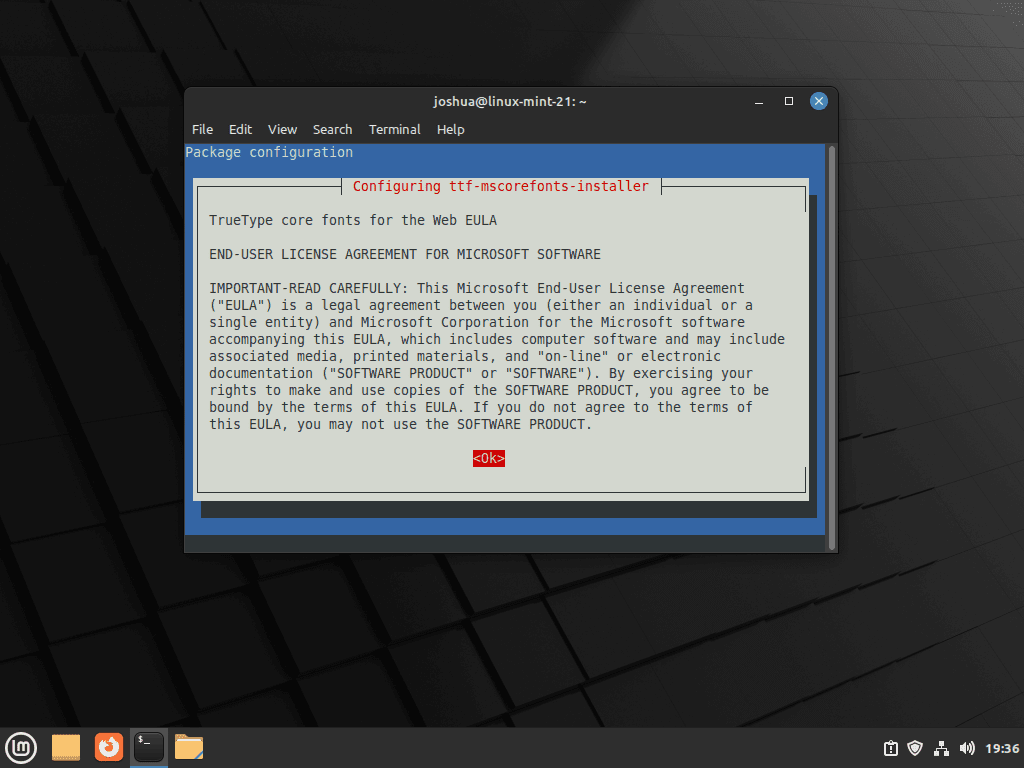
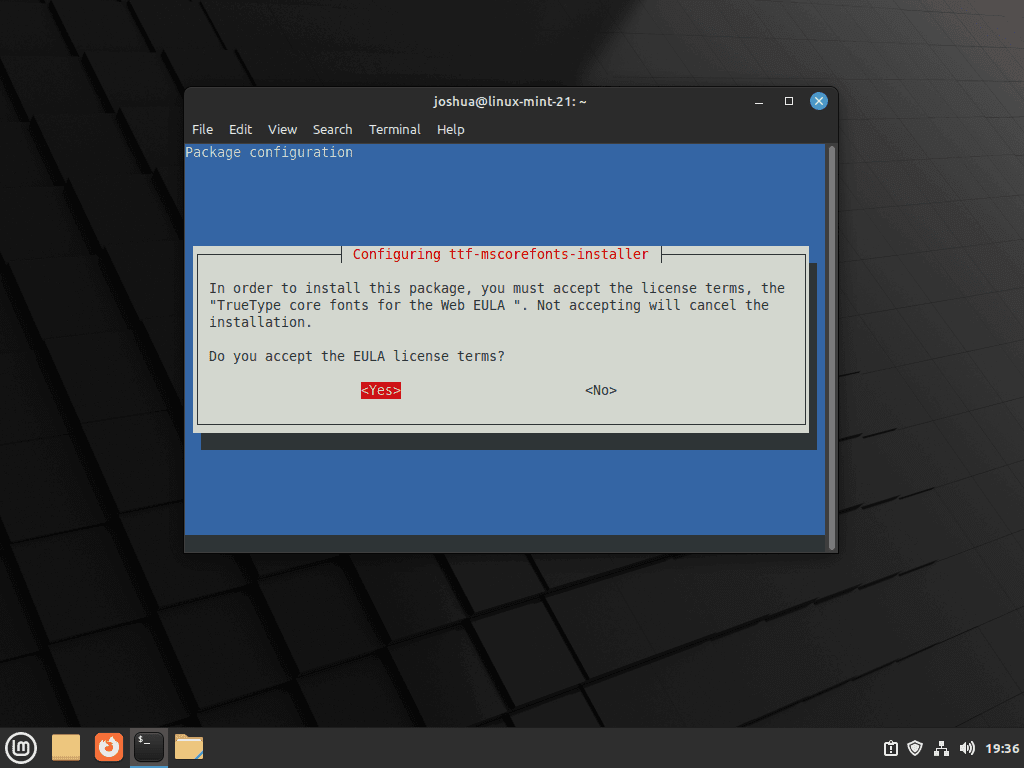
After accepting the EULA, the installer downloads the font files from SourceForge mirrors and installs them to /usr/share/fonts/truetype/msttcorefonts/. This process may take a minute depending on your internet connection speed.
Verify the Font Installation
Once installation completes, verify that the fonts are available on your system. The fc-list command queries the font cache and displays installed fonts. Run the following command to check for Arial:
fc-list | grep -i arialIf the installation succeeded, you should see output similar to this:
/usr/share/fonts/truetype/msttcorefonts/Arial.ttf: Arial:style=Regular
/usr/share/fonts/truetype/msttcorefonts/arialbd.ttf: Arial:style=Bold
/usr/share/fonts/truetype/msttcorefonts/Arial_Italic.ttf: Arial:style=Italic
/usr/share/fonts/truetype/msttcorefonts/Arial_Bold_Italic.ttf: Arial:style=Bold Italic
/usr/share/fonts/truetype/msttcorefonts/ariblk.ttf: Arial Black:style=Regular
You can also verify Times New Roman with:
fc-list | grep -i "times new roman"Verify Fonts in Applications
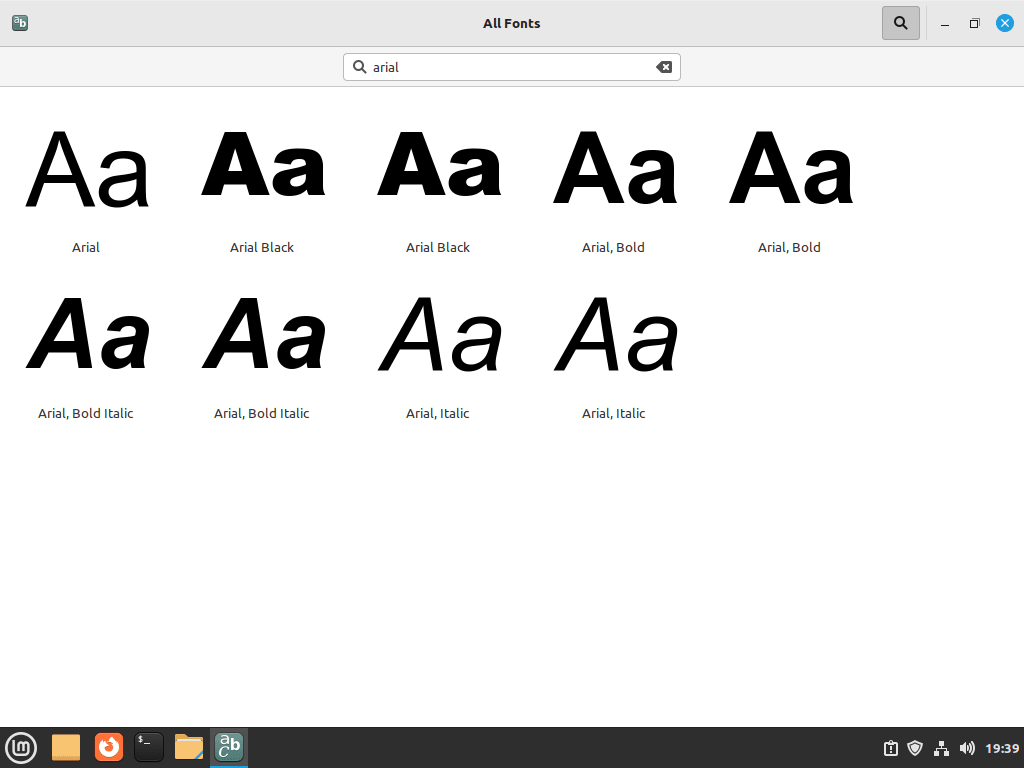
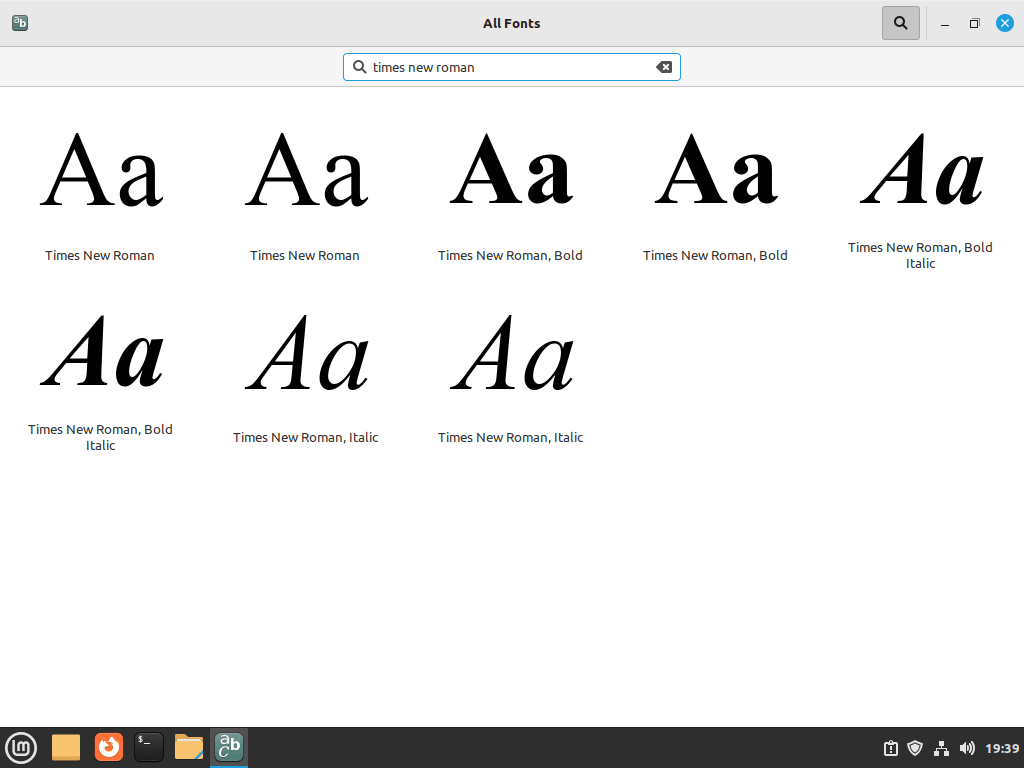
To confirm the fonts work in graphical applications, open LibreOffice Writer or the Fonts application from your menu. In LibreOffice, click the font dropdown and search for “Arial” or “Times New Roman” to verify they appear in the font list.
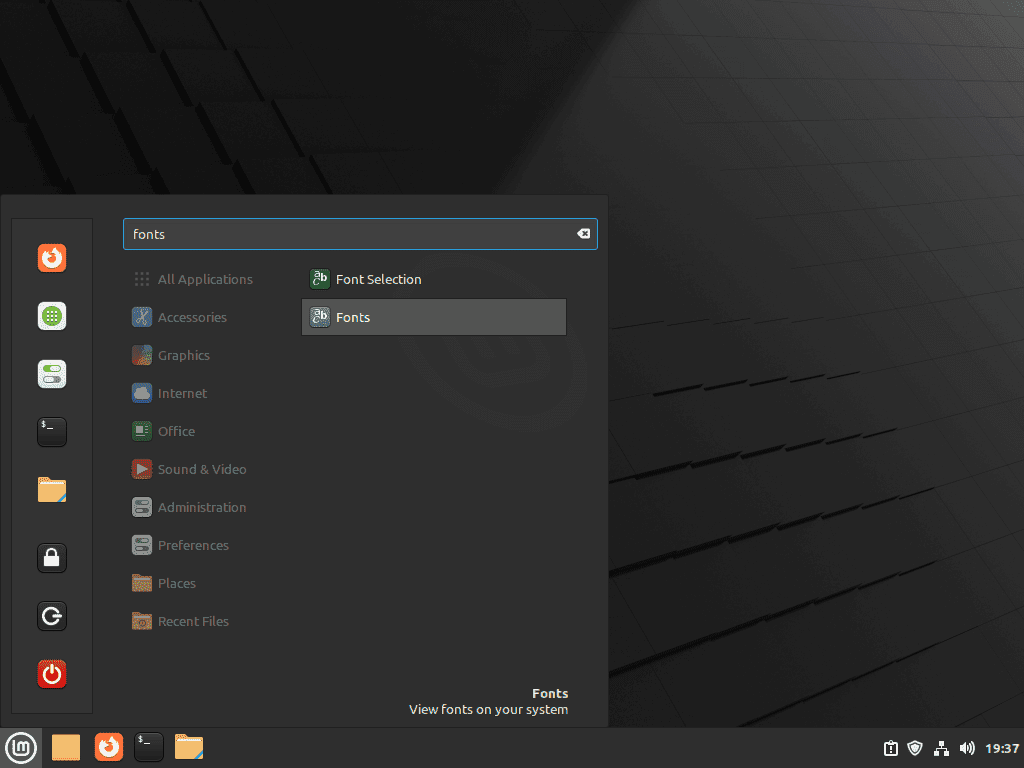
In the Fonts application, use the search function to find specific fonts by name. If you can locate Arial and Times New Roman, the installation completed successfully and the fonts are ready for use across all applications.
Troubleshooting Common Issues
If you encounter problems during or after installation, the following solutions address the most common issues.
Fonts Not Appearing in Applications
If fonts do not appear in applications after installation, the font cache may need refreshing. Run the following command to rebuild the cache:
sudo fc-cache -f -vThe -f flag forces a cache rebuild even if files appear unchanged, and -v provides verbose output so you can see which directories are being scanned. After running this command, restart any applications that need to use the fonts.
Font Download Failed During Installation
The installer downloads fonts from SourceForge mirrors. If your network blocks these connections or the mirrors are temporarily unavailable, the installation may fail. To retry the download, reconfigure the package:
sudo dpkg-reconfigure ttf-mscorefonts-installerThis command re-runs the font download process without reinstalling the entire package. If downloads continue to fail, check your network connection or try again later when the mirrors may be less busy.
EULA Dialog Did Not Appear
If the installation completed without showing the EULA dialog, the fonts may not have been downloaded. This sometimes happens in automated or minimal environments. Reconfigure the package to trigger the dialog:
sudo dpkg-reconfigure ttf-mscorefonts-installerAccept the license agreement when prompted, and the fonts will download and install properly.
Install Modern Microsoft Fonts (Calibri, Cambria, Consolas)
The core fonts package installs fonts from the 1990s, but many modern Office documents use newer typefaces like Calibri (the default font since Office 2007), Cambria, and Consolas. These fonts were bundled with Microsoft’s discontinued PowerPoint Viewer application, which has been archived and remains available for download.
These fonts are extracted from a legitimate Microsoft product archived on Archive.org. While this method is commonly used for personal document compatibility, the fonts remain Microsoft property. For commercial or enterprise use, verify your licensing obligations.
What Fonts Does the PowerPoint Viewer Include?
The PowerPoint Viewer includes the ClearType font collection introduced with Windows Vista and Office 2007:
- Calibri: the default document font in Microsoft Office since 2007
- Cambria: a serif font designed for on-screen reading and headings
- Consolas: a monospace font popular for programming and code
- Candara: a humanist sans-serif font
- Constantia: a serif font with wedge-shaped serifs
- Corbel: a sans-serif font designed for on-screen display
Download and Install the Fonts
First, install cabextract if it is not already present. This utility extracts files from Microsoft cabinet archives:
sudo apt install cabextractNext, download the PowerPoint Viewer from Archive.org, verify its checksum for integrity, and extract the fonts:
cd /tmp
wget -q "https://archive.org/download/PowerPointViewer_201801/PowerPointViewer.exe"

# Verify the download integrity
EXPECTED="249473568eba7a1e4f95498acba594e0f42e6581add4dead70c1dfb908a09423"
ACTUAL=$(sha256sum PowerPointViewer.exe | cut -d' ' -f1)
if [ "$ACTUAL" = "$EXPECTED" ]; then
    echo "Checksum verified successfully"
else
    echo "Checksum verification failed - aborting"
    rm -f PowerPointViewer.exe
    exit 1
fi
If the checksum verifies successfully, extract the fonts from the cabinet archive:
cabextract -q PowerPointViewer.exe -F ppviewer.cab
cabextract -q ppviewer.cab -F '*.TTF' -F '*.TTC'
You may see a warning about “extra bytes at end of file” during extraction. This is expected and does not affect the font files.
Create a directory for the fonts and move them into place:
mkdir -p ~/.local/share/fonts/microsoft
mv *.TTF *.TTC ~/.local/share/fonts/microsoft/
Update the font cache and clean up the temporary files:
fc-cache -f
rm -f /tmp/PowerPointViewer.exe /tmp/ppviewer.cab
Verify the installation by checking for Calibri:
fc-list | grep -i calibriYou should see output similar to:
/home/username/.local/share/fonts/microsoft/CALIBRI.TTF: Calibri:style=Regular
/home/username/.local/share/fonts/microsoft/CALIBRIB.TTF: Calibri:style=Bold
/home/username/.local/share/fonts/microsoft/CALIBRII.TTF: Calibri:style=Italic
/home/username/.local/share/fonts/microsoft/CALIBRIZ.TTF: Calibri:style=Bold Italic
Remove the PowerPoint Viewer Fonts
To remove these fonts, delete the font directory and refresh the cache.
The following command permanently deletes all fonts in the
~/.local/share/fonts/microsoftdirectory. If you have added other fonts to this location, back them up first.
rm -rf ~/.local/share/fonts/microsoft
fc-cache -fRemove Microsoft Core Fonts from Linux Mint
If you no longer need the Microsoft fonts, you can remove the package and its associated files. The following commands remove the installer package and clean up dependencies that were installed alongside it:
sudo apt remove ttf-mscorefonts-installer
sudo apt autoremove
The first command removes the font installer package and deletes the downloaded fonts from /usr/share/fonts/truetype/msttcorefonts/. The second command removes orphaned dependencies like cabextract and xfonts-utils that were installed to support the font extraction process.
After removal, update the font cache so applications no longer display the removed fonts:
sudo fc-cache -fConclusion
Your Linux Mint system can now display documents with proper Microsoft font rendering. The core fonts package provides classic typefaces like Arial and Times New Roman, while the PowerPoint Viewer extraction adds modern fonts like Calibri, Cambria, and Consolas for full compatibility with current Office documents. These fonts integrate with all applications that use the system font directory, including LibreOffice, web browsers, and image editors. For working with Microsoft Office documents, consider pairing these fonts with LibreOffice on Linux Mint for the best compatibility, or use Microsoft Edge on Linux Mint to access Office 365 web applications with native font support.

Formatting tips for your comment
You can use basic HTML to format your comment. Useful tags currently allowed:
<code>command</code>command<strong>bold</strong><em>italic</em><blockquote>quote</blockquote>