

Microsoft Teams enables remote collaboration through video conferencing, instant messaging, and file sharing. Microsoft officially discontinued the native Teams Linux desktop client in late 2022, recommending users access Teams through web browsers as a Progressive Web App (PWA). For users who prefer a dedicated desktop application with system integration, teams-for-linux provides an unofficial Electron-based wrapper around the Teams web interface with added features like system notifications, system tray integration, and custom backgrounds.
This guide covers installing teams-for-linux on Ubuntu using the third-party repository, Snap, or Flatpak. Each method provides automatic updates and system integration. The repository method offers direct APT package management, while Snap and Flatpak provide universal compatibility across Ubuntu releases.
Choose Your Teams Installation Method
Ubuntu offers multiple installation paths for teams-for-linux. The third-party repository integrates with APT for straightforward package management, while Snap and Flatpak provide sandboxed installations with automatic updates. All three methods install the same application maintained by the same developer.
| Method | Channel | Version | Updates | Best For |
|---|---|---|---|---|
| Third-Party Repository | GitHub | Latest stable | Automatic via apt upgrade | Users who prefer APT package management (AMD64 only) |
| Snap | Snapcraft | Latest stable | Automatic via snap refresh | Universal compatibility across all Ubuntu releases |
| Flatpak | Flathub | Latest stable | Automatic via flatpak update | Users who prefer sandboxed applications |
For most users, Snap is recommended because it works universally across all Ubuntu releases without architecture restrictions and provides automatic background updates. The third-party repository method requires AMD64 architecture and manual repository configuration but integrates directly with APT.
All installation steps in this guide work identically on Ubuntu 26.04 LTS, 24.04 LTS, and 22.04 LTS. The teamsforlinux.de repository is limited to AMD64 systems, but Snap and Flatpak install the same application on any architecture.
Update Ubuntu Before Installation
Before installing teams-for-linux, update your Ubuntu system’s package list and upgrade existing packages to ensure you have the latest security patches and prevent potential conflicts.
sudo apt update && sudo apt upgradeMethod 1: Install Teams via Third-Party Repository
The third-party repository integrates teams-for-linux with APT, allowing you to manage it alongside other system packages. This method requires AMD64 architecture and provides automatic updates through your regular system update workflow.
The third-party repository at teamsforlinux.de supports AMD64 architecture only. If you are using ARM64 or other architectures, use the Snap or Flatpak methods instead.
Install Prerequisites
Install the required packages for adding the repository and importing GPG keys:
sudo apt install ca-certificates curl gpg wget -yImport GPG Key
Download and import the repository GPG key to verify package authenticity:
sudo mkdir -p /etc/apt/keyrings
wget -qO- https://repo.teamsforlinux.de/teams-for-linux.asc | sudo gpg --dearmor -o /etc/apt/keyrings/teams-for-linux.gpg
The first command creates the keyrings directory if it does not exist. The second downloads the GPG key and converts it to binary format for APT verification.
Add teams-for-linux Repository
Create the repository configuration file using DEB822 format:
cat <<EOF | sudo tee /etc/apt/sources.list.d/teams-for-linux.sources
Types: deb
URIs: https://repo.teamsforlinux.de/debian/
Suites: stable
Components: main
Architectures: amd64
Signed-By: /etc/apt/keyrings/teams-for-linux.gpg
EOF
This creates a properly formatted repository file that APT can read. The repository uses a universal stable branch that works across all Ubuntu releases.
Install teams-for-linux Package
Update the package cache to include the new repository and install teams-for-linux:
sudo apt update
sudo apt install teams-for-linux -y
Verify Installation
Confirm teams-for-linux installed successfully by checking the package version:
dpkg -l | grep teams-for-linuxExpected output showing the installed package:
ii teams-for-linux 2.6.18 amd64 Teams for Linux
Method 2: Install Teams via Snap
Snap provides a universal package format that works across all Ubuntu releases and architectures.
Install Snap Package
Install teams-for-linux from the Snap Store:
sudo snap install teams-for-linuxThe Snap package installs in a sandboxed environment and receives automatic background updates. Ubuntu includes Snap by default on standard desktop and server installations. If snap is missing on minimal, WSL, or container-based installs, add it with sudo apt install snapd.
Verify Snap Installation
Confirm the Snap package installed successfully:
snap list teams-for-linuxExpected output showing the installed Snap:
Name             Version  Rev   Tracking       Publisher         Notes
teams-for-linux  2.6.18   195   latest/stable  ismaelmartinez*   -
Method 3: Install Teams via Flatpak
Flatpak provides sandboxed desktop applications with automatic updates. Unlike Snap, Flatpak requires manual installation on Ubuntu.
Flatpak is not pre-installed on Ubuntu. If you have not set it up yet, install it with
sudo apt install flatpakand restart your session before continuing. For detailed setup including the Flathub repository, follow our Flatpak installation guide for Ubuntu.
Install Flatpak Package
Install teams-for-linux from Flathub at system level:
sudo flatpak install flathub com.github.IsmaelMartinez.teams_for_linux -yUsing sudo installs the application system-wide for all users. Without sudo, Flatpak installs to your user account only.
Verify Flatpak Installation
Confirm the Flatpak package installed successfully:
flatpak list | grep teamsExpected output showing the installed application:
Teams for Linux com.github.IsmaelMartinez.teams_for_linux 2.6.18 stable system
Launch teams-for-linux
After installation, launch teams-for-linux from your applications menu or from the terminal.
Launch from Applications Menu
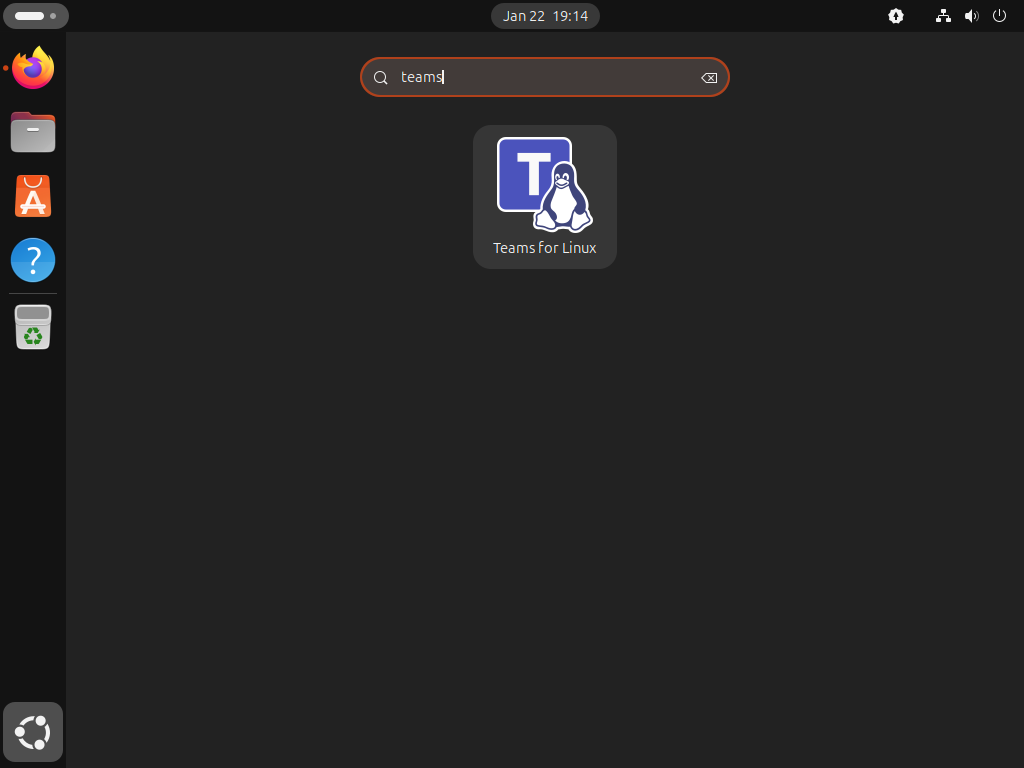
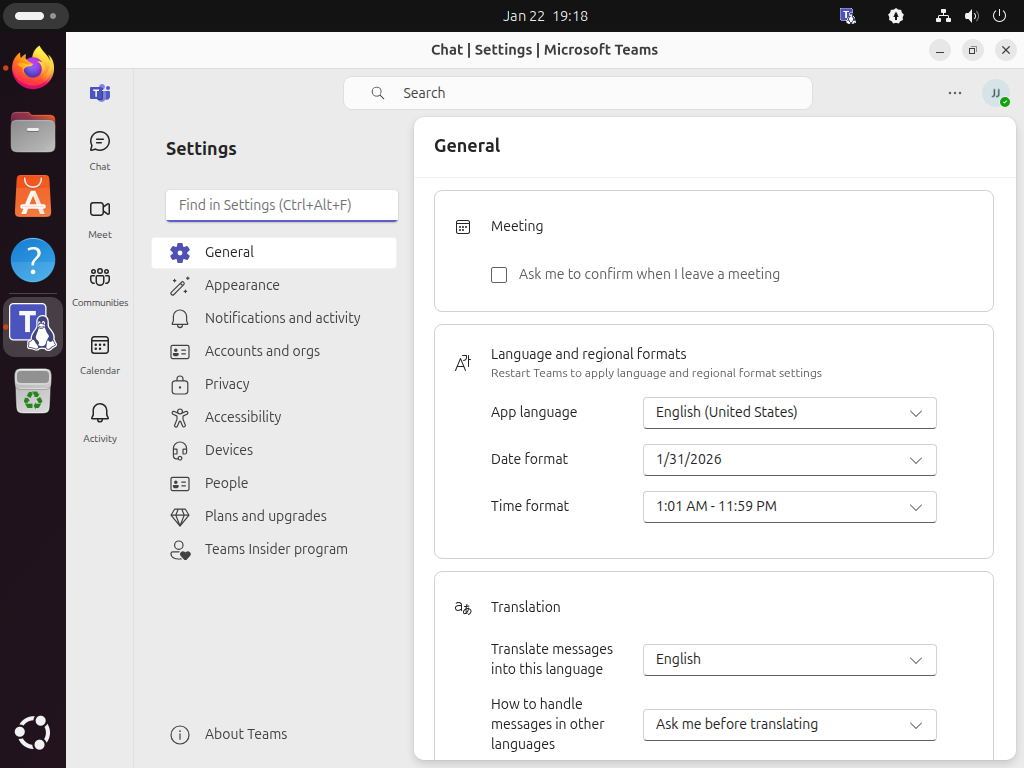
Open your applications menu, search for “Teams for Linux,” and click the icon to launch the application. The first launch prompts you to sign in with your Microsoft account.
Launch from Terminal
Launch teams-for-linux from the command line using the method-specific command:
APT/Repository installation:
teams-for-linuxSnap installation:
snap run teams-for-linuxFlatpak installation:
flatpak run com.github.IsmaelMartinez.teams_for_linuxManage teams-for-linux Updates
Each installation method handles updates differently.
Update Repository Installation
Update teams-for-linux alongside other system packages:
sudo apt update
sudo apt upgrade
For a targeted update of only teams-for-linux:
sudo apt install --only-upgrade teams-for-linuxUpdate Snap Installation
Snap updates run automatically in the background, but you can manually trigger an update check:
sudo snap refresh teams-for-linuxUpdate Flatpak Installation
Update teams-for-linux from Flathub:
sudo flatpak update com.github.IsmaelMartinez.teams_for_linuxTo update all Flatpak applications at once:
sudo flatpak updateRemove teams-for-linux from Ubuntu
If you no longer need teams-for-linux, remove the application and clean up configuration files using the appropriate commands for your installation method.
Remove Repository Installation
Remove the teams-for-linux package and clean up orphaned dependencies:
sudo apt remove teams-for-linux
sudo apt autoremove
Remove the repository configuration and GPG key:
sudo rm /etc/apt/sources.list.d/teams-for-linux.sources
sudo rm /etc/apt/keyrings/teams-for-linux.gpg
sudo apt update
Optionally remove user configuration and cache files stored in your home directory:
The following command permanently deletes your teams-for-linux settings, cached data, and login sessions. Skip this step if you plan to reinstall later and want to keep your configuration.
rm -rf ~/.config/teams-for-linuxRemove Snap Installation
Uninstall the teams-for-linux Snap package:
sudo snap remove teams-for-linuxThis removes the application but preserves user data in ~/snap/teams-for-linux/. To remove this data:
The following command permanently deletes your teams-for-linux Snap data, including cached files and login sessions. Skip this step if you plan to reinstall later.
rm -rf ~/snap/teams-for-linuxRemove Flatpak Installation
Uninstall the teams-for-linux Flatpak package:
sudo flatpak uninstall com.github.IsmaelMartinez.teams_for_linuxRemove unused Flatpak runtimes and dependencies:
sudo flatpak uninstall --unusedFlatpak stores user data in ~/.var/app/com.github.IsmaelMartinez.teams_for_linux/. To remove this data:
The following command permanently deletes your teams-for-linux Flatpak data, including cached files and login sessions. Skip this step if you plan to reinstall later.
rm -rf ~/.var/app/com.github.IsmaelMartinez.teams_for_linuxFrequently Asked Questions
No, teams-for-linux is an unofficial third-party application developed by Ismael Martinez. Microsoft officially discontinued the native Teams Linux client in late 2022. The official Microsoft recommendation is to use Teams through a web browser as a Progressive Web App (PWA). teams-for-linux provides a desktop-integrated alternative by wrapping the Teams web interface in an Electron application.
The teamsforlinux.de repository provides pre-compiled packages for AMD64 architecture only. If you are using ARM64 or other architectures, use the Snap or Flatpak methods instead, as both support multiple architectures and provide the same application features.
Yes, teams-for-linux works with both personal Microsoft accounts and work/school organizational accounts. Sign in with your credentials just as you would with the web version. The application wraps the official Teams web interface, so all features available in the web app work in teams-for-linux.
All three methods install the same Electron-based application, so performance is identical. The main differences are package management integration (repository method uses APT), sandboxing level (Flatpak has strongest isolation), and architecture support (repository is AMD64-only, while Snap and Flatpak support multiple architectures).
System tray integration works automatically on most desktop environments after installation. If the system tray icon does not appear, check your desktop environment’s system tray settings. GNOME desktop users may need to install the AppIndicator extension to enable system tray support. teams-for-linux respects your system notification settings and displays Teams notifications through your desktop environment’s notification system.
Conclusion
teams-for-linux provides desktop integration for Microsoft Teams on Ubuntu through an Electron wrapper around the Teams web interface. This guide covered installation via third-party repository (AMD64 only), Snap (universal compatibility), and Flatpak (sandboxed), along with update management and complete removal procedures.
Relevant Links
Explore the following external resources for additional information related to teams-for-linux on Ubuntu.
- teams-for-linux GitHub Repository: Access the source code, report issues, and view development updates for the unofficial Teams client.
- teams-for-linux on Snapcraft: View the Snap package details, release notes, and installation instructions.
- teams-for-linux on Flathub: Explore the Flatpak application page with screenshots and user reviews.
- Microsoft Teams Official Website: Learn about Microsoft Teams features and official platform support.

Formatting tips for your comment
You can use basic HTML to format your comment. Useful tags currently allowed:
<code>command</code>command<strong>bold</strong><em>italic</em><blockquote>quote</blockquote>