
Some Windows-only apps still matter, whether that is an older business tool, a launcher, or a game that never received a native Linux build. If you need to install Wine on Debian, Wine gives you a compatibility layer that runs many of those programs without a separate Windows virtual machine or a dual-boot setup.
On supported Debian 13, 12, and 11 systems, WineHQ gives Debian 13 and 12 the current stable Wine branch, Debian 11 currently remains on WineHQ 10.x packages, Debian’s own packages stay fully distro-managed, and Flatpak provides a Flathub-packaged build with its own runtime. Winetricks and common post-install tasks are included so you can move from installation to your first Windows app without extra guesswork.
Install Wine on Debian
Wine does not ship the same way across every Debian release, so the method you choose depends on how current you want the package to be and how much you want the Wine runtime separated from host libraries.
| Method | Source or Channel | Current Package Line | Update Behavior | Best For |
|---|---|---|---|---|
| WineHQ Repository | WineHQ Builds | Wine 11.0 on Debian 13/12, Wine 10.0 on Debian 11 | APT-managed updates from WineHQ | Most readers who want newer Wine packages than Debian’s archive provides |
| Debian Repository | Debian Packages | Debian-maintained package branch | APT-managed updates from Debian | Readers who prefer packages maintained entirely by Debian |
| Flatpak | Flathub | Flathub stable-25.08 branch | Flatpak updates at system scope | Desktop users who already use Flathub and want its runtime packaging |
For most systems, the WineHQ repository is the best starting point because it provides newer packages than Debian’s archive and keeps updates inside APT. Use only one native Wine source at a time so Debian does not have to resolve overlapping Wine packages from multiple repositories.
- Use the WineHQ repository when you want Wine packages newer than Debian’s archive and the best chance of running newer Windows applications.
- Use Debian’s own packages when you would rather stay with the distro-maintained branch, even if it trails upstream by a wider margin.
- Use Flatpak when you already rely on Flathub for desktop apps and prefer its runtime-packaged Wine build.
Install Wine from the WineHQ Repository on Debian
The WineHQ repository is the cleanest way to install Wine on Debian when you want upstream-maintained builds through APT. WineHQ publishes a per-codename DEB822 source file, so the setup uses Debian’s own release codename instead of a generic repository stanza.
For supported Debian releases, use the repository source file instead of manually downloading individual WineHQ .deb packages. APT can then keep the amd64 and i386 package set aligned and update Wine with the rest of your package sources.
Update Debian Before Installing Wine
Refresh APT metadata first so the repository checks later in the section reflect current package state.
sudo apt update && sudo apt upgrade -yThese commands use
sudofor tasks that need root privileges. If your user is not in the sudoers file yet, follow the guide on how to add a user to sudoers on Debian, then return here.
Install WineHQ Repository Prerequisites on Debian
Install the packages needed to download files with curl, create the keyring path, and install WineHQ’s source file.
sudo apt install -y ca-certificates curl gpgEnable 32-bit Debian Support for Wine
Most Windows applications still need 32-bit libraries, even on 64-bit Debian installs, so enable the i386 architecture before adding Wine packages.
sudo dpkg --add-architecture i386Without 32-bit support, many Windows applications fail to start or stop early with missing-library errors.
Add the WineHQ GPG Key on Debian
Download the current WineHQ signing key, convert it to an APT keyring, and store it where WineHQ’s source files expect it.
sudo install -m 0755 -d /etc/apt/keyrings
curl -fsSLo winehq.key https://dl.winehq.org/wine-builds/winehq.key
gpg --dearmor --yes -o winehq-archive.key winehq.key
sudo install -m 0644 winehq-archive.key /etc/apt/keyrings/winehq-archive.key
rm -f winehq.key winehq-archive.key
Add the WineHQ Repository on Debian
This command reads your Debian codename from /etc/os-release, downloads WineHQ’s matching DEB822 source file, and installs it under /etc/apt/sources.list.d/. The install step is separate from the download so the network fetch does not run as root.
. /etc/os-release
source_file="winehq-${VERSION_CODENAME}.sources"
curl -fsSLo "$source_file" "https://dl.winehq.org/wine-builds/debian/dists/${VERSION_CODENAME}/${source_file}" &&
sudo install -m 0644 "$source_file" /etc/apt/sources.list.d/ &&
rm -f "$source_file"
WineHQ currently publishes source files for
trixie,bookworm, andbullseye. If the download fails, stop and confirm your Debian codename before writing a repository file manually.
Refresh APT so Debian can read the newly added WineHQ source.
sudo apt updateThen confirm that APT sees winehq-stable from the WineHQ repository.
apt-cache policy winehq-stableRelevant output includes:
winehq-stable:
  Installed: (none)
  Candidate: 11.0.0.0~trixie-1
  Version table:
    11.0.0.0~trixie-1 500
      500 https://dl.winehq.org/wine-builds/debian trixie/main amd64 Packages
Confirm the package source shows
dl.winehq.orgin the output. Debian 12 currently reports11.0.0.0~bookworm-1, while Debian 11 reports10.0.0.0~bullseye-1. If no candidate appears or the source differs, revisit the repository setup steps before installing.
Install Wine Stable on Debian
Install the stable Wine branch with its recommended companion packages. APT may show a large 32-bit dependency set; stop and resolve the conflict first if the transaction proposes removing unrelated packages.
sudo apt install --install-recommends winehq-stableOnce APT finishes, verify that the Wine binary is available.
wine --versionwine-11.0
Install Wine Staging or Development on Debian
Beyond the stable release, WineHQ offers two additional tracks for users who need newer features or want to test upcoming changes. Install only one WineHQ branch unless you deliberately know how you want APT to switch between them.
Review the APT transaction before confirming either branch, and stop if it proposes removing unrelated packages.
Wine Staging
- Contains experimental patches not yet in stable
- Better compatibility with some applications and games
- Useful for testing, but less predictable than stable
sudo apt install --install-recommends winehq-stagingWine Development
- Bi-weekly releases with the newest features
- May contain bugs or regressions
- Best for developers and testers
sudo apt install --install-recommends winehq-develInstall Wine from Debian’s Default Repositories
Debian’s own Wine packages are simpler to maintain if you would rather stay inside the distro repositories. They trail the WineHQ builds, but they integrate cleanly with Debian’s normal update flow.
- Debian 13 (Trixie): Wine 10.0.x from the default APT sources
- Debian 12 (Bookworm): Wine 8.0.x from the default APT sources
- Debian 11 (Bullseye): Wine 5.0.x from the default APT sources
Enable the i386 architecture first so the 32-bit Wine libraries can install alongside the 64-bit packages.
sudo dpkg --add-architecture i386
sudo apt update
The wine metapackage pulls in the launcher, while wine64 and wine32 provide the multiarch pieces many Windows applications still expect. Review the APT transaction before accepting it, especially if Debian proposes removing unrelated packages.
sudo apt install wine wine64 wine32Once APT finishes, confirm that Debian’s Wine build is now active.
wine --versionwine-10.0 (Debian 10.0~repack-6)
The version number changes by release. Debian 12 currently reports
wine-8.0 (Debian 8.0~repack-4), while Debian 11 reportswine-5.0.3 (Debian 5.0.3-3), so the default-repo method is best when you prefer Debian-maintained packages over newer upstream builds.
Install Wine via Flatpak on Debian
The Flatpak method is useful if you already use Flathub for desktop apps and want Wine delivered with the matching Freedesktop runtime. Debian includes flatpak in the default repositories, but many installs still need it set up first, so follow how to install Flatpak on Debian if the command is missing on your system.
Add the Flathub remote at system scope before you install the Wine Flatpak.
sudo flatpak remote-add --if-not-exists flathub https://dl.flathub.org/repo/flathub.flatpakrepoVerify that Flathub is present at system scope before moving on.
flatpak remotesflathub system
Flathub currently publishes multiple Wine branches, so the bare app ID stops at an interactive chooser. Install the current stable ref explicitly instead.
sudo flatpak install -y flathub org.winehq.Wine//stable-25.08Then confirm the installed ref, branch, and Wine version.
flatpak info org.winehq.Wine//stable-25.08Relevant fields include:
Wine - Run Windows applications on Linux

          ID: org.winehq.Wine
         Ref: app/org.winehq.Wine/x86_64/stable-25.08
        Arch: x86_64
      Branch: stable-25.08
     Version: 11.0
      Origin: flathub
Installation: system
If Flathub moves Wine to a newer stable branch later, replace
stable-25.08with the current ref shown on the Flathub app page before you install or update it.
The Flatpak build already includes Winetricks, so you do not need Debian’s separate winetricks package when you use this method.
Configure Wine on Debian
Wine installs from a terminal, but the first-run configuration tools still need an active graphical Debian session. Run the next commands from the desktop itself, not from an SSH-only shell.
For WineHQ and Debian package installs, open the Wine configuration tool with the native launcher.
winecfgIf you installed the Flatpak build, launch the same tool through Flatpak instead.
flatpak run --branch=stable-25.08 --command=winecfg org.winehq.Wine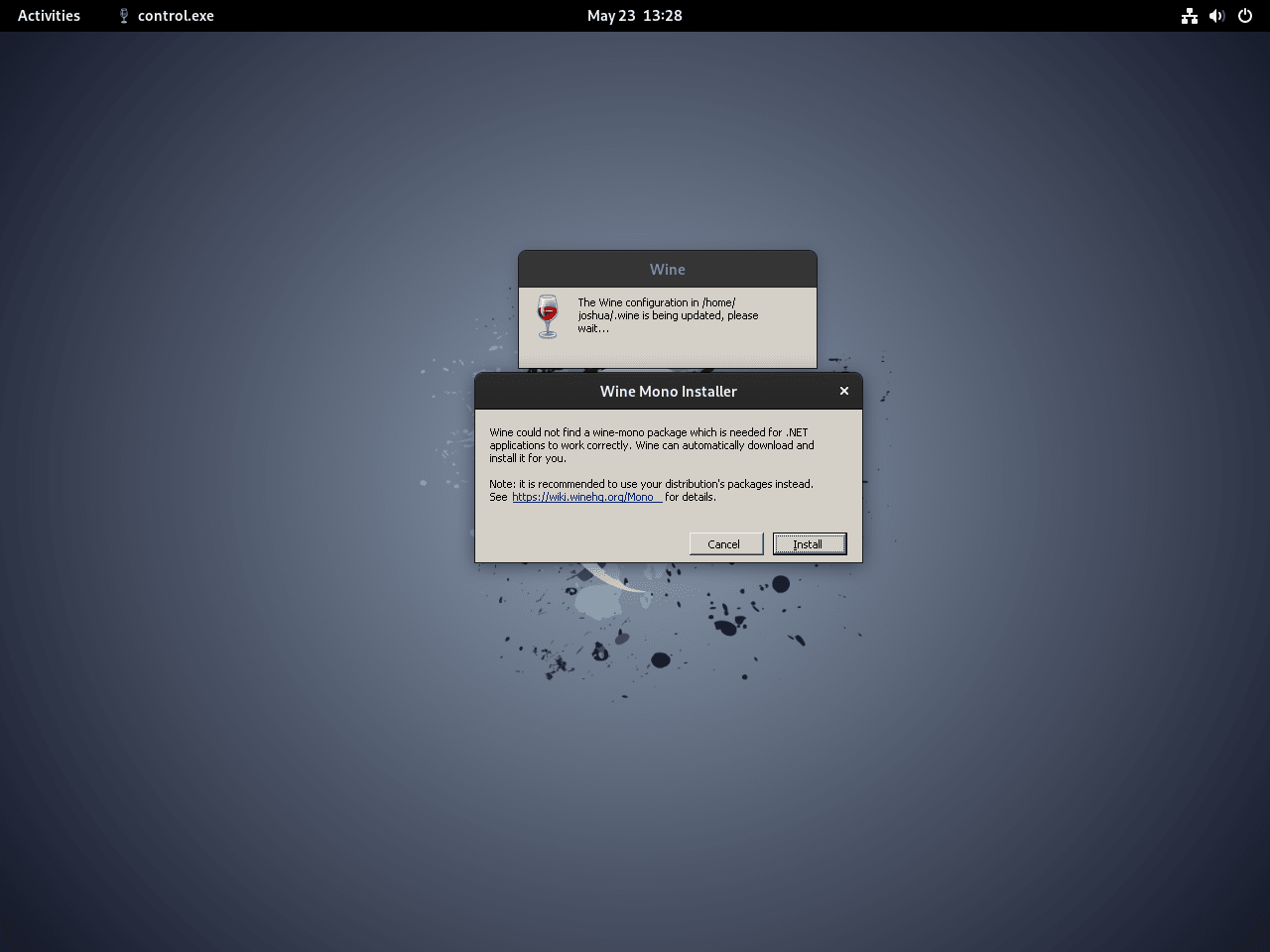
When prompted, click “Install” to download Wine Mono. Once the download completes, the Wine Configuration window appears where you can adjust settings.
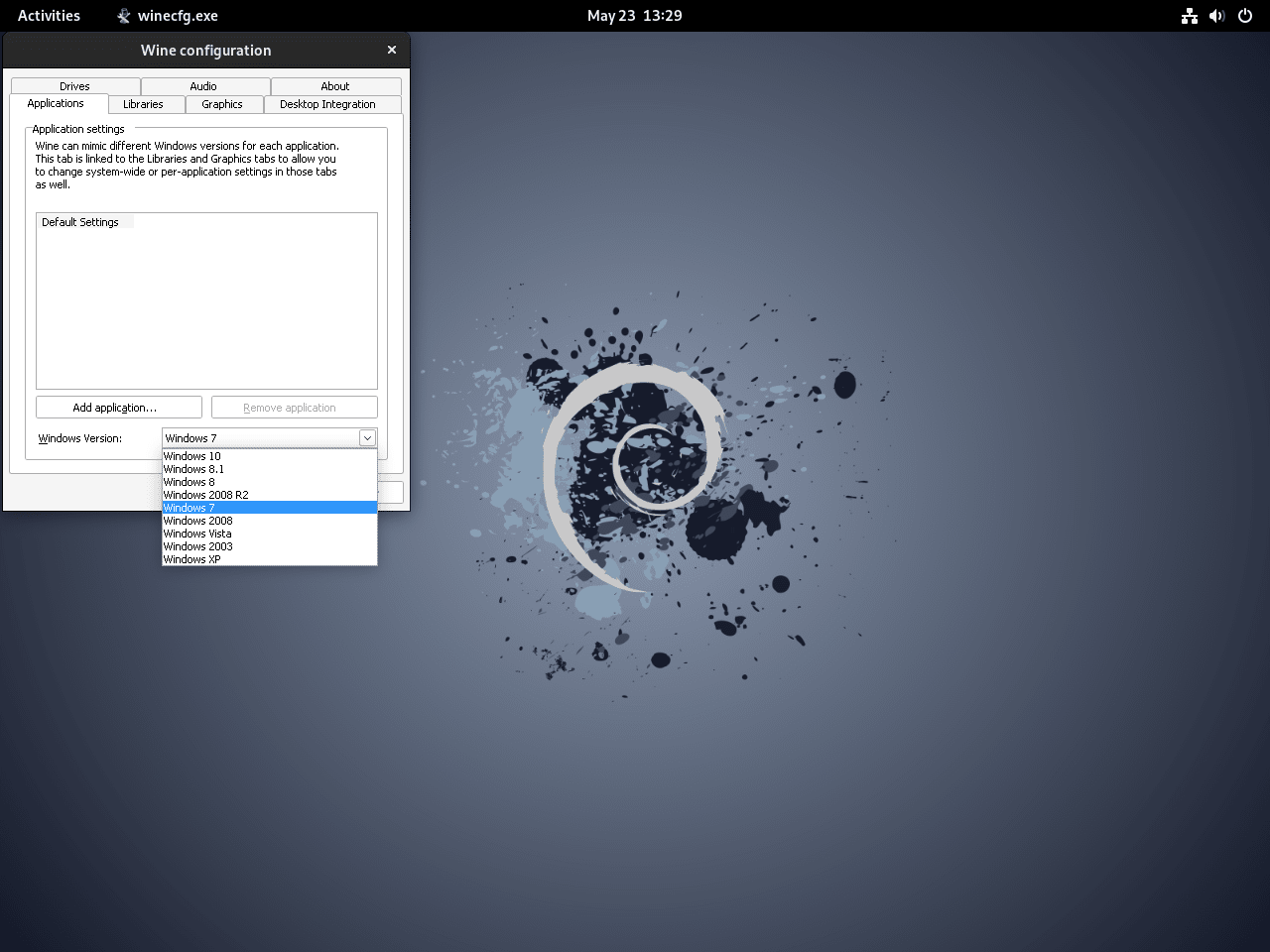
Winecfg lets you adjust the Windows version for a prefix or a specific application. Leave the default alone unless a program asks for a newer Windows target, then choose the required version from the dropdown menu and close the window to save your settings.
Install Winetricks on Debian
Winetricks simplifies adding Windows libraries, fonts, and runtime components that many applications need. For native Wine installs, Debian packages it in contrib rather than main, so make sure you enable contrib and non-free repositories on Debian first.
If you installed Wine through Flatpak, Winetricks is already bundled and you can call it with flatpak run --branch=stable-25.08 --command=winetricks org.winehq.Wine. For native Wine installs, add the Debian package first.
With contrib enabled, install Winetricks.
sudo apt install -y winetricksThen verify that Winetricks is available.
winetricks --versionExecuting cd /usr/bin 20250102 - sha256sum: 9df4af038f04c753f3b0b02817cf60a51d8eac32357d070c45dfd139b93bd3f5
Debian packages Winetricks by date, so the leading number is the release snapshot rather than a semantic version.
Since many Windows applications expect Microsoft fonts for proper text display, use Winetricks to download them:
winetricks allfontsAlternatively, launch the Winetricks graphical interface to browse available packages:
winetricks --gui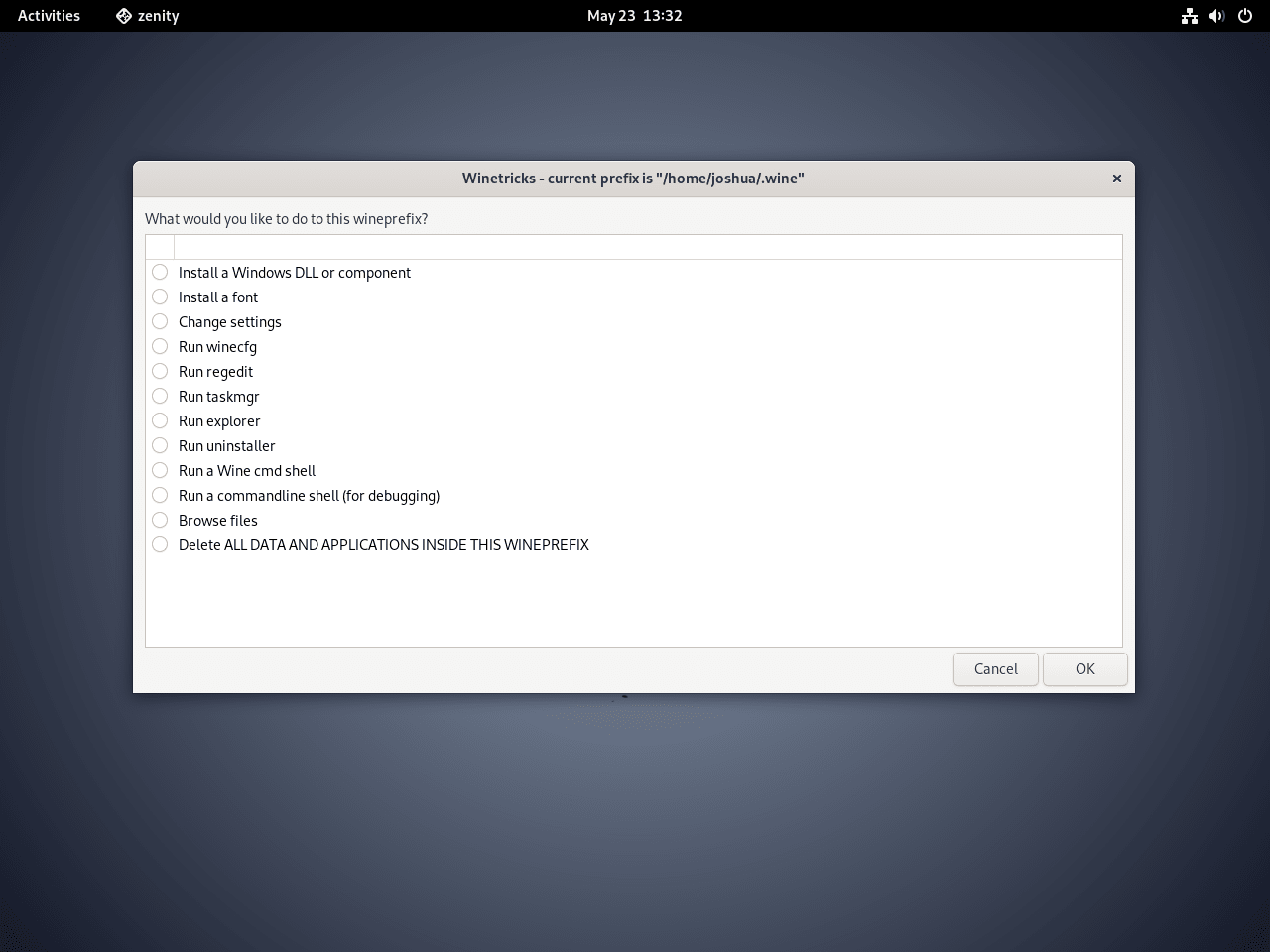
Run Windows Applications with Wine on Debian
Once Wine is configured, you can open a Windows installer or executable directly from your Debian desktop. A small application installer is usually the easiest first test because it shows whether file associations, fonts, and the Wine prefix are all working together.
- Download the Windows installer: Save the application’s
.exeor.msifile to your Debian home directory. - Open it with Wine: In Debian’s file manager, right-click the installer, choose Open With Other Application, then pick Wine Windows Program Loader.
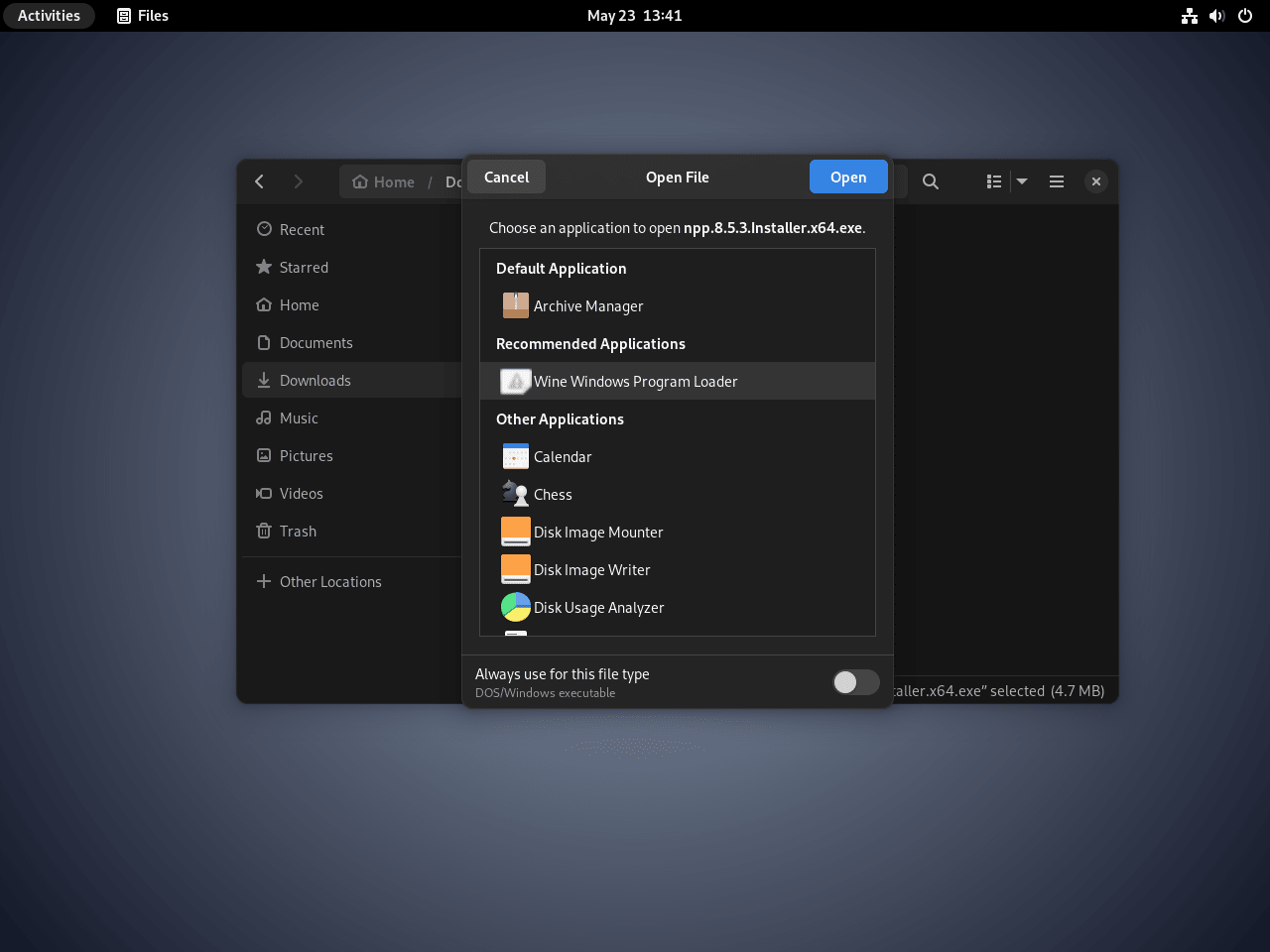
You can also start the installer from a terminal in the same graphical session.
wine "$HOME/Downloads/your-installer.exe"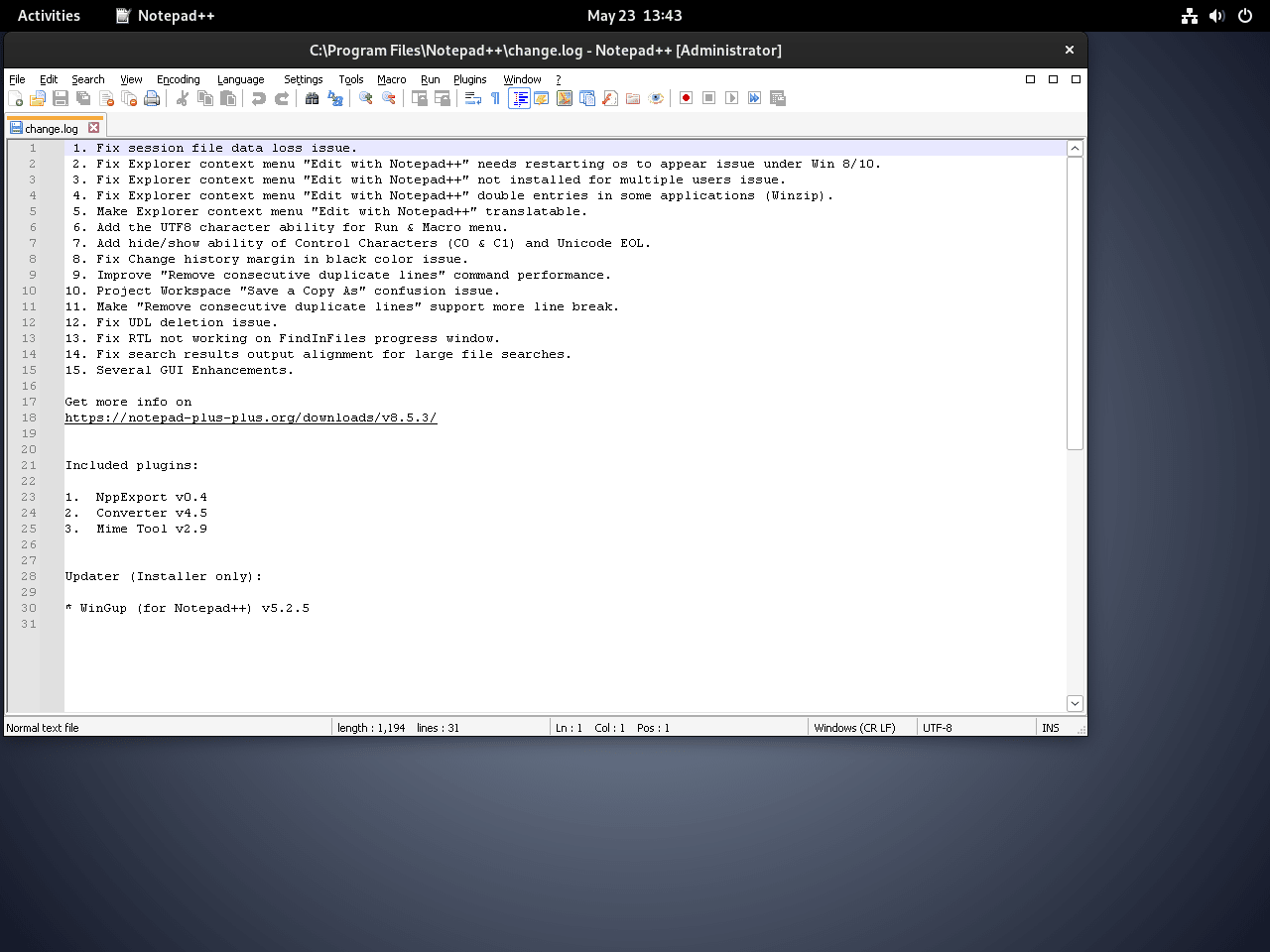
Before installing any Windows software, it’s wise to check its compatibility using the WineHQ Application Database, which contains user reports and configuration tips for thousands of applications.
Manage Wine on Debian
After the first install, these commands make it easier to keep separate prefixes, inspect common Wine tools, and update only the packages you actually use.
Create a 32-bit Wine Prefix on Debian
Some older applications still behave better in a dedicated 32-bit prefix instead of the default mixed environment.
WINEARCH=win32 WINEPREFIX=~/.wine32 winecfgWhen you want to keep using that prefix later, point Wine back to it explicitly.
WINEPREFIX=~/.wine32 wine /path/to/application.exeWine Command Reference on Debian
Run a Windows executable:
wine /path/to/program.exeOpen Wine Configuration:
winecfgAccess the Wine registry editor:
wine regeditConvert a Linux path to Windows format:
winepath -w /home/user/file.txtZ:\home\user\file.txt
Stop running Wine processes:
wineserver -kUpdate Wine on Debian
Wine can ride your normal system updates, but you can also target only the package set that matches your install method.
sudo apt update && sudo apt upgrade -yWineHQ repository installation:
sudo apt update && sudo apt install --only-upgrade winehq-stable wine-stable wine-stable-amd64 wine-stable-i386:i386If you installed the staging or development branch, target the matching branch package family instead.
WineHQ staging branch:
sudo apt update && sudo apt install --only-upgrade winehq-staging wine-staging wine-staging-amd64 wine-staging-i386:i386WineHQ development branch:
sudo apt update && sudo apt install --only-upgrade winehq-devel wine-devel wine-devel-amd64 wine-devel-i386:i386Debian repository installation:
sudo apt update && sudo apt install --only-upgrade wine wine64 wine32 libwine libwine:i386 fonts-wineFlatpak installation:
sudo flatpak update -y org.winehq.Wine//stable-25.08The
--only-upgradeflag tells APT to update an installed package without pulling it in as a new install when it is missing.
Troubleshoot Common Wine Issues on Debian
Most Wine problems on Debian come down to missing 32-bit libraries, an incomplete WineHQ repository setup, or a Windows application that needs a different runtime or graphics layer than the default prefix provides.
Fix Missing 32-bit Wine Libraries on Debian
While running 32-bit Windows applications, Wine may report errors like:
it looks like wine32 is missing, you should install it.
multiarch needs to be enabled first
Diagnostic: Check if i386 architecture is enabled:
dpkg --print-foreign-architecturesi386
Fix: If the output is empty or i386 is missing, add the architecture and refresh APT first.
sudo dpkg --add-architecture i386
sudo apt update
Then reinstall the package set that matches your install method.
sudo apt install --install-recommends winehq-stablesudo apt install wine wine64 wine32Verify: Confirm 32-bit support is active:
dpkg --print-foreign-architecturesi386
Fix Missing WineHQ Packages or Older extrepo Sources on Debian
APT can fail before the WineHQ install with messages like:
E: Unable to locate package winehq-stable
If apt-cache policy winehq-stable prints nothing, Debian still does not see the WineHQ source. Recheck the key and DEB822 steps from the WineHQ section, then run sudo apt update again.
Older Debian setups that used extrepo to manage third-party APT repositories on Debian can also leave a second WineHQ source behind, which creates a Signed-By conflict with WineHQ’s current source file. Remove the older source before you retry the install.
if command -v extrepo >/dev/null 2>&1; then
    sudo extrepo disable winehq
fi
sudo rm -f /etc/apt/sources.list.d/extrepo_winehq.sources
sudo apt update
Verify: Once the source is clean, APT should show a live WineHQ candidate again.
apt-cache policy winehq-stableRelevant output includes:
winehq-stable:
  Installed: (none)
  Candidate: 11.0.0.0~trixie-1
  Version table:
     11.0.0.0~trixie-1 500
        500 https://dl.winehq.org/wine-builds/debian trixie/main amd64 Packages
Fix Wine Dependency Conflicts from Mixed Sources
Wine depends on matching 64-bit and 32-bit libraries. If APT reports held broken packages, cannot install wine-stable-i386, or says a library such as libgd3:i386 or libpcre2-8-0:i386 is not installable, check for held packages and libraries coming from unrelated third-party repositories before forcing the install.
apt-mark showhold
apt-cache policy libgd3 libgd3:i386 libgphoto2-6 libgphoto2-6:i386 libgphoto2-6t64 libgphoto2-6t64:i386 libpcre2-8-0 libpcre2-8-0:i386
If the 64-bit package comes from a third-party source while the matching i386 package comes from Debian, bring both architectures back to the same source or disable the unrelated repository. For held packages, run sudo apt-mark unhold package-name only after replacing package-name with the exact package you intentionally held and confirming that the change is safe, then refresh APT and retry the Wine install.
sudo apt update
sudo apt install --install-recommends winehq-stable
Set a Different Windows Version in Wine on Debian
Applications that check Windows version may display errors like:
This program requires Windows 10 or later
Diagnostic: Check the Windows version reported by the current Wine prefix.
wine cmd /c verMicrosoft Windows 7 [Version 6.1.7601]
Fix: If the output shows an older Windows target than the application requires, open Wine Configuration and change the version:
winecfgNavigate to the Applications tab, add the application executable, and set its Windows version to Windows 10. For per-application settings, click “Add application” and select the .exe file.
Verify: Run the same command again after saving the new setting.
wine cmd /c verMicrosoft Windows 10 [Version 10.0.19043]
Fix DirectX or Graphics Issues in Wine on Debian
Games may show graphical glitches, black screens, or display errors like:
err:d3d:wined3d_check_gl_call <<<< GL_INVALID_OPERATION
fixme:d3d:wined3d_texture_update_map_binding
Fix: For native Wine installs, add DXVK through Winetricks to translate DirectX calls to Vulkan.
winetricks dxvkDXVK covers DirectX 9, 10, and 11 and usually improves compatibility on modern GPUs. If you use NVIDIA hardware, install NVIDIA drivers on Debian before you expect strong gaming performance. Flatpak users can call the same Winetricks helper through flatpak run --branch=stable-25.08 --command=winetricks org.winehq.Wine.
Verify: For a native Wine prefix, check that the DirectX wrapper landed in system32.
ls ~/.wine/drive_c/windows/system32/d3d11.dll/home/user/.wine/drive_c/windows/system32/d3d11.dll
Remove Wine from Debian
If you no longer need Wine, use the removal path that matches the way you installed it.
Remove WineHQ Installation on Debian
If you installed Wine through WineHQ, remove the stable metapackage and the matching branch packages first.
sudo apt remove winehq-stable wine-stable wine-stable-amd64 wine-stable-i386:i386 -yIf you used the staging or development branch instead, remove that branch’s metapackage and matching branch packages.
sudo apt remove winehq-staging wine-staging wine-staging-amd64 wine-staging-i386:i386 -ysudo apt remove winehq-devel wine-devel wine-devel-amd64 wine-devel-i386:i386 -yAfter the package itself is gone, remove WineHQ source files, refresh APT, and then remove the WineHQ keyring. The command also cleans up older filenames used by previous WineHQ setup patterns.
sudo rm -f /etc/apt/sources.list.d/winehq-*.sources /etc/apt/sources.list.d/winehq.sources /etc/apt/sources.list.d/extrepo_winehq.sources
sudo apt update
sudo rm -f /etc/apt/keyrings/winehq-archive.key /usr/share/keyrings/winehq.gpg
If APT reports unused Wine dependencies afterward, review them with sudo apt autoremove as a separate step instead of combining autoremove with the package removal.
Then prove the package and repository files are gone.
dpkg-query -W -f='${db:Status-Abbrev} ${binary:Package}\n' winehq-stable winehq-staging winehq-devel 2>/dev/null | grep "^ii" || echo "No WineHQ metapackages installed"No WineHQ metapackages installed
Then confirm WineHQ source files and keyrings are gone too.
find /etc/apt/sources.list.d -maxdepth 1 -type f \( -name "winehq*.sources" -o -name "winehq*.list" -o -name "extrepo_winehq.sources" \) -print -quit | grep . || echo "No WineHQ source files found"
ls /etc/apt/keyrings/winehq-archive.key /usr/share/keyrings/winehq.gpg 2>/dev/null || echo "WineHQ keyrings removed"
No WineHQ source files found WineHQ keyrings removed
Remove Wine Installed from Debian Repositories
If you stayed with Debian’s own packages, remove the metapackage and both architecture-specific packages together.
sudo apt remove wine wine64 wine32 -yRemove Wine Installed from Flatpak on Debian
For the Flatpak method, remove the installed branch explicitly and then clear unused runtimes.
sudo flatpak uninstall --delete-data -y org.winehq.Wine//stable-25.08
sudo flatpak uninstall --unused -y
Remove Wine User Data on Debian
These commands permanently delete your Wine prefixes and Flatpak sandbox data. Back up anything you want to keep before you remove it.
Check which Wine-related paths actually exist on your account first.
find "$HOME" -maxdepth 3 \( -path "$HOME/.wine*" -o -path "$HOME/.var/app/org.winehq.Wine*" -o -path "$HOME/.cache/winetricks*" -o -path "$HOME/.local/share/applications/wine*" -o -path "$HOME/.local/share/desktop-directories/wine*" \) -print | sort/home/joshua/.var/app/org.winehq.Wine /home/joshua/.wine /home/joshua/.wine/dosdevices /home/joshua/.wine/drive_c
If the native Wine prefix exists, remove it first.
rm -rf ~/.wineIf you created a separate 32-bit prefix such as ~/.wine32, remove it only if that directory exists on your account.
rm -rf ~/.wine32If the Flatpak sandbox exists, delete it too.
rm -rf ~/.var/app/org.winehq.WineOnly remove extra Wine cache or desktop-entry paths when the earlier find command printed them on your account.
rm -rf ~/.cache/winetricks
rm -f ~/.local/share/applications/wine-*
rm -rf ~/.local/share/desktop-directories/wine-*
Conclusion
Wine is ready on Debian through WineHQ, Debian’s archive, or Flathub, with update and cleanup paths matched to the install source. For game-heavy setups, install Steam on Debian next, then confirm your graphics driver stack before tuning individual Wine prefixes.


Just installed WINE on my laptop running MX Linux (23.5, deb 12.9). Went without a hitch. There is always one program that you just need, and this makes it possible for me to run it on Linux.
Also installed WINE on Mint (21.3) with that tutorial. Fantastic there too.
Unfortunately, the described procedure on my Debian 11 leads to a lot of unmet dependencies:
The following packages have unmet dependencies:
dbus-user-session: Depends on: dbus (>= 1.12.28-0+deb11u1), Depends on: libpam-systemd but it will not be installed, Depends on: systemd, Recommends: systemd-sysv
evince: Depends on: libevdocument3-4 (= 3.38.2-1) but it will not be installed, Depends on: libevview3-3 (= 3.38.2-1) but it will not be installed, Depends on: libgnome-desktop-3-19 (>= 3.17.92) but it will not be installed, Depends on: libnautilus-extension1a (>= 3.28) but it will not be installed
libcurl3-gnutls: Depends on: libgssapi-krb5-2 (>= 1.17) but it will not be installed
libdbus-1-3:i386: Depends on: libsystemd0
, Recommends: dbus
libgtk-3-0: Depends on: libcolord2 (>= 0.1.10) but it will not be installed, Depends on: libcups2 (>= 1.7.0) but it will not be installed, Depends on: librest-0.7-0 (>= 0.7) but it will not be installed, Recommends: libgtk-3-bin
libneon27-gnutls: Depends on: libgssapi-krb5-2 (>= 1.17) but it will not be installed
libpulse0:i386: Depends on: libsystemd0
librdf0: Depends on: librasqal3 (>= 0.9.31) but it will not be installed
libsoup2.4-1: Depends on: libgssapi-krb5-2 (>= 1.17) but it will not be installed
libwebkit2gtk-4.0-37: Depends on: gstreamer1.0-plugins-good but it will not be installed, Depends on: libgstreamer-gl1.0-0 (>= 1.14.0) but it will not be installed, Depends on: libmanette-0.2-0 (>= 0.1.2) but it will not be installed, Recommends: gstreamer1.0-gl but it will not be installed, Recommends: xdg-desktop-portal-gtk, Recommends: gstreamer1.0-libav but it will not be installed, Recommends: gstreamer1.0-plugins-bad but it will not be installed
yelp: Depends on: libyelp0 (= 3.38.3-1) but it will not be installed, Depends on: python3-distro but it will not be installed
E: Error: Interruptions caused by pkgProblemResolver::Resolve; this could be caused by held packages.
Thanks for reporting this, Ralph. The dependency errors you encountered suggest package conflicts on your Debian 11 system, possibly from mixed package sources or held packages. The article now uses WineHQ’s current per-codename source file and includes a mixed-source dependency check for this failure pattern.
For Debian 11, first check for held packages:
If any packages appear, unhold only the exact package you intentionally held, then run a full system update before attempting the Wine installation:
If conflicts persist, check for third-party sources that might provide conflicting library versions by reviewing
/etc/apt/sources.list.d/. The errors involving systemd and libdbus suggest fundamental library mismatches that a clean system update should resolve.sudo apt -f install ?
Good call, jfang. Your suggestion is a useful first repair step for dependency issues. The
--fix-brokenoption tells APT to attempt fixing broken dependencies:For the severity of errors Ralph reported (core libraries like libsystemd and libdbus), this command would either resolve the conflicts automatically or provide more specific error messages to guide further troubleshooting.