

Yandex Browser is a Chromium-based web browser developed by Yandex, the Russian technology company known for its search engine and cloud services. The browser offers built-in security features including phishing protection and encrypted DNS, a Turbo mode that compresses pages on slow connections, and integration with Yandex services like mail and cloud storage. By the end of this guide, you will have Yandex Browser installed on Fedora Linux with automatic updates configured through the official Yandex repository.
Choose Your Yandex Browser Version
Yandex maintains two release channels for Fedora. Choose the one that matches your needs:
| Version | Channel | Release Cycle | Updates | Best For |
|---|---|---|---|---|
| Stable | Yandex Repo | Production releases | Automatic via DNF | Daily browsing, most users |
| Beta | Yandex Repo | Pre-release builds | Automatic via DNF | Testing new features early |
For most users, the stable version is recommended because it receives thoroughly tested updates suitable for daily browsing. Choose beta if you want early access to new features before they reach the stable channel.
Yandex Browser is only available for x86_64 (64-bit Intel/AMD) systems. ARM-based Fedora installations are not supported.
Import Yandex Repository on Fedora
Update Fedora Packages
Before adding external repositories, update your Fedora system to ensure all existing packages are current:
sudo dnf upgrade --refreshImport the Yandex GPG Key
Import Yandex’s GPG signing key to verify package authenticity:
sudo rpmkeys --import https://repo.yandex.ru/yandex-browser/YANDEX-BROWSER-KEY.GPGAdd the Yandex Repository
Add the repository for your chosen version. Run only the command that matches your selection:
Stable (recommended):
sudo dnf config-manager addrepo --id=yandex-browser-stable \
  --set=baseurl=https://repo.yandex.ru/yandex-browser/rpm/stable/x86_64 \
  --set=enabled=1 --set=gpgcheck=1 --save-filename=yandex-browser-stable.repo
Beta:
sudo dnf config-manager addrepo --id=yandex-browser-beta \
  --set=baseurl=https://repo.yandex.ru/yandex-browser/rpm/beta/x86_64 \
--set=enabled=1 --set=gpgcheck=1 --save-filename=yandex-browser-beta.repoInstall Yandex Browser on Fedora
With the repository configured, install Yandex Browser. Run the command matching the version you added:
Stable:
sudo dnf install yandex-browser-stable -yBeta:
sudo dnf install yandex-browser-beta -yVerify Installation
Confirm the installation by checking the browser version. Use the command matching your installed version:
yandex-browser-stable --version  # For stable
yandex-browser-beta --version    # For beta
Expected output:
Yandex 25.x.x.xxx
Launch Yandex Browser
Launch from Terminal
Start the browser from the command line:
yandex-browser-stable  # For stable
yandex-browser-beta    # For beta
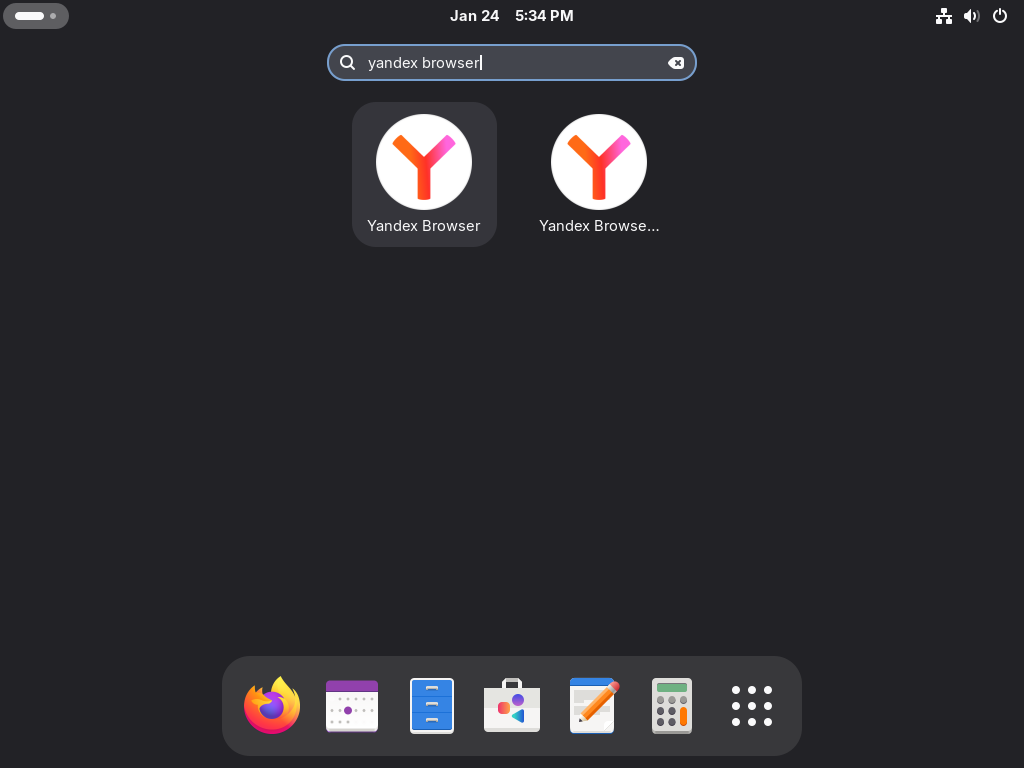
Launch from Applications Menu
Search for “Yandex Browser” in Activities and open it from the applications grid.
Getting Started with Yandex Browser
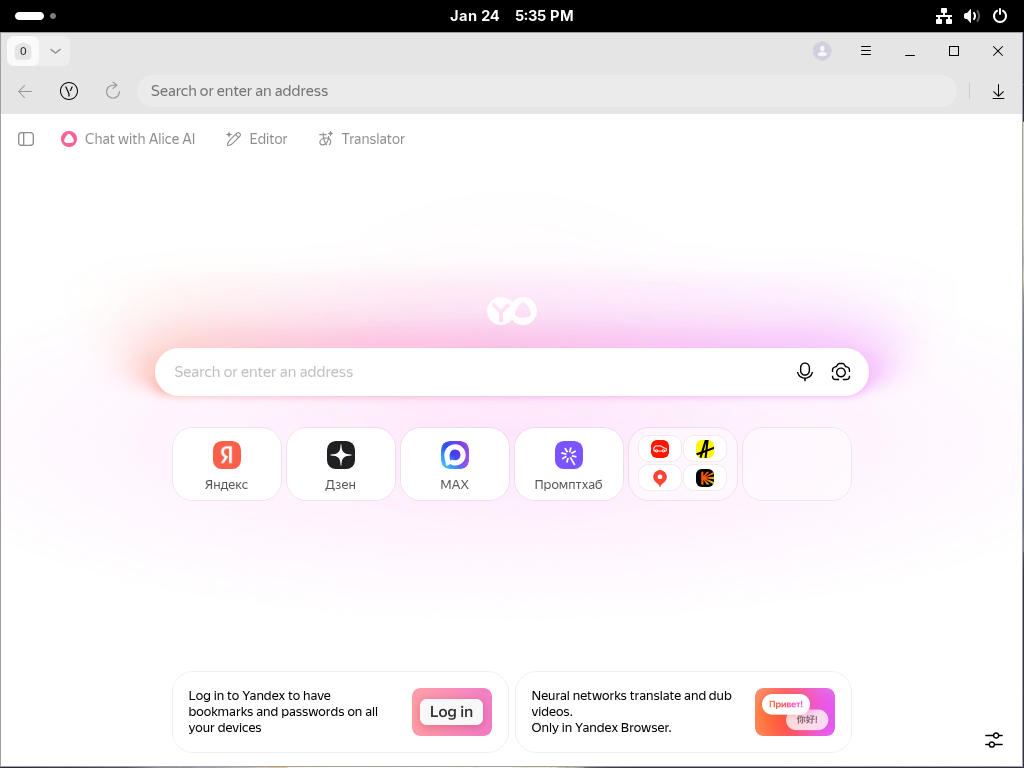
After launching Yandex Browser for the first time, consider these configuration steps:
- Sign in to Yandex: Sync bookmarks, history, and settings across devices by signing into your Yandex account via the browser menu.
- Review privacy settings: Access Settings > Privacy to configure tracking protection, cookie handling, and DNS encryption preferences.
- Enable Turbo mode: For slow connections, enable Turbo mode in Settings > Tools to compress web pages and reduce data usage.
- Install extensions: Yandex Browser supports Chrome extensions. Access them through the browser menu or the Chrome Web Store.
Manage Yandex Browser
Update Yandex Browser
Yandex Browser updates automatically through DNF when you run system updates:
sudo dnf upgrade --refreshTo update only Yandex Browser without upgrading other packages:
sudo dnf upgrade yandex-browser-stable  # For stable
sudo dnf upgrade yandex-browser-beta    # For beta
Remove Yandex Browser
Uninstall Yandex Browser. Use the command matching your installed version:
sudo dnf remove yandex-browser-stable  # For stable
sudo dnf remove yandex-browser-beta    # For beta
Remove Yandex Repository
After uninstalling the browser, remove the repository file to stop receiving update checks:
sudo rm /etc/yum.repos.d/yandex-browser-stable.repo  # For stable
sudo rm /etc/yum.repos.d/yandex-browser-beta.repo    # For beta
Troubleshooting
GPG Key Errors
If DNF reports GPG verification failures when installing or updating, re-import the signing key:
sudo rpmkeys --import https://repo.yandex.ru/yandex-browser/YANDEX-BROWSER-KEY.GPGRepository Connection Errors
If you cannot reach the Yandex repository, verify connectivity:
curl -I https://repo.yandex.ru/yandex-browser/rpm/stable/x86_64/repodata/repomd.xmlA successful response shows HTTP/1.1 200 OK. If the connection fails, check your network configuration or try again later.
Browser Crashes on Launch
If Yandex Browser crashes immediately after launching, try resetting the user profile. The profile directory name matches your installed version:
mv ~/.config/yandex-browser-stable ~/.config/yandex-browser-stable.backup  # For stable
mv ~/.config/yandex-browser-beta ~/.config/yandex-browser-beta.backup      # For beta
Launch the browser again to create a fresh profile. You can restore bookmarks and settings from the backup folder if needed.
Additional Browser Options for Fedora
If you want to explore other browser options on Fedora, check out these related guides:
Frequently Asked Questions
No. Yandex Browser is not packaged in Fedora’s official repositories. You must add Yandex’s own RPM repository to install it, which also enables automatic updates through DNF.
Yes. The stable and beta packages are separate and can coexist on the same system. Each version has its own binary (yandex-browser-stable, yandex-browser-beta) and profile directory, so they do not conflict.
Yes, some data may be processed through Yandex infrastructure in Russia. Features like Turbo mode, sync, and Protect explicitly route data through Yandex servers. Review Settings > Privacy to disable specific features if data residency is a concern.
Install the beta package alongside stable, then copy your profile: cp -r ~/.config/yandex-browser-stable ~/.config/yandex-browser-beta. Launch the beta version to use your existing bookmarks and settings. Keep both versions installed until you confirm the beta works correctly.
Conclusion
You now have Yandex Browser installed on Fedora Linux with the official repository configured for automatic updates. The browser integrates Yandex’s security features and services while supporting Chrome extensions for additional functionality. Run sudo dnf upgrade --refresh periodically to keep the browser updated with the latest security patches and features.

Formatting tips for your comment
You can use basic HTML to format your comment. Useful tags currently allowed:
<code>command</code>command<strong>bold</strong><em>italic</em><blockquote>quote</blockquote>