
Yandex keeps its Fedora build outside Fedora’s default repositories, so the clean install path is the signed Yandex RPM repository rather than a loose package file. To install Yandex Browser on Fedora, add that repository with DNF, install the stable or beta package, and let normal dnf upgrade runs carry future browser updates.
The official Yandex Linux requirements list Fedora Linux 32 or later on 64-bit systems, and the live RPM repository currently publishes x86_64 packages. Yandex also offers a direct RPM download, but the repository workflow is easier to maintain because package updates stay inside Fedora’s package manager.
Install Yandex Browser on Fedora
Choose Stable or Beta Yandex Browser
Pick one release channel before adding the repository. Stable is the normal daily-use build; beta is a preview channel for readers who specifically want upcoming browser changes before they reach stable.
| Build | Repository ID | Package and Command | Updates | Best Fit |
|---|---|---|---|---|
| Stable | yandex-browser | yandex-browser-stable | Through DNF | Daily browsing and most Fedora desktops |
| Beta | yandex-browser-beta | yandex-browser-beta | Through DNF | Testing pre-release browser builds |
If you are looking for the Yandex stable ID, keep two names separate: yandex-browser is the stable repository ID, while yandex-browser-stable is the package name and terminal launcher.
Yandex’s direct RPM download is official, but treat it as a one-time installer path rather than the easiest long-term Fedora setup. Yandex’s own update notes still send RPM users back to the repository and signing key, so adding the repository first avoids a package file that later needs manual repair.
Yandex Browser’s Linux RPM repository currently targets x86_64 systems. ARM-based Fedora installs, including aarch64 hardware, cannot use these RPM packages.
Update Fedora and Check DNF Plugins
Refresh Fedora before adding the external repository so DNF works from current package metadata:
sudo dnf upgrade --refreshThe repository setup commands require
sudo. If your account does not have administrator access yet, use the guide to add a user to sudoers on Fedora before continuing.
The config-manager subcommand comes from Fedora’s dnf5-plugins package. Fedora Workstation normally includes it already, but install the plugin package if the next repository command is not recognized:
sudo dnf install dnf5-pluginsImport the Yandex Browser Signing Key
Import Yandex’s RPM signing key before enabling the repository. DNF uses this key to verify browser packages downloaded from the Yandex RPM repository:
sudo rpmkeys --import https://repo.yandex.ru/yandex-browser/YANDEX-BROWSER-KEY.GPGAdd the Yandex Browser Repository
Add only the repository for the build you plan to install. Current Fedora releases use DNF5’s config-manager addrepo syntax, even if older Yandex instructions or forum posts still show the retired --add-repo form.
Stable repository:
sudo dnf config-manager addrepo \
  --id=yandex-browser \
  --set=baseurl=https://repo.yandex.ru/yandex-browser/rpm/stable/x86_64/ \
  --set=enabled=1 \
  --set=gpgcheck=1 \
  --set=gpgkey=https://repo.yandex.ru/yandex-browser/YANDEX-BROWSER-KEY.GPG \
  --save-filename=yandex-browser.repo
Beta repository:
sudo dnf config-manager addrepo \
  --id=yandex-browser-beta \
  --set=baseurl=https://repo.yandex.ru/yandex-browser/rpm/beta/x86_64/ \
  --set=enabled=1 \
  --set=gpgcheck=1 \
  --set=gpgkey=https://repo.yandex.ru/yandex-browser/YANDEX-BROWSER-KEY.GPG \
  --save-filename=yandex-browser-beta.repo
Confirm the Yandex Browser Package Candidate
Check that DNF can see the package from the repository you added. For the stable build, run:
dnf repoquery --repo=yandex-browser --latest-limit=1 yandex-browser-stableExample output from the current stable repository:
yandex-browser-stable-0:26.3.1.1088-1.x86_64
For the beta build, query the beta repository instead:
dnf repoquery --repo=yandex-browser-beta --latest-limit=1 yandex-browser-betaInstall Yandex Browser with DNF
Install the package that matches the repository you enabled. DNF shows the package list before it asks for confirmation, which is useful because the browser pulls a large desktop dependency set on minimal Fedora installs.
Stable package:
sudo dnf install yandex-browser-stableBeta package:
sudo dnf install yandex-browser-betaVerify Yandex Browser on Fedora
Confirm the installed package and browser version. Use these stable commands if you installed the stable build:
rpm -q yandex-browser-stable
yandex-browser-stable --version | tail -n 1
Example output from the current stable repository:
yandex-browser-stable-26.3.1.1088-1.x86_64
Yandex 26.3.1.1088 stable
If you installed beta, use the beta package and command names:
rpm -q yandex-browser-beta
yandex-browser-beta --version | tail -n 1
Example output from the current beta repository follows the same pattern:
yandex-browser-beta-26.3.1.1085-1.x86_64
Yandex 26.3.1.1085 beta
Launch Yandex Browser on Fedora
Launch from Activities
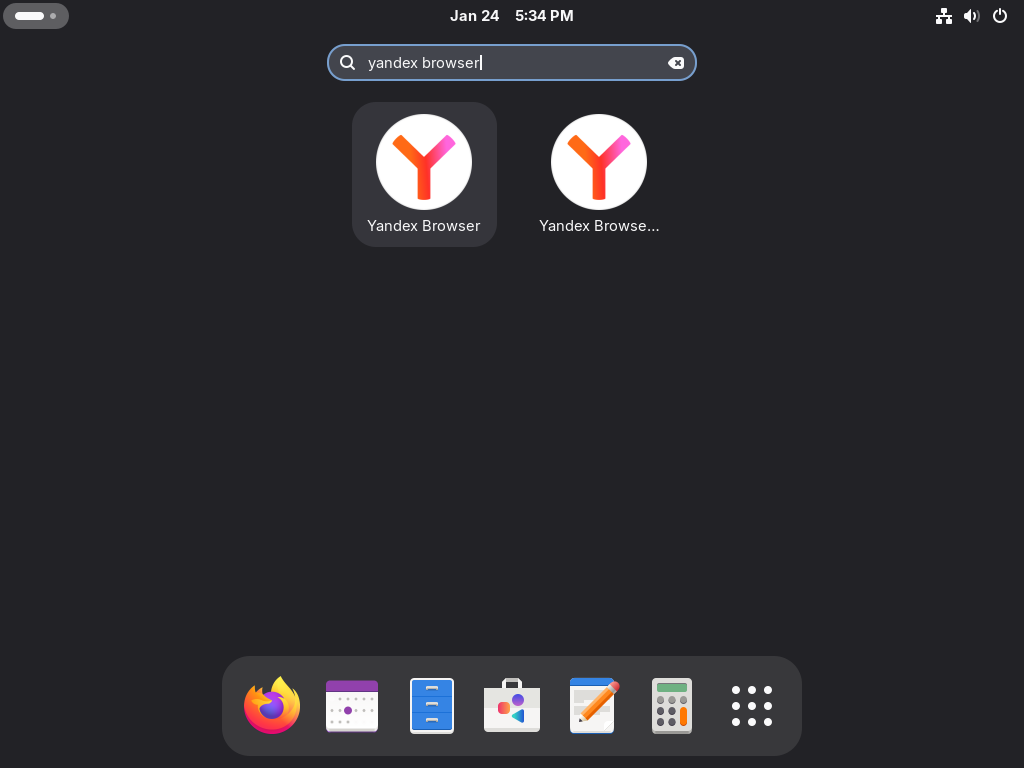
Open Activities, search for “Yandex Browser”, and start the browser from the applications grid. Yandex Browser needs a graphical desktop session; a shell-only server or SSH session can install the package but cannot show the browser window by itself.
Launch from Terminal
You can also start the installed build from a terminal inside your desktop session:
yandex-browser-stableyandex-browser-betaConfigure Yandex Browser After Installation
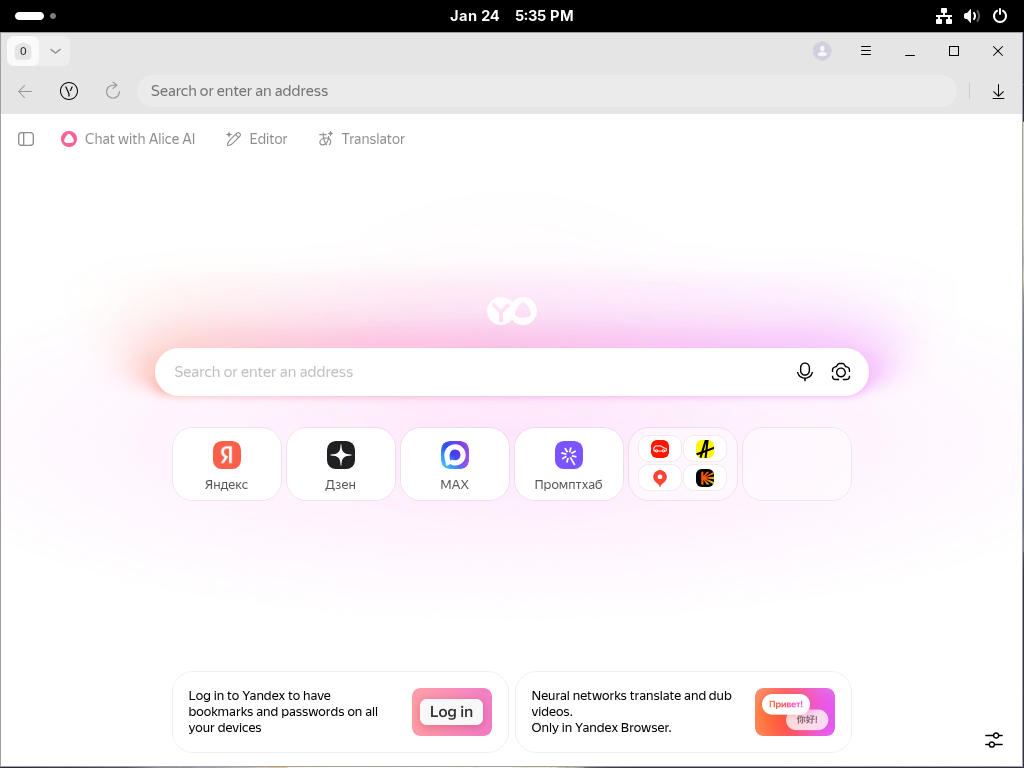
Yandex Browser opens to a new tab page tied closely to Yandex services. Review the first-run prompts before enabling sync, especially on shared or managed Fedora desktops.
- Sign in only when you need sync: Yandex account sync can share bookmarks, history, passwords, and settings with other devices signed in to the same account.
- Review privacy and security settings: Open Settings and check site permissions, secure DNS, ad and tracker blocking, and Yandex service integrations before using the browser for sensitive work.
- Install extensions deliberately: Yandex Browser supports Chromium extensions, including extensions from the Chrome Web Store, but extension permissions still apply.
Turbo Mode Is No Longer Available
Older Yandex Browser articles and screenshots may mention Turbo mode. Current Yandex troubleshooting documentation says Turbo mode has been turned off and removed from settings because it only helped HTTP sites, which are now uncommon. Do not spend time looking for a Turbo toggle in current Linux builds.
The current Yandex help page does not publish a Fedora-specific discontinuation date for Turbo mode. For Fedora readers, the practical answer is that current Yandex Browser builds no longer expose the setting.
Manage Yandex Browser on Fedora
Update Yandex Browser
Yandex Browser updates through DNF after the repository is installed. A normal Fedora upgrade checks the browser alongside the rest of the system:
sudo dnf upgrade --refreshTo check only the installed Yandex Browser package, use the package name for your build:
sudo dnf upgrade yandex-browser-stablesudo dnf upgrade yandex-browser-betaUse Stable and Beta Side by Side
The stable and beta packages can coexist because they use separate package names and launch commands. Keep stable installed while testing beta if you need a fallback browser, and use Yandex Sync or browser export/import tools to move personal data instead of copying an entire profile directory between release channels.
Remove Yandex Browser
Remove the installed package first. DNF also removes dependencies that were installed only for Yandex Browser when they are no longer needed.
sudo dnf remove yandex-browser-stablesudo dnf remove yandex-browser-betaRemove the Yandex Repository and Key
If you no longer need Yandex Browser packages, remove the repository files. The stable package can create /etc/yum.repos.d/yandex-browser.repo during installation, so include that file even if you originally added a differently named repo file.
sudo rm -f /etc/yum.repos.d/yandex-browser.repo \
  /etc/yum.repos.d/yandex-browser-stable.repo \
  /etc/yum.repos.d/yandex-browser-beta.repo
sudo rpmkeys --delete 224974DB7FED6DECB7D855EF60B9CD3A083A7A9A 2>/dev/null || true
sudo dnf clean metadata
Verify the package, repository files, and RPM key are gone:
rpm -q yandex-browser-stable yandex-browser-beta 2>/dev/null || true
ls /etc/yum.repos.d/yandex-browser*.repo 2>/dev/null || echo "No Yandex repo files remain."
rpm -q gpg-pubkey --qf '%{SUMMARY}\n' | grep -i yandex || echo "No Yandex RPM key remains."
Expected output after removing both builds and their repository files:
package yandex-browser-stable is not installed
package yandex-browser-beta is not installed
No Yandex repo files remain.
No Yandex RPM key remains.
Remove Local Yandex Browser Profile Data
Package removal does not delete your local browser profile. List any Yandex Browser profile directories in your account first:
find "$HOME/.config" -maxdepth 1 -type d -name 'yandex-browser*' -printThe next command permanently deletes local Yandex Browser profile data for your Linux account, including unsynced bookmarks, passwords, history, sessions, and site settings. Export anything you need before removing these directories.
Remove the directories only after you have reviewed the list:
find "$HOME/.config" -maxdepth 1 -type d -name 'yandex-browser*' -exec rm -rf {} +Troubleshoot Yandex Browser on Fedora
DNF Reports a Yandex GPG Key Error
If DNF reports a package signature or public key error for the Yandex repository, re-import the current key and refresh metadata:
sudo rpmkeys --import https://repo.yandex.ru/yandex-browser/YANDEX-BROWSER-KEY.GPG
sudo dnf clean metadata
sudo dnf makecache --repo=yandex-browser
If you use the beta repository, change the final command to sudo dnf makecache --repo=yandex-browser-beta.
If the installation ends with Complete! but prints a scriptlet key-import warning, verify the package with rpm -q before retrying the install. The warning can appear while DNF is already holding the RPM database lock; a failed package check or later update error is the signal to re-import the key.
DNF Cannot Reach the Yandex Repository
Use the curl command in Linux to check the repository metadata endpoint directly:
curl -I https://repo.yandex.ru/yandex-browser/rpm/stable/x86_64/repodata/repomd.xmlA healthy response returns a 200 status, such as:
HTTP/2 200
If the request times out or returns another status, retry later from a different network before changing Fedora package settings. Repository reachability can fail because of local DNS, a proxy, regional filtering, or a temporary upstream outage.
Yandex Browser Does Not Start or Keeps Crashing
First confirm the package is still installed:
rpm -q yandex-browser-stable yandex-browser-beta 2>/dev/null || trueIf the package is installed but the browser keeps crashing, list your Yandex profile directories:
find "$HOME/.config" -maxdepth 1 -type d -name 'yandex-browser*' -printMove the matching profile directory aside, then reopen the browser to let it create a fresh profile. For a stable profile directory, the command looks like this:
mv "$HOME/.config/yandex-browser" "$HOME/.config/yandex-browser.backup"For beta, use the beta directory if the previous find command shows it:
mv "$HOME/.config/yandex-browser-beta" "$HOME/.config/yandex-browser-beta.backup"Move bookmarks, passwords, or settings back only after the fresh profile launches cleanly. If the problem returns after restoring data, an extension or damaged profile setting is likely involved.
More Fedora Browser Guides
Yandex Browser is not the only Chromium-compatible option on Fedora. These Fedora browser guides cover nearby choices with different privacy, sync, and customization tradeoffs:
- Install Google Chrome on Fedora Linux
- Install Brave Browser on Fedora Linux
- Install Chromium Browser on Fedora Linux
- Install Vivaldi on Fedora Linux
- Install Opera on Fedora Linux
Conclusion
Yandex Browser is installed on Fedora through Yandex’s RPM repository, with DNF handling normal updates and package removal. Keep stable as the daily build unless you specifically need beta testing, and compare it with nearby options like Chromium Browser on Fedora or Brave Browser on Fedora when privacy defaults matter more than Yandex service integration.


Formatting tips for your comment
You can use basic HTML to format your comment. Useful tags currently allowed in published comments:
<code>command</code>command<strong>bold</strong><em>italic</em><blockquote>quote</blockquote>