
Vivaldi is useful when you want a Chromium-compatible browser with tab stacking, side-by-side pages, notes, mail, calendar, feed reading, and tracker blocking built in. This guide shows how to install Vivaldi browser on Ubuntu with Vivaldi’s official APT repository on Ubuntu 26.04 and 24.04, plus the official Snap package for Ubuntu 22.04 systems that fall outside Vivaldi’s current native Linux requirement.
Vivaldi does not publish a Launchpad PPA for Ubuntu. The native method below adds Vivaldi’s signed repository at repo.vivaldi.com, keeps updates inside apt, and prevents the package’s legacy source-file helper from creating duplicate repository entries.
Install Vivaldi Browser on Ubuntu
Choose the package format that matches your Ubuntu release and workflow before copying commands. Native APT packages are the best fit for supported 64-bit Intel or AMD Ubuntu desktops, while Snap keeps Ubuntu 22.04 covered without forcing an older native package path.
| Method | Ubuntu Releases | Channel | Updates | Best Fit |
|---|---|---|---|---|
| APT repository | Ubuntu 26.04 and 24.04 | Vivaldi Stable or Snapshot | apt | Native desktop integration and normal package-manager updates. |
| Snap Store | Ubuntu 22.04, or Snap-first systems | Vivaldi stable Snap | snapd | Systems outside Vivaldi’s current native Linux requirement or users who prefer Snap packaging. |
| Flatpak | Systems with Flatpak and Flathub configured | Flathub build | flatpak | Sandboxed installs when you understand Vivaldi’s support note for the Flathub package. |
Vivaldi’s current native Linux requirements list Ubuntu 24.04 or newer. Use the Snap method in this guide for Ubuntu 22.04 instead of forcing the native DEB package onto an older release.
The APT commands below use Architectures: amd64, which matches standard 64-bit Intel and AMD Ubuntu desktops. Vivaldi also lists ARM64 DEB downloads on its download page, but ARM64 readers should verify package availability before changing the architecture line.
If you searched for a Vivaldi download for Ubuntu, use the APT path for Ubuntu 26.04 or 24.04 because it adds the vendor package source and future updates at the same time. The official Vivaldi download page is still useful for checking current manual DEB assets, but one-off DEB downloads are not the best routine install path when the repository works for your release.
Prepare Ubuntu for Vivaldi APT Packages
On Ubuntu 26.04 or 24.04, update the package index and apply available upgrades before adding the Vivaldi repository:
sudo apt update && sudo apt upgradeThese commands use
sudo. If you need to create or repair administrator access first, follow the guide to add a new user to sudoers on Ubuntu.
Install the tools needed to fetch and verify the repository. The curl command downloads the signing key, gpg converts it into APT’s binary keyring format, and ca-certificates keeps HTTPS certificate checks available on minimal systems.
sudo apt install curl gpg ca-certificates -yAdd the Vivaldi APT Repository
Download Vivaldi’s Linux signing key from the current stable repository path and convert it into a dedicated keyring under /usr/share/keyrings/:
curl -fsSL https://repo.vivaldi.com/stable/linux_signing_key.pub | sudo gpg --dearmor --yes -o /usr/share/keyrings/vivaldi.gpgConfirm the file is a binary OpenPGP keyring instead of relying only on file size:
file /usr/share/keyrings/vivaldi.gpgThe output should identify the file as an OpenPGP public key or certificate. If it reports a missing file or plain ASCII text, repeat the key import before continuing.
Create the DEB822 source file for Vivaldi Stable and Snapshot packages. This format keeps the repository URL, architecture, and signing key path in one readable file:
printf '%s\n' \
'Types: deb' \
'URIs: https://repo.vivaldi.com/stable/deb/' \
'Suites: stable' \
'Components: main' \
'Architectures: amd64' \
'Signed-By: /usr/share/keyrings/vivaldi.gpg' \
| sudo tee /etc/apt/sources.list.d/vivaldi.sources > /dev/null
Set Vivaldi’s repository helper to leave the legacy .list source disabled. This keeps the DEB822 file you created as the only Vivaldi source and avoids duplicate repository entries after package installation.
printf '%s\n' \
'repo_add_once="false"' \
'repo_reenable_on_distupgrade="false"' \
| sudo tee /etc/default/vivaldi > /dev/null
Review the source file before refreshing APT:
cat /etc/apt/sources.list.d/vivaldi.sourcesTypes: deb URIs: https://repo.vivaldi.com/stable/deb/ Suites: stable Components: main Architectures: amd64 Signed-By: /usr/share/keyrings/vivaldi.gpg
Update APT so Ubuntu can read the Vivaldi package metadata:
sudo apt updateRelevant output should show Vivaldi entries for stable Release, stable Release.gpg, and stable/main amd64 Packages. APT line numbers and byte counts can differ, so check the repository URL and package path instead of matching the whole output exactly.
Confirm the stable package candidate comes from the Vivaldi repository:
apt-cache policy vivaldi-stableThe candidate version changes as Vivaldi publishes updates. The important checks are that Candidate: is not (none) and the source line points to https://repo.vivaldi.com/stable/deb stable/main amd64 Packages.
Install Vivaldi Stable from APT
Install Vivaldi Stable for daily browsing:
sudo apt install vivaldi-stable -yCheck the installed browser version:
vivaldi --versionA successful version check prints Vivaldi, a version number, and stable.
On some systems, the first version check or first launch may print a short message while Vivaldi refreshes proprietary media support for the next restart. Let that helper finish, then run the version command again if you need a clean one-line output.
Install Vivaldi Snapshot from APT
Vivaldi Snapshot is the preview channel for testers who want upcoming browser changes before they reach Stable. It can be installed beside vivaldi-stable, but Stable remains the better choice for banking, work profiles, and daily browsing.
sudo apt install vivaldi-snapshot -yVerify the Snapshot binary separately:
vivaldi-snapshot --versionA successful Snapshot version check prints Vivaldi, a version number, and snapshot.
Install Vivaldi from Snap on Ubuntu 22.04
Use the Vivaldi Snap package on Ubuntu 22.04, or when you prefer Snap packaging over a native DEB. Ubuntu desktop installs usually include Snap already, but the following command is safe on minimal systems because APT reports snapd as current when it is already installed.
sudo apt update
sudo apt install snapd -y
Install Vivaldi from Snapcraft:
sudo snap install vivaldiConfirm the Snap package, channel, and publisher marker:
snap list vivaldiThe result should show Tracking as latest/stable and Publisher as vivaldi-packager**, the Snap publisher marker shown for Vivaldi Technologies.
Use Snap’s launcher form from a terminal. This works even in shell sessions where /snap/bin is not on PATH:
snap run vivaldiVivaldi Flatpak Notes on Ubuntu
Vivaldi documents a Flathub build for users who already rely on Flatpak, but its help page says the Flathub package is not officially endorsed or supported by Vivaldi Technologies. If you intentionally want that package, first configure Flatpak on Ubuntu, then install com.vivaldi.Vivaldi from Flathub.
The Snap and Flatpak builds can also differ from native Vivaldi when extensions need NativeMessaging access to communicate with password managers or other desktop tools. Use the native APT method when your Ubuntu release supports it and those integrations matter.
Launch Vivaldi Browser on Ubuntu
Launch the native stable build from the terminal with:
vivaldiLaunch the APT Snapshot build with its separate command:
vivaldi-snapshotLaunch the Snap build with:
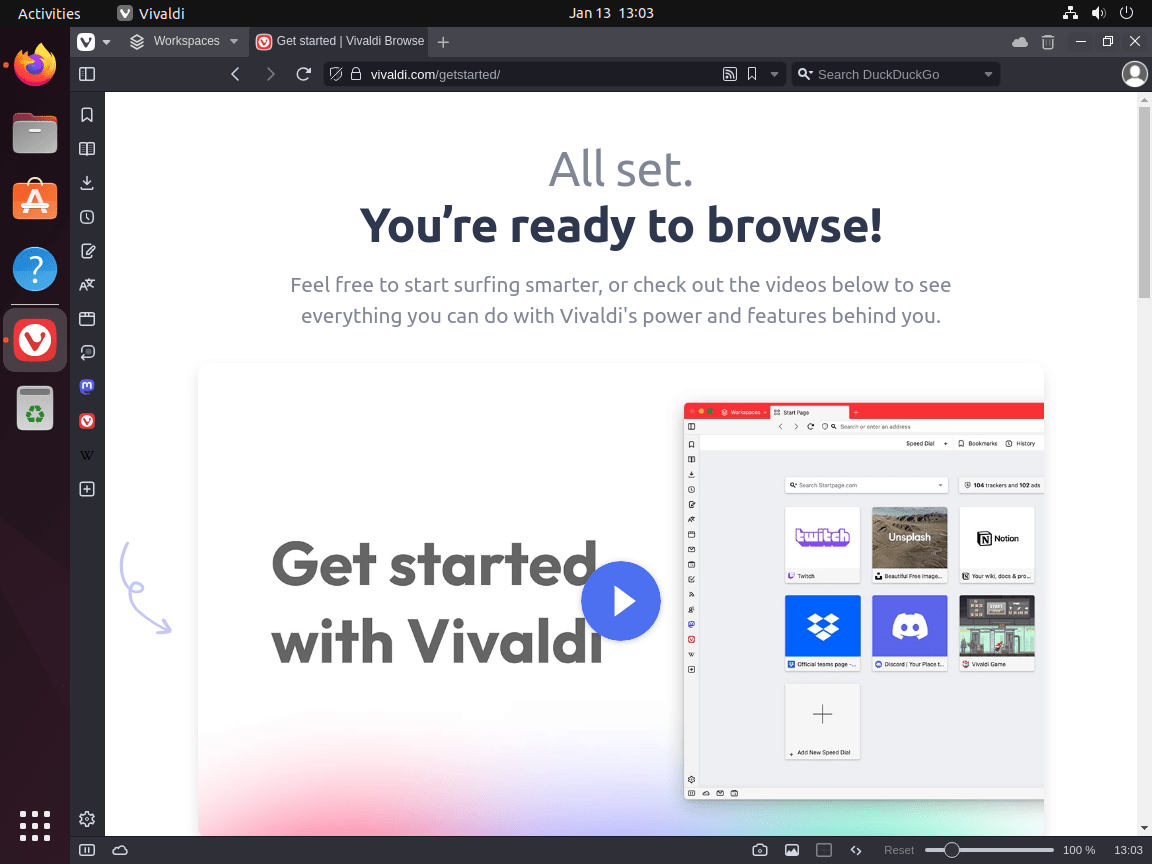
snap run vivaldiYou can also open your desktop environment’s application menu, search for Vivaldi, and click the browser icon. If a newly installed Snap or Flatpak does not appear in the menu immediately, log out and back in to refresh desktop entries.
Manage Vivaldi Browser on Ubuntu
Update Vivaldi Browser
Native APT installations update with normal Ubuntu package upgrades. To target only Vivaldi Stable, use:
sudo apt update && sudo apt install --only-upgrade vivaldi-stableIf you installed Snapshot instead, update that package name:
sudo apt update && sudo apt install --only-upgrade vivaldi-snapshotSnap installations refresh through snapd:
sudo snap refresh vivaldiRemove Vivaldi Browser
Remove the native stable package and its package-owned configuration with:
sudo apt remove --purge vivaldi-stableIf you installed Snapshot as well or instead, remove the Snapshot package:
sudo apt remove --purge vivaldi-snapshotBefore deleting shared repository files, confirm that no native Vivaldi package remains installed. If Stable and Snapshot were installed side by side, remove both first or keep the repository files so the remaining package still updates.
dpkg-query -W -f='${db:Status-Abbrev} ${binary:Package}\n' vivaldi-stable vivaldi-snapshot 2>/dev/null | grep '^ii' || echo "No Vivaldi APT packages are installed"No Vivaldi APT packages are installed
After that check is clean, remove the repository source, article-created keyring, Vivaldi helper keys, and the repository-helper defaults file:
sudo rm -f /etc/apt/sources.list.d/vivaldi.sources /etc/apt/sources.list.d/vivaldi.list
sudo rm -f /usr/share/keyrings/vivaldi.gpg /etc/apt/trusted.gpg.d/vivaldi-*.gpg
sudo rm -f /etc/default/vivaldi
sudo apt update
Preview orphaned dependency cleanup before running it. Continue only if the preview lists packages you actually expect to remove.
sudo apt autoremove --purge --dry-runsudo apt autoremove --purgeRemove the Snap package with Snap’s own removal command:
sudo snap remove --purge vivaldiConfirm the Snap package is gone:
snap list vivaldi 2>/dev/null || echo "vivaldi snap is not installed"Remove Vivaldi User Data
The following commands delete browser profiles, bookmarks, saved passwords, cache, and local Vivaldi data for the current user. Back up anything you want to keep before running them.
Remove native Stable and Snapshot profile directories:
rm -rf ~/.config/vivaldi ~/.cache/vivaldi ~/.local/share/vivaldi
rm -rf ~/.config/vivaldi-snapshot ~/.cache/vivaldi-snapshot ~/.local/share/vivaldi-snapshot
Remove Snap or Flatpak profile directories only if you used those package formats:
rm -rf ~/snap/vivaldi
rm -rf ~/.var/app/com.vivaldi.Vivaldi
Troubleshoot Vivaldi Browser Issues on Ubuntu
APT Reports Duplicate Vivaldi Sources
If you installed Vivaldi before this DEB822 setup or allowed Vivaldi’s legacy helper to add its own source file, APT may show duplicate source warnings. List Vivaldi source files first:
ls /etc/apt/sources.list.d/*vivaldi*If both vivaldi.sources and vivaldi.list exist, keep the DEB822 file and remove the legacy list file:
sudo rm -f /etc/apt/sources.list.d/vivaldi.list
sudo apt update
GPG Key Import Fails
If the GPG key import fails with a connection error, verify internet access and download the key as a separate step:
curl -fsSL https://repo.vivaldi.com/stable/linux_signing_key.pub -o /tmp/vivaldi.pub
sudo gpg --dearmor --yes -o /usr/share/keyrings/vivaldi.gpg /tmp/vivaldi.pub
rm -f /tmp/vivaldi.pub
Then confirm the imported keyring type:
file /usr/share/keyrings/vivaldi.gpgRepository Authentication Error
If apt update reports a signature or authentication error, verify that the source file points to the same keyring path you created:
cat /etc/apt/sources.list.d/vivaldi.sourcesThe output should include Signed-By: /usr/share/keyrings/vivaldi.gpg. If the path differs or the key file is missing, remove the broken source and repeat the repository setup.
Package Dependency Conflicts
If APT reports unmet dependencies, update your package cache and complete pending Ubuntu upgrades first:
sudo apt update
sudo apt full-upgrade
Retry the Vivaldi installation. If the issue continues, check for held packages that may block dependency resolution:
apt-mark showholdIf held packages appear, research why they are held before unholding them, especially on production desktops or managed systems.
Vivaldi Fails to Launch
If Vivaldi installs successfully but does not open from the menu, run the matching command from a terminal inside your graphical session to capture the error:
vivaldi 2>&1 | tee ~/vivaldi-error.logFor Snap installs, use Snap’s launcher form:
snap run vivaldi 2>&1 | tee ~/vivaldi-snap-error.logReview the log for graphics driver, sandbox, or profile errors, then search the Vivaldi Community Forum for the exact message.
Vivaldi Resources and Community Links
The following official resources provide downloads, documentation, community help, and release information:
- Vivaldi Official Website: Explore browser features, privacy information, and project pages.
- Vivaldi Download Page: Check current Linux DEB, RPM, ARM64, and Snap download options.
- Vivaldi Install Help: Review Vivaldi’s current desktop install requirements and package notes.
- Vivaldi Community Forum: Search support threads and ask browser-specific questions.
- Vivaldi Blog: Read release announcements and feature updates.
Conclusion
Vivaldi on Ubuntu now has a clearer path by release: use the native APT repository on Ubuntu 26.04 and 24.04, or use the official Snap package on Ubuntu 22.04. After installation, explore Vivaldi’s settings to tune tab behavior, tracker blocking, keyboard shortcuts, mail, calendar, and sync. For alternative browsers, see the Brave browser installation guide for Ubuntu, the Firefox ESR installation guide for Ubuntu, or Google Chrome on Ubuntu if you need Google’s browser ecosystem.


Formatting tips for your comment
You can use basic HTML to format your comment. Useful tags currently allowed in published comments:
<code>command</code>command<strong>bold</strong><em>italic</em><a href="https://example.com">link</a><blockquote>quote</blockquote>