Transmission remains a practical BitTorrent client on Ubuntu because the GTK desktop package is in the default archive, while Qt, command-line, PPA, and Flathub paths cover different desktop and version needs. If you want to install Transmission on Ubuntu, start with Ubuntu’s package on 26.04, 24.04, or 22.04, then use the PPA or Flathub only when the default package does not fit.
The package split matters most on older releases. Ubuntu 22.04 installs the GTK package cleanly from the archive, but direct Qt, CLI, and daemon installs can hit a transmission-common dependency mismatch. The ubuntuhandbook1 PPA publishes matching 4.1.1 packages for Ubuntu 24.04 and 22.04, while Flathub provides a current desktop build with Flatpak-managed updates.
Install Transmission on Ubuntu
Transmission is split into separate Ubuntu packages. Use transmission-gtk for the GNOME-friendly desktop client. Use transmission-qt or transmission-cli from Ubuntu’s archive on 26.04 or 24.04, but use the PPA on 22.04 if you specifically need the Qt frontend or CLI tools.
| Method | Source | Release Scope | Updates | Best Fit |
|---|---|---|---|---|
| Transmission GTK package | Ubuntu archive, main component | Ubuntu 26.04, 24.04, and 22.04 | APT package updates | GNOME and other GTK desktops |
| Transmission Qt package | Ubuntu archive, universe component | Ubuntu 26.04 and 24.04; use the PPA on 22.04 | APT package updates | KDE Plasma and other Qt desktops |
| Transmission CLI tools | Ubuntu archive, universe component | Ubuntu 26.04 and 24.04; use the PPA on 22.04 | APT package updates | Terminal-only torrent inspection and downloads |
| Transmission PPA | Launchpad PPA | Ubuntu 24.04 and 22.04 only | APT package updates from the PPA | Matching 4.1.1 packages on older LTS releases |
| Transmission Flatpak from Flathub | Flathub | Ubuntu 26.04, 24.04, and 22.04 after Flatpak setup | Flatpak app and runtime updates | Current desktop build outside APT |
Ubuntu 26.04 ships Transmission 4.1.1 in the archive, Ubuntu 24.04 ships 4.0.5, and Ubuntu 22.04 ships the 3.00 series. The plain transmission metapackage normally selects the GTK frontend automatically; install the specific package name when you want a predictable frontend or terminal-tool set.
- Choose
transmission-gtkfor the standard GTK desktop client. - Choose
transmission-qtif you prefer a Qt or KDE-style interface on Ubuntu 26.04 or 24.04. - Choose
transmission-clion Ubuntu 26.04 or 24.04 when you only need terminal tools. - Choose the PPA on Ubuntu 24.04 or 22.04 if you want matching Transmission 4.1.1 packages through APT, or if you need the Qt or CLI packages on 22.04.
- Choose Flathub when you want a current desktop build with Flatpak-managed updates.
- Treat
transmission-daemonas a separate server workflow. The PPA can provide matching daemon packages on Ubuntu 24.04 and 22.04, but its Launchpad description currently notes that the new Web UI build is not included.
The GTK package installs from Ubuntu’s archive on Ubuntu 26.04, 24.04, and 22.04. On 22.04, direct archive installs of
transmission-qt,transmission-cli, andtransmission-daemoncan fail with atransmission-commondependency mismatch, so use the PPA if you need those packages on Jammy.The ubuntuhandbook1 PPA publishes packages for 24.04 and 22.04 only. Ubuntu 26.04 returns a Release-file error if you try to add it, so resolute users should stay with Ubuntu’s archive package or Flathub.
Update Ubuntu Before Installing Transmission on Ubuntu
Refresh package metadata first so APT sees the current Ubuntu or PPA candidate cleanly.
sudo apt updateThese commands use
sudo. If your account does not have administrative access yet, follow the guide to add a new user to sudoers on Ubuntu before continuing.
Apply any pending upgrades before you install Transmission packages.
sudo apt upgradeThe GTK package comes from Ubuntu’s main component. The Qt frontend, CLI tools, metapackage, and daemon package come from Universe, so minimal or customized systems may need to enable the Universe repository on Ubuntu before those package names resolve.
Install the Transmission GTK Client on Ubuntu
The GTK build is the default choice for GNOME and other GTK-based desktops, and it shows up in the application menu as Transmission.
sudo apt install transmission-gtk -yThe -y flag accepts APT’s confirmation prompt automatically, which keeps the install command copy-ready.
Use APT metadata to confirm that the GTK package is installed and that the expected candidate is active for your Ubuntu release.
apt-cache policy transmission-gtkRelevant output on Ubuntu 26.04 includes:
transmission-gtk:
  Installed: 4.1.1+dfsg-1ubuntu1
  Candidate: 4.1.1+dfsg-1ubuntu1
  Version table:
 *** 4.1.1+dfsg-1ubuntu1 500
        500 http://au.archive.ubuntu.com/ubuntu resolute/main amd64 Packages
        100 /var/lib/dpkg/status
Ubuntu 24.04 shows 4.0.5-1build5, and Ubuntu 22.04 shows 3.00-2ubuntu2.1 in the same policy output.
Install the Transmission Qt Client on Ubuntu 26.04 or 24.04
The Qt build fits KDE Plasma and other Qt desktops better, and the launcher appears in the menu as Transmission (Qt). Use this default-archive path on Ubuntu 26.04 or 24.04; on Ubuntu 22.04, use the PPA section if you need the Qt frontend.
sudo apt install transmission-qt -yCheck the installed package version with APT instead of relying on a GUI launcher to print a headless-safe version string.
apt-cache policy transmission-qtRelevant output on Ubuntu 26.04 includes:
transmission-qt:
  Installed: 4.1.1+dfsg-1ubuntu1
  Candidate: 4.1.1+dfsg-1ubuntu1
  Version table:
 *** 4.1.1+dfsg-1ubuntu1 500
        500 http://au.archive.ubuntu.com/ubuntu resolute/universe amd64 Packages
        100 /var/lib/dpkg/status
Ubuntu 24.04 shows 4.0.5-1build5. On Ubuntu 22.04, direct archive installs can fail with a transmission-common dependency mismatch, so use the PPA method for a matching Qt package on that release.
Install the Transmission CLI Tools on Ubuntu 26.04 or 24.04
The CLI package is useful when you want to inspect torrent metadata, pull a magnet link from a shell, or keep the workflow entirely in a terminal. Use this default-archive path on Ubuntu 26.04 or 24.04; on Ubuntu 22.04, use the PPA section for a matching CLI package.
sudo apt install transmission-cli -yVerify that the CLI tools are installed by checking the version string from transmission-show.
transmission-show --versionExpected output on Ubuntu 26.04:
transmission-show 4.1.1 (56442e2929)
Ubuntu 24.04 prints transmission-show 4.0.5. On Ubuntu 22.04, direct archive installs can fail with a transmission-common dependency mismatch, so use the PPA method if you need transmission-show there.
Add the Transmission PPA on Ubuntu 24.04 or 22.04
Use the ubuntuhandbook1 PPA only on Ubuntu 24.04 or 22.04. Ubuntu 26.04 already ships Transmission 4.1.1, and the PPA does not publish a resolute suite.
Minimal Ubuntu installs may need the repository helper package before add-apt-repository is available.
sudo apt install software-properties-common -yAdd the PPA with Ubuntu’s repository tool. This guard prevents unsupported releases from writing a broken Launchpad source file.
CODENAME=$(lsb_release -cs)

case "$CODENAME" in
  noble|jammy)
    sudo add-apt-repository ppa:ubuntuhandbook1/transmission -y
    sudo apt update
    ;;
  *)
    printf 'The ubuntuhandbook1 Transmission PPA does not publish packages for %s.\n' "$CODENAME"
    ;;
esac
Continue with the PPA install only on Ubuntu 24.04 or 22.04. On Ubuntu 26.04, the command prints an unsupported-release message and leaves your APT sources unchanged.
The ubuntuhandbook1 Transmission PPA does not publish packages for resolute.
On supported PPA releases, APT refreshes the PPA metadata instead.
Install the GTK client from the PPA. If you want the Qt frontend or CLI tools instead, replace transmission-gtk with transmission-qt or transmission-cli.
sudo apt install transmission-gtk -yConfirm that the PPA candidate is the installed package version.
apt-cache policy transmission-gtkRelevant output on Ubuntu 24.04 includes:
transmission-gtk:
  Installed: 4.1.1-0build1~ubuntu24.04
  Candidate: 4.1.1-0build1~ubuntu24.04
  Version table:
 *** 4.1.1-0build1~ubuntu24.04 500
        500 https://ppa.launchpadcontent.net/ubuntuhandbook1/transmission/ubuntu noble/main amd64 Packages
        100 /var/lib/dpkg/status
Ubuntu 22.04 shows the same PPA version pattern with the suffix ~ubuntu22.04.
Install Transmission Flatpak from Flathub on Ubuntu
Flathub makes sense when you want a current desktop build that updates independently of Ubuntu’s APT packages.
The current Flathub package grants host filesystem access, so treat it as a Flatpak packaging and update-cadence choice rather than a strict file-isolation boundary.
Flatpak is not pre-installed on Ubuntu. If you have not set it up yet, follow the guide to install Flatpak on Ubuntu before you add Flathub and install Transmission.
Add the Flathub remote at system scope so every local user can see the application.
sudo flatpak remote-add --if-not-exists flathub https://dl.flathub.org/repo/flathub.flatpakrepoVerify that Flathub is configured before you install the app.
flatpak remotes --columns=name,options | grep -E '^flathub[[:space:]]'Expected output:
flathub system
Install the Transmission Flatpak from Flathub.
sudo flatpak install flathub com.transmissionbt.Transmission -yConfirm that Flatpak installed the expected app ID and version.
flatpak info com.transmissionbt.TransmissionRelevant output on Ubuntu 26.04 includes:
Transmission - Download and share files over BitTorrent

          ID: com.transmissionbt.Transmission
         Ref: app/com.transmissionbt.Transmission/x86_64/stable
        Arch: x86_64
      Branch: stable
     Version: 4.1.1
     License: GPL-2.0 OR GPL-3.0
      Origin: flathub
  Collection: org.flathub.Stable
Installation: system
Transmission Snap Package Scope on Ubuntu
The Snap Store currently offers a community-published package named transmission, but this article does not use it as a main method because the package metadata warns that some features may not work under Snap confinement. Older tutorials that mention transmission-community are stale; the Snap Store no longer lists that package name.
Launch Transmission on Ubuntu
After installation, Ubuntu can launch Transmission from the application menu or from a terminal window in your current desktop session.
Launch Transmission from the Applications Menu on Ubuntu
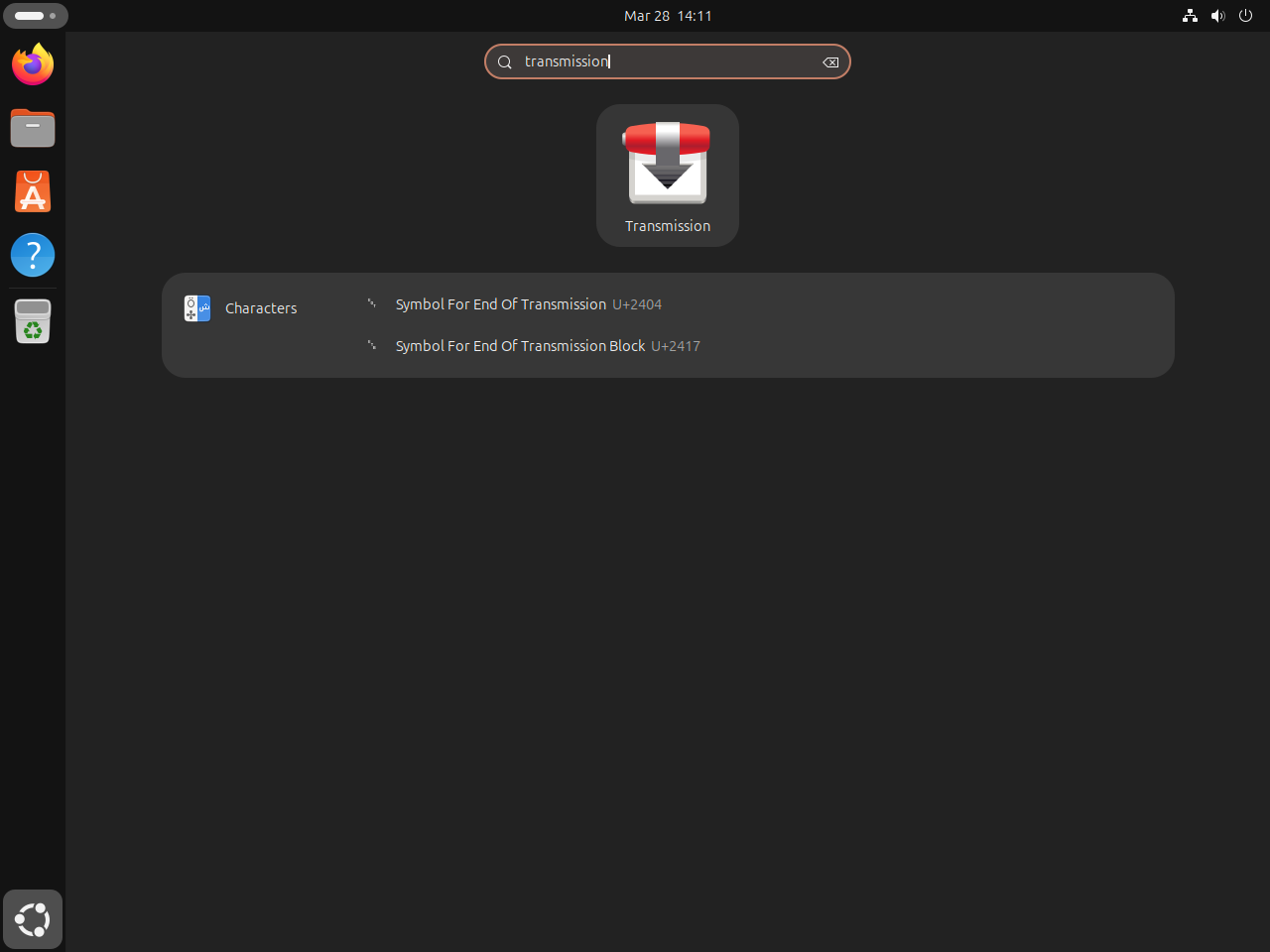
Search for Transmission if you installed the GTK package or the Flathub build. If you installed the Qt package, the launcher appears as Transmission (Qt).
Launch Transmission from the Terminal on Ubuntu
Use the command that matches the build you installed.
transmission-gtk &
transmission-qt &
flatpak run com.transmissionbt.Transmission &
Adjust Transmission Preferences on Ubuntu
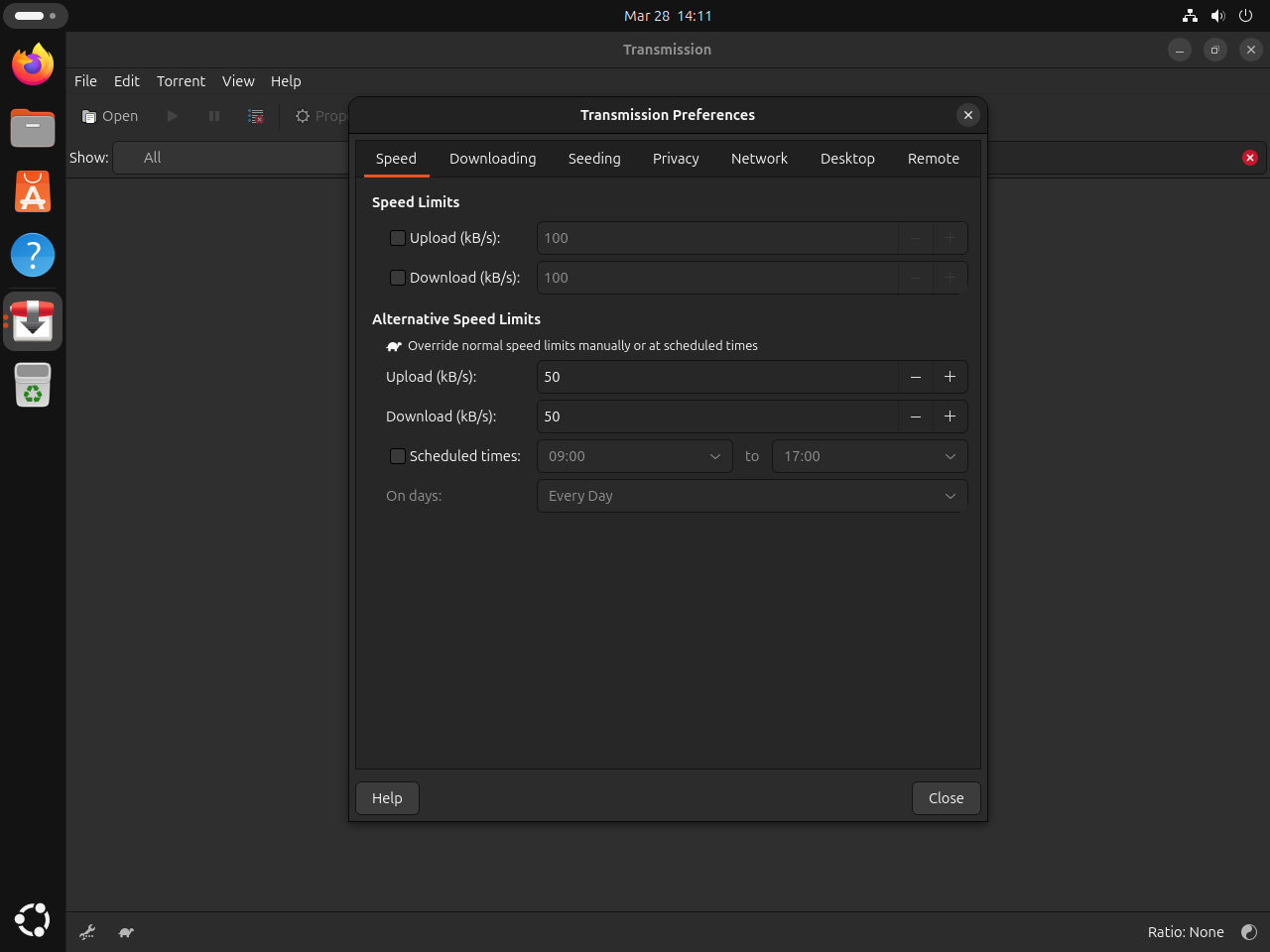
Most day-to-day setup lives under Edit > Preferences, where Transmission handles download locations, bandwidth rules, and its browser-accessible Web UI.
- Change the default download path under Edit > Preferences > Downloading if you do not want torrents landing in your home Downloads directory.
- Set upload and download caps under Edit > Preferences > Speed when Transmission should not consume your full line rate.
- Enable the built-in Web UI under Edit > Preferences > Remote if you want browser-based control, and review how to install and configure UFW on Ubuntu before you expose it beyond localhost or your trusted LAN.
Update Transmission on Ubuntu
APT-managed installs and the Flathub build update through their own package managers, so the command depends on which method you chose.
Update APT-installed Transmission on Ubuntu
Upgrade the exact Ubuntu or PPA package you installed instead of running a broader placeholder command.
sudo apt install --only-upgrade transmission-gtkReplace transmission-gtk with transmission-qt or transmission-cli if that is the package you chose earlier. PPA installs follow the same update path once the PPA is already configured.
Update Transmission Flatpak on Ubuntu
Flatpak updates the Flathub app build independently of APT.
sudo flatpak update com.transmissionbt.Transmission -yRemove or Uninstall Transmission on Ubuntu
Remove or uninstall the package or Flatpak app that matches your install method, then verify installed state separately from optional source or profile cleanup.
Remove APT-installed Transmission on Ubuntu
Remove the Ubuntu packages you installed. Adjust the list if you only used one frontend.
sudo apt remove transmission transmission-gtk transmission-qt transmission-cli transmission-commonPreview orphaned dependencies before removing them. Continue only if the list contains packages you no longer need.
sudo apt autoremove --dry-runIf the preview looks safe, run the cleanup interactively.
sudo apt autoremoveUse package-manager installed-state output to confirm that the package set is no longer installed.
dpkg-query -W -f='${db:Status-Abbrev} ${binary:Package}\n' transmission transmission-gtk transmission-qt transmission-cli transmission-common 2>/dev/null | grep '^ii' || echo "Transmission packages are not installed"Expected output after all listed packages are removed:
Transmission packages are not installed
Remove the Transmission PPA on Ubuntu 24.04 or 22.04
Remove the PPA only if you added it earlier. If you want a deeper cleanup workflow, use the guide to remove a PPA from Ubuntu.
sudo add-apt-repository --remove -y ppa:ubuntuhandbook1/transmissionOn Ubuntu 22.04, add-apt-repository --remove can leave PPA-specific trust files after the source entry is gone. Remove them only after the PPA source has been removed.
sudo rm -f /etc/apt/trusted.gpg.d/ubuntuhandbook1-ubuntu-transmission.gpg /etc/apt/trusted.gpg.d/ubuntuhandbook1-ubuntu-transmission.gpg~Refresh APT after removing the Launchpad source and any optional trust files.
sudo apt updateCheck that the candidate has fallen back to Ubuntu’s archive version instead of the PPA build.
apt-cache policy transmission-gtkRelevant output on Ubuntu 24.04 includes:
transmission-gtk:
  Installed: (none)
  Candidate: 4.0.5-1build5
  Version table:
     4.0.5-1build5 500
        500 http://au.archive.ubuntu.com/ubuntu noble/main amd64 Packages
Remove Transmission Flatpak on Ubuntu
Remove the Flatpak app first. This removes the application, not every file in your user profile.
sudo flatpak remove com.transmissionbt.Transmission -yConfirm that Flatpak no longer lists the app.
flatpak list --app --columns=application | grep -Fx com.transmissionbt.Transmission || echo "not installed"Expected output:
not installed
Clean up unused runtimes afterward if you no longer need them. Review the list before confirming, because Flatpak may find runtimes used by other apps.
sudo flatpak uninstall --unusedThe next command permanently deletes Transmission’s Flatpak profile for your Linux account, including app settings and local state under
~/.var/app/com.transmissionbt.Transmission/. Export or move anything you need before running it.
rm -rf ~/.var/app/com.transmissionbt.TransmissionConclusion
Transmission is ready on Ubuntu through the package source that fits your release: the Ubuntu GTK package for the lowest-maintenance path, the PPA for matching 4.1.1 packages on 24.04 or 22.04, or Flathub for a current desktop build outside APT. If you want to compare another BitTorrent client with a stronger Web UI story, install qBittorrent on Ubuntu.


Formatting tips for your comment
You can use basic HTML to format your comment. Useful tags currently allowed in published comments:
<code>command</code>command<strong>bold</strong><em>italic</em><a href="https://example.com">link</a><blockquote>quote</blockquote>