
DOCX-heavy work gets awkward fast when Fedora lacks the same office suite your teammates use elsewhere. That makes it practical to install WPS Office on Fedora when you want one Linux desktop app for Word documents, spreadsheets, slide decks, and PDFs instead of juggling format compatibility tool by tool.
Current Fedora repositories do not package WPS Office, so the practical choice is the upstream Linux RPM or the community Flathub wrapper. The RPM is WPS’s own package but needs a Fedora-specific digest workaround, while the Flatpak is easier to update but Flathub marks it as unverified, potentially unsafe, and not supported by Kingsoft.
Install WPS Office on Fedora
Most readers who want WPS’s own Linux release should start with the RPM path. Use the Flatpak route when Flathub’s update flow matters more than vendor-supported packaging.
| Method | Source | Update Behavior | Best For | Trade-offs |
|---|---|---|---|---|
| Official RPM Download | WPS Linux download page | Manual RPM reinstall or updater helper | Users who want WPS’s own Linux package | No DNF repository; requires the Fedora digest workaround |
| Flatpak via Flathub | Flathub WPS Office page | Flatpak app and runtime updates through Flathub | Users who prefer Flathub-managed updates | Unverified community wrapper; Flathub labels it potentially unsafe |
WPS Office is not currently available from Fedora’s standard repositories. If you would rather stay inside Fedora’s package ecosystem, the closest in-repo alternative is to install LibreOffice on Fedora Linux instead.
Method 1: Install WPS Office via Official RPM Download
This path keeps you on WPS’s own Linux package, but Fedora needs one extra workaround because the RPM fails DNF5’s digest checks. Start by refreshing the system so dependency resolution uses current repository metadata.
Update Fedora Before Installing WPS Office
Refresh the package cache and apply any pending updates before you bring in the WPS Office dependency packages.
sudo dnf upgrade --refreshIf this Fedora installation still needs administrative access for your user account, set that up first with add a user to sudoers on Fedora.
Resolve the Current WPS Office RPM URL
The WPS Linux download page exposes current package metadata through an encoded JSON endpoint. Fedora includes Python 3, which can parse that metadata directly and extract the live RPM URL without hardcoding an old package version.
cd ~/Downloads
RPM_URL=$(python3 - <<'PY'
import base64, json, urllib.request

metadata_url = "https://params.wps.com/api/map/web/newwpsapk?pttoken=newlinuxpackages"
with urllib.request.urlopen(metadata_url, timeout=30) as response:
    payload = json.load(response)

encoded = payload["staticjs"]["website"]["wpsnewpackages"]["downloads"]
downloads = json.loads(base64.b64decode(encoded))
print(downloads["linux_rpm"])
PY
)
RPM_FILE=${RPM_URL##*/}
printf '%s\n' "$RPM_URL"
printf '%s\n' "$RPM_FILE"
Keep the same terminal session open so the RPM_URL and RPM_FILE variables stay available.
Current output includes:
https://wdl1.pcfg.cache.wpscdn.com/wpsdl/wpsoffice/download/linux/11723/wps-office-11.1.0.11723.XA-1.x86_64.rpm
wps-office-11.1.0.11723.XA-1.x86_64.rpm
Download the WPS Office RPM on Fedora
With the live URL resolved, use curl command in Linux to download the RPM into your current working directory.
curl -fL -o "$RPM_FILE" "$RPM_URL"Inspect the downloaded file before installation. This confirms the file is the x86_64 WPS RPM and not the Linux DEB package, but it is not signature proof.
rpm -qpi "$RPM_FILE" | sed -n '1,10p'Relevant output includes:
Name        : wps-office
Version     : 11.1.0.11723.XA
Release     : 1
Architecture: x86_64
Install Date: (not installed)
Group       : Applications/Editors
Size        : 1436962735
License     : Proprietary
Signature   : (none)
Source RPM  : wps-office-11.1.0.11723.XA-1.src.rpm
Check the package’s RPM signature and digest state separately. The current WPS RPM reports no signature and fails RPM digest verification, which is why Fedora needs the fallback install command.
rpm -K "$RPM_FILE" || trueExpected output:
wps-office-11.1.0.11723.XA-1.x86_64.rpm: DIGESTS NOT OK
Install the WPS Office RPM on Fedora
The current WPS RPM needs the libXScrnSaver dependency from Fedora’s standard repositories first. Install the local RPM with rpm instead of dnf only after confirming that the file came from the WPS Linux download metadata.
sudo dnf install libXScrnSaver -y
sudo rpm -ivh --nodigest --nofiledigest "$RPM_FILE"
The --nodigest and --nofiledigest flags skip the digest checks that break local installation through DNF5. Use them only for this downloaded WPS RPM fallback, not as a general Fedora package-install pattern. For other same-distro package-manager patterns, DNF5 install examples on Fedora is the closest companion.
Relevant installation output includes:
Preparing...                          ########################################
Updating / installing...
wps-office-11.1.0.11723.XA-1          ########################################
Verify the WPS Office RPM Installation
Confirm the package is installed and check which launchers the RPM actually provides.
rpm -q wps-office
command -v wps
command -v wpp
command -v et
command -v wpspdf
Expected output:
wps-office-11.1.0.11723.XA-1.x86_64
/usr/bin/wps
/usr/bin/wpp
/usr/bin/et
/usr/bin/wpspdf
This also confirms the RPM does not install a combined wps-office launcher command. Instead, it provides separate launch commands for Writer, Presentation, Spreadsheets, and the PDF reader.
Method 2: Install WPS Office via Flatpak on Fedora
The Flatpak build is easier to update through Flathub, but Flathub labels it as an unverified package that is potentially unsafe and not supported by Kingsoft. It also grants access to common document and media folders, so treat it as a packaging and update choice rather than a stronger isolation boundary.
Prepare Flatpak for WPS Office on Fedora
Fedora Workstation already includes Flatpak. On custom Fedora desktop or minimal graphical installs where the flatpak command is missing, add it first.
sudo dnf install flatpak -yAdd Flathub for WPS Office
Use a system-scope Flathub remote so the package behaves like a normal desktop application on Fedora.
sudo flatpak remote-add --if-not-exists flathub https://dl.flathub.org/repo/flathub.flatpakrepoConfirm that Fedora now sees Flathub at system scope before moving on to the application install.
flatpak --system remotes --columns=name | grep -Fx flathubExpected output:
flathub
Install WPS Office from Flathub
Once Flathub is available, install WPS Office with the system-scope Flatpak command.
sudo flatpak install flathub com.wps.OfficeReview the runtime and permission prompt before confirming the install. The first Flatpak install is larger than the direct RPM because it also pulls in the required Freedesktop runtime components.
Verify the WPS Office Flatpak Installation
Use Flatpak’s installed-app metadata to confirm the package ID, branch, version, and scope.
flatpak info --system com.wps.Office | grep -E '^[[:space:]]*(ID|Ref|Arch|Branch|Version|Origin|Installation|Runtime):' | sed 's/^[[:space:]]*//'Relevant output includes:
ID: com.wps.Office
Ref: app/com.wps.Office/x86_64/stable
Arch: x86_64
Branch: stable
Version: 11.1.0.11723
Origin: flathub
Installation: system
Runtime: org.freedesktop.Platform/x86_64/25.08
Check the current permission set when method trust or folder access matters.
flatpak info --system --show-permissions com.wps.Office | sed -n '/^\[Context\]/,/^$/p'Relevant output includes:
[Context]
shared=ipc;network;
sockets=pulseaudio;x11;
devices=dri;
filesystems=xdg-documents;xdg-download;xdg-pictures;xdg-videos;/run/media;/media;
persistent=.kingsoft;
The Flathub package currently exposes the same WPS version number as the direct RPM, but it remains an unverified wrapper. Use the RPM when vendor source matters most; use Flatpak when Flathub updates and runtime management matter more.
Launch WPS Office on Fedora
Both installation methods put WPS Office on your desktop menu, and both can also be started from a terminal inside an active graphical session. These terminal commands are launch shortcuts, not headless tools, so they still need a desktop session behind them.
Launch WPS Office from the Fedora Application Menu
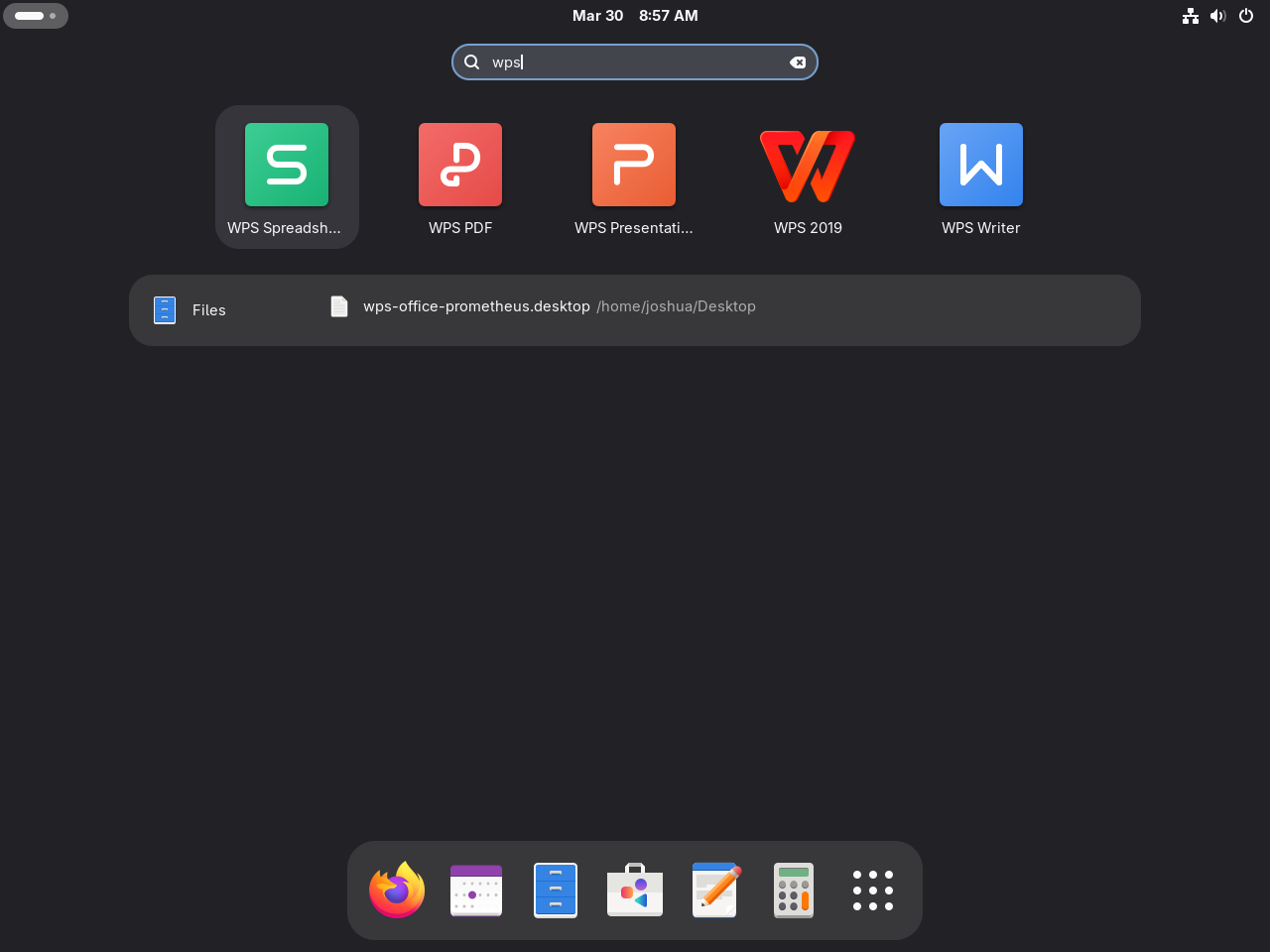
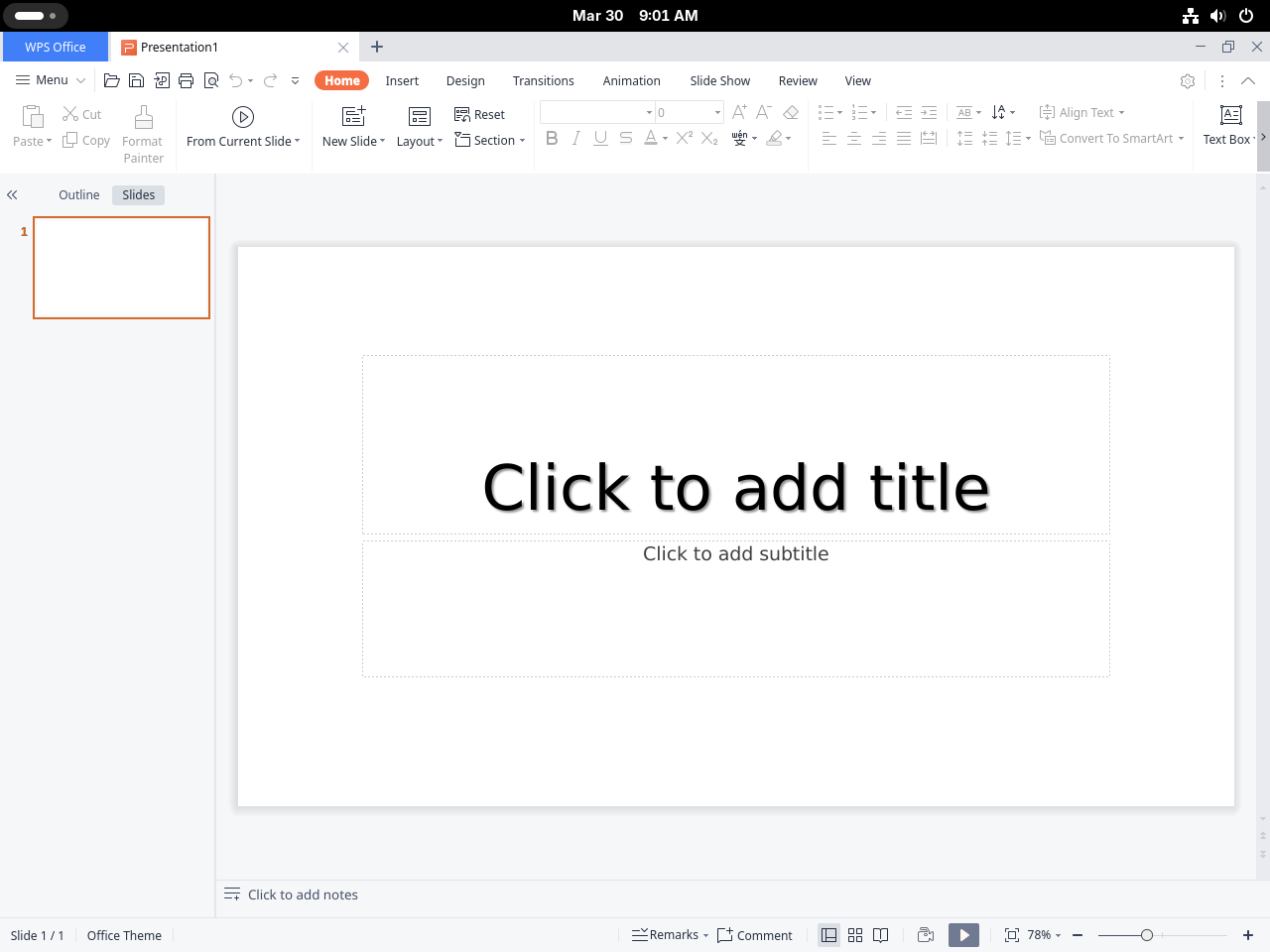
Open Activities, search for WPS, and launch the component you need. After either installation method, Fedora should list WPS desktop entries in the application menu.
Launch the WPS Office Flatpak from a Terminal
If you installed the Flathub build, this command starts the suite from a terminal window inside the desktop session.
flatpak run com.wps.OfficeLaunch WPS Office RPM Components from a Terminal
The RPM build installs separate launchers for each application instead of a single wps-office command.
wpsopens WPS Writer.etopens WPS Spreadsheets.wppopens WPS Presentation.wpspdfopens the WPS PDF reader.
First Launch Tips for WPS Office on Fedora
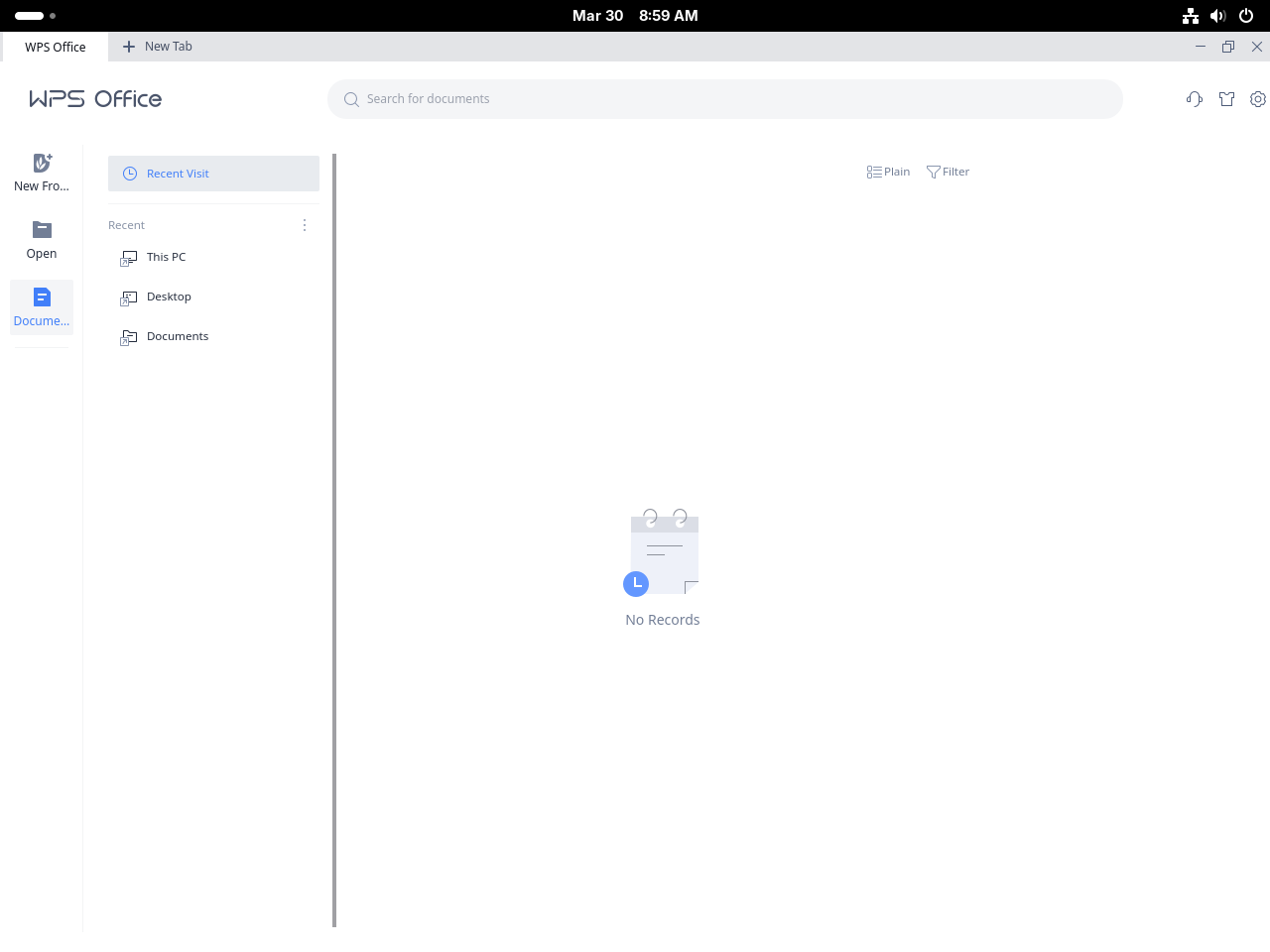
Once WPS Office opens, spend a few minutes checking the settings that affect compatibility and day-to-day usability. That is especially helpful if you are moving between Microsoft Office and Linux desktops regularly.
Review WPS Office Defaults
The suite-level defaults are where most first-run surprises show up, especially cloud prompts and file-association behavior.
- Skip the sign-in prompt if you only want local document editing and do not need WPS cloud services.
- Check which file types WPS Office wants to claim before you let it replace other editors on the system.
- Open one existing DOCX or XLSX file early so you can spot any font or layout differences before important work lands here.
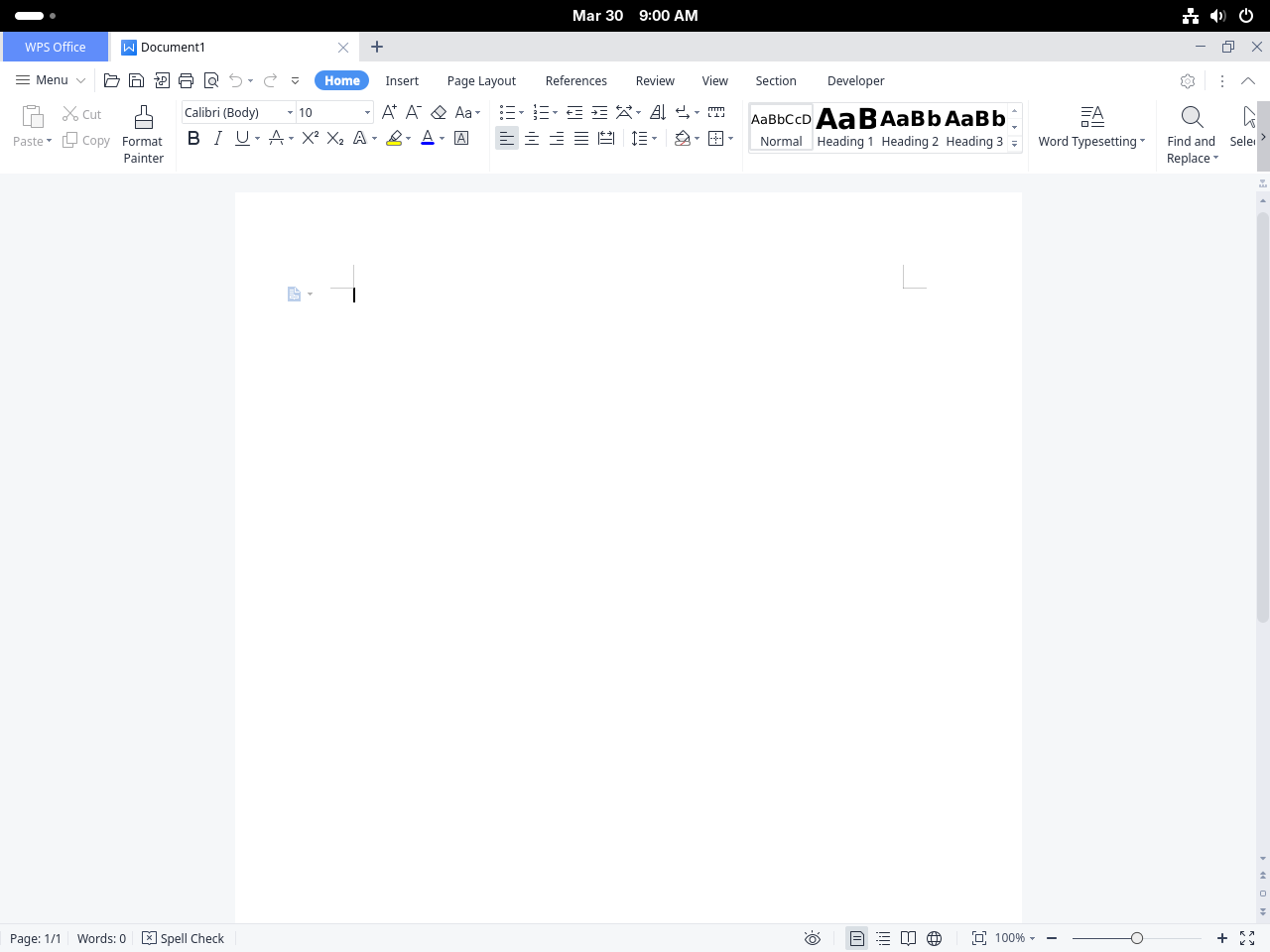
Adjust WPS Writer Compatibility Settings
Writer is usually the first place where Office compatibility matters, so confirm its defaults before you build regular workflows around it.
- Set DOCX as the default save format if you exchange files with Microsoft Office users every day.
- Test one document with comments, tables, and embedded images before you move active work into Writer.
- Export final drafts to PDF when recipients only need a read-only copy.
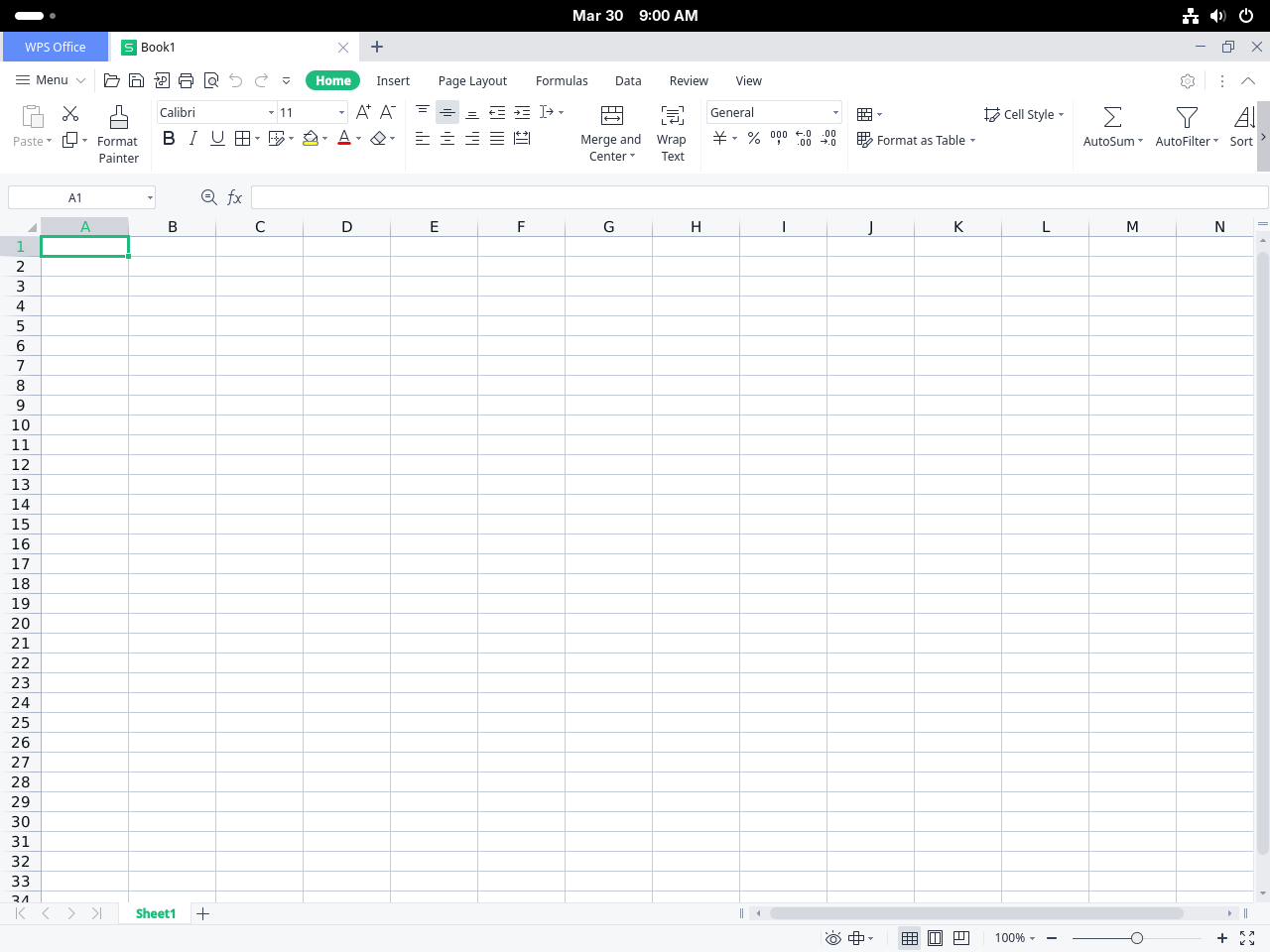
Check WPS Spreadsheets Regional Settings
Spreadsheet imports are where locale differences tend to cause the most trouble, especially with dates and decimal separators.
- Confirm decimal separators, date formats, and currency settings before you edit imported workbooks.
- Test one real XLSX file with formulas or charts instead of relying on an empty workbook for compatibility checks.
- Save collaboration-heavy workbooks back to XLSX if teammates use Excel as their primary editor.
Test WPS Presentation Export Options
Presentation templates are often where font substitution and slide-size mismatches become obvious, so check that workflow early.
- Verify theme fonts and slide dimensions before you reuse PowerPoint templates from another system.
- Play animations and embedded media once on Fedora instead of assuming they behave the same as they did on Windows.
- Export a PDF copy when recipients only need to view the finished slide deck.
Troubleshoot WPS Office Installation on Fedora
The main Fedora-specific failure point is the direct RPM install. If you copied an older local-RPM DNF command, the digest error appears before WPS Office installs.
Fix the WPS Office “does not verify: no digest” Error
This is the exact error DNF5 returns on Fedora 44 when the current WPS Office RPM is installed through DNF as a local package.
Transaction failed: Rpm transaction failed.
Warning: skipped OpenPGP checks for 1 package from repository: @commandline
  - package wps-office-11.1.0.11723.XA-1.x86_64 does not verify: no digest
WPS still publishes the Linux RPM without the digest metadata DNF5 expects, so Fedora treats it as unverifiable. Use the RPM method: install libXScrnSaver with DNF, then install the downloaded RPM itself with rpm -ivh --nodigest --nofiledigest.
Manage WPS Office on Fedora
Updates depend on which package source you chose. The direct RPM does not add a DNF repository, but an updater helper can automate the version check, download, and RPM upgrade path. The Flathub build follows the normal Flatpak update flow.
Update the WPS Office RPM Install
A proper updater is possible here because WPS exposes a stable Linux package metadata endpoint. The updater script resolves the latest RPM URL, compares it to the installed version, downloads the new package only when needed, and then reapplies the same Fedora-safe rpm --nodigest --nofiledigest workflow.
sudo tee /usr/local/bin/update-wps-office > /dev/null << 'SCRIPT_EOF'
#!/usr/bin/env bash
set -euo pipefail
METADATA_URL="https://params.wps.com/api/map/web/newwpsapk?pttoken=newlinuxpackages"
CACHE_ROOT="${XDG_CACHE_HOME:-$HOME/.cache}"
mkdir -p "$CACHE_ROOT"
WORKDIR=$(mktemp -d "$CACHE_ROOT/wps-office-update.XXXXXX")
cleanup() {
  rm -rf "$WORKDIR"
}
trap cleanup EXIT
if [ "$(id -u)" -eq 0 ]; then
  echo "Run this script as a regular user. It uses sudo only for the package-management steps."
  exit 1
fi
for cmd in python3 curl rpm dnf sudo mktemp; do
  if ! command -v "$cmd" >/dev/null; then
    echo "Error: required command not found: $cmd"
    echo "Install the missing package with DNF, then rerun the script."
    exit 1
  fi
done
resolve_rpm_url() {
  python3 - "$METADATA_URL" <<'PY'
import base64, json, sys, urllib.request

metadata_url = sys.argv[1]
with urllib.request.urlopen(metadata_url, timeout=30) as response:
    payload = json.load(response)

encoded = payload["staticjs"]["website"]["wpsnewpackages"]["downloads"]
downloads = json.loads(base64.b64decode(encoded))
print(downloads["linux_rpm"])
PY
}
echo "Resolving the latest WPS Office RPM URL..."
RPM_URL=$(resolve_rpm_url)
RPM_FILE=${RPM_URL##*/}
LATEST=${RPM_FILE#wps-office-}
LATEST=${LATEST%.x86_64.rpm}
if rpm -q wps-office >/dev/null 2>&1; then
  INSTALLED=$(rpm -q --qf '%{VERSION}-%{RELEASE}\n' wps-office)
else
  INSTALLED="none"
fi
echo "Installed version: $INSTALLED"
echo "Latest version:    $LATEST"
if [[ "$INSTALLED" == "$LATEST" ]]; then
  echo "WPS Office is already up to date."
  exit 0
fi
cd "$WORKDIR"
echo "Downloading $RPM_FILE..."
curl -fL -o "$RPM_FILE" "$RPM_URL"
echo "Ensuring libXScrnSaver is installed..."
sudo dnf install -y libXScrnSaver >/dev/null
echo "Installing $RPM_FILE..."
sudo rpm -Uvh --replacepkgs --nodigest --nofiledigest "$RPM_FILE" >/dev/null
echo "Updated WPS Office to $LATEST"
SCRIPT_EOF
sudo chmod +x /usr/local/bin/update-wps-office
The script uses Python to parse WPS’s JSON metadata and curl for the RPM download. It keeps the temporary download in ~/.cache/ instead of /tmp, which is safer on Fedora systems where the user-facing tmpfs quota is tight. Because it lives in /usr/local/bin, you can call it from any terminal directory once the file is executable.
Here, sudo tee writes the script into /usr/local/bin with root privileges, which a normal shell redirection cannot do on its own. The chmod +x step marks the file as executable so Fedora treats it as a command instead of plain text.
Use command -v to confirm the updater is available on your PATH, then run it.
command -v update-wps-office
update-wps-office
When WPS Office is already current, the updater exits before downloading anything:
Resolving the latest WPS Office RPM URL...
Installed version: 11.1.0.11723.XA-1
Latest version:    11.1.0.11723.XA-1
WPS Office is already up to date.
Update the WPS Office Flatpak Install
The Flathub build follows the normal Flatpak update path.
sudo flatpak update com.wps.OfficeRemove WPS Office on Fedora
Remove the suite with the same package system you used to install it, then verify that Fedora no longer reports the package as installed.
Remove the WPS Office RPM Install
Use DNF to remove the RPM-installed package cleanly from the system. If you created the updater script, remove that helper too so manual-install tooling does not stay behind unnecessarily.
sudo dnf remove wps-office -ysudo rm -f /usr/local/bin/update-wps-officeConfirm the RPM package is gone.
rpm -q wps-officeExpected output:
package wps-office is not installed
Remove the WPS Office Flatpak Install
Use Flatpak’s data-removal flag if you want to delete Flatpak application state along with the package.
sudo flatpak uninstall --delete-data com.wps.OfficeConfirm the Flatpak app entry is gone.
flatpak list --system --app --columns=application | grep -Fx com.wps.Office || echo NOT_INSTALLEDExpected output:
NOT_INSTALLED
If you want to clear unused runtimes after removing the Flatpak build, run one more cleanup pass.
sudo flatpak uninstall --unusedSearch for WPS Office User Data on Fedora
Package removal does not always tell the whole story for desktop apps. Search your home directory first so you only delete paths that actually exist on your account instead of guessing where WPS Office may have written settings.
find "$HOME" -maxdepth 4 \( -path "$HOME/.config/Kingsoft" -o -path "$HOME/.local/share/Kingsoft" -o -path "$HOME/.cache/Kingsoft" -o -path "$HOME/.kingsoft-office" -o -path "$HOME/.var/app/com.wps.Office" \) -printRelevant output can include:
/home/joshua/.config/Kingsoft
The native RPM can create ~/.config/Kingsoft after WPS Office has been opened. The Flatpak stores app data under ~/.var/app/com.wps.Office after the Flatpak app creates profile state, so a search-first cleanup is safer than assuming every path exists.
Remove WPS Office User Data on Fedora
Delete only paths you are comfortable removing. These commands target the same native and Flatpak data paths checked by the search command.
These commands permanently remove WPS Office preferences, cached state, and Flatpak data stored under your home directory. Documents saved somewhere else, such as
~/Documentsor another project folder, are not removed by these cleanup commands.
rm -rf "$HOME/.config/Kingsoft" \
  "$HOME/.local/share/Kingsoft" \
  "$HOME/.cache/Kingsoft" \
  "$HOME/.kingsoft-office" \
  "$HOME/.var/app/com.wps.Office"
After manual cleanup, rerun the same find command. If it prints nothing, no matching WPS Office user-data paths were found under your home directory.
Conclusion
Fedora now has WPS Office ready for Microsoft-format documents, spreadsheets, presentations, and PDF work, with the DNF5 digest problem handled through the direct RPM workaround or avoided through the Flatpak path. If you later want a suite that stays entirely inside Fedora’s own repositories, install LibreOffice on Fedora Linux instead.


Formatting tips for your comment
You can use basic HTML to format your comment. Useful tags currently allowed in published comments:
<code>command</code>command<strong>bold</strong><em>italic</em><a href="https://example.com">link</a><blockquote>quote</blockquote>