Working through PDFs, EPUB books, scanned DjVu files, and comic archives is easier when one viewer handles the formats and keeps annotation tools close at hand. You can install Okular on Fedora Linux with the Fedora package for the cleanest DNF-managed setup, or use the Flathub build when you specifically want the current Flathub release.
Okular is a KDE document viewer, but it works on GNOME and other Fedora desktops too. It can annotate PDFs and handle several document formats, but it is not a full PDF editor for rewriting page text or layout.
Install Okular on Fedora Linux
The Fedora repository package is the best starting point for most users. It installs Okular through DNF, adds the normal desktop launcher, and keeps updates tied to your regular Fedora package maintenance.
Quick DNF Install Commands for Okular on Fedora
Refresh Fedora package metadata before installing Okular so DNF can resolve the current package set.
sudo dnf upgrade --refreshThese commands use
sudofor system package changes. If your account does not have administrator access yet, follow the guide to add a user to sudoers on Fedora.
Install the Fedora package:
sudo dnf install okularOn GNOME or other non-KDE desktops, DNF may also install KDE Frameworks, Qt, and document-format libraries that Okular needs. Review the transaction summary before confirming if you are installing on a trimmed system.
Verify the installed RPM package:
rpm -q okularExpected output on Fedora 44 currently looks like this:
okular-26.04.0-1.fc44.x86_64
Fedora package versions change as updates land, so treat the exact version as an example. The important part is that the output starts with okular- and matches your Fedora release.
Choose an Okular Installation Method on Fedora
Use DNF unless you have a specific reason to prefer the Flathub build. The Flathub page currently labels Okular as potentially unsafe because the manifest grants host file access, which is practical for opening documents but means the Flatpak method should be treated as a packaging and update-cadence choice rather than stronger confinement.
| Method | Source | Version Flow | Updates | Best For |
|---|---|---|---|---|
| DNF | Fedora repositories | Fedora package stream | Included in sudo dnf upgrade --refresh | Most users who want the Fedora-managed package |
| Flatpak | Flathub | Flathub stable stream | Included in sudo flatpak update org.kde.okular | Users who want Flathub’s current KDE app build |
If you are still choosing between package workflows, the DNF5 install examples on Fedora explain how Fedora’s package manager handles installs, upgrades, and removals.
Install Okular from Flathub on Fedora
Fedora Workstation, Silverblue, and Kinoite include Flatpak by default. On Fedora Server, minimal installs, or other mutable Fedora systems where the command is missing, install Flatpak first:
sudo dnf install flatpakAdd Flathub as a system remote if it is not already configured:
sudo flatpak remote-add --if-not-exists flathub https://dl.flathub.org/repo/flathub.flatpakrepoInstall the Okular Flatpak:
sudo flatpak install flathub org.kde.okularCheck the installed Flatpak metadata after the install finishes:
flatpak info org.kde.okular | grep -E '^[[:space:]]*(ID|Ref|Arch|Branch|Version|Origin|Installation):' ID: org.kde.okular
Ref: app/org.kde.okular/x86_64/stable
Arch: x86_64
Branch: stable
Version: 26.04.1
Origin: flathub
Installation: system
The grep -E filter keeps only the useful metadata fields. If you use filters often, the guide to grep command examples in Linux covers exact matches, regular expressions, and common pipeline patterns.
Launch Okular on Fedora Linux
Okular needs an active graphical desktop session to display documents. A terminal-only session can install the package, but the application itself opens as a desktop window.
Launch Okular from the Terminal on Fedora
Use the command that matches your install method:
okularflatpak run org.kde.okularTo open a file directly, append its path to the matching launcher command:
okular ~/Documents/manual.pdfflatpak run org.kde.okular ~/Documents/manual.pdfLaunch Okular from Fedora Activities
Both install methods add an Okular launcher to the desktop menu.
- Open Activities.
- Search for Okular.
- Select the Okular launcher.
Use Okular for PDFs and EPUB Files on Fedora Linux
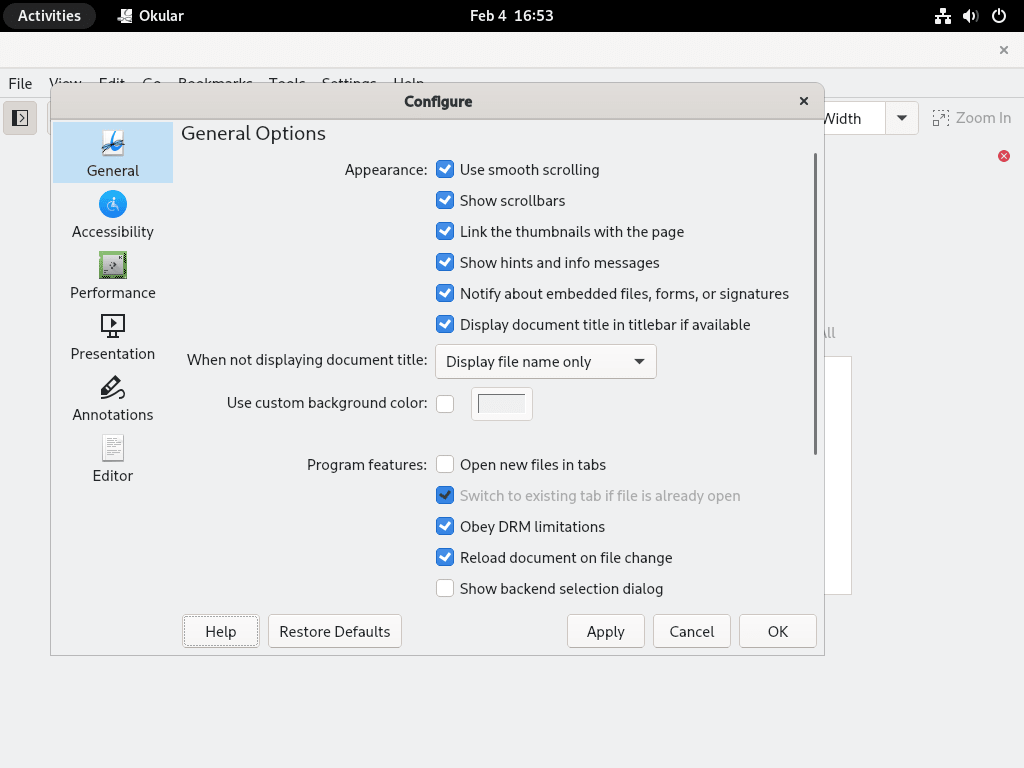
After launch, Okular can open PDFs, EPUB books, DjVu scans, comic archives, and several image or document formats from one interface. You can also pass a document path to the launcher command when you want to open a file directly from the terminal.
For PDFs, Okular is strongest as a reader and annotation tool. Use it for highlights, notes, text comments, and signature checks; for heavier PDF text or layout edits, use LibreOffice Draw after you install LibreOffice on Fedora.
Troubleshoot Okular on Fedora Linux
Fix a Disabled Flathub Remote for Okular
If Flathub was added earlier and then disabled, Flatpak can fail before it downloads Okular.
error: Unable to load summary from remote flathub: Can't fetch summary from disabled remote 'flathub'
Re-enable the remote, then retry the Flatpak install command:
sudo flatpak remote-modify --enable flathubFix Okular Command Not Found on Fedora
If okular is not found in the terminal, first confirm which package source is installed. The Fedora package provides the okular command directly:
rpm -q okularA Flatpak-only install does not add an okular binary to your normal shell path, so verify it with Flatpak and launch it with flatpak run:
flatpak info --show-ref org.kde.okularapp/org.kde.okular/x86_64/stable
Update or Remove Okular on Fedora Linux
Update Okular on Fedora
Use the update command for the package source you installed.
DNF package:
sudo dnf upgrade --refreshFlatpak package:
sudo flatpak update org.kde.okularRemove Okular from Fedora
Remove only the package source you installed. DNF may also remove unused dependencies from the same transaction, but shared KDE or Qt packages can remain when another application still needs them.
DNF package:
sudo dnf remove okularConfirm the RPM package is gone:
rpm -q okularpackage okular is not installed
Flatpak package:
sudo flatpak uninstall org.kde.okularConfirm the system-scope Flatpak app is gone:
flatpak list --system --app --columns=application | grep -Fx org.kde.okular || echo "NOT_INSTALLED"NOT_INSTALLED
If Okular was your only Flatpak application using the KDE runtime, Flatpak may offer to remove unused runtimes too. Review the list before confirming:
sudo flatpak uninstall --unusedOnly remove user data when you no longer need Okular settings, document-specific state, or Flatpak sandbox data. This does not delete documents you saved elsewhere, but it does remove the application state for your account.
Remove common native Okular configuration and per-user document state if you used the DNF package and want to reset those files:
rm -f ~/.config/okularrc ~/.config/okularpartrc
rm -rf ~/.local/share/okular
Remove the Flatpak sandbox data if you used the Flathub package:
rm -rf ~/.var/app/org.kde.okularConclusion
Okular is now available on Fedora through either the Fedora-managed DNF package or the Flathub build, with matching launch, update, and removal commands for each source. For adjacent document workflows, install Calibre on Fedora if you manage ebook libraries, or use the KDE Plasma installation guide for Fedora when you want the full KDE desktop around Okular.


Formatting tips for your comment
You can use basic HTML to format your comment. Useful tags currently allowed in published comments:
<code>command</code>command<strong>bold</strong><em>italic</em><a href="https://example.com">link</a><blockquote>quote</blockquote>