
Reading Wikipedia from GNOME is smoother when search, bookmarks, history, tabs, and article navigation live in a desktop window instead of another browser tab. You can install Wike on Fedora Linux from Fedora’s standard repositories or from Flathub, then launch it from your desktop app menu like any other graphical app.
The Fedora package is the best default for Fedora Workstation and other traditional DNF-based installs. The DNF steps apply to Fedora 44 and Fedora 43 on mutable Fedora editions. The Flathub build is useful on Fedora Atomic desktops, or when you prefer Flatpak’s app-level update path. Wike still needs a graphical session to run, even though the package can be installed from a terminal on Server or minimal systems.
Install Wike on Fedora Linux
Both installation paths are maintained through package managers, so updates and removal stay straightforward. The Fedora RPM follows Fedora’s repository cadence, while the Flathub build can move independently of Fedora release updates.
Choose a Wike Package Source for Fedora
| Method | Source | Update path | Best fit | Package status |
|---|---|---|---|---|
| Fedora repositories | Fedora RPM package | Regular DNF upgrades | Most mutable Fedora desktop installs | Fedora 44 and Fedora 43 stable repositories currently provide Wike 3.2.0 |
| Flathub Flatpak | Verified Flathub app listing | Flatpak updates from Flathub | Fedora Atomic desktops or users who prefer Flatpak | Flathub currently publishes Wike 3.2.1 with the GNOME 50 runtime |
Use the Fedora package unless you specifically want the Flathub build or are on an Atomic desktop where Flatpak is the normal application path. The Flatpak version is sandboxed, but the current permissions still include network, display, audio, and GPU access, so treat it as a packaging and update-cadence choice rather than a strict privacy boundary.
Update Fedora Before Installing Wike
Refresh DNF metadata and apply pending system updates before installing the RPM package:
sudo dnf upgrade --refreshThis step is not required for the Flatpak method, but it is still good maintenance on mutable Fedora systems.
Install Wike with DNF on Fedora
Install the Fedora RPM package with DNF:
sudo dnf install wikeDNF pulls in any missing GTK, WebKit, and Python dependencies for the desktop app. On a typical Fedora Workstation system where most GNOME libraries already exist, the transaction may only add Wike and a small dependency set; trimmed systems can need more supporting packages.
Verify the Wike RPM Package on Fedora
Confirm that Fedora registered the installed package:
rpm -q wikeOn Fedora 44, relevant output looks like this:
wike-3.2.0-1.fc44.noarch
The Fedora release suffix changes by Fedora version. You can also inspect the launcher and GNOME search-provider files installed by the RPM package:
rpm -ql wike | grep -E '(^/usr/bin/wike$|com.github.hugolabe.Wike.desktop$|SearchProvider)'Relevant output includes:
/usr/bin/wike
/usr/share/applications/com.github.hugolabe.Wike.desktop
/usr/share/dbus-1/services/com.github.hugolabe.Wike.SearchProvider.service
/usr/share/gnome-shell/search-providers/com.github.hugolabe.Wike.SearchProvider.ini
The DNF5 install examples guide for Fedora covers additional package selection and confirmation options if you want a deeper package-manager reference.
Install Wike with Flatpak on Fedora
Fedora Workstation, Silverblue, and Kinoite include Flatpak by default. On a mutable Server, minimal, or custom Fedora install where the command is missing, install Flatpak first:
sudo dnf install flatpakFlathub is opt-in on Fedora. Add the Flathub remote at system scope, which keeps the later install, update, and uninstall commands aligned:
sudo flatpak remote-add --if-not-exists flathub https://dl.flathub.org/repo/flathub.flatpakrepoConfirm that the remote is available:
flatpak remotes --columns=name,options | grep -E '^flathub[[:space:]]'flathub system
Install Wike from Flathub:
sudo flatpak install flathub com.github.hugolabe.WikeFlatpak shows the application permissions and any required runtimes before installation. Wike currently uses the GNOME 50 runtime from Flathub, which may download a larger runtime the first time you install a GNOME Flatpak.
Verify the Wike Flatpak on Fedora
Check the installed Flatpak record after the install finishes:
flatpak info com.github.hugolabe.WikeA current Flathub install shows these key fields:
            ID: com.github.hugolabe.Wike
       Version: 3.2.1
        Origin: flathub
  Installation: system
       Runtime: org.gnome.Platform/x86_64/50
If you want to review the sandbox permissions directly, use Flatpak’s permission view:
flatpak info --show-permissions com.github.hugolabe.WikeRelevant lines include:
[Context]
shared=ipc;network;
sockets=fallback-x11;pulseaudio;wayland;x11;
devices=dri;
Launch Wike on Fedora Linux
Launch Wike from the Desktop Menu
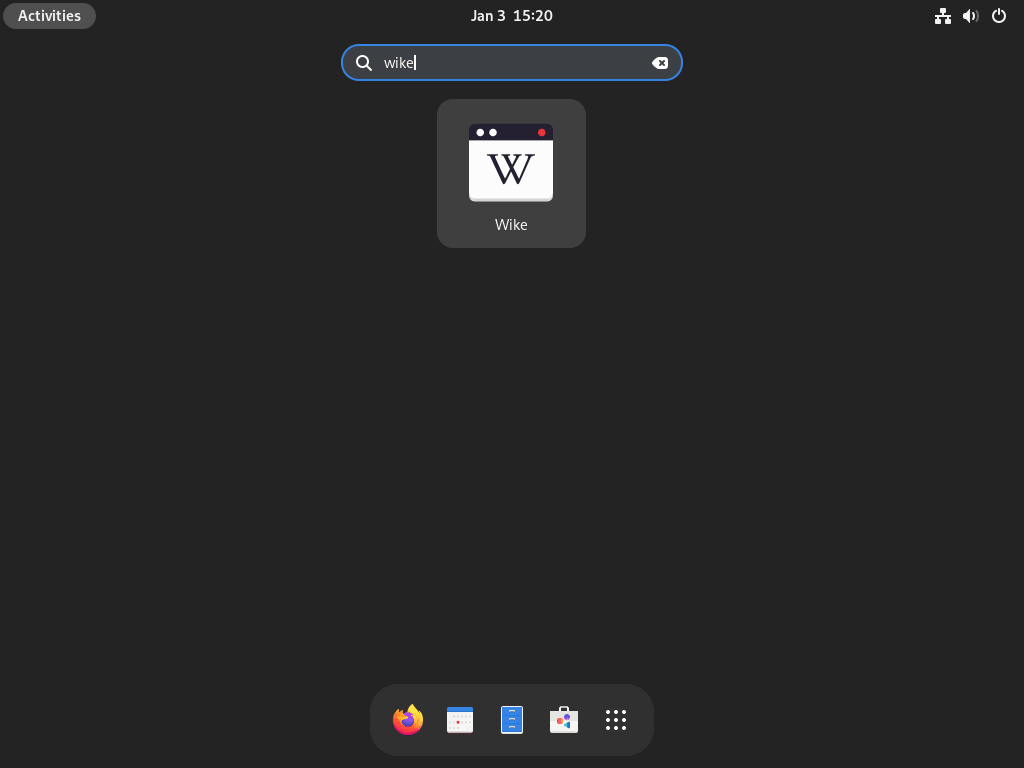
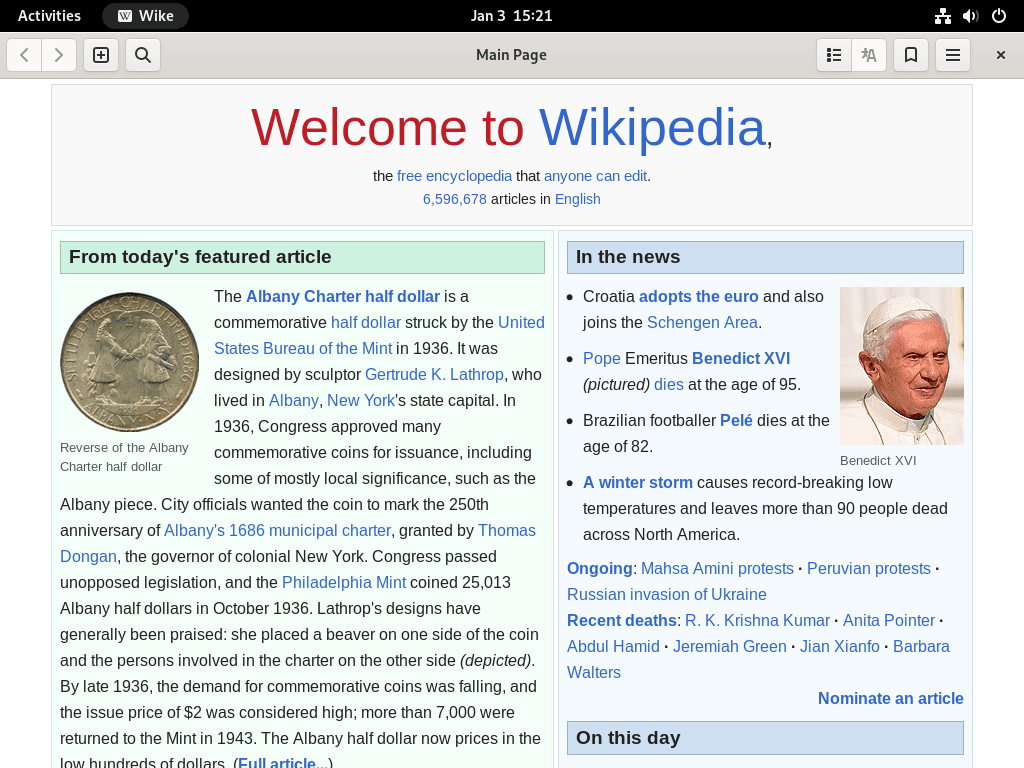
On GNOME, open Activities and search for Wike. On other Fedora desktops, use the application launcher or menu. The launcher appears after either package method finishes, although you may need to log out and back in if your desktop menu cache does not refresh immediately after a new Flatpak install.
Launch Wike from the Terminal
The RPM package installs the short launcher command:
wikeThe Flatpak package uses the application ID:
flatpak run com.github.hugolabe.WikeUse Wike on Fedora Linux
Search Wikipedia Articles in Wike
Type a topic in Wike’s search field, then choose a suggestion or press Enter to load the article. Wike keeps the reading view focused on the article while preserving links, images, language navigation, and table-of-contents navigation when the article provides it.
Use GNOME Search with Wike
The Fedora RPM installs Wike’s GNOME search-provider files. The Flatpak build also carries Wike search-provider metadata inside the app, but desktop export and cache behavior can vary by session. Open Wike at least once after installation, then enable Allow Live Search on Desktop in Wike’s preferences if you want GNOME search to return individual Wikipedia suggestions instead of only a generic Wike search action. Search terms shorter than three characters usually do not produce live suggestions.
Manage Wike Bookmarks and History
Use the bookmark button in Wike’s header bar to save articles you revisit often. The bookmarks and history panels let you return to saved or recent pages without searching again, which is useful when you use Wike as a lightweight research companion beside a terminal or editor.
Change Wike Language and Display Settings
Open Wike’s menu and preferences to change the default Wikipedia language, theme, text size, search suggestions, desktop live search, history behavior, and article view options. These settings are per user, so changing them does not affect other accounts on the same Fedora system.
Update or Remove Wike on Fedora Linux
Update Wike on Fedora
Repository installs update with normal Fedora package maintenance:
sudo dnf upgrade --refreshTo check only the Wike RPM package without applying every system update, use DNF’s check command:
dnf check-update wikeFor major Fedora release upgrades, the DNF5 system upgrade guide for Fedora covers the staged offline upgrade workflow.
Flatpak installs update through Flathub:
sudo flatpak update com.github.hugolabe.WikeConfirm the installed Flatpak version after updating:
flatpak info com.github.hugolabe.Wike | grep '^Version:'Remove Wike from Fedora
Remove the Fedora RPM package with DNF:
sudo dnf remove wikeDNF removes dependencies that only Wike used when they are safe to clean up. Review the transaction before confirming on systems with a long package history.
Verify that the RPM package is gone:
rpm -q wike || echo "Wike RPM is not installed"package wike is not installed Wike RPM is not installed
Remove the Flatpak application with the same system scope used during installation:
sudo flatpak uninstall com.github.hugolabe.WikeVerify that the Flatpak app is gone:
flatpak list --app --columns=application | grep -x com.github.hugolabe.Wike || echo "Wike Flatpak is not installed"Wike Flatpak is not installed
Preview unused Flatpak runtimes before removing them. This may list runtimes that other removed apps used, not just Wike:
flatpak uninstall --unused --dry-runIf the preview only lists components you no longer need, remove them:
sudo flatpak uninstall --unusedThe RPM package stores Wike preferences through GNOME settings and writes bookmarks or history to user data files with generic JSON filenames, so do not delete broad XDG data paths blindly. Use Wike’s own history and bookmark controls for normal cleanup.
Flatpak stores Wike’s per-user data under its app sandbox. Back up this directory first if it exists and you want to keep bookmarks, history, or preferences from the Flatpak install:
backup_dir="$HOME/wike-flatpak-backup-$(date +%Y%m%d-%H%M%S)"
if [ -d "$HOME/.var/app/com.github.hugolabe.Wike" ]; then
  cp -a "$HOME/.var/app/com.github.hugolabe.Wike" "$backup_dir"
  printf 'Backup saved to %s\n' "$backup_dir"
fi
Removing this directory deletes Wike bookmarks, history, preferences, and cached data for the current user. Keep the backup until you confirm you no longer need that data.
After confirming the backup, remove the Flatpak user data:
rm -rf ~/.var/app/com.github.hugolabe.WikeTroubleshoot Wike on Fedora Linux
Wike Is Not Found in DNF
If DNF cannot find Wike, check that the standard Fedora repositories are enabled:
dnf repo list --enabled | grep -E '^(fedora|updates)[[:space:]]'Expected lines on Fedora 44 include:
fedora                Fedora 44 - x86_64
updates               Fedora 44 - x86_64 - Updates
If either repository is missing, re-enable the standard repositories and refresh metadata:
sudo dnf config-manager setopt fedora.enabled=1
sudo dnf config-manager setopt updates.enabled=1
sudo dnf clean metadata
sudo dnf upgrade --refresh
Then retry the Wike install command.
Flathub Is Disabled on Fedora
A disabled Flathub remote can produce a summary-fetch error during Flatpak installation:
error: Unable to load summary from remote flathub: Can't fetch summary from disabled remote 'flathub'
Check the remote state:
flatpak remotes --columns=name,options --show-disabled | grep -E '^flathub[[:space:]]'A disabled system remote looks like this:
flathub system,disabled
Re-enable Flathub, then verify the remote is active:
sudo flatpak remote-modify --enable flathub
flatpak remotes --columns=name,options | grep -E '^flathub[[:space:]]'
flathub system
GNOME Search Does Not Show Wike Suggestions
Wike’s desktop search provider depends on GNOME Shell and Wike’s own search settings. Open Wike once after installation, check Preferences, and enable Allow Live Search on Desktop if you want Activities search to return individual Wikipedia article suggestions. If you only see a generic Wike search action, Wike is installed correctly but live suggestions are not enabled for that user. Because this feature sends desktop search terms to Wikipedia, leave it off if you do not want that behavior.
Also test a longer query. Wike’s search provider ignores very short search terms, so two-character searches can return no live article suggestions even when desktop search is working.
Conclusion
Wike is now available on Fedora as either a DNF-managed RPM package or a Flathub Flatpak. The Fedora package keeps the cleanest fit for mutable Fedora desktops, while the Flatpak path works well for Atomic desktops and users who prefer Flathub’s update stream. After launch, set your preferred Wikipedia language, enable desktop search if you want GNOME suggestions, and keep updates tied to the package source you installed.


Formatting tips for your comment
You can use basic HTML to format your comment. Useful tags currently allowed in published comments:
<code>command</code>command<strong>bold</strong><em>italic</em><a href="https://example.com">link</a><blockquote>quote</blockquote>