
Yandex keeps its Ubuntu browser packages outside the Ubuntu archive, so a clean install starts with the signed Yandex repository instead of a distro package. Use that repository to install Yandex Browser on Ubuntu with Yandex account sync, built-in translation, Protect checks, and package-manager updates across Ubuntu 26.04, 24.04, and 22.04.
Stable is the normal desktop choice. Beta can be installed beside Stable or Corporate for preview testing, while Corporate conflicts with Stable and is meant for managed or business-oriented deployments. To download Yandex Browser for Linux manually, use the official Yandex Browser download page and choose the DEB package for Ubuntu; the APT repository is the cleaner Ubuntu path because it keeps the maintained package variants in one signed update flow.
Yandex’s Linux requirements list 64-bit Ubuntu 18.04 or later. These commands are written for Ubuntu 26.04, 24.04, and 22.04 on
amd64; the Yandex Browser APT repository does not publish 32-bit or ARM packages.
Install Yandex Browser on Ubuntu
Choose a Yandex Browser Package
Choose the package before you install the browser. The repository uses two suites: stable for Stable and Corporate, and beta for Beta.
| Package | Repository Channel | Coexistence | Best Fit |
|---|---|---|---|
yandex-browser-stable | Stable suite | Can coexist with Beta; conflicts with Corporate | Most Ubuntu desktop users |
yandex-browser-beta | Beta suite | Can coexist with Stable or Corporate | Preview testing without replacing the main browser |
yandex-browser-corporate | Stable suite | Can coexist with Beta; conflicts with Stable | Managed or corporate-oriented browser deployments |
Flathub also publishes a verified Yandex Browser Flatpak under ru.yandex.Browser, but the APT path used here is the one that exposes the Stable, Beta, and Corporate packages directly. The snap packages visible for this name are third-party listings with no current stable channel, so they are not used here.
Prepare Ubuntu for Yandex Browser
Refresh package metadata and install the small tools needed to fetch and store the Yandex signing key. Minimal Ubuntu installs may not include curl or gpg yet.
sudo apt update
sudo apt install curl gpg ca-certificates -y
These commands use
sudofor tasks that need root privileges. If your account does not have sudo access yet, follow the guide on how to add a new user to sudoers on Ubuntu before continuing.
If you use download commands often, the curl command in Linux guide explains the same flags used in the repository setup here.
Import the Yandex Browser Signing Key on Ubuntu
Import the Yandex Browser signing key into a dedicated system keyring so APT can verify packages from this repository. The --yes flag makes the command safe to rerun later if you need to replace the keyring file.
curl -fsSL https://repo.yandex.ru/yandex-browser/YANDEX-BROWSER-KEY.GPG | sudo gpg --dearmor --yes -o /usr/share/keyrings/yandex-browser.gpgConfirm the imported key fingerprint before you add the repository.
gpg --show-keys --fingerprint /usr/share/keyrings/yandex-browser.gpgRelevant output includes:
pub   rsa4096 2023-05-16 [SC]
      2249 74DB 7FED 6DEC B7D8  55EF 60B9 CD3A 083A 7A9A
uid                      Yandex Browser Repository Key <browser@support.yandex.ru>
Add the Yandex Browser Repository on Ubuntu
If you followed an older one-line setup or an older stable-only Yandex Browser setup, remove the old Yandex source and trusted-key files first. This does not uninstall any browser package; it only clears duplicate source definitions before the new DEB822 file is written.
sudo rm -f /etc/apt/sources.list.d/yandex-browser-stable.sources
sudo rm -f /etc/apt/sources.list.d/yandex-browser.list
sudo rm -f /etc/apt/sources.list.d/yandex-browser-beta.list
sudo rm -f /etc/apt/trusted.gpg.d/yandex-browser.gpg
sudo rm -f /etc/apt/trusted.gpg.d/yandex-browser-beta.gpg
Write the repository file in DEB822 format so the key stays scoped to this source. The file enables both the stable and beta suites because the maintained package variants are split across them.
printf '%s\n' \
'Types: deb' \
'URIs: https://repo.yandex.ru/yandex-browser/deb' \
'Suites: stable beta' \
'Components: main' \
'Architectures: amd64' \
'Signed-By: /usr/share/keyrings/yandex-browser.gpg' | sudo tee /etc/apt/sources.list.d/yandex-browser.sources > /dev/null
Print the file once so you can confirm the repository entry before APT reads it.
cat /etc/apt/sources.list.d/yandex-browser.sourcesRelevant output includes:
Types: deb
URIs: https://repo.yandex.ru/yandex-browser/deb
Suites: stable beta
Components: main
Architectures: amd64
Signed-By: /usr/share/keyrings/yandex-browser.gpg
Refresh APT so Ubuntu reads the new source.
sudo apt updateRelevant output includes the Yandex stable and beta suites:
https://repo.yandex.ru/yandex-browser/deb stable InRelease
https://repo.yandex.ru/yandex-browser/deb beta InRelease
Confirm Yandex Browser Package Candidates
Check the packages before installing so you can see which suite provides each variant.
apt-cache policy yandex-browser-stable yandex-browser-beta yandex-browser-corporateRelevant output includes current candidates from the Yandex repository:
yandex-browser-stable:
  Installed: (none)
  Candidate: 26.3.1.1088-1
        500 https://repo.yandex.ru/yandex-browser/deb stable/main amd64 Packages
yandex-browser-beta:
  Installed: (none)
  Candidate: 26.3.1.1085-1
        500 https://repo.yandex.ru/yandex-browser/deb beta/main amd64 Packages
yandex-browser-corporate:
  Installed: (none)
  Candidate: 26.3.5.855-1
        500 https://repo.yandex.ru/yandex-browser/deb stable/main amd64 Packages
Yandex can publish newer builds at any time, so the version numbers may differ. The important checks are that the package has a candidate, the source is repo.yandex.ru, and the architecture is amd64.
Install Your Chosen Yandex Browser Package
Use only the command for the package you selected. Install Stable for the normal desktop browser.
sudo apt install yandex-browser-stable -yOlder tutorials often use apt-get for the same Stable package. After the repository is added, this equivalent command installs Stable through the same Yandex source.
sudo apt-get install yandex-browser-stable -yInstall Beta when you want a preview build. Beta can be added beside Stable or Corporate.
sudo apt install yandex-browser-beta -yInstall Corporate only on systems where Stable is not installed, or remove Stable first. Corporate uses the same stable repository suite but declares a package conflict with Stable.
sudo apt install yandex-browser-corporate -yIf you want a side-by-side setup, install either Stable plus Beta or Corporate plus Beta. Do not combine Stable and Corporate in the same APT transaction.
sudo apt install yandex-browser-stable yandex-browser-beta -ysudo apt install yandex-browser-corporate yandex-browser-beta -yVerify Installed Yandex Browser Packages
Use package-manager state as the primary verification. This avoids trying to launch a graphical browser from a headless or SSH-only shell.
dpkg-query -W -f='${db:Status-Abbrev} ${binary:Package} ${Version}\n' yandex-browser-stable yandex-browser-beta yandex-browser-corporate 2>/dev/null | grep '^ii'A Stable plus Beta install returns lines similar to:
ii  yandex-browser-beta 26.3.1.1085-1
ii  yandex-browser-stable 26.3.1.1088-1
Clean Legacy Yandex Browser Source Files
The current DEB packages still contain legacy source-list and trusted-key handling for files such as yandex-browser.list, yandex-browser-beta.list, and matching files under /etc/apt/trusted.gpg.d/. If those files appear after a package install or reinstall, remove them so your DEB822 source remains the single active repository definition.
sudo rm -f /etc/apt/sources.list.d/yandex-browser.list
sudo rm -f /etc/apt/sources.list.d/yandex-browser-beta.list
sudo rm -f /etc/apt/trusted.gpg.d/yandex-browser.gpg
sudo rm -f /etc/apt/trusted.gpg.d/yandex-browser-beta.gpg
Confirm that only the DEB822 source file remains under APT’s source directory, then refresh package metadata.
find /etc/apt/sources.list.d /etc/apt/trusted.gpg.d -maxdepth 1 -iname '*yandex*' -print 2>/dev/nullRelevant output should show the DEB822 source file only:
/etc/apt/sources.list.d/yandex-browser.sources
sudo apt updateLaunch Yandex Browser on Ubuntu
The package installs cleanly from a terminal on desktop, server, and minimal Ubuntu systems, but Yandex Browser still needs an active graphical session to open a window.
Launch Yandex Browser from the Applications Menu on Ubuntu
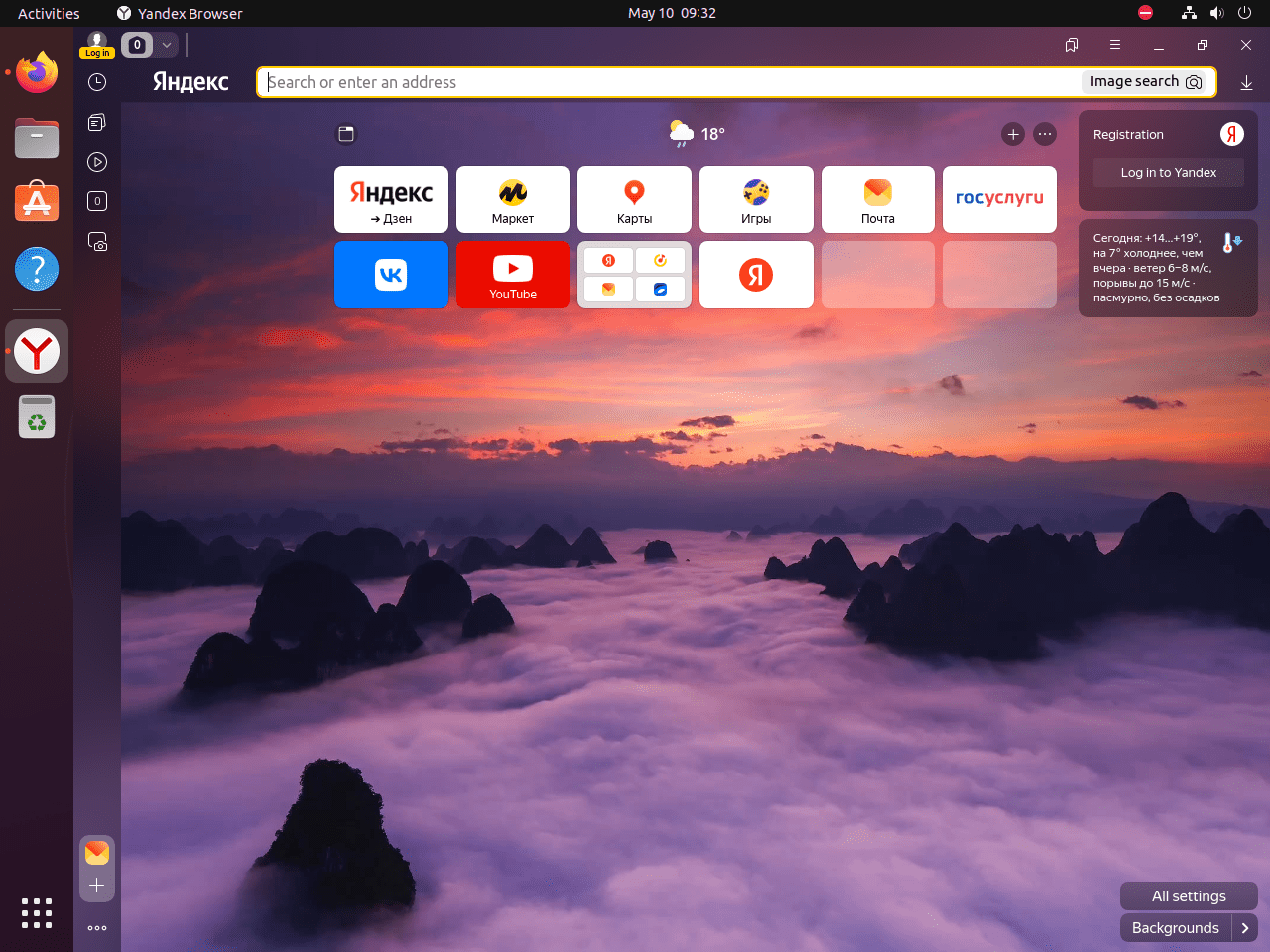
Open the Activities overview, search for Yandex Browser, and launch it like any other desktop application. If you installed Beta, search for the Beta launcher separately. On first start, you can sign in, import bookmarks, and decide whether to make it your default browser.
Launch Yandex Browser from the Terminal on Ubuntu
If you are already inside a graphical session, start the installed variant with its matching terminal command.
yandex-browser-stable &
yandex-browser-beta &
yandex-browser-corporate &
Manage Yandex Browser on Ubuntu
Update Yandex Browser on Ubuntu
Because the browser packages come from an APT repository, update installed variants with APT. The --only-upgrade flag upgrades packages already present on the system without installing missing variants.
sudo apt update
sudo apt install --only-upgrade yandex-browser-stable yandex-browser-beta yandex-browser-corporate -y
If a listed variant is not installed, APT skips it and upgrades only the installed Yandex Browser package or packages.
Remove Yandex Browser Packages from Ubuntu
Purge the browser packages when you want to remove the applications and package-managed configuration files. This step does not remove the Yandex repository yet.
sudo apt purge yandex-browser-stable yandex-browser-beta yandex-browser-corporate -yCheck installed state before you remove the repository. No output from grep means none of the Yandex Browser packages remain installed.
dpkg-query -W -f='${db:Status-Abbrev} ${binary:Package}\n' yandex-browser-stable yandex-browser-beta yandex-browser-corporate 2>/dev/null | grep '^ii' || echo "No Yandex Browser packages are installed."Relevant output after removal includes:
No Yandex Browser packages are installed.
Remove the Yandex Browser Repository from Ubuntu
Delete the DEB822 source file, older stable-only source files, package-generated legacy source files, and Yandex keyrings when you no longer want APT to offer Yandex Browser.
sudo rm -f /etc/apt/sources.list.d/yandex-browser.sources
sudo rm -f /etc/apt/sources.list.d/yandex-browser-stable.sources
sudo rm -f /etc/apt/sources.list.d/yandex-browser.list
sudo rm -f /etc/apt/sources.list.d/yandex-browser-beta.list
sudo rm -f /usr/share/keyrings/yandex-browser.gpg
sudo rm -f /etc/apt/trusted.gpg.d/yandex-browser.gpg
sudo rm -f /etc/apt/trusted.gpg.d/yandex-browser-beta.gpg
sudo apt update
Confirm that no Yandex APT source or key file remains.
find /etc/apt/sources.list.d /etc/apt/trusted.gpg.d /usr/share/keyrings -maxdepth 1 -iname '*yandex*' -print 2>/dev/nullNo output means the repository cleanup is complete.
Remove Yandex Browser Profile Data on Ubuntu
Delete profile data only after you export anything you want to keep. Bookmarks, saved passwords, browsing history, and extensions stored only on this machine will be removed permanently.
Profile directories are created after the browser runs for a user account, so check which Yandex paths actually exist before you delete anything.
find "$HOME/.config" "$HOME/.cache" "$HOME/.local/share" -maxdepth 2 -iname '*yandex-browser*' -print 2>/dev/nullIf the browser has already been launched, the command may print paths such as:
/home/your-user/.config/yandex-browser
/home/your-user/.config/yandex-browser-beta
/home/your-user/.cache/yandex-browser
/home/your-user/.local/share/applications/yandex-browser-stable.desktop
Delete only the paths that the previous command printed for your account.
find "$HOME/.config" "$HOME/.cache" "$HOME/.local/share" -maxdepth 2 -iname '*yandex-browser*' -exec rm -rf {} + 2>/dev/nullTroubleshoot Yandex Browser on Ubuntu
Most install failures come from a missing signing key, a duplicate package-generated source file, or a package conflict between Stable and Corporate.
Fix Yandex Browser GPG Key Errors on Ubuntu
If APT cannot verify the repository, it usually reports the missing Yandex key ID during apt update.
The following signatures couldn't be verified because the public key is not available: NO_PUBKEY 60B9CD3A083A7A9A
Remove the broken keyring file and import the key again, then confirm the fingerprint.
sudo rm -f /usr/share/keyrings/yandex-browser.gpg
curl -fsSL https://repo.yandex.ru/yandex-browser/YANDEX-BROWSER-KEY.GPG | sudo gpg --dearmor --yes -o /usr/share/keyrings/yandex-browser.gpg
gpg --show-keys --fingerprint /usr/share/keyrings/yandex-browser.gpg
Relevant output includes the same 2249 74DB 7FED 6DEC B7D8 55EF 60B9 CD3A 083A 7A9A fingerprint shown in the install section.
Fix Duplicate Yandex Browser Source Warnings on Ubuntu
If APT warns that a target is configured multiple times, a package-generated legacy source file is overlapping with the DEB822 source you created.
W: Target Packages (main/binary-amd64/Packages) is configured multiple times in /etc/apt/sources.list.d/yandex-browser.list and /etc/apt/sources.list.d/yandex-browser.sources
W: Target Packages (main/binary-amd64/Packages) is configured multiple times in /etc/apt/sources.list.d/yandex-browser-beta.list and /etc/apt/sources.list.d/yandex-browser.sources
Remove the package-generated source files and trusted-key copies again, then confirm that the DEB822 source remains.
sudo rm -f /etc/apt/sources.list.d/yandex-browser.list
sudo rm -f /etc/apt/sources.list.d/yandex-browser-beta.list
sudo rm -f /etc/apt/trusted.gpg.d/yandex-browser.gpg
sudo rm -f /etc/apt/trusted.gpg.d/yandex-browser-beta.gpg
find /etc/apt/sources.list.d /etc/apt/trusted.gpg.d -maxdepth 1 -iname '*yandex*' -print 2>/dev/null
Relevant output should show only:
/etc/apt/sources.list.d/yandex-browser.sources
Fix "Unable to Locate Package yandex-browser-stable" on Ubuntu
When APT cannot find the package, check whether the repository is active and whether the source file includes both Yandex suites.
cat /etc/apt/sources.list.d/yandex-browser.sources
sudo apt update
apt-cache policy yandex-browser-stable yandex-browser-beta yandex-browser-corporate
If the source file is correct and the repository is healthy, the policy output shows candidates from repo.yandex.ru for the packages that belong to the enabled suites.
Fix Yandex Browser Corporate and Stable Conflicts
Corporate and Stable cannot be installed together. If you try to combine them, APT reports a package conflict.
The following packages have unmet dependencies:
 yandex-browser-corporate : Conflicts: yandex-browser-stable
Choose one stable-channel package. If you need Corporate, remove Stable first; Beta can remain installed.
sudo apt purge yandex-browser-stable -y
sudo apt install yandex-browser-corporate -y
Conclusion
Yandex Browser is installed on Ubuntu with APT handling future updates for the Stable, Beta, or Corporate package you chose. Stable and Beta can run beside each other, Corporate replaces Stable, and the cleanup steps keep Yandex’s package-generated legacy source files from duplicating your DEB822 repository. If you want a different Chromium-based setup later, install Brave Browser on Ubuntu for stronger privacy defaults, install Chromium Browser on Ubuntu for a fully open-source base, or install Microsoft Edge on Ubuntu for tighter Microsoft 365 integration.


Is there a 32-bit version of Yandex for Debian?
Thanks for asking, Emmanuel. Unfortunately, Yandex Browser is only available for 64-bit (amd64) systems. The official Yandex repository does not provide packages for 32-bit or ARM architectures, and this applies to both Debian and Ubuntu. If you need a lightweight browser for a 32-bit system, consider Firefox ESR or Chromium from your distribution’s repositories.
please replace “browser-*” to “browser*”:
sudo rm /etc/apt/sources.list.d/yandex-browser-*.list
->
sudo rm /etc/apt/sources.list.d/yandex-browser*.list
thanks for the feedback, fixed.