
This guide shows you how to install HandBrake on Debian using either APT (Debian’s default repositories) or Flatpak (Flathub). HandBrake converts video files from nearly any format into modern, widely supported formats, which makes it useful for shrinking large libraries, creating device-friendly copies, or transcoding rips you’ve already made. The steps apply to Debian 13 (Trixie), Debian 12 (Bookworm), and Debian 11 (Bullseye), with verification commands so you can confirm what you installed.
HandBrake includes device-specific presets for quick conversions, batch processing for multiple files, video filters like deinterlacing and denoising, and support for both soft and hard subtitle tracks. The live preview feature lets you verify encoding settings before committing to a full transcode, which is particularly useful when working with large video files.
Installation Methods Comparison
HandBrake is available through Debian’s official repositories and Flathub. Choose the method that best fits how you prefer to update software and how much you care about having the newest features.
| Method | Best For | Version Updates | Pros | Cons |
|---|---|---|---|---|
| APT (Default Repos) | Most users who want Debian-native packaging | Updates follow Debian’s repository cadence | Best system integration, updates through normal APT maintenance, no extra frameworks | Version is tied to your Debian release (Debian 13: 1.9.x, Debian 12: 1.6.x, Debian 11: 1.3.x) |
| Flatpak (Flathub) | Users who want newer releases on stable Debian | Updates independent of Debian’s release cycle | Often newer app versions, sandboxing, consistent packaging across distributions | Requires Flatpak, updates are managed separately, review sandbox permissions before using |
If you want set-and-forget updates with the rest of your system, use APT. If you want a newer HandBrake release on stable Debian without switching repositories, use Flatpak.
Before You Start
These checks are optional but help prevent common surprises. Some Debian derivatives (like LMDE or Devuan) have different package availability, and confirming your architecture ensures you’re looking at the right package builds.
cat /etc/os-release
uname -m
Look for ID=debian and confirm the codename matches your expected release. Architecture is typically x86_64 on standard PCs and laptops, or aarch64 on ARM-based systems like Raspberry Pi 4 or cloud ARM instances.
ID=debian
VERSION_CODENAME=bookworm

x86_64
If you’re running a headless server (no GUI), install the CLI package only (handbrake-cli) and use HandBrakeCLI to encode from the terminal.
Install HandBrake on Debian
Method 1: Install from Debian Repositories (APT)
Step 1: Update Package Lists
Refresh your package lists so APT can see the latest packages available for your Debian release:
sudo apt updateA full system upgrade (
sudo apt upgrade) is a good maintenance habit, but it’s not required just to install HandBrake. If you run it, expect other packages on your system to update too.
Step 2: Install HandBrake
Install the GUI package plus the optional CLI package. The CLI is useful for scripts, remote servers, or batch jobs:
sudo apt install handbrake handbrake-cliVerify the installation by confirming the packages are installed:
dpkg -l handbrake handbrake-cli 2>/dev/null | awk '/^ii/ {print $2, $3}'Your output shows the package names and versions installed on your system:
handbrake 1.x.x+ds1-...
handbrake-cli 1.x.x+ds1-...
If you want to compare what you installed against what Debian offers per release, Debian’s package search currently lists HandBrake at 1.9.2+ds1-1 (Debian 13), 1.6.1+ds1-1 (Debian 12), and 1.3.1+ds1-2 (Debian 11). Patch-level build suffixes (for example, +b1) can differ by architecture and rebuilds.
For a quick check that the binaries exist, you can also run:
command -v ghb
command -v HandBrakeCLI
Method 2: Install from Flathub (Flatpak)
Flatpak provides HandBrake in a sandboxed environment with more frequent version updates independent of Debian’s release cycle. This method is a common choice if you want a newer HandBrake release on stable Debian without touching your APT sources.
If Flatpak is not already installed on your Debian system, follow our Flatpak installation guide for Debian to set up Flatpak and enable Flathub. Return here to install HandBrake.
Step 1: Enable Flathub Repository
Add the Flathub remote at the system level. Flathub’s recommended .flatpakrepo URL redirects to the download host, so using the direct download URL avoids redirect edge cases in some environments:
sudo flatpak remote-add --if-not-exists --system flathub https://dl.flathub.org/repo/flathub.flatpakrepoStep 2: Install HandBrake via Flatpak
Install HandBrake from Flathub at the system level, making it available to all users:
sudo flatpak install --system flathub fr.handbrake.ghb -yThe --system flag targets the default system-wide Flatpak installation. The -y flag auto-confirms prompts.
Verify the Flatpak installation by showing the installed app metadata:
flatpak info --system fr.handbrake.ghbYou should see output showing the application name, version, and installation details:
HandBrake - fr.handbrake.ghb

          ID: fr.handbrake.ghb
         Ref: app/fr.handbrake.ghb/x86_64/stable
        Arch: x86_64
      Branch: stable
     Version: 1.x.x
     License: GPL-2.0-only
      Origin: flathub
  Collection: org.flathub.Stable
Installation: system
   Installed: ...
If you want to review sandbox permissions (recommended before using any Flatpak app with file access), you can inspect them directly:
flatpak info --show-permissions --system fr.handbrake.ghbLaunch HandBrake
Launch HandBrake from the terminal or through your desktop environment’s application menu. The launch command depends on your installation method.
Launch HandBrake from Terminal
If you installed HandBrake via APT, launch the GTK interface using ghb:
ghbFor command-line work (useful for servers and scripts), the binary is HandBrakeCLI. Start by checking available options:
HandBrakeCLI --help | lessA basic CLI transcoding example that converts a video to H.264 MP4 using the “Fast 1080p30” preset:
HandBrakeCLI -i /path/to/input.mkv -o /path/to/output.mp4 --preset="Fast 1080p30"List all available presets with HandBrakeCLI --preset-list to see the full range of built-in encoding profiles.
For the Flatpak installation, use the full application ID:
flatpak run fr.handbrake.ghbLaunch HandBrake from Applications Menu
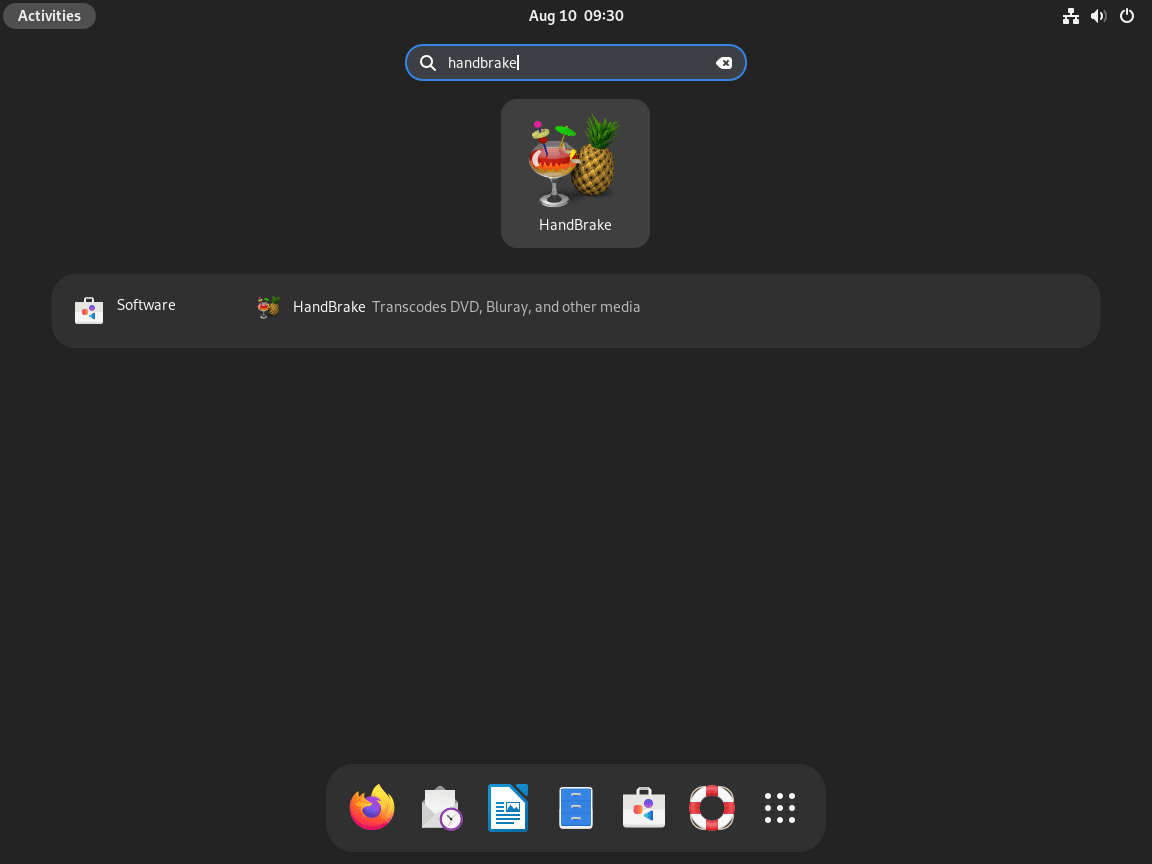
To launch HandBrake graphically, search for “HandBrake” in your desktop environment’s application menu. The exact steps vary by desktop environment:
- Open your application menu (Activities, Menu, or Show Applications depending on your desktop environment)
- Type “HandBrake” in the search field
- Click the HandBrake icon to launch the application
Getting Started with HandBrake
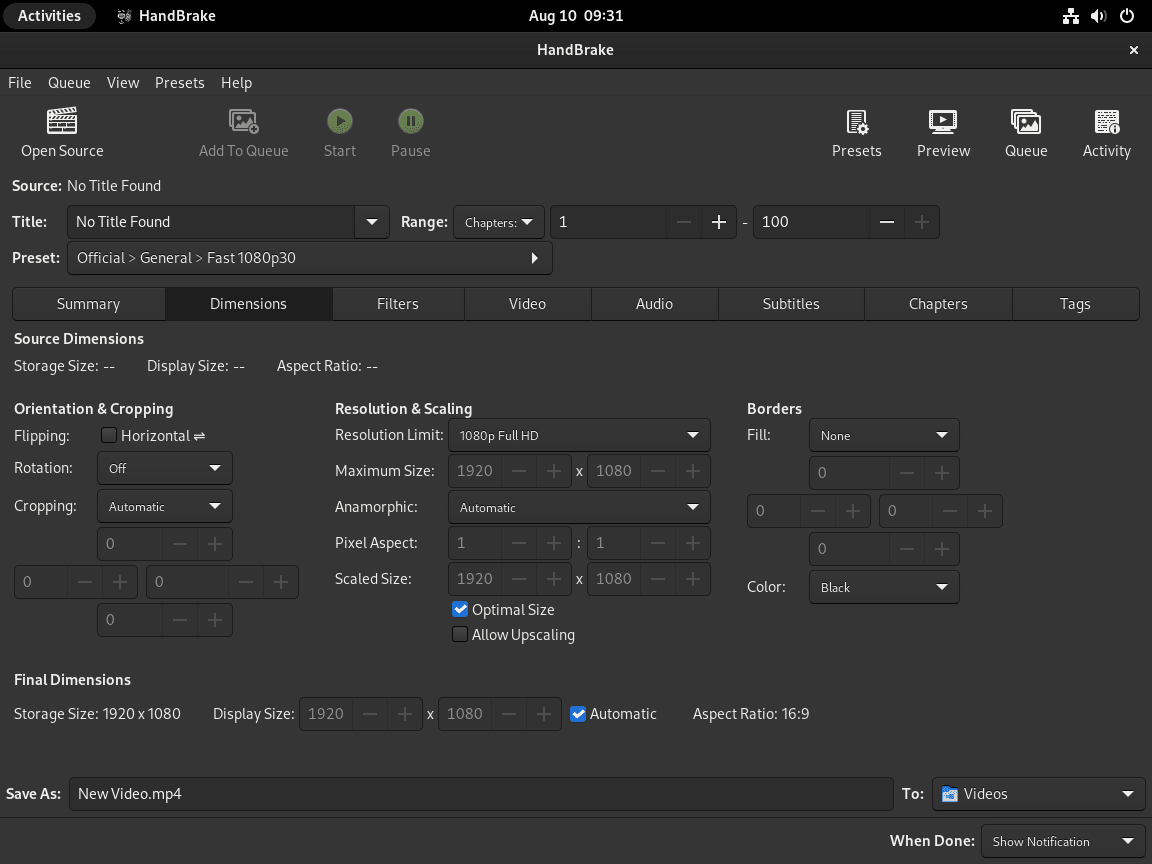
HandBrake offers extensive encoding options that can seem overwhelming at first. These practical tips help you start transcoding efficiently while avoiding common mistakes.
Essential HandBrake Workflow Tips
- Start with presets: HandBrake includes device-specific presets for quick conversions. Select your target device (smartphone, tablet, TV) from the presets menu to automatically configure optimal encoding settings without manual adjustment.
- Use the preview feature: Before starting a lengthy transcode, generate a preview to verify quality settings. The preview renders a short section using your current settings, letting you catch problems before committing to the full encode.
- Enable batch scanning: When processing multiple files, drag an entire folder into HandBrake rather than adding files individually. The batch scan feature detects all video files and queues them for sequential processing.
Quality and Performance Settings
- Use presets, then iterate: Start with a built-in preset that matches your target (for example, a general H.264 preset). Then change one thing at a time (quality, resolution, audio) and use the preview feature so you can see the trade-offs before committing to a long encode.
- Create custom presets: If you frequently encode with the same settings, save a custom preset with your preferred codec, resolution, and quality settings. This eliminates repetitive manual configuration for recurring transcoding tasks.
- Speed vs quality is a choice: Faster encodes usually trade off compression efficiency (or quality at the same size). If your goal is archival quality, prioritize consistency and repeatability over speed, and test settings on a short clip first.
Advanced Encoding Workflows
- Subtitle handling: HandBrake supports both embedded (hard-coded) and separate (soft) subtitle tracks. Hard-coded subtitles are burned directly into the video and cannot be disabled, while soft subtitles remain as selectable tracks in the output file. For maximum flexibility, use soft subtitles unless you need compatibility with devices that don’t support external subtitle tracks.
- Video filters: The Filters tab includes options for deinterlacing (essential for converting DVD content), denoising, and detelecine. Apply these filters only when needed; unnecessary filtering can degrade quality or increase encoding time.
- Audio pass-through: When the source audio codec matches your target format (for example, AAC or AC3), enable pass-through to avoid re-encoding. This preserves original audio quality and significantly reduces processing time.
For related video processing workflows, see our guides on installing FFmpeg for Debian (command-line video manipulation) and MakeMKV for Debian (DVD and Blu-ray ripping). These tools complement HandBrake for comprehensive media processing pipelines.
Manage HandBrake
Update HandBrake
Update APT HandBrake Installation
For HandBrake installed via APT, update to the latest version available in the Debian repositories:
sudo apt update
sudo apt install --only-upgrade handbrake handbrake-cli
This refreshes package metadata, then upgrades only HandBrake packages if they’re already installed. If you prefer updating everything at once, use sudo apt upgrade (no package name) after sudo apt update.
Update Flatpak HandBrake Installation
For HandBrake installed via Flatpak, update specifically HandBrake or all Flatpak applications:
sudo flatpak update --system fr.handbrake.ghbTo update all installed Flatpak applications at once:
sudo flatpak update --systemRemove HandBrake
To uninstall HandBrake, use the removal command that matches your installation method.
Remove APT HandBrake Installation
Remove HandBrake installed via APT:
sudo apt purge handbrake handbrake-cliRemove dependencies that were installed automatically and are no longer needed:
sudo apt autoremoveIf you also want to remove per-user settings (presets, queues, preferences), find the configuration directory created under your home directory after you’ve launched HandBrake at least once:
ls -d ~/.config/*handbrake* ~/.config/*ghb* 2>/dev/nullOnly delete a configuration directory if you’re sure it belongs to HandBrake and you want to lose that data. Back it up first if you want to preserve presets or preferences for a future reinstall.
Remove Flatpak HandBrake Installation
Remove HandBrake installed via Flatpak:
sudo flatpak uninstall --system fr.handbrake.ghbIf you also want to remove the app’s Flatpak data directory (stored under
~/.var/app/) and related permissions, uninstall with--delete-data. This is optional and is a more complete cleanup.
sudo flatpak uninstall --delete-data --system fr.handbrake.ghbRemove unused Flatpak runtimes and dependencies that are no longer needed:
sudo flatpak uninstall --unused --systemTroubleshooting
If something fails, the fastest path is to confirm which method you installed and whether the relevant package/app is actually present.
APT: Package Not Found or Launch Fails
If you see E: Unable to locate package handbrake, refresh package metadata and confirm APT can see the package for your release:
sudo apt update
apt-cache policy handbrake handbrake-cli
If ghb or HandBrakeCLI isn’t found after installation, confirm the packages are installed and the binaries exist:
dpkg -l handbrake handbrake-cli 2>/dev/null | awk '/^ii/ {print $2, $3}'
command -v ghb
command -v HandBrakeCLI
Flatpak: App ID Not Found or Permission Errors
If flatpak install can’t find fr.handbrake.ghb, confirm the Flathub remote exists for the system installation:
flatpak remotes --systemIf updates or removals fail with a “system installation” permission message, re-run the command with sudo and --system (this guide uses a system-wide Flatpak install so all users can run HandBrake).
GUI Fails to Start or Shows Display Errors
If HandBrake’s GUI (ghb) fails to launch with display-related errors, confirm you have a working display environment and the required GTK libraries:
echo $DISPLAY
dpkg -l libgtk-3-0 2>/dev/null | awk '/^ii/ {print $2, $3}'
If $DISPLAY is empty, you’re likely in a headless session (SSH without X forwarding, or a server without a desktop environment). In that case, use HandBrakeCLI instead of the GUI, or set up X11 forwarding if you need the graphical interface remotely.
Encoding Fails or Produces Corrupted Output
If encoding jobs fail partway through or produce unplayable files, check available disk space on the output drive and verify the source file isn’t corrupted:
df -h /path/to/output/directory
ffprobe /path/to/input.mkv 2>&1 | head -20
HandBrake needs enough free space for the entire output file, plus temporary workspace. If disk space is tight, encoding can fail mid-job. If ffprobe reports errors reading the source file, the input may be damaged.
Frequently Asked Questions
HandBrake does not handle disc decryption. If your disc is copy-protected, you generally need a separate tool to produce an unencrypted file first and then transcode that file with HandBrake. You are responsible for complying with local laws and the terms that apply to media you own.
Use APT if you want HandBrake to integrate with your system and receive updates through normal Debian maintenance. Choose Flatpak if you want a newer HandBrake release on stable Debian without changing your APT sources. The Flatpak version updates independently from Debian’s release cycle.
HandBrake on Linux may offer hardware encoders depending on the build, your drivers, and the codecs you select. If you see hardware encoder options in the Video tab, you can test them on a short clip first to confirm compatibility and quality for your workload.
Video encoding is CPU/GPU intensive. Speed depends on your hardware, the encoder you choose, quality settings, resolution, filters, and whether you enable hardware acceleration. The most reliable way to predict time on your system is to run a short test encode (or use HandBrake’s preview) with the settings you plan to use.
Yes. Install the CLI package with APT (sudo apt install handbrake-cli), then run HandBrakeCLI --help to see available options. This is the most practical approach for headless servers and automation.
Codec and encoder availability depends on the HandBrake version you install and the libraries it’s built against. If you need the newest encoders and formats on stable Debian, the Flatpak method is usually the simplest way to get a newer HandBrake release without changing your Debian repositories.
HandBrake does not include subtitle tracks by default. Add a subtitle track in the Subtitles tab. If you need subtitles always visible, enable burn-in; if you want selectable subtitles, keep them as a separate track in a compatible container (for example, MKV).
Conclusion
You now have HandBrake installed on Debian using either the Debian-packaged APT method or the Flatpak method from Flathub. If you’re new to HandBrake, start with a preset close to your goal, use the preview feature, and only change one setting at a time until you learn how each option affects quality, file size, and time. For broader media workflows, pairing HandBrake with FFmpeg (automation and inspection) and MakeMKV (creating rips to transcode) can make your process more reliable and repeatable.

Formatting tips for your comment
You can use basic HTML to format your comment. Useful tags currently allowed:
<code>command</code>command<strong>bold</strong><em>italic</em><blockquote>quote</blockquote>