Video collections rarely stay in the format, size, or container you need. HandBrake gives Debian users a practical way to transcode existing video files into common containers and codecs, such as MP4, MKV, H.264, and H.265, without hand-building every FFmpeg command.
To install HandBrake on Debian, start with APT when you want Debian-packaged updates, use Flatpak when you want the current upstream desktop build from Flathub, or build from source only when you need the latest upstream release and are comfortable with a long compile. The examples target Debian 13 (Trixie), Debian 12 (Bookworm), and Debian 11 (Bullseye).
Install HandBrake on Debian
Choose the HandBrake Installation Method
Each method installs a different package source and update path. APT is the lowest-maintenance Debian option, Flatpak is the easiest way to get a newer graphical HandBrake release, and source builds are for advanced users who accept manual updates and local build ownership.
| Method | Source or Channel | Update Behavior | Best For | Trade-offs |
|---|---|---|---|---|
| APT | Debian repositories | Updates through normal APT maintenance | Most Debian desktops and systems that prefer distro packages | Version follows each Debian release: Debian 13 currently has a newer package than Debian 12 and Debian 11 |
| Flatpak | Flathub app ID fr.handbrake.ghb | Updates through Flatpak, independent of APT | Users who want a newer upstream desktop build without changing APT sources | Requires Flatpak and Flathub; media workflows need broad file and device permissions, so review permissions before use |
| Source build | Latest GitHub release source archive | Rerun the helper script to rebuild a newer release | Advanced users who need the latest upstream release or custom build flags | Long build, more development dependencies, no automatic APT or Flatpak updates; Debian 11 builds CLI-only with default repositories because libgtk-4-dev is unavailable |
Use one primary HandBrake method unless you intentionally need more than one. A source install places binaries under
/usr/local, which can take precedence over Debian’s/usr/binbinaries on yourPATH.
Confirm Your Debian Release and Architecture
Release and architecture matter because Debian package versions and Flatpak architecture support are not identical. Check them before choosing a method:
cat /etc/os-release
uname -m
Example output from a Debian 13 amd64 system looks like this:
ID=debian
VERSION_CODENAME=trixie

x86_64
For headless servers or SSH-only systems, install the CLI package or use the source method’s CLI-only mode. The graphical interface needs a working desktop session.
Install HandBrake with APT
APT installs Debian’s packaged HandBrake GUI as handbrake and the command-line encoder as handbrake-cli. This is the safest default for users who want Debian to own dependency updates and security maintenance.
Update APT Metadata
sudo apt updateA full package upgrade is separate maintenance. Run sudo apt upgrade only when you are ready to update other packages on the system too.
Check the Debian Candidate Version
APT metadata shows which package version your Debian release will install:
apt-cache policy handbrake handbrake-cliOn Debian 13, the relevant candidate lines currently look like this:
handbrake:
  Candidate: 1.9.2+ds1-1
handbrake-cli:
  Candidate: 1.9.2+ds1-1
Current Debian package metadata resolves handbrake and handbrake-cli as 1.9.2+ds1-1 on Debian 13, 1.6.1+ds1-1 on Debian 12, and 1.3.1+ds1-2+b3 on Debian 11 for amd64 validation hosts. The package name is not handbrake-gtk; use handbrake for the graphical application.
Install the GUI and CLI Packages
sudo apt install handbrake handbrake-cliInstall only handbrake-cli on a server or automation host where the graphical desktop is not needed:
sudo apt install handbrake-cliVerify the APT Installation
If you installed only handbrake-cli, remove handbrake from the package check and skip the ghb path check.
dpkg-query -W -f='${db:Status-Abbrev} ${binary:Package} ${Version}\n' handbrake handbrake-cli
command -v ghb
command -v HandBrakeCLI
A successful GUI and CLI install returns installed-state lines plus the binary paths:
ii  handbrake 1.x.x+ds1-...
ii  handbrake-cli 1.x.x+ds1-...
/usr/bin/ghb
/usr/bin/HandBrakeCLI
Install HandBrake with Flatpak
The Flathub package is published by the HandBrake Team and is usually the easiest way to run the current upstream desktop release on stable Debian. Flathub currently lists HandBrake for x86_64, so ARM users should check the Flathub page before relying on this method.
If Flatpak is not installed yet, set it up with the Flatpak installation guide for Debian, then return to the HandBrake app install step.
Enable the Flathub Remote
sudo flatpak remote-add --if-not-exists flathub https://dl.flathub.org/repo/flathub.flatpakrepoFlatpak’s normal system-wide install scope is the default for this command. Debian may prompt for authentication through sudo.
Install the Flathub App
sudo flatpak install flathub fr.handbrake.ghbVerify the Flatpak App
flatpak info fr.handbrake.ghbThe important fields are the app ID, branch, version, origin, and installation scope:
HandBrake - fr.handbrake.ghb

          ID: fr.handbrake.ghb
         Ref: app/fr.handbrake.ghb/x86_64/stable
      Branch: stable
     Version: 1.x.x
      Origin: flathub
Installation: system
Review current file and device permissions when you plan to process files outside your home directory or on removable media:
flatpak info --show-permissions fr.handbrake.ghbBuild Latest HandBrake from Source
Source builds are advanced because they install outside Debian’s package database and can take a long time. The helper script resolves the latest stable release from HandBrake GitHub Releases, checks the release asset digest, downloads the matching signature file, and follows HandBrake’s Debian dependency and Linux build workflow.
Debian 13 and Debian 12 can satisfy the current GUI dependency set from default APT sources. Debian 11 does not provide libgtk-4-dev in default sources, so the script automatically builds HandBrakeCLI only on Debian 11 unless you provide a supported GTK 4 development source yourself. For the latest graphical HandBrake on an x86_64 Debian 11 desktop, use the Flatpak method.
Remove an existing APT HandBrake install before using this method when you want unambiguous terminal behavior. If you keep multiple methods installed, check the active binary with
command -v HandBrakeCLI.
Create the Source Build Helper
Create a file named install-handbrake-source.sh with this script. The later install step copies it to ~/.local/bin/install-handbrake-source so you can reuse the same helper for future source updates.
#!/usr/bin/env bash
set -euo pipefail

api_url="https://api.github.com/repos/HandBrake/HandBrake/releases/latest"
work_root="${HANDBRAKE_WORK_ROOT:-$HOME/handbrake-source-build}"
build_gui="${HANDBRAKE_BUILD_GUI:-auto}"
require_pgp="${HANDBRAKE_REQUIRE_PGP:-0}"
jobs="${HANDBRAKE_BUILD_JOBS:-$(nproc)}"
release_key="1629C061B3DDE7EB4AE34B81021DB8B44E4A8645"

if [ "$(id -u)" -eq 0 ]; then
  printf 'Run this script as your regular user, not as root.\n' >&2
  exit 1
fi

for tool in sudo apt apt-cache awk nproc sha256sum tar; do
  if ! command -v "$tool" >/dev/null 2>&1; then
    printf 'Missing required command: %s\n' "$tool" >&2
    printf 'Install the prerequisite packages, then rerun the script.\n' >&2
    exit 1
  fi
done

base_deps=(
  curl jq gpg bzip2 autoconf automake build-essential cmake git
  libass-dev libbz2-dev libfontconfig-dev libfreetype6-dev libfribidi-dev
  libharfbuzz-dev libjansson-dev liblzma-dev libmp3lame-dev libnuma-dev
  libogg-dev libopus-dev libsamplerate0-dev libspeex-dev libtheora-dev
  libtool libtool-bin libturbojpeg0-dev libvorbis-dev libx264-dev libxml2-dev
  libvpx-dev m4 make meson nasm ninja-build patch python3 pkg-config tar zlib1g-dev
)

gui_deps=(
  appstream desktop-file-utils gettext gstreamer1.0-libav
  gstreamer1.0-plugins-good libgstreamer-plugins-base1.0-dev libgtk-4-dev
)

printf 'Refreshing APT metadata...\n'
sudo apt update

case "$build_gui" in
  auto)
    gui_candidate="$(apt-cache policy libgtk-4-dev | awk '/Candidate:/ {print $2; exit}')"
    if [ -n "$gui_candidate" ] && [ "$gui_candidate" != "(none)" ]; then
      enable_gui=1
    else
      enable_gui=0
      printf 'libgtk-4-dev is unavailable in this APT source set; building HandBrakeCLI only.\n'
    fi
    ;;
  0|false|no|cli)
    enable_gui=0
    ;;
  1|true|yes|gui)
    enable_gui=1
    ;;
  *)
    printf 'Invalid HANDBRAKE_BUILD_GUI value: %s\n' "$build_gui" >&2
    printf 'Use auto, 1, or 0.\n' >&2
    exit 1
    ;;
esac

printf 'Installing HandBrake build dependencies...\n'
sudo apt install "${base_deps[@]}"
if [ "$enable_gui" -eq 1 ]; then
  printf 'Installing GTK GUI build dependencies...\n'
  sudo apt install "${gui_deps[@]}"
fi

mkdir -p "$work_root"
printf 'Resolving latest HandBrake release from GitHub...\n'
release_json="$(curl -fsSL "$api_url")"
tag="$(jq -r '.tag_name // empty' <<<"$release_json")"
version="${tag#v}"

source_name="$(jq -r 'first(.assets[] | select(.name | test("^HandBrake-[0-9][0-9.]*-source\\.tar\\.bz2$")) | .name) // empty' <<<"$release_json")"
source_url="$(jq -r --arg name "$source_name" '.assets[] | select(.name == $name) | .browser_download_url' <<<"$release_json")"
source_digest="$(jq -r --arg name "$source_name" '.assets[] | select(.name == $name) | .digest // empty' <<<"$release_json")"
sig_name="${source_name}.sig"
sig_url="$(jq -r --arg name "$sig_name" '.assets[] | select(.name == $name) | .browser_download_url' <<<"$release_json")"

if [ -z "$tag" ] || [ -z "$source_name" ] || [ -z "$source_url" ] || [ -z "$sig_url" ]; then
  printf 'Could not resolve the latest HandBrake source release assets.\n' >&2
  exit 1
fi

if [[ "$source_digest" != sha256:* ]]; then
  printf 'GitHub release metadata did not include a SHA-256 digest for %s.\n' "$source_name" >&2
  exit 1
fi

source_dir="$work_root/HandBrake-$version"

if command -v HandBrakeCLI >/dev/null 2>&1 && [ -d "$source_dir/build" ]; then
  current_version="$(HandBrakeCLI --version 2>/dev/null | awk 'NR == 1 {print $2}')"
  if [ "$current_version" = "$version" ]; then
    printf 'HandBrakeCLI already reports version %s.\n' "$version"
    printf 'Build tree: %s\n' "$source_dir"
    exit 0
  fi
fi

printf 'Resolved HandBrake release: %s\n' "$tag"
cd "$work_root"
printf 'Downloading %s...\n' "$source_name"
curl -fL -o "$source_name" "$source_url"
curl -fL -o "$sig_name" "$sig_url"
printf 'Verifying SHA-256 digest from GitHub release metadata...\n'
printf '%s  %s\n' "${source_digest#sha256:}" "$source_name" | sha256sum -c -

if gpg --list-keys "$release_key" >/dev/null 2>&1; then
  printf 'Verifying OpenPGP signature with the local HandBrake release key...\n'
  gpg --verify "$sig_name" "$source_name"
elif [ "$require_pgp" = "1" ]; then
  printf 'HandBrake release key %s is not in your GPG keyring.\n' "$release_key" >&2
  exit 1
else
  printf 'OpenPGP signature saved as %s. Import the HandBrake release key to verify it.\n' "$work_root/$sig_name"
fi

printf 'Extracting source archive...\n'
rm -rf "$source_dir"
tar -xjf "$source_name" -C "$work_root"
cd "$source_dir"

configure_args=(--launch-jobs="$jobs" --launch)
if [ "$enable_gui" -eq 0 ]; then
  configure_args+=(--disable-gtk)
fi

printf 'Configuring and building HandBrake...\n'
./configure "${configure_args[@]}"
printf 'Installing HandBrake into /usr/local...\n'
sudo make --directory=build install
hash -r

printf '\nInstalled HandBrake from source release %s.\n' "$tag"
printf 'Version check:\n'
command -v HandBrakeCLI
HandBrakeCLI --version
if [ "$enable_gui" -eq 1 ]; then
  command -v ghb
fi
printf 'Build tree kept at %s for future updates or removal.\n' "$source_dir"
Install the helper into your user-local bin directory, then run it:
install -m 0755 -d "$HOME/.local/bin"
install -m 0755 install-handbrake-source.sh "$HOME/.local/bin/install-handbrake-source"
printf 'Helper installed at %s\n' "$HOME/.local/bin/install-handbrake-source"
"$HOME/.local/bin/install-handbrake-source"
Relevant output includes the resolved release, the checksum result, and the installed binary path. The current latest release resolved during validation was 1.11.1:
Resolved HandBrake release: 1.11.1
Downloading HandBrake-1.11.1-source.tar.bz2...
HandBrake-1.11.1-source.tar.bz2: OK
Installed HandBrake from source release 1.11.1.
Version check:
/usr/local/bin/HandBrakeCLI
HandBrake 1.11.1
Build tree kept at /home/user/handbrake-source-build/HandBrake-1.11.1 for future updates or removal.
For stricter signature handling, import the HandBrake Team release key from the official OpenPGP page, confirm fingerprint 1629C061B3DDE7EB4AE34B81021DB8B44E4A8645, then run the helper with mandatory PGP verification:
HANDBRAKE_REQUIRE_PGP=1 "$HOME/.local/bin/install-handbrake-source"To force a CLI-only source build on any Debian release, set HANDBRAKE_BUILD_GUI=0. To force the GUI build and fail if GTK 4 development files are unavailable, set HANDBRAKE_BUILD_GUI=1.
Launch HandBrake on Debian
Launch the Graphical App
APT and source GUI builds use the GTK launcher binary named ghb:
ghbFlatpak uses the application ID:
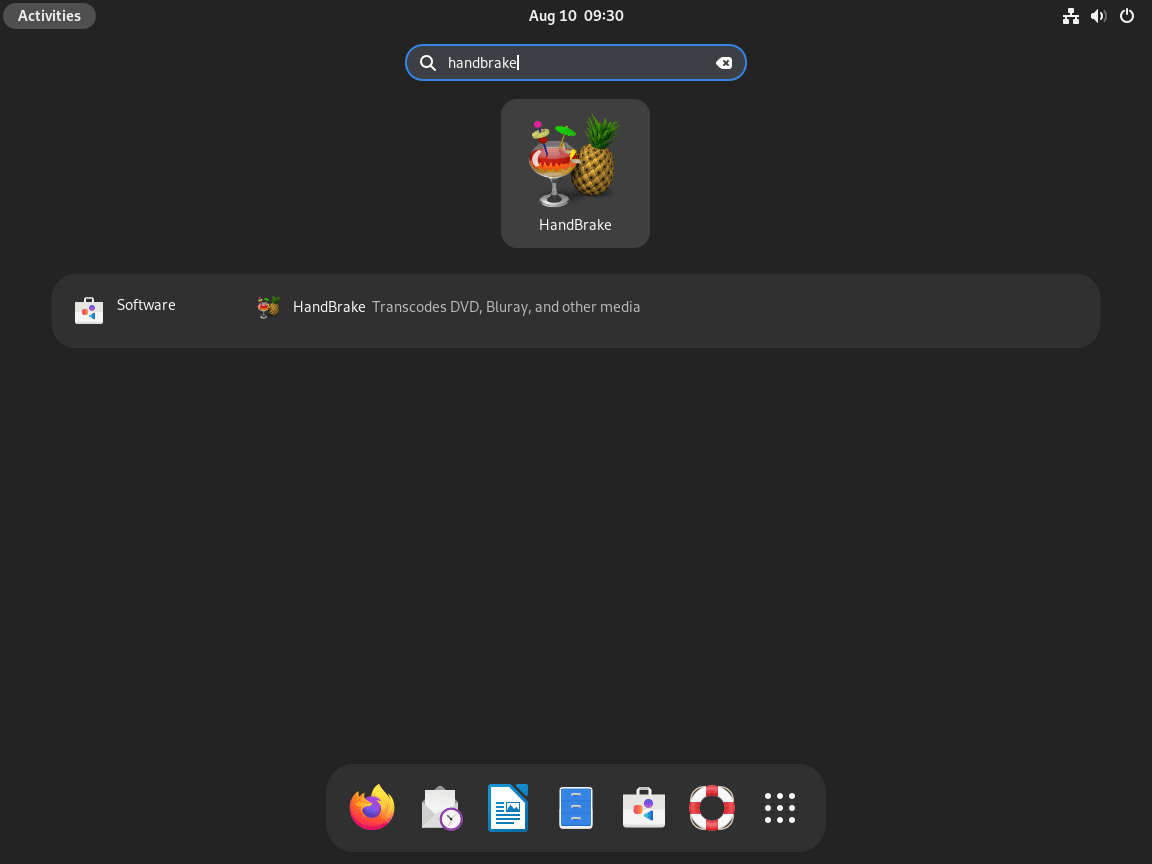
flatpak run fr.handbrake.ghbYou can also open the application menu, search for “HandBrake”, and select the HandBrake icon. On GNOME, start from Activities or Show Applications.
Launch HandBrakeCLI
APT, source builds, and the Flatpak package can all run command-line encodes, but the command shape differs by method.
HandBrakeCLI --help | lessFlatpak exposes the CLI inside the app sandbox:
flatpak run --command=HandBrakeCLI fr.handbrake.ghb --help | lessA simple CLI transcode from MKV to MP4 with the built-in “Fast 1080p30” preset looks like this:
HandBrakeCLI -i /path/to/input.mkv -o /path/to/output.mp4 --preset="Fast 1080p30"List available presets before scripting batch jobs, because preset names can differ between older Debian packages and newer Flatpak or source builds:
HandBrakeCLI --preset-list | lessGetting Started with HandBrake
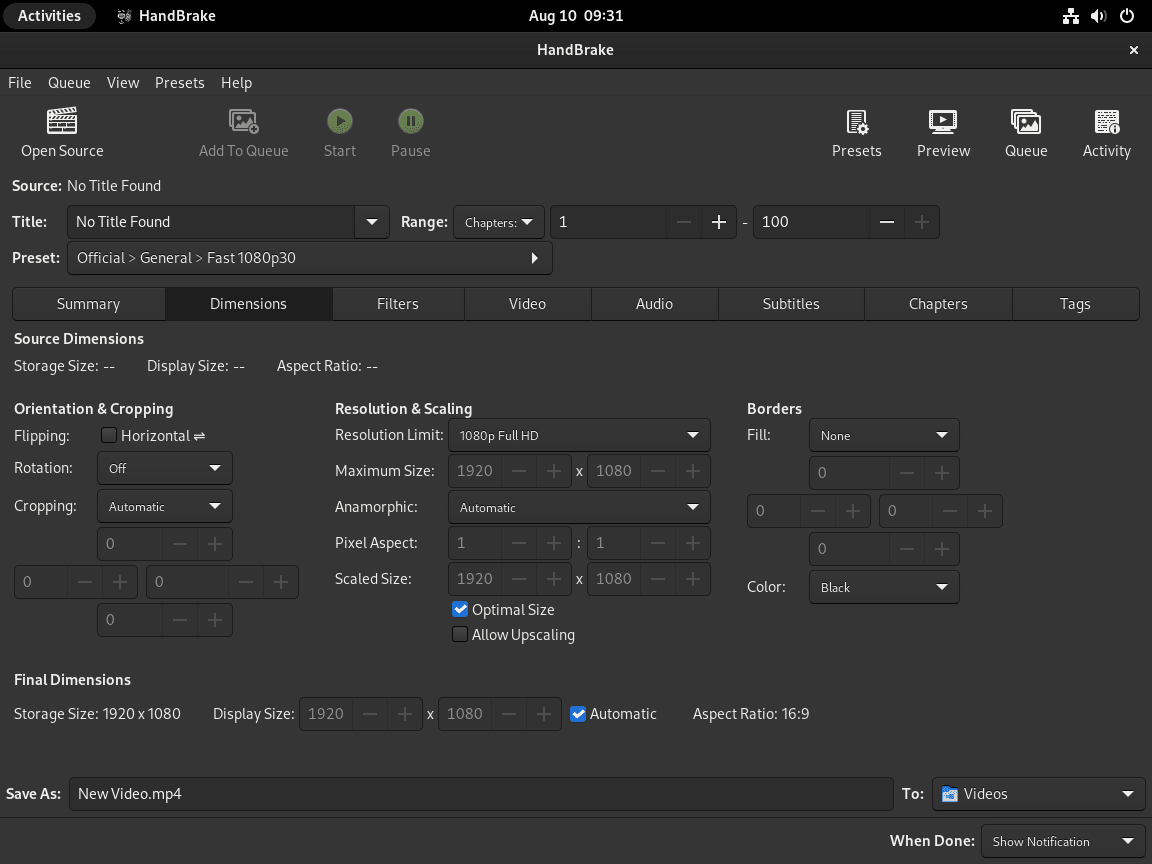
HandBrake transcodes files you already have. It does not decrypt copy-protected DVDs or Blu-ray discs, and it does not replace a media player. Start with an unencrypted source file, select a preset close to your playback target, preview a short section, then encode the full file once the settings look right.
Open a Video Source and Choose a Preset
- Open one file first: Use Open Source, choose a known-good video file, and confirm HandBrake scans the title before adding more inputs.
- Start with a preset: Pick a preset that matches the target device or resolution, such as a general 1080p preset for common desktop and TV playback.
- Preview before a long encode: Use Preview to render a short section with the current settings. This catches subtitle, crop, quality, or audio mistakes before a full transcode runs for hours.
Pick Practical Output Settings
- Use MP4 for broad compatibility: MP4 is usually easiest for phones, tablets, TVs, browsers, and sharing workflows.
- Use MKV for flexible tracks: MKV is useful when you want multiple audio tracks, subtitle tracks, or chapter data without forcing every player to support the same MP4 feature set.
- Use constant quality first: A lower RF value improves quality and increases file size; a higher RF value reduces file size and can reduce quality. Test short clips before changing several settings at once.
- Keep audio pass-through when it fits: If the source audio codec already works for your target device, pass-through avoids unnecessary audio quality loss and shortens encoding time.
Handle Subtitles, Filters, and Hardware Encoding
- Add subtitles deliberately: HandBrake does not always include subtitle tracks automatically. Add the track in the Subtitles tab, then choose burn-in for always-visible subtitles or soft subtitles for selectable tracks.
- Use filters only when needed: Deinterlace and detelecine filters help with some DVD and broadcast sources, but unnecessary filtering can soften detail or increase encode time.
- Test hardware encoders: Hardware encoder availability depends on the HandBrake build, your GPU drivers, and the codec you select. Run a short preview or small test encode before trusting hardware encoding for a large batch.
- Expect speed to vary: Resolution, codec, filters, quality target, storage speed, and CPU or GPU capability all affect runtime. A small test encode is a better estimate than a generic speed claim.
For adjacent media workflows, install FFmpeg on Debian when you need command-line inspection or automation, and install MakeMKV on Debian when you need to create MKV files from discs before transcoding them with HandBrake.
Update HandBrake on Debian
Update an APT Install
sudo apt update
sudo apt install --only-upgrade handbrake handbrake-cli
This upgrades only installed HandBrake packages when Debian has newer package revisions available for your release. Use sudo apt upgrade after sudo apt update when you want to upgrade all available packages.
Update a Flatpak Install
sudo flatpak update fr.handbrake.ghbUpdate all Flatpak apps and runtimes when you want broader Flatpak maintenance:
sudo flatpak updateUpdate a Source Build
Source builds do not update automatically. Rerun the helper script when a newer upstream release appears:
"$HOME/.local/bin/install-handbrake-source"The helper exits early when HandBrakeCLI already reports the latest resolved release and the matching build tree still exists.
Remove HandBrake from Debian
Remove an APT Install
sudo apt remove handbrake handbrake-cliReview automatically installed dependencies before removing them:
apt-get -s autoremoveRun the real cleanup only if the simulated transaction removes packages you no longer need:
sudo apt autoremovePer-user presets, queues, and preferences can remain under your home directory after package removal. Locate them before deleting anything:
for dir in "$HOME/.config" "$HOME/.cache"; do
  if [ -d "$dir" ]; then
    find "$dir" -maxdepth 2 \( -iname '*handbrake*' -o -iname '*ghb*' \)
  fi
done
Delete user settings only when you no longer need custom presets, queues, or preferences. Back up useful presets before removing configuration directories.
Remove a Flatpak Install
sudo flatpak uninstall fr.handbrake.ghbUse the data-reset form instead of the normal uninstall when you also want Flatpak to remove app data:
sudo flatpak uninstall --delete-data fr.handbrake.ghbClean unused Flatpak runtimes only after reviewing that no other apps need them:
sudo flatpak uninstall --unusedRemove a Source Build
The source method keeps the build tree because HandBrake’s upstream uninstall target lives there. Use the newest retained source directory unless you intentionally want to remove an older local build.
This cleanup removes the retained source tree and the user-local helper script. Keep the build tree if you want to inspect files or rerun the upstream uninstall target later.
if [ -d "$HOME/handbrake-source-build" ]; then
  source_dir=$(find "$HOME/handbrake-source-build" -maxdepth 1 -type d -name 'HandBrake-*' -print | sort -V | tail -n 1)
else
  source_dir=""
fi

if [ -n "$source_dir" ] && [ -d "$source_dir/build" ]; then
  if sudo make --directory="$source_dir/build" uninstall; then
    rm -rf "$source_dir"
    rm -f "$HOME/.local/bin/install-handbrake-source"
    hash -r
  else
    printf 'Uninstall failed; keeping build tree at %s\n' "$source_dir" >&2
  fi
else
  rm -f "$HOME/.local/bin/install-handbrake-source"
fi

for path in /usr/local/bin/HandBrakeCLI /usr/local/bin/ghb "$HOME/.local/bin/install-handbrake-source"; do
  if [ -e "$path" ]; then
    printf '%s still exists\n' "$path"
  else
    printf '%s removed\n' "$path"
  fi
done
Troubleshoot HandBrake on Debian
APT Cannot Find the Package
E: Unable to locate package handbrake usually means stale package metadata, disabled Debian repositories, or a non-Debian derivative with different package availability. Refresh metadata and inspect the candidate:
sudo apt update
apt-cache policy handbrake handbrake-cli
E: Unable to locate package handbrake-gtk points to the wrong package name. Debian’s GTK package is handbrake; the CLI package is handbrake-cli.
Flatpak Cannot Find the App ID
If Flatpak cannot find fr.handbrake.ghb, confirm the Flathub remote exists:
flatpak remotesIf a system-wide update or removal fails with a permission error, rerun the same Flatpak command with sudo. Avoid mixing --user and system-wide commands unless you deliberately installed HandBrake only for one account.
Source Build Fails on Debian 11
The latest HandBrake GUI build needs GTK 4 development files. Debian 11 default repositories do not provide libgtk-4-dev, so the helper switches to CLI-only mode automatically. On x86_64 Debian 11 desktops, use Flatpak when you need the current graphical app:
HANDBRAKE_BUILD_GUI=0 "$HOME/.local/bin/install-handbrake-source"If the GitHub API returns no source asset, check network access and rerun the resolver command:
curl -fsSL https://api.github.com/repos/HandBrake/HandBrake/releases/latest | jq -r '.tag_name'The Wrong HandBrakeCLI Runs
Multiple install methods can leave more than one HandBrakeCLI binary available. Check the path before scripting jobs:
hash -r
command -v HandBrakeCLI
HandBrakeCLI --version
/usr/local/bin/HandBrakeCLI usually indicates a source build. /usr/bin/HandBrakeCLI usually indicates the APT package. The Flatpak CLI uses flatpak run --command=HandBrakeCLI fr.handbrake.ghb.
The GUI Does Not Open
Display errors usually mean you are in a headless session, SSH session, missing desktop session, or CLI-only source build. Check the active display and the GUI binary:
printf '%s\n' "$DISPLAY"
command -v ghb || true
If $DISPLAY is empty, use HandBrakeCLI for that session or launch the GUI from a local desktop login.
Encoding Fails or the Output Will Not Play
Disk space, damaged input files, unsupported subtitles, and aggressive filters are common causes. Check the output filesystem and inspect the source with FFmpeg’s ffprobe when FFmpeg is installed:
df -h /path/to/output/directory
ffprobe /path/to/input.mkv 2>&1 | head -20
If ffprobe is missing, install FFmpeg first. Damaged input, unsupported subtitle handling, or too little free space should be fixed before rerunning a long encode.
Conclusion
HandBrake is installed on Debian through the package source that matches your maintenance preference: APT for Debian-managed stability, Flatpak for the current upstream GUI, or a guarded source helper for advanced latest-release builds. Start with a preset, preview a short section, and keep FFmpeg or MakeMKV nearby when your workflow needs inspection, automation, or disc-to-file preparation.


Formatting tips for your comment
You can use basic HTML to format your comment. Useful tags currently allowed in published comments:
<code>command</code>command<strong>bold</strong><em>italic</em><a href="https://example.com">link</a><blockquote>quote</blockquote>