
Password databases are easiest to trust when they stay offline, searchable, and simple to back up. To install KeePassXC on Fedora, use Fedora’s keepassxc package for the cleanest system-managed setup, or use the Flathub build when you prefer Flatpak packaging with separate application and runtime updates.
If you searched for KeePass rather than KeePassXC, Fedora packages both keepass and keepassxc separately. Use keepassxc for the Qt-based KeePass-compatible desktop client that stores passwords, SSH keys, recovery codes, TOTP tokens, and notes in encrypted .kdbx databases.
Install KeePassXC on Fedora
Two practical installation paths are available. The DNF package is the default recommendation because it comes from Fedora’s repositories and updates with the rest of the system. The Flatpak method is useful when you manage desktop apps through Flathub, but KeePassXC’s Flatpak grants broad host file and device permissions for normal password-manager features, so choose it for packaging preference rather than stronger isolation.
Choose a KeePassXC Method on Fedora
| Method | Source | Update Handling | Best Fit |
|---|---|---|---|
| DNF | Fedora package | Updates through dnf upgrade | Most users who want the standard Fedora package |
| Flatpak | Flathub | Updates through flatpak update | Users who already manage desktop apps through Flathub |
Update Fedora Package Metadata
Refresh Fedora’s package metadata before installing the DNF package. This also applies pending system updates, which helps avoid dependency conflicts during the transaction.
sudo dnf upgrade --refreshThe --refresh flag forces DNF to download current repository metadata instead of relying on a still-valid local cache.
Install KeePassXC with DNF
Install the Fedora repository package with DNF:
sudo dnf install keepassxcDNF prints the package list, dependencies, download size, and disk usage before asking for confirmation. Review the transaction, then press y to continue.
Verify the DNF KeePassXC Package
Check the installed KeePassXC CLI version without opening the graphical application:
keepassxc-cli --versionOn Fedora 44, relevant output is:
2.7.12
Confirm the RPM package state as well. The Fedora release suffix can differ by Fedora version, but the command should return an installed keepassxc package instead of a “not installed” message.
rpm -q keepassxckeepassxc-2.7.12-1.fc44.x86_64
Enable Flathub for KeePassXC on Fedora
Fedora Workstation includes Flatpak, but Flathub is opt-in. Add the Flathub remote at system scope so the later install, update, and uninstall commands use the same scope.
Fedora Workstation includes Flatpak by default. On Server, minimal, or customized installs where the
flatpakcommand is missing, install it first withsudo dnf install flatpak, then continue with Flathub setup. KeePassXC still needs a graphical session for normal desktop use.
sudo flatpak remote-add --if-not-exists flathub https://dl.flathub.org/repo/flathub.flatpakrepoVerify that the remote exists at system scope:
flatpak remotes --columns=name,options | grep -E '^flathub[[:space:]]'flathub system
Install the KeePassXC Flatpak
Install KeePassXC from Flathub with the validated application ID:
sudo flatpak install flathub org.keepassxc.KeePassXCFlatpak lists the required KDE runtime, extensions, and permissions before installation. KeePassXC’s current Flathub metadata includes access to the host filesystem, devices, the SSH agent socket, PC/SC smart-card socket, X11, Wayland, and network sharing, so review the install prompt before confirming.
Verify the KeePassXC Flatpak
Verify the installed Flatpak record with stable metadata fields. Relevant fields include:
flatpak info org.keepassxc.KeePassXC | grep -E '^[[:space:]]*(ID|Ref|Arch|Branch|Version|Origin|Installation):' ID: org.keepassxc.KeePassXC
Ref: app/org.keepassxc.KeePassXC/x86_64/stable
Arch: x86_64
Branch: stable
Version: 2.7.12
Origin: flathub
Installation: system
Launch KeePassXC on Fedora
After installation, launch KeePassXC from Fedora’s application overview or from a terminal. The desktop launcher is the normal path for daily use, while the terminal path is useful when you need startup messages for troubleshooting.
Launch KeePassXC from Activities
Open Activities, search for KeePassXC, and select the application icon. This launcher works for both the DNF package and the Flatpak package after the desktop session refreshes its application list.
Launch KeePassXC from Terminal
For the DNF package, start KeePassXC with its normal host command:
keepassxcFor the Flatpak package, launch the app through Flatpak:
flatpak run org.keepassxc.KeePassXC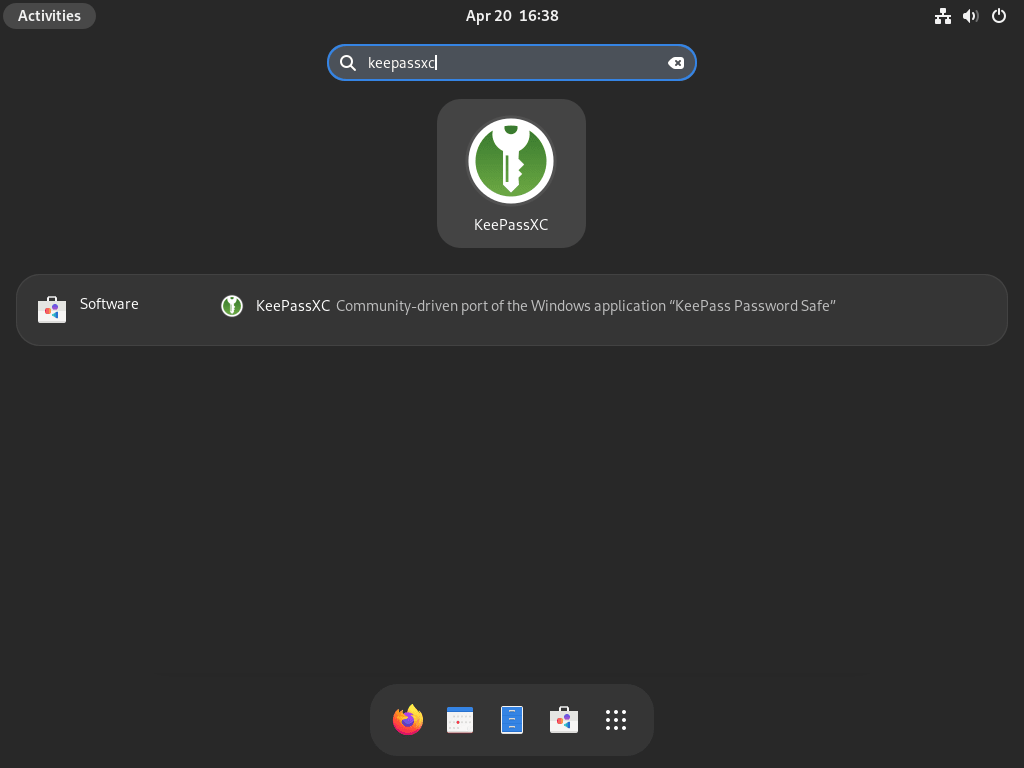
Get Started with KeePassXC on Fedora
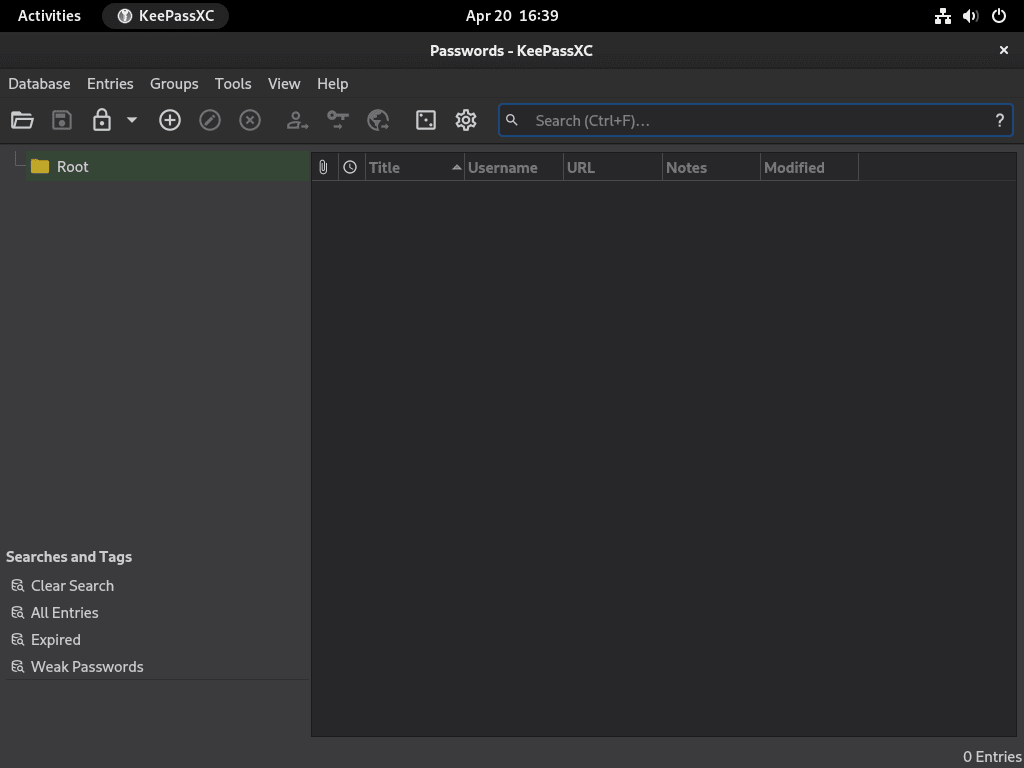
KeePassXC can create a new database, open an existing .kdbx file, connect to browser extensions, and provide command-line helpers for password generation. Set up the database and backup plan before storing credentials you cannot easily recover elsewhere.
Create and Back Up a KeePassXC Database
Select Create new database, choose a save location for the .kdbx file, and create a strong master password. A passphrase made from four or more random words is usually easier to remember than a short symbol-heavy password. Store a backup copy of the database somewhere separate from the Fedora system, such as encrypted external storage or a trusted backup location.
Enable KeePassXC Browser Integration
Open Tools > Settings > Browser Integration, enable integration for your browser, then install the official KeePassXC-Browser extension. If you mix package types, such as a Flatpak KeePassXC with a Fedora RPM browser, test the pairing before relying on autofill for daily work because native messaging and sandbox boundaries can affect the connection.
Use the KeePassXC CLI
The DNF package installs keepassxc-cli as a host command, which is the better path for shell scripts. The Flatpak method is mainly for the graphical app. List available CLI subcommands with:
keepassxc-cli --helpGenerate a five-word Diceware passphrase with quiet output:
keepassxc-cli diceware -q -W 5Use the generated phrase for a new database only after saving it somewhere secure; KeePassXC will not be able to recover a lost master password.
Update KeePassXC on Fedora
KeePassXC updates follow the installation method you chose. Keep the two update paths separate so DNF packages and Flatpak apps remain under their correct package managers.
Update a DNF KeePassXC Install
Update KeePassXC with the rest of Fedora’s repository packages:
sudo dnf upgrade --refreshOn always-on Fedora systems, configure DNF Automatic on Fedora if you want repository package updates handled on a schedule instead of only through manual checks.
Update a Flatpak KeePassXC Install
Update the KeePassXC Flatpak and any required runtime updates from Flathub:
sudo flatpak update org.keepassxc.KeePassXCUse sudo flatpak update when you want to update all system-scope Flatpak apps and runtimes at once.
Remove KeePassXC from Fedora
Back up your .kdbx database before removing KeePassXC, especially if you are not sure where you saved it. Removing the application does not normally delete database files stored in Documents, external storage, or another path you selected, but application settings and sandbox data are separate from the package itself.
Remove a DNF KeePassXC Install
Remove the Fedora package:
sudo dnf remove keepassxcDNF removes dependencies that were installed only for KeePassXC when they are no longer needed. Confirm the package is gone with RPM:
rpm -q keepassxcpackage keepassxc is not installed
Remove a Flatpak KeePassXC Install
Remove the system-scope Flatpak app:
sudo flatpak uninstall org.keepassxc.KeePassXCConfirm the app is no longer installed at system scope:
flatpak list --system --app --columns=application | grep -Fx org.keepassxc.KeePassXC || echo "NOT_INSTALLED"NOT_INSTALLED
Clean up unused Flatpak runtimes only after reviewing the package list, since it can include runtimes from other Flatpak applications:
sudo flatpak uninstall --unusedFlatpak user data can remain under ~/.var/app/org.keepassxc.KeePassXC/. Keep that directory if you may reinstall KeePassXC, and delete it only after confirming no database or recovery material you need is stored there.
Troubleshoot KeePassXC on Fedora
Most KeePassXC install problems come from package-manager scope, browser integration boundaries, or Fedora’s Wayland desktop behavior. Use the matching diagnostic for the method you installed.
Flathub Remote Is Disabled
If Flatpak reports that it cannot fetch the Flathub summary because the remote is disabled, re-enable the remote at the same system scope used during installation:
sudo flatpak remote-modify --enable flathubThen repeat the KeePassXC install or update command.
Browser Integration Does Not Connect
Confirm KeePassXC is running, browser integration is enabled in Tools > Settings > Browser Integration, and the KeePassXC-Browser extension is installed in the browser profile you actually use. If the browser and KeePassXC come from different package systems, try keeping both applications in the same package family or follow the current KeePassXC browser integration documentation for native messaging setup.
KeePassXC Does Not Start
Start KeePassXC from a terminal to capture early error messages. Use the DNF command for the Fedora package:
keepassxc 2>&1 | head -20Use the Flatpak command for the Flathub package:
flatpak run org.keepassxc.KeePassXC 2>&1 | head -20Display-server errors usually point to a missing graphical session, while Qt library errors after a large system update often clear after logging out and back in or rebooting into the updated desktop stack.
Auto-Type Limitations on Fedora Wayland
KeePassXC Auto-Type has limits on Wayland because global keyboard injection is restricted by design. Fedora Workstation uses Wayland by default, and GNOME on Fedora 43 and newer no longer ships a GNOME X11 session. Use browser integration for web logins, or use a desktop environment that still provides an X11 session when a specific legacy application depends on Auto-Type.
KeePassXC and Fedora Security Resources
These related resources help with KeePassXC usage and broader Fedora security tasks:
- KeePassXC Getting Started Guide documents databases, browser integration, Auto-Type, and KeePassXC-Browser setup.
- Install Fail2Ban with Firewalld on Fedora protects exposed services from repeated login attempts.
- Install ClamAV on Fedora adds file scanning for shared directories, downloads, and mail attachments.
- Install chkrootkit on Fedora provides a lightweight rootkit and local compromise check.
Conclusion
KeePassXC is now installed on Fedora through either the Fedora package or the Flathub package, with update and removal handled by the same tool used for installation. Create a strong master password, keep verified backups of your .kdbx database, and test browser integration before you depend on autofill for important accounts.


Formatting tips for your comment
You can use basic HTML to format your comment. Useful tags currently allowed in published comments:
<code>command</code>command<strong>bold</strong><em>italic</em><a href="https://example.com">link</a><blockquote>quote</blockquote>