

Proton compatibility has opened thousands of Windows-only titles to Linux players, and Steam is the front door to all of it. To install Steam on Debian, you need 32-bit library support active and exactly one package source configured, because mixing Valve’s repository with Debian’s own triggers a Signed-By conflict that locks APT entirely.
Debian 13 and 12 ship steam-installer through contrib. Debian 11 needs Valve’s repository, extrepo, or Flatpak instead. All four methods are covered below alongside Proton setup, troubleshooting, and clean removal.
Install Steam on Debian
Prepare Debian for Steam
Update Debian Before Steam Installation
Pull in the latest package lists and any pending upgrades so Steam’s dependencies resolve cleanly:
sudo apt update && sudo apt upgradeThis guide uses
sudofor commands that need root privileges. If your user is not in the sudoers file, follow How to Add a User to Sudoers on Debian first.
Install Steam Repository Prerequisites
Next, install the tools APT needs for secure repository downloads:
sudo apt install ca-certificates curl -yEnable i386 Architecture for Steam
Steam and most games ship 32-bit binaries, so Debian’s multiarch support needs to be active:
sudo dpkg --add-architecture i386
sudo apt update
Confirm i386 is registered:
dpkg --print-foreign-architecturesi386
Without i386 enabled, APT cannot pull the 32-bit Mesa and runtime libraries Steam depends on.
For optimal gaming performance, consider installing proprietary GPU drivers before Steam. NVIDIA users should see How to Install NVIDIA Drivers on Debian. AMD and Intel users typically get good performance from the default Mesa drivers included with Debian.
Choose a Steam Installation Method on Debian
Four methods are available, each pulling Steam from a different source with different trade-offs:
| Method | Channel | Version | Updates | Best For |
|---|---|---|---|---|
| Debian Repository | Debian Packages | Stable | APT package upgrades | Debian 12/13 users who prefer distro-tested packages |
| Extrepo | Valve via extrepo | Latest | APT package upgrades | Users who want Valve’s repo with simpler setup |
| Steam Repository | Valve APT Repository | Latest | APT package upgrades | Most users who want current Steam features |
| Flatpak | Flathub | Latest | Flatpak system updates | Users who prefer sandboxed apps |
Install Steam on Debian 13, Debian 12, and Debian 11
Debian 13 and Debian 12 can use all methods in this guide when contrib is enabled. Debian 11 should use the Valve repository, extrepo, or Flatpak because steam-installer is not available there.
- Use Debian Repository if you want a distro-maintained package and you already use
contrib. - Use extrepo if you want Valve’s package with Debian-managed repository metadata.
- Use Steam Repository for a direct manual DEB822 setup from Valve.
- Use Flatpak if you prefer sandboxing and already run desktop apps from Flathub.
The Steam Repository method works best for most users. You get the latest client straight from Valve, automatic APT updates, and direct hardware access without Flatpak’s sandboxing.
Use only one installation method. Do not configure both extrepo and the manual Steam repository method on the same system. They point to the same source with different
Signed-Bypaths, and APT returns a hard conflict error.
Option 1: Install Steam from Debian Repository
Debian ships a stable but slightly older Steam client through contrib. You need that component enabled in your APT sources before the package appears.
The
steam-installerpackage requires thecontribcomponent enabled in your APT sources and is only available in Debian 12 and 13. If you are running Debian 11, use one of the other methods below. If you haven’t enabled contrib, see How to Enable Contrib and Non-Free on Debian first.
Once enabled, install Steam from the Debian repository:
sudo apt install steam-installer -yNext, verify the installation:
apt-cache policy steam-installersteam-installer:
Installed: 1:1.0.0.xx~ds-x
Candidate: 1:1.0.0.xx~ds-x
Version table:
*** 1:1.0.0.xx~ds-x 500
500 http://deb.debian.org/debian [your-release]/contrib amd64 Packages
100 /var/lib/dpkg/status
Option 2: Install Steam via extrepo on Debian
Debian’s extrepo tool adds Valve’s Steam repository and handles GPG keys automatically, so you skip the manual key import and source file steps.
First, install extrepo:
sudo apt install extrepo -ySteam falls under extrepo’s non-free policy, which is disabled by default. Enable it first:
sudo sed -i 's/# - non-free/- non-free/' /etc/extrepo/config.yamlCheck that extrepo sees the Steam repository:
extrepo search steamFound steam: --- description: Valve Corporation's Steam policy: non-free
Next, enable the Steam repository:
sudo extrepo enable steamNow update APT and install Steam:
sudo apt update && sudo apt install steam-launcher -yHit:1 http://repo.steampowered.com/steam stable InRelease Reading package lists... Done
Confirm the package source:
apt-cache policy steam-launchersteam-launcher:
Installed: 1:1.0.0.xx
Candidate: 1:1.0.0.xx
Version table:
*** 1:1.0.0.xx 500
500 http://repo.steampowered.com/steam stable/steam amd64 Packages
100 /var/lib/dpkg/status
Option 3: Install Steam from Valve Repository on Debian
Valve publishes an official APT repository with the latest Steam client. This method gives you full control over the GPG key and source file.
Import Steam GPG Key
First, download and store the GPG key that authenticates packages from the Steam repository:
sudo curl -fsSLo /usr/share/keyrings/steam.gpg https://repo.steampowered.com/steam/archive/stable/steam.gpgAdd Steam Repository to Debian
Then, create the repository source file using the modern DEB822 format:
cat <<EOF | sudo tee /etc/apt/sources.list.d/steam.sources
Types: deb
URIs: https://repo.steampowered.com/steam/
Suites: stable
Components: steam
Architectures: amd64 i386
Signed-By: /usr/share/keyrings/steam.gpg
EOF
Update APT for Steam Repository
Now refresh APT to recognize the new repository:
sudo apt updateHit:1 https://repo.steampowered.com/steam stable InRelease Reading package lists... Done
Install Steam Launcher
Install the Steam Launcher. APT handles Mesa and other GL dependencies automatically:
sudo apt install steam-launcher -yVerify Steam Installation Source
Finally, confirm Steam installed from the correct repository:
apt-cache policy steam-launchersteam-launcher:
Installed: 1:1.0.0.xx
Candidate: 1:1.0.0.xx
Version table:
*** 1:1.0.0.xx 500
500 https://repo.steampowered.com/steam stable/steam amd64 Packages
100 /var/lib/dpkg/status
Clean Up Duplicate Steam Repository Files
After first launch, Steam’s installer may create additional legacy .list repository files that duplicate your DEB822 configuration. Check if you have multiple Steam repository files:
ls /etc/apt/sources.list.d/steam*If both types are present, remove the legacy .list files and keep your DEB822 steam.sources:
sudo rm /etc/apt/sources.list.d/steam-beta.list /etc/apt/sources.list.d/steam-stable.list 2>/dev/null
sudo apt update
Steam’s post-install script creates these files during the first launch, not during updates.
Option 4: Install Steam via Flatpak on Debian
Flatpak runs Steam in a sandbox, isolated from your system packages, with automatic updates from Flathub.
Before continuing, this method requires Flatpak configured with the Flathub repository. If you haven’t set up Flatpak, see How to Install Flatpak on Debian first.
Once Flatpak is configured, install Steam from Flathub:
sudo flatpak install --system flathub com.valvesoftware.Steam -yVerify Steam is installed:
sudo flatpak list --system | grep -i steamSteam com.valvesoftware.Steam <version> stable flathub
Launch Steam through Flatpak:
flatpak run com.valvesoftware.SteamLaunch Steam on Debian
Steam needs to download its runtime and update the client on the first launch.
Launch Steam from Terminal on Debian
To start Steam quickly from a terminal, use the command that matches your installation method:
steam
# Flatpak method:
flatpak run com.valvesoftware.Steam
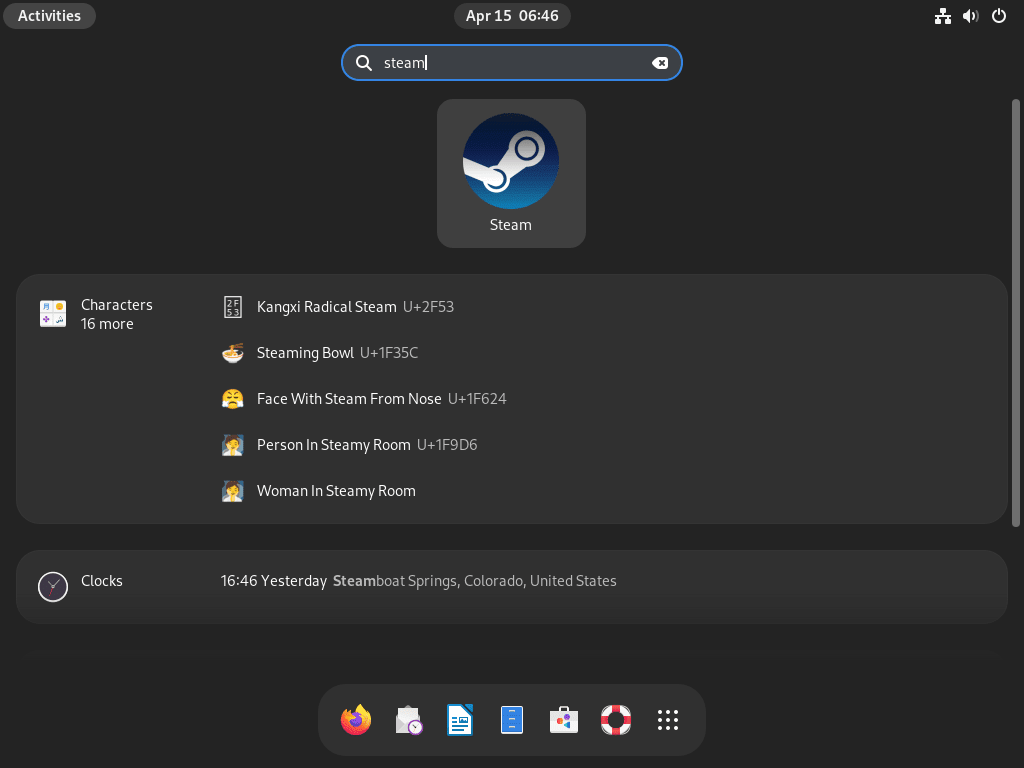
Launch Steam from Debian Applications Menu
Alternatively, open Steam from your desktop environment’s application menu:
- First, click on the “Activities” or “Applications” menu, depending on your Debian desktop environment.
- Then, search for “Steam” in the search bar.
- Finally, click on the “Steam” icon to launch the application.
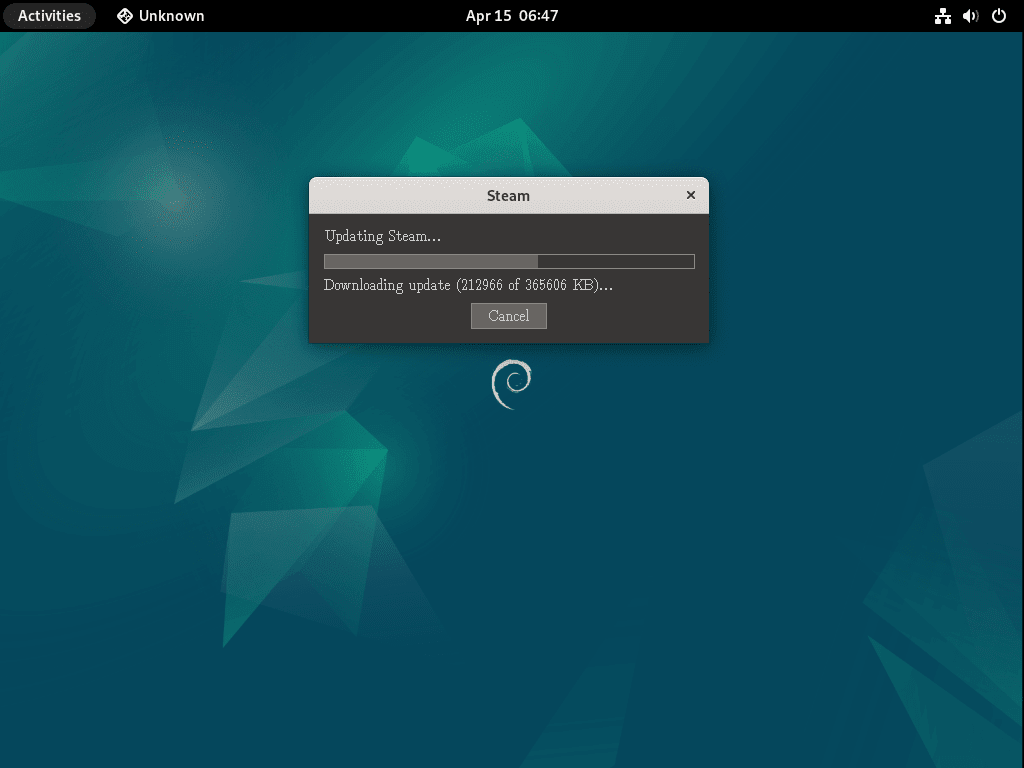
Complete Steam First-time Setup
During the first launch, Steam downloads its runtime environment and updates the client to the latest version. This initial download typically takes 2-5 minutes depending on your connection speed, so let it complete without interruption.
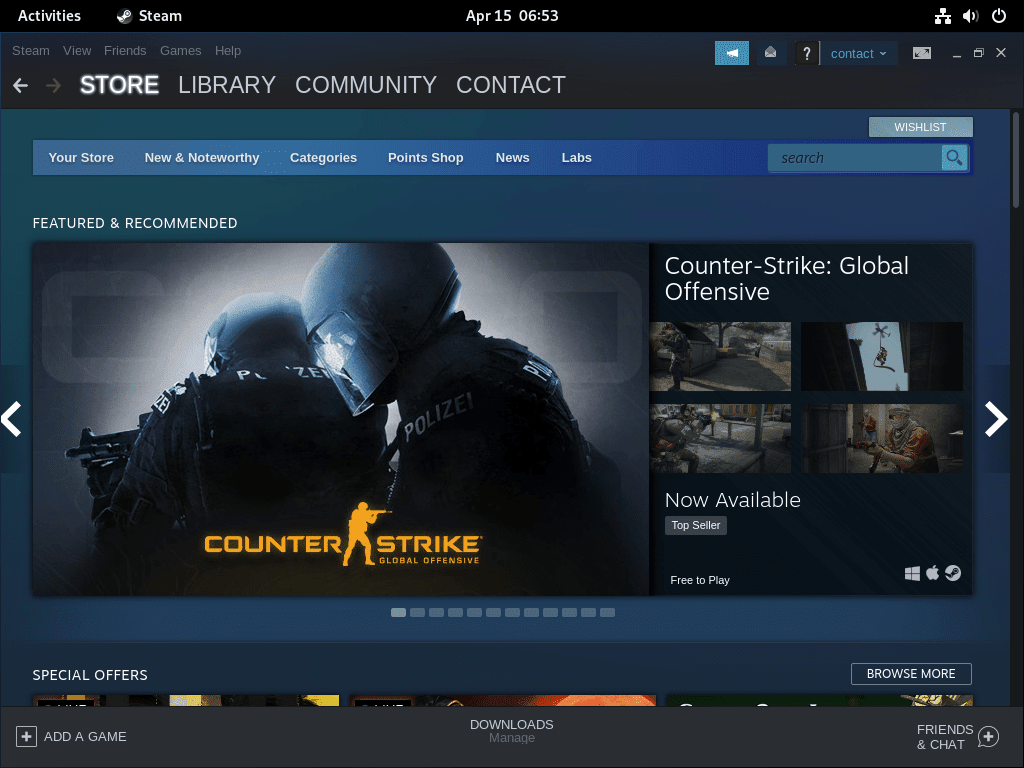
Once the update finishes, sign in with your existing Steam account or create a new one. After logging in, Steam automatically detects your hardware and applies appropriate settings for your system.
Enable Proton and Steam Play for Windows Games on Debian
To play Windows games on Debian, enable Steam Play with Proton. Navigate to Steam > Settings > Compatibility, then check Enable Steam Play for all other titles and select the latest Proton version. After that, Windows titles appear in your library and install like native games.
Not every Windows game works perfectly with Proton. Before purchasing, check compatibility ratings at ProtonDB where the community reports which games run well and which need tweaks.
Manage Steam on Debian
Update Steam on Debian
Steam updates itself on every launch. The APT package also receives periodic updates through standard system upgrades:
sudo apt update
sudo apt install --only-upgrade steam-launcher -y
If you installed Steam from Debian’s repository, update the Debian package instead:
sudo apt update
sudo apt install --only-upgrade steam-installer -y
For Flatpak installations, update Steam alongside other Flatpak applications:
sudo flatpak update --system com.valvesoftware.SteamRemove Steam from Debian
To completely remove Steam from your system, uninstall the package and clean up any repository configuration files. The steps differ slightly depending on your installation method.
Remove Steam APT Packages
First, remove Steam and its dependencies. This command handles both Debian repository and Steam repository installations:
sudo apt remove --purge --autoremove steam-launcher steam-installer -yNext, remove any repository files. Steam may have created multiple files during installation and first launch. If you used extrepo, disable the repository first:
if command -v extrepo >/dev/null 2>&1; then sudo extrepo disable steam 2>/dev/null || true; fi
sudo rm -f /etc/apt/sources.list.d/steam.sources /etc/apt/sources.list.d/steam*.list /etc/apt/sources.list.d/extrepo_steam.sources
Then, remove the Steam signing keys (paths vary based on installation method):
sudo rm -f /usr/share/keyrings/steam.gpg /var/lib/extrepo/keys/steam.ascFinally, refresh APT to confirm the repository is fully removed:
sudo apt updateVerify Steam packages are no longer available from the removed repository:
apt-cache policy steam-launcher steam-installersteam-launcher: Installed: (none) Candidate: (none) Version table: steam-installer: Installed: (none) Candidate: (none) Version table:
Both packages show (none) because no Steam repository remains configured.
Remove Steam Flatpak
For Flatpak installations, uninstall Steam with:
sudo flatpak uninstall --system com.valvesoftware.SteamOptionally, remove unused Flatpak runtimes to free disk space:
sudo flatpak uninstall --system --unusedRemove Steam User Data and Games
Steam stores game data in
~/.steamand~/.local/share/Steam. These directories contain your downloaded games, save files, and configuration. Keep them if you plan to reinstall Steam later, or delete them to reclaim disk space.
The following command permanently deletes all Steam data including downloaded games, save files, screenshots, and configuration. This action cannot be undone. Back up any save files you want to keep before proceeding.
To remove all Steam user data and downloaded games:
rm -rf ~/.steam ~/.local/share/SteamTroubleshoot Steam on Debian
Repository conflicts and graphics driver mismatches cause most Steam issues on Debian.
Check Which Steam Method Is Installed
Before fixing launch or package issues, confirm which Steam method is active on your system:
apt-cache policy steam-launcher steam-installer
flatpak info com.valvesoftware.Steam 2>/dev/null | grep -E '^ID:|^Branch:'
steam-launcher: Installed: 1:1.0.0.xx steam-installer: Installed: (none) ID: com.valvesoftware.Steam Branch: stable
Conflicting values set for option Signed-By
If you configured both extrepo and the manual DEB822 method, apt update fails with a Signed-By conflict:
Error: Conflicting values set for option Signed-By regarding source http://repo.steampowered.com/steam/ stable: /var/lib/extrepo/keys/steam.asc != /usr/share/keyrings/steam.gpg
Error: The list of sources could not be read.
Remove one method so only one Steam source remains configured:
sudo rm -f /etc/apt/sources.list.d/steam.sources
sudo extrepo disable steam 2>/dev/null || true
sudo apt update
If you prefer the manual repository instead, remove /etc/apt/sources.list.d/extrepo_steam.sources and keep only steam.sources.
steam-installer Has No Installation Candidate
This usually means the contrib component is not enabled in your Debian sources:
Package steam-installer is not available, but is referred to by another package.
E: Package 'steam-installer' has no installation candidate
Enable contrib first, then refresh APT and verify package availability:
sudo apt update
apt-cache policy steam-installer
If the candidate is still (none), use the extrepo, Valve repository, or Flatpak method instead.
Duplicate Repository Warnings During apt update
If you see warnings about duplicate sources when running apt update, Steam likely created legacy .list files that conflict with your DEB822 .sources configuration:
W: Target Packages (steam/binary-amd64/Packages) is configured multiple times in /etc/apt/sources.list.d/steam-stable.list:1 and /etc/apt/sources.list.d/steam.sources
First, check what repository files exist:
ls /etc/apt/sources.list.d/steam*/etc/apt/sources.list.d/steam-beta.list /etc/apt/sources.list.d/steam-stable.list /etc/apt/sources.list.d/steam.sources
If you see both .list and .sources files, remove the legacy duplicates:
sudo rm /etc/apt/sources.list.d/steam-beta.list /etc/apt/sources.list.d/steam-stable.list 2>/dev/null
sudo apt update
Run sudo apt update again and confirm the duplicate warning is gone.
Steam Fails to Launch or Shows Black Screen
Graphics driver issues are the most common cause of Steam launch failures on Debian. First, verify your GPU is detected and drivers are loaded:
lspci | grep -i vgaExample output for different GPU types:
00:02.0 VGA compatible controller: Intel Corporation UHD Graphics 630
01:00.0 VGA compatible controller: NVIDIA Corporation GA106 [GeForce RTX 3060]
If no output appears, your GPU may not be properly detected. Check your BIOS settings or hardware connections.
For NVIDIA GPUs, check if the proprietary driver is active:
nvidia-smiA working NVIDIA driver displays output similar to:
+-----------------------------------------------------------------------------------------+
| NVIDIA-SMI 560.35.03              Driver Version: 560.35.03      CUDA Version: 12.6     |
|-----------------------------------------+------------------------+----------------------+
| GPU  Name                 Persistence-M | Bus-Id          Disp.A | Volatile Uncorr. ECC |
|   0  NVIDIA GeForce RTX 3060        Off | 00000000:01:00.0  On  |                  N/A |
+-----------------------------------------------------------------------------------------+
If this command fails with “command not found” or shows errors like “NVIDIA-SMI has failed”, install the NVIDIA drivers. See How to Install NVIDIA Drivers on Debian for complete instructions.
For AMD or Intel GPUs, ensure Mesa is current:
glxinfo | grep "OpenGL renderer"Expected output showing your GPU:
OpenGL renderer string: Mesa Intel(R) UHD Graphics 630 (CFL GT2)
If glxinfo is not found, install the Mesa utilities:
sudo apt install mesa-utilssteam-launcher Dependency Errors During Installation
If APT reports missing dependencies such as pkexec, policykit-1, python3-apt, or zenity, install them directly and retry Steam:
steam-launcher depends on pkexec | policykit-1; however:
  package pkexec is not installed.
steam-launcher depends on python3-apt; however:
  package python3-apt is not installed.
steam-launcher depends on zenity; however:
  package zenity is not installed.
sudo apt install policykit-1 python3-apt zenity -y
sudo apt install steam-launcher -y
Missing Steam 32-bit Libraries on Debian
If Steam or games crash with library errors, verify 32-bit architecture is enabled:
dpkg --print-foreign-architecturesi386
If i386 doesn’t appear in the output, add 32-bit architecture support and reinstall Steam:
sudo dpkg --add-architecture i386
sudo apt update
sudo apt install --reinstall steam-launcher
For NVIDIA GPU users: If you see errors about missing libGL.so.1 or “wrong ELF class: ELFCLASS64” even with i386 enabled, your NVIDIA driver installation is missing 32-bit OpenGL libraries. Install the 32-bit driver libraries:
sudo apt install nvidia-driver-libs:i386This package provides libgl1-nvidia-glvnd-glx:i386 and other 32-bit GL dependencies Steam requires. Reboot after installation.
Games Fail to Start When Library Is Under /usr/
If you store your Steam library under a path containing /usr (such as /usr/games/steam/), games will fail to launch without clear error messages. Check ~/.local/share/Steam/logs/console-linux.txt for entries like:
pressure-vessel-wrap: W: Not sharing path STEAM_COMPAT_DATA_PATH="/usr/games/steam/steamapps/compatdata/..." with container because "/usr" is reserved by the container framework
Steam’s pressure-vessel container framework reserves the /usr hierarchy for its own runtime libraries. Any Steam library path containing /usr will silently fail because pressure-vessel cannot share those directories with the container.
To fix this, move your Steam library to a directory outside /usr:
- In Steam, go to Settings > Storage
- Add a new library folder under your home directory (for example,
/home/username/SteamLibrary) - Move your games to the new library by right-clicking them in your library and selecting Properties > Local Files > Move Install Folder
After moving games to a non-reserved path, they should launch normally.
Frequently Asked Questions
Yes. Debian 13 and Debian 12 provide steam-installer through the contrib component. If contrib is disabled, the package appears unavailable until you enable contrib and refresh APT metadata.
No. Using both methods creates duplicate Steam source definitions with different Signed-By key paths, which causes apt update to fail with a conflict error. Keep only one repository method configured.
Steam and many game dependencies still require 32-bit libraries. Enabling i386 architecture lets APT install the required runtime libraries alongside 64-bit packages.
steam-installer is Debian-maintained and distributed from contrib, while steam-launcher is delivered directly from Valve’s repository. Both bootstrap the Steam client, but steam-launcher usually tracks Valve updates faster.
Conclusion
Steam is running on Debian with automatic client updates, and Proton opens your library to thousands of Windows titles alongside native Linux games. For better frame rates on NVIDIA hardware, add NVIDIA drivers on Debian. Lower input latency with the Liquorix kernel on Debian, run non-Steam Windows games through Wine on Debian, or set up voice chat with Discord on Debian.

Just installed Debian 13.2 on a 64-bit Intel machine. Installed Nvidia driver for RTX-3050 from Debian repo. Tried to install Steam per this web page. Got the following error when I got to the step:
sudo apt update
Error: conflicting values set for option Signed-By regarding source
http://repo.steampowered.com/ steam
stable: /var/lib/extrepo/steam/keys.asc != /usr/share/keyrings/steam.gpg
The apt update command went ahead and downloaded and installed a bunch of stuff. Then I tried to start ‘steam’ and it wanted to update a lot more stuff, but at the end of these updates I got another error message:
Error: you are missing the following 32bit libraries, and steam may not run:
libGL.so.1
and a few lines down from that we see:
dlmopen steamui.so failed: libGL.so.1: wrong ELF class: ELFCLASS64
and ‘steam’ fails to start.
Eventually I fixed this step of the process by renaming (effectively deleting) this file:
/etc/apt/sources.list.d/extrepo_steam.sources
to:
/etc/apt/sources.list.d/extrepo_steam.sources.X
I then did ‘sudo apt update’ and it completed without error.
However, I then downloaded a game (“Age Of Mythlogy”) and tried to run it, but got a new set of errors. I will make a separate post about this.
Sorry for missing your first message, Steve. Good troubleshooting on both issues. The
Signed-Byconflict looks like it happened because both the extrepo method and manual Steam repository method were used on your system. Extrepo stores the GPG key at/var/lib/extrepo/steam/keys.asc, while the manual method uses/usr/share/keyrings/steam.gpg. If that was the case, your fix of removingextrepo_steam.sourceswas exactly right. Can you confirm whether both methods were used? That would help verify the cause.For the missing 32-bit
libGL.so.1error, this happens when NVIDIA’s 32-bit OpenGL libraries are not installed alongside the 64-bit driver. On Debian 13 with an RTX 3050, install the 32-bit driver libraries meta-package:This package pulls in
libgl1-nvidia-glvnd-glx:i386and all other 32-bit GL dependencies Steam needs. After installation, reboot and try launching Steam again. The “wrong ELF class: ELFCLASS64” error confirms Steam found only the 64-bit library when it needed the 32-bit version. Looking forward to your follow-up post about the Age of Mythology errors.Hi Joshua – sorry for the long delay. Looks like you have removed the instructions for using the Debian ‘extrepo’ method of getting Steam from the official Steam repos? Also, just FYI, the text near the top mentions “Ubuntu” several times when I think you meant “Debian”. But – I dunno – can Debian “apt” install packages from Ubuntu repos? (maybe – Ubuntu is based on Debian, isn’t it?)
I do not remember using the “manual method” to install Steam via the Steam repos. I think I did a clean install. I have been using “Clonezilla” quite a bit, to image my Debian disks, so I can easily go back a step or two if something does not work. Thus I have an image of the system right after completing the initial installation of Debian and applying all the updates. I think I used that to start from.
I am currently going through this exact same procedure on a new machine which I just built, (and which should handle most any modern game) so I will make certain I do *not* even attempt the manual method, and I will try out the modified method I present here and see if I wind up with those same three files needing to be deleted…
——————–
I previously used that ‘extrepo’ method successfully after making one small change to the procedure on your page. On my initial attempt, I followed the procedure on the page down to the point:
$ sudo apt install extrepo -y
$ sudo extrepo enable steam
and then, to check for success I did:
$ apt-cache policy steam-launcher
E: Conflicting values set for option Signed-By
regarding source http://repo.steampowered.com/steam/
stable: /var/lib/extrepo/keys/steam.asc != /usr/share/keyrings/steam.gpg
E: The list of sources could not be read.
To fix this I effectively deleted the following file by renaming it:
/etc/apt/sources.list.d/extrepo_steam.sources.X
Then the “apt-cache” check was successful:
apt-cache policy steam-launcher
steam-launcher:
Installed: 1:1.0.0.85
Candidate: 1:1.0.0.85
Version table:
*** 1:1.0.0.85 500
500 https://repo.steampowered.com/steam stable/steam amd64 Packages
100 /var/lib/dpkg/status
N: Ignoring file ‘extrepo_steam.sources.X’ in directory ‘/etc/apt/sources.list.d/’
as it has an invalid filename extension
Next I installed the i386 Nvidia libraries:
sudo apt install nvidia-driver-libs:i386
which completed without error. Then, per instructions here on your page, I disabled two more files under /etc/apt/sources.list.d/:
/etc/apt/sources.list.d$ ls -Fla
total 20
drwxr-xr-x 2 root root 4096 Jan 23 14:46 ./
drwxr-xr-x 9 root root 4096 Jan 23 13:46 ../
-rw-r–r– 1 root root 163 Jan 23 14:01 extrepo_steam.sources.X
-rw-r–r– 1 root root 296 Sep 30 08:27 steam-beta.list.X
-rw-r–r– 1 root root 228 Sep 30 08:27 steam-stable.list.X
After this I was able to start ‘steam’ which then downloaded 400+MB of updates
and installed them without error. I was then able to login to Steam and authenticate
as usual and I then saw my Library contents as expected.
At this point I was sure everything would work, so I downloaded “Age of Mythology – Extended Edition” to my new Steam installation on Debian. To my dismay, AOM *still* would not start up! I then looked at some logs, did some searches, and discovered to my aghast amazement that you cannot save your Linux Steam games on any path that contains the character string “/usr”. (!) Guess where I had mine stored? Long story but on my system I thought putting my Steam library under “/usr/games” would be “The Right Thing To Do” – but alas! In log file
~/.local/share/Steam/logs/console-linux.txt
I found errors like this:
[2026-01-23 21:40:51] Couldn’t write /usr/.steam_exec_test.sh: Permission denied
[2026-01-23 21:40:51] Couldn’t write /debian_data/.steam_exec_test.sh: Permission denied
and like this:
[2026-01-23 22:36:50] pressure-vessel-wrap[29528]: W: Not sharing path
STEAM_COMPAT_DATA_PATH=”/usr/games/steam/steamapps/compatdata/266840″
with container because “/usr” is reserved by the container framework
So I moved my Steam library from “/usr/games” to under my “/home” directory, and then, finally AOM started up and actually worked! I chose AOM for this test because I thought it had the best chance of actually running on an 18 year old motherboard with 8GB of RAM and an RTX-3050 graphics card with 2GB VRAM. Other more modern titles like “Stellaris” or “Manor Lords” will download and install without error, but they will not start up. Sadly, there are no error or even log messages that I can find to indicate if the problem is system RAM or video RAM or something else. I will perhaps find out if it is “something else” because I am now going to install Steam on another Debian machine I just built which should be able to run any modern game.
I like the Debian ‘extrepo’ method because it allows me to have the latest version of Steam from the official Valve repos without having to handle GPG keys and such. Hopefully with these mods (and CHECK ME on these!) you can put back the former “Option 2: Install via Extrepo” procedure on this page.
Thanks again for your very valuable help! This is the best “Linux procedures” web site I have found!
Steve, thank you for everything in this follow-up. First, my apologies about the confusion with extrepo. During a recent update I accidentally replaced the Debian article content with the Ubuntu guide, which explains both the missing extrepo instructions and the “Ubuntu” references you spotted. That has been corrected, and extrepo is now documented as Option 2 in the guide.
The Signed-By conflict you encountered is exactly what the article now warns about. When both extrepo and the manual Steam repository method exist on the same system, they configure different GPG key paths for the same repository. Your fix of renaming
extrepo_steam.sourceswas the right approach, and I have added a prominent warning blockquote advising readers to choose only one installation method.Your discovery about the
/usr/path restriction is excellent debugging. Steam’s pressure-vessel container framework reserves the/usrhierarchy for its own runtime libraries, so any Steam library path containing/usr(like/usr/games/steam/) will fail silently when launching games. This is a documented Steam limitation, though not widely publicized. Moving your library to/homeor another non-reserved path was the correct solution.Regarding your proposed extrepo workflow modifications: the approach you describe should work, but the three files you disabled (
extrepo_steam.sources,steam-beta.list,steam-stable.list) suggest both methods were indeed used at some point on that system. The.listfiles are created by Steam’s installer during first launch, not by extrepo. For a completely clean extrepo-only installation, those files should not appear initially. If you are starting fresh on the new machine, the guide’s Option 2 (extrepo) should work without needing to disable any files afterward.Looking forward to hearing how the new build handles modern titles. Thanks again for the detailed feedback and the kind words about the site.
thanks a lot!
Hello!
Following the step-by-step, installation confirmed.
Thank you, Joshua!
Djalma FC
Joshua,
In “Option 1: Install Steam with the Default Repository”
To install the steam-installer package, the user needs to have the *contrib* repository in his/her sources.list file. I am mentionning this because I will most likely be installing steam onto a friend’s computer.
More info:
https://packages.debian.org/bookworm/steam-installer
Gérard
Thanks Gérard, I have updated the guide.