Code::Blocks still fills a useful gap on Fedora when you want a focused C, C++, or Fortran IDE with project templates, GNU compiler integration, and GDB debugging without moving into a larger editor stack. To install Code::Blocks on Fedora Linux, use Fedora’s repository package for the cleanest host compiler setup, then add GCC, G++, GDB, and optional language or GUI development headers as needed.
These steps apply to Fedora 44 and Fedora 43, the current and previous Fedora releases. A Flathub build is also available, but Flathub marks it unverified, its README describes it as unofficial, and it uses the Freedesktop SDK instead of host SDKs directly. The DNF method is the simpler default for normal Fedora development, while Flatpak is useful when you specifically want Flathub packaging or its SDK extension model.
Install Code::Blocks on Fedora Linux
Choose a Code::Blocks Package Source on Fedora
Fedora packages Code::Blocks 25.03 for current Fedora releases, and that package uses the normal system compiler tools in /usr/bin. The Flathub app also tracks Code::Blocks 25.03, but it is an unofficial, unverified build with its own SDK environment, so compiler behavior and permission expectations differ from the native package.
| Method | Source | What You Get | Update Path | Best Fit |
|---|---|---|---|---|
| Fedora repository | Fedora package | Native Code::Blocks package, contrib plugins, and host compiler integration | sudo dnf upgrade --refresh | Most Fedora C, C++, and Fortran workflows |
| Flatpak | Flathub app | Unofficial, unverified Flatpak app with Freedesktop SDK tools and optional SDK extensions | sudo flatpak update org.codeblocks.codeblocks | Users who prefer Flathub packaging or need Flatpak SDK add-ons |
The Windows MinGW setup files on the official Code::Blocks download page, such as codeblocks-25.03mingw-setup.exe, are not Fedora installers. The official page also lists Linux archives, but Fedora already ships Code::Blocks 25.03, so use DNF unless you have a specific reason to unpack upstream archives manually. If you searched for Microsoft’s code command rather than Code::Blocks, use the separate Visual Studio Code Fedora install guide.
Update Fedora Before Installing Code::Blocks
Refresh package metadata and apply pending updates before adding compiler tools or the IDE:
sudo dnf upgrade --refreshInstall Fedora Compiler Tools for Code::Blocks
Code::Blocks does not bundle a compiler on Fedora. Install the normal C and C++ toolchain first so new console and GUI projects can build immediately:
sudo dnf install gcc gcc-c++ gdb make glibc-devel pkgconfVerify the key tools are available in your shell:
type gcc g++ gdb make pkg-configRelevant output includes:
gcc is /usr/bin/gcc
g++ is /usr/bin/g++
gdb is /usr/bin/gdb
make is /usr/bin/make
pkg-config is /usr/bin/pkg-config
Add the Fortran compiler only when you plan to build Fortran projects from Code::Blocks:
sudo dnf install gcc-gfortranFor a fuller Fedora development environment, the correct group is C Development Tools and Libraries, not the generic Development Tools group. It installs the core compiler stack plus extra diagnostics such as valgrind and ccache:
sudo dnf group install "C Development Tools and Libraries"If you plan to compile wxWidgets projects, install the development headers. The normal Code::Blocks package pulls in the runtime libraries, but project builds need the headers:
sudo dnf install wxGTK-develInstall Code::Blocks with DNF on Fedora
The native Fedora package is the best starting point for host GCC and GDB integration. Install the IDE and the contrib plugin package:
sudo dnf install codeblocks codeblocks-contribConfirm the installed Fedora packages:
rpm -q codeblocks codeblocks-contribOn Fedora 44, the package versions currently resolve as:
codeblocks-25.03-5.fc44.x86_64
codeblocks-contrib-25.03-5.fc44.x86_64
Install the development headers only if you plan to build Code::Blocks plugins or compile against its libraries:
sudo dnf install codeblocks-devel codeblocks-contrib-develInstall Code::Blocks with Flatpak on Fedora
Use the Flatpak method when you want the Flathub app or its SDK extension workflow. Current Flathub metadata grants home-directory access and several desktop/session permissions, so do not choose this method only for stronger isolation. Fedora Workstation usually includes Flatpak already, but minimal installs may need the package first:
sudo dnf install flatpakAdd Flathub if the remote is not already configured:
sudo flatpak remote-add --if-not-exists flathub https://dl.flathub.org/repo/flathub.flatpakrepoInstall the Code::Blocks Flatpak from Flathub:
sudo flatpak install flathub org.codeblocks.codeblocksVerify the installed Flatpak reference:
flatpak info --show-ref org.codeblocks.codeblocksOn x86_64 Fedora systems, the reference looks like this:
app/org.codeblocks.codeblocks/x86_64/stable
The Flathub README says this build is unofficial and cannot access host SDKs directly. It uses the Freedesktop SDK and optional SDK extensions instead, so choose the DNF package when you want Code::Blocks to use Fedora’s host compilers and libraries without Flatpak-specific setup.
Launch Code::Blocks on Fedora Linux
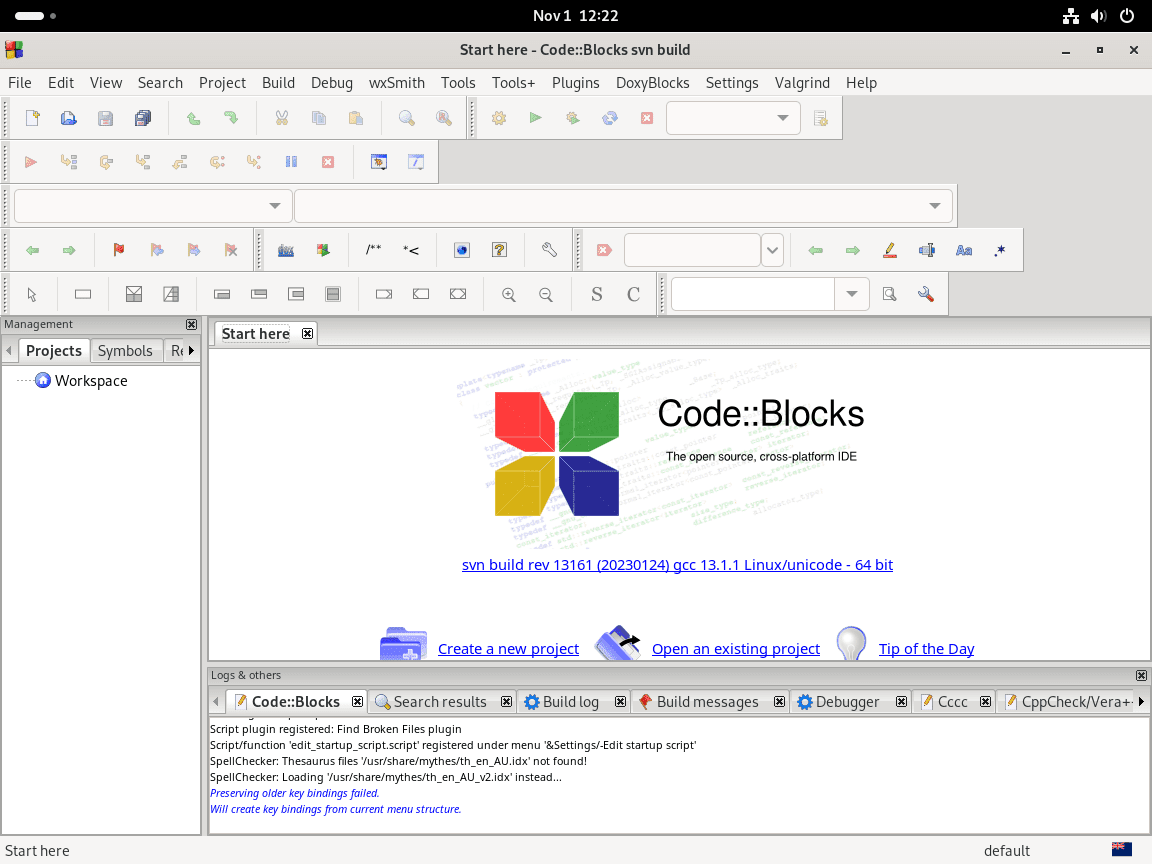
Launch the DNF Package
Start the native Fedora package from a terminal with:
codeblocksLaunch the Flatpak Package
Start the Flathub build with its application ID:
flatpak run org.codeblocks.codeblocksLaunch Code::Blocks from Fedora Activities
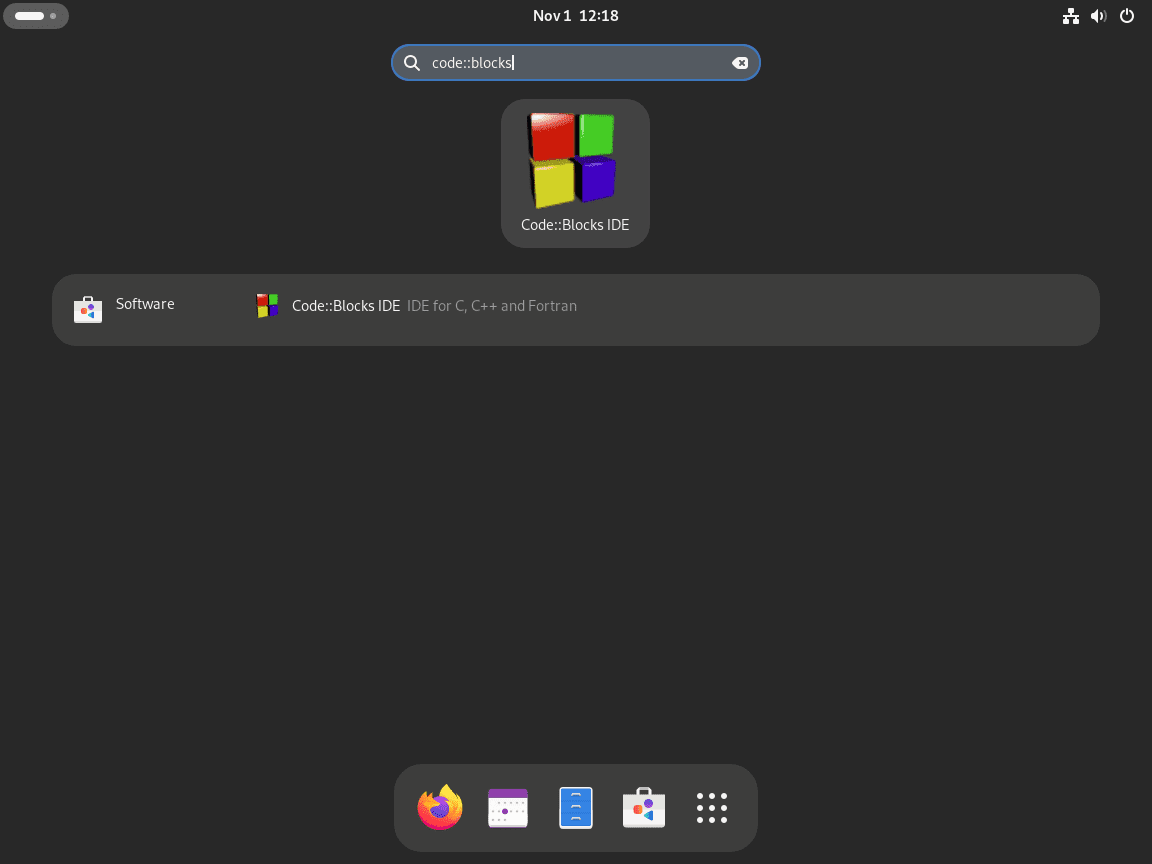
Open Activities, search for Code::Blocks, and select the launcher. Both the DNF and Flatpak methods create a desktop entry, although the Flatpak launcher belongs to the sandboxed app.
Verify Code::Blocks Compiler Paths
On first launch, Code::Blocks scans for installed compilers. For the DNF package, open Settings > Compiler > Toolchain executables and confirm the GNU GCC compiler uses Fedora’s normal paths.
- Compiler’s installation directory:
/usr - C compiler:
gcc - C++ compiler:
g++ - Debugger:
gdb
Click Auto-detect if the paths are empty after installing the compiler packages.
Troubleshoot Code::Blocks on Fedora Linux
Fix No Compiler Detected in Code::Blocks
The common Code::Blocks message No compiler detected or can't find compiler executable in your configured search paths means the selected compiler profile cannot find the expected binaries. Start by checking the host tools:
type gcc g++ gdbA working DNF setup returns paths under /usr/bin:
gcc is /usr/bin/gcc
g++ is /usr/bin/g++
gdb is /usr/bin/gdb
If one of those commands is missing, install the compiler packages and run the detection step again:
sudo dnf install gcc gcc-c++ gdb make glibc-devel pkgconfThen open Settings > Compiler > Toolchain executables, set the compiler installation directory to /usr, click Auto-detect, and save the profile.
For Flatpak installations, host compilers in /usr/bin are not the main toolchain. Enter the Flatpak environment and inspect the SDK tools available inside the sandbox:
flatpak run --command=sh org.codeblocks.codeblocksInside that shell, check for compiler tools with:
command -v gcc g++ gdbUse the Flathub Code::Blocks manifest and README for SDK extension names and plugin paths. If your project depends on Fedora packages under /usr, the native DNF package is usually easier to manage.
Fix No Such Ref in Remote Flathub
The error No such ref 'app/org.codeblocks.codeblocks' usually means Flathub is missing, disabled, or stale. Confirm the remote list first:
flatpak remotesIf flathub is absent, add it again:
sudo flatpak remote-add --if-not-exists flathub https://dl.flathub.org/repo/flathub.flatpakrepoIf Flathub exists but is disabled, re-enable it and retry the install:
sudo flatpak remote-modify --enable flathubFix CMake Compiler Errors from Code::Blocks
CMake projects opened from Code::Blocks can fail with messages such as No CMAKE_CXX_COMPILER could be found when the C++ compiler or CMake package is missing. Install both before reconfiguring the project:
sudo dnf install cmake gcc gcc-c++ makeFor a fuller CMake workflow outside the IDE, use the Fedora CMake install guide.
Update or Remove Code::Blocks on Fedora Linux
Update Code::Blocks on Fedora
The DNF package updates with regular Fedora package maintenance:
sudo dnf upgrade --refreshIf you prefer scheduled package maintenance for native Fedora packages, configure it separately with DNF Automatic on Fedora.
Update the Flatpak app through Flatpak, either with all Flatpak applications or the Code::Blocks app ID only:
sudo flatpak updatesudo flatpak update org.codeblocks.codeblocksRemove Code::Blocks from Fedora
Remove the DNF packages with explicit package names. DNF skips any optional development package that was never installed:
sudo dnf remove codeblocks codeblocks-contrib codeblocks-devel codeblocks-contrib-develRemove the Flatpak app with:
sudo flatpak uninstall org.codeblocks.codeblocksClean unused Flatpak runtimes only after reviewing the transaction summary:
sudo flatpak uninstall --unusedRemove Code::Blocks User Data
The commands in this section permanently delete Code::Blocks settings, project templates, and cached data from your user account. Back up anything you need before running them.
Remove native Code::Blocks settings and cache files:
rm -rf "$HOME/.config/codeblocks" "$HOME/.cache/codeblocks"Remove sandboxed Flatpak application data only if you used the Flathub build:
rm -rf "$HOME/.var/app/org.codeblocks.codeblocks"Conclusion
Code::Blocks is ready on Fedora with the compiler path matched to your package source. The DNF build fits host GCC and GDB projects best, while Flatpak fits users who want the Flathub SDK environment. For broader project work, add Git on Fedora, use CMake for Fedora builds, or set up the Rust toolchain on Fedora.


Formatting tips for your comment
You can use basic HTML to format your comment. Useful tags currently allowed in published comments:
<code>command</code>command<strong>bold</strong><em>italic</em><a href="https://example.com">link</a><blockquote>quote</blockquote>