
Managing a separate emulator for every console gets messy fast once you start mixing arcade boards, handhelds, and older home systems. You can install RetroArch on Fedora with either the Fedora package or the Flathub build, then keep your cores, controller mappings, and video settings inside one frontend.
The DNF package fits best when you want distro-managed updates and tighter integration with Fedora. The Flatpak build is the better fallback when you want a newer release or you run into dependency issues after a major Fedora upgrade.
Install RetroArch on Fedora
| Method | Channel | Updates | Best For |
|---|---|---|---|
| DNF | Fedora repos | With normal system upgrades | Users who want the native Fedora package |
| Flatpak | Flathub | Independent application updates | Users who want a newer build or better isolation |
Start with DNF if you want the simplest native setup. Use Flatpak when you want the newer Flathub release or you need to sidestep a package mismatch in the Fedora repos.
Install RetroArch on Fedora via DNF
Fedora ships RetroArch in its standard repositories, so the native install only needs one package command and updates with the rest of your system.
Update Fedora Before Installing RetroArch
Open Activities and search for Terminal. Refresh the package metadata before you install RetroArch so DNF pulls the current dependency set:
sudo dnf upgrade --refreshThese commands use
sudofor root privileges. If your account is not configured for sudo yet, follow the guide on how to add a user to sudoers on Fedora.
Install the RetroArch DNF Package
Install the Fedora package with DNF:
sudo dnf install retroarchVerify the install before you launch the program:
retroarch --versionRetroArch - Frontend for libretro Version: 1.22.0 (Git c54db71) Jan 26 2026 Compiler: GCC (15.2.1) 64-bit
The version changes as Fedora updates the package, so newer builds may show a different Git revision or compiler line.
Install RetroArch on Fedora via Flatpak
The Flathub build updates faster than the Fedora package and avoids most repo-side dependency issues because it carries its own runtime. The commands below add Flathub at system scope, so keep the install, update, and removal commands at the same system scope.
Enable Flathub for RetroArch
Fedora Workstation already includes Flatpak, but Flathub is optional. Add the Flathub remote before you install the app:
sudo flatpak remote-add --if-not-exists flathub https://flathub.org/repo/flathub.flatpakrepoIf Flathub already exists but is disabled, re-enable it with
sudo flatpak remote-modify --enable flathub.
Install the RetroArch Flatpak
Install RetroArch from Flathub with its application ID:
sudo flatpak install flathub org.libretro.RetroArchCheck the installed version before you launch it:
flatpak run org.libretro.RetroArch --versionRetroArch - Frontend for libretro Version: 1.22.2 (Git 69a4f0ea1e) Nov 11 2011 Compiler: GCC (15.2.0) 64-bit
Launch RetroArch on Fedora
Launch RetroArch from the Terminal
Use the native command when you installed the Fedora package:
retroarchUse the Flatpak launcher when you installed the Flathub build:
flatpak run org.libretro.RetroArchLaunch RetroArch from Activities
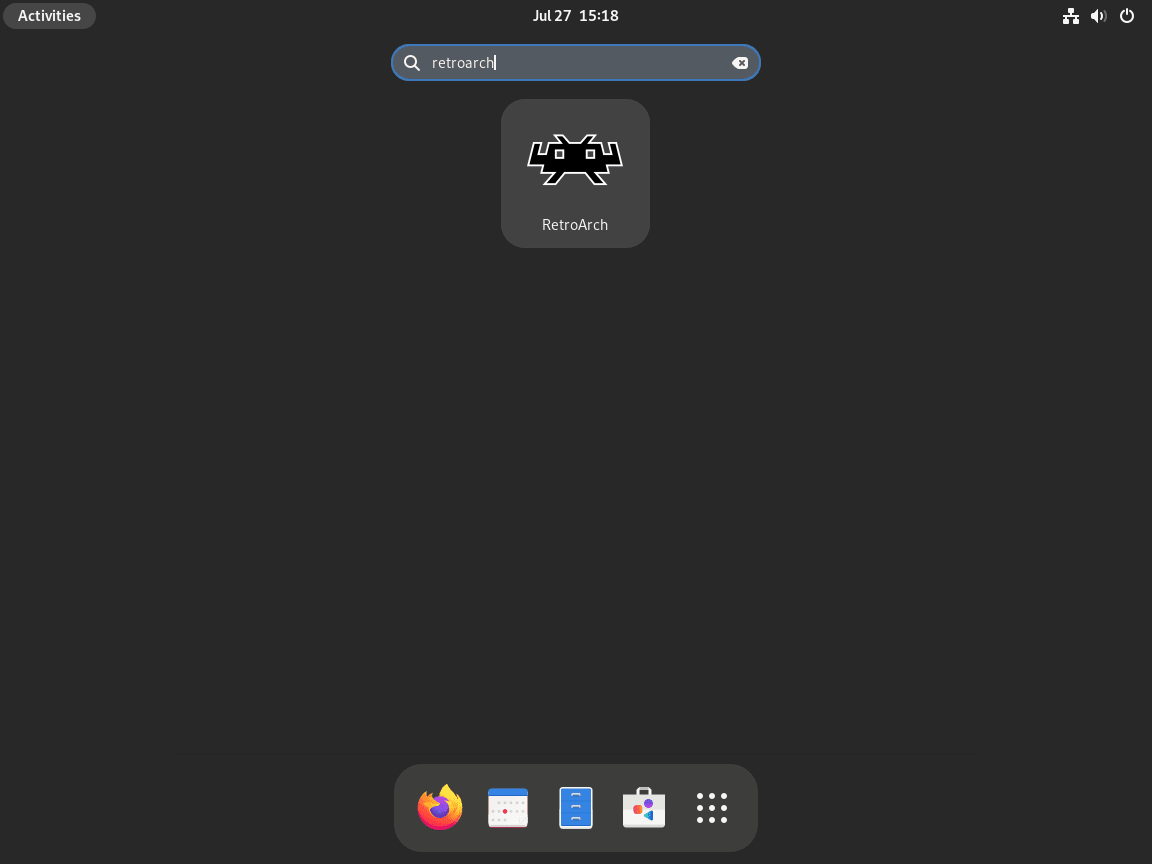
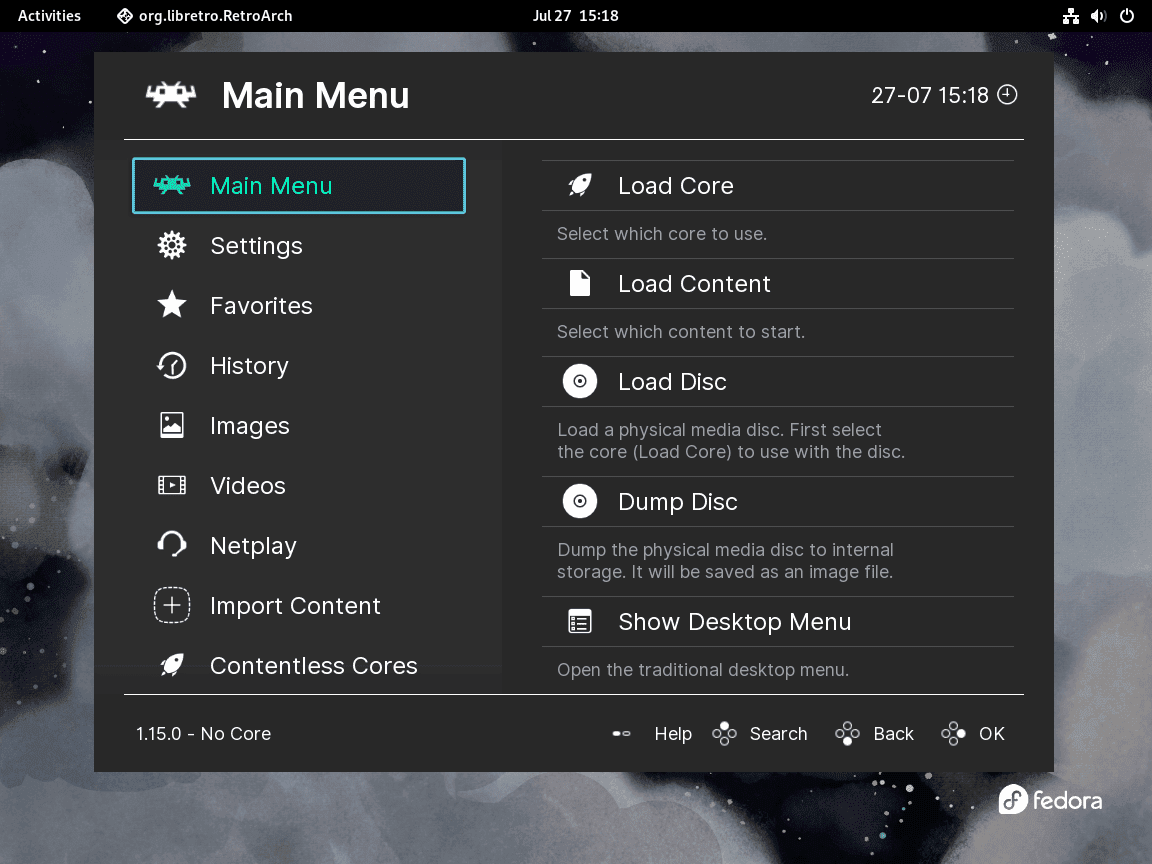
Open Activities, search for RetroArch, and launch it from the results. You can also open Show Applications and start it from the app grid.
Download RetroArch Cores
RetroArch needs cores before it can load games. A core is the emulator module for a specific console, arcade board, or handheld, and you can download the ones you actually plan to use.
- Open RetroArch and go to Main Menu > Online Updater.
- Select Core Downloader.
- Download the cores you need, such as
Snes9xfor SNES,mGBAfor Game Boy Advance, orPCSX ReARMedfor original PlayStation games.
Install only the cores you expect to use. A shorter core list makes it easier to pick the right emulator when more than one core supports the same ROM format.
RetroArch stores downloaded cores in ~/.config/retroarch/cores/ for the DNF install and ~/.var/app/org.libretro.RetroArch/config/retroarch/cores/ for the Flatpak install. To refresh them later, return to Online Updater > Update Installed Cores.
Load Your First RetroArch Game
Once at least one core is installed, load a ROM file from the main menu:
- Select Load Content from the main menu.
- Browse to your ROM location, usually
~/ROMs/or~/Downloads/. - Choose the ROM. RetroArch asks you to select a core when more than one core supports that file type.
- Press
F1while a game is open to reach the quick menu for save states, screenshots, shaders, and exit options.
RetroArch does not include games. Use ROM backups and BIOS files that you are legally allowed to keep in your region.
Troubleshoot RetroArch on Fedora
Most RetroArch problems on Fedora come down to package mismatches, missing network access for downloads, controller permissions, or a video backend that does not agree with your GPU.
Fix RetroArch DNF Dependency Errors
If you upgraded Fedora recently and DNF reports conflicting requests or missing libraries for retroarch, refresh the repo metadata and try the install again:
sudo dnf clean all
sudo dnf install retroarch
When that still fails, the package in the mirror network may need a rebuild for the new Fedora release. Check Fedora Bugzilla for RetroArch for open reports, then use the Flathub build as the immediate fallback:
sudo flatpak install flathub org.libretro.RetroArchFix RetroArch Core Download Failures
If RetroArch shows Download failed: buildbot.libretro.com while pulling cores, check whether the Flatpak build still has network access:
flatpak info --show-permissions org.libretro.RetroArch | grep -i networknetwork
If nothing prints, review your Flatpak overrides or host firewall rules. You can also download cores manually from https://buildbot.libretro.com/nightly/linux/x86_64/latest/ and copy them into your RetroArch cores directory.
Fix RetroArch Controller Detection
Check whether Fedora sees the controller before you change anything in RetroArch itself:
grep -A 4 -Ei 'gamepad|controller|joystick' /proc/bus/input/devicesN: Name="Xbox Wireless Controller" P: Phys=usb-0000:00:14.0-2/input0 S: Sysfs=/devices/pci0000:00/0000:00:14.0/usb1/1-2/1-2:1.0/input/input15 U: Uniq=
If Fedora detects the controller but RetroArch does not, go to Settings > Input > Port 1 Controls and bind it manually. For the Flatpak build, add a user override so the app can talk to controller devices:
flatpak override --user --device=all org.libretro.RetroArchRestart RetroArch after the override so the new permission is applied.
Fix RetroArch Black Screen Issues
A black screen after loading content usually points to the active video driver. Switch to glcore or vulkan in Settings > Drivers > Video, save the configuration, and restart the program.
If you are using an NVIDIA card and still do not get usable Vulkan output, follow the guide to install NVIDIA drivers on Fedora before you test RetroArch again.
Manage RetroArch on Fedora
Once RetroArch is installed, keep it updated with the same package path you used for the initial install and remove the matching package if you decide to switch methods later.
Update RetroArch on Fedora
The DNF package updates with the rest of your Fedora system:
sudo dnf upgrade --refreshThe Flathub build updates separately because it was installed at system scope:
sudo flatpak update org.libretro.RetroArchIf you want DNF upgrades to run automatically, follow the guide to install DNF Automatic on Fedora. Flatpak applications still need their own update command or a desktop software manager.
Remove RetroArch on Fedora
Remove the Fedora package with DNF if that is the method you used:
sudo dnf remove retroarchVerify that Fedora no longer has the package installed:
rpm -q retroarchpackage retroarch is not installed
Remove the Flathub build with the same system scope used for installation:
sudo flatpak remove org.libretro.RetroArchConfirm that Flatpak no longer sees the app:
flatpak info org.libretro.RetroArcherror: org.libretro.RetroArch/*unspecified*/*unspecified* not installed
Removing the package does not erase your saves, playlists, downloaded cores, or controller mappings. Export anything you want to keep before deleting the data directories below.
Delete the native config directory if you used the DNF package:
rm -rf ~/.config/retroarch/Delete the Flatpak data directory if you used the Flathub build:
rm -rf ~/.var/app/org.libretro.RetroArch/Clean out unused system runtimes after you remove the Flatpak build:
sudo flatpak uninstall --unusedFrequently Asked Questions
RetroArch is a frontend for Libretro cores, which are the emulator modules that handle individual consoles, arcade boards, and older handheld systems. On Fedora, it gives you one place to launch games, manage controllers, update cores, and switch video drivers instead of juggling separate emulator apps.
Use the DNF package when you want the native Fedora build and normal system updates. Use the Flathub build when you want a newer release or you need to avoid a repo-side dependency problem after a Fedora upgrade.
Cores are the emulator components RetroArch loads for each platform. For example, one core may handle SNES games while another handles Game Boy Advance or PlayStation titles, so you only download the systems you plan to use.
No. RetroArch supplies the frontend and the cores, but you still need your own ROM backups and any BIOS files required by the system you want to emulate. Legal use depends on what media you own and the rules in your region.
RetroArch can run many classic console, handheld, and arcade games as long as a matching core exists for that system. Actual compatibility depends on the core you install, the ROM format, and whether that platform also needs BIOS files.
Conclusion
RetroArch is running on Fedora with either the native package or the newer Flathub build, and your cores, controller bindings, and video settings can stay in one place. If you want to expand the setup, install Steam on Fedora, install Wine on Fedora, or install RPM Fusion on Fedora for broader gaming and multimedia support.

Formatting tips for your comment
You can use basic HTML to format your comment. Useful tags currently allowed in published comments:
<code>command</code>command<strong>bold</strong><em>italic</em><blockquote>quote</blockquote>