Ubuntu has no shortage of creative tools, but few feel as natural on a graphics tablet as MyPaint’s fast brush engine and infinite canvas. That makes it easy to install MyPaint on Ubuntu from maintained package sources instead of chasing random download pages.
MyPaint is free and open-source software built for sketching, digital painting, and stylus-driven graphics-tablet work rather than photo retouching, vector design, touch-only markup, or quick Paint-style edits. The Ubuntu package and the Flathub build both currently provide MyPaint 2.0.1 on Ubuntu 26.04, 24.04, and 22.04.
Install MyPaint on Ubuntu
APT is the better default when you want Ubuntu-managed updates and the fewest moving parts. Flatpak makes more sense when you already use Flathub or want MyPaint managed separately from APT. The Flathub listing is not marked as verified in Flathub metadata, and the manifest grants home-directory file access, so choose it for Flathub-managed updates rather than stronger isolation.
| Method | Source | Update Behavior | Best For |
|---|---|---|---|
| APT package | Ubuntu Universe package mypaint | Updates with normal APT system upgrades | Most users who want the simplest Ubuntu-managed install |
| Flatpak | Flathub app ID org.mypaint.MyPaint | Updates with flatpak update | Users who already manage desktop apps through Flathub |
The official MyPaint download page lists Flathub as the main Linux download and also links a MyPaint 2.0.1 AppImage from MyPaint GitHub releases. Treat the AppImage as a manual fallback; the general install AppImage on Ubuntu workflow covers the format, while this page keeps APT and Flathub as the documented methods because they provide clearer update and removal paths.
MyPaint is packaged in Ubuntu’s
universecomponent on Ubuntu 26.04, 24.04, and 22.04. Standard Ubuntu desktops already have Universe enabled, but minimal or customized installs may need Enable Universe and Multiverse on Ubuntu beforeapt install mypaintshows a package candidate.
Install MyPaint from Ubuntu Repositories
Start with the Ubuntu package if you want MyPaint handled by the same package manager as the rest of your system.
Refresh APT metadata first so Ubuntu can see the current MyPaint package for your release.
sudo apt updateThese commands use
sudofor system changes. If your account does not have sudo access yet, follow add a new user to sudoers on Ubuntu before continuing.
Install the MyPaint package and let Ubuntu pull in the brush data and runtime dependencies it needs.
sudo apt install mypaint -yThe -y flag accepts the package manager confirmation prompt automatically, so you can paste the command and let the install finish without another manual confirmation.
Ubuntu 26.04 and 24.04 may print Python
SyntaxWarninglines while APT compiles MyPaint’s Python files. Treat those as package setup warnings, not a failed install, when APT still finishes withSetting up mypaintand the verification command below shows the package installed.
Verify the installed package with dpkg instead of mypaint --version. The launcher is a GUI app, so package-manager checks are more reliable from a terminal session.
dpkg -l mypaint | grep "^ii"The grep filter keeps only the installed package line, and the grep command in Linux with examples guide breaks down that pattern in more detail.
Expected output on Ubuntu 26.04:
ii mypaint 2.0.1-14build1 amd64 paint program for use with graphics tablets
Ubuntu 24.04 reports 2.0.1-10build2, and Ubuntu 22.04 reports 2.0.1-2build1, but all three supported LTS releases install the same MyPaint 2.0.1 application.
Install MyPaint with Flatpak on Ubuntu
Use Flatpak when you already manage desktop apps through Flathub or want MyPaint’s app and runtime updates outside APT.
Flatpak is not pre-installed on Ubuntu. If
flatpakis missing, follow install Flatpak on Ubuntu, sign back into your desktop session, and then return here.
Add the Flathub remote at system scope if it is not already present on your machine.
sudo flatpak remote-add --if-not-exists flathub https://dl.flathub.org/repo/flathub.flatpakrepoThe --if-not-exists flag keeps the command rerunnable, so you do not get a duplicate-remote error on systems where Flathub is already configured.
Confirm that Flathub exists before you install MyPaint from it.
flatpak remotes --columns=name,options | grep -E "^flathub[[:space:]]"Expected output:
flathub system
Install the MyPaint Flatpak by using its application ID from Flathub.
sudo flatpak install flathub org.mypaint.MyPaint -yUse the app ID exactly as shown. The lowercase query form org.mypaint.mypaint does not resolve on Flathub.
The first Flatpak install is larger than the APT package because Flathub also downloads the runtime MyPaint needs.
Check the installed app metadata after the download finishes. Filtering stable fields keeps the output useful without freezing download sizes, commit hashes, or timestamps.
flatpak info org.mypaint.MyPaint | grep -E "^( +ID:| +Ref:| +Arch:| +Branch:| +Version:| +Origin:)"Expected output:
          ID: org.mypaint.MyPaint
         Ref: app/org.mypaint.MyPaint/x86_64/stable
        Arch: x86_64
      Branch: stable
     Version: 2.0.1
      Origin: flathub
Review the Flatpak permissions if you are choosing it for isolation rather than update behavior.
flatpak info --show-permissions org.mypaint.MyPaint | grep -E "^(shared=|sockets=|filesystems=)"Relevant output includes:
shared=ipc;
sockets=x11;wayland;fallback-x11;
filesystems=home;
The filesystems=home line means the Flatpak can access files in your home directory. That is expected for a painting app that opens and saves artwork, but it is weaker than a locked-down sandbox model.
Launch MyPaint on Ubuntu
MyPaint installs from the terminal, but it still launches as a graphical desktop app. You can install it on minimal or server-style Ubuntu images, yet you still need an active graphical session to open the MyPaint window.
Open MyPaint from the Applications Menu
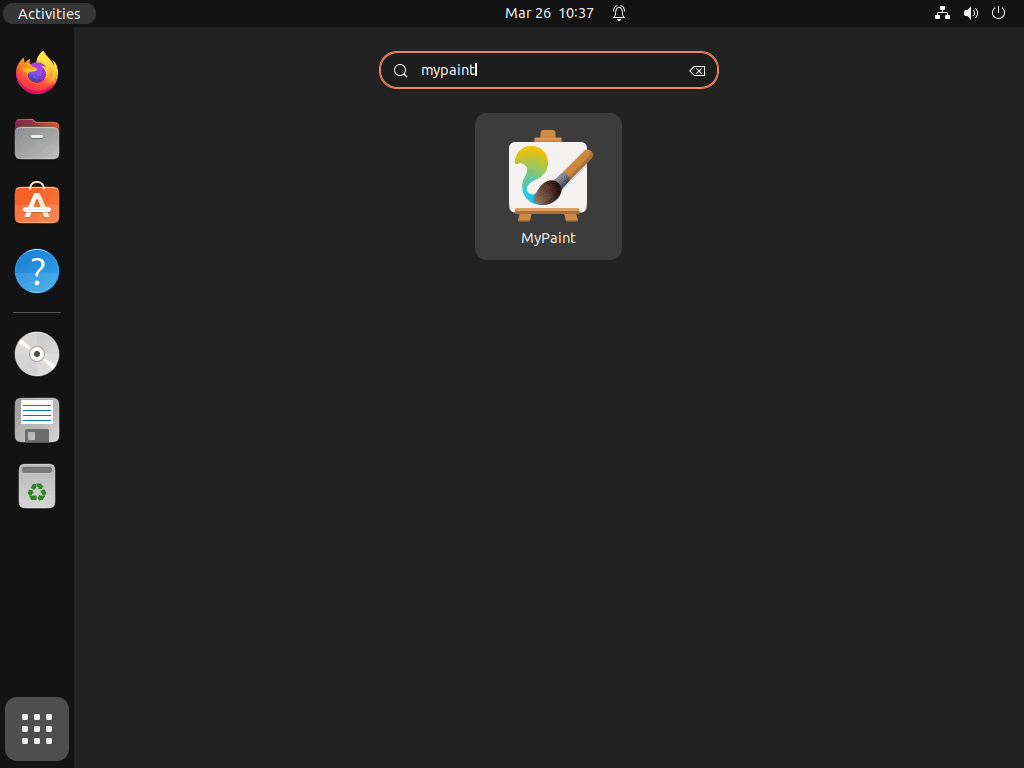
Open the Activities overview or your desktop app grid, search for MyPaint, and select the launcher.
Launch MyPaint from the Terminal
APT installs the mypaint launcher in your PATH, while the Flatpak build uses its application ID with flatpak run.
For the Ubuntu package, run:
mypaintFor the Flatpak build, run:
flatpak run org.mypaint.MyPaint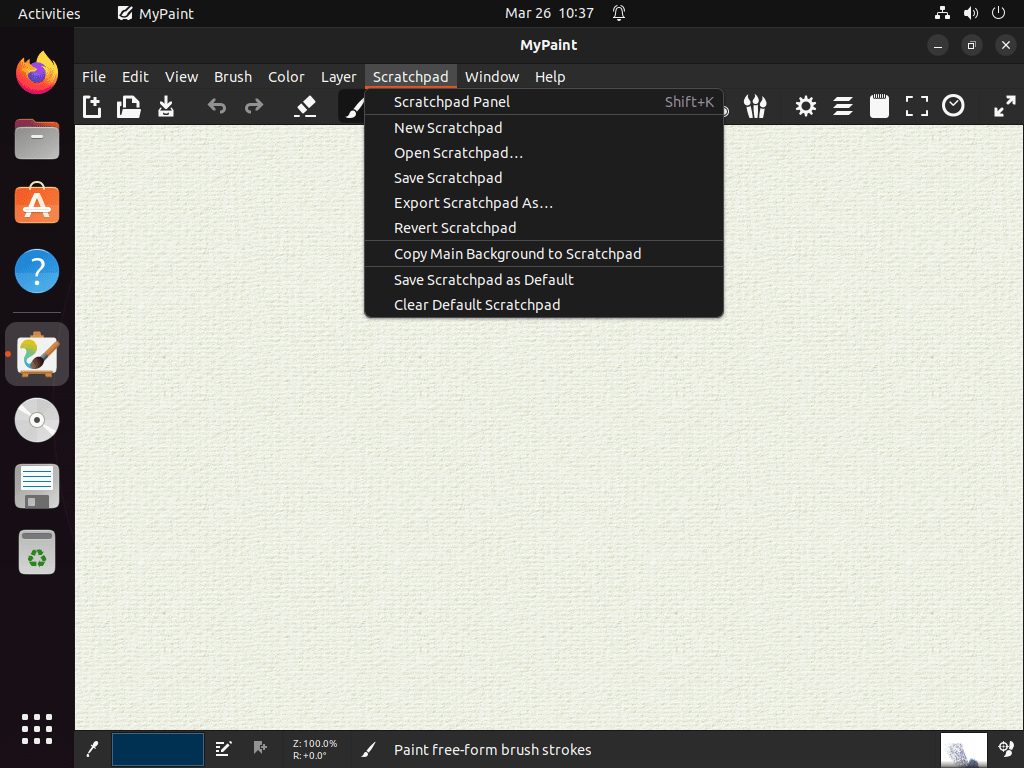
Update or Remove MyPaint on Ubuntu
Keep the package manager aligned with the method you used for installation, and MyPaint stays easy to maintain or remove later.
Update MyPaint from APT
Use a package-specific upgrade command when Ubuntu publishes a newer MyPaint build for your release.
sudo apt install --only-upgrade mypaintUpdate MyPaint from Flatpak
Update only the MyPaint Flatpak when you want the newest Flathub build without touching your other Flatpak apps.
sudo flatpak update org.mypaint.MyPaint -yRemove the MyPaint APT Package
Remove the Ubuntu package first. Keep dependency cleanup separate so APT does not remove unrelated autoremovable packages without a review step.
sudo apt remove mypaint -yConfirm that the package is gone before you review optional dependency cleanup.
dpkg-query -W -f='${db:Status-Abbrev} ${binary:Package}\n' mypaint 2>/dev/null | grep '^ii' || echo "MYP_APT_NOT_INSTALLED"Expected output:
MYP_APT_NOT_INSTALLED
The repository candidate can remain available after removal, which only means Ubuntu can reinstall MyPaint later.
apt-cache policy mypaint | sed -n "1,6p"Expected output on Ubuntu 26.04:
mypaint:
  Installed: (none)
  Candidate: 2.0.1-14build1
  Version table:
     2.0.1-14build1 500
        500 http://au.archive.ubuntu.com/ubuntu resolute/universe amd64 Packages
Ubuntu 24.04 and 22.04 show the same layout with their own package revision numbers.
Preview optional dependency cleanup separately. Continue only if the preview lists packages you are comfortable removing from your own system.
sudo apt autoremove --dry-runIf the preview is acceptable, run the cleanup interactively.
sudo apt autoremoveRemove the MyPaint Flatpak Build
Use the Flatpak removal path if you installed MyPaint from Flathub.
sudo flatpak remove --delete-data org.mypaint.MyPaint -yThe --delete-data flag asks Flatpak to remove data associated with the app during removal. Check the profile paths below separately, especially on multi-user systems, because user-specific MyPaint data can outlive a system-scope app removal.
Verify removal with an unprivileged app list check after the uninstall finishes.
flatpak list --app --columns=application | grep -Fx org.mypaint.MyPaint || echo "MYP_FLATPAK_NOT_INSTALLED"Expected output:
MYP_FLATPAK_NOT_INSTALLED
Remove unused runtimes afterward only if the interactive prompt lists runtimes you no longer need.
sudo flatpak uninstall --unusedMyPaint does not always create a user-data directory until you open it. To check for profile data from either method, print the possible paths first and delete only the ones you intentionally want gone.
find "$HOME" -maxdepth 4 \( -path "$HOME/.config/mypaint" -o -path "$HOME/.cache/mypaint" -o -path "$HOME/.local/share/mypaint" -o -path "$HOME/.var/app/org.mypaint.MyPaint" \) -printNo output means MyPaint has not created a profile directory on that account yet, so there is nothing else to remove.
Related Ubuntu Painting Apps
MyPaint is not a direct Microsoft Paint or Paint.NET replacement. Use these Ubuntu guides when the task is simple annotation, layered editing, vector work, or a fuller digital painting suite.
- Install Pinta on Ubuntu for a simpler Paint-style editor suited to quick annotations and small image edits.
- Install Krita on Ubuntu for a fuller digital painting workflow with stronger layer and brush management.
- Install GIMP on Ubuntu when you need heavier image editing, compositing, or retouching tools.
- Install Inkscape on Ubuntu for vector illustration, logo work, and SVG editing.
Conclusion
MyPaint is ready on Ubuntu for freehand sketching and tablet-focused painting through either the Ubuntu package or Flathub. Keep APT as the low-maintenance default, use Flathub when that matches your desktop app workflow, and switch to a simpler editor such as Pinta when you only need quick Paint-style markup.


Formatting tips for your comment
You can use basic HTML to format your comment. Useful tags currently allowed in published comments:
<code>command</code>command<strong>bold</strong><em>italic</em><a href="https://example.com">link</a><blockquote>quote</blockquote>