
If you edit screenshots, photos, or web graphics on Linux, GIMP gives you serious tools without subscription lock-in. You can install GIMP on Debian with Debian’s APT packages for long-term stability, Flatpak for sandboxed upstream builds, or a portable AppImage that runs from a single file with no package manager at all.
Debian 13 already ships GIMP 3, while Debian 12 and Debian 11 stay on the 2.10.x series in default repositories, so method choice matters. All three paths include verification output so you can confirm the install actually worked.
Install GIMP on Debian
Start with a quick method comparison, then follow the install path that matches your workflow.
Compare GIMP Versions on Debian 13, 12, and 11
| Method | Channel | Version Track | Updates | Best For |
|---|---|---|---|---|
| Debian APT | Official Debian repositories | Debian 13: 3.0.x Debian 12: 2.10.x (2.10.34) Debian 11: 2.10.x (2.10.22) | Automatic through apt upgrade | Stable system-managed installs |
| Flatpak + Flathub | Flathub app repository | Latest stable (currently 3.0.8) | Managed with flatpak update | Newer GIMP features on any Debian release |
| AppImage | gimp.org downloads | Latest stable (currently 3.0.8) | Re-download or run update script | Portable single-file install, no root required |
Update Debian Before Installing GIMP
Refresh package metadata first to avoid dependency conflicts during installation.
sudo apt update && sudo apt upgradeIf your account is not configured for
sudo, follow Add a User to Sudoers on Debian first, then continue.
Method 1: Install GIMP from Debian Repositories
This is the lowest-maintenance method and the best default when you prefer distro-managed updates.
Check the GIMP Candidate in APT
apt-cache policy gimpgimp:
Installed: (none)
Candidate: <version for your Debian release>
Version table:
<version> 500
The candidate value will differ by Debian release, which is expected in multi-version Debian guides.
Install and Verify GIMP from APT
sudo apt install gimp
gimp --version
GNU Image Manipulation Program version 3.0.4
On Debian 12 and Debian 11, the version line will show the 2.10.x series instead of 3.x.
Method 2: Install GIMP on Debian with Flatpak and Flathub
Flatpak gives you newer upstream GIMP builds while keeping the app isolated from core Debian libraries. You can track current stable details on GIMP on Flathub and upstream release announcements on gimp.org downloads.
If Flatpak is not installed yet, follow Install Flatpak on Debian first, then return here.
Add Flathub as a System Remote
Flatpak needs at least one remote configured before it can install anything. Adding Flathub as a system-level remote makes apps available to every user on the machine. The --if-not-exists flag skips this step safely if you already added Flathub earlier.
sudo flatpak remote-add --if-not-exists flathub https://dl.flathub.org/repo/flathub.flatpakrepo
flatpak remotes
flathub system
Install and Verify GIMP from Flathub
The install command pulls the GIMP application, its runtime dependencies, and any required shared libraries in one step. Because this is a system-scope install, sudo is required. The -y flag auto-confirms the download so you do not have to approve each runtime dependency individually.
sudo flatpak install --system -y flathub org.gimp.GIMP
flatpak info org.gimp.GIMP | sed -n '1,10p'
GNU Image Manipulation Program - Create images and edit photographs ID: org.gimp.GIMP Ref: app/org.gimp.GIMP/x86_64/stable Version: 3.0.8 Origin: flathub Installation: system
If the Version line shows 3.0.8 and Installation says system, the Flatpak path is working correctly.
Method 3: Install GIMP on Debian with AppImage
The AppImage is a single portable file that runs GIMP without installing packages or adding repositories. It auto-detects your CPU architecture (x86_64 or aarch64) and does not require root privileges. Current AppImage releases are listed on gimp.org downloads.
Download the Latest GIMP AppImage
These commands read the upstream directory listing to find the newest build, then download the matching file for your architecture into ~/Applications/.
INSTALL_DIR="$HOME/Applications"
BASE_URL="https://download.gimp.org/gimp/v3.0/linux"
LATEST=$(curl -fsSL "${BASE_URL}/" | grep -o 'LATEST-IS-[^"<]*' | sed 's/LATEST-IS-//' | head -1)
ARCH=$(uname -m)
FILENAME="GIMP-${LATEST}-${ARCH}.AppImage"
mkdir -p "$INSTALL_DIR"
curl -fSL --progress-bar -o "${INSTALL_DIR}/${FILENAME}.part" "${BASE_URL}/${FILENAME}"
mv "${INSTALL_DIR}/${FILENAME}.part" "${INSTALL_DIR}/${FILENAME}"
chmod +x "${INSTALL_DIR}/${FILENAME}"
The .part suffix during download prevents a half-finished file from being mistaken for a working AppImage if the transfer is interrupted.
Verify the GIMP AppImage
Confirm the file downloaded completely and GIMP starts. The --appimage-extract-and-run flag tells the AppImage to unpack into a temporary directory and launch, which works reliably regardless of your FUSE configuration.
ls -lh "${INSTALL_DIR}/${FILENAME}"
"${INSTALL_DIR}/${FILENAME}" --appimage-extract-and-run --version
-rwxr-xr-x 1 user user 215M Mar 1 13:20 /home/user/Applications/GIMP-3.0.8-1-x86_64.AppImage GNU Image Manipulation Program version 3.0.8
Create a Desktop Entry for the GIMP AppImage
A desktop entry lets GIMP appear in the application menu alongside APT- or Flatpak-installed apps.
mkdir -p "$HOME/.local/share/applications"
cat > "$HOME/.local/share/applications/gimp-appimage.desktop" <<DESKTOP
[Desktop Entry]
Type=Application
Name=GIMP (AppImage)
Comment=GNU Image Manipulation Program
Exec=${INSTALL_DIR}/${FILENAME}
Icon=gimp
Terminal=false
Categories=Graphics;2DGraphics;RasterGraphics;
MimeType=image/bmp;image/gif;image/jpeg;image/png;image/tiff;image/svg+xml;
DESKTOP
After creating or updating the desktop entry you may need to log out and back in once for the menu to refresh.
Launch GIMP on Debian
Launch GIMP from Terminal
Use the command that matches whichever installation method you followed. The first opens an APT-installed GIMP, the second launches the Flatpak version, and the third starts the AppImage directly from your home directory.
gimp
flatpak run org.gimp.GIMP
~/Applications/GIMP-*-$(uname -m).AppImage
If you installed more than one version, keep in mind that the bare gimp command always runs the APT package. Flatpak and AppImage use their own binaries, so they never conflict with each other or with the system package.
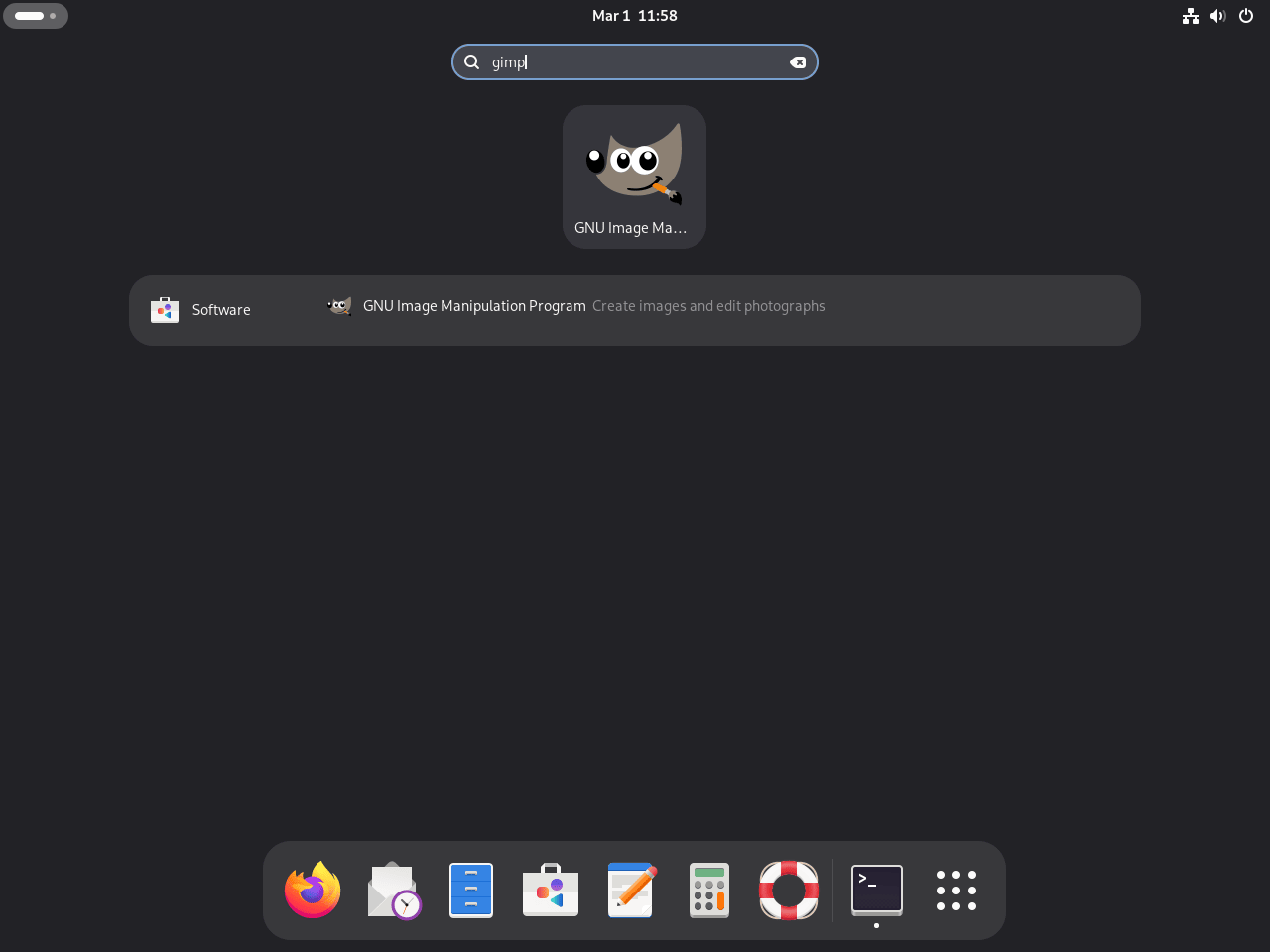
Launch GIMP from Debian Desktop Menu
If you prefer the graphical route, GIMP shows up in the application menu for all three methods. APT and Flatpak register menu entries automatically, while the AppImage uses the desktop entry created during setup.
- Open Activities.
- Search for GIMP or GNU Image Manipulation Program.
- Launch the application from the result list.
First-Run Workflow Tips for GIMP on Debian
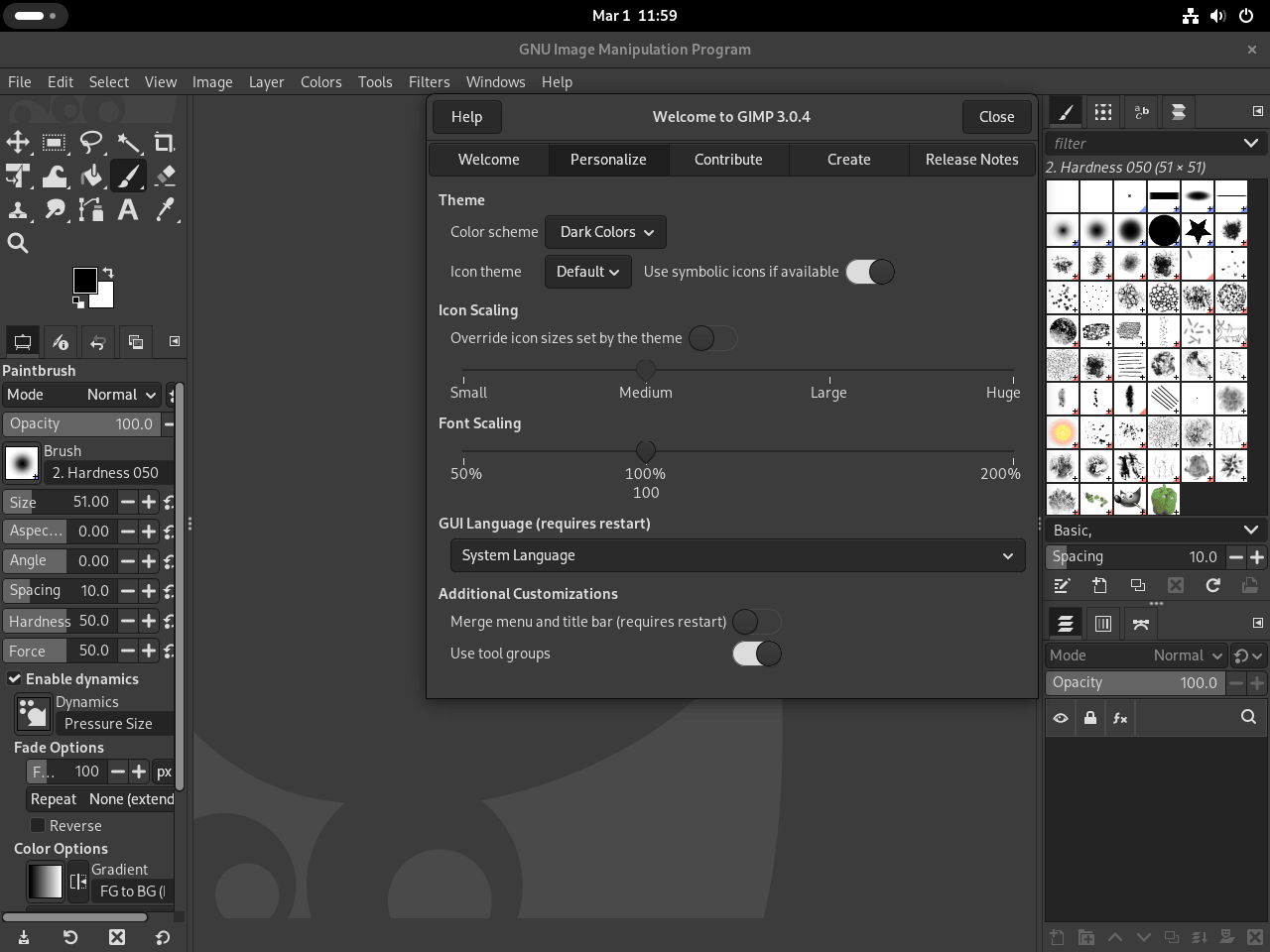
Once GIMP is open, a few quick settings make the experience smoother before you start any real work.
- Use layers for non-destructive edits instead of modifying the base image directly.
- Open
Edit > Preferences > Interfaceto set your preferred theme and icon style, and if you want deeper desktop tweaks, follow Install GNOME Tweaks on Debian. - Learn a few shortcuts early, especially
Ctrl+Z,Ctrl+Shift+Z, andCtrl+S.
Troubleshoot GIMP on Debian
GIMP Command Not Found After Installation
bash: gimp: command not found
This usually means the APT package is not installed, or you installed GIMP through Flatpak or AppImage instead of APT. Each method registers its own binary, so you need to check the one you actually used.
dpkg -l gimp
flatpak info org.gimp.GIMP
ls ~/Applications/GIMP-*-*.AppImage 2>/dev/null
If one of those checks shows GIMP is present, use the matching launch command from the sections above. If all three come back empty, reinstall with whichever method you prefer.
Flatpak Install Fails with Operation Not Allowed
error: Failed to install org.gnome.Platform: Flatpak system operation Deploy not allowed for user
This happens when using a system remote without elevated privileges.
sudo flatpak install --system -y flathub org.gimp.GIMPVerify the application is now installed:
flatpak info org.gimp.GIMP | sed -n '1,6p'ID: org.gimp.GIMP Ref: app/org.gimp.GIMP/x86_64/stable Version: 3.0.8 Installation: system
GIMP Installs but Desktop Icon Does Not Appear
Desktop environments cache their application menus, so a newly installed app sometimes does not show up until the cache refreshes. This affects Flatpak installs and AppImage desktop entries equally.
For Flatpak, confirm the install succeeded and try a terminal launch first:
flatpak list --app | grep org.gimp.GIMP
flatpak run org.gimp.GIMP
For the AppImage, verify the desktop entry file exists and points to the correct path:
cat ~/.local/share/applications/gimp-appimage.desktop | grep ExecIf the terminal launches work but the menu icon still does not appear, log out and back in once. That forces the desktop environment to re-read its application cache.
Update GIMP on Debian
Update the GIMP AppImage with an Automated Script
Because AppImages are standalone files, updating means downloading the latest build and replacing the old one. The script below automates the full workflow: it detects the newest upstream release, matches your architecture, verifies the SHA256 checksum, updates the desktop entry, and removes older GIMP AppImage files. Save it to $HOME/scripts/update-gimp-appimage.sh.
mkdir -p "$HOME/scripts"
cat > "$HOME/scripts/update-gimp-appimage.sh" <<'SCRIPT'
#!/usr/bin/env bash
# update-gimp-appimage.sh - download or update the GIMP AppImage safely
set -Eeuo pipefail

INSTALL_DIR="$HOME/Applications"
DESKTOP_FILE="$HOME/.local/share/applications/gimp-appimage.desktop"
BASE_URL="https://download.gimp.org/gimp/v3.0/linux"

log() { echo "[update-gimp-appimage] $*"; }
fail() { echo "[update-gimp-appimage] Error: $*" >&2; exit 1; }

for cmd in curl grep sed uname find chmod mv mkdir cat awk; do
  command -v "$cmd" >/dev/null 2>&1 || fail "Missing required command: $cmd"
done

RAW_ARCH="$(uname -m)"
case "$RAW_ARCH" in
  x86_64|amd64) APPIMAGE_ARCH="x86_64" ;;
  aarch64|arm64) APPIMAGE_ARCH="aarch64" ;;
  *) fail "Unsupported architecture: $RAW_ARCH (supported: x86_64, aarch64)" ;;
esac

log "1/6 Detecting latest GIMP AppImage version..."
LATEST="$(curl -fsSL "${BASE_URL}/" | grep -o 'LATEST-IS-[^"<]*' | sed 's/LATEST-IS-//' | head -1)"
[ -n "$LATEST" ] || fail "Could not detect latest version from ${BASE_URL}/"

FILENAME="GIMP-${LATEST}-${APPIMAGE_ARCH}.AppImage"
TARGET="${INSTALL_DIR}/${FILENAME}"
TMP_TARGET="${TARGET}.part"
log "  Version: ${LATEST} (${APPIMAGE_ARCH})"

# Skip download if already current
if [ -f "$TARGET" ]; then
  log "Already up to date: ${TARGET}"
  exit 0
fi

cleanup() { rm -f "$TMP_TARGET"; }
trap cleanup EXIT

log "2/6 Creating install directory..."
mkdir -p "$INSTALL_DIR"

log "3/6 Downloading ${FILENAME}..."
curl -fSL --progress-bar -o "$TMP_TARGET" "${BASE_URL}/${FILENAME}"

log "4/6 Verifying checksum..."
if command -v sha256sum >/dev/null 2>&1; then
  EXPECTED_SHA="$(curl -fsSL "${BASE_URL}/SHA256SUMS" | awk -v file="$FILENAME" '$2 == file {print $1; exit}')"
  [ -n "$EXPECTED_SHA" ] || fail "Could not find checksum for ${FILENAME}"
  ACTUAL_SHA="$(sha256sum "$TMP_TARGET" | awk '{print $1}')"
  [ "$EXPECTED_SHA" = "$ACTUAL_SHA" ] || fail "Checksum mismatch for ${FILENAME}"
else
  log "sha256sum not found; skipping checksum verification."
fi

mv "$TMP_TARGET" "$TARGET"
chmod +x "$TARGET"
trap - EXIT

log "5/6 Removing older GIMP AppImages..."
find "$INSTALL_DIR" -maxdepth 1 -type f -name 'GIMP-*-*.AppImage' ! -name "$FILENAME" -delete

log "6/6 Updating desktop entry..."
mkdir -p "$(dirname "$DESKTOP_FILE")"
cat > "$DESKTOP_FILE" <<DESKTOP
[Desktop Entry]
Type=Application
Name=GIMP (AppImage)
Comment=GNU Image Manipulation Program
Exec=${TARGET}
Icon=gimp
Terminal=false
Categories=Graphics;2DGraphics;RasterGraphics;
MimeType=image/bmp;image/gif;image/jpeg;image/png;image/tiff;image/svg+xml;
DESKTOP

if VERSION_LINE="$($TARGET --appimage-extract-and-run --version 2>/dev/null | head -1)"; then
  log "Ready: ${VERSION_LINE}"
else
  log "Ready: ${TARGET}"
fi
SCRIPT
chmod +x "$HOME/scripts/update-gimp-appimage.sh"
Run the script whenever you want to check for a new release.
bash "$HOME/scripts/update-gimp-appimage.sh"[update-gimp-appimage] 1/6 Detecting latest GIMP AppImage version... [update-gimp-appimage] Version: 3.0.8-1 (x86_64) [update-gimp-appimage] Already up to date: /home/user/Applications/GIMP-3.0.8-1-x86_64.AppImage
Update APT-Installed GIMP
APT-managed GIMP updates come through the standard Debian repository channel. The --only-upgrade flag targets GIMP specifically rather than upgrading every package on the system, which keeps the change set predictable.
sudo apt update
sudo apt install --only-upgrade gimp
gimp --version
GNU Image Manipulation Program version 3.0.4
Update Flatpak-Installed GIMP
Flatpak updates pull newer builds from Flathub independently of APT, so you can get GIMP feature releases without waiting for the next Debian point release. Because the install used system scope, the update command also needs sudo.
sudo flatpak update --system org.gimp.GIMP
flatpak info org.gimp.GIMP | sed -n '1,8p'
ID: org.gimp.GIMP Ref: app/org.gimp.GIMP/x86_64/stable Version: 3.0.8 Origin: flathub Installation: system
Remove GIMP from Debian
Use the removal path that matches your installation method to avoid leftover packages or runtimes.
Remove the GIMP AppImage
Deleting the AppImage file and its desktop entry is the entire uninstall. Because the AppImage is self-contained, there are no leftover packages, runtimes, or system libraries to clean up. If you also saved the update script, remove that too with rm -f ~/scripts/update-gimp-appimage.sh.
rm -f ~/Applications/GIMP-*-*.AppImage
rm -f ~/.local/share/applications/gimp-appimage.desktop
ls ~/Applications/GIMP-*.AppImage 2>&1
ls: cannot access '/home/user/Applications/GIMP-*.AppImage': No such file or directory
Remove APT-Installed GIMP
The --purge flag removes GIMP along with its system-level configuration files. The autoremove step cleans up any libraries that were pulled in only as GIMP dependencies and are no longer needed by anything else.
sudo apt remove --purge -y gimp gimp-data
sudo apt autoremove -y
sudo apt update
apt-cache policy gimp | sed -n '1,4p'
gimp: Installed: (none) Candidate: <available version from repositories> Version table:
Remove Flatpak-Installed GIMP
Uninstalling the Flatpak removes GIMP and its application data. The second command cleans up shared runtimes that are no longer referenced by any installed app, which frees disk space without affecting other Flatpak applications.
sudo flatpak uninstall --system -y org.gimp.GIMP
sudo flatpak uninstall --system --unused -y
flatpak list --app | grep org.gimp.GIMP
# No output means org.gimp.GIMP is no longer installed.
Frequently Asked Questions About GIMP on Debian
Yes on Debian 13, where the repository track currently includes GIMP 3. Debian 12 and Debian 11 still use the 2.10.x series in default repositories, so use Flatpak if you want the latest 3.x release there.
Use APT for the most Debian-native, low-maintenance setup. Use Flatpak for sandboxed upstream builds managed through flatpak update. Use the AppImage for a portable single-file install that needs no package manager and no root access.
sudo?
Flathub is added as a system remote so applications are available to all users. System-scope Flatpak installs require elevated privileges, so sudo avoids operation-not-allowed errors during runtime deployment.
Yes, both can coexist. The APT package runs as gimp and the Flatpak app runs as flatpak run org.gimp.GIMP. If you keep both, verify which one you launch for plugin paths and update behavior.
Conclusion
GIMP is running on Debian through APT, Flatpak, or AppImage, each with verification, update, and removal steps covered. The AppImage update script at $HOME/scripts/update-gimp-appimage.sh handles future releases automatically. To round out your graphics toolkit, continue with Install Darktable on Debian for RAW photo editing and Install ImageMagick on Debian for batch processing.

Formatting tips for your comment
You can use basic HTML to format your comment. Useful tags currently allowed:
<code>command</code>command<strong>bold</strong><em>italic</em><blockquote>quote</blockquote>