
When Linux Mint’s default top view feels too cramped for real troubleshooting, htop gives you a scrollable terminal dashboard for CPU load, memory pressure, process trees, search, filtering, and safer process actions. To install htop on Linux Mint, use the APT package for the lowest-maintenance setup, or build an upstream release from GitHub when you specifically want a user-managed copy outside the system package database.
If htop is already installed, you can skip to the usage sections. Otherwise, the APT method works across Ubuntu-based Linux Mint 22.x and 21.x, while the manual source method installs htop under your home directory with a repeatable update helper.
Install htop on Linux Mint
Check Whether htop Is Already Installed
Confirm the active htop command path and version before changing anything:
command -v htop && htop --versionIf command -v htop prints no path or your shell reports that htop is not found, continue with one of the installation methods.
Update Linux Mint Packages
Refresh APT metadata and apply pending package updates before installing new software:
sudo apt update && sudo apt upgradeThese commands use
sudofor package-management tasks. If your account does not have sudo access yet, follow how to create and add users to sudoers on Linux Mint before continuing.
Choose an htop Installation Method
Linux Mint has two practical htop paths for normal use. APT is the recommended method because it integrates with Mint’s Ubuntu base repositories, while the manual source method is for users who intentionally want the latest upstream release in a home-directory prefix.
| Method | Source | Update Behavior | Best For | Trade-offs |
|---|---|---|---|---|
| APT | Linux Mint’s Ubuntu-base repository | Through apt upgrade | Most desktops, servers, and scripts | Older than the current upstream release on Mint 21.x and 22.x |
| Manual source | GitHub Releases | Rerun the helper | Advanced users who need a user-managed upstream build | Requires build dependencies and is not tracked by APT |
Use only one htop command path for daily work unless you deliberately want both. If APT and the source build coexist, your shell runs whichever htop appears first in PATH; verify that with command -v htop.
Check the Default htop Package Versions
Linux Mint follows the htop package available from its Ubuntu base. Mint 22.x releases use the Ubuntu 24.04 package, while Mint 21.x uses the Ubuntu 22.04 package.
| Linux Mint Release | Ubuntu Base | Default htop Package | Source |
|---|---|---|---|
| Linux Mint 22.x | Ubuntu 24.04 LTS | 3.3.0-4build1 | Ubuntu noble htop package |
| Linux Mint 21.x | Ubuntu 22.04 LTS | 3.0.5-7build2 | Ubuntu jammy htop package |
The core monitoring, sorting, filtering, and process-management features in this workflow work with both packaged versions. Choose the source build only when you specifically need newer upstream behavior.
Install htop with APT
Install htop from the default Linux Mint package sources:
sudo apt install htopVerify the installed package:
htop --versionLinux Mint 22.x prints:
htop 3.3.0
Linux Mint 21.x prints htop 3.0.5 from the same verification command.
Build htop from GitHub Source
The manual method builds the latest stable htop release from the upstream htop project. It installs into ~/.local/opt/htop and exposes ~/.local/bin/htop, so it does not overwrite the APT package at /usr/bin/htop.
Install Source Build Dependencies
Install the compiler, autotools, JSON parser, download tool, and htop feature libraries used by the source build:
sudo apt install curl jq build-essential autoconf automake autotools-dev pkg-config libncurses-dev libcap-dev libsensors-dev libnl-3-dev libnl-genl-3-dev ca-certificatesThese dependency package names are available on Linux Mint 22.x and 21.x. The libncurses-dev package supplies the ncurses headers required by current htop releases.
Create the htop Source Update Helper
Create a reusable update-htop-source helper. It resolves the latest stable GitHub release through the GitHub API each time it runs and intentionally rejects version arguments, so the source method always tracks the newest upstream release.
create_htop_source_helper() {
  mkdir -p "$HOME/.local/bin"
  case ":$PATH:" in
  *":$HOME/.local/bin:"*) ;;
  *) export PATH="$HOME/.local/bin:$PATH" ;;
  esac

  BASHRC="$HOME/.bashrc"
  PATH_MARKER="LinuxCapable local bin path"
  if [ -f "$BASHRC" ] && ! grep -q "$PATH_MARKER" "$BASHRC"; then
    cat >>"$BASHRC" <<'EOF'

# LinuxCapable local bin path
if [ -d "$HOME/.local/bin" ]; then
  case ":$PATH:" in
    *":$HOME/.local/bin:"*) ;;
    *) PATH="$HOME/.local/bin:$PATH" ;;
  esac
fi
EOF
  fi

  HELPER="$HOME/.local/bin/update-htop-source"
  HTOP_LINK="$HOME/.local/bin/htop"
  HTOP_PREFIX="$HOME/.local/opt/htop"
  HELPER_MARKER="LinuxCapable htop source helper"

  if [ -L "$HELPER" ]; then
    echo "$HELPER is a symlink. Move it before creating the htop helper."
    return 1
  fi

  if [ -e "$HELPER" ] && ! grep -q "$HELPER_MARKER" "$HELPER"; then
    echo "$HELPER already exists and was not created by this workflow. Move it before continuing."
    return 1
  fi

  if [ -L "$HTOP_LINK" ] && [ "$(readlink "$HTOP_LINK")" != "$HTOP_PREFIX/current/bin/htop" ]; then
    echo "$HTOP_LINK already points somewhere else. Move it before installing source-built htop."
    return 1
  elif [ -e "$HTOP_LINK" ] && [ ! -L "$HTOP_LINK" ]; then
    echo "$HTOP_LINK exists and is not a symlink. Move it before installing source-built htop."
    return 1
  fi

  if [ -e "$HTOP_PREFIX/current" ] && [ ! -L "$HTOP_PREFIX/current" ]; then
    echo "$HTOP_PREFIX/current exists and is not a symlink. Move it before updating the htop prefix."
    return 1
  fi

  cat >"$HELPER" <<'EOF'
#!/usr/bin/env bash
# LinuxCapable htop source helper
set -euo pipefail

REPO_API="https://api.github.com/repos/htop-dev/htop/releases/latest"
WORKDIR="${HTOP_SOURCE_WORKDIR:-$HOME/htop-source-build}"
PREFIX_BASE="${HTOP_PREFIX_BASE:-$HOME/.local/opt/htop}"
BIN_DIR="${HTOP_BIN_DIR:-$HOME/.local/bin}"

if [ "$#" -ne 0 ]; then
  echo "This helper always builds the latest stable htop release; run update-htop-source without arguments."
  exit 2
fi

RELEASE_JSON=$(curl -fsSL "$REPO_API")
TAG=$(printf '%s' "$RELEASE_JSON" | jq -r 'select(.draft == false and .prerelease == false) | .tag_name')

if ! [[ "$TAG" =~ ^[0-9]+[.][0-9]+[.][0-9]+$ ]]; then
  echo "Could not resolve a stable htop release tag."
  exit 1
fi

ARCHIVE="htop-${TAG}.tar.xz"
SHA_FILE="${ARCHIVE}.sha256"
BASE_URL="https://github.com/htop-dev/htop/releases/download/${TAG}"

if ! printf '%s' "$RELEASE_JSON" | jq -e --arg name "$ARCHIVE" 'any(.assets[]?; .name == $name)' >/dev/null; then
  echo "Latest htop release does not include $ARCHIVE."
  exit 1
fi

if ! printf '%s' "$RELEASE_JSON" | jq -e --arg name "$SHA_FILE" 'any(.assets[]?; .name == $name)' >/dev/null; then
  echo "Latest htop release does not include $SHA_FILE."
  exit 1
fi

mkdir -p "$WORKDIR" "$PREFIX_BASE" "$BIN_DIR"

EXPECTED_LINK="$PREFIX_BASE/current/bin/htop"

if [ -L "$BIN_DIR/htop" ] && [ "$(readlink "$BIN_DIR/htop")" != "$EXPECTED_LINK" ]; then
  echo "$BIN_DIR/htop already points somewhere else. Move it before installing source-built htop."
  exit 1
elif [ -e "$BIN_DIR/htop" ] && [ ! -L "$BIN_DIR/htop" ]; then
  echo "$BIN_DIR/htop exists and is not a symlink. Move it before installing source-built htop."
  exit 1
fi

if [ -e "$PREFIX_BASE/current" ] && [ ! -L "$PREFIX_BASE/current" ]; then
  echo "$PREFIX_BASE/current exists and is not a symlink. Move it before updating the source-built htop prefix."
  exit 1
fi

if [ -x "$PREFIX_BASE/current/bin/htop" ]; then
  VERSION_LINE=$("$PREFIX_BASE/current/bin/htop" --version | head -n 1 || true)
  INSTALLED_VERSION=${VERSION_LINE#htop }
  INSTALLED_TAG=${INSTALLED_VERSION%%-*}
  if [ "$INSTALLED_TAG" = "$TAG" ]; then
    echo "htop ${TAG} is already installed."
    exit 0
  fi
fi

cd "$WORKDIR"
rm -rf "htop-${TAG}" "$ARCHIVE" "$SHA_FILE"
curl -fLO --progress-bar "$BASE_URL/$ARCHIVE"
curl -fLO --progress-bar "$BASE_URL/$SHA_FILE"
sha256sum -c "$SHA_FILE"
tar -xf "$ARCHIVE"

if [ ! -x "htop-${TAG}/configure" ]; then
  echo "Extracted htop archive does not contain the expected configure script."
  exit 1
fi

cd "htop-${TAG}"
./configure --prefix="${PREFIX_BASE}/${TAG}"
make -j"$(nproc)"
make install

ln -sfnT "${PREFIX_BASE}/${TAG}" "${PREFIX_BASE}/current"
ln -sfnT "${PREFIX_BASE}/current/bin/htop" "${BIN_DIR}/htop"
"${BIN_DIR}/htop" --version | head -n 1
EOF

  chmod +x "$HELPER"
  bash -n "$HELPER"
  hash -r
  command -v update-htop-source
}

create_htop_source_helper && unset -f create_htop_source_helper
The setup block refuses to overwrite an unrelated existing helper or htop link. It also adds a marked ~/.bashrc PATH guard so new Bash terminals opened during the same desktop login can find ~/.local/bin. The helper downloads the latest release tarball and its .sha256 sidecar, verifies the archive with sha256sum -c, checks that the extracted tree contains the expected configure script, compiles htop, installs into a versioned directory, and then updates the current and htop symlinks.
Build the Latest htop Release from GitHub
Build the latest stable htop release from GitHub:
update-htop-sourceA successful run verifies the checksum, compiles htop, installs the versioned prefix, and ends with the compiled htop version. Htop release tarballs can print the release tag twice in the version string; use the first version number as the active upstream release.
Refresh Bash’s command cache and confirm the active htop path points under ~/.local/bin:
hash -r
command -v htop
For later updates after dependencies are installed, run the helper again. It checks the latest stable GitHub release before rebuilding:
update-htop-sourceUse htop to Monitor and Control Processes
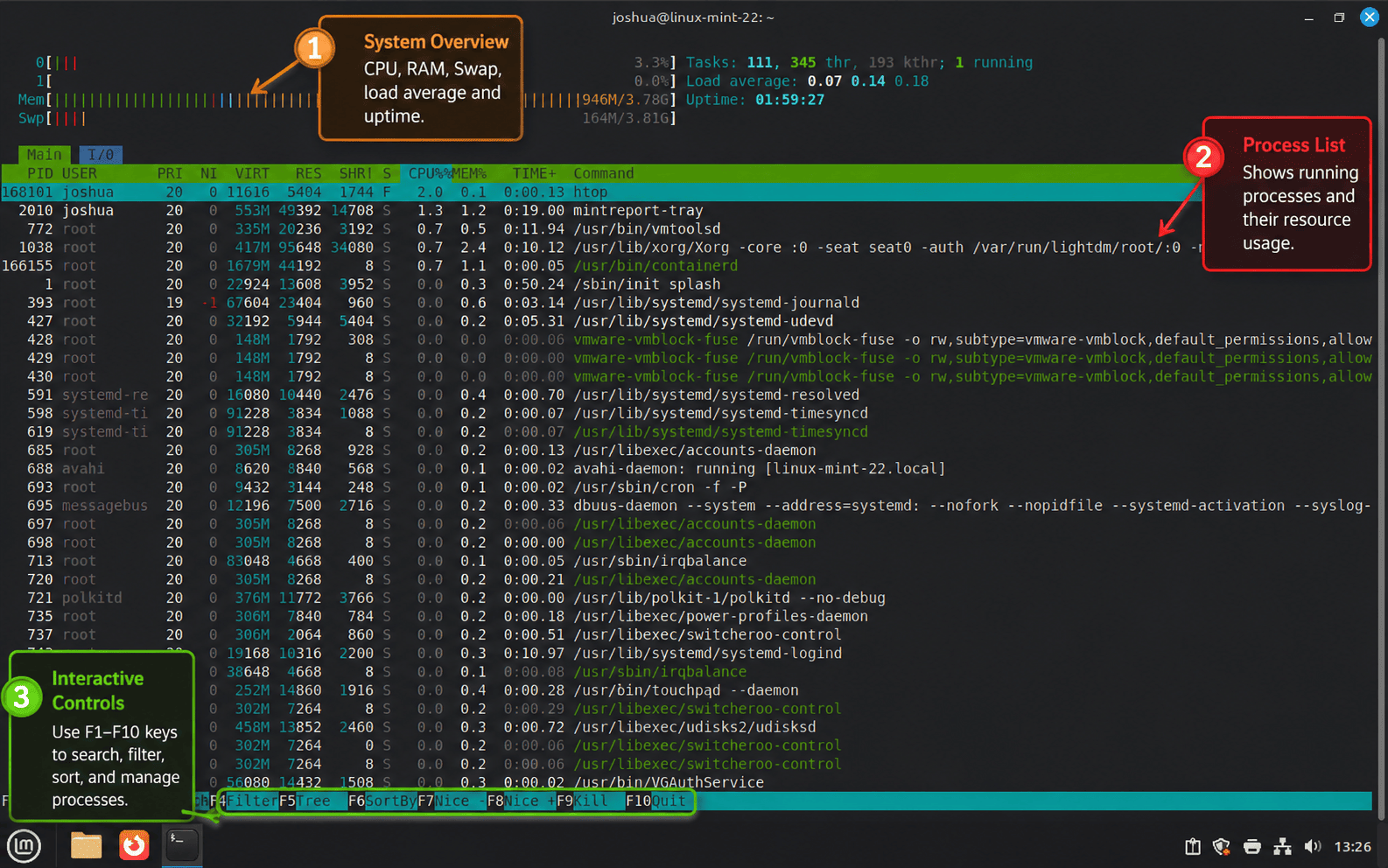
Htop uses function keys and arrow keys to navigate, sort, and control processes. The interface also responds to mouse clicks for column sorting and process selection. Press F1, h, or ? inside htop at any time to open the built-in help screen.
Launch htop
Start htop from any terminal:
htopLimit the process list to your own user when a busy desktop or server has too much noise:
htop -u "$USER"The top section displays CPU cores, memory usage, swap usage, and system load averages. The process list shows PIDs, users, CPU and memory consumption, and command details. Use the arrow keys or mouse to move through the list.
Navigate and Sort Processes
Use these htop keys to move through the process list and change sort order:
| Key | Action |
|---|---|
| Up/Down | Move through the process list |
| Left/Right | Scroll columns to view additional metrics |
| F6 | Open the sort menu for CPU, memory, PID, and other columns |
| F5 | Toggle tree view for parent-child process relationships |
Click a column header with your mouse to sort by that metric, or use F6 for keyboard-only sorting.
Kill and Reprioritize Processes
Control misbehaving or resource-heavy applications directly from htop:
| Key | Action | When to Use |
|---|---|---|
| F9 -> SIGTERM (15) | Gracefully terminate a process | First choice for applications that stop responding |
| F9 -> SIGKILL (9) | Force immediate termination | Process ignores SIGTERM and refuses to close |
| F9 -> SIGHUP (1) | Send a hangup signal | Daemons that support reload-on-hup behavior |
| F7 | Raise priority by lowering the nice value | Root-only action for giving a task more CPU scheduling priority |
| F8 | Lower priority by raising the nice value | Reduce background task priority |
Search and Filter Processes
Use search and filtering when a long process list hides the task you need:
| Key | Action | Example |
|---|---|---|
| F3 | Search by name and highlight the first match | Type firefox to jump to a browser process |
| F4 | Filter the list to matching processes | Type your username to isolate your own processes |
Customize the htop Display
Press F2 to open the setup menu, where you can customize meters, color schemes, and columns. Htop saves display changes to ~/.config/htop/htoprc for your user account.
- Add or rearrange meters such as CPU, memory, swap, load average, uptime, or battery status where available.
- Reorder columns so CPU, memory, PID, user, or command information appears where you prefer.
- Switch color schemes when the default palette is hard to read in your terminal theme.
Exit htop
Press F10 or q to exit htop.
Use htop Command-Line Options
Htop accepts command-line flags that narrow the display to specific users or process IDs, adjust refresh timing, or change terminal behavior before the interactive interface opens.
Monitor Specific Processes
Track specific process IDs without unrelated system activity:
htop -p 1234,5678,91011Replace the numbers with real PIDs from your system. This view is useful when debugging a small set of related processes.
Adjust Update Frequency
Slow the refresh interval on resource-constrained systems:
htop -d 30The -d flag uses tenths of seconds, so -d 30 updates every 3 seconds. Lower values refresh faster and consume more CPU time.
Disable Mouse or Color Output
Disable mouse input when you want keyboard-only navigation:
htop --no-mouseSwitch to monochrome output if color rendering is hard to read:
htop --no-colorLinux Mint 22.x, the source build, and newer htop releases also support --readonly, which disables process-changing actions such as kill and renice. Linux Mint 21.x’s APT package does not expose that flag, so use the source build if read-only mode is required on Mint 21.x.
Update htop on Linux Mint
Update htop with the same method used for installation. Mixing update paths can leave multiple htop binaries on one account, so check command -v htop after switching methods.
Update APT htop
APT updates htop with the rest of your Linux Mint packages:
sudo apt update
sudo apt upgrade
Update Source-Built htop
The source helper checks GitHub’s latest stable release, downloads the matching tarball and checksum file, rebuilds htop, and updates your home-directory symlinks:
update-htop-sourceIf the latest release is already installed, the helper prints an already-installed message with the resolved version and exits without rebuilding. When GitHub publishes a newer stable release, the same command downloads, verifies, builds, and relinks the newer version.
Uninstall htop from Linux Mint
Remove htop with the same method used for installation. Package removal and source-build cleanup affect different paths.
Uninstall APT htop
Remove the APT package:
sudo apt remove htopPreview dependency cleanup separately before removing anything else:
sudo apt autoremove --dry-runIf the preview only lists packages you no longer need, run sudo apt autoremove interactively and review APT’s final prompt.
Uninstall Source-Built htop
The source method creates files under your home directory. Check the active command path before deleting those files:
command -v htopThe cleanup command removes the source workspace, versioned htop install tree, helper script, and source-method symlink under your account. Back up anything under those paths if you customized the source build manually.
HELPER="$HOME/.local/bin/update-htop-source"

if [ -L "$HOME/.local/bin/htop" ] && [ "$(readlink "$HOME/.local/bin/htop")" = "$HOME/.local/opt/htop/current/bin/htop" ]; then
  rm -f "$HOME/.local/bin/htop"
fi
rm -rf "$HOME/htop-source-build" "$HOME/.local/opt/htop"

if [ -f "$HELPER" ] && grep -q "LinuxCapable htop source helper" "$HELPER"; then
  rm -f "$HELPER"
fi

hash -r
The cleanup leaves the marked ~/.bashrc PATH guard in place because ~/.local/bin is shared by many per-user tools. Remove that marked block manually only if you do not use local user-installed commands.
Confirm your shell no longer resolves the source-built command:
command -v htopIf this still prints a path, another htop method remains installed or another custom binary appears earlier in PATH.
The source cleanup leaves package-managed build tools installed because those packages can be shared with other compiles and downloads. If you installed the source-method packages solely for htop, remove them separately and review APT’s prompt before confirming:
sudo apt remove jq build-essential autoconf automake autotools-dev pkg-config libncurses-dev libcap-dev libsensors-dev libnl-3-dev libnl-genl-3-dev
sudo apt autoremove --dry-run
Keep curl and ca-certificates unless you are deliberately cleaning broader command-line and TLS tooling; many Linux Mint workflows use them outside this build.
User-specific htop settings can remain after package or source removal. Delete
~/.config/htoponly if you want to remove saved color schemes, column layouts, and meter configuration for that account.
Troubleshoot Common htop Issues
Most htop installs are straightforward, but these checks separate package, PATH, source-build, terminal, and permission problems.
APT Cannot Locate the htop Package
If APT cannot find htop, the package cache may be outdated or the system may have damaged Ubuntu-base source files. The install attempt ends with this error:
sudo apt install htopE: Unable to locate package htop
Refresh package metadata, then retry the install:
sudo apt update
sudo apt install htop
Verify the package appears in the Linux Mint package view:
apt-cache policy htop | sed -n '1,8p'A normal Linux Mint result has a non-empty Candidate line from the Ubuntu-base repository. If apt-cache is missing or your package-manager output refers to DNF or YUM, you are not running this workflow on an Ubuntu-based Mint system.
Source Helper Cannot Detect the Latest Release
The helper needs GitHub API access and jq parsing. Check that both layers return a stable tag:
curl -fsSL https://api.github.com/repos/htop-dev/htop/releases/latest | jq -r '.tag_name'If that command fails because of a proxy, firewall, GitHub API rate limit, or temporary upstream outage, fix that access layer and rerun update-htop-source. The helper always builds the latest stable release and does not accept a pinned version argument.
If the helper reports that the latest release does not include the expected tarball or checksum sidecar, check the upstream release page before continuing. Do not bypass the checksum step. If the configure step reports missing ncurses, capability, sensor, or netlink headers, reinstall the source-build dependencies and retry the helper.
Source-Built htop Is Not Found
If the source build succeeds but htop is not found, first check whether the source-built binary works by absolute path:
"$HOME/.local/bin/htop" --versionIf that command prints the htop version, the install worked and the current terminal is missing ~/.local/bin from PATH. Reload the Bash startup file, clear Bash’s command cache, and verify the command name again:
source "$HOME/.bashrc"
hash -r
command -v htop
htop --version
The helper adds a marked ~/.bashrc PATH guard for new Bash terminals. Terminals that were already open before the helper ran still need source "$HOME/.bashrc" or a fresh terminal window.
Terminal Display Looks Broken
If htop displays garbled characters or unreadable colors, first test monochrome mode:
htop --no-colorIf monochrome mode works, check the terminal type reported by your session:
echo "$TERM"Example output from a 256-color terminal:
xterm-256color
Modern terminal emulators usually report xterm-256color or a similar 256-color capable value. If your terminal reports xterm or linux, try another terminal emulator or keep monochrome mode for that session.
Permission Denied When Changing Priority
Regular users can adjust their own processes only within restricted nice-value ranges. Start htop with elevated privileges when you need to renice system processes or raise process priority:
sudo htopSelect a process and press F7 or F8 again. If the nice value changes, the failure was a privilege boundary rather than an htop install problem.
Process List Updates Too Slowly
If htop feels slow while troubleshooting an active spike, increase the refresh frequency:
htop -d 5This updates every 0.5 seconds. Watch the CPU meter in htop itself; if the faster refresh adds noticeable overhead, increase the delay value again.
Conclusion
Htop is ready on Linux Mint through APT or a user-managed GitHub source build. Press F2 to tune meters and columns, use F4 to filter busy process lists, and press F9 when a process needs a controlled signal. For remote monitoring, install OpenSSH on Linux Mint and run htop over a secure shell session.


Formatting tips for your comment
You can use basic HTML to format your comment. Useful tags currently allowed in published comments:
<code>command</code>command<strong>bold</strong><em>italic</em><a href="https://example.com">link</a><blockquote>quote</blockquote>