Small LaTeX projects do not always need a full IDE, especially when you only want a clean editor, a compile button, and a PDF preview in the same window. TeXworks fills that lighter role on Ubuntu by pairing a source editor with SyncTeX navigation, so you can move between a line in your .tex file and the matching spot in the rendered PDF.
To install TeXworks on Ubuntu, use the Ubuntu repository package for the simplest maintenance path, the TeXworks stable PPA when Ubuntu 24.04 (Noble) or 22.04 (Jammy) needs a newer branch, the GitHub AppImage when you want the latest official upstream Linux asset, or Flatpak when you prefer a Flathub-managed desktop app. These methods cover Ubuntu 26.04 (Resolute), 24.04, and 22.04 on amd64 systems.
Install TeXworks on Ubuntu
TeXworks is an editor, not the LaTeX compiler stack. The APT and PPA install commands include texlive-latex-recommended so the default pdflatex profile works after launch. The GitHub AppImage uses the host TeX Live tools if you install them separately, while the Flatpak build uses its own optional TeX Live extension. The Ubuntu packages and AppImage runtime packages come from the Universe component; standard desktop installs usually have Universe enabled, but minimal systems may need the Ubuntu Universe repository enabled before these commands can find the packages.
Compare TeXworks Install Methods
Pick the package source based on how you want updates and packaging to behave:
| Method | Source | Best for | Notes |
|---|---|---|---|
| Ubuntu repository | Ubuntu Universe | Simple updates through APT | Best default on Ubuntu 26.04, where the repository already ships the current 0.6.11 branch. |
| TeXworks stable PPA | Launchpad stable PPA | Newer builds on Ubuntu 24.04 and 22.04 | The PPA also publishes Resolute packages, but Ubuntu 26.04 keeps the Ubuntu package as the default candidate. |
| GitHub AppImage | TeXworks GitHub releases | Latest official upstream Linux asset | Uses a helper-backed x86_64 AppImage outside APT and Flatpak. |
| Flatpak | Flathub | Sandboxed desktop app outside APT | Verified Flathub app ID: org.tug.texworks. |
Searches for texworks download usually lead to the official TeXworks project page or the TeXworks GitHub releases. The GitHub AppImage method uses that release source directly, verifies the GitHub asset digest, and keeps the launcher separate from the APT/PPA texworks command.
TeXstudio and Texmaker are separate LaTeX editors, not TeXworks package variants. Stay with TeXworks when you want the lighter editor and integrated PDF preview; choose a larger LaTeX IDE only when you need project-management features around the compiler.
Install from the Ubuntu Repository
The Ubuntu repository package is the safest first choice when you want TeXworks managed with normal APT updates. It is especially strong on Ubuntu 26.04 because the default package already tracks the current 0.6.11 release branch. The -y flag auto-confirms the package prompt; omit it if you want to review APT’s package list before confirming.
sudo apt update
sudo apt install texworks texlive-latex-recommended -y
These commands use
sudofor package-management tasks that need administrator rights. If your account cannot run sudo commands yet, add the user to sudoers on Ubuntu before continuing.
Use
texlive-fullonly when you need nearly every TeX Live package and font locally. It is useful for large academic templates and offline work, but it can add several gigabytes compared withtexlive-latex-recommended.
Verify the installed package version:
dpkg-query -W -f='${Package} ${Version} ${db:Status-Status}\n' texworksOn Ubuntu 26.04, the repository install reports:
texworks 0.6.11+ds-2 installed
Confirm that the LaTeX compiler is available too:
pdflatex --versionOn Ubuntu 26.04, the output begins with the current TeX Live branch:
pdfTeX 3.141592653-2.6-1.40.28 (TeX Live 2025/Debian)
kpathsea version 6.4.1
Compare Ubuntu Repository and PPA Versions
Ubuntu 24.04 and 22.04 report older repository versions than Ubuntu 26.04. Current package metadata shows where the stable PPA changes the final candidate:
| Ubuntu release | Default TeXworks package | Stable PPA behavior |
|---|---|---|
| 26.04 LTS (Resolute) | 0.6.11+ds-2 | PPA publishes a 0.6.11 build, but the Ubuntu package remains the default APT candidate. |
| 24.04 LTS (Noble) | 0.6.8-3build4 | PPA provides the newer 0.6.11 branch. |
| 22.04 LTS (Jammy) | 0.6.6-2build1 | PPA provides the newer 0.6.11 branch. |
Install from the TeXworks Stable PPA
The TeXworks stable PPA is useful on Ubuntu 24.04 and 22.04 when you want the current 0.6.11 branch instead of the older repository builds. On Ubuntu 26.04, adding the PPA is normally unnecessary because the default repository package remains the preferred candidate.
Install the helper package for add-apt-repository first. It is usually present on desktop installs, but this command keeps the PPA path reliable on minimal or customized systems:
sudo apt install software-properties-common -yAdd the stable PPA and refresh the package index:
sudo add-apt-repository ppa:texworks/stable -y
sudo apt update
Check which source APT will use before installing:
apt-cache policy texworksOn Ubuntu 24.04, relevant output shows the PPA as the candidate:
texworks:
  Installed: (none)
  Candidate: 0.6.11~202602100750~git~7951fd8b-1noble
  Version table:
     0.6.11~202602100750~git~7951fd8b-1noble 500
        500 https://ppa.launchpadcontent.net/texworks/stable/ubuntu noble/main amd64 Packages
     0.6.8-3build4 500
        500 http://au.archive.ubuntu.com/ubuntu noble/universe amd64 Packages
Install TeXworks with the recommended TeX Live compiler subset after confirming that the candidate matches the source you intended to use:
sudo apt install texworks texlive-latex-recommended -yThe TeXworks development PPA,
ppa:texworks/ppa, is for testing development snapshots. Keep the stable PPA for normal writing work unless you are deliberately testing unreleased fixes.
Install the Latest TeXworks AppImage from GitHub
Use the GitHub AppImage when you specifically want the latest official upstream Linux release asset without changing APT sources or using Flatpak. The helper resolves the latest release when it runs, verifies the SHA256 digest from GitHub asset metadata, installs the AppImage under /opt/texworks-appimage/, and creates a separate texworks-appimage command plus a TeXworks (AppImage) desktop entry.
The upstream Linux AppImage is published for x86_64/amd64 systems and requires glibc 2.35 or newer. That matches the supported Ubuntu LTS releases in this article on amd64 hardware, but ARM systems should use the Ubuntu repository, PPA, or Flatpak method unless upstream adds a matching Linux AppImage asset.
For the generic file-placement, permission, and launcher model behind this helper, use the AppImage installation workflow on Ubuntu.
Install the download, JSON parsing, AppImage runtime, and Qt/XCB runtime packages first. The conditional FUSE package keeps the command compatible with Ubuntu 26.04 and 24.04, which use libfuse2t64, and Ubuntu 22.04, which uses libfuse2:
sudo apt update
if apt-cache show libfuse2t64 >/dev/null 2>&1; then
  sudo apt install ca-certificates curl jq libfuse2t64 libxcb-cursor0 libopengl0 -y
else
  sudo apt install ca-certificates curl jq libfuse2 libxcb-cursor0 libopengl0 -y
fi
Create the reusable update helper. Re-running this helper later updates the AppImage if GitHub publishes a newer release, repairs the wrapper or desktop entry if either file is missing, and exits cleanly when the latest digest is already installed:
sudo tee /usr/local/bin/update-texworks-appimage >/dev/null <<'EOF'
#!/usr/bin/env bash
set -euo pipefail

api_url="https://api.github.com/repos/TeXworks/texworks/releases/latest"
install_dir="/opt/texworks-appimage"
appimage_path="$install_dir/TeXworks.AppImage"
info_path="$install_dir/release-info.txt"
wrapper_path="/usr/local/bin/texworks-appimage"
desktop_path="/usr/share/applications/texworks-appimage.desktop"
icon_path="/usr/share/pixmaps/texworks-appimage.png"
tmp_dir=$(mktemp -d)
trap 'rm -rf "$tmp_dir"' EXIT

case "$(uname -m)" in
x86_64 | amd64) ;;
*)
  printf 'The TeXworks AppImage release is currently available for x86_64/amd64 only.\n' >&2
  exit 1
  ;;
esac

for needed in curl jq sha256sum sudo; do
  if ! command -v "$needed" >/dev/null 2>&1; then
    printf 'Missing required command: %s\n' "$needed" >&2
    exit 1
  fi
done

release_json="$tmp_dir/release.json"
printf 'Resolving the latest TeXworks AppImage release...\n'
curl -fsSL --retry 3 --retry-delay 2 "$api_url" -o "$release_json"
asset_name=$(jq -r '[.assets[] | select(.name | test("^TeXworks-.*x86_64.*\\.AppImage$"))] | sort_by(.name) | last | .name // ""' "$release_json")
if [ -z "$asset_name" ]; then
  printf 'No x86_64 TeXworks AppImage asset was found in the latest GitHub release.\n' >&2
  exit 1
fi
asset_url=$(jq -r --arg name "$asset_name" '.assets[] | select(.name == $name) | .browser_download_url' "$release_json")
asset_digest=$(jq -r --arg name "$asset_name" '.assets[] | select(.name == $name) | .digest // ""' "$release_json")
release_name=$(jq -r '.name' "$release_json")
if [ -z "$release_name" ] || [ "$release_name" = "null" ]; then
  release_name="$asset_name"
fi
if [ -z "$asset_url" ] || [ "$asset_url" = "null" ]; then
  printf 'Could not resolve the TeXworks AppImage download URL.\n' >&2
  exit 1
fi
if [[ "$asset_digest" != sha256:* ]]; then
  printf 'Could not resolve a SHA256 digest for %s from GitHub asset metadata.\n' "$asset_name" >&2
  exit 1
fi

if [ -x "$appimage_path" ] && [ -f "$info_path" ] && [ -f "$wrapper_path" ] && [ -f "$desktop_path" ] && [ -f "$icon_path" ] && grep -Fxq "Asset SHA256: $asset_digest" "$info_path"; then
  printf '%s is already installed from the latest GitHub AppImage.\n' "$release_name"
  exit 0
fi

download_path="$tmp_dir/$asset_name"
checksum=${asset_digest#sha256:}
printf 'Downloading %s...\n' "$asset_name"
curl -fsSL --retry 3 --retry-delay 2 -o "$download_path" "$asset_url"
printf '%s  %s\n' "$checksum" "$download_path" | sha256sum --check --status -
printf 'Checksum verified.\n'
chmod +x "$download_path"

printf 'Extracting the AppImage icon...\n'
(
  cd "$tmp_dir"
  "./$asset_name" --appimage-extract >/dev/null
)
if [ ! -f "$tmp_dir/squashfs-root/TeXworks.png" ]; then
  printf 'Could not extract the TeXworks AppImage icon.\n' >&2
  exit 1
fi

printf 'Installing the AppImage, wrapper, desktop entry, and icon...\n'
sudo install -d -m 755 "$install_dir"
sudo install -m 755 "$download_path" "$appimage_path"
sudo install -m 644 "$tmp_dir/squashfs-root/TeXworks.png" "$icon_path"
printf 'Release: %s\nAsset: %s\nAsset SHA256: %s\n' "$release_name" "$asset_name" "$asset_digest" | sudo tee "$info_path" >/dev/null
sudo tee "$wrapper_path" >/dev/null <<WRAPPER
#!/usr/bin/env bash
exec "$appimage_path" "\$@"
WRAPPER
sudo chmod 755 "$wrapper_path"
sudo tee "$desktop_path" >/dev/null <<DESKTOP
[Desktop Entry]
Type=Application
Name=TeXworks (AppImage)
GenericName=(La)TeX Editor
Comment=Edit, typeset, and preview TeX documents
Exec=$wrapper_path %F
Icon=texworks-appimage
Terminal=false
MimeType=text/x-tex;application/pdf;
Categories=Office;Qt;
Keywords=TeX;LaTeX;ConTeXt;XeTeX;PDF;editor;
StartupWMClass=org.tug.texworks
DESKTOP
if command -v update-desktop-database >/dev/null 2>&1; then
  sudo update-desktop-database /usr/share/applications >/dev/null 2>&1 || true
fi
printf 'Installed %s from %s.\n' "$release_name" "$asset_name"
EOF
sudo chmod 755 /usr/local/bin/update-texworks-appimage
Run the helper to download and install the current AppImage:
update-texworks-appimageResolving the latest TeXworks AppImage release... Downloading TeXworks-0.6.11-x86_64-202602100835-git_7380941.AppImage... Checksum verified. Extracting the AppImage icon... Installing the AppImage, wrapper, desktop entry, and icon... Installed TeXworks 0.6.11 from TeXworks-0.6.11-x86_64-202602100835-git_7380941.AppImage.
Verify the installed release information and wrapper path:
cat /opt/texworks-appimage/release-info.txt
command -v texworks-appimage
Release: TeXworks 0.6.11 Asset: TeXworks-0.6.11-x86_64-202602100835-git_7380941.AppImage Asset SHA256: sha256:4897b2dedf300faee5a5b0dcf4ad8c621ad0a7aeb1edee1d92e5113d5f504615 /usr/local/bin/texworks-appimage
Install the recommended Ubuntu TeX Live package too if you want the AppImage build to compile documents with the default pdflatex profile:
sudo apt install texlive-latex-recommended -yInstall TeXworks from Flathub
Use the Flatpak build when you want TeXworks isolated from APT packages or you already manage desktop apps through Flathub. The current Flathub record is verified for the TeXworks project and uses the app ID org.tug.texworks. Because the Flatpak sandbox uses its own runtime path, add the optional TeX Live extension when you want this build to compile documents.
Flatpak is not pre-installed on Ubuntu. If you have not set it up yet, install it with
sudo apt install flatpakand restart your session before continuing. For full setup steps, follow the Flatpak installation guide for Ubuntu.
Add Flathub at system scope if it is not already configured:
sudo flatpak remote-add --if-not-exists flathub https://dl.flathub.org/repo/flathub.flatpakrepoConfirm that the remote exists before installing the app:
flatpak remotes --columns=name,optionsflathub system
Install TeXworks from Flathub:
sudo flatpak install flathub org.tug.texworks -yVerify the installed Flatpak reference:
flatpak info --show-ref org.tug.texworksapp/org.tug.texworks/x86_64/stable
Install the optional TeX Live extension if you want the Flatpak build to compile documents. The extension is not downloaded automatically and is large, about a 2.5 GB download and 5 GB installed, so skip it when you only need the Flatpak app for editing or PDF preview work.
sudo flatpak install flathub org.freedesktop.Sdk.Extension.texlive//25.08 -yLaunch TeXworks
After installation, launch TeXworks from the terminal or the Ubuntu desktop menu.
Terminal Launch Commands
APT and PPA installations place the texworks command on your PATH:
texworksThe GitHub AppImage helper uses a separate wrapper so it does not override an APT or PPA install:
texworks-appimageFlatpak installations use the app ID:
flatpak run org.tug.texworksGraphical Launch
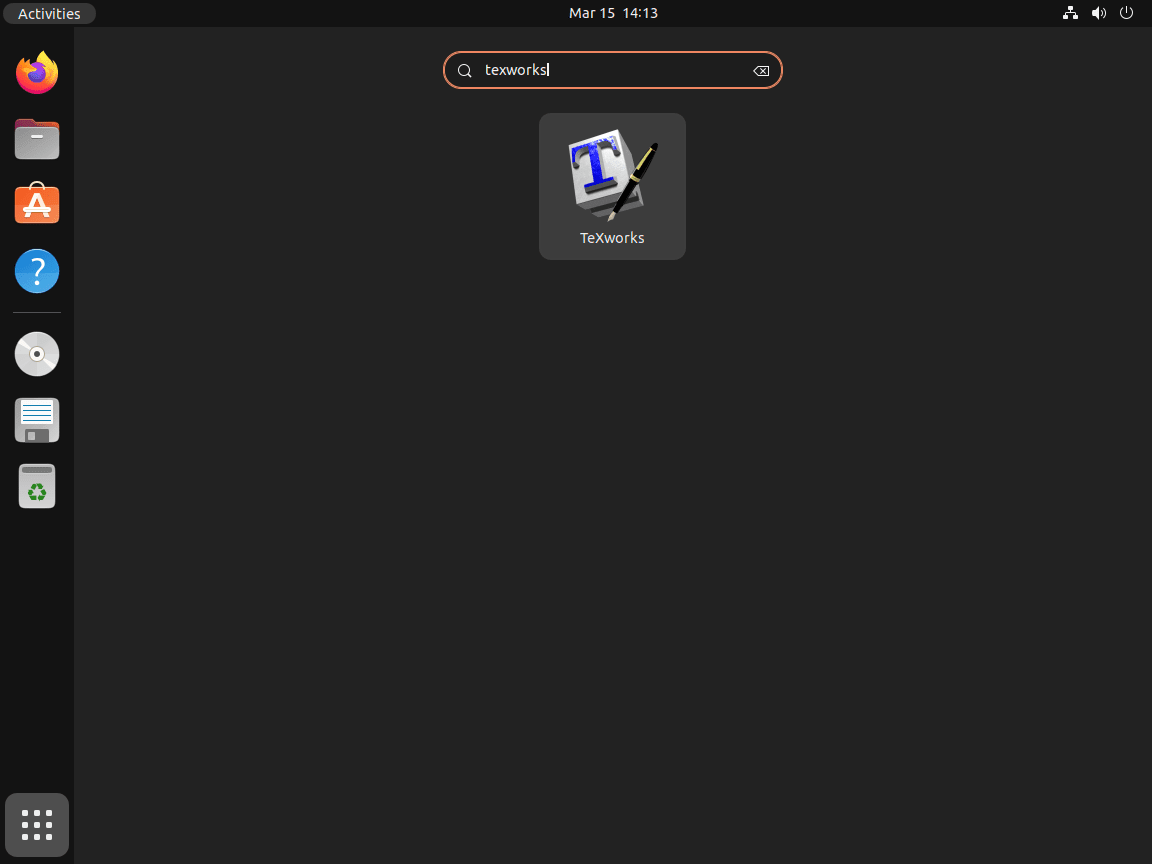
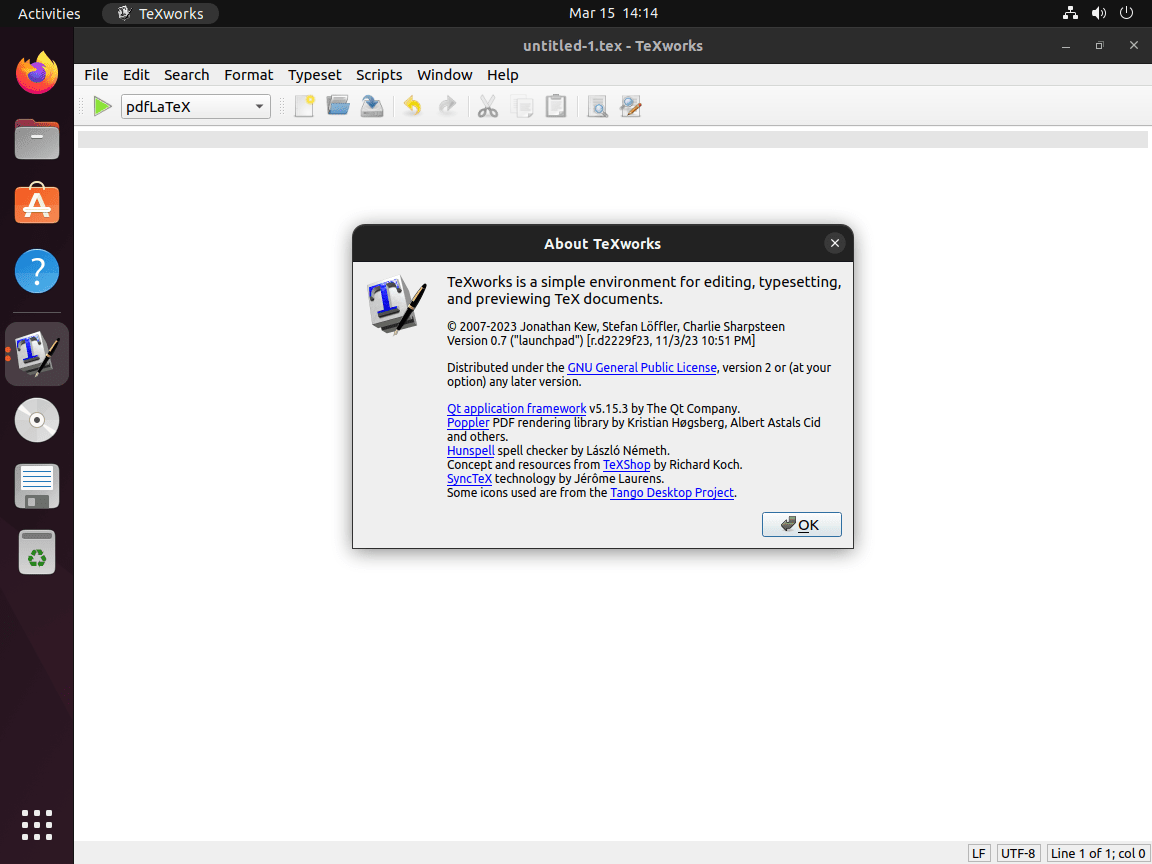
Open the Activities overview, type TeXworks, and select the application icon. The GitHub method appears as TeXworks (AppImage) so you can distinguish it from repository or Flatpak entries. TeXworks needs an active graphical session to open, so Server or minimal installs need a desktop session or remote display before the editor window can appear.
Use TeXworks for LaTeX Documents
The TeXworks window keeps the source editor and PDF preview close together. That layout is useful for short papers, notes, and technical documents where you want quick compile cycles instead of a large project-management interface.
Create Your First Document
Create a new file with File, New or press Ctrl+N. Save the file with a .tex extension, then start with a minimal document:
\documentclass{article}
\begin{document}
Hello, LaTeX world!
\end{document}
Compile and Preview
Click the green play button or press Ctrl+T to compile. TeXworks uses pdflatex by default, which handles most standard documents. If the compile succeeds, the PDF appears in the preview pane; if it fails, the log panel shows the missing package, syntax error, or tool path that needs attention.
Navigate with SyncTeX
SyncTeX links source lines and PDF positions. Hold Ctrl and click inside the editor to jump to the matching PDF location, or use Ctrl+Click in the PDF preview to return to the source line that generated that output.
Update or Remove TeXworks
Update TeXworks
APT and PPA installations update with normal package-manager updates. To refresh only TeXworks when an update is available, use --only-upgrade so APT does not install the package if it was removed earlier:
sudo apt update
sudo apt install --only-upgrade texworks -y
Update the GitHub AppImage by rerunning the helper. It downloads a new asset only when the latest GitHub digest differs from the installed release information:
update-texworks-appimageResolving the latest TeXworks AppImage release... TeXworks 0.6.11 is already installed from the latest GitHub AppImage.
Update the Flatpak build and its runtime from Flathub with:
sudo flatpak update org.tug.texworks -yRemove TeXworks
Remove the APT package when you installed TeXworks from the Ubuntu repository or the PPA:
sudo apt remove texworks -yVerify that the APT package is no longer installed:
dpkg -l texworks | grep '^ii' || echo "texworks not installed"texworks not installed
If you used the PPA and do not plan to reinstall from it, remove the repository too. The broader PPA cleanup workflow is covered in the guide to remove a PPA from Ubuntu.
sudo add-apt-repository --remove ppa:texworks/stable -y
sudo apt update
Remove the GitHub AppImage method by deleting the helper, wrapper, desktop entry, icon, and article-created install directory:
sudo rm -f /usr/local/bin/texworks-appimage \
  /usr/local/bin/update-texworks-appimage \
  /usr/share/applications/texworks-appimage.desktop \
  /usr/share/pixmaps/texworks-appimage.png
sudo rm -rf /opt/texworks-appimage
Confirm that the AppImage wrapper no longer resolves:
command -v texworks-appimage || echo "texworks-appimage removed"texworks-appimage removed
Remove the Flatpak app with the same system scope used for installation, then clean unused runtimes if Flatpak reports any:
sudo flatpak remove org.tug.texworks -y
sudo flatpak uninstall --unused -y
Confirm that the Flatpak app is gone from the system installation:
sudo flatpak list --app --columns=application | grep -Fx org.tug.texworks || echo "NOT_INSTALLED"NOT_INSTALLED
The Flatpak data directory can remain under ~/.var/app/org.tug.texworks/.
The next command permanently deletes TeXworks sandbox data for your user, including settings, templates, and cached application state. Export or back up anything you want to keep before removing this directory.
rm -rf ~/.var/app/org.tug.texworksRemoving TeXworks does not remove TeX Live. If you installed
texlive-latex-recommendedonly for TeXworks and no longer need LaTeX compilation tools, remove that package separately withsudo apt remove texlive-latex-recommended -y. Avoid broad autoremove cleanup on shared or long-lived systems until you review what APT plans to remove.
Troubleshooting TeXworks
Fix “pdflatex not found” Errors
If TeXworks opens but cannot compile, the editor cannot find the LaTeX compiler. Check whether pdflatex is on your PATH:
command -v pdflatex/usr/bin/pdflatex
If the command prints nothing, install the recommended TeX Live package:
sudo apt install texlive-latex-recommended -yFor GitHub AppImage installs, the same Ubuntu package supplies the host compiler that TeXworks calls. For Flatpak installs, add the TeX Live extension shown in the Flatpak method if you want the compiler stack inside the sandbox.
Fix Blank or Stale PDF Previews
A blank or stale PDF preview usually means the previous compile failed. Check the log panel at the bottom of TeXworks first. Missing LaTeX packages are common when a document uses extra fonts, classes, or packages outside the recommended TeX Live subset.
Install the common extras package set when the log points to missing fonts or LaTeX packages:
sudo apt install texlive-fonts-recommended texlive-latex-extra -yFix GitHub AppImage Launch Errors
If texworks-appimage fails with a FUSE error, a Qt platform plugin error, or a missing OpenGL/XCB library, reinstall the runtime package set used by the AppImage method:
if apt-cache show libfuse2t64 >/dev/null 2>&1; then
  sudo apt install libfuse2t64 libxcb-cursor0 libopengl0 -y
else
  sudo apt install libfuse2 libxcb-cursor0 libopengl0 -y
fi
If the helper reports that no x86_64 AppImage asset exists, check the current TeXworks GitHub releases. Use the APT, PPA, or Flatpak method on unsupported architectures.
Check Flatpak File Access
The current Flathub TeXworks build already grants host filesystem access, so it should be able to browse normal project folders. Check the installed permissions if file access looks restricted:
flatpak info --show-permissions org.tug.texworksRelevant output should include the host filesystem entry:
[Context]
filesystems=xdg-config/kdeglobals:ro;host;
If you previously added custom per-user overrides and want to return to the packaged permissions, reset them and restart TeXworks:
flatpak override --user --reset org.tug.texworksRestore SyncTeX Navigation
If Ctrl+Click navigation between the editor and PDF preview stops working, confirm that compilation creates a .synctex.gz file beside the PDF. Most current TeX Live setups enable SyncTeX automatically, but custom compile profiles can disable it.
Check the TeXworks typeset profile and make sure the compiler options include --synctex=1. You can also add \synctex=1 near the start of the document when a custom toolchain does not pass the flag.
Conclusion
TeXworks is ready on Ubuntu with a package source that matches your update style: APT for simple system integration, the stable PPA for newer builds on older LTS releases, GitHub AppImage for the latest official upstream Linux asset, or Flathub for a sandboxed desktop app. With the matching TeX Live package or Flatpak extension in place, the editor can compile LaTeX files, preview PDFs, and keep source-to-PDF navigation available through SyncTeX.


Formatting tips for your comment
You can use basic HTML to format your comment. Useful tags currently allowed in published comments:
<code>command</code>command<strong>bold</strong><em>italic</em><blockquote>quote</blockquote>