Ubuntu’s Falkon package is no longer a simple one-command choice on every supported LTS release. To install Falkon browser on Ubuntu today, use Snap or Flathub on Ubuntu 26.04, or the Ubuntu repository package on Ubuntu 24.04 and 22.04 if you prefer distro-managed Qt/KDE dependencies.
Falkon, formerly QupZilla, is KDE’s Qt WebEngine browser with RSS support and built-in ad blocking. The official Falkon download page sends Linux users to distribution packages, Snapcraft, Flathub, or source code; it does not publish a standalone AppImage or direct Ubuntu .deb installer.
Install Falkon Browser on Ubuntu
Start with a quick package refresh, then choose the Falkon method that matches your Ubuntu release and update preferences.
Prepare Ubuntu for Falkon
Refresh the APT package index before you install Falkon or its supporting tools.
sudo apt update && sudo apt upgradeThese commands use
sudofor tasks that need root privileges. If your account does not have sudo access yet, follow the guide to add a new user to sudoers on Ubuntu before continuing.
| Method | Source or Channel | Release Scope | Updates | Best For |
|---|---|---|---|---|
| Flathub | Flathub stable | Ubuntu 26.04, 24.04, and 22.04 | Flatpak app and runtime updates through Flathub | Users who prefer Flatpak packaging or need a current Falkon build while the 26.04 APT package is broken |
| Snap | Snapcraft latest/stable | Ubuntu 26.04, 24.04, and 22.04 | Automatic Snap refreshes | Users who already use snapd and want store-managed updates |
| Ubuntu repository | Ubuntu universe | 24.04 and 22.04 install cleanly; 26.04 has a broken 25.12.3 candidate | APT upgrades from Ubuntu repositories | Users who prefer distro packages and can accept an older Falkon build |
- Choose Flathub when you already use Flatpak or want a current Falkon build without depending on Snap.
- Choose Snap when snapd is already part of your Ubuntu setup and automatic Snap refreshes are convenient.
- Choose the Ubuntu repository only on Ubuntu 24.04 or 22.04, where the package installs cleanly.
- On Ubuntu 26.04, skip the Ubuntu repository package for now and use Snap or Flathub instead.
If you arrived looking for a Falkon AppImage, standalone .deb, or Windows and Android download, keep that separate from this Ubuntu workflow. Falkon’s current Linux download page points Ubuntu users to package-manager installs, Snapcraft, Flathub, or source code rather than a direct desktop installer.
Install Falkon from the Ubuntu Repository
Use the Ubuntu package on Ubuntu 24.04 or 22.04 when you want Falkon to stay inside Ubuntu’s normal APT workflow. On Ubuntu 26.04, use Snap or Flathub instead because the current Falkon package is failing during post-install configuration.
Falkon comes from Ubuntu’s
universecomponent. Most desktop installs already enable it, but minimal or customized systems may need to enable Universe on Ubuntu first.
sudo apt install falkonVerify the Ubuntu package with APT after the install finishes.
apt-cache policy falkonExpected output on Ubuntu 24.04 looks like this:
falkon:
  Installed: 24.01.75-1build3
  Candidate: 24.01.75-1build3
  Version table:
 *** 24.01.75-1build3 500
        500 http://au.archive.ubuntu.com/ubuntu noble/universe amd64 Packages
        100 /var/lib/dpkg/status
Ubuntu 22.04 currently installs 3.2.0+dfsg1-1, which is much older than the current Snap and Flathub builds. If you want a newer Falkon release there, switch to Snap or Flathub instead.
Install Falkon from Snap
The KDE snap works across all supported Ubuntu LTS releases and updates itself in the background. Snapcraft currently lists Falkon 26.04.0 on the latest/stable channel from KDE’s verified publisher account.
If your Ubuntu install does not already have Snap enabled, install the daemon first.
sudo apt install snapd -yThe -y flag auto-confirms the install prompt. On standard Ubuntu desktops, this usually reports that snapd is already current.
Install Falkon from the Snap Store once snapd is ready.
sudo snap install falkonCheck the installed Snap version after the download completes.
snap list falkonExpected output:
Name    Version  Rev  Tracking       Publisher  Notes
falkon  26.04.0  147  latest/stable  kde**      -
The kde** publisher marker shows that KDE is a verified Snap publisher.
Install Falkon from Flathub
Flathub currently provides Falkon 26.04.0 on Ubuntu 26.04, 24.04, and 22.04 through KDE’s verified Flathub account. It is a practical choice when you prefer Flatpak packaging or need a current Falkon build while the Ubuntu 26.04 repository package remains broken.
Flatpak is not pre-installed on Ubuntu. If you have not set it up yet, follow the guide to install Flatpak on Ubuntu, then come back and add Flathub before installing Falkon.
Add Flathub as a system remote so Falkon is available to every user on the machine.
sudo flatpak remote-add --if-not-exists flathub https://dl.flathub.org/repo/flathub.flatpakrepoThe --if-not-exists flag prevents duplicate remote errors if Flathub is already configured.
Confirm that Flathub exists at system scope before you install Falkon.
flatpak remotes --columns=name,options | grep -E '^flathub[[:space:]]'The grep filter keeps only the matching remote name and scope. If you want more ways to search command output, see our grep command guide.
Expected output:
flathub system
Install Falkon from Flathub after the remote is in place.
sudo flatpak install flathub org.kde.falkonFlatpak downloads Falkon along with the KDE runtime it needs. Review the first-time prompt, then verify the installed application metadata afterward.
flatpak info org.kde.falkonRelevant output includes:
          ID: org.kde.falkon
         Ref: app/org.kde.falkon/x86_64/stable
        Arch: x86_64
      Branch: stable
     Version: 26.04.0
     Runtime: org.kde.Platform/x86_64/6.10
      Origin: flathub
Installation: system
Flathub currently labels Falkon as potentially unsafe because the browser uses non-portal services and permissions for network, display, audio, GPU, notifications, geolocation, power status, and KDE Wallet integration. Treat this method as a packaging and update choice, not as a strict isolation boundary.
Launch Falkon on Ubuntu
Falkon is a desktop browser, so it still needs an active graphical session even if you install it from a terminal on a minimal or remote-managed Ubuntu system.
Launch Falkon from the Terminal
Use the normal launcher command for the Ubuntu repository build.
falkonUse the Snap runner if you installed Falkon from Snapcraft.
snap run falkonUse the Flatpak runner if you installed Falkon from Flathub.
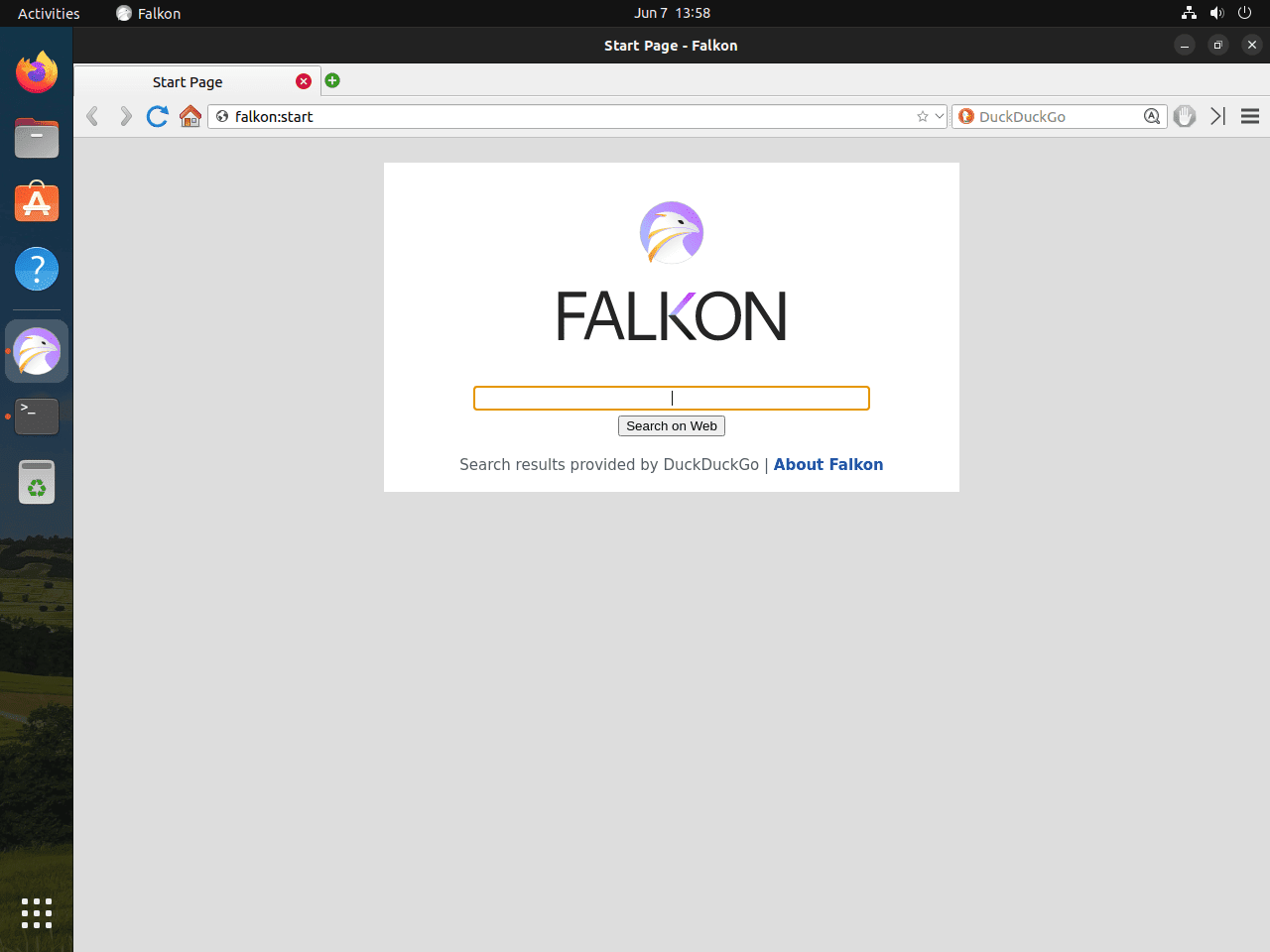
flatpak run org.kde.falkonIf Falkon opens to falkon:start, that is the browser’s internal start page. It is not a terminal command you need to run on Ubuntu.
Launch Falkon from the Applications Menu
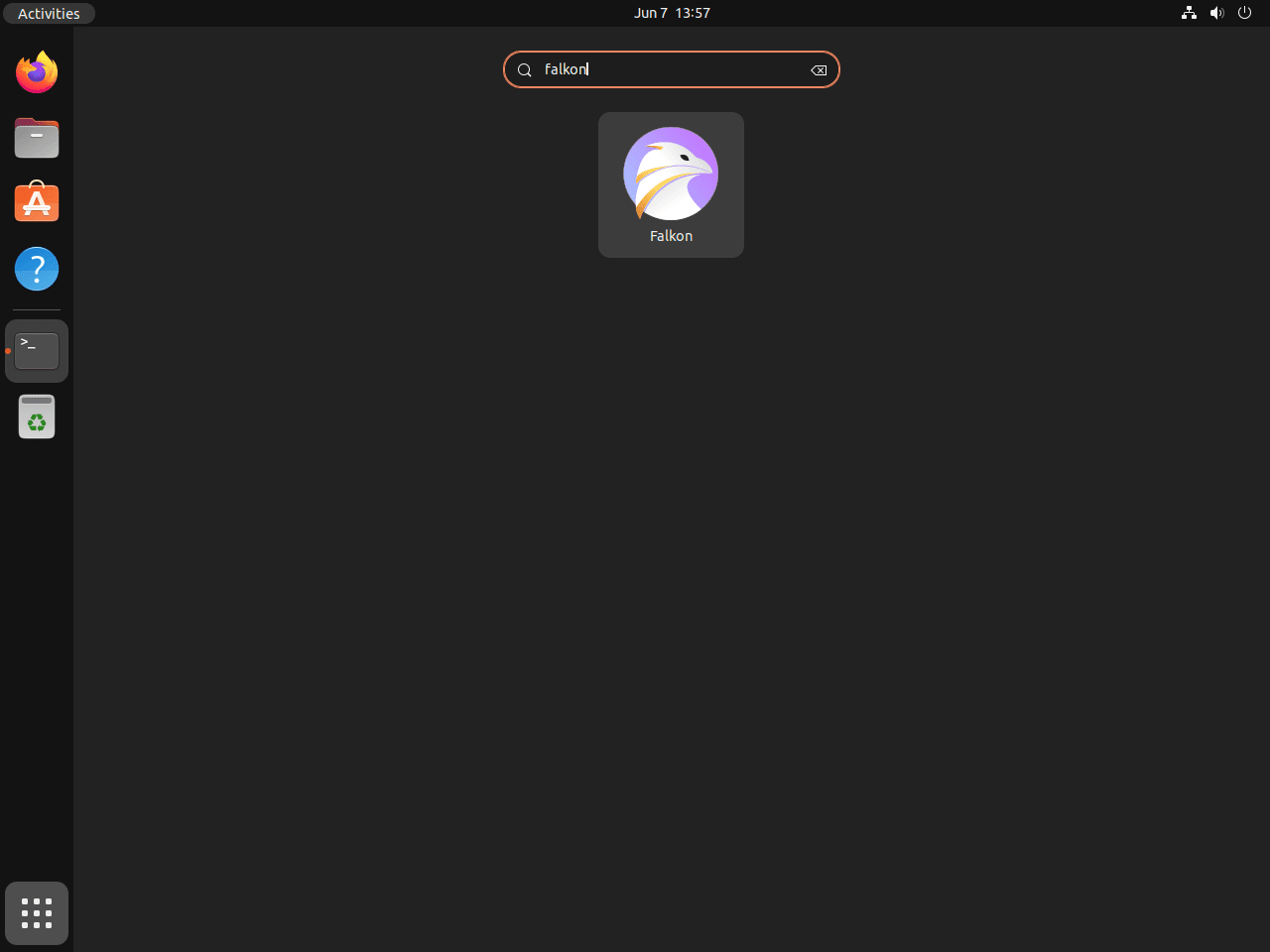
Open your desktop’s applications menu, search for Falkon, and launch it from the result list. Ubuntu should place it in the usual Internet or web browser category after installation.
Update or Remove Falkon on Ubuntu
Use the update and removal commands that match the package format you installed. Falkon can be present as an Ubuntu package, a Snap, or a Flatpak, and each one is managed separately.
Update the Ubuntu Repository Build
Update the Ubuntu package on Ubuntu 24.04 or 22.04 with APT’s package-specific upgrade path.
sudo apt update && sudo apt install --only-upgrade falkonUpdate the Snap Build
Snap refreshes Falkon automatically, but you can force the update check whenever you want.
sudo snap refresh falkonUpdate the Flathub Build
Update Falkon from Flathub with the standard Flatpak workflow.
sudo flatpak update org.kde.falkonRemove the Ubuntu Repository Build
Remove the Ubuntu package with APT if you installed Falkon from the Ubuntu repository.
APT can remove a long list of Qt and KDE libraries after Falkon is gone. Remove the main package first, then preview dependency cleanup before you confirm anything broader.
sudo apt remove falkonVerify that the Ubuntu package is gone.
dpkg -l falkon 2>/dev/null | grep '^ii' || echo "falkon package removed"Expected output:
falkon package removed
Preview orphaned dependency cleanup after the package is removed.
sudo apt autoremove --dry-runIf the preview lists only packages you no longer need, run the cleanup command and review the confirmation prompt.
sudo apt autoremoveRemove the Snap Build
Remove the Snap package with Snap’s own cleanup command.
sudo snap remove falkonVerify that Falkon is no longer installed as a Snap.
snap list falkonExpected output:
error: no matching snaps installed
Snap saves an automatic data snapshot when it removes Falkon. Check saved snapshots with sudo snap saved, and delete Falkon’s saved snapshot later with sudo snap forget <set-id> if you do not want to keep it.
Remove the Flathub Build
Remove the Flatpak application first.
sudo flatpak remove org.kde.falkonVerify that Falkon is no longer present in your Flatpak app list.
flatpak list --app --columns=application | grep -Fx org.kde.falkon || echo "org.kde.falkon not installed"Expected output:
org.kde.falkon not installed
Preview unused runtime cleanup before removing anything shared by other Flatpak applications.
flatpak uninstall --unused --dry-runIf the preview lists only runtimes and extensions you no longer need, remove them with Flatpak’s unused-runtime cleanup.
sudo flatpak uninstall --unusedCheck for Leftover Falkon Data
Bookmarks, history, and site settings can still matter after you remove the package itself. Back up any profile directory you want to keep before you delete it.
Falkon’s profile locations can vary by package format and whether you actually launched the browser, so check for leftover paths before you remove anything from your home directory.
for path in "$HOME/.var/app/org.kde.falkon" "$HOME/.config/falkon" "$HOME/.cache/falkon" "$HOME/.local/share/falkon" "$HOME/snap/falkon"; do
    [ -e "$path" ] && printf '%s\n' "$path"
done
No output means Falkon did not leave one of these verified paths in your account. If the command prints a directory, back it up first if you want to keep bookmarks or settings, then delete only the paths it found.
Troubleshoot Falkon on Ubuntu
The current Ubuntu 26.04 package needs special attention because the install does not finish cleanly.
APT Leaves Falkon Half-Configured on Ubuntu 26.04
If you run sudo apt install falkon on Ubuntu 26.04, the current 4:25.12.3-0ubuntu1 package can stop during its maintainer script instead of completing the install.
A failing install looks like this:
Setting up falkon (4:25.12.3-0ubuntu1) ...
update-alternatives: using /usr/bin/falkon to provide /usr/bin/x-www-browser (x-www-browser) in auto mode
ln: No such file or directory
dpkg: error processing package falkon (--configure):
 old falkon package postinst maintainer script subprocess failed with exit status 1
The maintainer script tries to create /usr/share/qt5/qtwebengine_dictionaries as a link into /usr/share/hunspell-bdic, but the Qt5 parent directory is absent on current Ubuntu 26.04 installs. The package stays half-configured, so remove it and switch to the Snap or Flathub method instead.
sudo apt remove --purge falkonVerify that the half-configured package is gone before you retry Falkon through another method.
dpkg -l falkon 2>/dev/null | grep '^ii' || echo "broken package removed"Expected output:
broken package removed
If you also want to remove the extra Qt and KDE packages that the failed install pulled in, run sudo apt autoremove afterward and review the package list before you confirm it.
Conclusion
Falkon is available on Ubuntu through Snap or Flathub across supported LTS releases, with the Ubuntu repository package reserved for 24.04 and 22.04 until the 26.04 package is fixed. If you need a heavier Chromium-based browser next, compare it with install Chromium Browser on Ubuntu or install Brave Browser on Ubuntu.


Formatting tips for your comment
You can use basic HTML to format your comment. Useful tags currently allowed in published comments:
<code>command</code>command<strong>bold</strong><em>italic</em><a href="https://example.com">link</a><blockquote>quote</blockquote>