
Streaming to Twitch or recording a Wayland desktop session on Debian often turns into a version problem before it becomes a settings problem. To install OBS Studio on Debian, use APT for the distro-tested package, Flatpak for the current upstream release on any supported Debian version, or a Debian 13 source build when you want the newest code under /usr/local.
Trixie ships OBS 30.2.x, Bookworm includes 29.0.x, Bullseye has 26.1.x, and both Flatpak and the upstream source tree are currently at 32.0.x. The source build below is intentionally scoped to Debian 13 because OBS 32.x now depends on a newer CMake and Qt6 toolchain than older Debian releases provide.
Install OBS Studio on Debian
| Method | Channel | Version | Updates | Best For |
|---|---|---|---|---|
| APT | Debian Repos | Distribution default | Automatic via apt upgrade | Most users who want stability and simple maintenance |
| Flatpak | Flathub | Latest stable | Automatic via flatpak update | Users who want the newest features and plugin support |
| Compile from source | OBS Studio Git tags | Latest stable on Debian 13 | Manual via update-obs-source.sh | Advanced Debian 13 users who want the newest upstream build under /usr/local |
APT is still the recommended path for most Debian users because it matches Debian’s library stack and stays simple to maintain. Flatpak is the easier way to get OBS 32.x on Debian 11 or Debian 12, while the Debian 13 source build makes sense when you want the newest upstream code under /usr/local and do not mind rebuilding it yourself.
| Debian Release | OBS Studio Version |
|---|---|
| Debian 13 (Trixie) | 30.2.x |
| Debian 12 (Bookworm) | 29.0.x |
| Debian 11 (Bullseye) | 26.1.x |
| Flatpak (Flathub) | 32.0.x |
| Source build on Debian 13 | 32.0.x |
The compile-from-source method in this guide is for Debian 13 only. OBS 32.x now needs CMake 3.28, Debian 12 ships 3.25, and Debian 11 does not provide
qt6-base-devin the standard repositories.
Install OBS Studio from Default Repositories
The APT method pulls OBS directly from Debian’s official mirrors, so the package is tested against your release’s library set.
Refresh the package index and upgrade installed packages:
sudo apt update && sudo apt upgradeThis guide uses
sudofor commands that need root privileges. If your user is not in the sudoers file yet, follow the guide on how to add a user to sudoers on Debian.
Install OBS Studio:
sudo apt install obs-studio -yVerify the installation:
apt-cache policy obs-studioobs-studio:
Installed: 30.2.x
Candidate: 30.2.x
Version table:
*** 30.2.x 500
500 http://deb.debian.org/debian trixie/main amd64 Packages
100 /var/lib/dpkg/status
Your version number will match your Debian release: 30.2.x on Trixie, 29.0.x on Bookworm, or 26.1.x on Bullseye.
Install OBS Studio via Flatpak and Flathub
Flatpak delivers the latest OBS build in a sandboxed environment, independent of your Debian release’s package versions. If Flatpak is not yet configured on your system, follow the guide on how to install Flatpak on Debian first.
Add the Flathub repository as a system-wide remote:
sudo flatpak remote-add --if-not-exists flathub https://flathub.org/repo/flathub.flatpakrepoInstall OBS Studio at system scope:
sudo flatpak install --system flathub com.obsproject.Studio -yConfirm the installation:
flatpak list --app | grep StudioOBS Studio com.obsproject.Studio 32.0.4 stable system
Compile OBS Studio from Source on Debian
This source build follows the upstream Linux build instructions but pins the feature flags that actually worked during Debian 13 testing. The commands below keep Browser Source and NVIDIA encoders off so the build stays reproducible without pulling in the separate CEF bundle or extra NVENC headers.
Install OBS Studio Source Build Dependencies
Install the toolchain and development packages first:
sudo apt install -y ca-certificates cmake extra-cmake-modules ninja-build pkg-config build-essential curl git python3-dev swig \
libavcodec-dev libavdevice-dev libavfilter-dev libavformat-dev libavutil-dev libswresample-dev libswscale-dev libx264-dev \
libcurl4-openssl-dev libmbedtls-dev libgl1-mesa-dev libjansson-dev libluajit-5.1-dev libx11-dev libxcb-randr0-dev \
libxcb-shm0-dev libxcb-xinerama0-dev libxcb-composite0-dev libxcomposite-dev libxinerama-dev libxcb1-dev libx11-xcb-dev \
libxcb-xfixes0-dev libcmocka-dev libxss-dev libglvnd-dev libgles2-mesa-dev libwayland-dev librist-dev libsrt-openssl-dev \
libpci-dev libpipewire-0.3-dev libqrcodegencpp-dev uthash-dev libsimde-dev qt6-base-dev qt6-base-private-dev qt6-svg-dev \
qt6-wayland qt6-image-formats-plugins libasound2-dev libfontconfig-dev libfreetype6-dev libjack-jackd2-dev libpulse-dev \
libsndio-dev libspeexdsp-dev libudev-dev libv4l-dev libva-dev libvlc-dev libvpl-dev libdrm-dev nlohmann-json3-dev \
libwebsocketpp-dev libasio-dev
Download the Latest Stable OBS Studio Source
Detect the newest stable OBS tag, clone it with submodules, and switch into the source tree:
OBS_TAG=$(curl -fsSL https://api.github.com/repos/obsproject/obs-studio/tags?per_page=20 | grep -m1 -oE '"name": "[0-9]+\.[0-9]+\.[0-9]+"' | cut -d '"' -f4)
git clone --recursive --branch "$OBS_TAG" https://github.com/obsproject/obs-studio.git ~/obs-studio-source
cd ~/obs-studio-source
If the GitHub API call is rate-limited, open the OBS Studio tags page and set
OBS_TAGmanually to the newest stable tag before cloning.
Configure, Compile, and Install OBS Studio
Configure the Debian 13 build, compile it, install it to /usr/local, and refresh the dynamic linker cache so the new binary uses the new libraries immediately:
cmake --preset ubuntu \
  -DCMAKE_BUILD_TYPE=Release \
  -DCMAKE_INSTALL_PREFIX=/usr/local \
  -DOBS_COMPILE_DEPRECATION_AS_WARNING=ON \
  -DENABLE_AJA=OFF \
  -DENABLE_BROWSER=OFF \
  -DENABLE_WEBRTC=OFF \
  -DENABLE_NVENC=OFF \
  -DENABLE_FFMPEG_NVENC=OFF

cmake --build build_ubuntu --parallel "$(nproc)"
sudo cmake --install build_ubuntu
sudo ldconfig
A successful build ends with output similar to this:
[576/578] Building CXX object frontend/CMakeFiles/obs-studio.dir/utility/system-info-posix.cpp.o
[577/578] Building CXX object frontend/CMakeFiles/obs-studio.dir/__/shared/properties-view/properties-view.cpp.o
[578/578] Linking CXX executable frontend/obs
Verify the OBS Studio Source Build
Check that the active OBS binary now comes from /usr/local and that the version matches the newer upstream release:
command -v obs
/usr/local/bin/obs --version
/usr/local/bin/obs OBS Studio - 32.0.4
Your upstream version number will change over time. If
/usr/local/bin/obs --versionstill shows Debian’s older OBS build after installation, rerunsudo ldconfigso the linker cache stops preferring the distro’slibobscopy under/lib/x86_64-linux-gnu/.
Launch OBS Studio on Debian
Launch OBS Studio from Terminal
For the APT or source installation, open a terminal and run:
obsFor the Flatpak installation:
flatpak run com.obsproject.StudioLaunch OBS Studio from Applications Menu
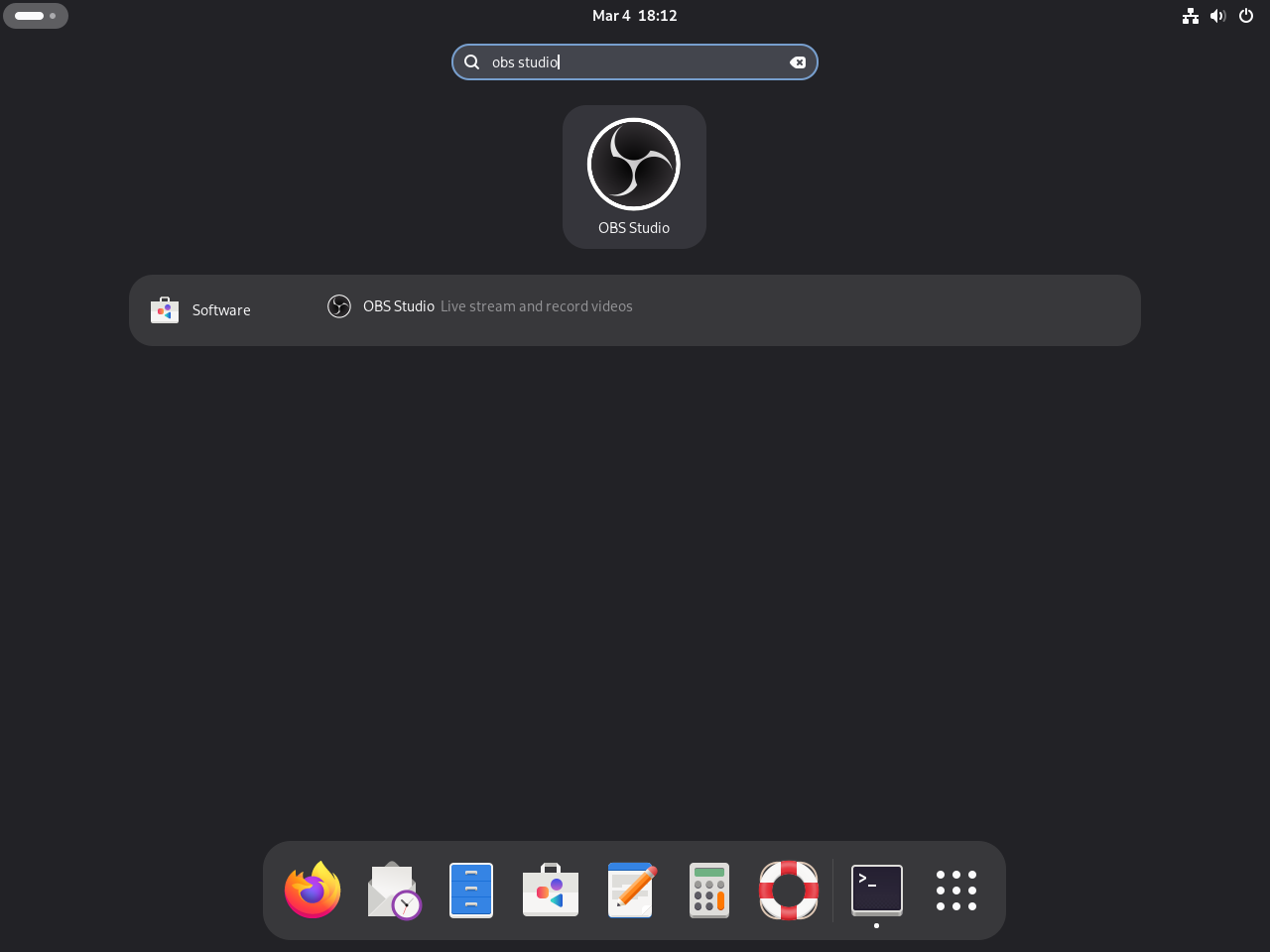
Open Activities, search for “OBS Studio,” and click the icon. APT, Flatpak, and the Debian 13 source build all place OBS in the applications menu automatically.
Configure OBS Studio on Debian
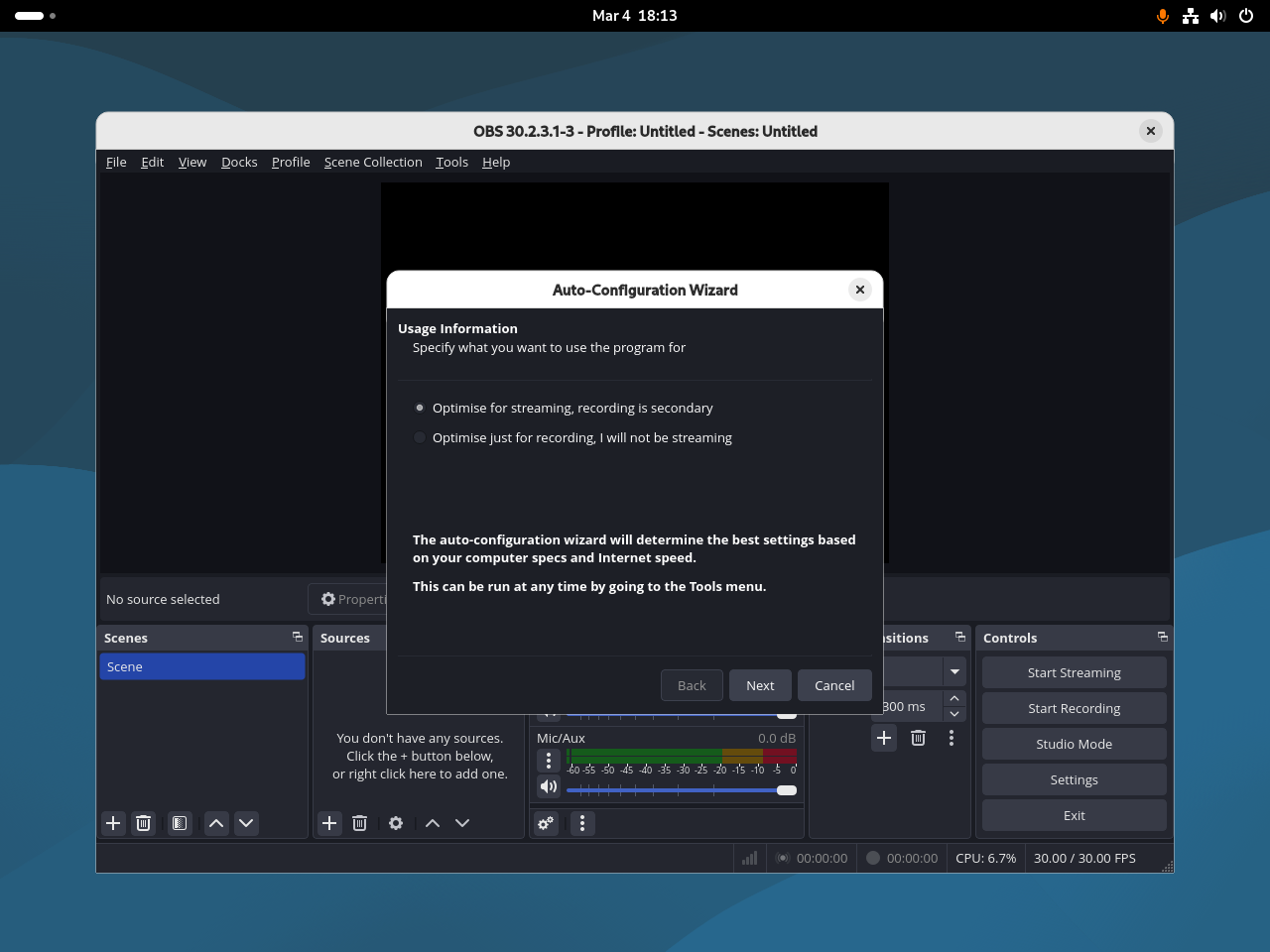
On first launch, OBS runs an auto-configuration wizard that detects your hardware and suggests encoding settings. Accept the defaults to get started, then fine-tune later.
A few settings worth adjusting early:
- Output format: Under
Settings>Output, switch to Advanced mode and pick MKV or FLV for recordings. MKV survives crashes without losing the file; you can remux it to MP4 later fromFile>Remux Recordings. - Audio sources: OBS captures desktop audio and microphone separately. Check
Settings>Audioto confirm the right devices are selected, especially if PipeWire renamed your sinks. - Hotkeys: Set hotkeys for Start/Stop Recording and Start/Stop Streaming under
Settings>Hotkeys. This avoids switching windows mid-stream. - Performance stats: Enable the Stats dock from
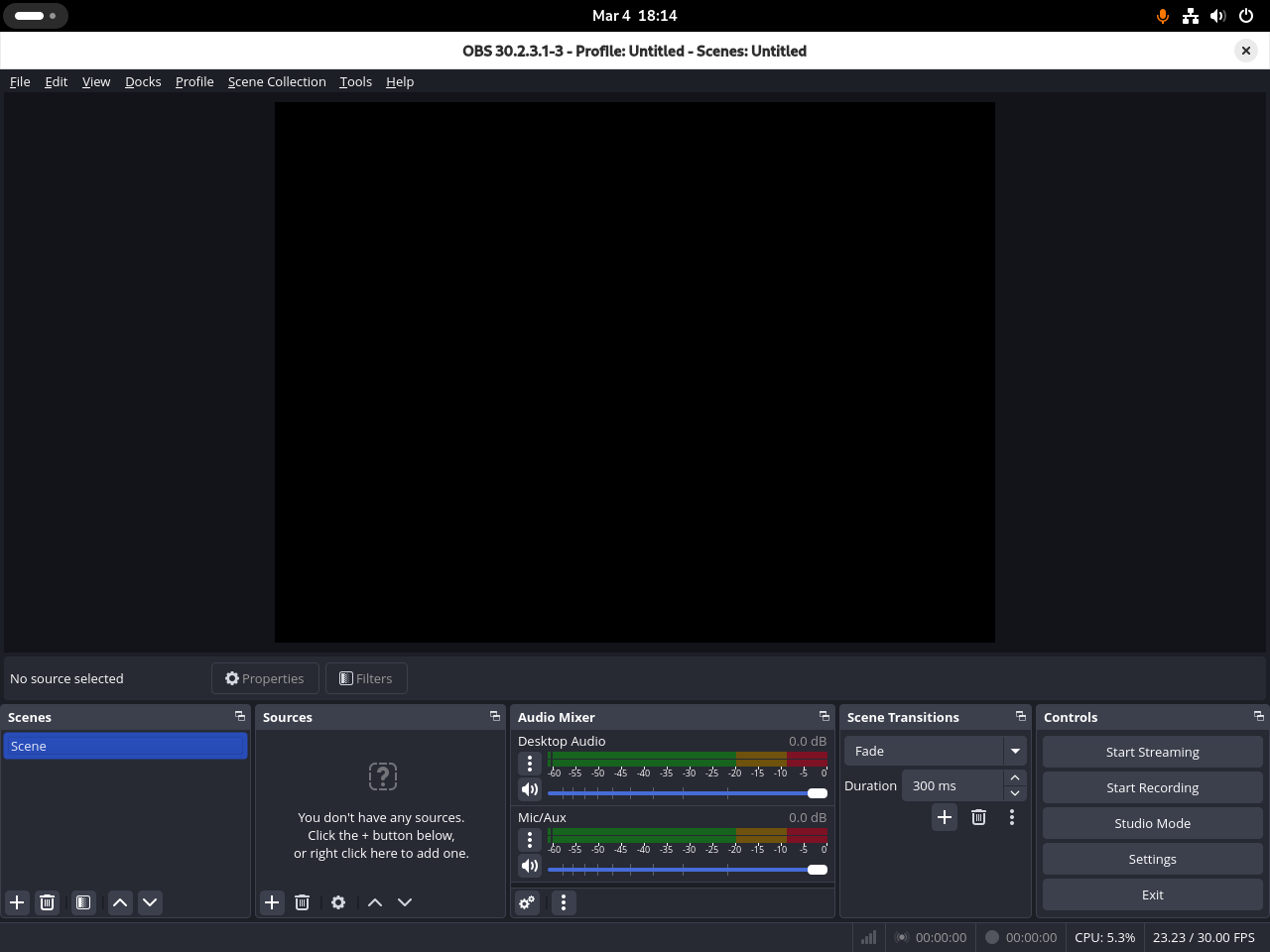
View>Docks>Stats. It shows real-time CPU usage, dropped frames, and encoding lag.
Manage OBS Studio on Debian
Update OBS Studio on Debian
For the APT installation, refresh the package index and upgrade OBS specifically:
sudo apt update
sudo apt install --only-upgrade obs-studio
For the Flatpak installation:
sudo flatpak update --system com.obsproject.StudioCreate a Source Build Update Script
If you used the Debian 13 source method, install a reusable update script that checks the distro and CMake version, pulls the newest stable OBS tag, rebuilds with the same feature flags used above, and runs ldconfig after installation.
sudo tee /usr/local/bin/update-obs-source.sh > /dev/null << 'SCRIPT'
#!/usr/bin/env bash
set -euo pipefail

# Keep all local source and logs in the current user's home directory.
SOURCE_DIR="$HOME/obs-studio-source"
BUILD_DIR="$SOURCE_DIR/build_ubuntu"
OBS_BIN="/usr/local/bin/obs"
MIN_CMAKE="3.28.0"
LOG_FILE="$HOME/obs-studio-source-update.log"
TAGS_API="https://api.github.com/repos/obsproject/obs-studio/tags?per_page=20"

log() {
  printf "%s\n" "$1"
}

fail() {
  printf "Error: %s\n" "$1" >&2
  exit 1
}

version_ge() {
  [ "$(printf "%s\n%s\n" "$2" "$1" | sort -V | head -n 1)" = "$2" ]
}

if [ "$(id -u)" -eq 0 ]; then
  fail "Run this script as a regular user. It uses sudo only for the install step."
fi

# Confirm the tools needed for version detection, Git updates, and the rebuild are present.
for cmd in awk curl cut git cmake ninja nproc grep head sort sudo; do
  command -v "$cmd" >/dev/null 2>&1 || fail "$cmd is required but not installed."
done

. /etc/os-release
if [ "${ID:-}" != "debian" ] || [ "${VERSION_CODENAME:-}" != "trixie" ]; then
  fail "This script is written for Debian 13 (Trixie). OBS 32.x needs Debian 13's CMake and Qt6 toolchain."
fi

CMAKE_VERSION="$(cmake --version | awk 'NR==1 {print $3}')"
version_ge "$CMAKE_VERSION" "$MIN_CMAKE" || fail "CMake $MIN_CMAKE or newer is required. Installed version: $CMAKE_VERSION"

# Detect the installed version safely, then compare it with the latest stable upstream tag.
CURRENT_VERSION="$($OBS_BIN --version 2>/dev/null | grep -m1 -oE '[0-9]+\.[0-9]+\.[0-9]+' || true)"
CURRENT_VERSION="${CURRENT_VERSION:-none}"
LATEST_TAG="$(curl -fsSL "$TAGS_API" | grep -m1 -oE '"name": "[0-9]+\.[0-9]+\.[0-9]+"' | cut -d '"' -f4 || true)"
[ -n "$LATEST_TAG" ] || fail "Could not detect the latest stable OBS Studio tag from GitHub."

log "Current installed version: $CURRENT_VERSION"
log "Latest available version: $LATEST_TAG"

if [ "$CURRENT_VERSION" = "$LATEST_TAG" ]; then
  log "OBS Studio is already up to date."
  exit 0
fi

read -r -p "Continue with the OBS Studio update? [y/N] " REPLY
case "$REPLY" in
  [Yy]|[Yy][Ee][Ss]) ;;
  *)
    log "Update canceled."
    exit 0
    ;;
esac

printf "%s Starting OBS Studio update to %s\n" "$(date '+%F %T')" "$LATEST_TAG" >> "$LOG_FILE"

# Reuse an existing Git checkout when possible so repeat updates stay fast.
if [ -e "$SOURCE_DIR" ] && [ ! -d "$SOURCE_DIR/.git" ]; then
  fail "$SOURCE_DIR exists but is not a Git checkout. Move it out of the way and rerun the script."
fi

if [ ! -d "$SOURCE_DIR/.git" ]; then
  log "Cloning the OBS Studio source tree..."
  git clone --recursive https://github.com/obsproject/obs-studio.git "$SOURCE_DIR"
else
  log "Refreshing the OBS Studio source tree..."
  git -C "$SOURCE_DIR" fetch --tags --force origin
fi

log "Checking out OBS Studio $LATEST_TAG..."
git -C "$SOURCE_DIR" checkout "$LATEST_TAG"
git -C "$SOURCE_DIR" submodule sync --recursive
git -C "$SOURCE_DIR" submodule update --init --recursive

log "Removing the previous build directory..."
rm -rf "$BUILD_DIR"

# Configure the same feature set documented in the article for reproducible Debian 13 builds.
log "Configuring OBS Studio..."
(
  cd "$SOURCE_DIR"
  cmake --preset ubuntu \
    -DCMAKE_BUILD_TYPE=Release \
    -DCMAKE_INSTALL_PREFIX=/usr/local \
    -DOBS_COMPILE_DEPRECATION_AS_WARNING=ON \
    -DENABLE_AJA=OFF \
    -DENABLE_BROWSER=OFF \
    -DENABLE_WEBRTC=OFF \
    -DENABLE_NVENC=OFF \
    -DENABLE_FFMPEG_NVENC=OFF
)

log "Compiling OBS Studio. This can take several minutes..."
cmake --build "$BUILD_DIR" --parallel "$(nproc)"

log "Installing OBS Studio to /usr/local..."
sudo cmake --install "$BUILD_DIR"

# Refresh the linker cache, then verify the new binary reports the new version.
log "Refreshing the dynamic linker cache..."
sudo ldconfig

NEW_VERSION="$($OBS_BIN --version 2>/dev/null | grep -m1 -oE '[0-9]+\.[0-9]+\.[0-9]+' || true)"
[ -n "$NEW_VERSION" ] || fail "OBS Studio installed, but the version check failed."

printf "%s Finished OBS Studio update to %s\n" "$(date '+%F %T')" "$NEW_VERSION" >> "$LOG_FILE"
log "OBS Studio is now updated to $NEW_VERSION"
log "Binary path: $OBS_BIN"
SCRIPT
sudo chmod +x /usr/local/bin/update-obs-source.sh
Because the script lives in /usr/local/bin, you can run it from any directory:
update-obs-source.shCurrent installed version: 32.0.4 Latest available version: 32.0.4 OBS Studio is already up to date.
When an update is available, the script asks for confirmation, checks out the newest stable tag, rebuilds OBS with the same flags used above, runs
sudo ldconfig, and verifies/usr/local/bin/obsbefore it exits. The script also writes a short history to~/obs-studio-source-update.log.
Avoid running source-build updates from cron. If a dependency changes, a compile fails, or GitHub rate-limits the tag lookup, you want to catch that while you are watching the terminal instead of later.
Remove OBS Studio from Debian
To remove the APT-installed package and its unused dependencies:
sudo apt remove obs-studio
sudo apt autoremove
To remove the Flatpak installation:
sudo flatpak uninstall --system com.obsproject.StudioIf you used the Debian 13 source build, remove the files installed under /usr/local, delete the reusable update script, and then clean up the local source tree:
The next commands remove the source-built OBS binary, libraries, plugins, desktop file, build tree, and update log. Keep the
~/obs-studio-sourcedirectory until you are certain you no longer need the exact build files orinstall_manifest.txtrecord.
if [ -f ~/obs-studio-source/build_ubuntu/install_manifest.txt ]; then
  sudo xargs -a ~/obs-studio-source/build_ubuntu/install_manifest.txt rm -f
fi
sudo rm -f /usr/local/bin/obs /usr/local/bin/update-obs-source.sh
sudo rm -rf /usr/local/share/obs /usr/local/include/obs /usr/local/lib/x86_64-linux-gnu/libobs* /usr/local/lib/x86_64-linux-gnu/obs-plugins /usr/local/lib/x86_64-linux-gnu/pkgconfig/libobs.pc /usr/local/lib/x86_64-linux-gnu/pkgconfig/obs-frontend-api.pc /usr/local/lib/x86_64-linux-gnu/cmake/libobs /usr/local/lib/x86_64-linux-gnu/cmake/obs-frontend-api /usr/local/share/applications/com.obsproject.Studio.desktop /usr/local/share/icons/hicolor/*/apps/com.obsproject.Studio.*
sudo ldconfig
rm -rf ~/obs-studio-source
rm -f ~/obs-studio-source-update.log
If the source build was the only OBS install on your system, command -v obs returns no output afterward. If Debian’s APT package is still installed, the command falls back to /usr/bin/obs.
The following command permanently deletes all OBS Studio user configuration, scene collections, profiles, and plugin data. Only proceed if you no longer need your OBS settings.
rm -rf ~/.config/obs-studioTroubleshoot OBS Studio on Debian
Fix Wayland Screen Capture in OBS Studio
Debian’s GNOME desktop defaults to Wayland, and OBS uses PipeWire for screen capture under Wayland sessions. If the Screen Capture source shows a black frame or the PipeWire option is missing, install the required portal packages:
sudo apt install xdg-desktop-portal xdg-desktop-portal-gnome pipewireAfter installing, log out and back in so the portal services start. Inside OBS, add a new source and choose Screen Capture (PipeWire). Your desktop environment will prompt you to select which screen or window to share.
Debian 11 (Bullseye) ships OBS 26.1.x, which has limited Wayland support. If screen capture fails on Bullseye, switch to an X11 session at the login screen or use the Flatpak version that bundles newer PipeWire support.
Resolve Missing Encoder Errors in OBS Studio
If OBS shows “Failed to open video encoder” or falls back to software encoding (x264), your system may be missing hardware acceleration libraries. For AMD and Intel GPUs, install the VA-API driver:
sudo apt install mesa-va-driversFor NVIDIA GPUs, the proprietary driver includes NVENC encoding support. See the guide on how to install NVIDIA drivers on Debian for setup instructions.
After installing the driver, restart OBS and check Settings > Output > Encoder for hardware options like FFMPEG VAAPI or NVENC.
Fix OBS Studio Launch Failures on Debian
If OBS fails to start, run it from the terminal to see error output:
obs --verbose 2>&1 | head -50For the Flatpak installation:
flatpak run com.obsproject.Studio --verbose 2>&1 | head -50Common causes include missing OpenGL drivers, incompatible plugin files in ~/.config/obs-studio/plugins/, or a corrupted profile. Renaming the config folder and relaunching isolates whether your configuration is the problem:
mv ~/.config/obs-studio ~/.config/obs-studio.bak
obsFrequently Asked Questions
Debian 13 (Trixie) ships OBS Studio 30.2.x, Debian 12 (Bookworm) includes 29.0.x, and Debian 11 (Bullseye) has 26.1.x. The Flatpak build and the Debian 13 source build both track the current upstream stable release, which is 32.0.x right now.
Yes. OBS 27 and later support PipeWire-based screen capture under Wayland. On Debian 12 and 13, install xdg-desktop-portal-gnome and pipewire, then add a Screen Capture (PipeWire) source inside OBS. Debian 11 ships OBS 26, which has limited Wayland support.
Not with the stock toolchains used in this guide. OBS 32.x requires CMake 3.28, Debian 12 ships CMake 3.25, and Debian 11 does not provide qt6-base-dev in the standard repositories. The tested source method here is scoped to Debian 13.
No. The ppa:obsproject/obs-studio PPA is built for Ubuntu and is not compatible with Debian. Use Debian’s default APT repositories, the Flatpak from Flathub, or the Debian 13 source build instead.
Conclusion
OBS Studio is ready on Debian through APT, Flatpak, or a Debian 13 source build, and the update-obs-source.sh script covers future upstream rebuilds. Pair it with FFmpeg on Debian for post-recording work, or set up NVIDIA drivers on Debian for hardware encoding.

Formatting tips for your comment
You can use basic HTML to format your comment. Useful tags currently allowed:
<code>command</code>command<strong>bold</strong><em>italic</em><blockquote>quote</blockquote>