

LibreCAD is a free, open-source 2D CAD application for creating technical drawings such as floor plans, mechanical parts, and detailed schematics. To install LibreCAD on Ubuntu 26.04, 24.04, or 22.04, choose from four methods: APT from the Ubuntu repository (available on all three releases), a third-party PPA for a newer build (Ubuntu 22.04 only), Flatpak via Flathub for the latest release on any version, or compiling from source directly from GitHub.
LibreCAD reads and writes DXF files natively, keeping it compatible with AutoCAD and other industry-standard workflows. It handles 2D work only; for 3D parametric modelling, see FreeCAD on Ubuntu, and for PCB layout and schematic capture, see KiCad on Ubuntu.
Install LibreCAD on Ubuntu via APT
APT is the recommended method for most users. Ubuntu’s universe repository ships LibreCAD on all supported releases. The default version differs by release, and the PPA is only available for Ubuntu 22.04, so use the table below to choose your method.
| Method | Ubuntu 26.04 | Ubuntu 24.04 | Ubuntu 22.04 | Best for |
|---|---|---|---|---|
| APT (Ubuntu repos) | 2.2.0.x | 2.2.0.x | 2.1.x | Most users; stable, no extra setup |
| APT (PPA) | Not available | Not available | 2.2.0+ | Ubuntu 22.04 users wanting a newer version |
| Flatpak (Flathub) | 2.2.1.x | 2.2.1.x | 2.2.1.x | Latest release on any Ubuntu version |
| Source (GitHub) | 2.2.1.x | 2.2.1.x | 2.2.1.x | Developers; same latest release compiled locally |
Update Ubuntu Before Installing LibreCAD
Refresh your package index and apply any pending upgrades before installing to avoid dependency conflicts.
sudo apt update && sudo apt upgradeThese commands require sudo. If your account lacks sudo access, see How to Add a New User to Sudoers on Ubuntu before continuing.
Install LibreCAD from the Ubuntu Repository
LibreCAD is available in Ubuntu’s universe repository. Install it with a single command:
sudo apt install librecadConfirm the installation succeeded by checking the installed version:
apt-cache policy librecadExample output on Ubuntu 24.04 or 26.04:
librecad:
  Installed: 2.2.0.2-1build3
  Candidate: 2.2.0.2-1build3
  Version table:
 *** 2.2.0.2-1build3 500
        500 http://archive.ubuntu.com/ubuntu noble/universe amd64 Packages
        100 /var/lib/dpkg/status
Ubuntu 22.04 ships version 2.1.3-3 from its default repository. Use the PPA method below if you need the newer 2.2.x build on Jammy.
Install LibreCAD on Ubuntu 22.04 via PPA
Alexander Pozdnyakov maintains a LibreCAD PPA that provides a newer build for Ubuntu 22.04. The PPA has two channels: a stable release and a daily development build. Pick one; importing both causes the development version to take priority.
Ubuntu 22.04 (Jammy) only. This PPA does not provide packages for Ubuntu 24.04 (Noble) or 26.04 (Resolute). Users on those releases should use APT from the Ubuntu repository or Flatpak.
Add the LibreCAD PPA on Ubuntu 22.04
Add the stable PPA:
sudo add-apt-repository ppa:alex-p/librecad -yAlternatively, add the development PPA for the latest in-progress build:
sudo add-apt-repository ppa:alex-p/librecad-daily -yDo not add both PPAs. If both are present, APT selects the higher version (the daily build) regardless of which you intended to use.
After adding the PPA, update the package index to pull in the new repository metadata:
sudo apt updateInstall and Verify LibreCAD from the PPA
sudo apt install librecadCheck that the PPA version is installed:
apt-cache policy librecadExpected output showing the PPA build is active:
librecad:
  Installed: 2.2.0+git5459-35be9afde-1ppa1~jammy1
  Candidate: 2.2.0+git5459-35be9afde-1ppa1~jammy1
  Version table:
 *** 2.2.0+git5459-35be9afde-1ppa1~jammy1 500
        500 https://ppa.launchpadcontent.net/alex-p/librecad/ubuntu jammy/main amd64 Packages
        100 /var/lib/dpkg/status
     2.1.3-3 500
        500 http://archive.ubuntu.com/ubuntu jammy/universe amd64 Packages
Install LibreCAD on Ubuntu via Flatpak
Flatpak delivers the latest LibreCAD release from Flathub on all Ubuntu versions. It runs in a sandbox, installing independently of the system package manager, so it coexists cleanly with an APT install.
Ubuntu ships a LibreCAD Snap package, but it is not maintained by the LibreCAD project team. As of early 2026, the Snap had not received updates since January 2025 (stable channel) and December 2024 (edge channel). Use Flatpak from Flathub for the most up-to-date release in a sandboxed environment.
Flatpak is not pre-installed on Ubuntu. If you have not set it up yet, install it with
sudo apt install flatpakand restart your session before continuing. For detailed setup including the Flathub repository, see our Flatpak installation guide for Ubuntu.
Enable Flathub for LibreCAD
sudo flatpak remote-add --if-not-exists flathub https://flathub.org/repo/flathub.flatpakrepoInstall LibreCAD via Flatpak
flatpak install flathub org.librecad.librecad -yConfirm the installed version:
flatpak info org.librecad.librecad ID: org.librecad.librecad
Ref: app/org.librecad.librecad/x86_64/stable
Arch: x86_64
Branch: stable
Version: 2.2.1.3
Origin: flathub
Collection: org.flathub.Stable
Installation: system
Compile LibreCAD on Ubuntu from Source
Compiling from the LibreCAD GitHub repository builds the same stable release as Flathub but installs directly into /usr/local outside any sandbox. The Qt5 toolchain is available in Ubuntu’s default repositories on all three supported releases, so no third-party APT sources are required.
Install Build Dependencies for LibreCAD
Install the compiler toolchain, CMake, Qt5 development libraries, Boost, and Freetype:
sudo apt install build-essential cmake curl git pkg-config qtbase5-dev libqt5svg5-dev qttools5-dev qttools5-dev-tools libboost-dev libfreetype-devDownload and Configure LibreCAD
Fetch the latest stable release tag from GitHub, clone the source, and run the CMake configuration step:
LIBRECAD_VER=$(curl -s https://api.github.com/repos/LibreCAD/LibreCAD/tags \
  | grep -oP '"name": "\K[^"]+' | grep -v alpha | grep -v beta | grep -v rc | head -1)
git clone --depth 1 --branch "$LIBRECAD_VER" \
  https://github.com/LibreCAD/LibreCAD.git "$HOME/librecad-src"
mkdir "$HOME/librecad-src/build"
cd "$HOME/librecad-src/build"
cmake .. -DCMAKE_INSTALL_PREFIX=/usr/local -DCMAKE_BUILD_TYPE=Release
The version referenced in these steps is 2.2.1.3, which was the current stable release at the time of writing. The auto-detection command always fetches the latest tag from GitHub, so your build reflects whatever is current when you run it.
CMake confirms a successful configuration with:
-- Configuring done
-- Generating done
-- Build files have been written to: /home/user/librecad-src/build
Build and Install LibreCAD
Compile using all available CPU cores, then install to /usr/local:
make -j$(nproc)
sudo cmake --install .
Expected install output:
-- Install configuration: "Release"
-- Installing: /usr/local/bin/librecad
-- Installing: /usr/local/bin/ttf2lff
Store the installed version tag for the update script, then confirm the binary is in your PATH:
echo "$LIBRECAD_VER" | sudo tee /usr/local/share/librecad-version
which librecad
/usr/local/bin/librecad
Create a LibreCAD Source Build Update Script
Create an update script that checks for a newer GitHub release before rebuilding:
sudo tee /usr/local/bin/update-librecad.sh > /dev/null << 'EOF'
#!/bin/bash
# Update script for LibreCAD compiled from source.
# Run with: sudo bash /usr/local/bin/update-librecad.sh
set -e

# Fetch the latest stable release tag from GitHub.
LATEST=$(curl -s https://api.github.com/repos/LibreCAD/LibreCAD/tags \
  | grep -oP '"name": "\K[^"]+' | grep -v alpha | grep -v beta | grep -v rc | head -1)

# Read the currently installed version.
CURRENT=$(cat /usr/local/share/librecad-version 2>/dev/null || echo "none")

if [[ "$LATEST" == "$CURRENT" ]]; then
  echo "LibreCAD is already up to date ($CURRENT). No rebuild needed."
  exit 0
fi

echo "Updating LibreCAD from $CURRENT to $LATEST..."

# Clone the new release into a temporary build directory.
BUILD_DIR=$(mktemp -d)
git clone --depth 1 --branch "$LATEST" \
  https://github.com/LibreCAD/LibreCAD.git "$BUILD_DIR/src"
mkdir "$BUILD_DIR/build"
cd "$BUILD_DIR/build"

# Configure, build, and install.
cmake "$BUILD_DIR/src" -DCMAKE_INSTALL_PREFIX=/usr/local -DCMAKE_BUILD_TYPE=Release
make -j$(nproc)
cmake --install .

# Record the new installed version.
echo "$LATEST" > /usr/local/share/librecad-version

# Remove the temporary build directory.
rm -rf "$BUILD_DIR"

echo "LibreCAD $LATEST installed successfully."
EOF
sudo chmod +x /usr/local/bin/update-librecad.sh
Run the script whenever you want to check for and apply a new release:
sudo bash /usr/local/bin/update-librecad.shLaunch LibreCAD on Ubuntu
LibreCAD can be started from the terminal or from the GNOME application grid.
Launch LibreCAD from the Terminal
If you installed LibreCAD via APT, the PPA, or compiled from source:
librecadIf you installed via Flatpak:
flatpak run org.librecad.librecadLaunch LibreCAD from the GNOME Application Grid
- Open the Activities overview by clicking Activities in the top-left corner or pressing the Super key.
- Click Show Applications (the grid icon at the bottom of the dock).
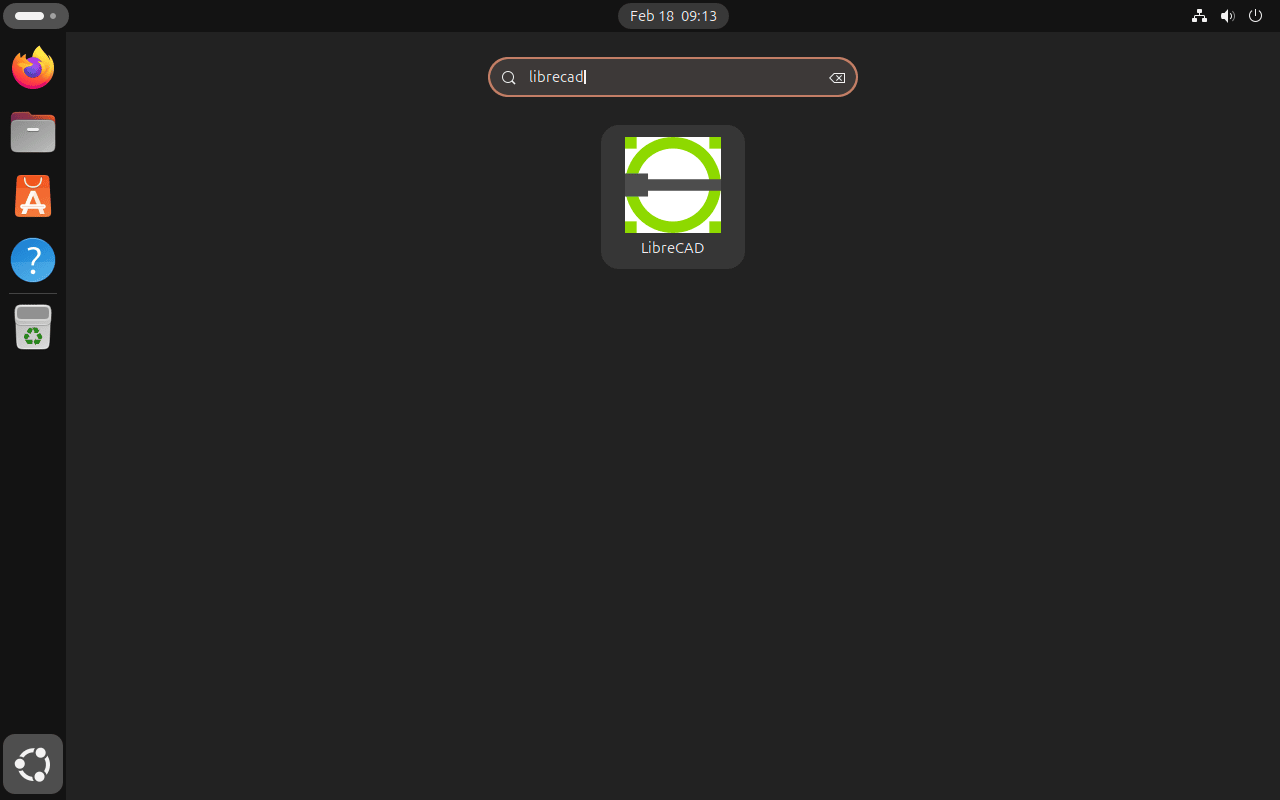
- Search for LibreCAD using the search bar at the top.
- Click the LibreCAD icon to launch the application.
Getting Started with LibreCAD on Ubuntu
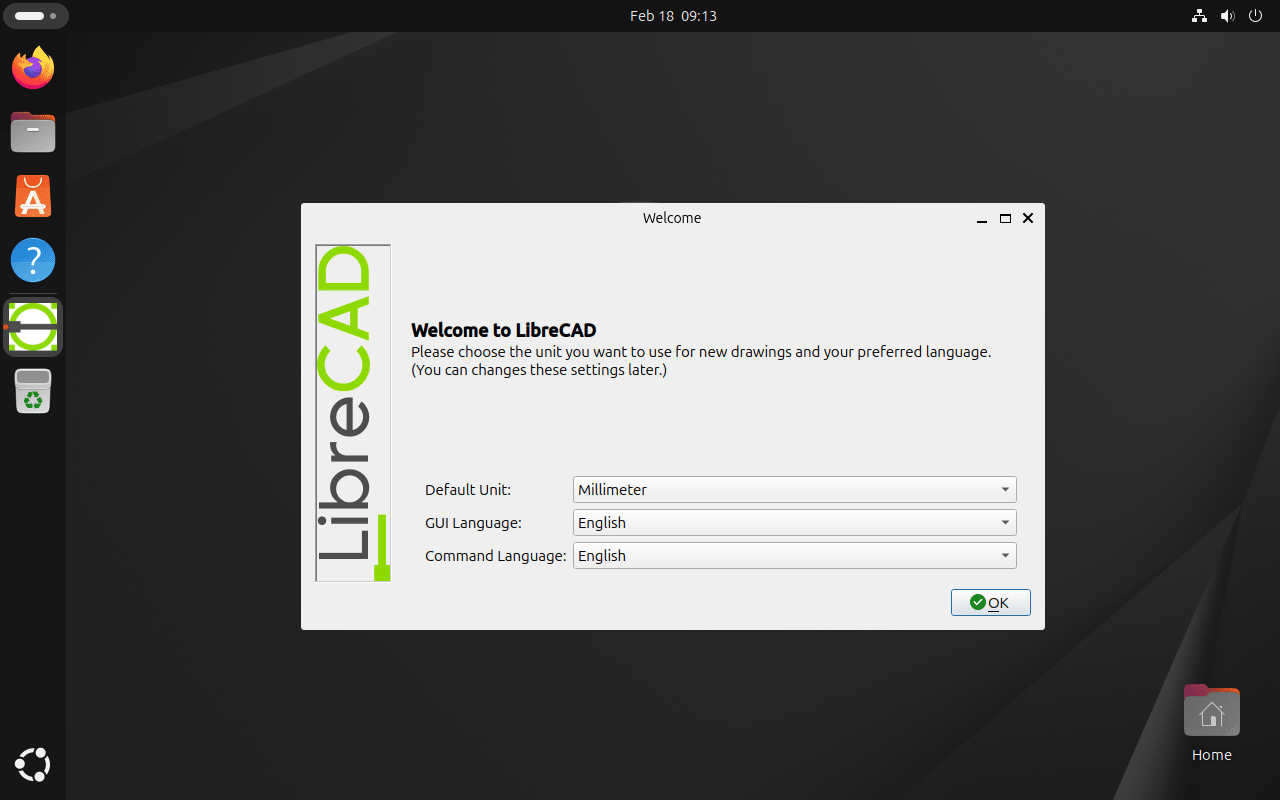
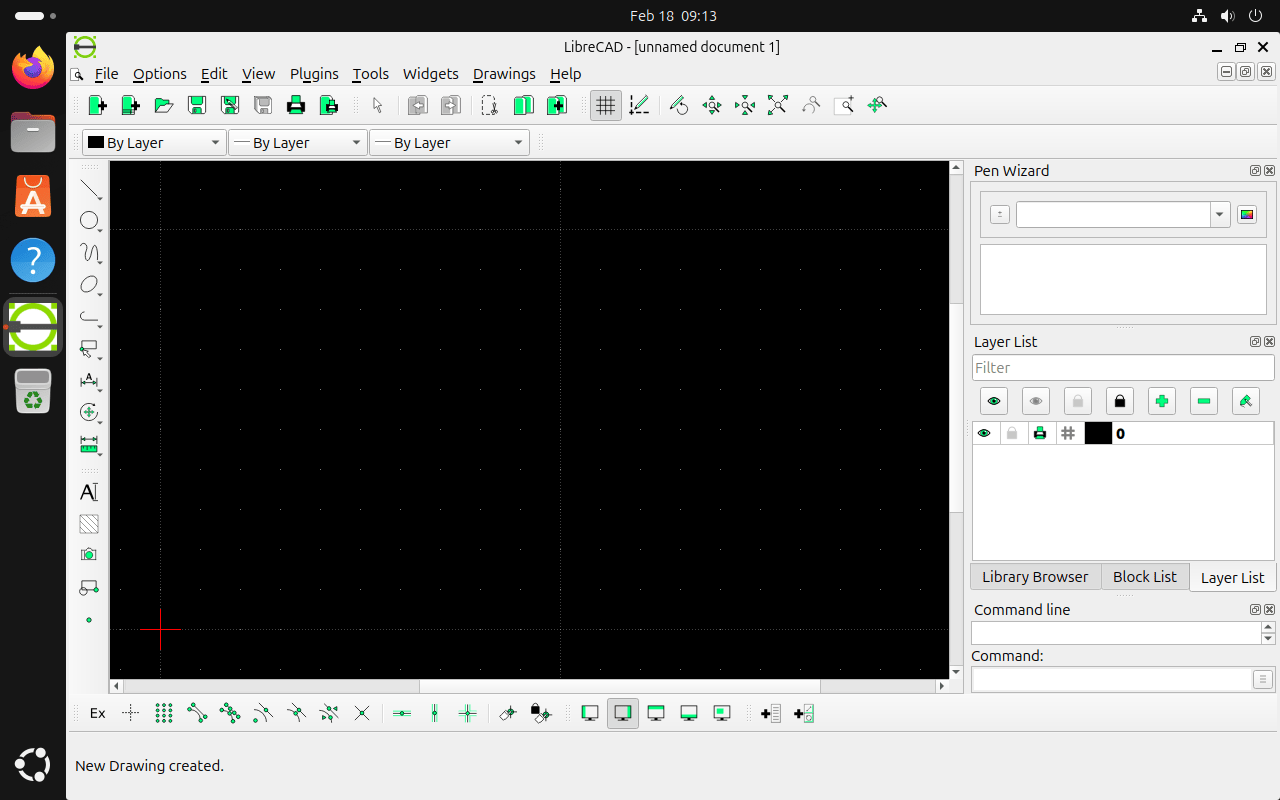
When LibreCAD opens for the first time, a setup wizard lets you configure the default unit system and drawing template. The main window is divided into a drawing canvas, a layered toolbar strip across the top, a tool options bar below it, and a command line panel at the bottom. The official LibreCAD User Guides cover drawing setup, editing tools, and the command line in depth. Here are a few tips to get oriented quickly.
Navigating the LibreCAD Interface
- Zoom and pan: Scroll the mouse wheel to zoom in and out. Hold the middle mouse button and drag to pan around the canvas.
- Command line: Type coordinates, lengths, and angles directly into the command line at the bottom of the window for precise input without using the mouse.
- Snap settings: Use the Snap toolbar or the Snap menu in the menu bar to enable snapping to endpoints, midpoints, and intersections.
Customizing LibreCAD
- Toolbars: Right-click any toolbar to add or remove tools from the visible set.
- Grid settings: Adjust grid spacing and visibility under Options > Current Drawing Preferences > Grid.
- Layer management: Organize elements on separate layers via Layer > Add Layer. Layers can be toggled visible or locked without affecting other layers.
- Keyboard shortcuts: Find all default key bindings in Help > User Manual. Use Ctrl+S to save frequently.
- Export formats: LibreCAD exports to DXF, SVG, PDF, and other formats via File > Export. To edit SVG output on Ubuntu, see Inkscape on Ubuntu.
Manage LibreCAD on Ubuntu
Update LibreCAD on Ubuntu
To update an APT or PPA installation, use the single-package upgrade command to avoid touching unrelated system packages:
sudo apt install --only-upgrade librecadTo update a source build, run the update script created during installation:
sudo bash /usr/local/bin/update-librecad.shFor a Flatpak installation, update LibreCAD directly by its app ID:
flatpak update org.librecad.librecadRemove LibreCAD from Ubuntu
APT Removal
Remove the package while keeping any user configuration files:
sudo apt remove librecadTo remove the package and purge all associated configuration files:
sudo apt remove --purge librecadRemove any orphaned dependencies:
sudo apt autoremoveIf you added the stable PPA, remove it after uninstalling LibreCAD:
sudo add-apt-repository --remove ppa:alex-p/librecad -yIf you used the development PPA instead:
sudo add-apt-repository --remove ppa:alex-p/librecad-daily -yVerify the package is no longer installed:
apt-cache policy librecadlibrecad:
Installed: (none)
Candidate: 2.2.0.2-1build3
Version table:
2.2.0.2-1build3 500
500 http://archive.ubuntu.com/ubuntu noble/universe amd64 Packages
Flatpak Removal
Remove the Flatpak installation along with any application data:
flatpak uninstall --delete-data org.librecad.librecadSource Build Removal
Remove the installed binaries, the version marker, and the update script:
sudo rm -f /usr/local/bin/librecad /usr/local/bin/ttf2lff \
  /usr/local/bin/update-librecad.sh /usr/local/share/librecad-version
Remove the source and build tree:
rm -rf "$HOME/librecad-src"Frequently Asked Questions
No. The alex-p/librecad PPA currently only provides packages for Ubuntu 22.04 (Jammy Jellyfish). Ubuntu 24.04 (Noble) and 26.04 (Resolute) users should install LibreCAD from the Ubuntu universe repository using apt install librecad, or use the Flatpak method from Flathub for the latest release.
APT installs LibreCAD from Ubuntu’s universe repository (version 2.2.0.2 on 24.04/26.04, or 2.1.3 on 22.04) and integrates directly with the system. Flatpak installs the latest release from Flathub (2.2.1.3) in an isolated sandbox, independent of system libraries. The APT version updates with your system; the Flatpak version updates separately with flatpak update.
LibreCAD natively supports DXF for reading and writing. DWG support is limited: LibreCAD can open some DWG files up to version 2000, but does not guarantee full compatibility with all DWG versions or features. For reliable DWG workflows, convert files to DXF before importing into LibreCAD.
Conclusion
LibreCAD is now installed on Ubuntu and ready for 2D drafting work. The Ubuntu repository provides a stable, low-maintenance installation on all supported releases; the PPA expands options for Ubuntu 22.04 users who want a newer build; Flatpak via Flathub delivers the most current release on any version without touching system packages; and compiling from source produces the same latest release as Flathub, installed directly into /usr/local with a self-contained update script. Use sudo apt install --only-upgrade librecad to update the APT install, flatpak update org.librecad.librecad for the Flatpak build, or sudo bash /usr/local/bin/update-librecad.sh for the source build.
If LibreCAD covers your 2D drafting needs, consider also looking at FreeCAD on Ubuntu for 3D parametric design work, or KiCad on Ubuntu if your projects involve PCB layout and schematic capture.

Formatting tips for your comment
You can use basic HTML to format your comment. Useful tags currently allowed in published comments:
<code>command</code>command<strong>bold</strong><em>italic</em><blockquote>quote</blockquote>