LibreWolf is a good fit on Linux Mint when you want Firefox compatibility with telemetry removed and stricter privacy defaults before first launch. Linux Mint 22.x and 21.x can install LibreWolf through the project’s APT repository with extrepo or through Flathub as a Flatpak app. The LibreWolf official website lists Linux downloads, but on Mint these managed APT and Flatpak paths are easier to update than a manual package download.
Install LibreWolf on Linux Mint
For Mint users, the choice is mostly about update ownership: an APT-managed install through extrepo or a Flatpak build from Flathub. The APT route keeps LibreWolf under the system package manager, while Flatpak keeps the app, runtime, and updates under Flatpak instead of APT.
| Method | Source | Updates | Best For |
|---|---|---|---|
| APT via extrepo | LibreWolf official repository | APT-managed updates from the LibreWolf source | Readers who want LibreWolf managed with other APT packages |
| Flatpak | Flathub | Flatpak updates from Flathub | Readers who already manage desktop apps with Flatpak |
The extrepo method fits most Linux Mint desktops because LibreWolf updates with the rest of your APT packages. LibreWolf’s repository uses its own librewolf suite rather than a Mint or Ubuntu codename, so the same extrepo entry applies to supported Mint 22.x and 21.x systems. Use the Flatpak path when you prefer Flathub packaging or already maintain desktop apps with Flatpak.
Install LibreWolf on Linux Mint with Extrepo
Use extrepo when you want LibreWolf’s Debian-based repository without manually maintaining a source file or signing key. This keeps the browser under Mint’s APT update flow while extrepo owns the repository entry.
Update Linux Mint Before Installing LibreWolf
Refresh APT before installing LibreWolf so package and dependency metadata are current:
sudo apt updateThese commands use
sudofor package management tasks. If your account does not have sudo access yet, follow the guide on how to create and add users to sudoers on Linux Mint before continuing.
Install Extrepo and Enable the LibreWolf Repository on Linux Mint
Install extrepo first, then enable the LibreWolf entry and refresh extrepo’s own metadata. The -y flag accepts APT’s confirmation prompt automatically.
sudo apt install extrepo -ysudo extrepo enable librewolf && sudo extrepo update librewolfExtrepo writes the DEB822 source file to /etc/apt/sources.list.d/extrepo_librewolf.sources and stores the signing key under /var/lib/extrepo/keys/.
Verify the LibreWolf APT Candidate on Linux Mint
Refresh APT so Mint reads the new source, then confirm the package candidate before you install it.
sudo apt updateRelevant output includes:
Get:1 https://repo.librewolf.net librewolf InRelease [5,649 B]
Reading package lists...
apt-cache policy librewolfExample output:
librewolf:
  Installed: (none)
  Candidate: 151.0.3-1
  Version table:
     151.0.3-1 500
        500 https://repo.librewolf.net librewolf/main amd64 Packages
Install the LibreWolf Package on Linux Mint
Install the browser package once the candidate looks correct.
sudo apt install librewolf -yVerify the installed package version. The exact version changes as LibreWolf publishes new builds, but a package row confirms that APT installed the browser.
dpkg-query -W librewolfExample output:
librewolf 151.0.3-1
Install LibreWolf on Linux Mint with Flatpak
Linux Mint desktop installations already include Flatpak with a system-scoped Flathub remote, so you normally do not need to add Flathub yourself. Confirm the remote first, then install the LibreWolf app ID directly.
Verify the Flathub Remote on Linux Mint
Check that Flathub appears as a system remote before you install the Flatpak build.
flatpak remotes --columns=name,options,urlExample output:
flathub system https://dl.flathub.org/repo/
Install LibreWolf from Flathub on Linux Mint
Because the remote is listed as system, use sudo for the install and keep update and removal commands at the same scope.
sudo flatpak install flathub io.gitlab.librewolf-community -yUse flatpak info to confirm the application ID, branch, and installed version. The version value changes as Flathub publishes newer LibreWolf builds.
flatpak info io.gitlab.librewolf-communityExample output:
LibreWolf - LibreWolf Web Browser

          ID: io.gitlab.librewolf-community
         Ref: app/io.gitlab.librewolf-community/x86_64/stable
        Arch: x86_64
      Branch: stable
     Version: 151.0.3-1
      Origin: flathub
Installation: system
Launch LibreWolf on Linux Mint
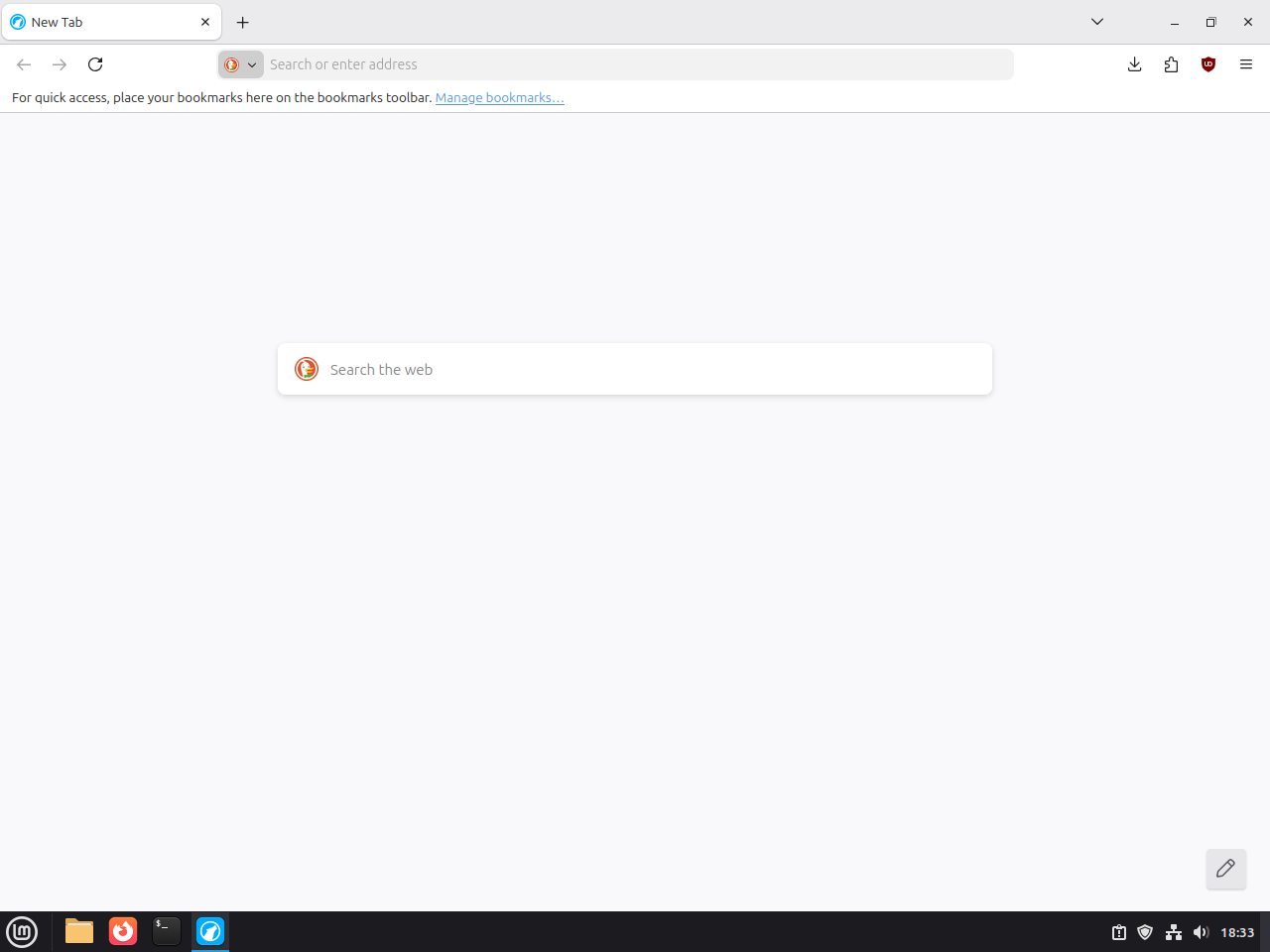
LibreWolf is a graphical browser, so launch it from an active Linux Mint desktop session. Both installation methods add a menu entry, and the extrepo package also provides the plain librewolf command in the terminal.
Launch LibreWolf from a Terminal on Linux Mint
Use these commands when you are already logged in to the Mint desktop and want to start LibreWolf without opening the applications menu first.
librewolfFor the Flatpak installation:
flatpak run io.gitlab.librewolf-communityLaunch LibreWolf from the Linux Mint Applications Menu
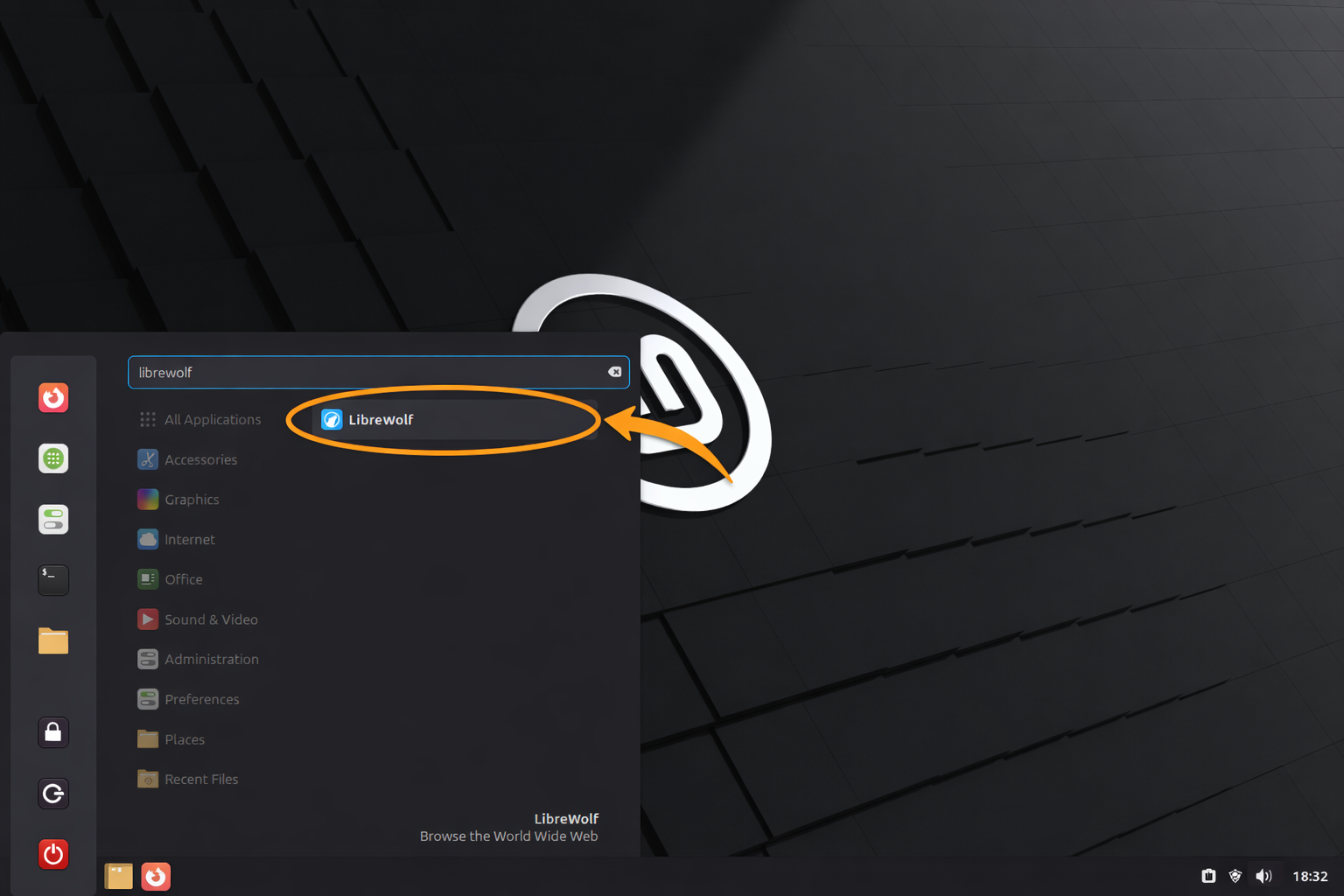
Open the applications menu, search for LibreWolf, and select the browser entry. The exact category can vary between Cinnamon, MATE, and Xfce, so the search field is more reliable than a fixed menu path.
Configure LibreWolf on Linux Mint
LibreWolf works immediately after installation, but a few first-use checks save time later. These are the settings most readers end up touching first: privacy defaults, search choice, Sync, DRM playback, and add-ons.
Review LibreWolf’s Default Privacy Settings
LibreWolf applies strict privacy defaults that may break some websites. The browser blocks third-party cookies, fingerprinting scripts, and cross-site trackers by default. If a site fails to load correctly, check the shield icon in the address bar and temporarily disable protections for that site. Use about:config to fine-tune settings, but note that changes persist across updates.
Change the Default Search Engine in LibreWolf
Open Settings > Search to choose another engine or add a custom search provider. If you use Firefox Sync later, decide whether search settings should sync between browsers before you change several machines.
Enable Firefox Sync in LibreWolf
LibreWolf still supports Firefox Sync, but it treats Sync as an optional override instead of a default-on service. If you want bookmarks and passwords to follow you from Firefox, enable the Firefox Sync override and then sign in with the same Mozilla account you already use in Firefox. When you use Sync on multiple LibreWolf installs, consider leaving settings sync disabled so one machine does not overwrite another’s privacy tweaks.
Enable DRM Playback in LibreWolf
LibreWolf disables DRM by default. If Netflix, Spotify, or another protected streaming service refuses to play, open Settings > General > Digital Rights Management (DRM) Content and enable Play DRM-protected content. LibreWolf shows a prompt and an address-bar icon when a site asks for DRM.
Add Extensions to LibreWolf
LibreWolf already includes uBlock Origin, so start by testing the browser with its built-in protections before you stack more add-ons on top. When you do add extensions from Firefox Add-ons, keep the list short. Too many privacy extensions can duplicate filtering rules, slow down page loads, or break sites that already struggle with LibreWolf’s defaults.
Update LibreWolf on Linux Mint
Both install methods update cleanly, but they use different package managers. Stick with the command that matches the way you installed LibreWolf in the first place.
Update the Extrepo LibreWolf Package on Linux Mint
Refresh APT first, then upgrade only the LibreWolf package. The --only-upgrade option keeps the transaction focused on an already-installed package instead of performing a full system upgrade.
sudo apt updatesudo apt install --only-upgrade librewolf -yUpdate the Flatpak LibreWolf Build on Linux Mint
Update only the LibreWolf Flatpak when you do not want to refresh every other Flatpak app and runtime at the same time.
sudo flatpak update io.gitlab.librewolf-community -yIf you also want more background on Flatpak remotes, runtimes, and full Flatpak maintenance, see the guide to upgrade Flatpak on Linux Mint.
Troubleshooting LibreWolf on Linux Mint
Most LibreWolf problems on Mint come down to repository leftovers from older installs or launching the wrong package. Start with these checks before you remove the browser and start over.
Fix LibreWolf Repository Conflicts on Linux Mint
If an older LibreWolf setup left behind a manual DEB822 file, legacy .list entry, or old PPA key, identify those files before you rebuild the supported extrepo source. No output means the listed directories do not contain matching LibreWolf or aftermozilla leftovers.
for dir in /etc/apt/sources.list.d /etc/apt/keyrings /etc/apt/trusted.gpg.d /etc/apt/preferences.d; do
  [ -d "$dir" ] && sudo find "$dir" -maxdepth 1 \( -name '*librewolf*' -o -name '*aftermozilla*' -o -name 'home:bgstack15:aftermozilla.list' \) -print
done
Remove only the known legacy LibreWolf and aftermozilla source, key, and preference files listed in the command.
sudo rm -f /etc/apt/sources.list.d/librewolf.sources \
  /etc/apt/keyrings/librewolf.gpg \
  /etc/apt/preferences.d/librewolf.pref \
  /etc/apt/sources.list.d/home_bgstack15_aftermozilla.sources \
  /etc/apt/keyrings/home_bgstack15_aftermozilla.gpg \
  /etc/apt/sources.list.d/librewolf.list \
  /etc/apt/trusted.gpg.d/librewolf.gpg \
  /etc/apt/sources.list.d/home:bgstack15:aftermozilla.list \
  /etc/apt/trusted.gpg.d/home_bgstack15_aftermozilla.gpg
After removing the leftovers, rebuild the official extrepo entry. If extrepo disable reports that LibreWolf was not enabled through extrepo, continue with the enable command.
sudo extrepo disable librewolf
sudo extrepo enable librewolf && sudo extrepo update librewolf
sudo apt update
Retest the package candidate after APT refreshes. A usable result shows a Candidate: version and the https://repo.librewolf.net source line.
apt-cache policy librewolfFix a LibreWolf Launch Problem on Linux Mint
If the icon is present but nothing opens, confirm the package is actually installed before you troubleshoot themes, menus, or desktop launchers.
apt-cache policy librewolfFor the Flatpak build, verify the app metadata instead:
flatpak info io.gitlab.librewolf-communityIf the APT check shows Installed: (none) or the Flatpak command errors out, reinstall the matching method instead of chasing a missing launcher. If one of the commands succeeds, start LibreWolf again from the applications menu inside your normal Mint desktop session.
Remove LibreWolf from Linux Mint
Remove LibreWolf with the same package manager you used to install it. The APT and Flatpak cleanup paths are separate, and only optional user-data removal deletes bookmarks, saved logins, and browser history.
Remove the Extrepo LibreWolf Installation
Remove the browser package first, then disable the extrepo entry.
sudo apt remove librewolf -ysudo extrepo disable librewolfDo not verify removal by looking only for a missing source file. Recheck APT’s package candidate instead.
apt-cache policy librewolfExpected output:
librewolf:
  Installed: (none)
  Candidate: (none)
Remove the Flatpak LibreWolf Installation
Remove the Flatpak app first.
sudo flatpak uninstall io.gitlab.librewolf-community -yThen confirm the app ID is gone from the installed-app list.
This check prints NOT_INSTALLED when no exact LibreWolf Flatpak application ID remains.
flatpak list --app --columns=application | grep -Fx io.gitlab.librewolf-community || echo "NOT_INSTALLED"Expected output:
NOT_INSTALLED
If you also want to remove runtimes that no other Flatpak apps still need, run:
sudo flatpak uninstall --unusedRemove LibreWolf User Data on Linux Mint
Only run these data-removal commands after you know you do not need bookmarks, saved passwords, browsing history, or site settings.
These commands permanently delete bookmarks, saved passwords, browsing history, extensions, and preferences. Back up anything you want to keep before you continue.
For the extrepo APT install, check which profile and cache paths exist for your account. If the command prints nothing, there is no matching LibreWolf user data at these paths.
for path in "$HOME/.librewolf" "$HOME/.cache/librewolf"; do
  [ -e "$path" ] && printf '%s\n' "$path"
done
Remove those profile and cache paths only when you are ready to delete the data permanently.
rm -rf -- "$HOME/.librewolf" "$HOME/.cache/librewolf"For the Flatpak build, check the Flatpak application data path first.
if [ -e "$HOME/.var/app/io.gitlab.librewolf-community" ]; then
  printf '%s\n' "$HOME/.var/app/io.gitlab.librewolf-community"
fi
Remove the Flatpak data directory only when you want to delete that profile permanently.
rm -rf -- "$HOME/.var/app/io.gitlab.librewolf-community"Conclusion
LibreWolf can now live on Linux Mint either as an APT-managed package from the LibreWolf repository or as a Flatpak from Flathub. Use extrepo when you want APT to own updates and source cleanup, or use Flatpak when that already matches how you maintain desktop apps. If you would rather use a Chromium-based privacy browser, install Brave Browser on Linux Mint. If you want stronger anonymity rather than stricter browser privacy defaults, the next step is to install Tor Browser on Linux Mint.


Formatting tips for your comment
You can use basic HTML to format your comment. Useful tags currently allowed in published comments:
<code>command</code>command<strong>bold</strong><em>italic</em><a href="https://example.com">link</a><blockquote>quote</blockquote>